

Overview
Quo is an official Claude connector, available to all Claude users. Once connected, you can send texts, check messages, pull call transcripts, and manage contacts, all from inside Claude, without switching apps.
Connect to Claude
Quo is available to all Claude users directly in Claude’s connector directory.Make sure you’re logged in to the Quo account you want to connect before starting.
- Open Claude.
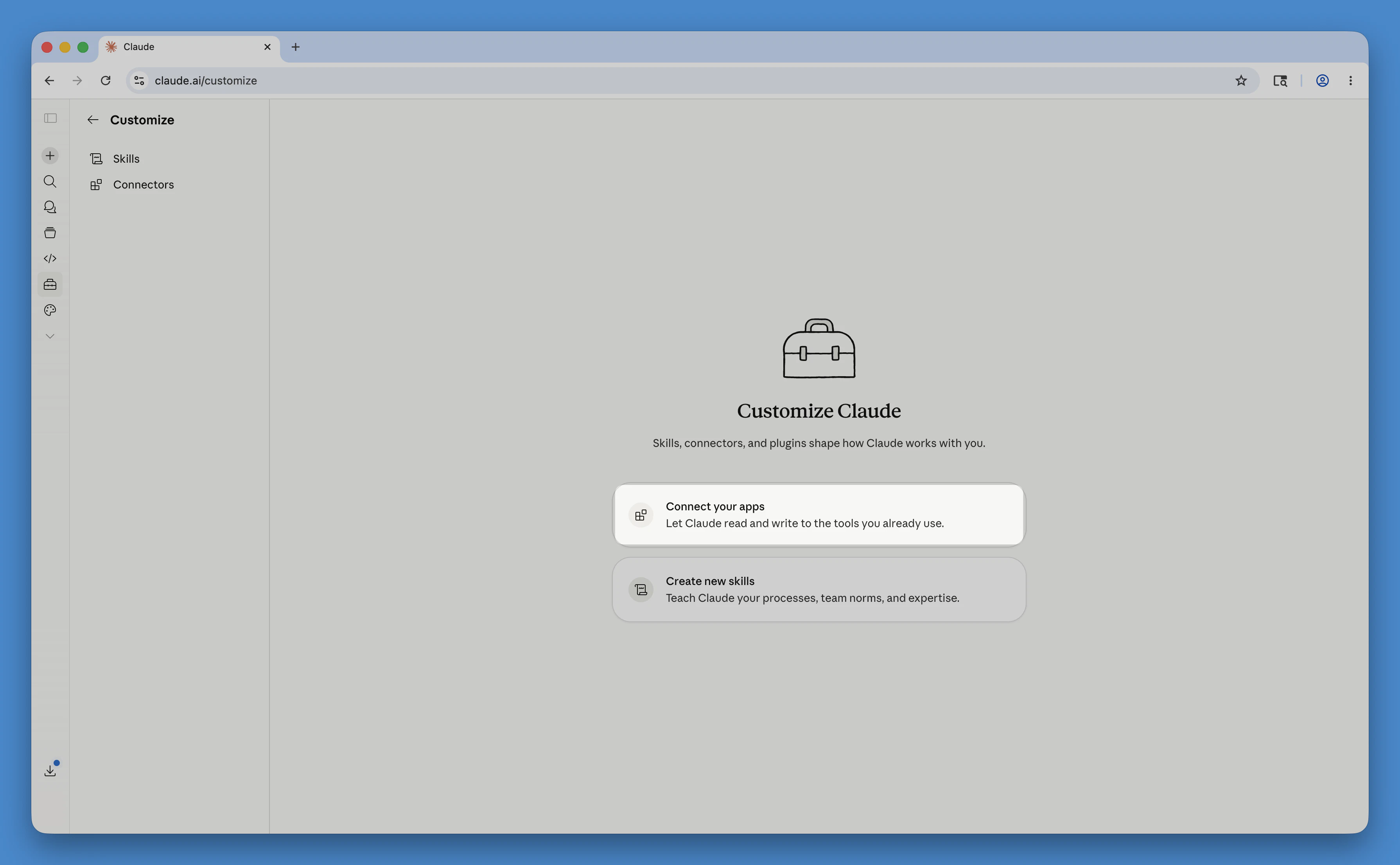
- Go to Customize from the left sidebar
- Click Connect your apps
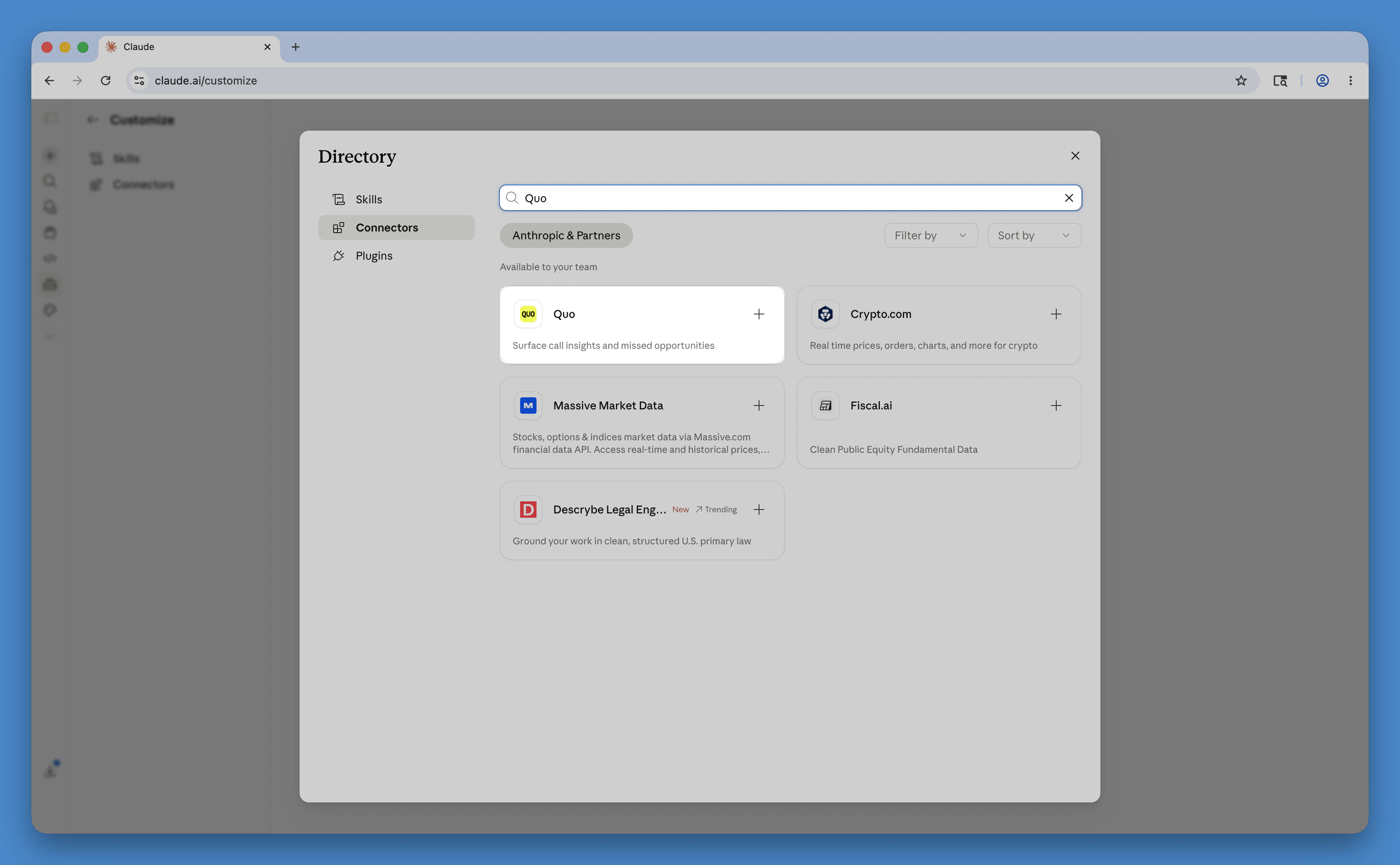
- Search for Quo
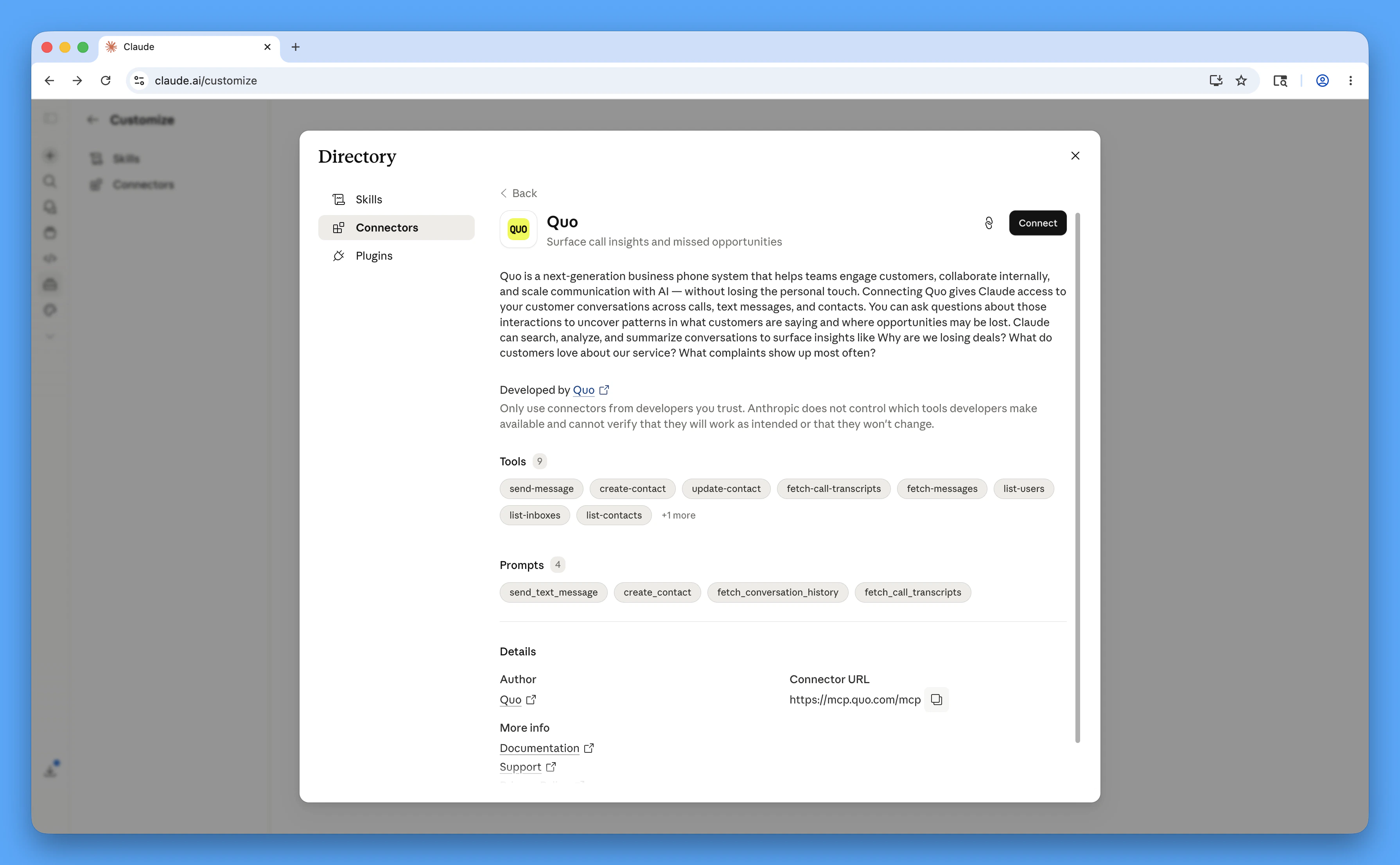
- Click Connect
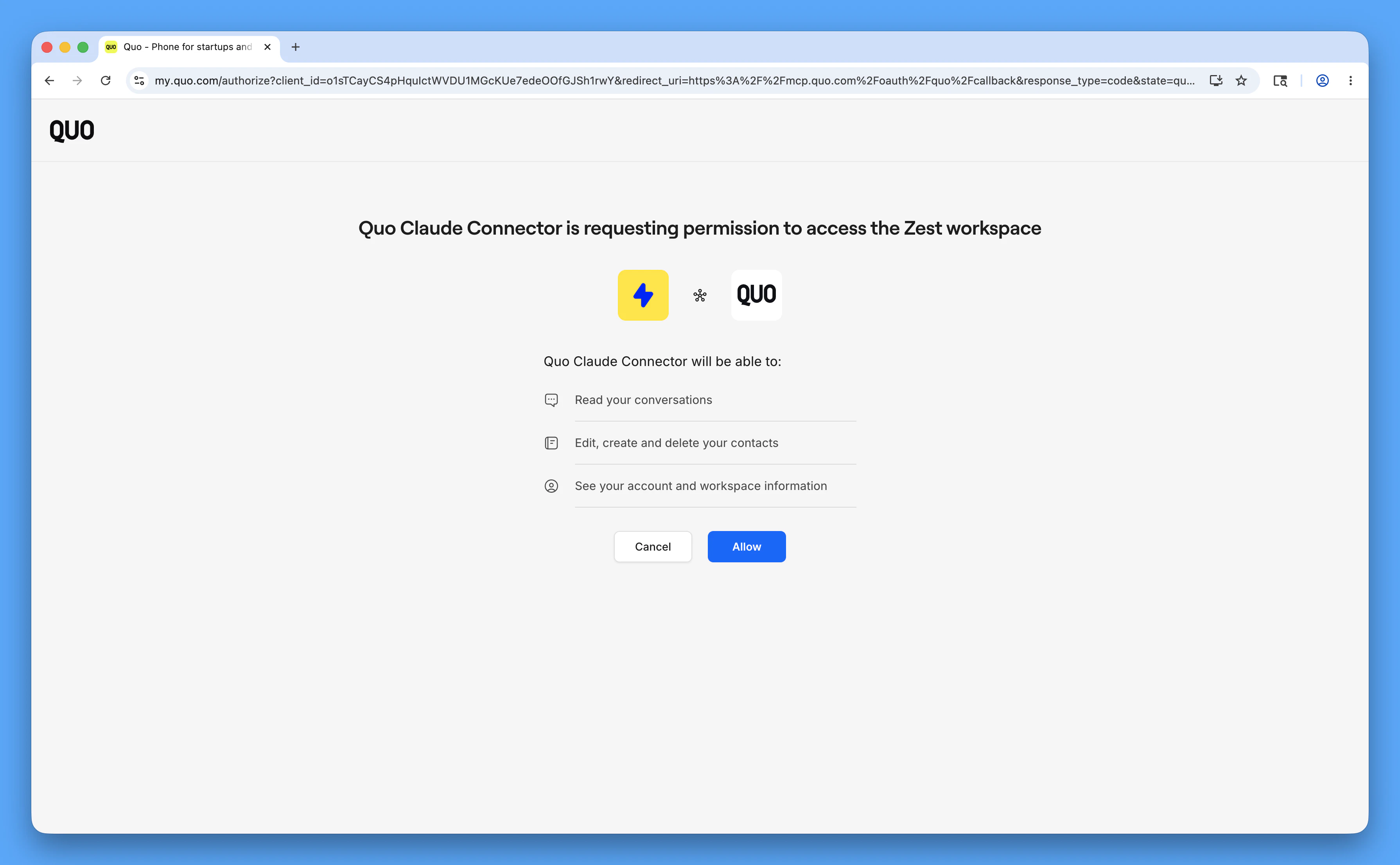
- On the next screen, click Allow
What you can do
The integration uses the Model Context Protocol (MCP), an open standard that lets Claude talk to your Quo account securely. Once connected, ask Claude like you’d ask a team member. Expand any action below to see examples.Pre-paid credits are needed to send texts from Quo using Claude. These messages count as API messages.Learn more about pre-paid credits and usage →
Summarize conversations
Summarize conversations
Pull messages and call activity from Quo and ask Claude to summarize them. Useful for reviewing conversations, catching up on missed messages, or spotting patterns in what customers are asking about.Sample prompts:
- Pull my last 20 calls from the Customer Support inbox and summarize the main topics.
- Summarize conversations from my Sales inbox between April 1 and April 15.
- What questions did prospects ask most in missed calls last month from (800) 676-7463?
Text one person or your whole team
Text one person or your whole team
Send a text to one person or broadcast the same message to multiple team members from your Quo number, without opening your workspace.Sample prompts:
- Text (972) 860-1854 from my (628) 246-3765 number: Running 10 minutes late.
- Send this update to Anthony Robinson and Frances Powell: Job site moved to Oak Street.
Check messages and inboxes
Check messages and inboxes
Pull message history from any Quo inbox, filter by contact, date, or topic, or list all your inboxes to see which numbers are available.Sample prompts:
- Show my last 10 texts with Gregory Medina.
- What inboxes do I have in Quo?
- Pull unread messages from my Customer Support inbox from the past 3 days.
- Show all messages from the Phoenix inbox about scheduling since March 1.
Get call transcripts
Get call transcripts
Retrieve call history and voicemail transcripts from your Quo number. Use filters to focus on what’s relevant.Sample prompts:
- Pull today’s voicemails for the Customer Support number.
- Get call transcripts from (415) 875-5793 between April 20 and April 27.
- Show missed calls with voicemails from my Sales inbox this week.
- Pull all calls about billing questions from the Tech Support number last month.
Call transcripts are only available on numbers where call transcripts are enabled.
Look up, add, or update contacts
Look up, add, or update contacts
Search your contact list, look up a specific contact’s details, add new contacts, or update existing ones.Sample prompts:
- List all my contacts in Quo.
- Look up the contact details for Jack Richards.
- Add contact: Alan Benjamin, ABC Plumbing, (514) 705-8002, role Technician.
- Update the contact for Sarah Diaz with her new email: [email protected].
Fetch missed calls
Fetch missed calls
Get info about your missed calls and see their voicemail transcripts from your Claude chat.Sample prompts:
- Did I miss any calls on my Customer Support line yesterday?
- Who do I need to call back from my main line?
Add filters to prompts to get answers faster
Claude can make multiple requests to Quo in a single conversation, so there’s no hard cap on how much data you can work with. Using filters in your prompt helps you get relevant results quickly.Each individual request pulls up to 100 transcripts or messages at a time.
Safety and permissions
Approval required
Before sending any text or creating a contact, Claude asks for your approval.
Account-limited access
The integration only accesses what your Quo account can already see.
Disconnect anytime
Remove the integration from Customize → Connectors in Claude.
Disconnect Quo from Claude
- In Claude, go to Customize → Connectors
- Find the Quo app
- Click Disconnect
FAQs
Why can't Claude find my Quo number?
Why can't Claude find my Quo number?
Make sure you’re using the full number with country code, for example
+14155550100. You can also use the number ID from your Quo settings.I don't see any messages when I search. Why?
I don't see any messages when I search. Why?
Check that the number has message history. If you’re searching for a specific contact, make sure the number or name is spelled correctly. Try adding a date range or widening your search window.
Why are there no call transcripts?
Why are there no call transcripts?
Transcripts are only available to Business and Scale plans where call transcripts have are turned on. Learn how to enable call transcripts and summaries.
Is my data secure?
Is my data secure?
Your credentials are encrypted and handled securely. The integration only accesses what your Quo account can already see. Treat your connection like a password. Don’t share access publicly.
Does using Claude with Quo cost credits?
Does using Claude with Quo cost credits?
Reading messages, transcripts, and contacts doesn’t use credits.Sending texts does use prepaid messaging credits. Learn about credits and usage.