

Overview
The Zoho CRM integration brings your CRM and phone system together so your team always has the most up-to-date customer context. Once connected, Quo will automatically sync your Zoho CRM contacts into Quo and log all calls, texts, voicemails, recordings, and AI-powered call summaries back to the correct Zoho CRM Contact. This allows sales, success, and support teams to work directly from Zoho CRM with complete communication history without manual updates, or switching tools.To enable the Zoho CRM integration, you’ll need to be on the Quo Business or Scale plan. Only workspace Owners and Admins can set up the integration.
How the integration works
Contact syncing
Quo automatically imports and displays contact information from Zoho CRM when a call or text matches an existing Zoho CRM Contact’s phone number. The integration displays Zoho CRM contact information during active conversations. The contact must exist in Zoho CRM for syncing to work.- For Quo to sync and display Zoho CRM contact information, the contact you’re communicating with must already exist as a contact in Zoho CRM with the same phone number on file.
- If a call or text comes in from a number that does not match any existing Zoho CRM contact, the integration won’t be able to pull or display that contact’s information.
- First name
- Last name
- Phone
- Email address
- Link to Quo record
- Job title
- Company
Limitations of contact syncing with Zoho CRM
- One-way sync only: Contact details flow from Zoho CRM to Quo, but not back from Quo to Zoho. That means that contacts created in Quo will not sync back to Zoho CRM.
- Editing a contact Quo does not update Zoho CRM: If you need to update names, numbers, or emails for a contact, make those changes directly in Zoho CRM.
- Contact matching is phone-number based: Quo displays Zoho CRM contact details only when the incoming or outgoing phone number matches a contact’s number in Zoho CRM. Company names, email addresses or job titles won’t be automatically matched if the contact is saved under different phone numbers in Quo or Zoho CRM.
Quo activity syncing
Quo can automatically log communication activity to the correct Zoho CRM Contact, giving your team a unified timeline of every customer interaction. These include:- Incoming calls
- Outgoing calls
- Call recordings
- Call summaries and next steps
- Voicemail
- SMS messages
- Number-level control
Messages are logged as Notes, and Calls are logged as Activities to the corresponding Contact objects in Zoho.
Who can access and set up the integration?
Quo
Only the Owner or Admin with a Business or Scale plan can set up the integration. Once set up is complete, their full team will have access.Zoho CRM
From Zoho CRM, the compatible editions include Standard, Professional, Enterprise, CRM Plus, Zoho One, and Ultimate.How to set up the Zoho CRM integration
- Open Quo web or desktop app, ensure that you’re the workspace Owner or Admin.
- Click Settings, select Integrations
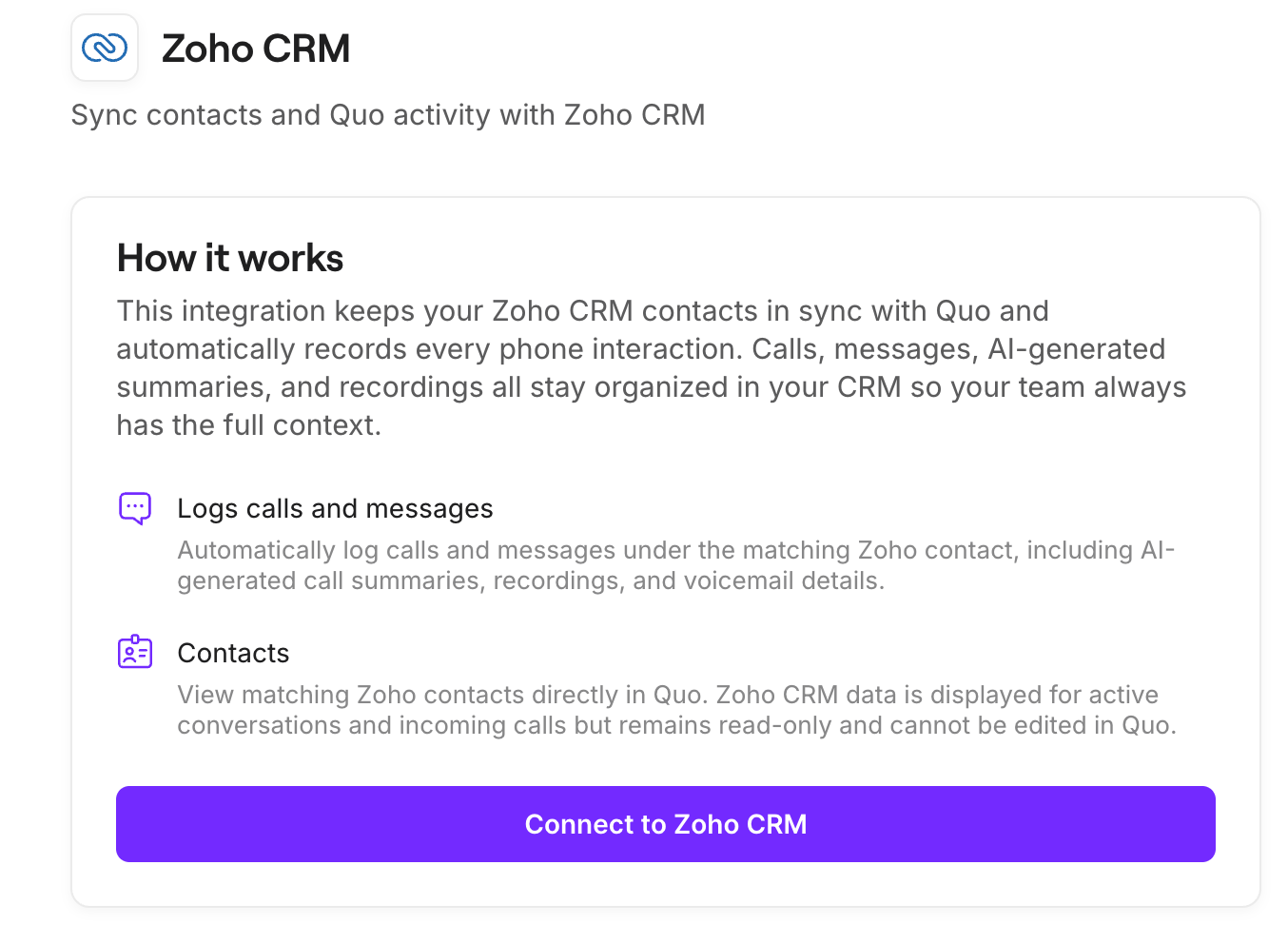
- Select Zoho CRM and click the Connect to Zoho CRM button.
- Zoho CRM will ask you to confirm the Zoho CRM account you want to connect to Quo.
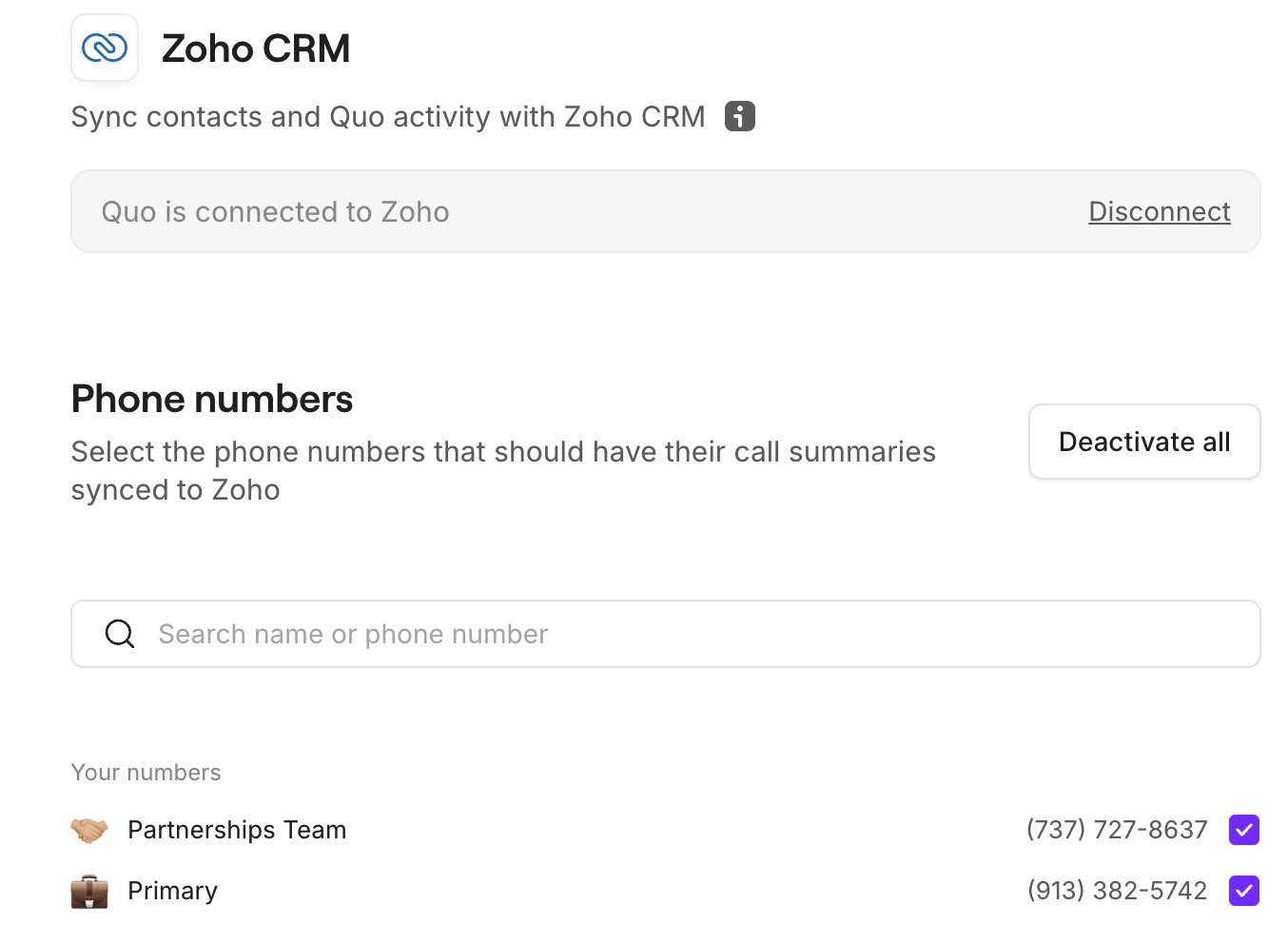
How to disconnect the Zoho CRM integration
If you want to uninstall your Zoho CRM integration, there are two ways to do so:- In your Quo workspace, navigate to Settings → Integrations → Zoho, then click Disconnect.
- In Zoho, to deactivate the Quo app navigate to your Apps and integrations and uninstall.
While the integration is disconnected, Quo will not send any activity to Zoho CRM. Activities generated during downtime cannot be synced retroactively, but will still be visible in Quo.
FAQ
Do I need to set up the Zoho CRM integration for each user?
Do I need to set up the Zoho CRM integration for each user?
No, the integration works at the workspace level.Once it’s enabled in your Quo workspace, it automatically applies to all phone numbers—no additional per-user setup is required.
Why aren’t my Zoho CRM contacts appearing in Quo?
Why aren’t my Zoho CRM contacts appearing in Quo?
Zoho CRM contacts only appear in Quo during active conversations (calls or texts). The integration does not import your entire contact database.To sync and display contact details:
- The contact must already exist in Zoho CRM
- The phone number must match exactly
- There must be an active call or message with that contact
How are calls and text messages logged in Zoho CRM?
How are calls and text messages logged in Zoho CRM?
Quo logs activities to Zoho CRM using native objects:
- Calls: Logged as call activities
- Texts (SMS): Logged as notes
Why don’t I see the Quo integration under “Installed Apps” in Zoho CRM?
Why don’t I see the Quo integration under “Installed Apps” in Zoho CRM?
After installing the integration (from either Quo or Zoho), it’ll be fully connected and visible in Quo → Settings → Integrations.However, it may not appear under “Installed Apps” in Zoho CRM.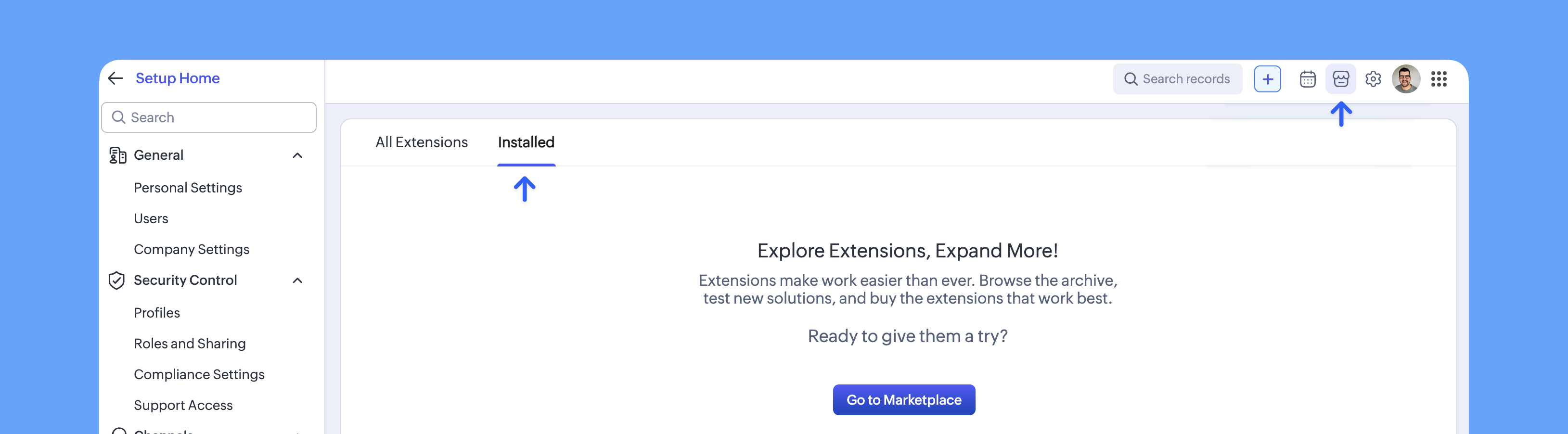
Does Quo sync with Zoho CRM Leads or just the Contacts module?
Does Quo sync with Zoho CRM Leads or just the Contacts module?
Currently, Quo only syncs activity to the Contacts module.