

Overview
Quo’s native JobTread integration connects the system you use to run jobs with the system you use for customer conversations. Once connected, supported contact information syncs automatically in both directions between JobTread and Quo. Calls and text messages from Quo are also logged to the matched customer’s Activity timeline in JobTread. The integration is available on the Quo Business and Scale plans and works with any JobTread subscription. Only a Quo workspace Owner or Admin can connect it. The person connecting must also have permission to authorize access in JobTread.What the JobTread integration does
Keeps contacts in sync both ways
When you first connect, Quo runs an initial bidirectional contact sync. After that, supported contact changes flow automatically between JobTread and Quo:- New and updated JobTread contacts create or update the corresponding contact in Quo.
- New contacts and supported contact updates made in Quo create or update the corresponding contact in JobTread.
- No manual resync is required.
Logs calls and text messages in JobTread
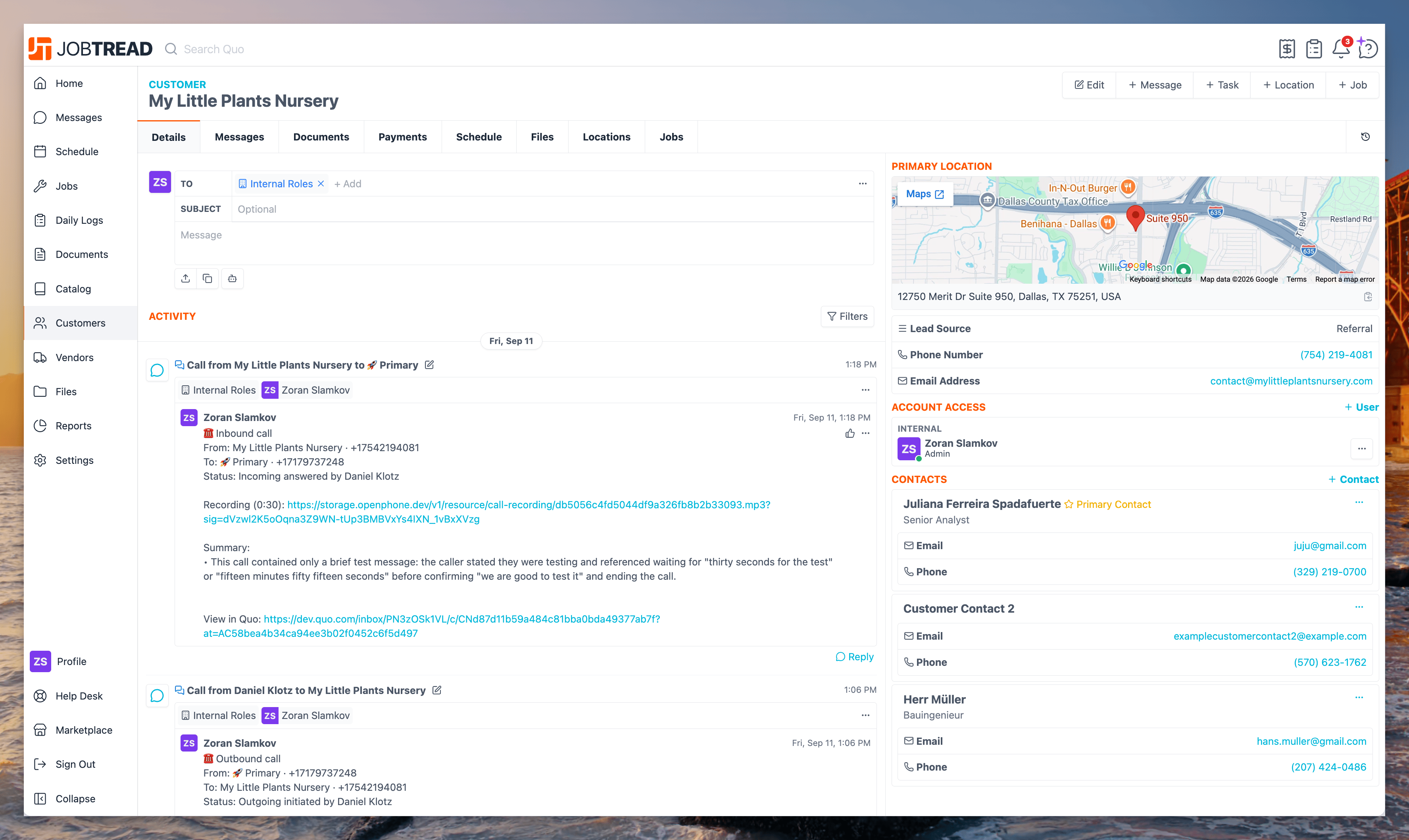
When Quo can reliably match the person to a JobTread customer, it logs supported activity to that customer’s Activity timeline:- Incoming calls
- Outgoing calls
- Incoming text messages
- Outgoing text messages
Set up the JobTread integration
- Open the Quo web or desktop app.
- Go to Settings → Integrations.
- Select JobTread, then click Connect to JobTread.
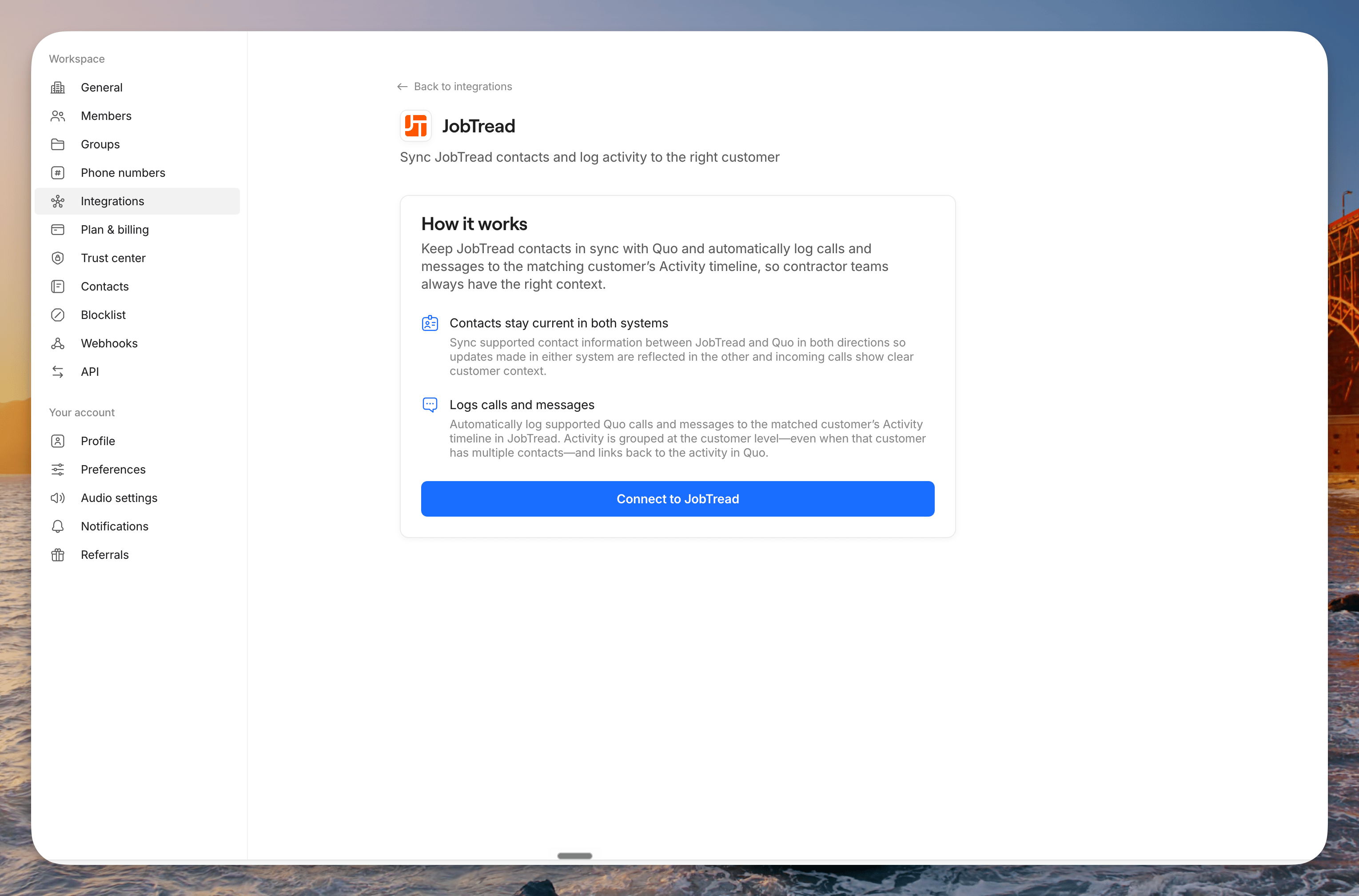
- You’ll be redirected to JobTread’s authorization screen.
- In the access dropdown, select Read and Write. Do not leave it set to Read only.
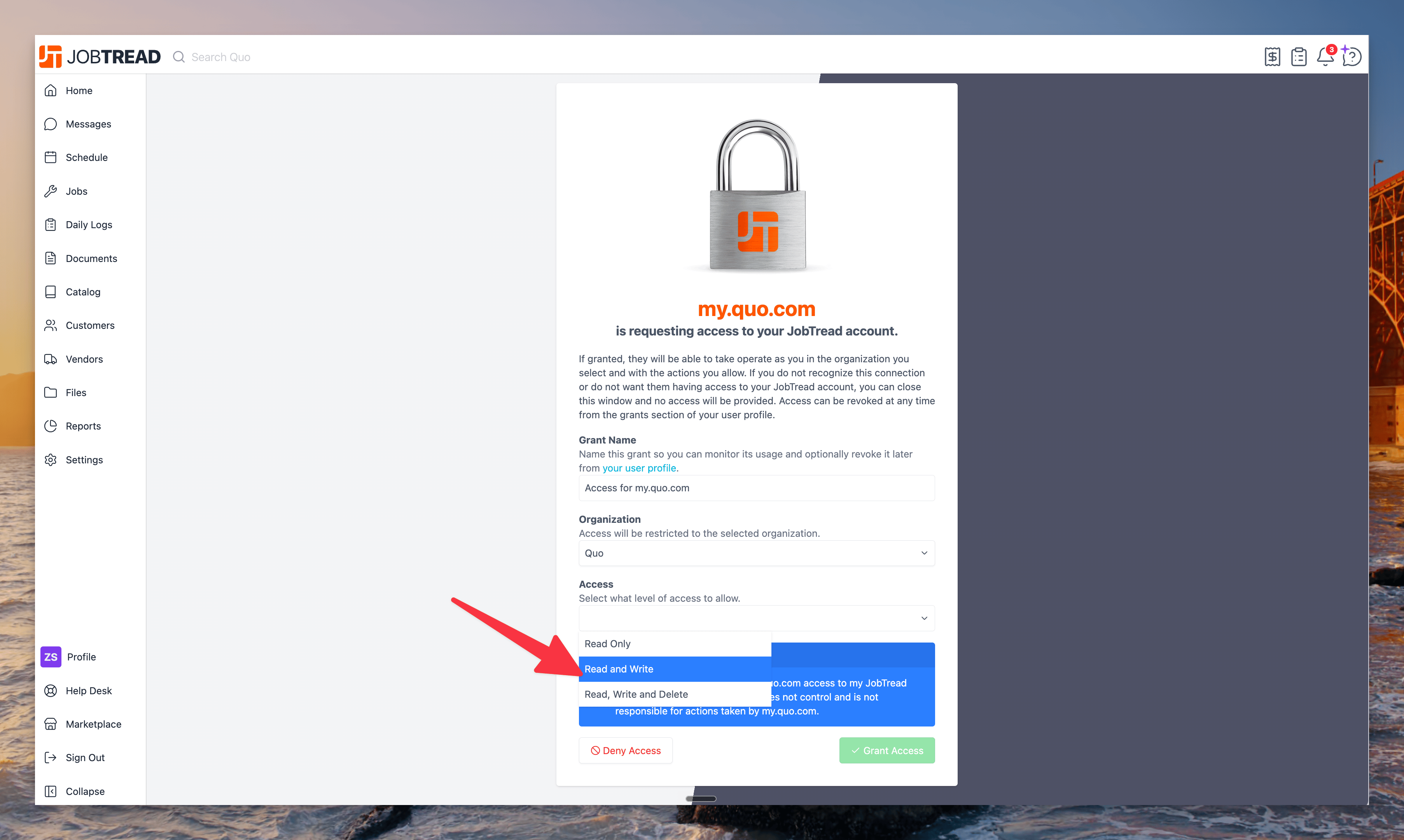
- Approve the connection.
- You’ll be redirected back to Quo. Quo will begin the initial contact sync and register the connection needed to keep future changes in sync automatically.
If you already connected JobTread with Read only access, disconnect the integration and reconnect it. Select Read and Write during the new authorization flow.
How contact matching works
Quo uses phone numbers to match contacts and associate communication activity with the correct JobTread customer. JobTread does not provide one universal phone-number field for every contact. If your JobTread workspace has more than one custom field of the phone-number type, the integration uses the first phone-number field in JobTread’s field order. For the most reliable matching:- Make sure each JobTread contact has a current phone number in the phone-number field used by the integration.
- Avoid assigning the same phone number to unrelated customers.
- Store phone numbers in a valid format, including the country code when applicable.
Find Quo activity in JobTread
- Open the matched customer in JobTread.
- Select the customer’s Activity tab.
- Find the Quo call or message entry.
- Use the link in the entry to open the original activity in Quo.
Disconnect the integration
From Quo:- Go to Settings → Integrations → JobTread.
- Click Disconnect.
FAQs
Which plans support the JobTread integration?
The integration is available on Quo Business and Scale plans. It works with any JobTread subscription.Which option should I select on the JobTread authorization screen?
Select Read and Write. JobTread defaults the dropdown to Read only, which does not give Quo the access required for the full integration.I selected Read only. How do I fix it?
Disconnect JobTread from Quo, reconnect it, and choose Read and Write during authorization.Do contacts sync in both directions?
Yes. New contacts and supported contact updates sync from JobTread to Quo and from Quo to JobTread automatically.Does the integration create jobs, estimates, invoices, schedules, or tasks?
No. The current integration syncs contacts and logs supported call and text activity. It does not create or update JobTread jobs, estimates, invoices, schedules, or tasks.Why is a contact or activity entry missing?
Check that:- The integration was authorized with Read and Write access.
- The contact has a usable phone number in the JobTread phone-number field used by the integration.
- The phone number is not shared by unrelated customers.
- The initial sync completed successfully.
- The integration still shows as connected in Quo.