

Overview
Quo’s native integration with Clio Manage syncs your contacts from Clio into Quo, automatically logs every call and message back to Clio with AI summaries, and lets you launch calls directly from a contact’s page in Clio.This integration works with Clio Manage and is available for Quo Business and Scale plan users.
What the Clio integration does
Contact sync (Clio → Quo)
Contact sync (Clio → Quo)
Contacts created, updated, or deleted in Clio sync into Quo automatically in real time. Synced contacts are read-only in Quo.
Call logging
Call logging
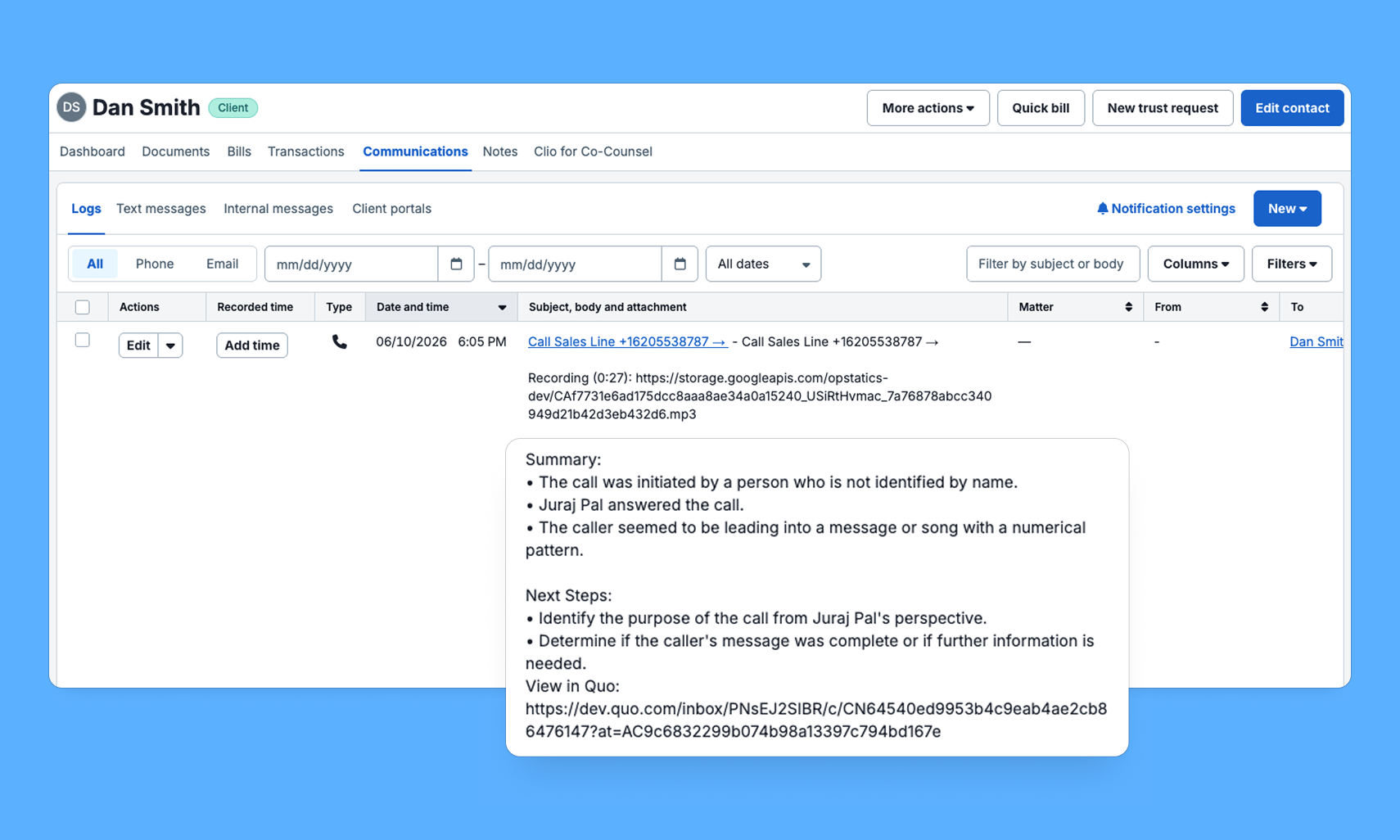
Every call — inbound, outbound, missed, forwarded, voicemail, and Sona-handled — is logged as a Communication in Clio with direction, duration, AI summary, next steps, and a deep link back to Quo.
Message logging
Message logging
Inbound and outbound SMS messages are logged as Notes on the matching Contact record in Clio, with message content and a deep link back to Quo.
Call from Clio
Call from Clio
A Call with Quo button on Contact detail pages in Clio opens the Quo desktop app with the contact’s number ready to dial.
Set up the Clio integration
1
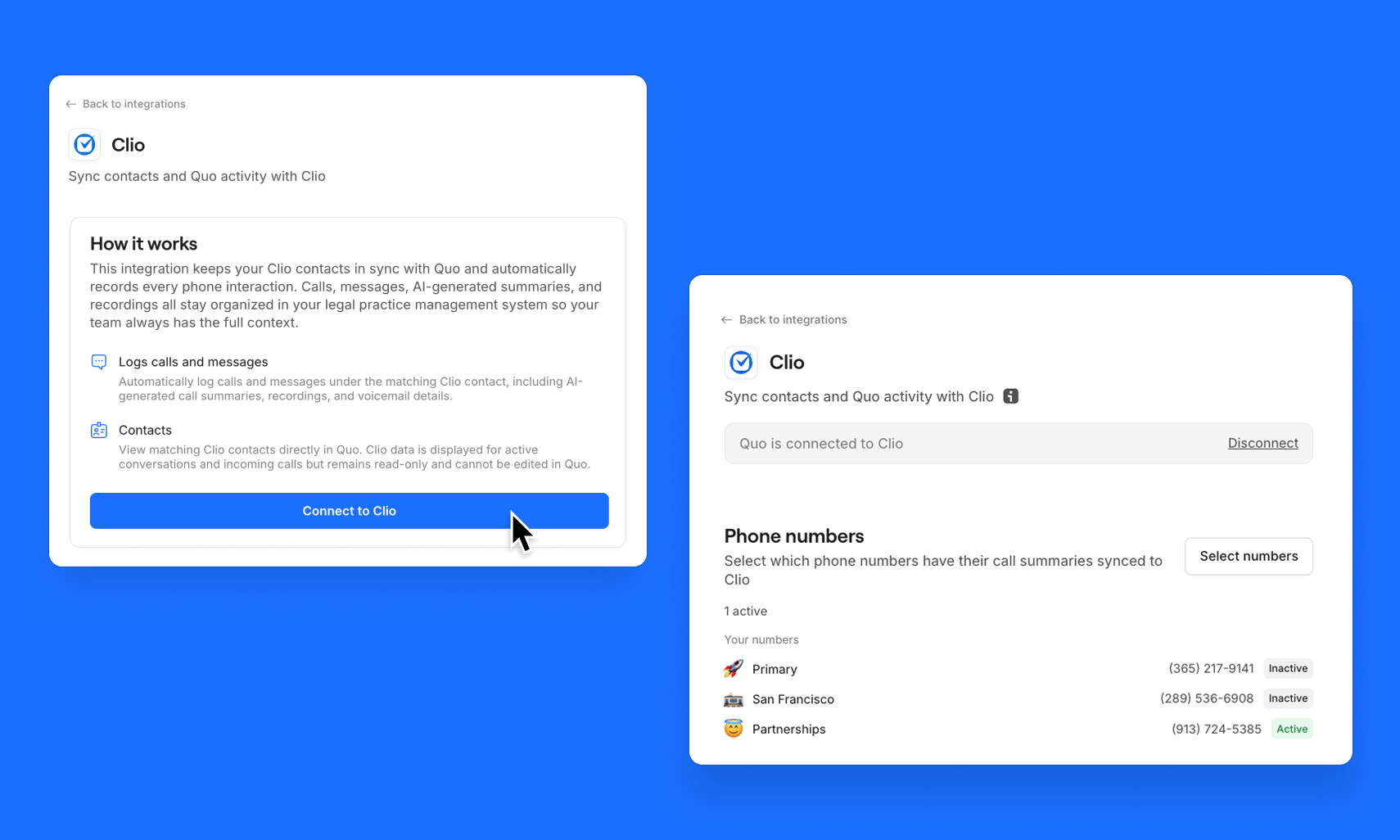
In Quo, go to Settings → Integrations.
2
Find Clio and click Connect.
You’ll be redirected to Clio’s OAuth flow to authorize the connection.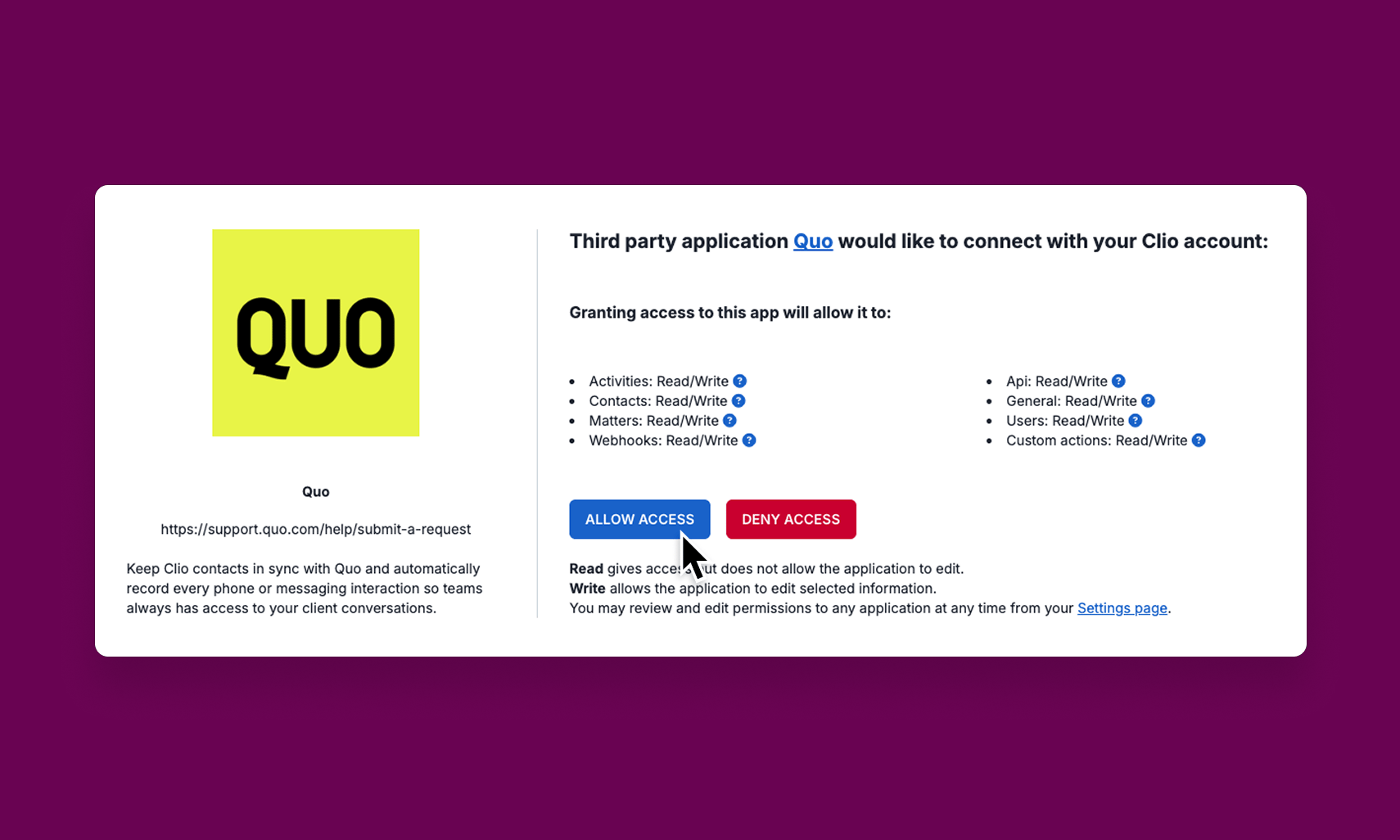
3
Sign in to Clio and grant Quo the requested permissions.
Quo detects your firm’s Clio data region (US or Canada) automatically during this step.
4
Once connected, Quo imports your existing Clio contacts.
For most firms this takes a few minutes — larger databases may take longer. After the initial import, new changes in Clio sync in real time.
5
Customize how Clio works from Quo
From Settings → Integrations → Clio, you can:
- Enable or disable call logging and message logging
- Choose which phone numbers sync activity
- Configure which of your contacts are synced
Manage your settings
Owners and Admins can configure the Clio integration from their Quo workspace.- In Quo, go to Settings → Integrations
- Select Clio
- Adjust your settings using the options below
- Click Save
Activity is logged at the contact level in Clio, not the Matter level. This helps prevent interfering with your existing billing workflows.
How contact sync works
Contact sync is one-way, from Clio to Quo. Contacts created or edited in Clio sync into Quo automatically. Synced contacts are read-only in Quo; make all edits in Clio and they’ll flow over automatically.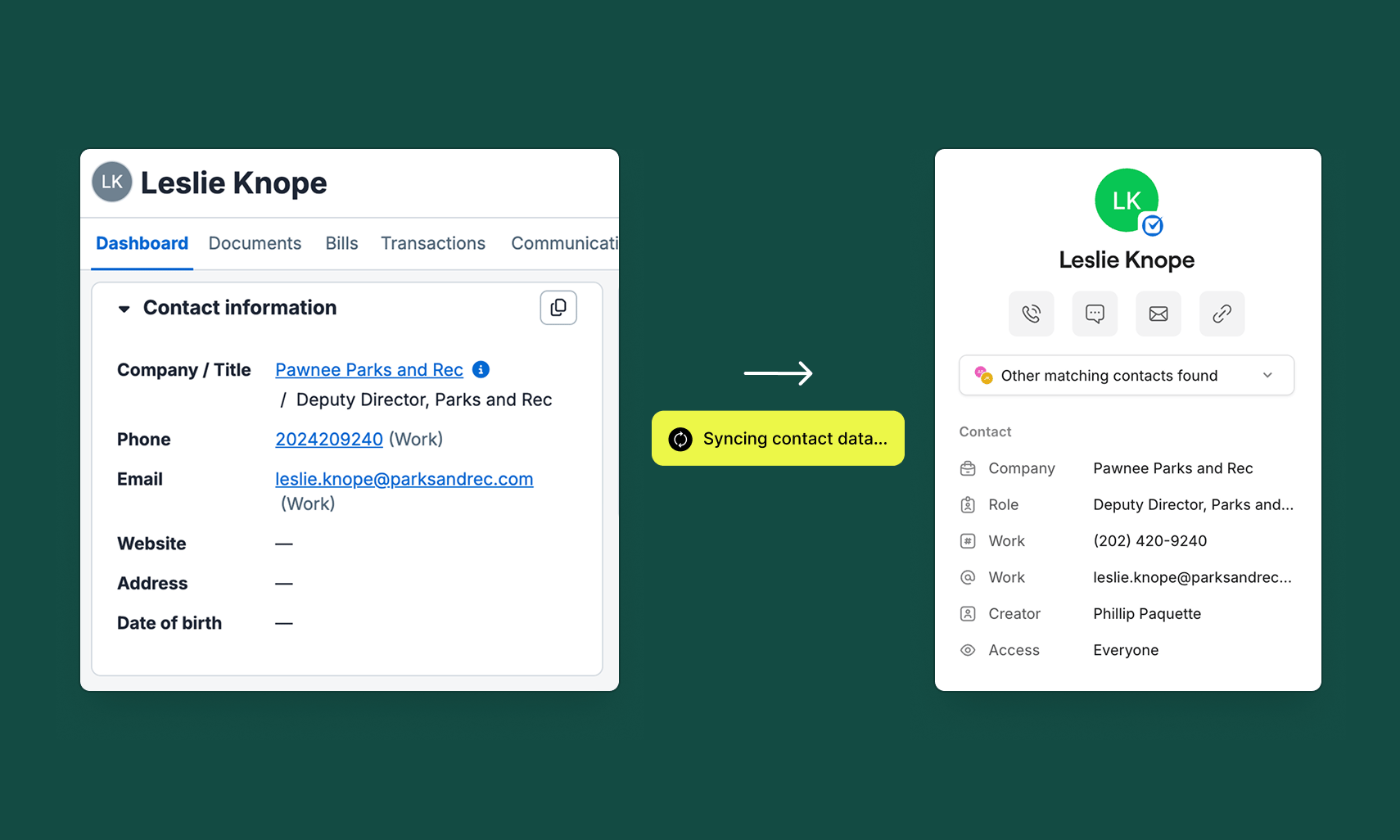
- First and last name
- Phone numbers
- Email address
- Company
- Role
- One-way sync only: Contact details flow from Clio into Quo, not bidirectionally.
- Editing in Quo does not update Clio: To update a contact’s details, make the change in Clio and it will sync over automatically.
- Contacts created in Quo don’t sync to Clio: If you need a contact in both systems, create it in Clio first.
How call logging works
When a call ends, Quo creates a Communication record in Clio on the matching contact. Logged calls can be associated to Matters from Clio, and Recorded time is added separately. The record includes:- Direction (inbound or outbound)
- Phone numbers involved
- Who answered or handled the call
- Duration
- A deep link back to the activity in Quo
How message logging works
When an SMS message is sent or received, Quo logs it as a Note on the corresponding Contact record in Clio. Each note includes:- Direction (inbound or outbound)
- Phone numbers involved
- Message content
- A deep link back to the conversation in Quo
Use “Call with Quo” from Clio
The Call with Quo button appears on Contact detail pages in Clio. Clicking it opens the Quo desktop app with the contact’s primary phone number ready to dial.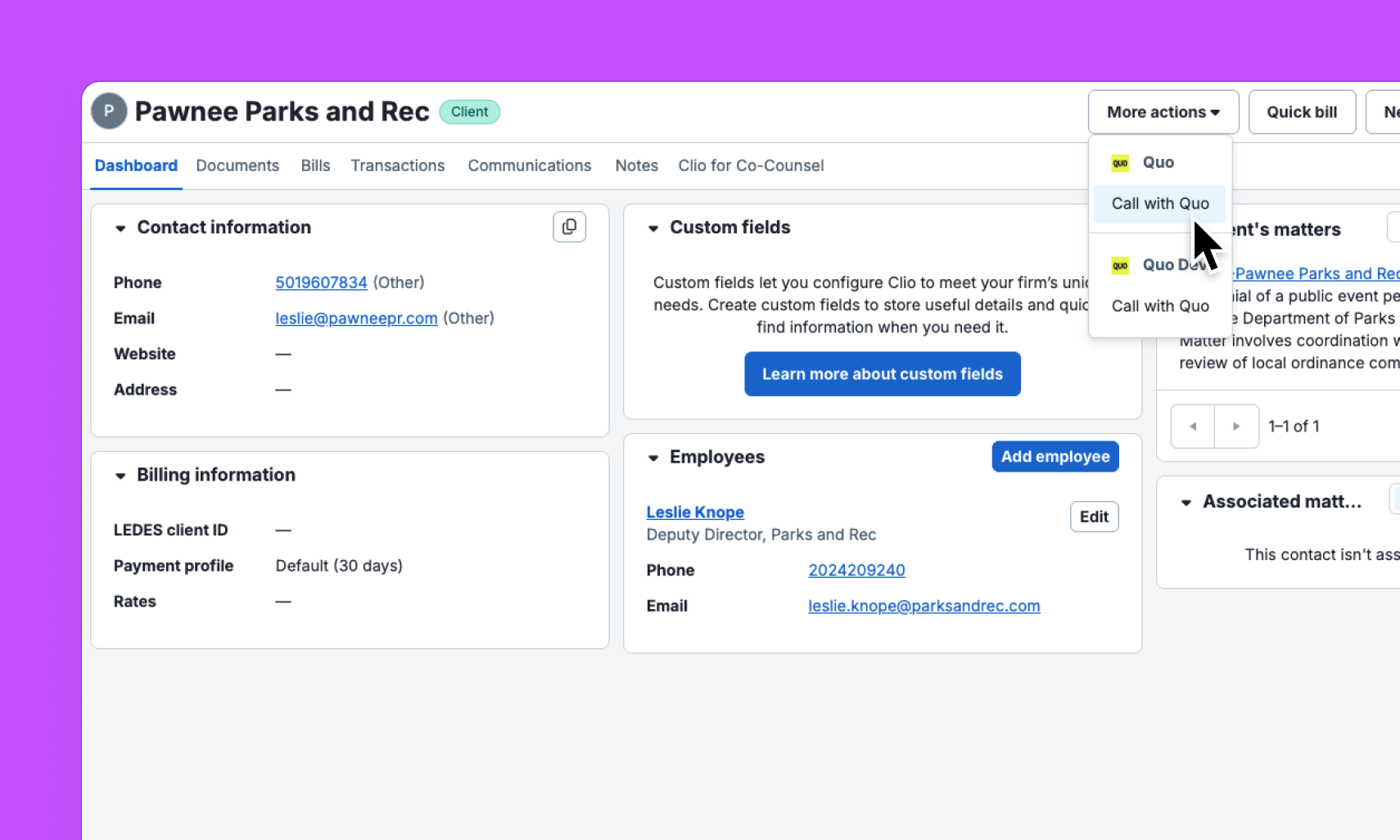
- From Clio, select a contact you want to call
- Open the Contact record
- Click More actions
- Click Call with Quo
- The Quo desktop app must be installed on your computer
- Quo must be set as your default calling app
The call is made through the Quo app, not inside Clio. If the button does nothing or opens the wrong app, check that Quo is installed and set as your default phone handler.
How to disconnect the Clio integration
From Quo
- In your Quo workspace, navigate to Settings → Integrations → Clio
- Click Disconnect
From Clio
- In Clio, navigate to Settings → Marketplace
- Find Quo and select Uninstall
While the integration is disconnected, Quo won’t log any activity to Clio. Activity generated during downtime can’t be synced retroactively, though it remains visible in Quo.
FAQs
Can I sync only certain contacts from Clio?
Can I sync only certain contacts from Clio?
Yes. You can choose to sync all contacts or filter for specific contacts only. Adjust this in Settings → Integrations → Clio.
How long does the initial contact sync take?
How long does the initial contact sync take?
It depends on the size of your Clio contact database. For most firms, the bulk import completes within a few minutes. Larger databases may take longer.
If I edit a contact in Quo, will it show up in Clio?
If I edit a contact in Quo, will it show up in Clio?
No. Make contact edits in Clio to ensure your contacts stay in sync. Changes in Clio will automatically flow into Quo.
What call types get logged to Clio?
What call types get logged to Clio?
All call types are logged: inbound, outbound, missed, forwarded, voicemail, and Sona-handled calls. Each is logged as a Communication on the matching Clio contact.
What happens if I disconnect and reconnect the integration?
What happens if I disconnect and reconnect the integration?
Contacts previously synced may need to re-import. Activity logged during the disconnected period won’t be retroactively synced.
Does this work with Clio Grow?
Does this work with Clio Grow?
No. The integration is currently available for Clio Manage only.
Is this available in outside the US and Canada?
Is this available in outside the US and Canada?
No, currently this integration is only available to Clio Manage accounts in the US and Canada.
Need help? Submit a support request and we’ll jump in.