

Overview
Quo’s native integration with HighLevel keeps your contacts and conversations in sync so your team never has to leave HighLevel to see the full picture. Once connected, HighLevel contacts sync into Quo automatically, edits you make to synced contacts in Quo sync back to HighLevel, and calls (with recordings and AI call summaries), texts, and voicemails log to the conversation view within the matching contact in HighLevel.What the HighLevel integration does
Bi-directional contact sync
Bi-directional contact sync
Call logging
Call logging
Message logging
Message logging
Set up the HighLevel integration
In Quo, go to Settings → Integrations
Click Connect to HighLevel
.png?fit=max&auto=format&n=fHn888zO7ULQmhBh&q=85&s=f126be6e738e63da1e23bcdf917529c1)
Choose the HighLevel Sub-Account (Location) to connect
Choose which Quo phone numbers should sync activity
Quo runs an initial bulk import of your existing HighLevel contacts
How contact sync works
Contacts created, updated, or deleted in HighLevel sync into Quo automatically in real time. When you first connect, Quo also runs a one-time bulk import of your existing HighLevel contacts.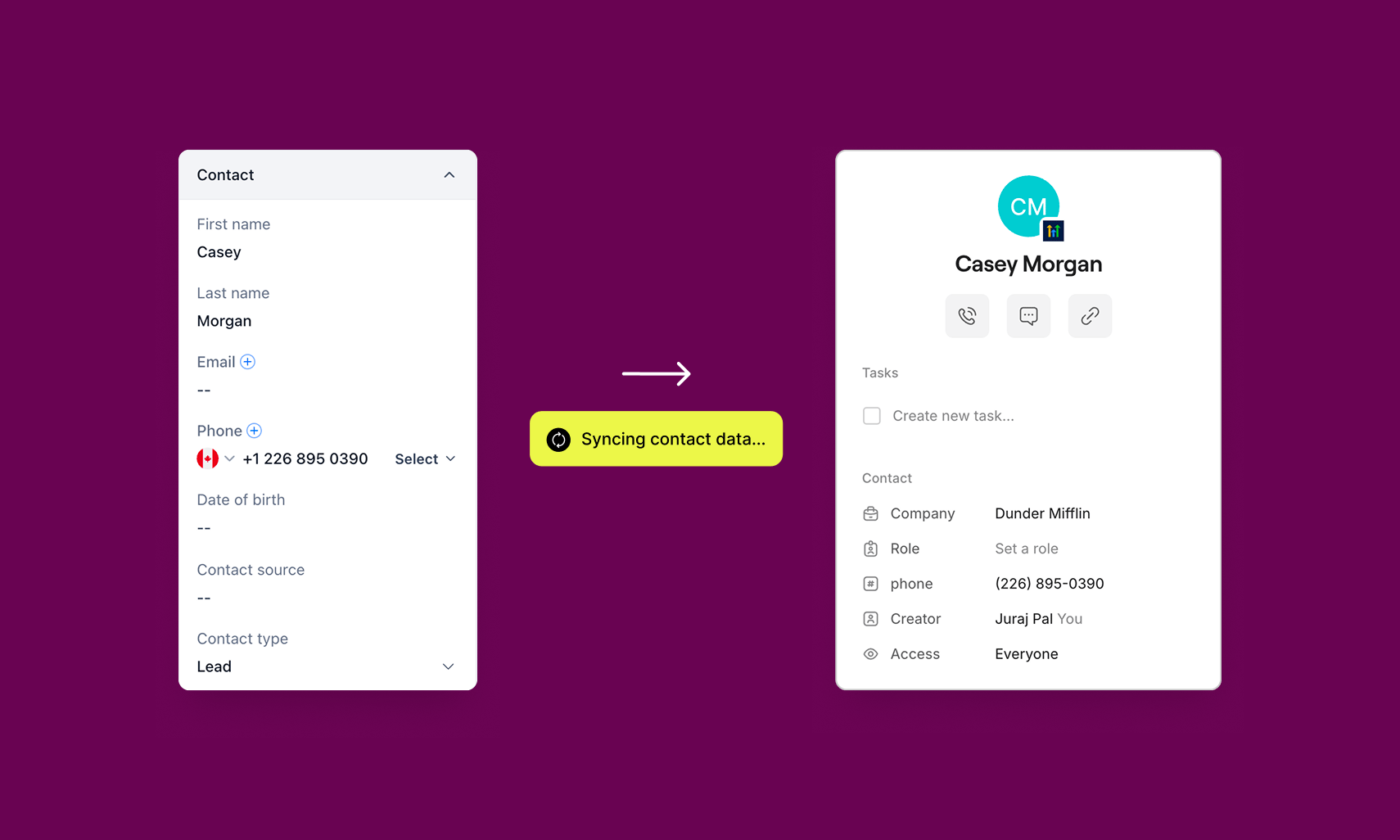
- First and last name
- Phone number
- Email address
- Company
Bi-directional contact sync
You can update synced contact fields directly in Quo and have those changes automatically reflected in HighLevel. This means you no longer need to switch over to HighLevel to keep contact details current. Any edits you make to the existing synced fields in Quo are pushed back to HighLevel automatically. Limitations of contact sync:- Bi-directional sync applies to synced fields only. Fields outside of the synced fields listed above are not included.
- Contacts created in Quo don’t sync to HighLevel.
How call logging works
Every call, inbound and outbound, logs to the conversation view within the matching contact in HighLevel: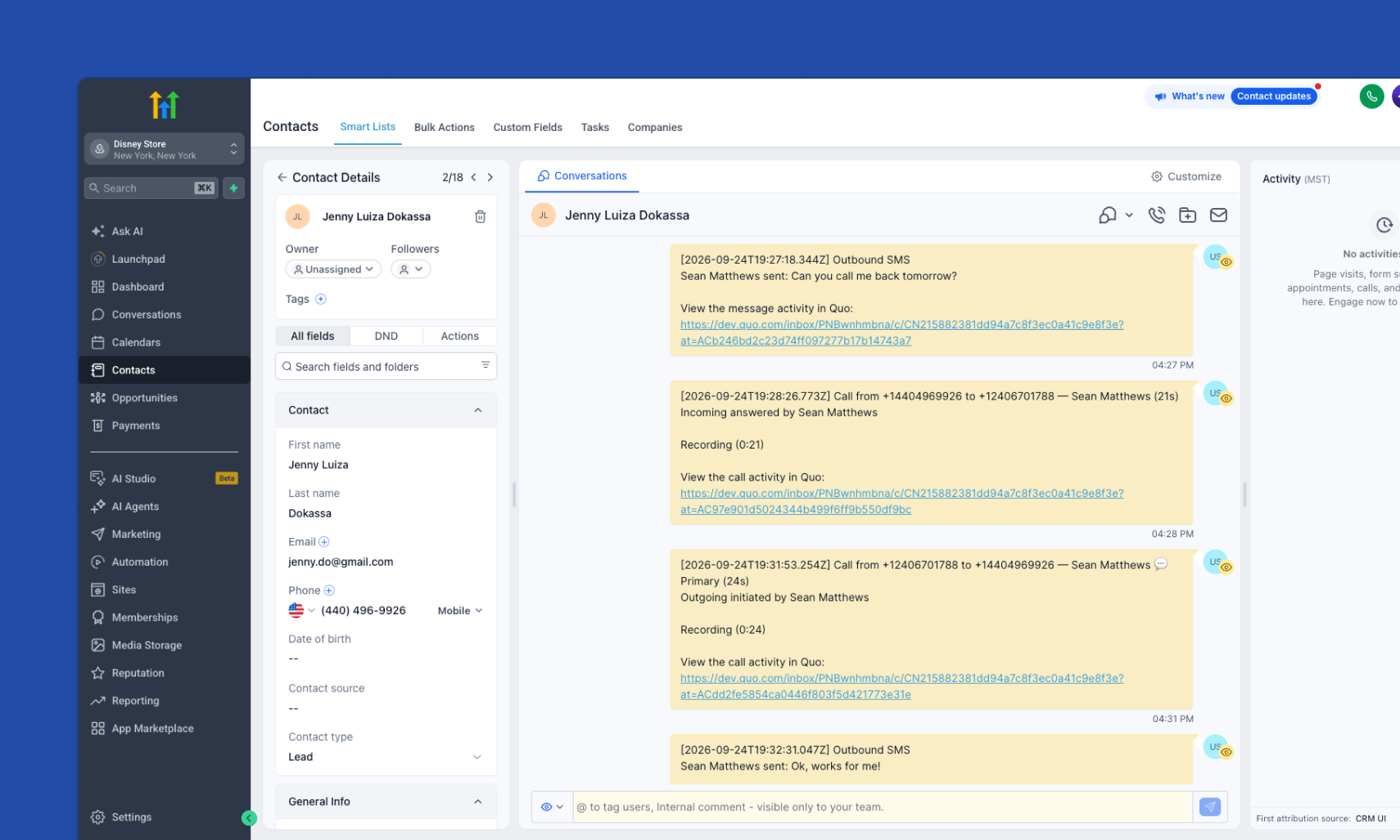
- Logged as a call in the contact’s conversation view
- Recordings are attached to the call
- The AI call summary and next steps are included in the call log once ready
- Every logged call includes a View in Quo deep link back to the full conversation
How message logging works
Inbound and outbound SMS messages log to the conversation view within the matching contact in HighLevel, alongside your calls.Who can access and set up the HighLevel integration
The HighLevel integration is available on the Quo Business and Scale plans. Only a Quo workspace Owner or Admin can set it up. On the HighLevel side, the integration installs at the Sub-Account (Location) level and works with any HighLevel plan, including Starter, Unlimited, and SaaS Pro. You’ll need permission to install Marketplace apps for the Sub-Account you’re connecting.Disconnect the integration
From Quo
- Go to Settings → Integrations → HighLevel
- Click Disconnect
From HighLevel
- In HighLevel, go to your Sub-Account’s Marketplace app settings
- Find Quo and uninstall it
FAQs
Does this work with every HighLevel plan?
Does this work with every HighLevel plan?
Do agencies running HighLevel SaaS Mode need to do anything differently?
Do agencies running HighLevel SaaS Mode need to do anything differently?
Can I update HighLevel contacts from Quo?
Can I update HighLevel contacts from Quo?
Why are my calls and messages still showing up in Notes?
Why are my calls and messages still showing up in Notes?
Does the integration sync HighLevel's Company records?
Does the integration sync HighLevel's Company records?
What happens if the integration disconnects?
What happens if the integration disconnects?
What happens if a contact already exists in Quo with the same phone number as a HighLevel contact?
What happens if a contact already exists in Quo with the same phone number as a HighLevel contact?
What happens to the conversation thread if a contact's phone number changes in HighLevel?
What happens to the conversation thread if a contact's phone number changes in HighLevel?
Does the integration log activity to HighLevel opportunities?
Does the integration log activity to HighLevel opportunities?
What should I do if HighLevel contacts aren't syncing to Quo?
What should I do if HighLevel contacts aren't syncing to Quo?
Need help? Submit a support request and we’ll jump in.