

Overview
Webhooks connect activity in Quo to the other tools your business uses. Automatically update your CRM when a message arrives, log completed calls, or trigger a workflow when a task changes, without manually moving information between systems. The Webhooks page brings webhooks created in the app and through the API into one place. Both now use the same version, giving you access to more event types directly in Quo, including task activity and additional call events.How webhooks work
Choose the events you want to follow and provide a URL for your application. When a matching event occurs, Quo sends an HTTP POST request containing event data to that URL. Your application can use this information to update a record, notify your team, or start a workflow. Quo records delivery results and automatically retries unsuccessful deliveries. You need workspace Owner or Admin permissions to configure webhooks. Settings are available in the Quo web and desktop apps.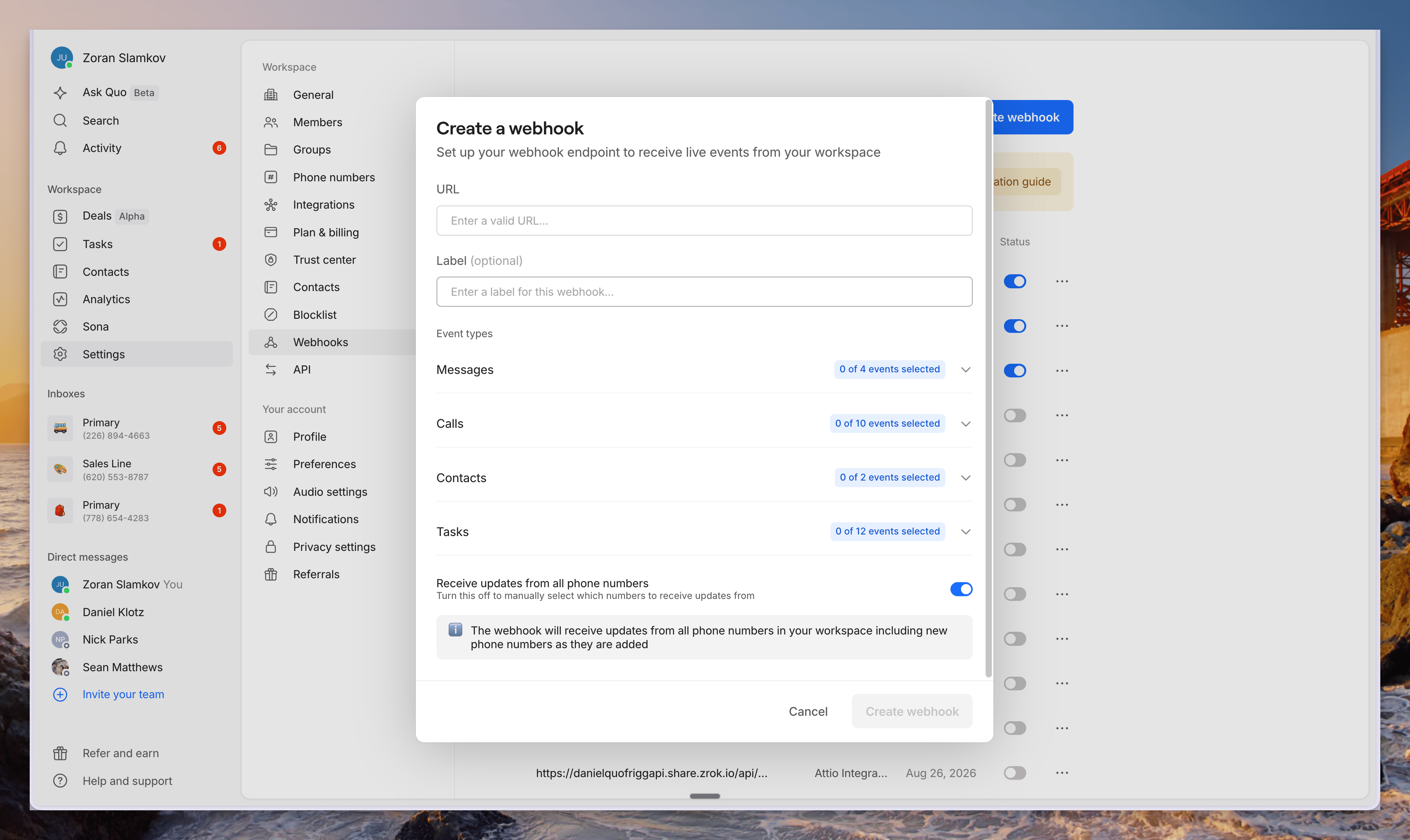
Available webhook events
Build workflows around calls, messages, contacts, and tasks. For example, notify your team about a missed call, track message delivery issues, keep customer records current, or respond when a task is assigned or completed. Events for recordings, summaries, and transcripts let your workflows act when those resources become available.Explore supported events Visit Webhook event payloads for the complete event list, when each event fires, and examples of the data it sends. Use this reference to choose the right triggers and understand what information is available for your workflows.
Setting up webhooks
Before you begin, have an HTTPS endpoint ready to receive webhook requests. If someone else maintains your integration, share the webhook developer overview with them.- Navigate to Settings → Webhooks in Quo.
- Select Create webhook.
- Enter your webhook handler URL.
- Select the event types you want to receive.
- For call and message events, choose the phone numbers you want to monitor. Contact events apply across the workspace.
- Add an optional Label to help identify the webhook.
- Save the webhook.
- Open its details and select Send test request to test your endpoint.
- Review the result in the Events log and confirm your application processes the request correctly.
Managing webhooks
Open a webhook from the table to review its configuration and delivery activity.- Status: Enable or disable the webhook.
- URL: Review or update the endpoint receiving events.
- Signing secret: Use this to verify that requests came from Quo.
- Label: Add a recognizable name.
- Event Types: Choose which events trigger notifications.
- Events log: Review delivery results to help investigate issues.
Migrating legacy webhooks
Existing webhooks continue working as usual. We recommend migrating when convenient to take advantage of the latest event types and capabilities. A warning icon beside a webhook’s URL and a Legacy webhook badge on its details page identify an older version. These indicators do not, by themselves, mean the webhook has failed.To migrate a legacy webhook
- Open the legacy webhook’s Webhook details page.
- Select Migration guide to review the required changes.
- Select Duplicate as new webhook to create a replacement on the latest version.
- Update your receiving application to handle the new event format and signature validation.
- Use Send test request on the replacement to confirm your application processes the new format.
- When you’re ready to switch, disable the legacy webhook using its Status toggle, then enable the replacement.
Test before switching Your receiving application may need changes to process the new event format. Ask the person maintaining your integration to review the migration guide and test the replacement before enabling it.
Troubleshooting
If notifications aren’t arriving:- Confirm the webhook is enabled.
- Verify that its URL is correct and reachable.
- Check that the relevant event types and phone numbers are selected.
- Select Send test request and review the Events log for delivery problems.
- Confirm your application accepts the event format, validates the signature, and returns a successful response.
Building or debugging your integration? The webhook developer overview explains delivery behavior, retries, and versioning. See Validate webhook signatures for instructions on verifying incoming requests.