

Overview
Quo’s Salesforce integration connects your communications with your CRM, automatically syncing contact details and logging all call and message activities. Streamline your sales process with seamless data flow between Quo and Salesforce.Salesforce integration requires Business plan, Salesforce API access, and admin permissions in both platforms.
Prerequisites
Salesforce requirements
API access required:- Included: Enterprise, Unlimited, Performance, Developer editions
- Available as add-on: Professional edition
- Not available: Group and Essentials editions
- Salesforce admin permissions for setup
- Quo workspace Owner or Admin role
Quo requirements
Plan required:- Business plan subscription
- Workspace Owner or Admin role
- Phone numbers configured for integration
How the integration works
Contact syncing
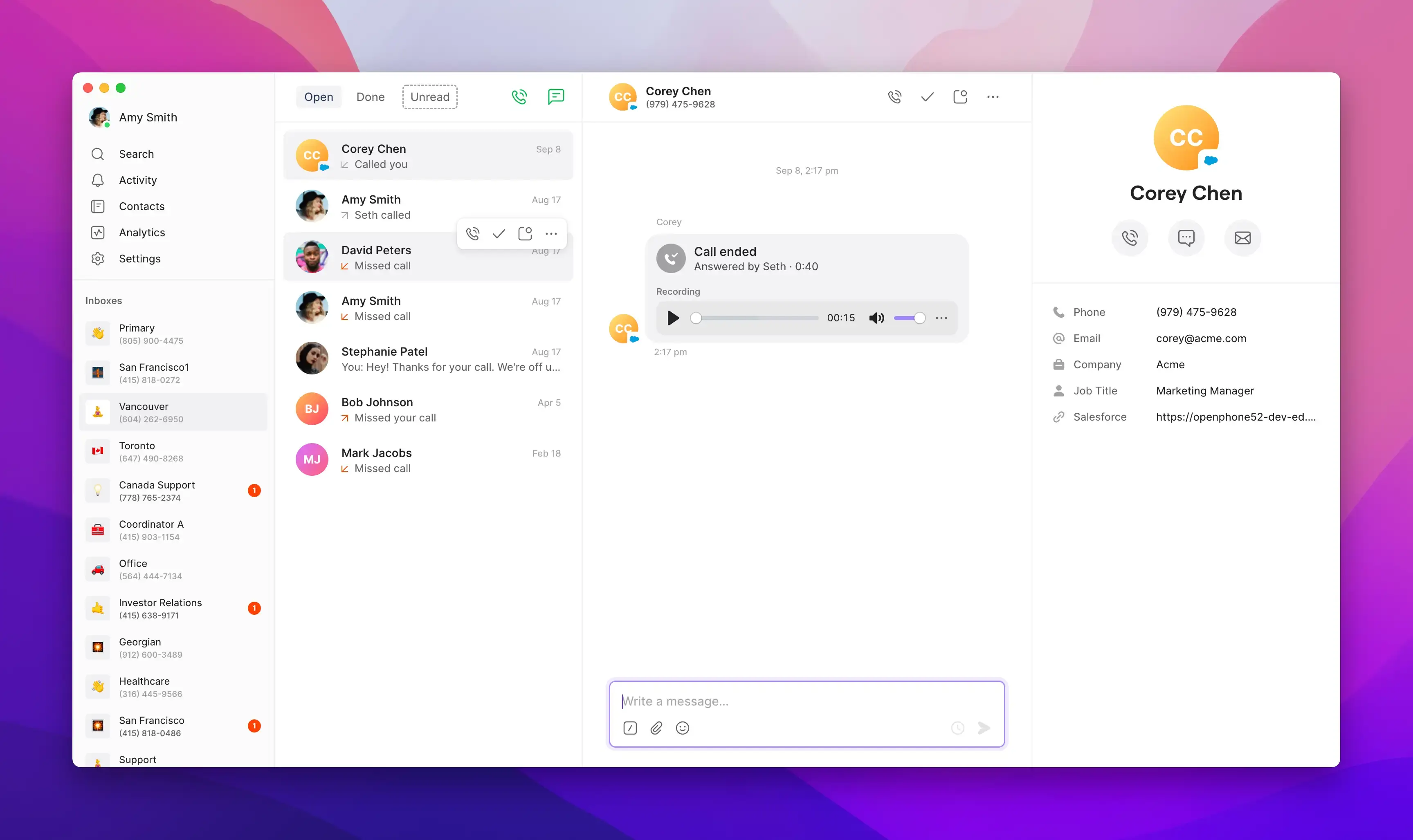
Automatic contact display:When Salesforce contacts call or you dial them, their details automatically appear in Quo. Synced fields:
- First Name and Last Name
- Phone and Email
- Mobile Phone (if available)
- Company and Job Title (if available)
- Contact/Lead Owner (if available)
- Direct link to Salesforce record
Activity logging
Automatic call logging:All Quo calls automatically log to Salesforce with detailed information. Quo attributes each logged activity by matching the Quo user’s email to a Salesforce User’s email. If no match is found, Salesforce defaults the Task owner to the person who set up the integration, so all activity appears under their name instead.
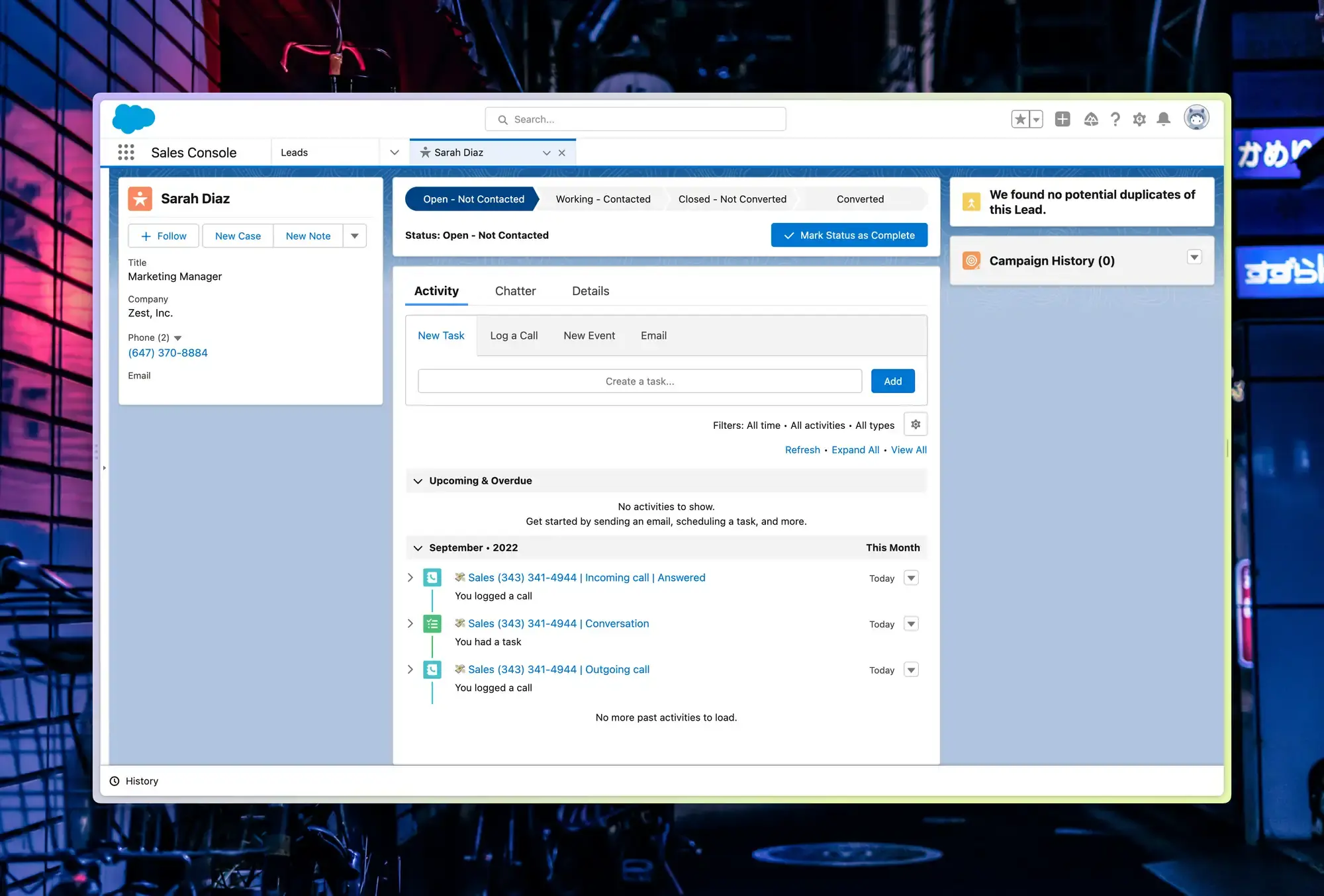
Activity logs typically appear in Salesforce within 10 minutes of a call or message.
Activity logging with multiple matching records
When a call or text is logged, Quo searches for all matching Lead and Contact records based on the phone number. If multiple matches exist (e.g. one Contact and two Leads), activity is logged to all matching records, and no records are not automatically consolidated. Converted Leads (IsConverted: true) are excluded from logging.
Sona integration
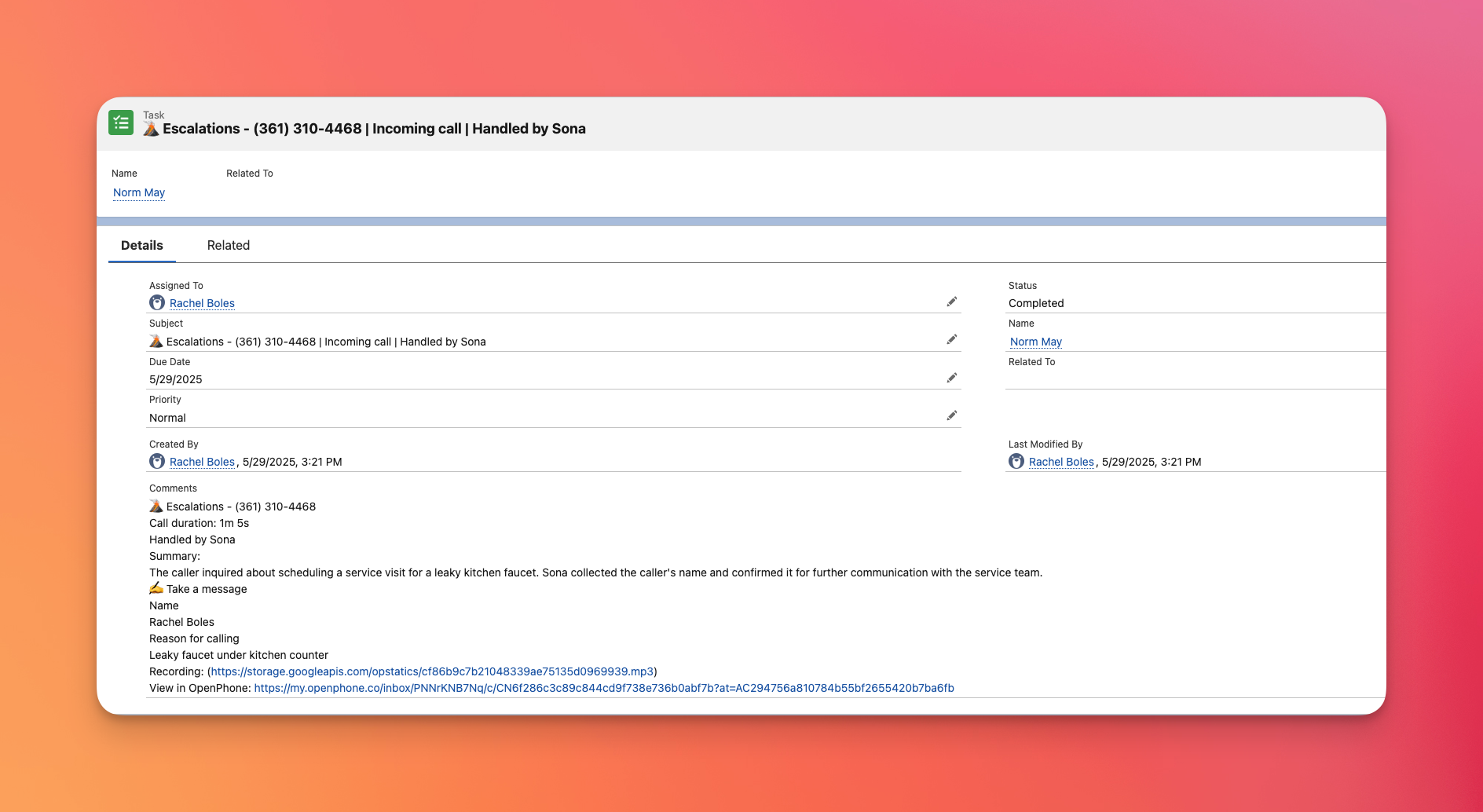
AI agent call logging:Calls handled by Sona automatically sync with subject “Handled by Sona”.
Message logging
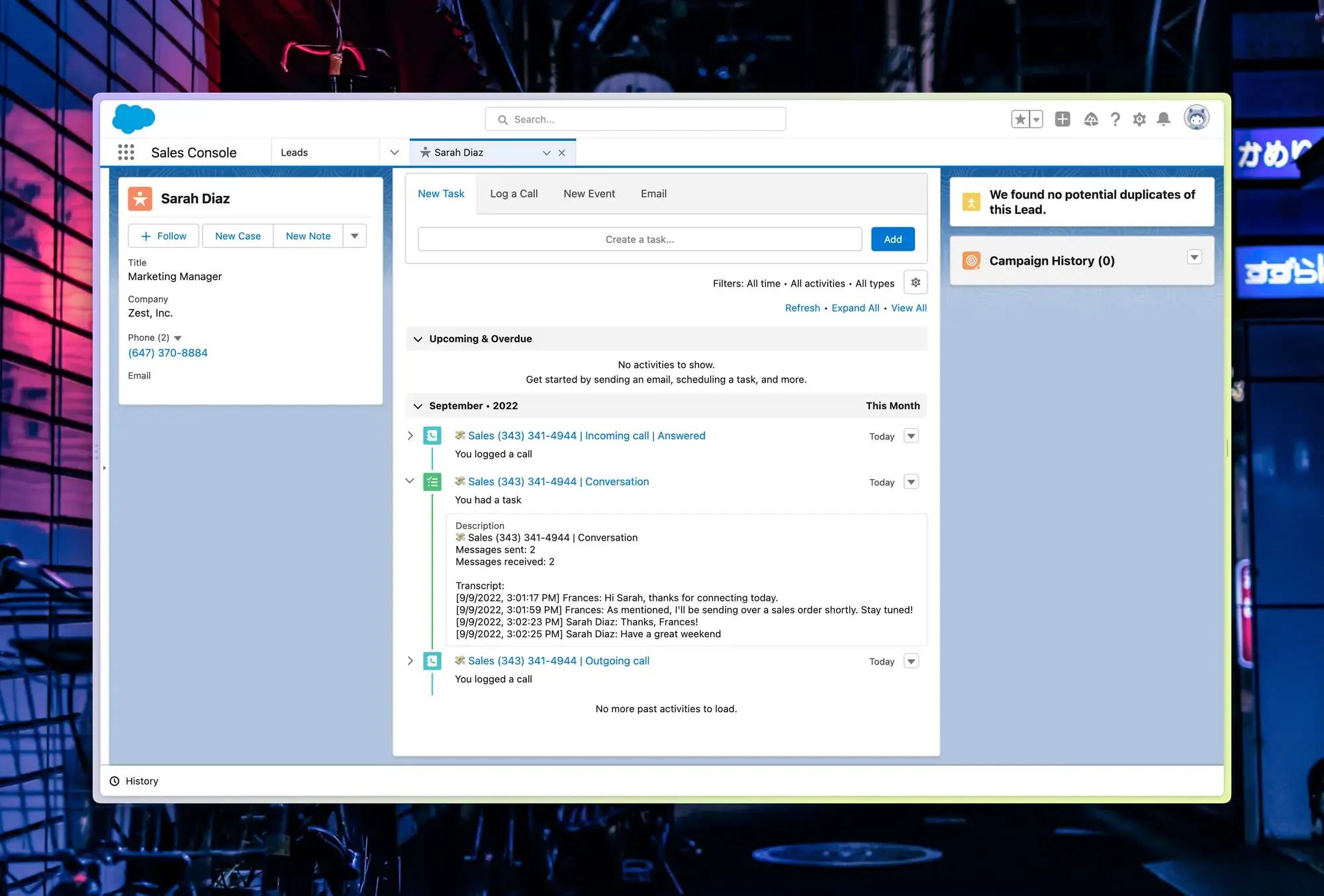
Text conversation tracking:Text messages automatically log to Salesforce with intelligent grouping:
- Messages grouped by conversation within one-hour windows
- Complete text exchange history
- Contact attribution and timing
- Integration with Salesforce communication history
Call summaries and next steps
Quo’s AI generates two types of post-call content: a call summary and next steps.- Call summary: A brief recap of what was discussed. This syncs to Salesforce and appears in the activity description.
- Next steps: Action items identified during the call. Next steps do NOT sync to Salesforce. They are visible in Quo only.
Next steps are not automatically synced to Salesforce. To capture them in Salesforce, copy them manually from the Quo call summary into the Salesforce activity notes.
Setting up Salesforce integration
Connection process
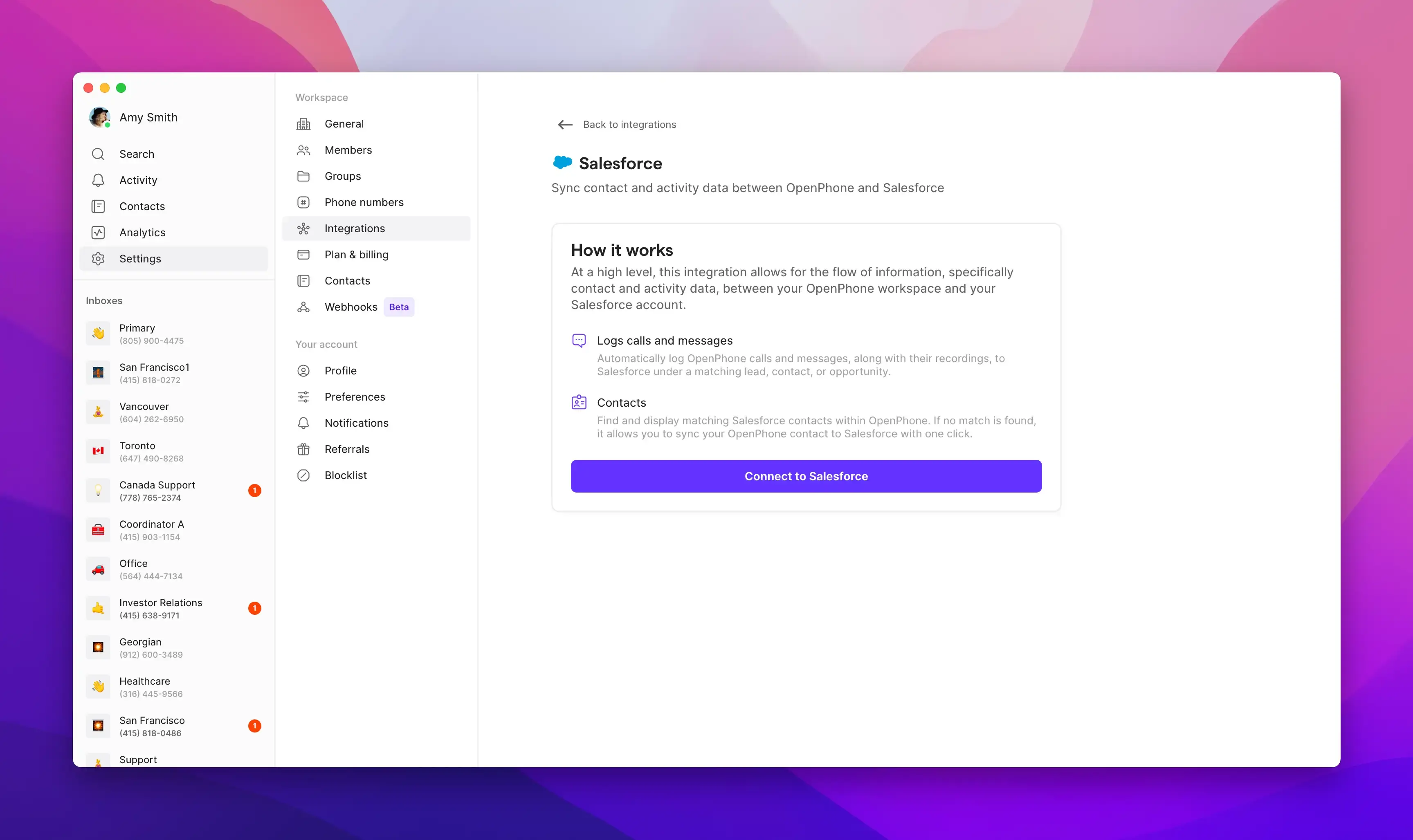
To connect Quo to Salesforce:- Open Quo web or desktop app
- Navigate to Settings → Integrations
- Select Salesforce and click Connect to Salesforce
- Log into your Salesforce account
- Authorize the connection
- Configure logging preferences
Configuration options
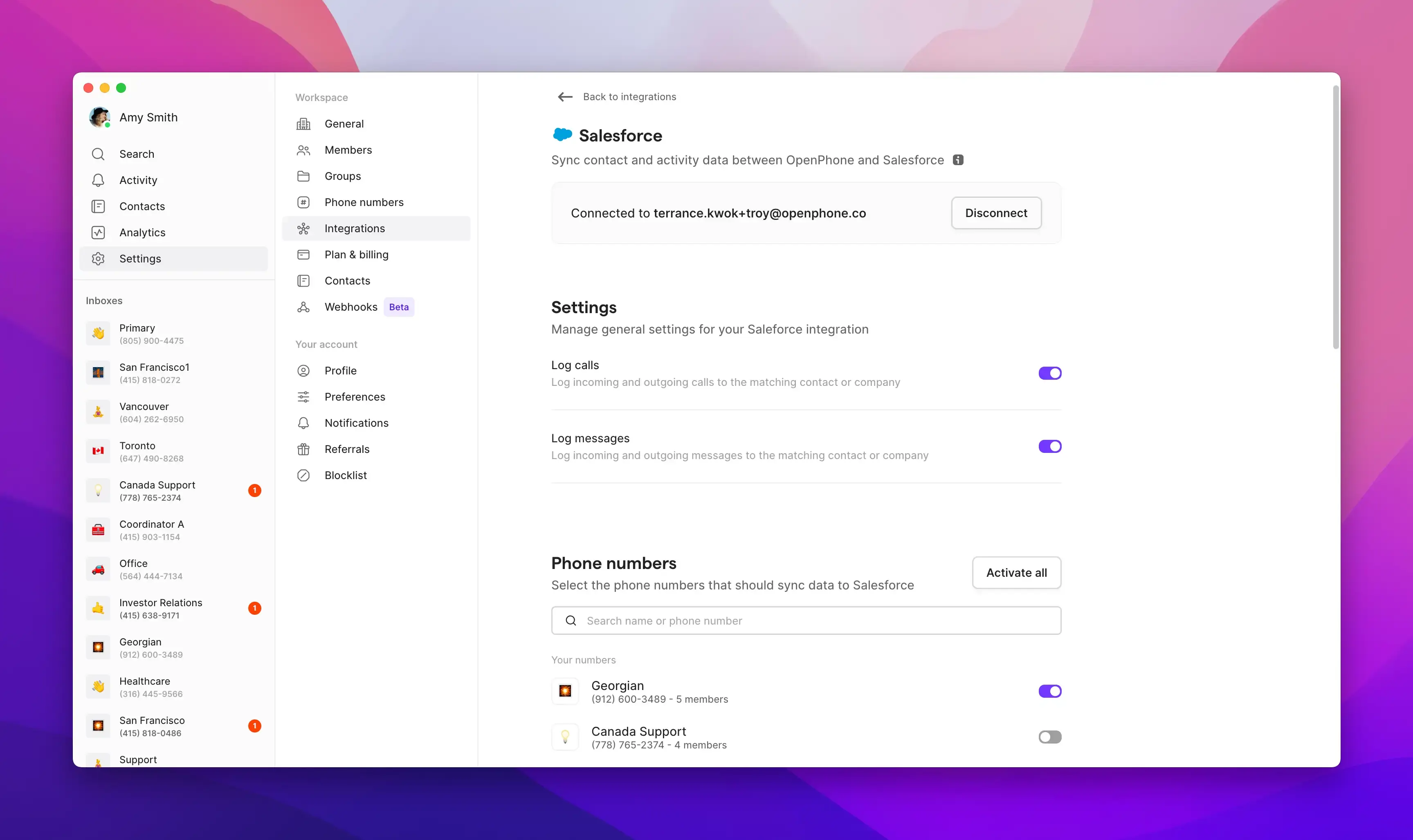
Activity logging settings:- Choose to log calls for all numbers or specific inboxes
- Enable/disable message logging
- Configure call recording and summary sync
- Set up Sona integration if applicable
Features and capabilities
Call recordings and summaries
Enhanced logging:- Call recording URLs included in activities
- Recording duration tracked
- AI-generated call summaries synced
- Complete conversation context preserved
Lead and opportunity management
Sales workflow integration:- New leads automatically tracked
- Call history attached to opportunities
- Contact interaction timeline maintained
- Sales activity reporting enhanced
Team collaboration
Shared visibility:- All team calls logged consistently
- Contact interaction history shared
- Activity attribution by team member
- Comprehensive communication audit trail
Best practices
Setup optimization
Effective configuration:- Enable logging for sales and support numbers
- Configure appropriate Salesforce permissions
- Train team on integrated workflow
- Regular review of logged activities
Data management
Maintaining quality:- Keep Salesforce contact information current
- Ensure phone number matching accuracy
- Regular cleanup of duplicate records
- Monitor integration performance
Workflow integration
Daily usage:- Use Salesforce for lead planning and research
- Leverage Quo for communication execution
- Review call summaries for follow-up planning
- Coordinate with other Salesforce automation
Troubleshooting
Common setup issues
API access problems:- Verify Salesforce edition includes API access
- Check admin permissions in both platforms
- Confirm integration is properly authorized
- Test with sample calls and messages
Data sync issues
Contact matching:- Ensure phone numbers match exactly in Salesforce
- Check for duplicate contact records
- Verify contact permissions and visibility
- Review field mapping configuration
Performance optimization
Maintaining efficiency:- Monitor API usage limits
- Regular review of logged activities
- Cleanup of unnecessary logged items
- Optimization of logging preferences
FAQs
Can I make calls directly from within Salesforce?
Can I make calls directly from within Salesforce?
Not yet. You make calls from the Quo app, and those calls are automatically logged in Salesforce.
What happens when multiple Salesforce records match the same phone number?
What happens when multiple Salesforce records match the same phone number?
Quo logs the activity to all matching Lead and Contact records- there is no deduplication. The only exception is converted Leads (IsConverted: true), which are excluded.
Does Quo's Salesforce integration use Open CTI?
Does Quo's Salesforce integration use Open CTI?
No. Quo’s Salesforce integration does not use Open CTI. The integration works via contact sync, call logging, and activity tracking, not embedded telephony controls. The Salesforce Open CTI retirement in 2028 will not affect this integration.
Can call transcripts sync to Salesforce?
Can call transcripts sync to Salesforce?
Not currently.
Why aren't calls and messages attributed to the right user in Salesforce?
Why aren't calls and messages attributed to the right user in Salesforce?
Quo matches each user’s email to a Salesforce User’s email to attribute activity correctly.If no match is found, Salesforce defaults the Task owner to the OAuth user — the person who connected the integration.To fix this, make sure every active Quo user’s email matches an active Salesforce User’s email in both platforms. If you’re unsure who to update, check with your Salesforce admin.
Where do activities show up in Salesforce beyond contacts?
Where do activities show up in Salesforce beyond contacts?
Activities appear on any Salesforce record that Salesforce associates them with, including Leads and Opportunities.Quo explicitly sets links to Contacts, Leads, and Opportunities only. Any other associations are handled by Salesforce based on your own configuration.
Do next steps sync to Salesforce?
Do next steps sync to Salesforce?
No. Only the call summary syncs to Salesforce. Next steps are visible in Quo only. To include them in Salesforce, copy them manually from the Quo call detail into the activity notes.
Need help? Submit a support request and we’ll jump in.