

Enhanced text to speech
Enhanced text to speech is designed to sound warm and professional so callers hear a greeting that feels human rather than robotic. Standard text to speech voices are still supported and remain available in the dropdown under Text to speech.Where text to speech is available
Text to speech is available in several places within Quo’s call flow builder. All plans Business and Scale plansHow to set up text to speech
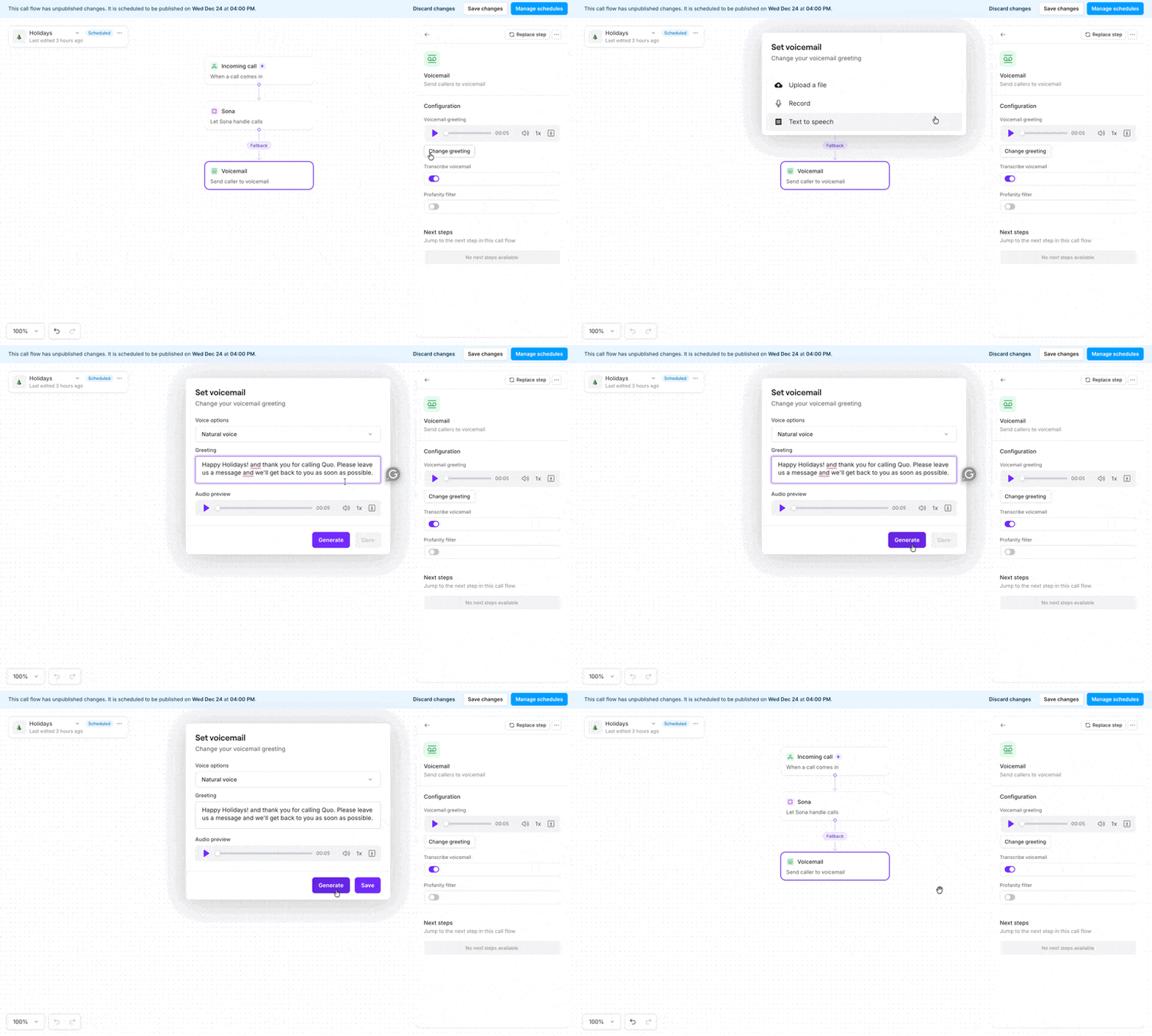
- Navigate to the call flow builder
- Select an option with a greeting
- This could be Voicemail, Phone menu or Play audio
- Choose Text to speech
- Choose from the available voice options:
- 4 natural voices — newer, high-quality options
- 1 legacy text-to-speech voice — the original TTS option
- Click Generate to create your greeting
- Preview your greeting using the Play button
- Once satisfied, click Save to save your changes
When switching between Standard voice and Natural voice, the Generate button needs to be clicked to generate a new preview.
- Save when you’re ready
Write a greeting that sounds natural
Make numbers easy to understand
Enhanced text to speech interprets numbers based on context. Writing numbers out and adding pauses can help avoid unexpected pronunciation. Phone numbers
Emergency numbers
Menu options
Control pacing with punctuation
Enhanced text to speech doesn’t support speech markup, but punctuation can still shape delivery.- Use ellipses (…) for longer pauses
- Use commas (,) for brief pauses
- Use periods (.) for full stops
Example
Thank you for calling… We’ll be right with you. Press one for sales, or stay on the line.
Handle names, acronyms, and special terms
If a word is mispronounced, try spelling it the way it sounds. For acronyms, spacing out letters often helps. Company names and acronyms
Addresses and codes
Troubleshooting
Greeting sounds robotic
Greeting sounds robotic
Edit the message and save it again to apply the enhanced voice.
Incorrect pronunciation
Incorrect pronunciation
Try spelling the word phonetically or adjusting punctuation to guide pacing.