

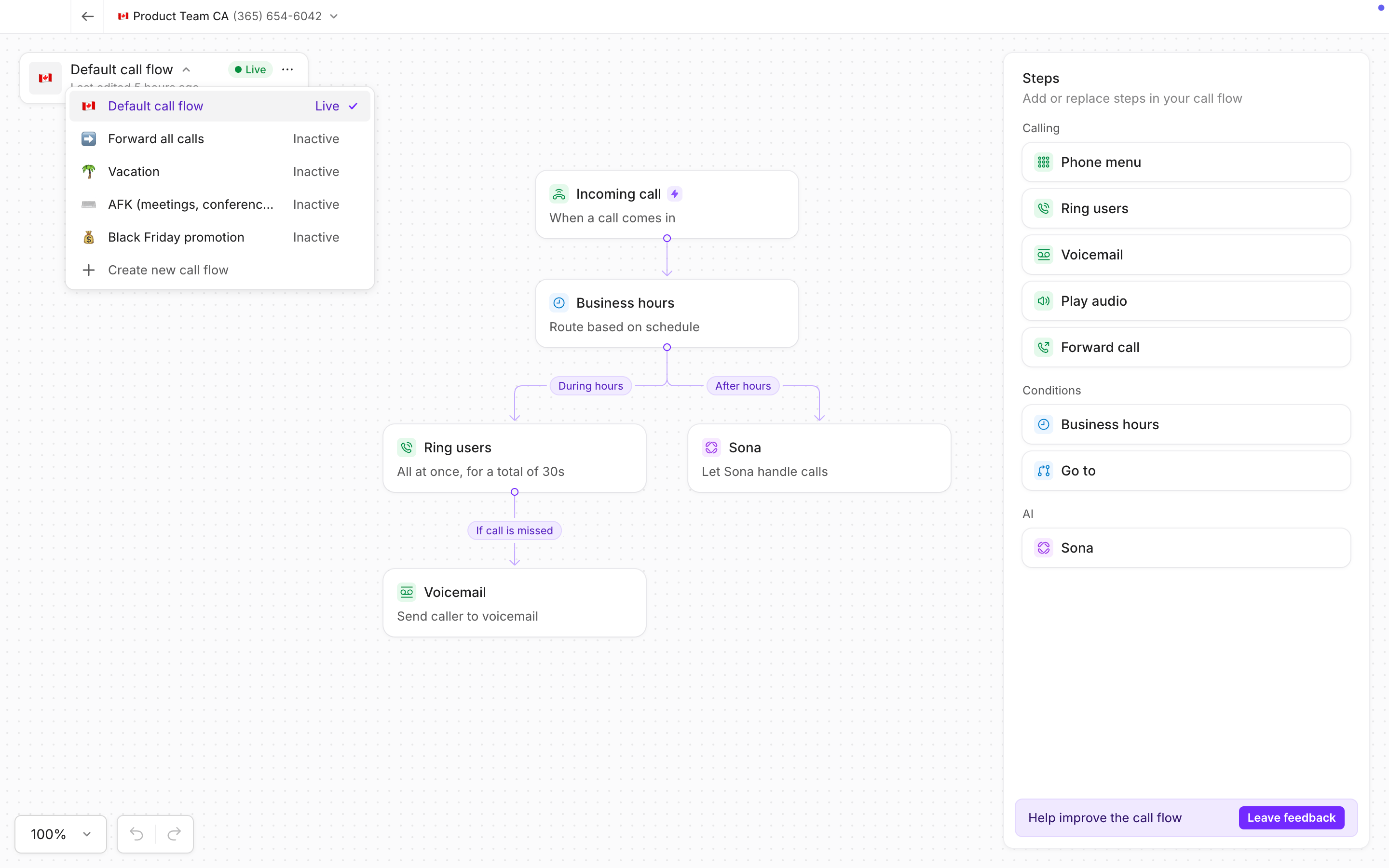
When to use temporary call flows
Temporary call flows are useful any time your call handling needs to change for a short period of time.- Holidays or seasonal campaigns: Run unique greetings or routing during special offers or events
- Meetings or short unavailability: Route calls to Sona or another destination while you’re unavailable
- Temporary staffing or routing changes: Route calls to another team member while you’re away
Try it hands-on
See how to activate a temporary call flow step-by-step and more in the Quo Academy.
Setting up temporary call flows
- Go to your phone number’s call flow builder on desktop.
- Click + Create new call flow. Add a name and emoji to help identify it later.
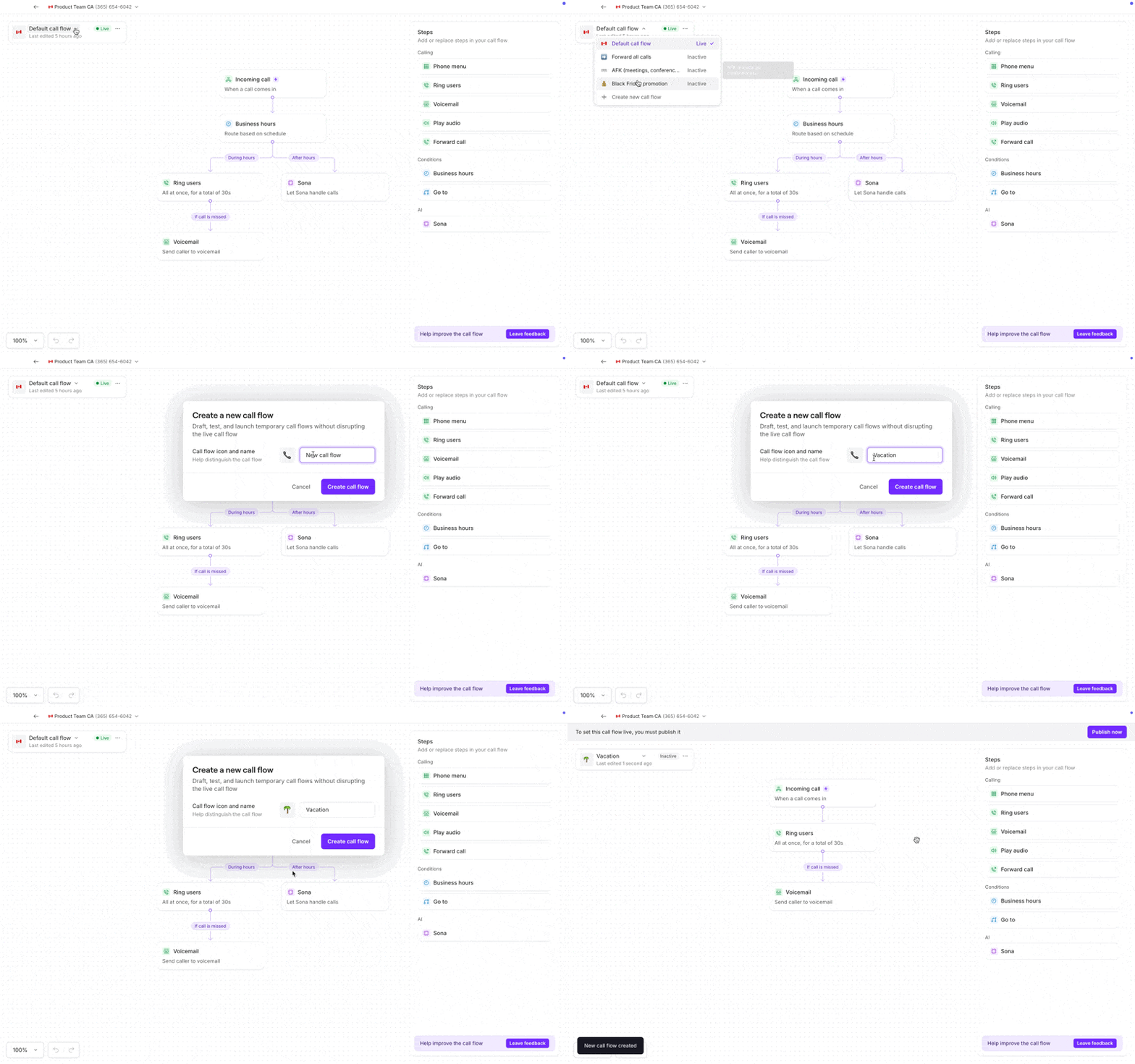
- Build your call flow using greetings, menus, and routing.
- Click Publish when you’re ready.
Publishing will activate the new call flow and replace your current one. You can re-publish your main call flow at any time.
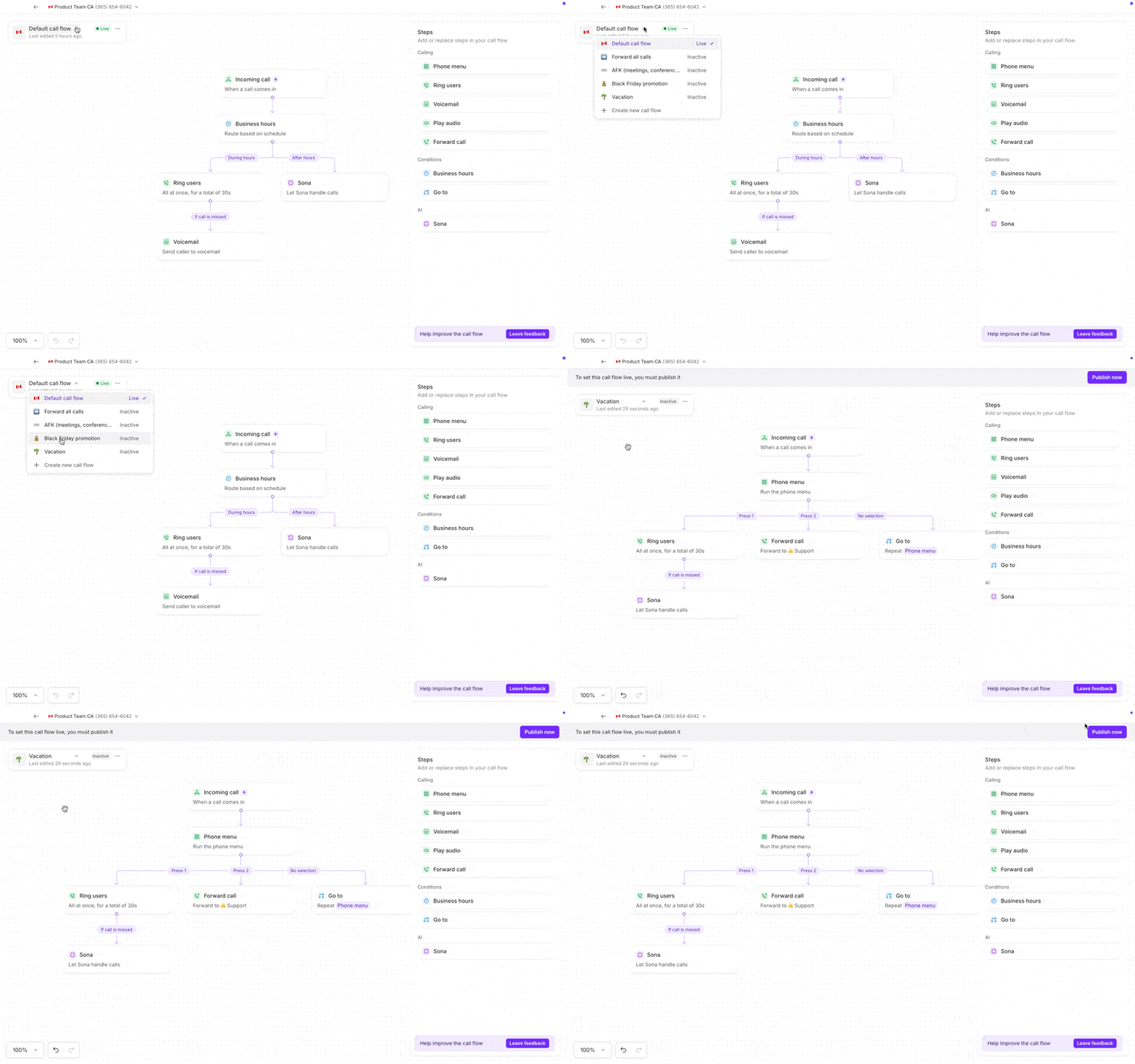
Publishing temporary call flows
When you’re ready to use a temporary call flow, you can either publish it immediately or schedule it to publish later. Publishing immediately is useful for ad hoc changes and can be done from desktop, or mobile (as long as your call flows have already been created). Scheduling is helpful when you already know when a change should take effect.Immediately publish call flows on mobile
Once you’ve created temporary call flows on web or desktop, you can now publish them directly from the Quo mobile app. This makes it easy to activate the right call flow when you’re away from your computer.How to publish call flows on mobile
You don’t need to rebuild or edit call flows on mobile. Just select and publish the one you need.- Open the Quo mobile app
- Navigate to Call flows
- Select the call flow you want to activate
- Tap Publish now to make it live immediately
When to use mobile call flow publishing
How to schedule a call flow for later
Scheduled publishing lets you control when a call flow goes live. Instead of remembering to publish or switch flows manually, you can set a call flow to activate automatically at a specific date and time. All scheduled times are based on your account’s timezone.Only one call flow can be live at a time. Schedule multiple call flows to transition between them automatically.
Schedule your temporary call flow
After you’ve finished building your temporary call flow, you’ll need to select a start date and time for it to go live.- Navigate to your call flow
- Click the arrow (▼) next to Publish now
- Select Schedule to publish later
- Choose your start date and time
- Test your call flow to make sure calls are handled correctly
- Click Schedule
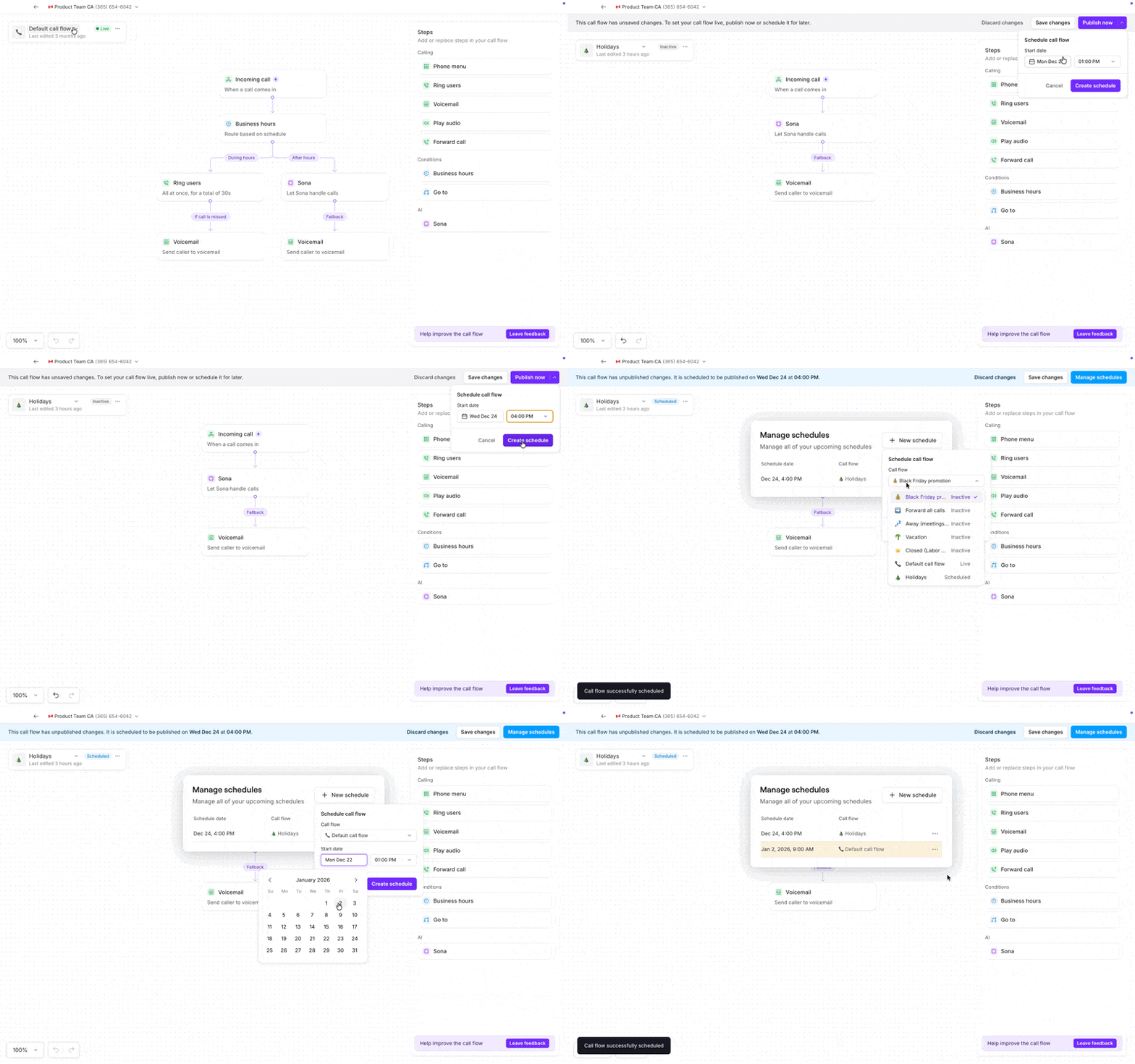
Schedule your default call flow to resume automatically
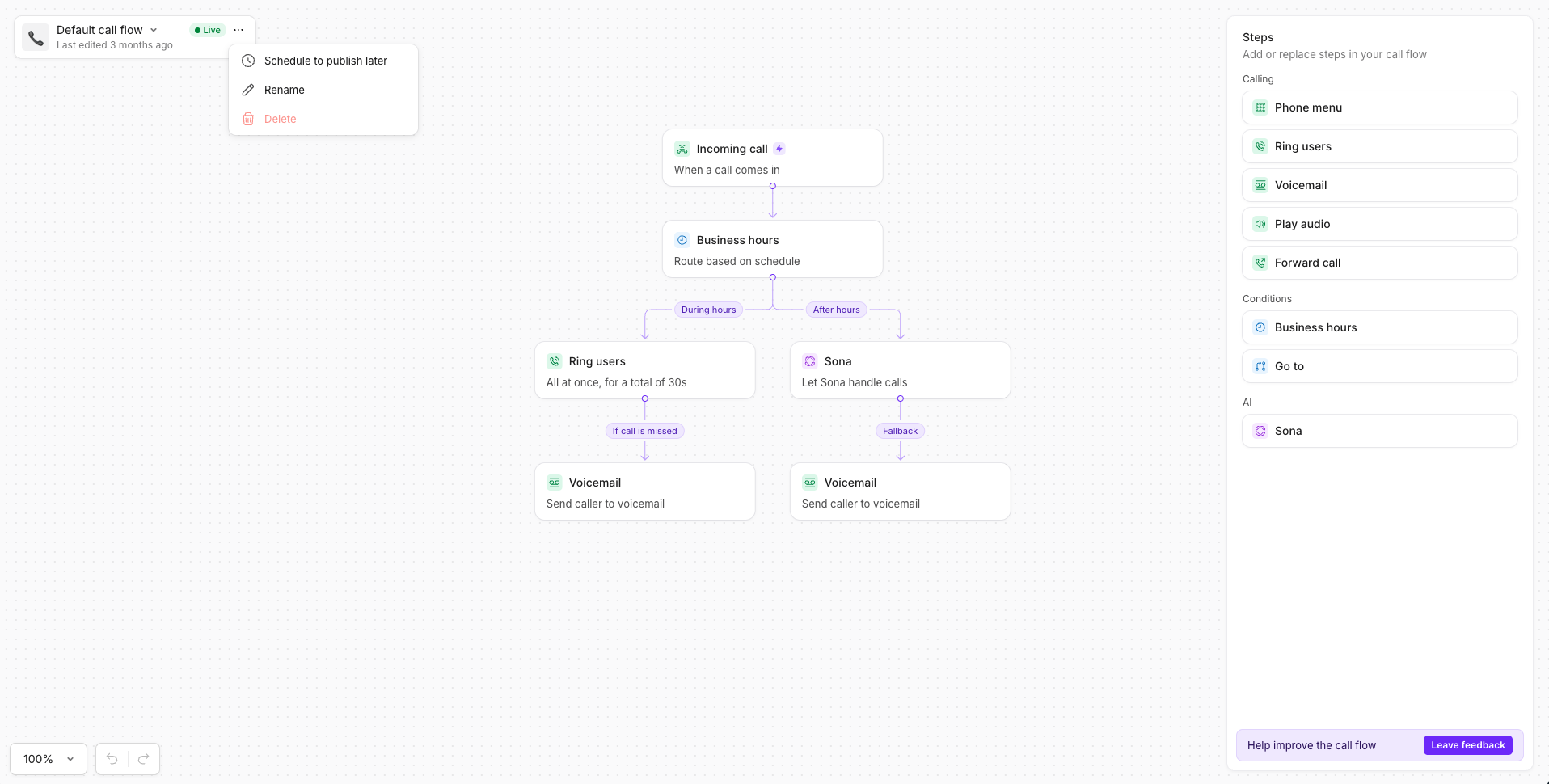
Your default call flow is the one that you usually use, and is live most often. To ensure that it resumes automatically after a temporary flow ends, schedule it to publish later.- Click the three dots (…) next to your default call flow
- Select Schedule to publish later
- Set your start date andtime
- Click Schedule
When to use scheduled call flows
Scheduled call flows are especially useful when you know changes are coming and want them to happen automatically.Manage scheduled call flows
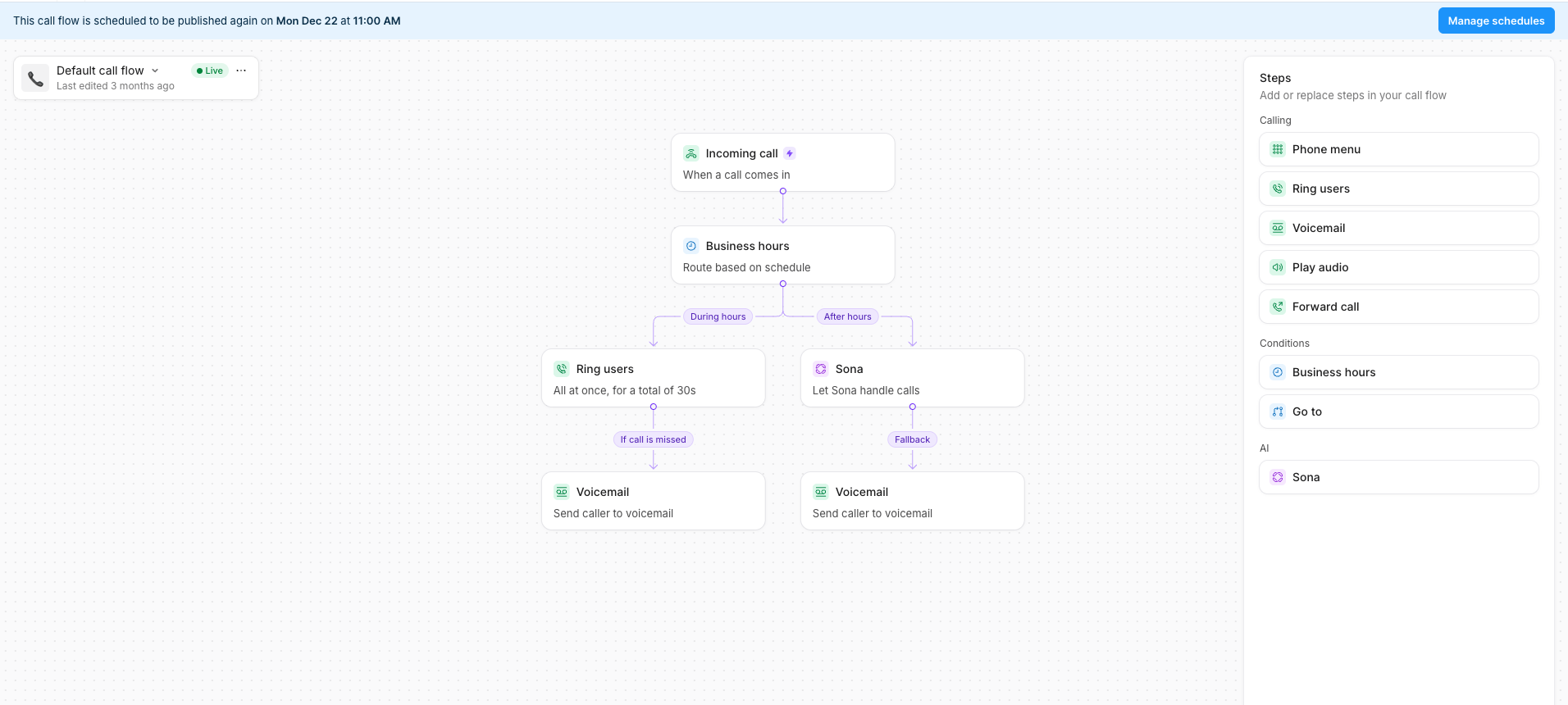
Once you’ve scheduled at least one call flow, a Manage schedules button appears at the top of your call flow section.View all scheduled call flows
Click Manage schedules to see all scheduled call flows in one place, including when each flow will go live and options to edit or remove schedules.Add multiple schedules
The Manage schedules view lets you plan a sequence of call flows without navigating between individual flows. For example, you can schedule a promotional call flow, then schedule your default flow to resume, and then add another temporary flow later on. This makes it easy to plan ahead and avoid last-minute changes.- For call flows with schedules
- For call flows without schedules
- Schedule additional call flows using the Manage schedules button at the top right corner of the screen
- Preview conflicts when selecting dates
Edit or remove schedules
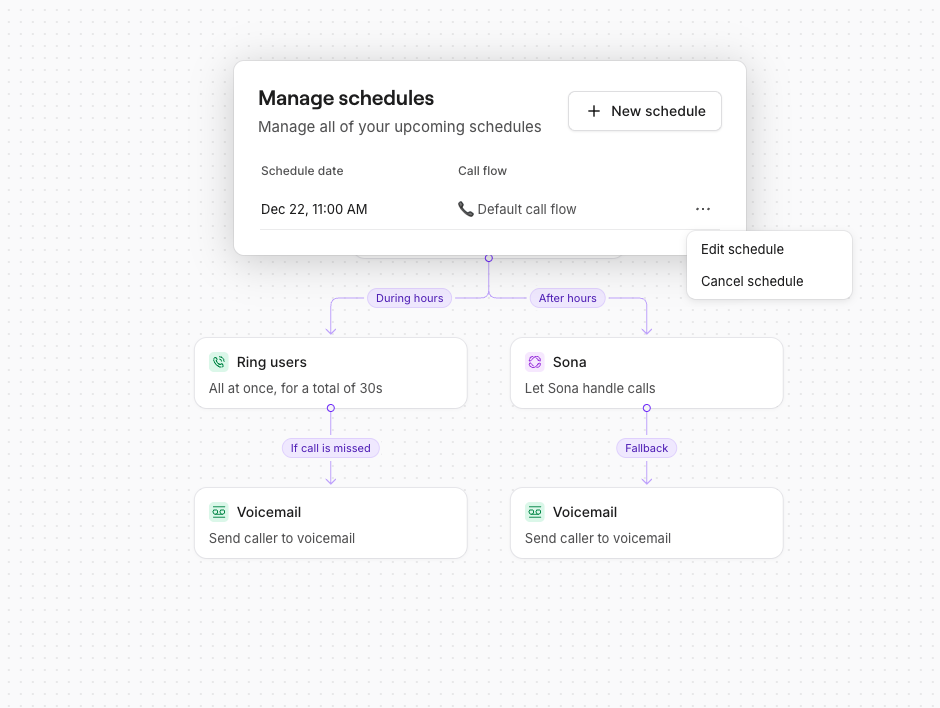
- Edit schedule: You can update a scheduled call flow by selecting it and changing the date or time.
- Select Manage schedules at the top right corner of the screen
- Select Edit schedule to change the start date and/or time
- Remove schedule: To cancel a scheduled call flow publish, remove it from the list.
- Select Manage schedules at the top right corner of the screen
- Select Cancel schedule to remove the schedule from the call flow list
FAQs
How do I set my default call flow to start after a promotion?
How do I set my default call flow to start after a promotion?
If you’ve setup a temporary call flow to run for something like a holiday promotion, closure or planned Out of Office time, you’ll need to schedule your default call flow to go live for the day you want your call handing to return to normal. Here’s how:
Without this step, a temporary call flow with a scheduled start date will remain active indefinitely.
- Open call flow builder
- Select manage schedules
- Click add schedule
- Choose the default call flow
- Select the date and time it should resume
- Save
Can I schedule multiple call flows ahead of time?
Can I schedule multiple call flows ahead of time?
If you already have call flows scheduled:If you do not have a schedule on any call flows:
- Schedule additional call flows via Manage schedules on the top right corner of the screen
- Preview conflicts when selecting dates
Manage schedules gives you full visibility on any upcoming schedules
- Select a call flow that you wish to add a scheduled start date to
- Select the Three dots (…) option on the right-hand side of the screen
- SelectSchedule to publish later
How do I edit or cancel my scheduled call flow?
How do I edit or cancel my scheduled call flow?
To edit the start date or time for a scheduled call flow:
- Select Manage schedules at the top right corner of the screen
- Select **Edit schedule **to change the start date and/or time
- Select Manage schedules at the top right corner of the screen
- Select **Cancel schedule **to remove the schedule from the call flow list