

Overview
Quo’s call quality metrics helps you understand and fix audio issues while you’re still on a call. Find out why your call sounds choppy, delayed, or unclear and resolve issues in a few simple steps.How to access the metrics panel
You can open the metrics panel during any active call.Web & desktop
- Start or join a call
- Click the network icon in the top-right corner of the call window, or click Options in the call controls
- Select Call quality metrics
Mobile (iOS & Android)
- Start or join a call
- Tap the screen to show call controls (if hidden)
- Swipe up on the bottom menu
- Tap Connection status
- Start or join a call
- Tap the screen to show call controls (if hidden)
- Swipe up on the bottom menu
- Tap Connection status
What you’ll see
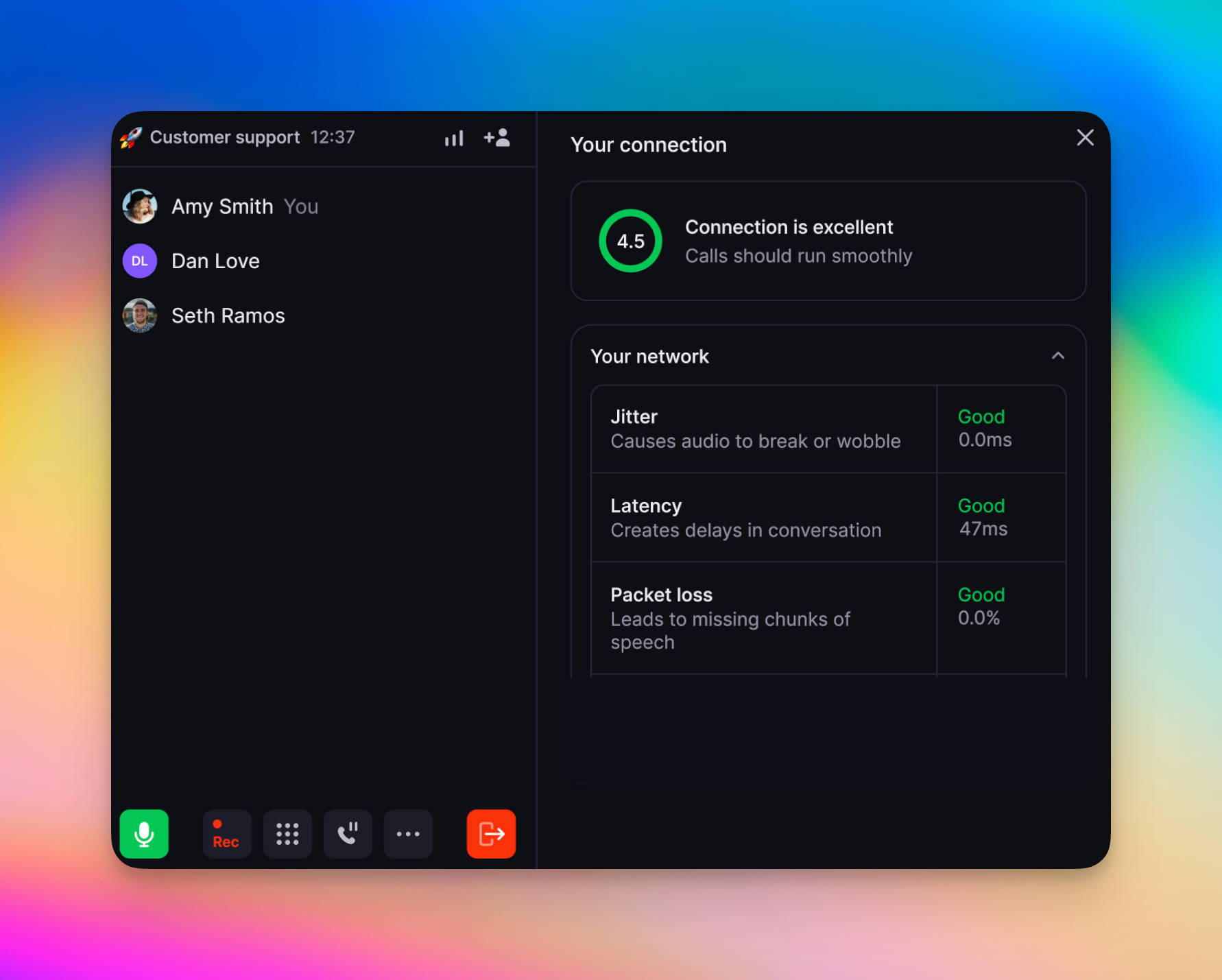
The metrics panel shows you how your call sounds, the metrics behind it, and what to do if there’s an issue. You’ll see:- A connection quality gauge that rates your overall audio experience
- Three network metrics that affect call performance: Jitter, Latency, and Packet Loss
- Recommended action steps when something needs your attention
Automatic warning banner
If your connection quality drops and stays poor for 15 seconds or more, you’ll see the banner below. Click on the banner to open the metrics panel. There’s a 30-second cooldown between warnings, so we won’t spam you.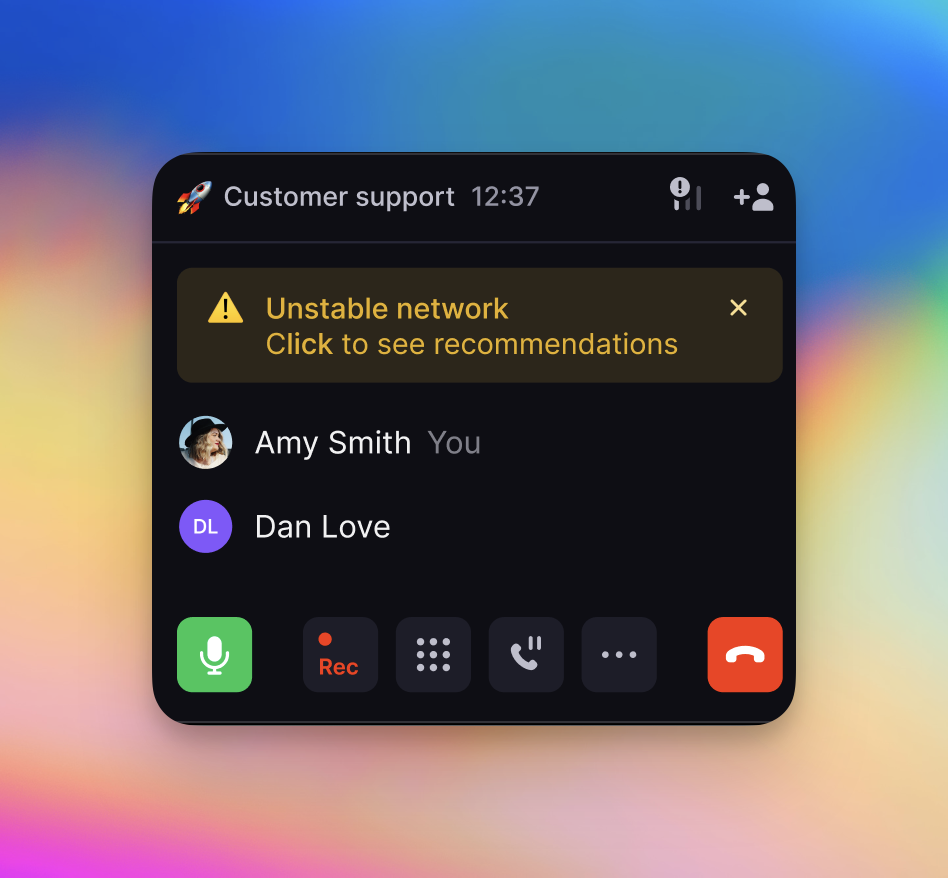
Understanding your connection quality
Your connection quality gauge gives you a real-time rating of how your call sounds overall. It reflects how easy it is for both people on the call to hear and understand each other.
Your gauge tells you the overall quality of the call, but not why it’s happening. The network metrics below break down what’s influencing your connection so you can pinpoint the source of any issues.
What your network metrics mean
In addition to the connection quality gauge, the metrics panel displays three key metrics during your call. These numbers explain what’s causing your call to sound delayed, choppy, or unclear. Each metric updates in real time as your call progresses.Jitter
Unstable internet connection
Jitter
Unstable internet connection
Jitter tells you how steady your internet connection is. When the connection fluctuates, parts of the audio arrive at different times, which can make voices sound choppy, robotic, or distorted.
Latency
Slow or congested internet
Latency
Slow or congested internet
Latency measures how long it takes for your voice to reach the other person. High latency creates noticeable delays, which leads to awkward pauses or people talking over each other.
Packet Loss
Weak or interrupted signal
Packet Loss
Weak or interrupted signal
Packet loss occurs when parts of your audio never make it to the other person. Small amounts are easy to miss, but higher levels cause words, sounds, or full sentences to drop out.
Recommendations during your call
You’ll also receive recommendations based on what Quo detects during your call. These suggestions help you choose the most effective next step to improve your call quality.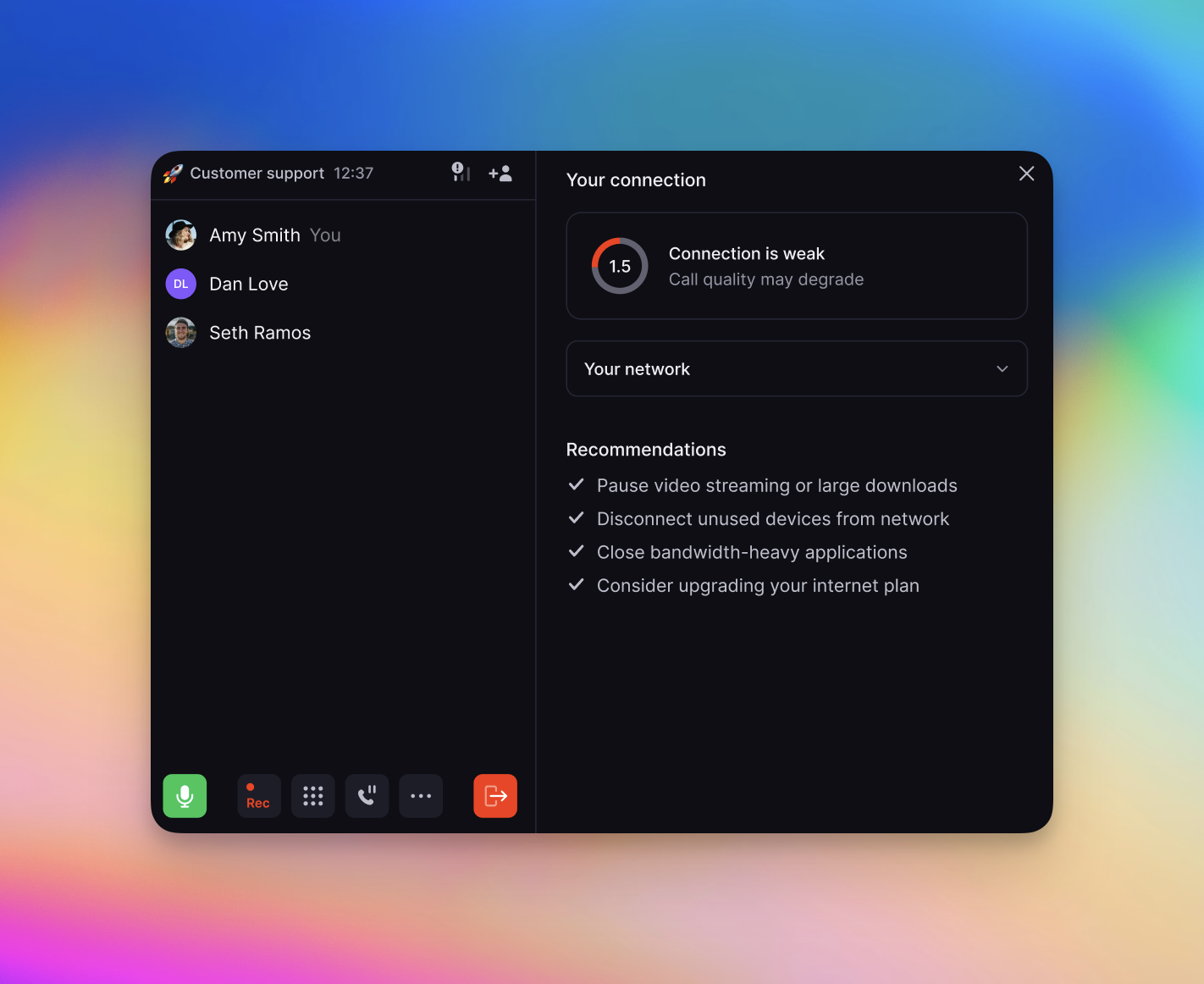
If all your metrics are green and you still hear issues, the problem may be:
- On the other participant’s end
- With the device you’re using (microphone, speakers, etc.). Looking for hardware recommendations? Check out our blog on the best VoIP headsets.
Quick fixes based on what you’re hearing
Think of these symptoms as clues. The way your call sounds often points directly to one of the network metrics you’ll see in the metrics panel.FAQs
Can I view call metrics from past calls?
Can I view call metrics from past calls?
Not yet. Metrics are only available while you’re on a live call so you can troubleshoot issues in real time.
Can I see other team members' call metrics in my workspace?
Can I see other team members' call metrics in my workspace?
No. For privacy and accuracy, each person can only view their own call metrics during their active call.
Can workspace owners turn off the call metrics feature for their team?
Can workspace owners turn off the call metrics feature for their team?
No. This feature is available to everyone since it helps ensure a smoother calling experience. However, team members can choose to dismiss call status banners if they prefer not to open the panel.
Does opening the diagnostics panel affect my call quality?
Does opening the diagnostics panel affect my call quality?
No. The metrics panel displays information that’s already being measured behind the scenes. Viewing your metrics does not use extra bandwidth or change how your call performs in any way.