

Overview
Making calls with Quo is simple and intuitive across all platforms. Whether you’re using the mobile app, web browser, or desktop application, you can connect with customers and colleagues instantly while maintaining your professional business identity.Prefer a walkthrough?
Access interactive demos, videos, and more in the Quo Academy.
Getting started with calls
Quo offers multiple ways to make calls depending on your preferred platform:- Web/Desktop
- Mobile
Launch the Quo web app or desktop application to access powerful calling features.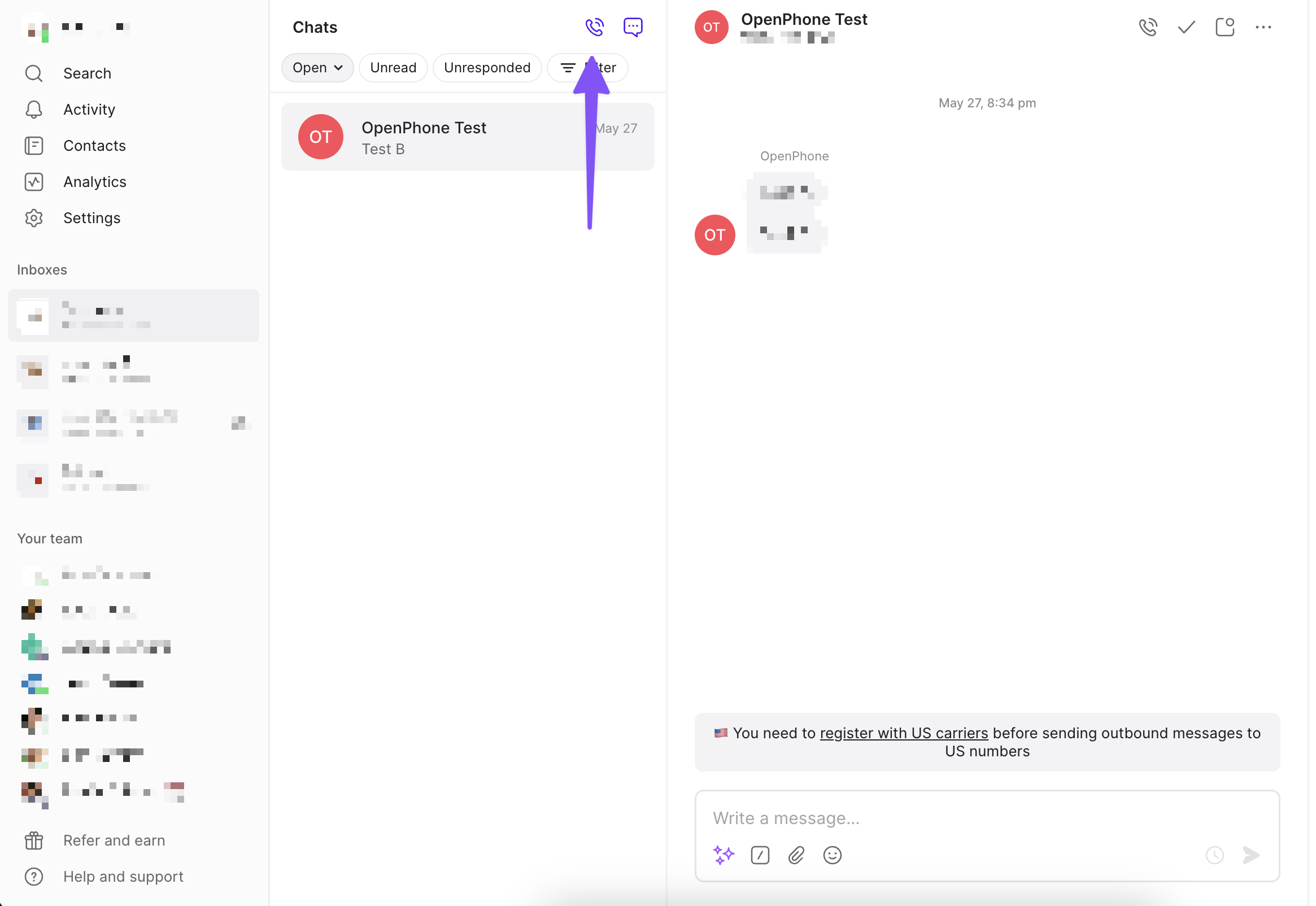
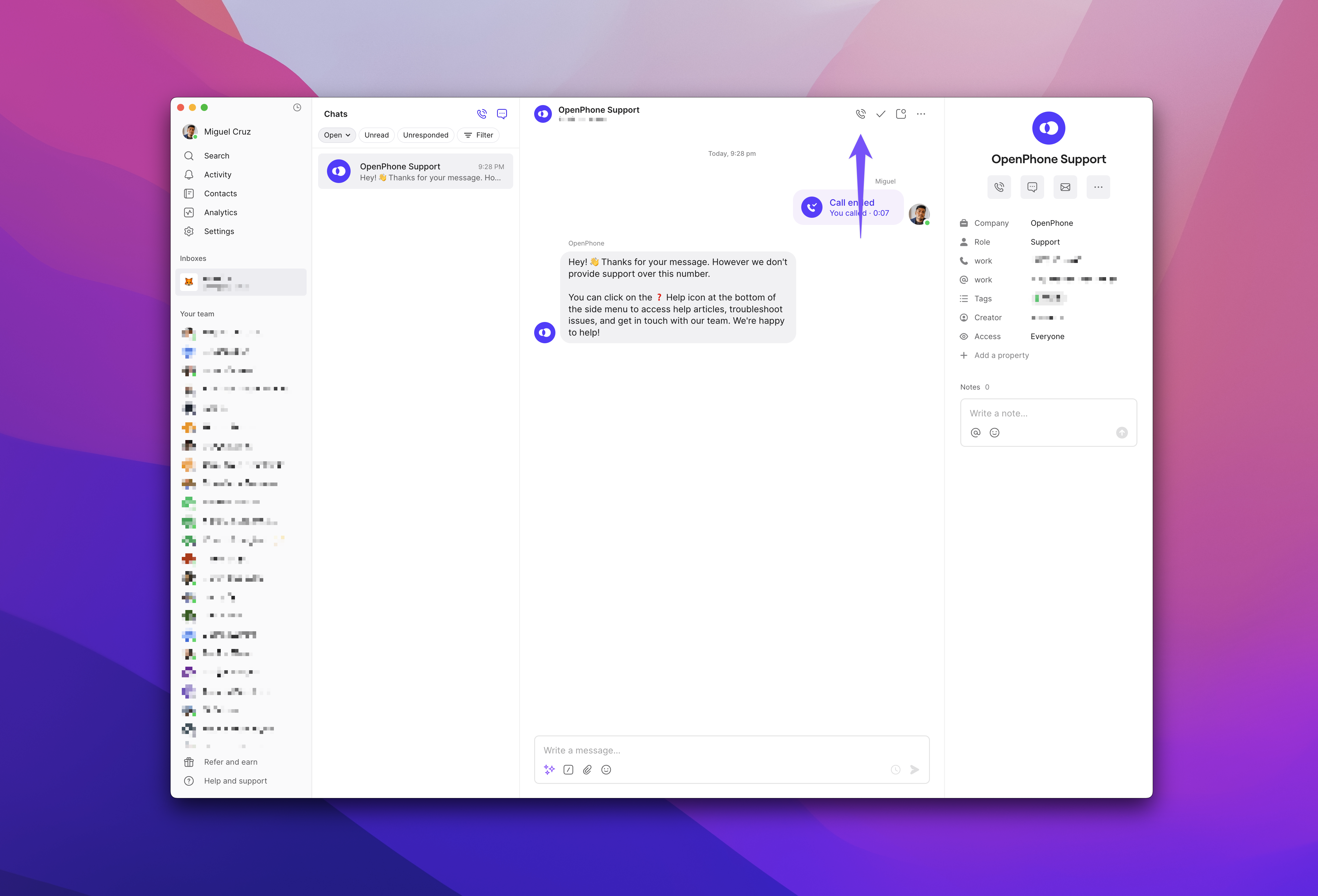
Method 1: Quick dial
Press Ctrl+C (Mac) or Alt+C (Windows)or click the dialer icon at the top of the page. A pop-up window appears where you can:- Type a phone number directly
- Search for a contact by name
- Select from recent conversations
Method 2: From a conversation
Open any conversation and click the phone icon at the top to call that contact.Managing audio settings
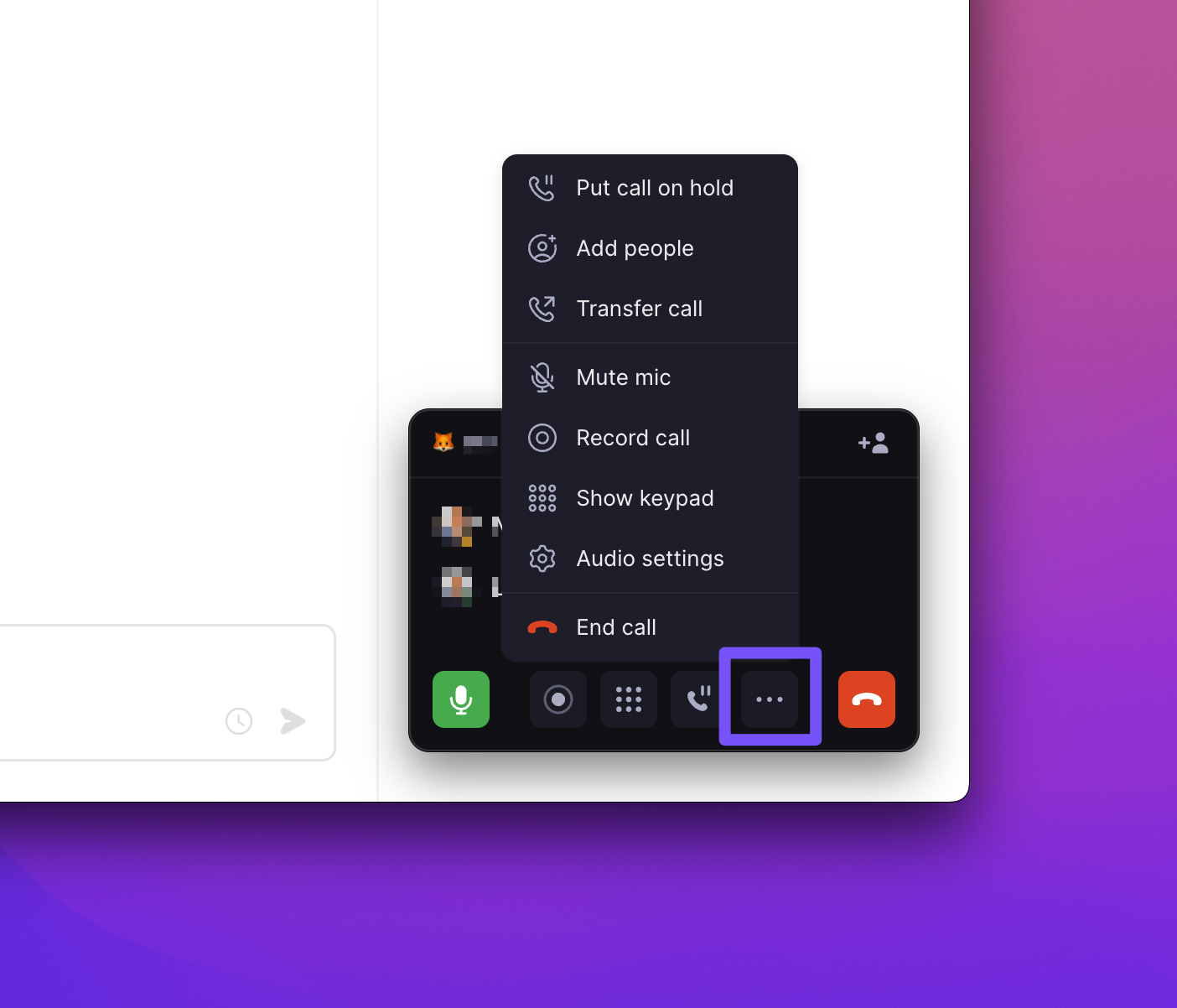
During calls, you can adjust your audio settings:- Click the settings gear (⚙️) during an active call
- Select your preferred microphone and speaker
- Changes apply immediately without dropping the call
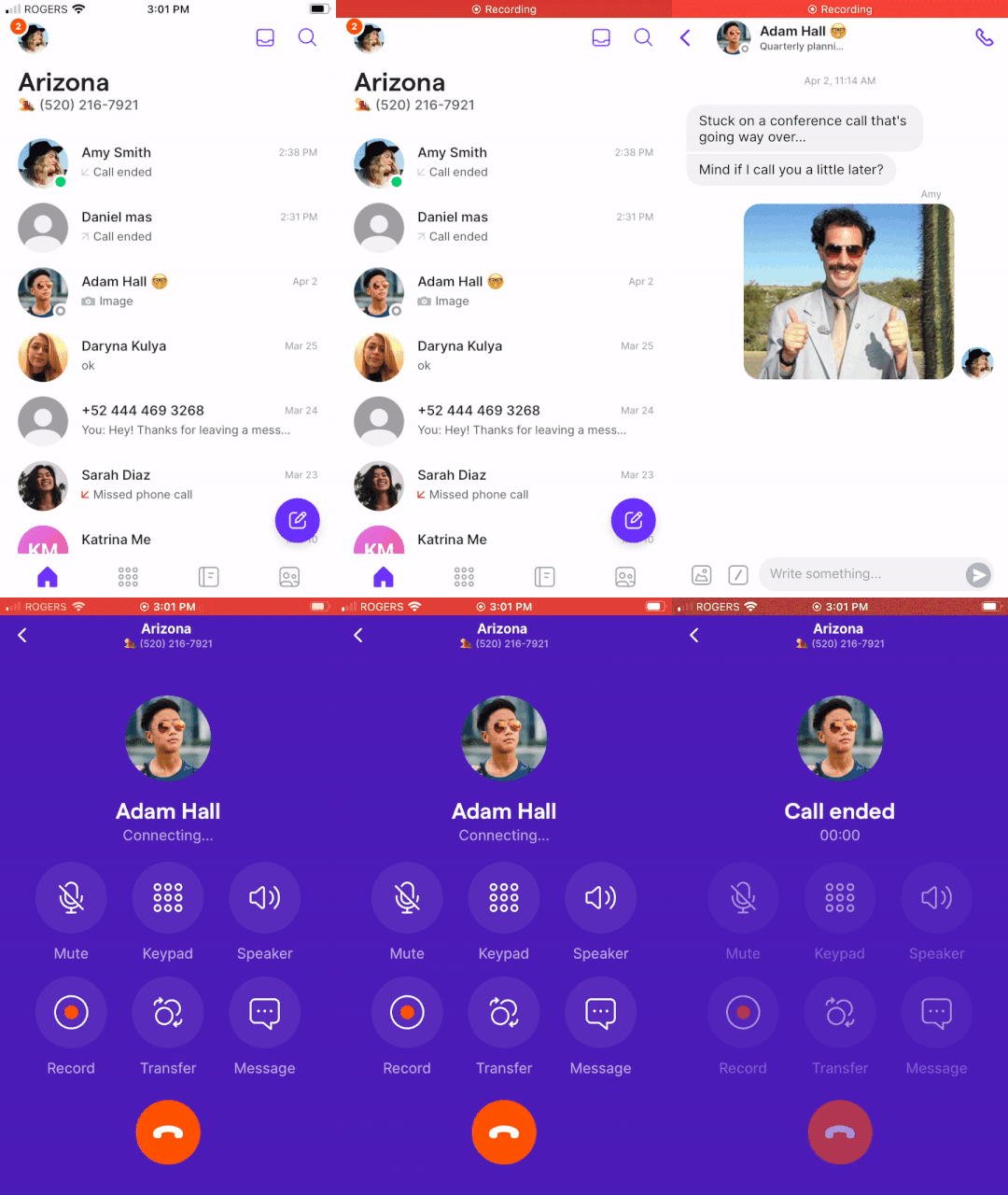

Calling from multiple numbers
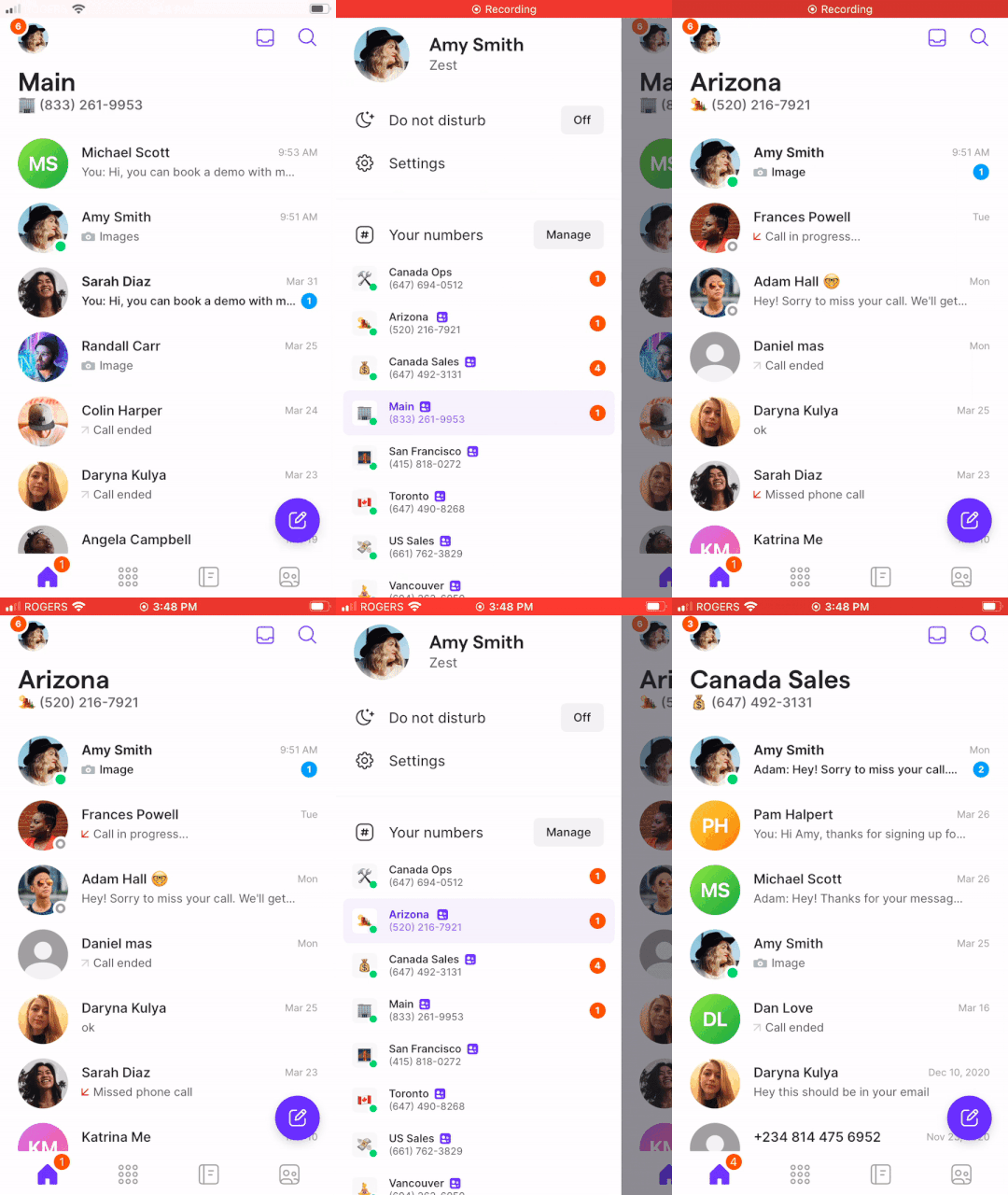
If you manage multiple phone numbers in Quo, you can easily switch between them before making calls.- Web/Desktop
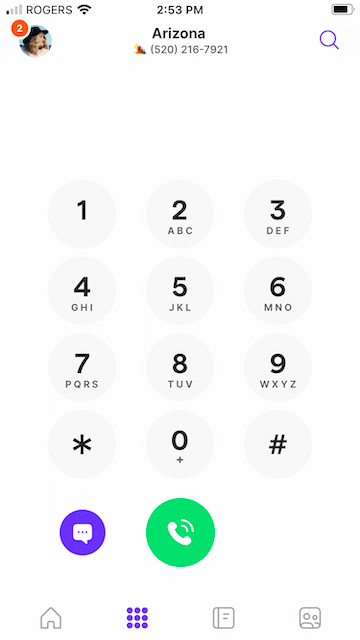
- Mobile
Select the number you want to use from the “Inboxes” section in the left sidebar: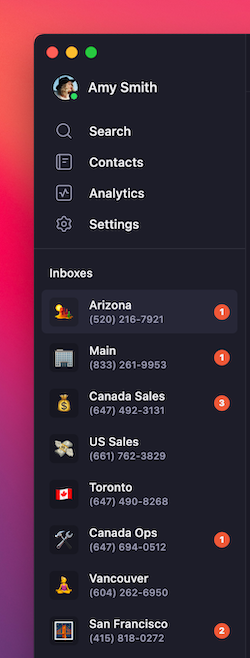
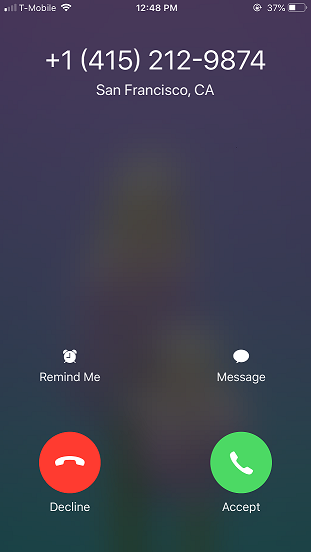
Caller ID and appearance
When you call someone through Quo, they see:- Your Quo business number
- The city where your number is registered
- Your caller ID name (if configured)
Custom hold music
Personalize your caller’s waiting experience with custom hold music. Choose from Quo’s built-in library or upload your own audio to match your brand’s tone. Custom hold music is available on all plans.By default, hold music is already enabled for your phone numbers, so you don’t need to take any action unless you want to change it.
Available music options
- Quo library tracks
- Upload your own
- Upbeat (default): Friendly and energetic
- Mellow: Warm and approachable
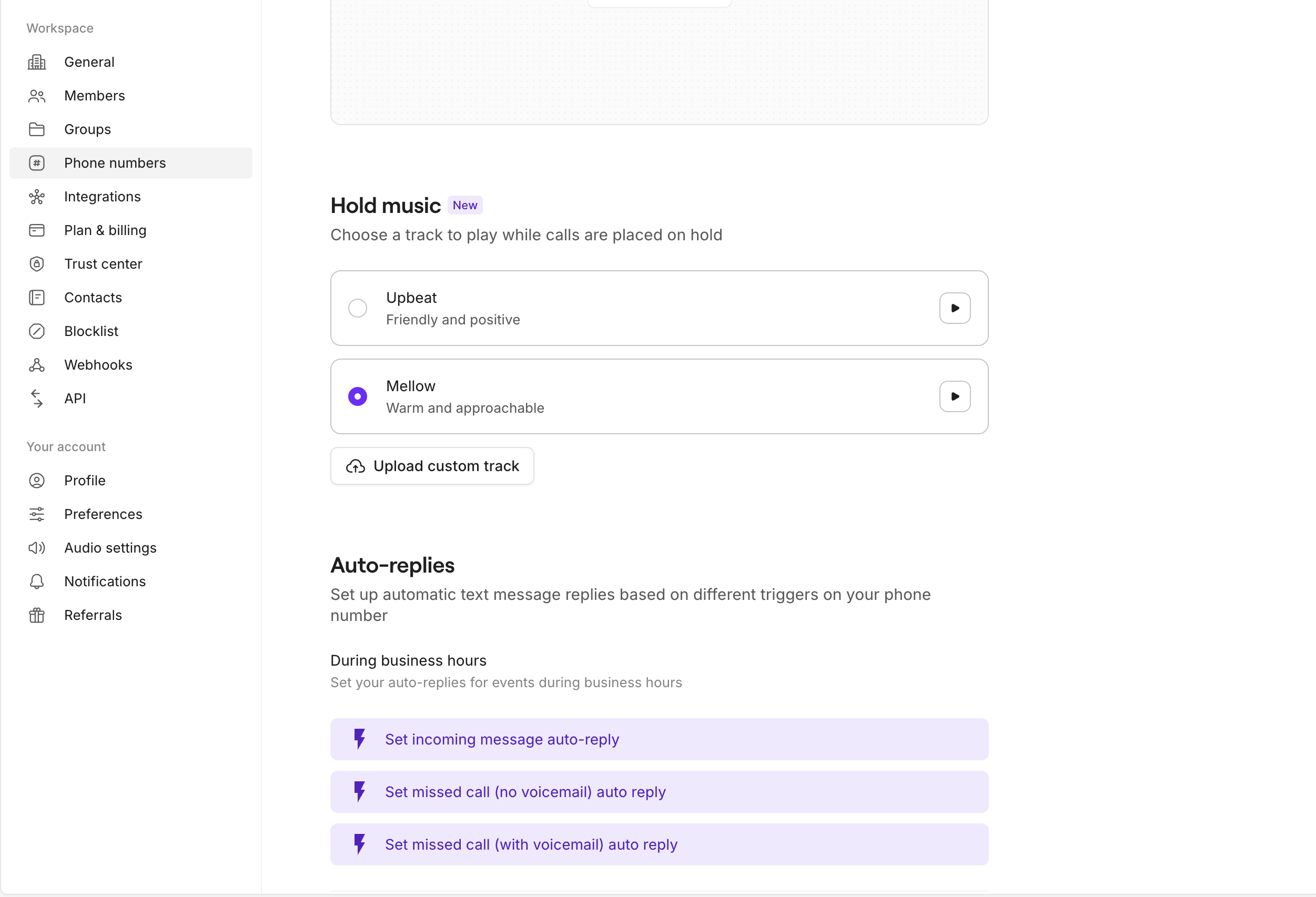
Set up hold music for a phone number
Setup is available on web and desktop only. Once enabled, hold music applies across all devices.- Go to Phone numbers, then select a number
- Scroll to Hold music
- Choose one option:
- Select a library track, or
- Upload a custom audio file
- Click Play to preview the audio
- Select the radio button to activate your choice. Your hold music goes live immediately
Managing custom music uploads
- After uploading a custom track, you must select its radio button to make it live
- You can delete a custom track at any time. If you do, hold music automatically reverts to the default library track
Troubleshooting custom hold music
Files won't upload
Files won't upload
If your file won’t upload, confirm that it’s in MP3 or WAV format. For best results, use an MP3 file with standard bitrates between 128 and 192 kbps.
Custom music isn't playing
Custom music isn't playing
If you’re still hearing the default track, make sure the radio button is selected, since previewing alone doesn’t activate hold music. Keep in mind that hold music plays only when a caller is placed on hold.
Can't replace current custom track
Can't replace current custom track
If a custom track is currently selected, switch to a different library track first. Then upload your new audio file and select it to make it live.
Need to change hold music
Need to change hold music
You can return to Phone numbers → Hold music at any time to update or switch your selection.
Call quality considerations
Quo delivers crystal-clear call quality that depends on your internet connection strength. On a reliable connection, you’ll experience:- Professional-grade audio quality
- No noticeable difference from traditional phone calls
- Consistent performance across all devices
- Use a strong WiFi or cellular data connection
- Close bandwidth-heavy applications during calls
- Consider using a headset for better audio clarity
Monitor and troubleshoot your calls live with Quo’s call quality metrics panel. Available on desktop and mobile.
Quick fixes to improve your call quality
You can often fix call quality issues without digging into settings or restarting your device. The way your call sounds can point directly to one of the network metrics you’ll see in the diagnostics panel. Check out our Call quality metrics article to learn more.Platform-specific features
- Web/Desktop exclusive
- Mobile exclusive
Additional calling features
Enhance your calling experience with:- Call recording: Record important conversations at the touch of a button
- Call transfer: Seamlessly hand off calls to team members
- Conference calling: Add multiple participants to your calls
- Voicemail: Professional greetings when you can’t answer
FAQs
Can recipients see my personal number?
Can recipients see my personal number?
No, recipients only see your Quo business number on their caller ID. Your personal phone number remains completely private.
Do recipients need Quo to receive my calls?
Do recipients need Quo to receive my calls?
No, anyone can receive your Quo calls on their regular phone. They don’t need any special app or service.
Can I make international calls?
Can I make international calls?
Yes, Quo supports international calling. You’ll need to enable international calling in your settings and add credit to your account for calls outside the US and Canada.
What happens if my internet connection drops during a call?
What happens if my internet connection drops during a call?
If your connection is interrupted, Quo will attempt to reconnect automatically. For important calls, ensure you have a stable internet connection before dialing.
Can I use Quo with my existing headset?
Can I use Quo with my existing headset?
Yes, Quo works with any headset or speaker system connected to your device. You can select your preferred audio devices in the settings during a call.
Are there differences between platforms?
Are there differences between platforms?
While core calling functionality is consistent across platforms, web/desktop offers keyboard shortcuts and advanced audio controls, while mobile provides touch gestures and native phone integration. Choose the platform that best fits your workflow.