

Overview
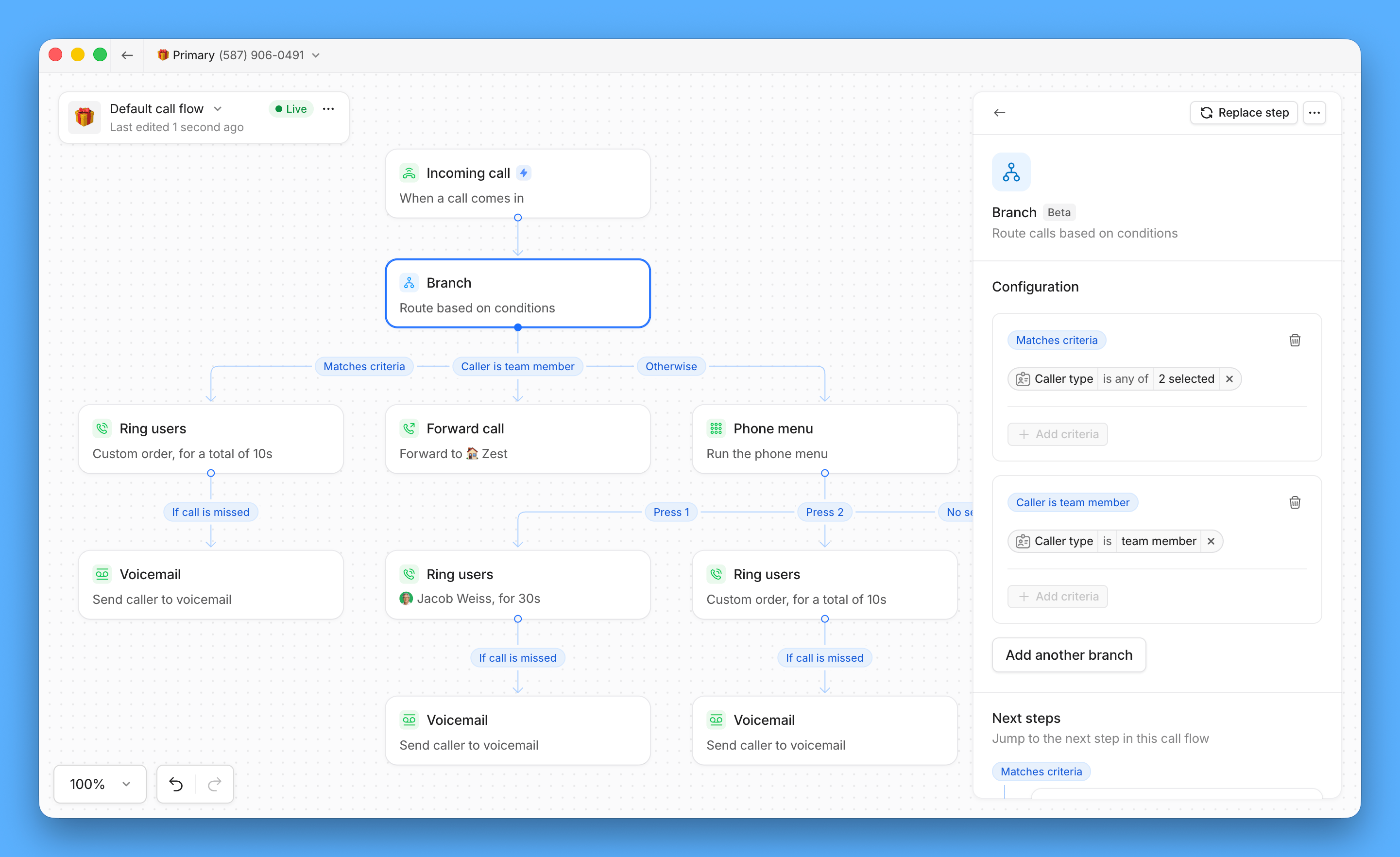
Contact routing lets your call flow treat callers differently based on who they are, before any ringing happens. Add a Branch step to your call flow and create separate paths for saved contacts, AI-suggested contacts, team members, and everyone else. Use it to send known clients straight to their assigned team, keep internal calls off your customer-facing paths, or route unknown callers through screening or a phone menu before they reach anyone.Contact routing is currently in beta.It’s rolling out to workspaces with Business or Scale plans gradually — if you don’t see it yet, it’s on the way. The feature is actively in development, and we’ll keep sharing improvements as they land.
How it works
When a call comes in, the Branch step checks the caller’s Caller type against the branches you’ve set up:Any caller that doesn’t match a Caller type you’ve selected follows the Otherwise branch.
Route by contact properties
In addition to caller type, you can route calls based on a contact’s tags or a custom checkbox property, like VIP, Enterprise, or however your team already tags contacts.- In the Branch step, choose Contact properties as the condition type
- Select a property, either a Tag or a Checkbox field, and the value(s) to match
- Optionally add more criteria to build a compound rule, like Tag = VIP AND Tag = Enterprise.
- Place this branch right after the incoming call, after a phone menu, or inside a business-hours split. It can’t sit before business hours.
- Click Publish changes.
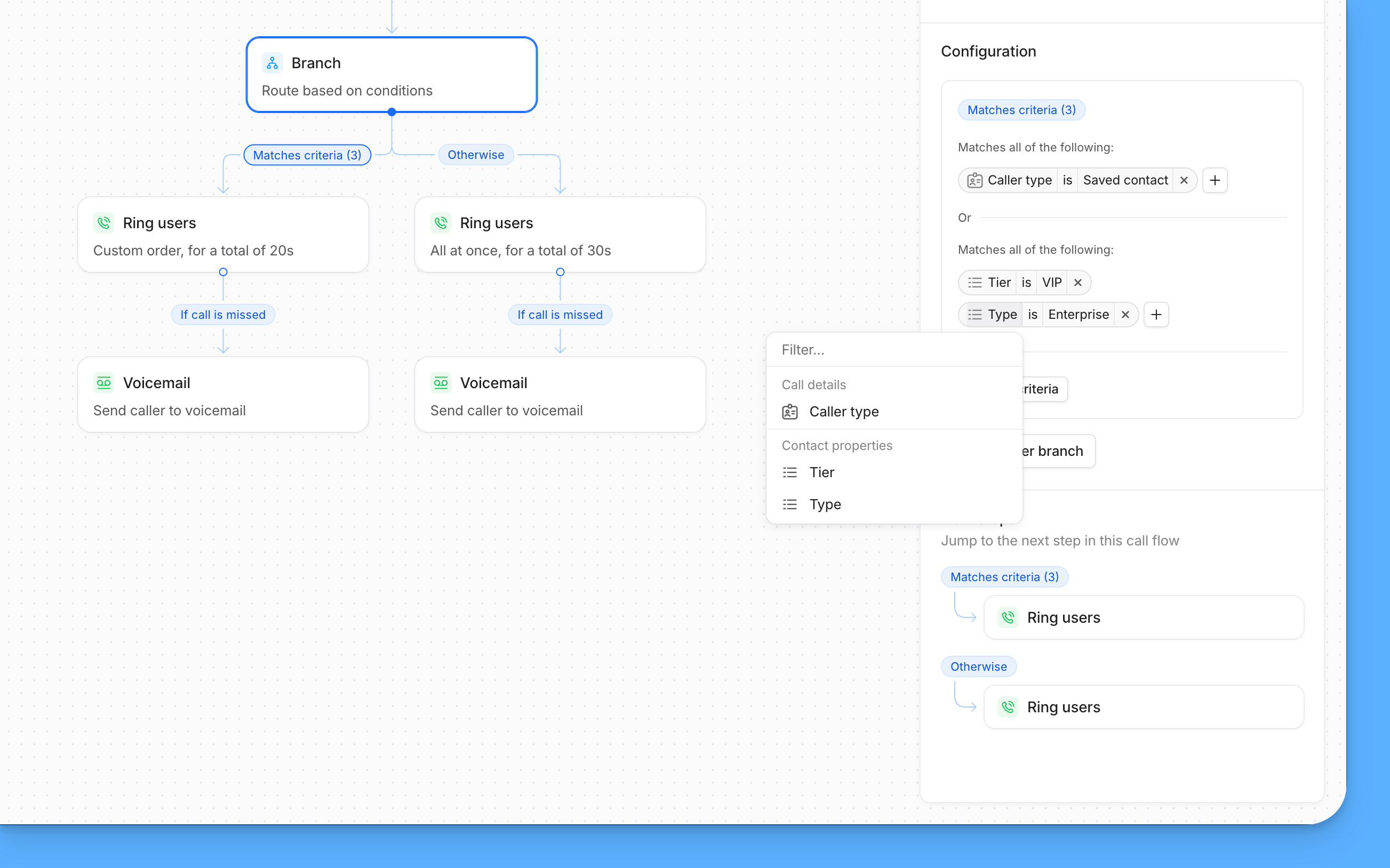
Contact properties conditions can sit alongside Caller type conditions in the same call flow.
Add a Branch step to your call flow
- Open the Call flow builder
- Drag the Branch step onto your canvas
- Select a branch path and click + Add criteria to select one or more caller types to route automatically.
- You can choose from Saved contact, AI contact suggestion, or Team member
- Complete the flows for each branch by dragging and dropping Steps like Ring groups, Phone menu, Call forwarding or Voicemail below each path
- Click Publish changes
Rename your branches
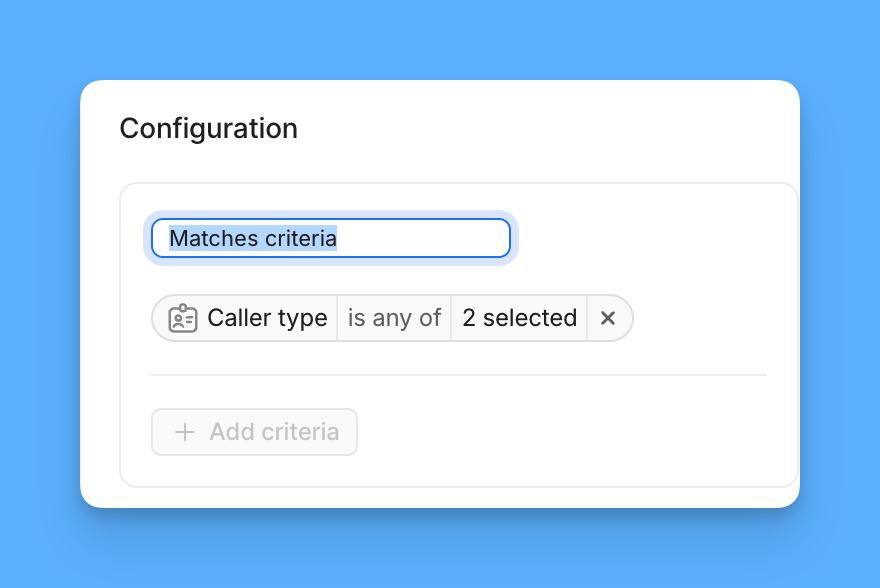
Each branch starts with a default label, but you can rename it to match how your team talks about it.- Select the Branch step
- Select the branch you want to rename
- Enter a new label
Combine or separate paths
Caller type supports more than one selection per branch, so you can keep saved contacts, AI contact suggestions, and team members on separate branches, or check more than one type on the same branch to merge them. For example, check both Saved contact and AI contact suggestion on one branch to route recognized callers together, while keeping Team member on its own.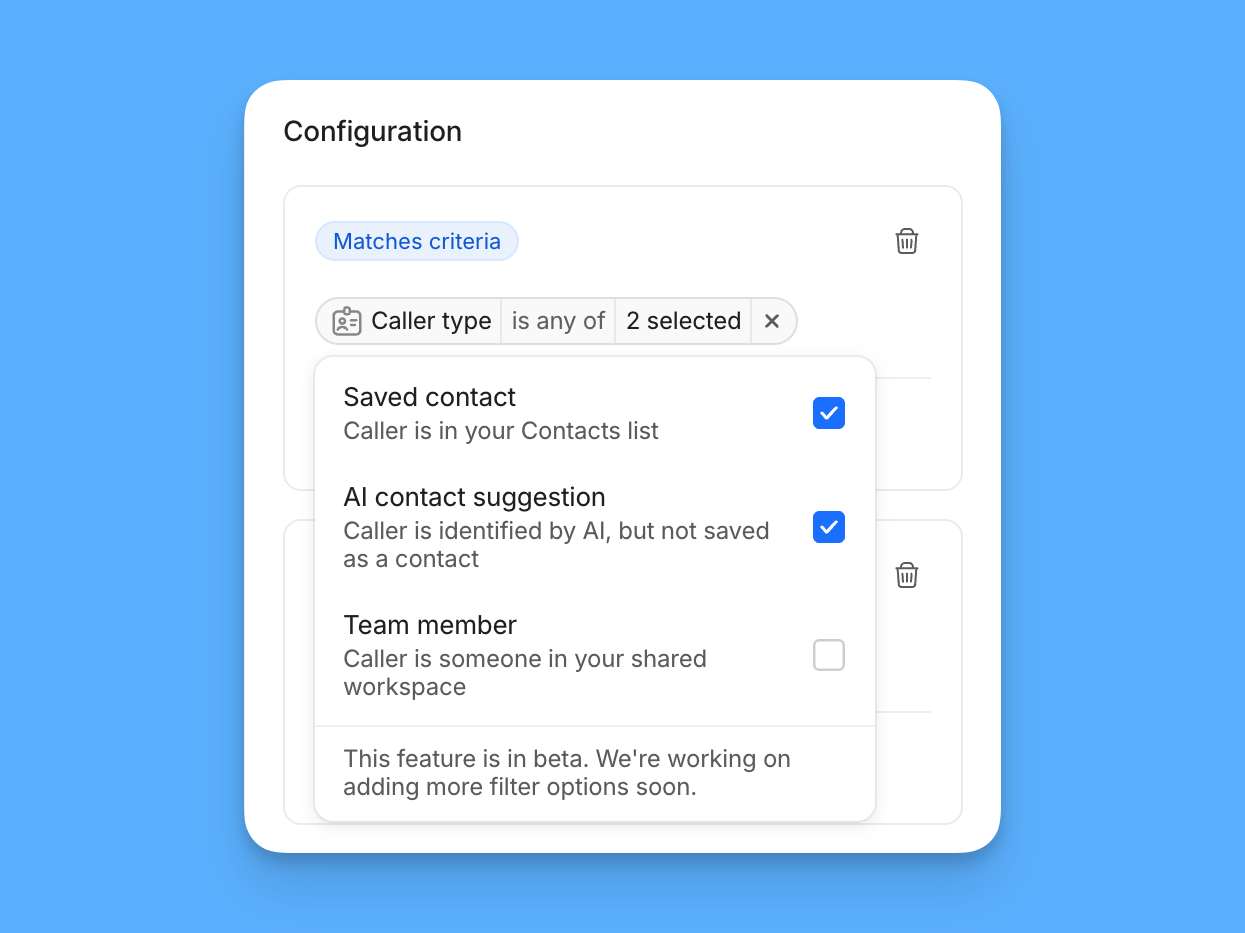
Call activity for routed calls
When a call is handled by a contact routing condition, the Call tab in your inbox shows why. This includes calls that went straight to voicemail without ringing, and whether the caller left a message.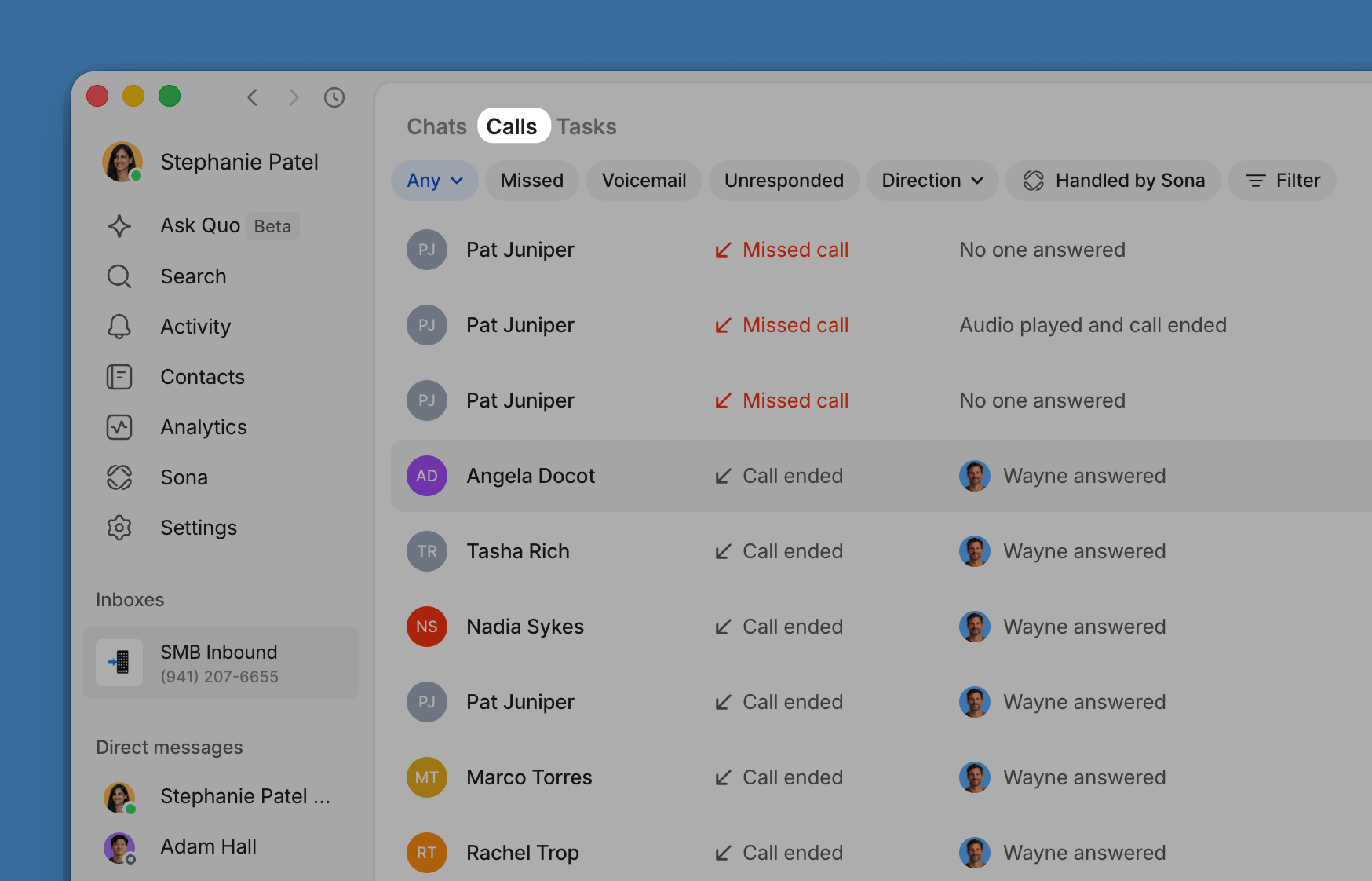
FAQs
Why didn't a call ring for me if I'm a team member?
Why didn't a call ring for me if I'm a team member?
If your workspace doesn’t have a branch with Caller type set to Team member, calls from team members follow the Otherwise branch instead of ringing you directly. Check that a Team member branch exists and covers the right people.
How does Quo know a caller is a team member?
How does Quo know a caller is a team member?
Quo checks whether the caller is a user in your workspace. If you’re sharing a line without being added as a user, you won’t be recognized as a team member on that call.
Can I route calls differently depending on the time of day?
Can I route calls differently depending on the time of day?
Not yet. Contact routing conditions are based on caller identity, not time of day. Use business hours for time-based routing instead.
Can I add someone outside my workspace as a team member condition?
Can I add someone outside my workspace as a team member condition?
No. Only users added to your Quo workspace can be recognized as team members.