

When to use the Go to step
Instead of rebuilding steps twice (or more), you can use Go to step to point callers to the right part of your flow. Here are a few examples where Go to step comes in handy:- Route to the same AI agent (Sona) during and after business hours, instead of adding a different iteration of Sona to different places
- Send all missed calls (from different ring groups) to the same voicemail
- Replay a specific greeting (like a recording of your address or hours) from different parts of the call flow
- In nested phone menus, route callers back to the main menu if they need to start over (under “no selection” or after a specific keypad selection)
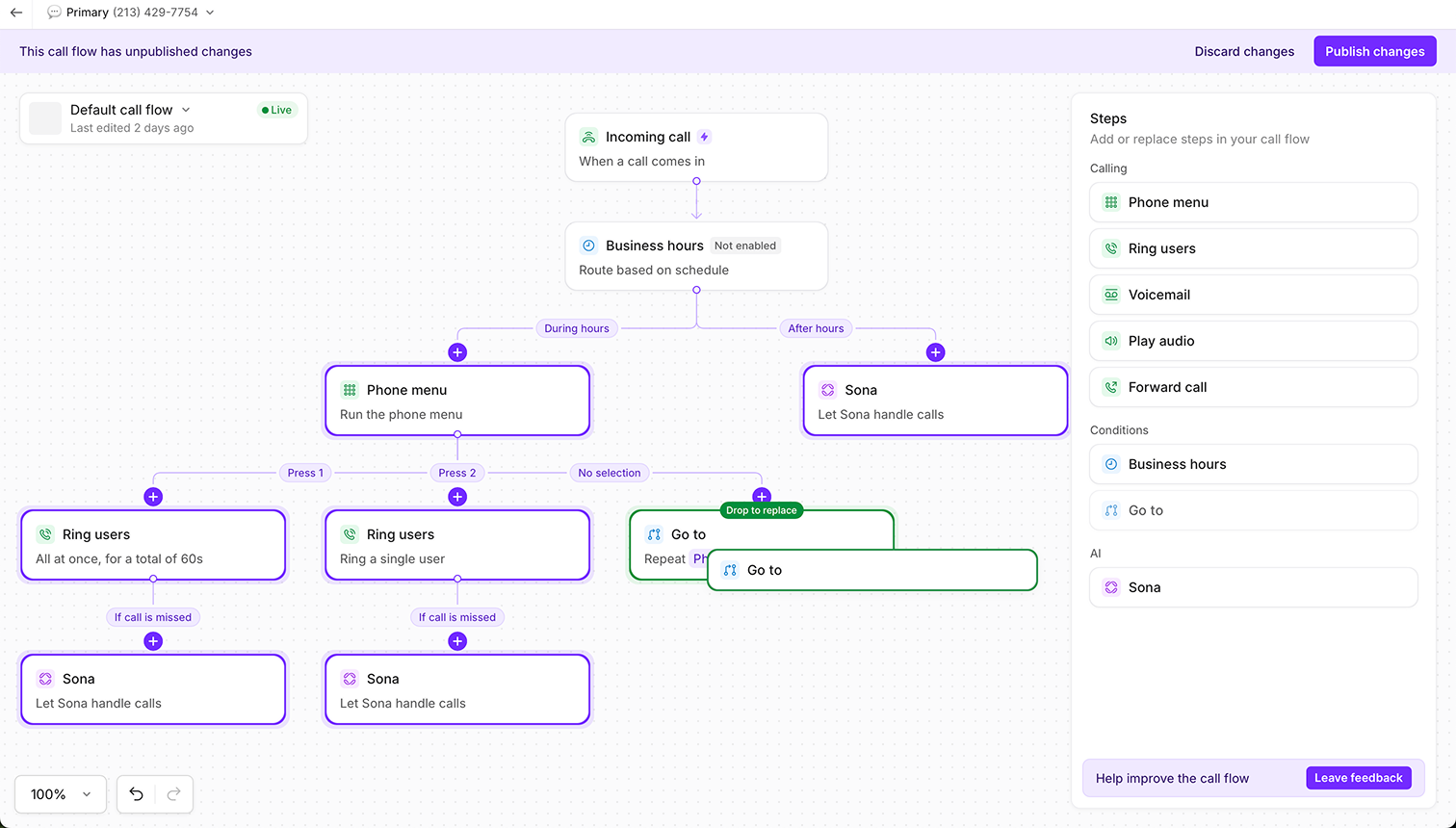
How to add a Go to step
- In the call flow builder, navigate to a step where you want to redirect the caller to a step you’ve already created
- Select Go to step from the side menu and drag it into the canvas (or “+” button on the canvas, then pick the go to step)
- Choose the step you want to send callers to.
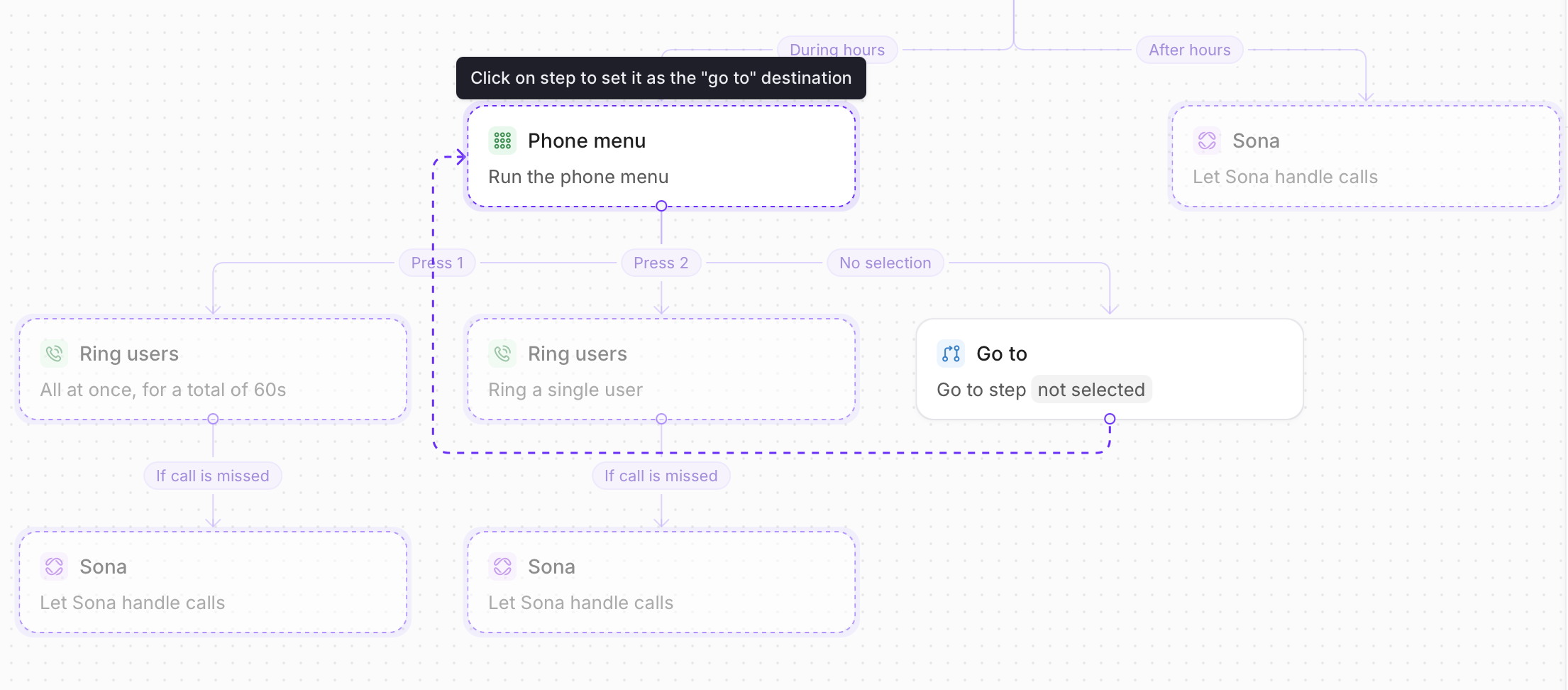
How to change your Go to step destination
You have two options for where to make the change:- From the right side panel, select Replace go to destination (🔄 icon) in your Go to step, or
- In the call flow builder canvas, hover over the top right-hand side of the step to reveal the toolbar then select Replace step.
Dive deeper into the Call flow builder
Practice using call flows with interactive demos, videos, and more in the Quo Academy.