Map out a better calling experience with the call flow builder
With Quo’s call flow builder, you can customize your call flow experience by dragging and dropping each step of the process exactly how you want. Create separate call flows for your business hours and after hours with call blocks that make it easier for your team to handle incoming call volume and create a delightful experience for customers. The call flow canvas helps you map out and set up your call flows easily. Simply drag and drop blocks. Then adjust those specific block settings.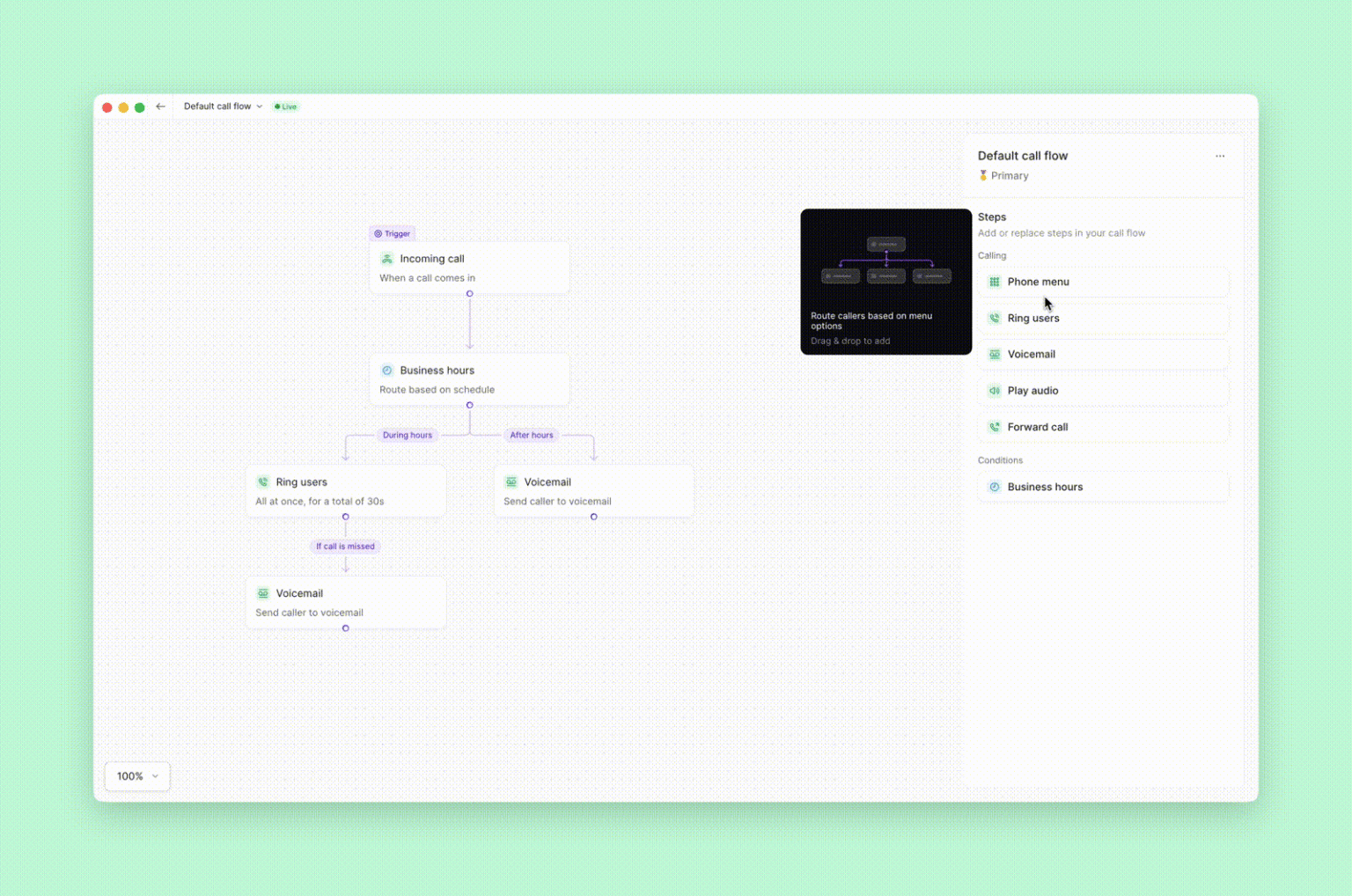
Choose which team members to ring
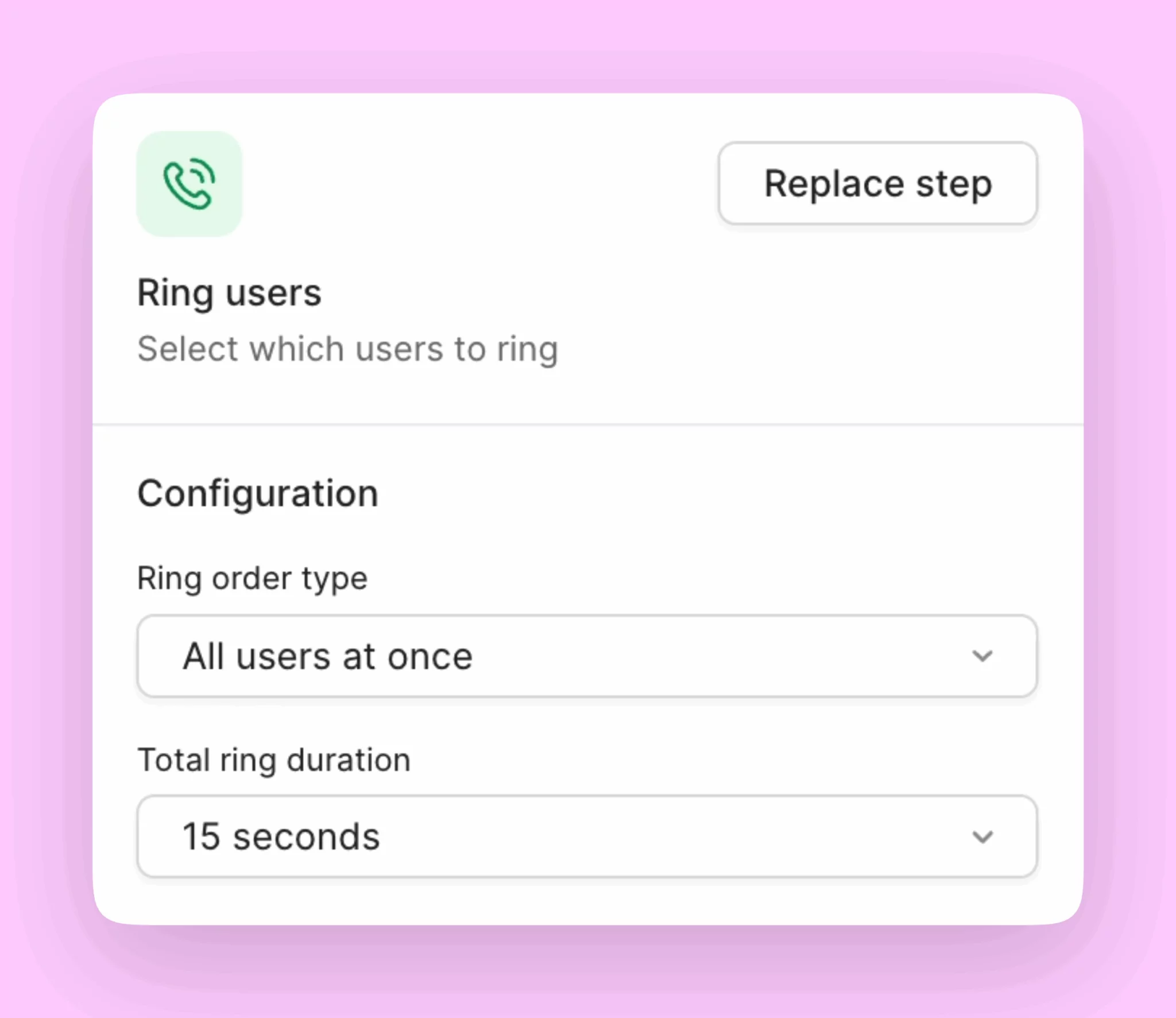
Let’s say right now your customers are slipping through the cracks and moving on to other companies because your team currently misses calls. With the ring users feature, you can choose exactly who on your team receives incoming calls simultaneously and prioritize who receives incoming call notifications first. Set up different ring groups during your business hours and after business hours. For example, you can ring your entire team during business hours, but only ring specific on-call team members after hours so that you don’t disturb colleagues who are offline. When you design your ring users, it’s a delicate balance between the needs of your customers and your team. Here are a few tips for setting your ring order:- Set a minimum ring duration of 15 seconds if you plan to ring all your team members so the call has time to register.
- Set a shorter ring duration if you plan to ring groups of team members at a time so that customers aren’t waiting on the line for too long.
Let customers automatically route their calls
As your team grows and adds more departments, your customers will want to get in touch with specific team members. It’s a good idea to give your customers the ability to choose which department they want to reach. With a phone menu (also called a phone tree), you can program a set of predefined options that your customers can choose from. It reduces their call wait times and reduces the need to manually transfer callers to the right department even after they connect with your team. You can even have different phone menus during and after your business hours, which gives you flexibility to design your call experience in a way that works for you and your customers. Having a phone menu is a great way to cut down spam and robocalls. Bots can’t navigate through the keypad options required by a phone menu, so your team can just focus on speaking to your customers.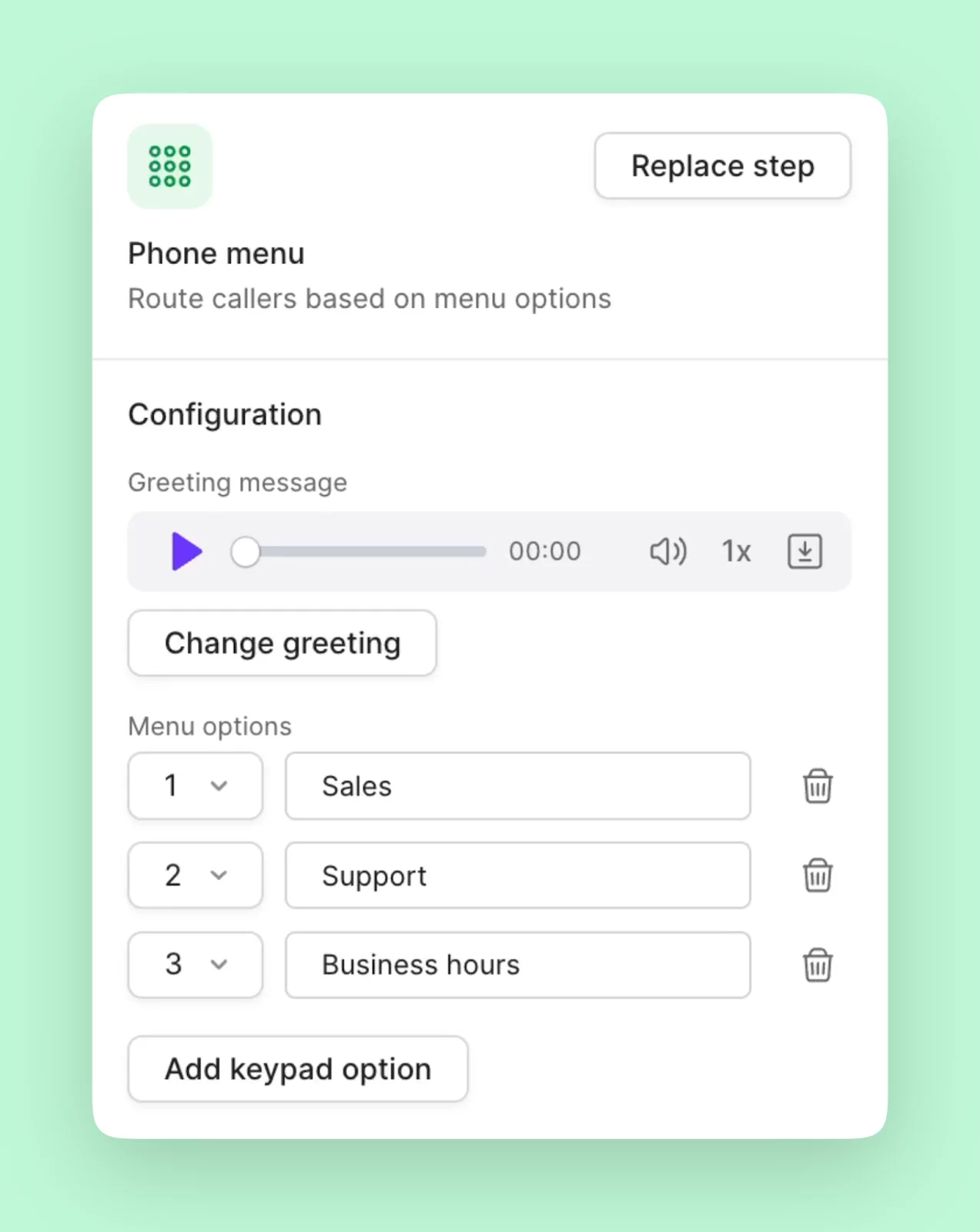
- Include voice commands that callers can use to select their menu option. For example, if option 1 connects to your sales team. You can add the voice command “sales”.
- Keep your phone menu options short, ideally between 3-4 options. Having too many options can overwhelm callers and add unnecessary friction to their experience.
- Include self-serve options that help customers answer frequently asked questions. For example, you can ask them to press ‘3’ to find out your business hours if your team is frequently asked for them.
- Add up to two additional levels to your phone menu to give more routing options to your customers. Multi-level menus are useful to connect callers to specific teams within a department and cater to language or location-based preferences. Each menu option can route to another menu, person, group, or even Sona — giving you complete control over the caller experience.
Set up backup options when your team is unavailable (during and after business hours)
Your team won’t always be available to take every incoming call, but you can still make a strong impression with customers who call you and gather important context from them before they hang up with these additional phone settings:- Sona: When your team is busy or off for the day, you can use Quo’s AI agent, Sona. Sona can answer calls 24/7, answer common customer questions, and take a message so your team can easily follow up later.
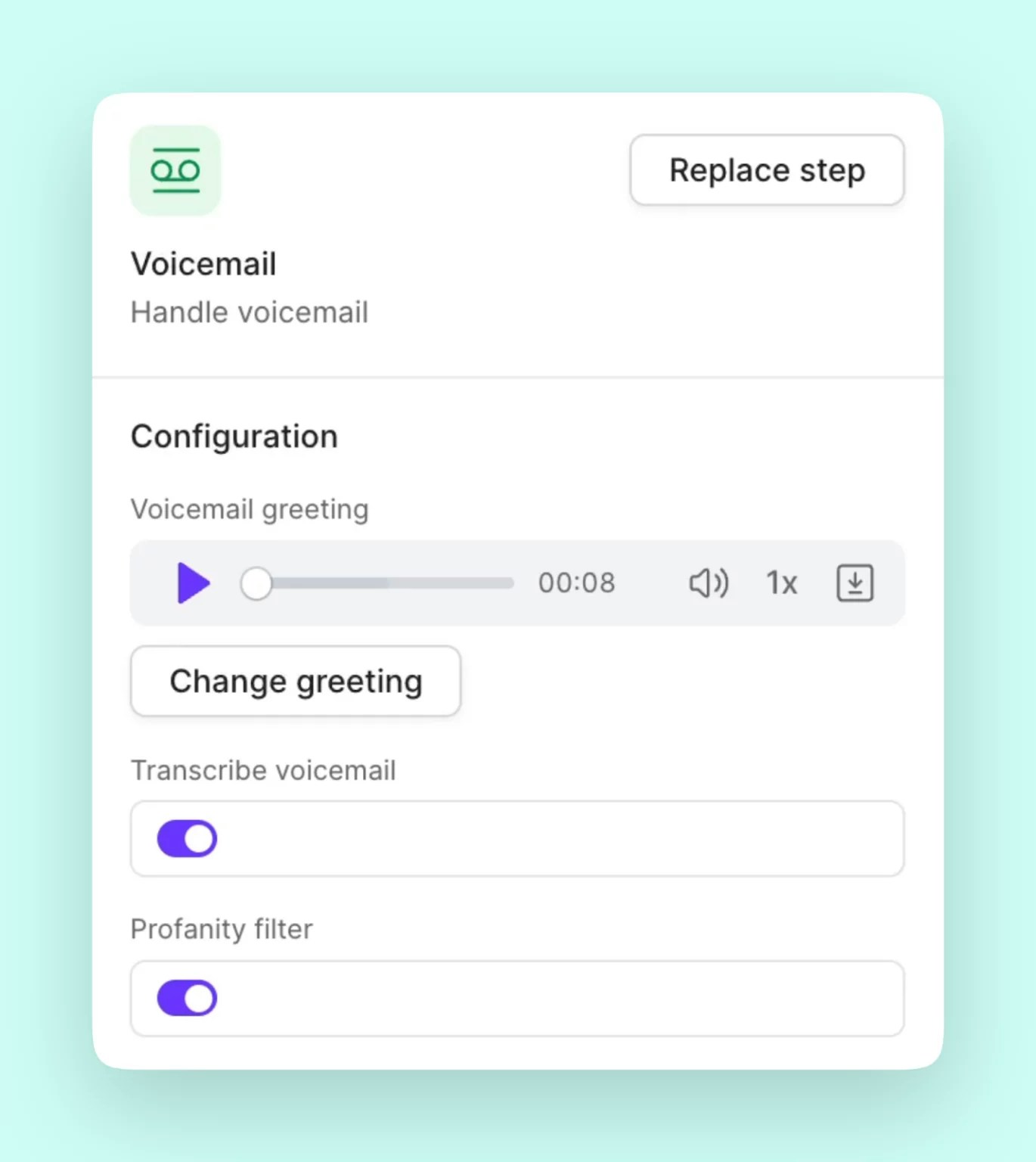
- Custom voicemail greetings: Your greeting lets customers know what information you need from them to follow up and set expectations for when they can expect a call back. Be sure to set up separate greetings for during and after business hours.
- Auto-replies: Setting up auto-replies lets you also set expectations based on different scenarios. For example, if someone calls but doesn’t leave a message, you can automatically send them a text checking to see what they called in regarding. On the other hand, you can have a separate auto-reply set up to let them know when you’ll get back to them if they send you a text.
- Forward to another number: You can also set up a backup forwarding number so that you don’t miss out on connecting with every customer. For example, if you have an answering service after hours for your business, you can automatically set up a call flow that routes all calls to an external number.
Reuse existing steps in your call flows
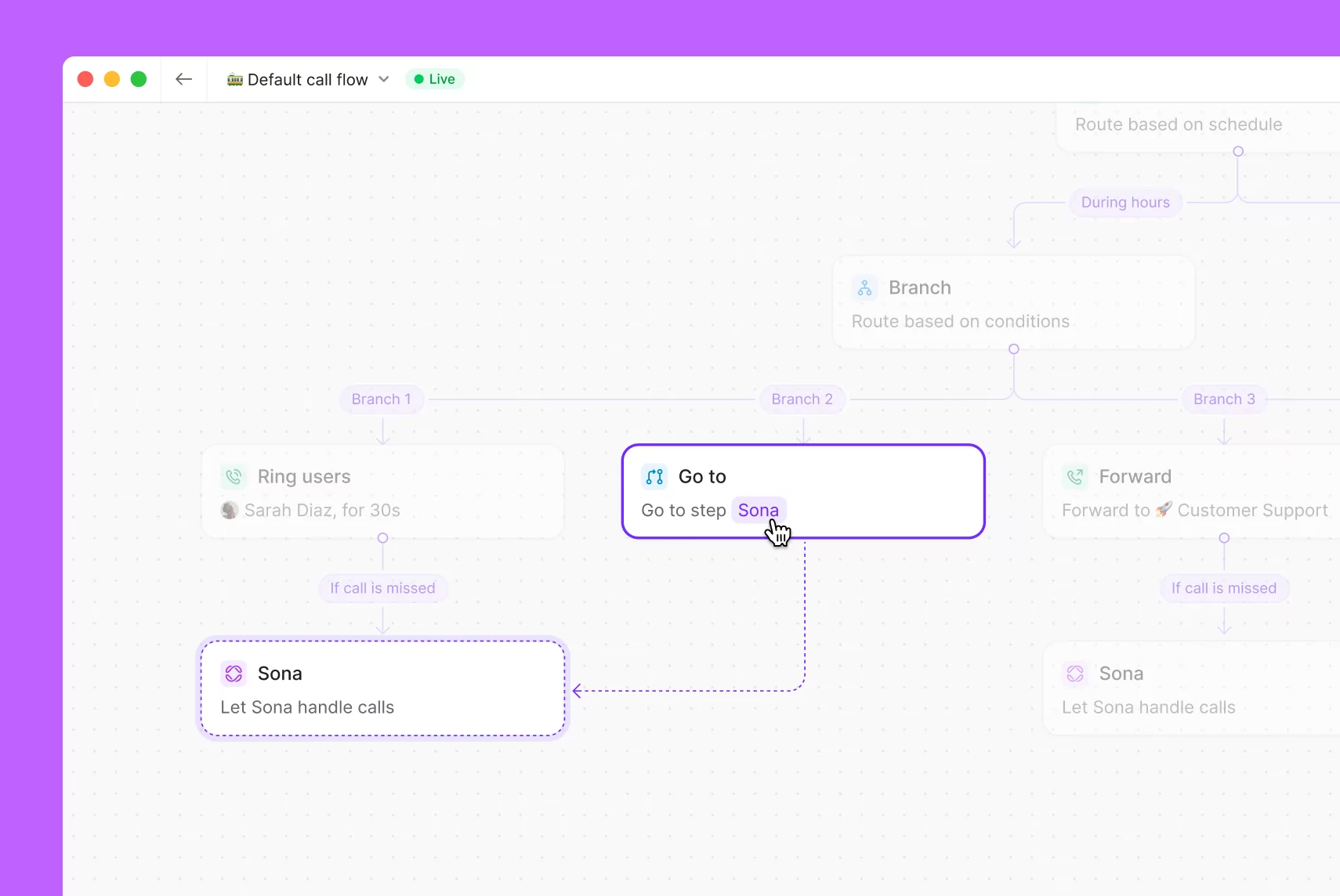
Build call flow branches faster by re-adding existing steps elsewhere in your call flow. With the Go to call flow step, you can connect your call flow steps seamlessly, eliminating duplicate steps and streamlining your call flow setup. For callers who go through different options in your phone menu and can’t connect with a team member, you can use the Go to step to direct them to your voicemail or Sona. No need to create the same voicemail and Sona steps multiple times for different phone menu options; you can route calls to the same version. By reusing existing call flow steps, you can provide a consistent experience to callers, clean up call flows, and reduce admin work in managing your call flows. It frees you up so that you can make edits to your call flows faster and focus on having more customer conversations.