

Create a task on web or desktop
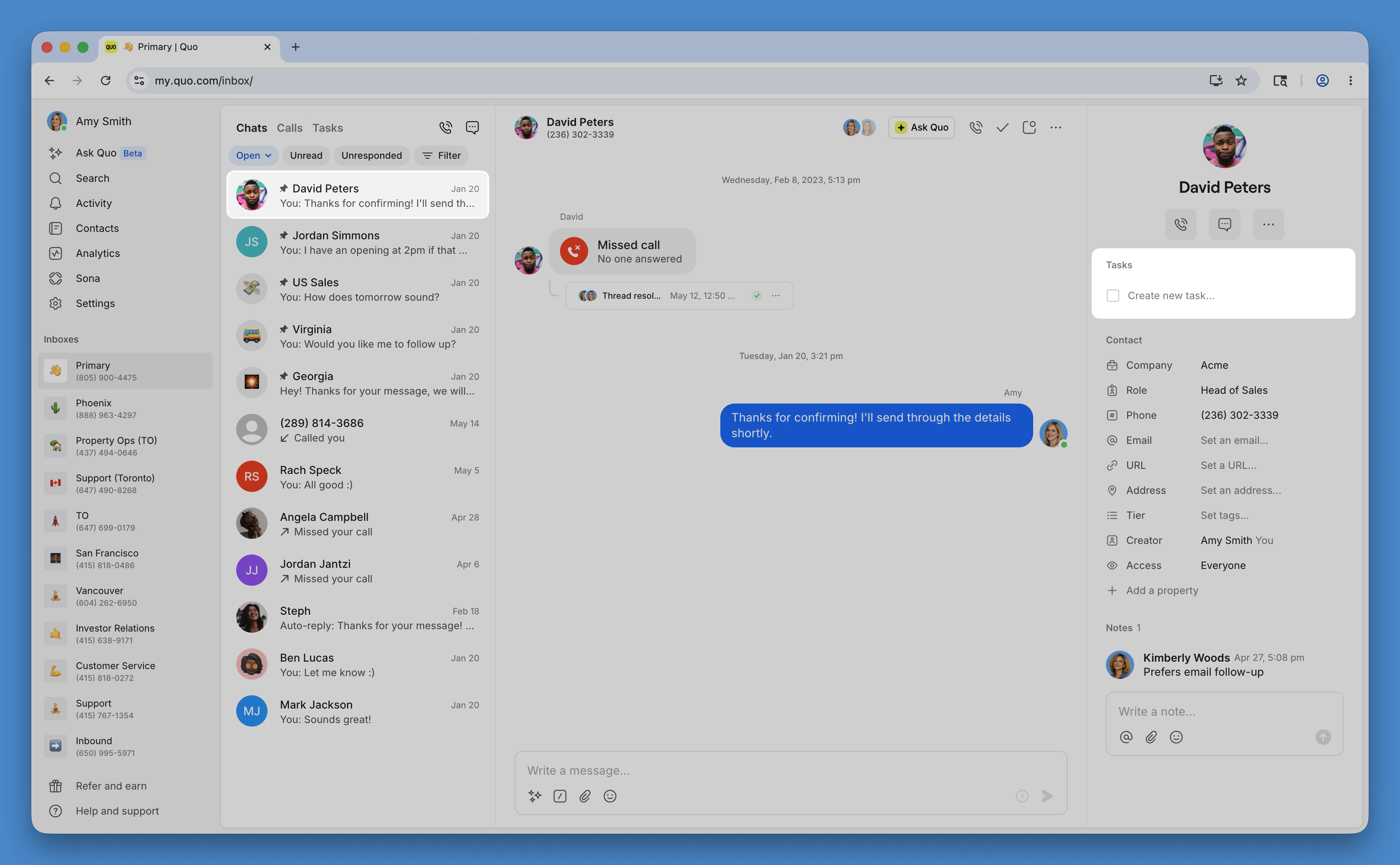
- Open a conversation and locate the Tasks section in the right sidebar
- Click Create new task and enter a task name and description
- Add an assignee, and due date
- You can also choose an exact time or pick from 15-minute increments. If you don’t set a time, the due date defaults to 9:00 AM.
- Click Create task to save the task
From a specific call or message
From a specific call or message
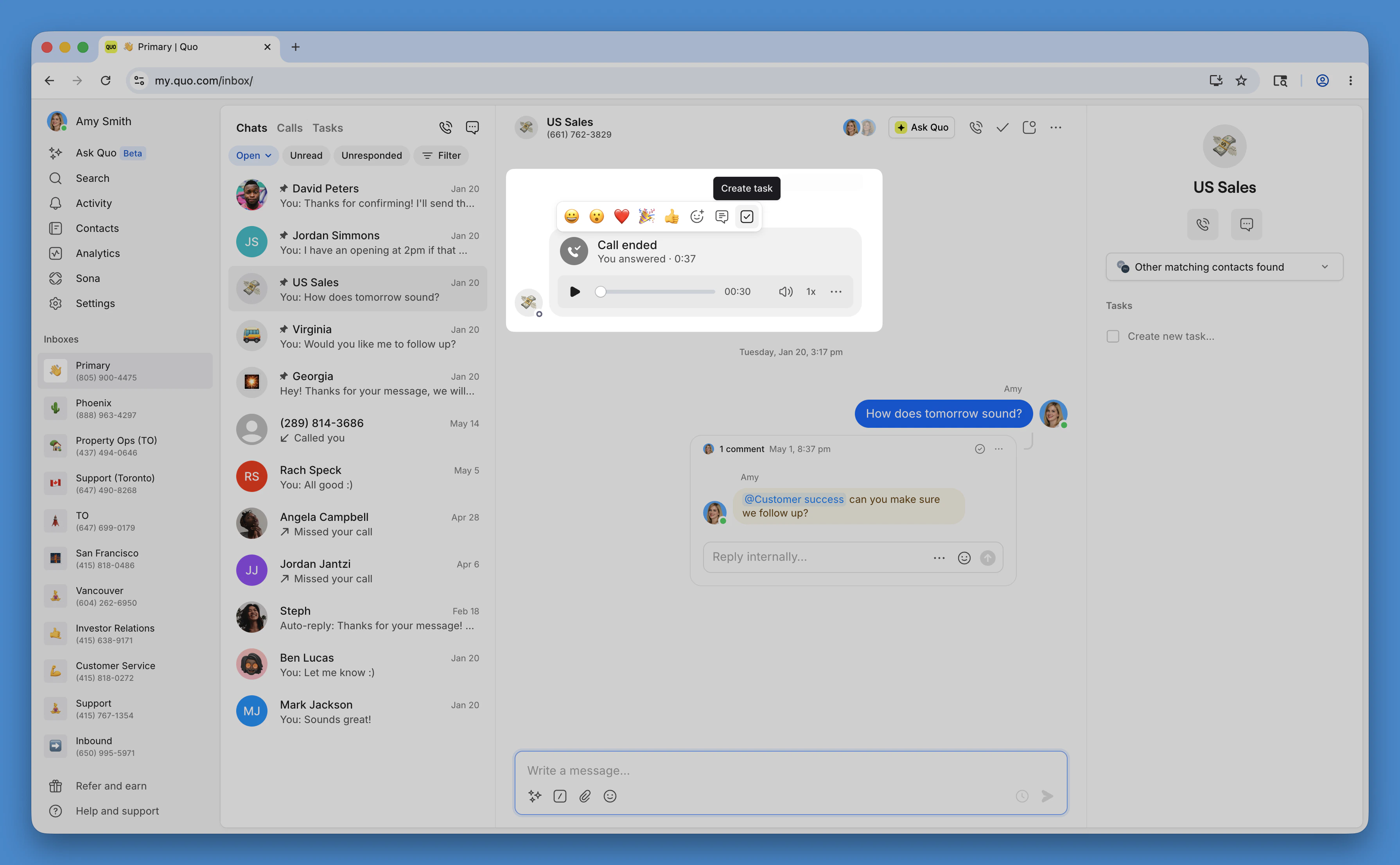
- Open a conversation and locate a call or message activity
- Hover over that activity until the menu bar appears
- Click Create new task and enter a task name and description
- Add an assignee, and due date
- Click Create task to save the task
From an inbox - not attached to a specific conversation or activity
From an inbox - not attached to a specific conversation or activity
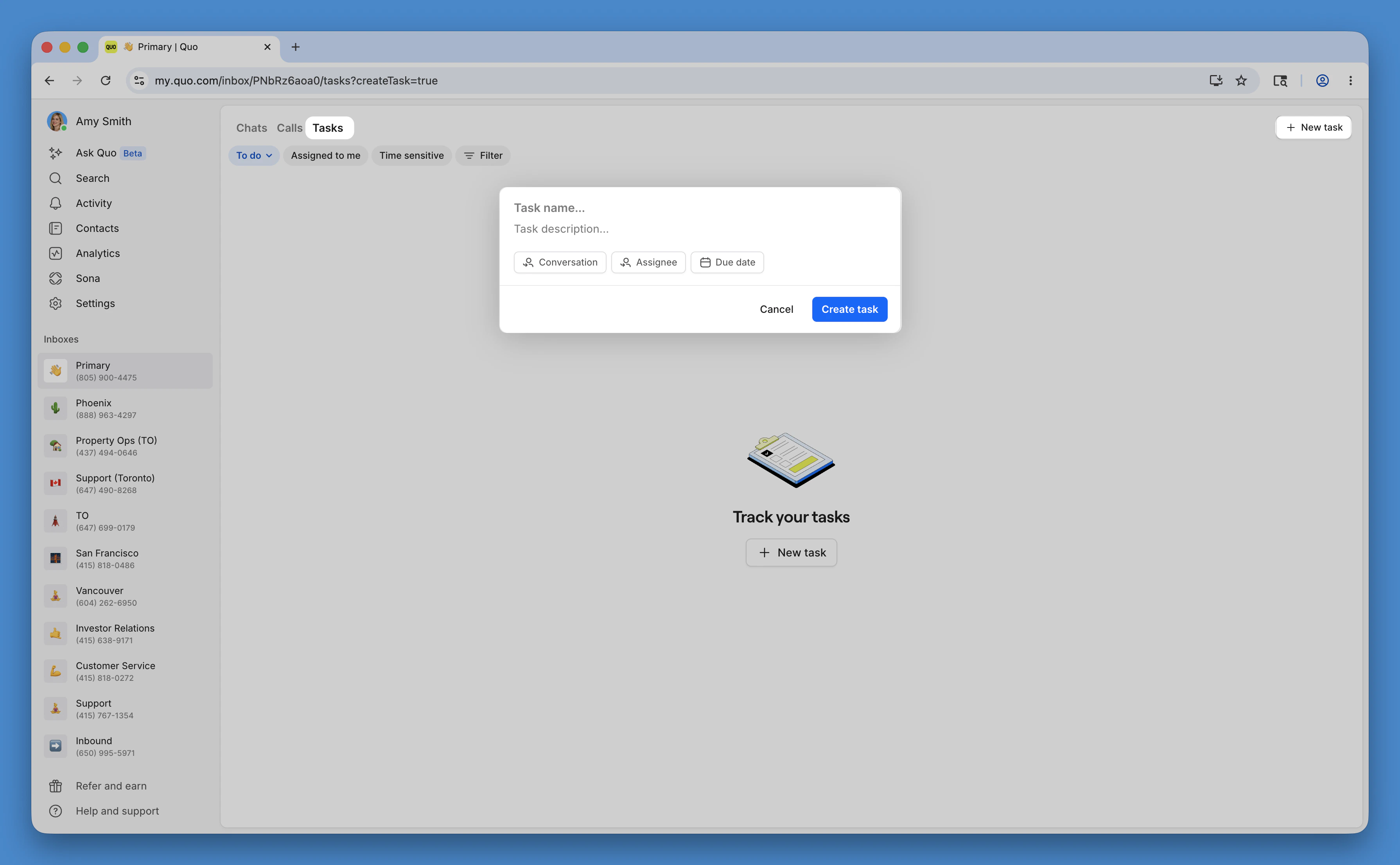
- Open the Tasks tab of an inbox
- Click the New task button and enter a task name and description
- Add an assignee, and due date
- Click Create task to save the task
Create a task on mobile
From a conversation
From a conversation
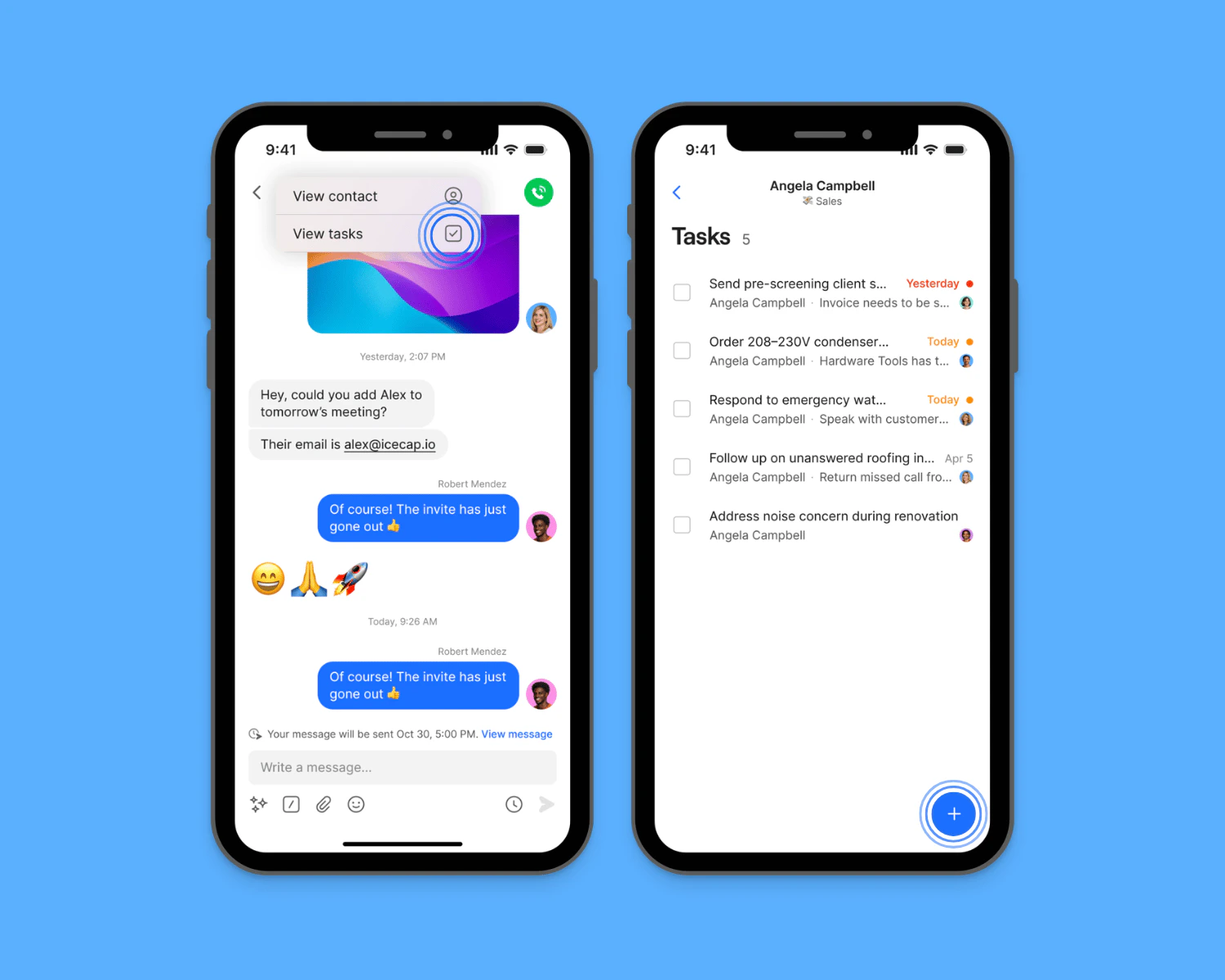
- Open a conversation and tap the contact name
- Tap View tasks
- Tap the + button
- Enter a task name and description
- Add an assignee, and due date
- Tap Create task to save the task
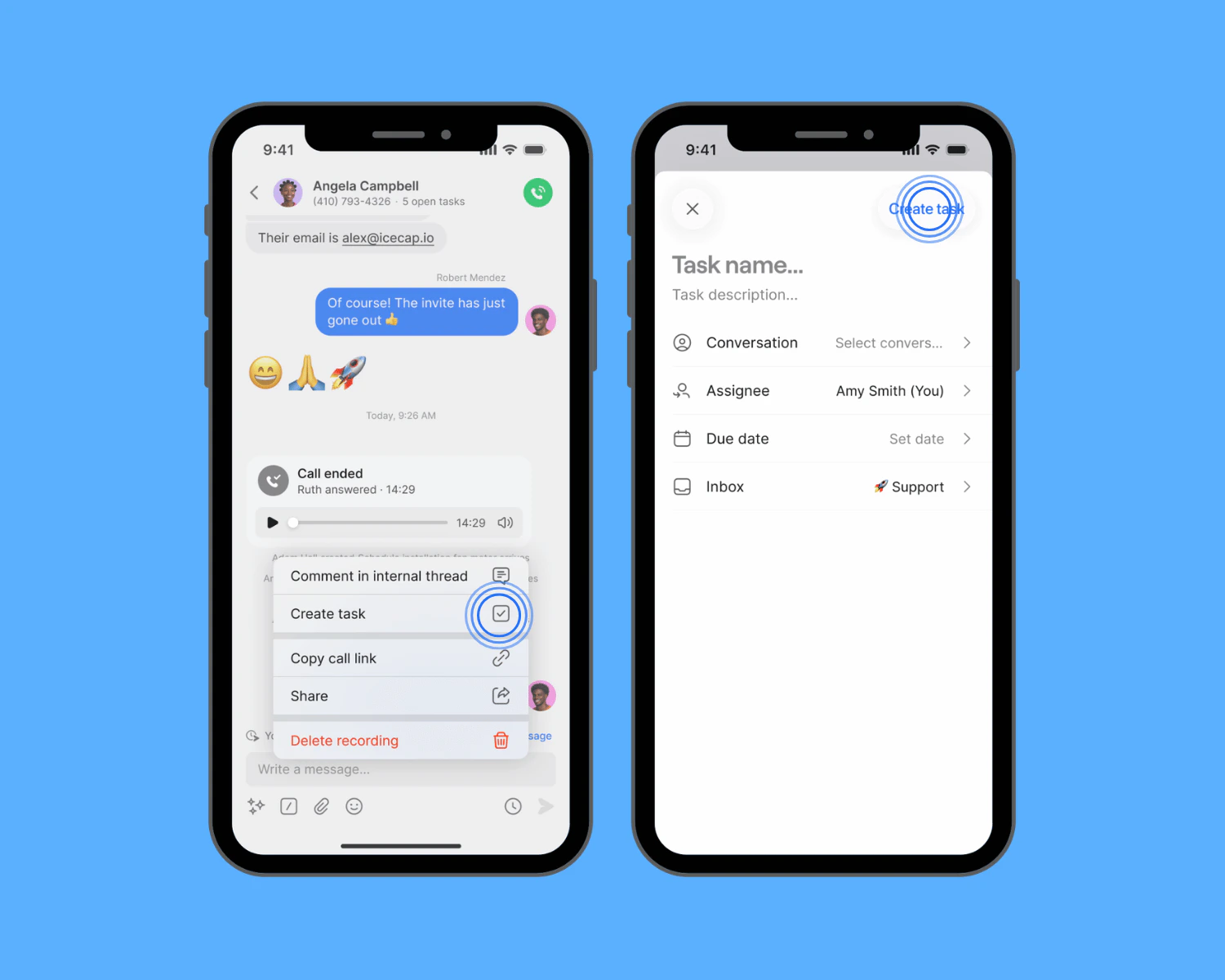
From a specific call or message
From a specific call or message
- Open a conversation
- Tap call or message activity you want to create a task from
- Tap Create new task and enter a task name and description
- Add an assignee, and due date
- Tap Create task to save the task
From an inbox - not attached to a specific conversation or activity
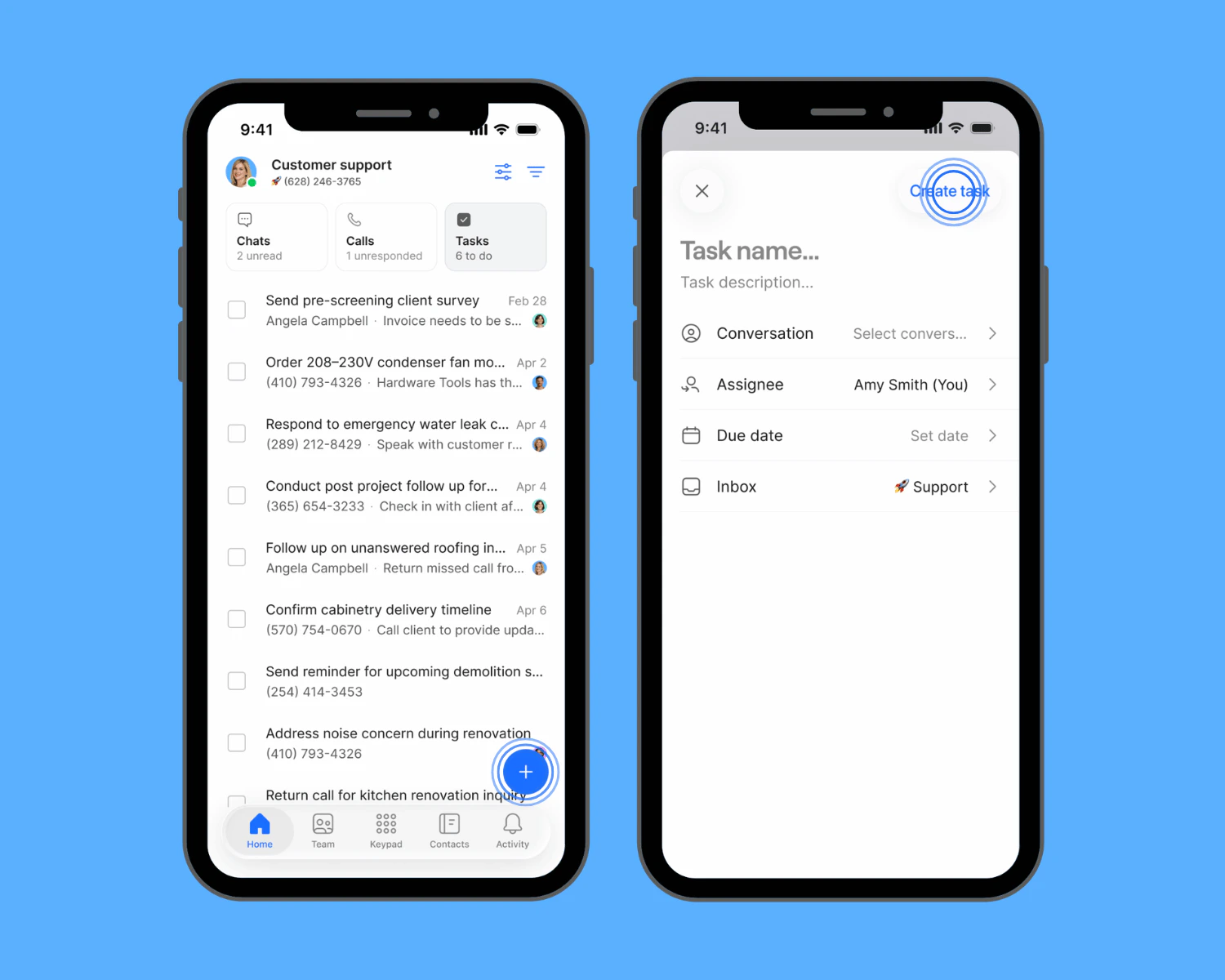
From an inbox - not attached to a specific conversation or activity
- Open the Tasks section at the top of your conversations list in an inbox
- Tap the + button
- Enter a task name and description
- Add an assignee, due date and time
- Tap Create task to save the task
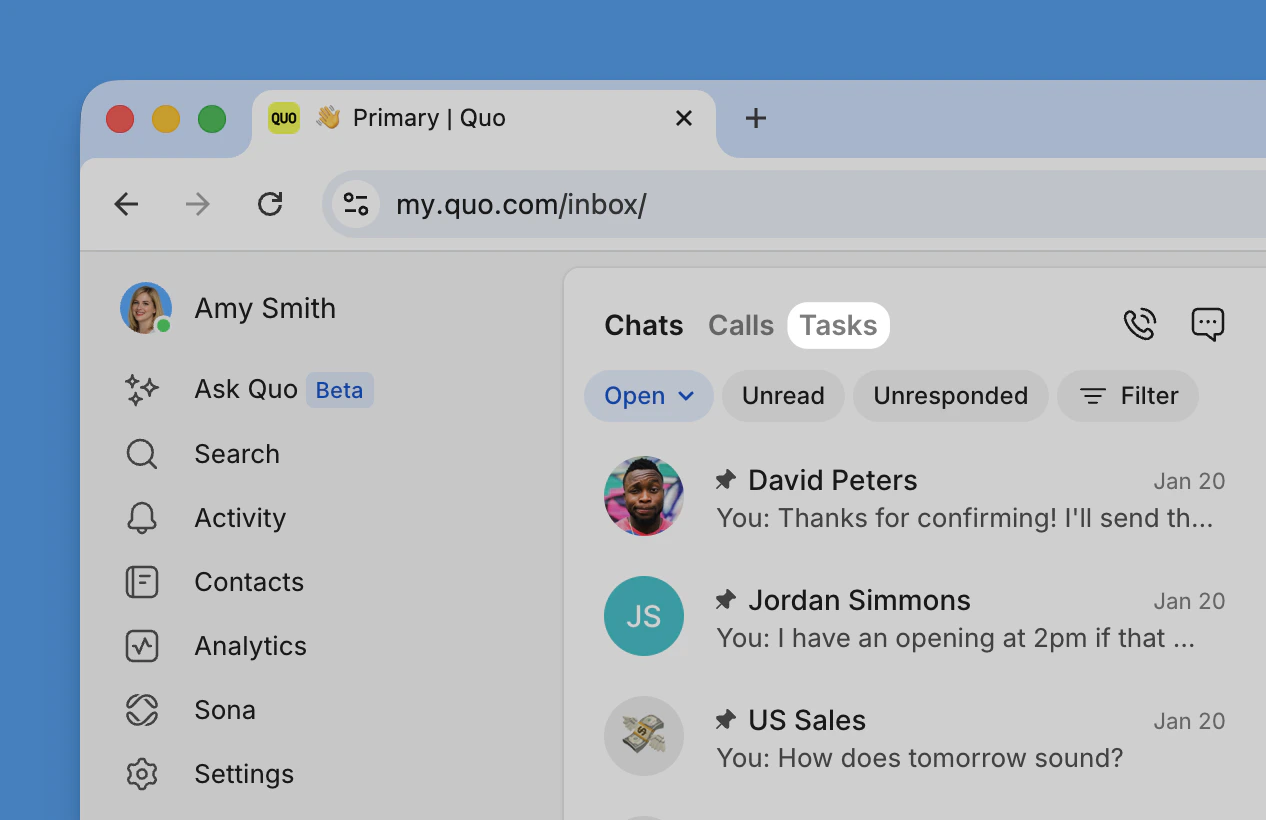
Manage Tasks at the inbox level
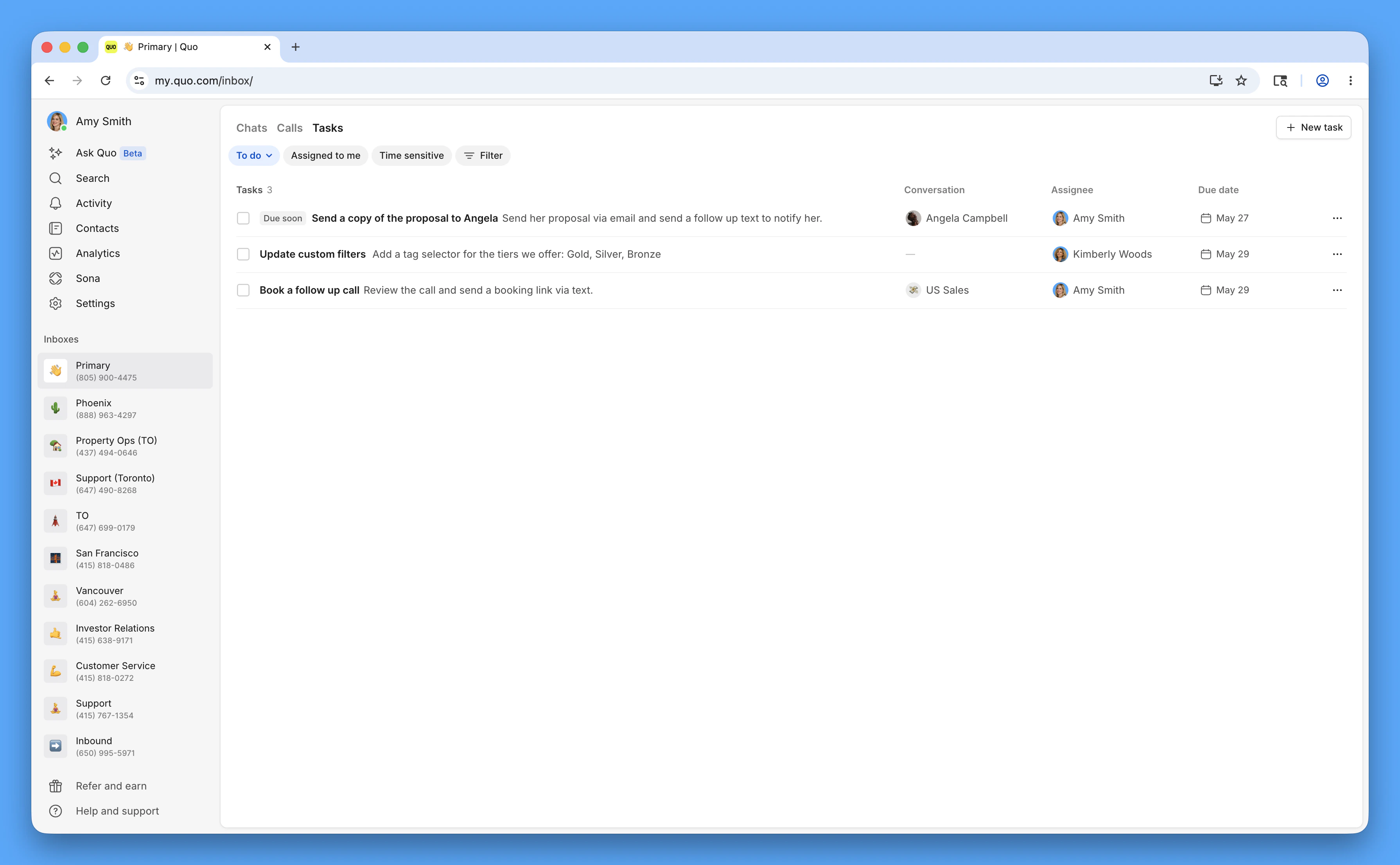
- See all tasks for the inbox in one place
- See which conversation the task belongs to
- Filter by owner, due date, or status
- Group tasks to focus on what’s yours or what’s overdue
- View completed tasks, or reopen them
- Copy a link to the task
- Delete the task
- Review a history of changes
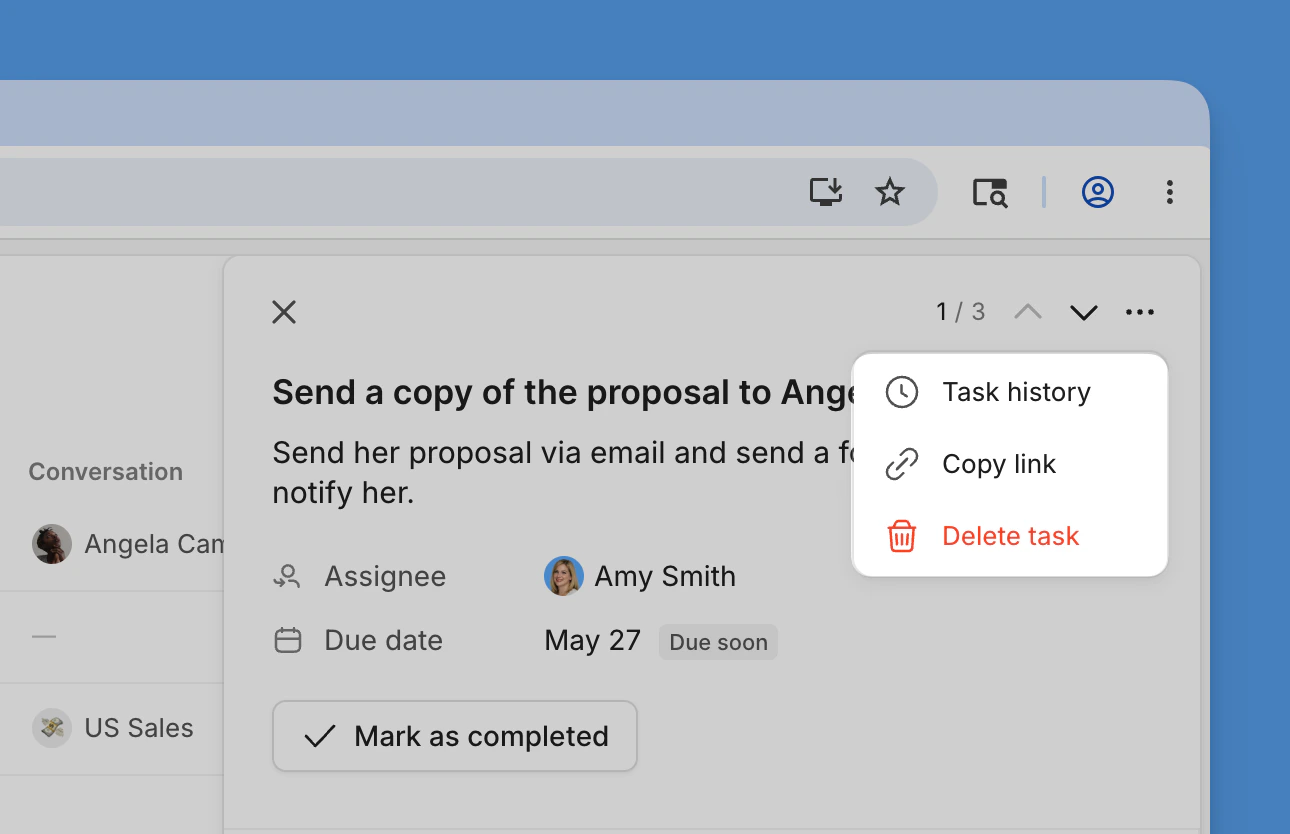
Manage Tasks by conversation
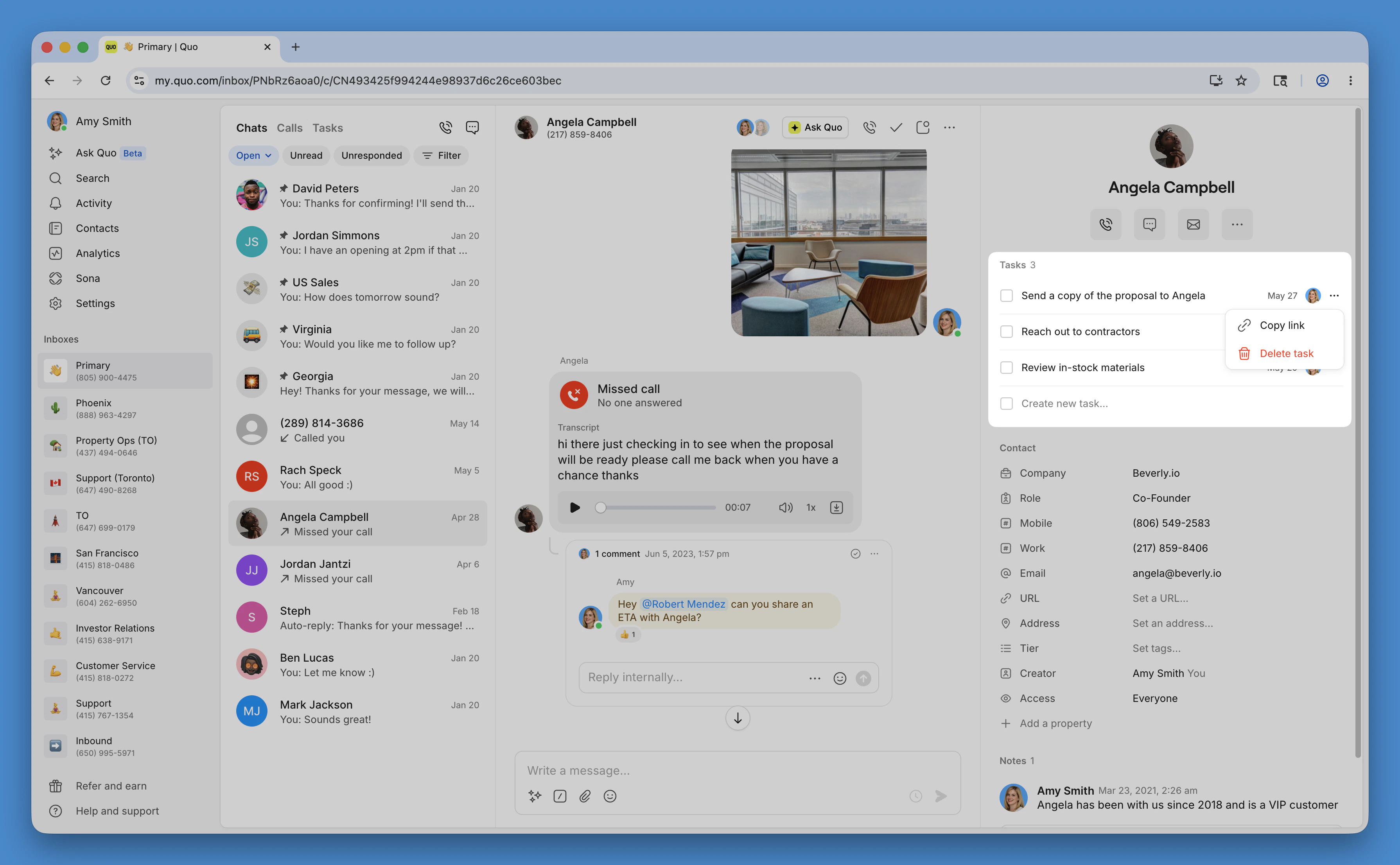
- Edit the title, description, assignee, or due date
- Team members are notified when they’re assigned a task and if it becomes overdue.
- Mark the task complete or reopen it
- Copy a link to the task
- Delete the task
- Review a history of changes
Manage Tasks across your workspace
Tasks in the side panel shows every task you have access to across all your inboxes, not just one. It uses the same filters and actions as the inbox-level Tasks view, including My tasks and Time sensitive.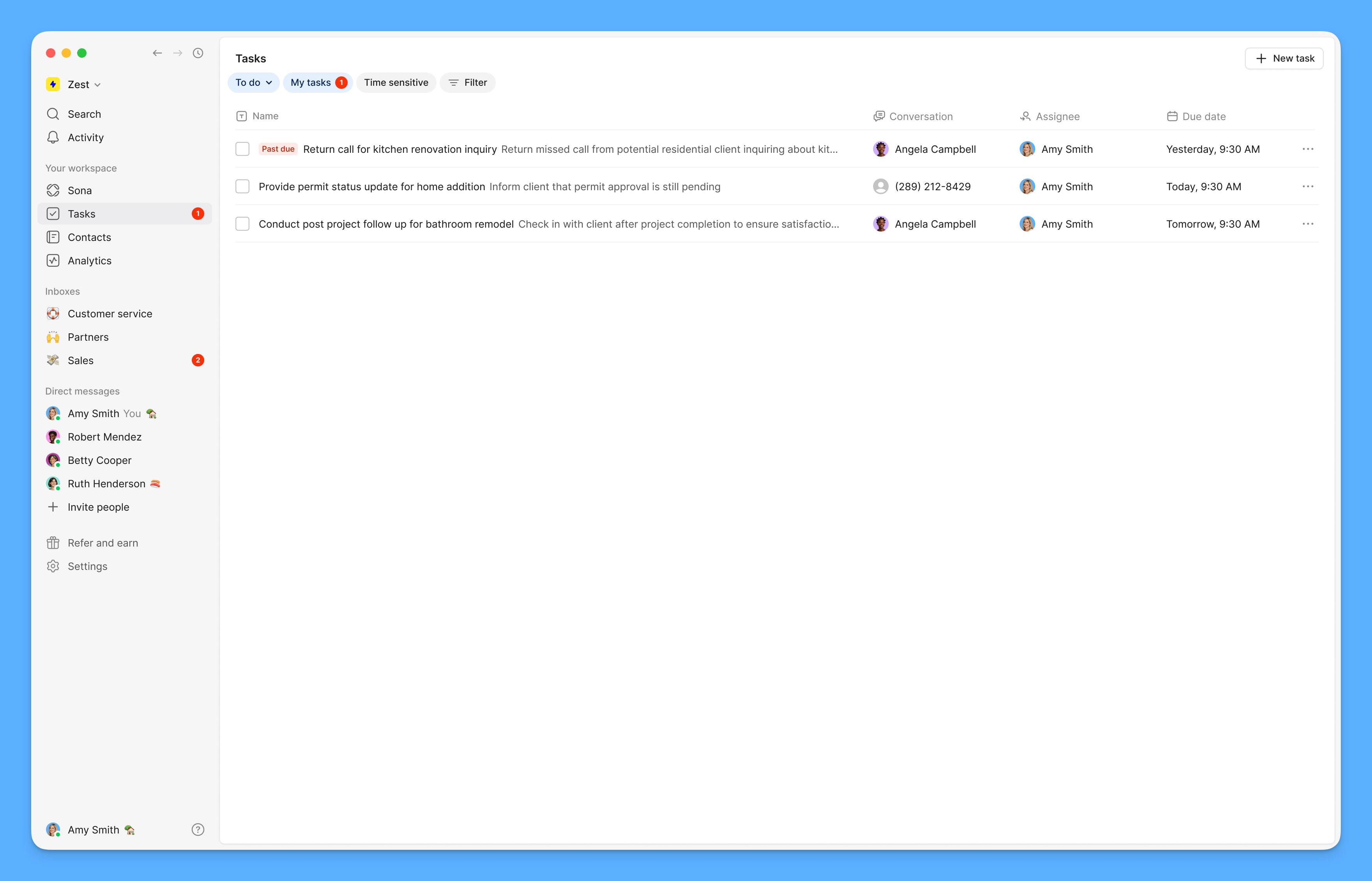
- See every task you have access to across inboxes in one list
- Filter by owner, due date, or status, same as the inbox Tasks view
- Reassign a task’s inbox if it was created in the wrong one
- Create a task without assigning it to an inbox, useful for business to-dos like license renewals or training that aren’t tied to a conversation or contact
Your overdue tasks
Tasks assigned to you that are overdue appear in the My tasks section at the top of the list, with a red badge on the sidebar Tasks item showing the count. The badge only counts your own overdue tasks, never a teammate’s.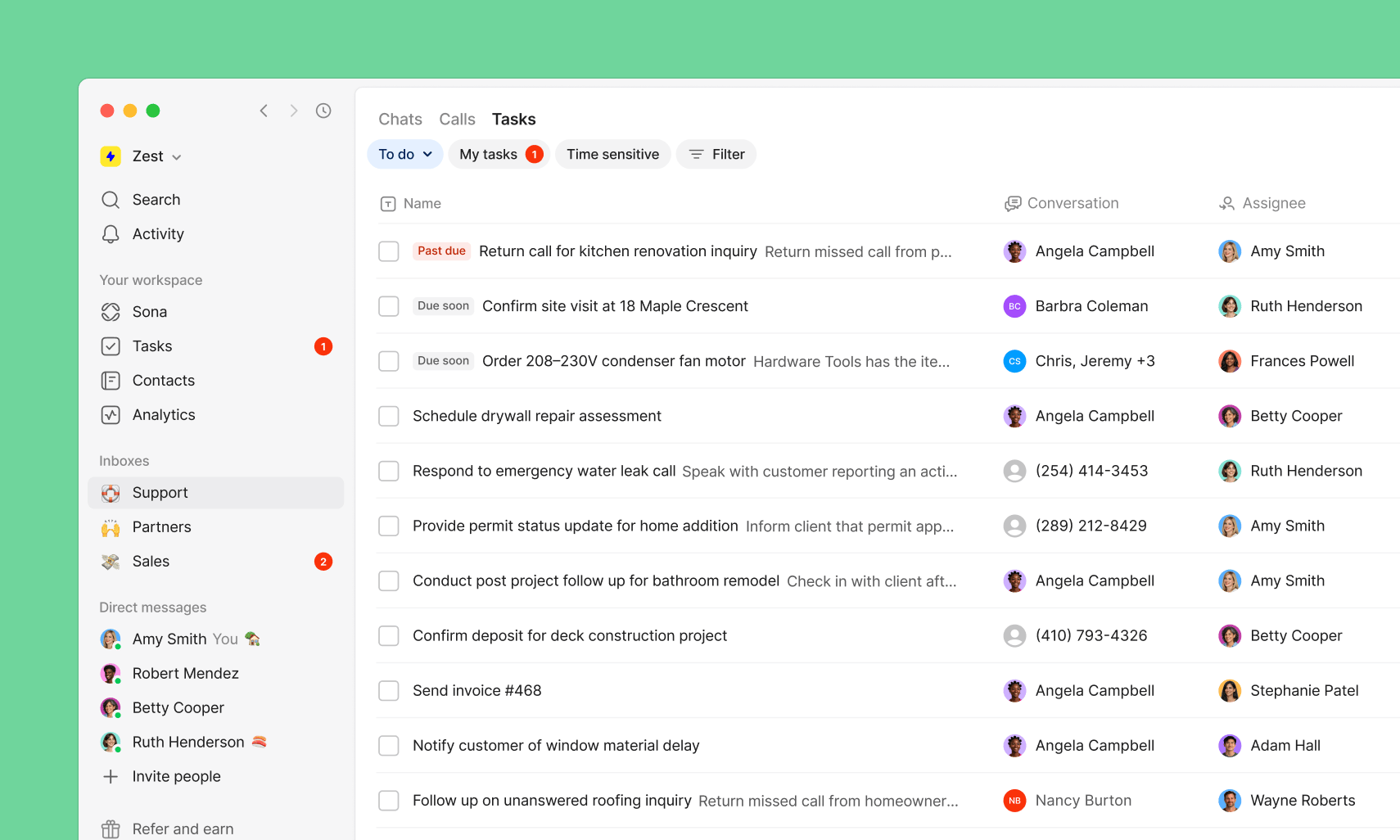
FAQs
How many tasks can I have open at once?
How many tasks can I have open at once?
- Starter workspaces are limited to 10 open tasks. Any task not marked complete counts toward that limit, including tasks assigned to teammates.
- Business and Scale plans can have unlimited open tasks.
What happens when a task is marked complete?
What happens when a task is marked complete?
Who can create and see tasks in an inbox?
Who can create and see tasks in an inbox?
Why don't I see Tasks on a contact?
Why don't I see Tasks on a contact?
Can I see Tasks assigned to me across all inboxes?
Can I see Tasks assigned to me across all inboxes?
Why isn't my teammate getting notified about a task?
Why isn't my teammate getting notified about a task?
- Make sure an assignee is set (tasks without one don’t trigger notifications)
- Confirm they have access to the inbox the task was created in
Do Tasks sync with external tools like Zapier, Asana or Google Tasks?
Do Tasks sync with external tools like Zapier, Asana or Google Tasks?
Can I use webhooks for tasks?
Can I use webhooks for tasks?
Can I use Claude or ChatGPT to find my Tasks?
Can I use Claude or ChatGPT to find my Tasks?
Are Tasks available on mobile?
Are Tasks available on mobile?
Does the overdue badge include tasks assigned to other people?
Does the overdue badge include tasks assigned to other people?
Can I create a task without linking it to anything?
Can I create a task without linking it to anything?
Can I set a specific time for a task's due date, not just a date?
Can I set a specific time for a task's due date, not just a date?