

Overview
Internal threads enable private team discussions on customer communications without external visibility. Create comments, assign action items, mention teammates, and track task completion directly within the context of calls, messages, and voicemail.Internal threads are only visible to team members with access to the shared phone number - customers never see these discussions.
Creating internal threads
Thread capabilities
What you can comment on:- Messages (SMS/MMS)
- Calls and call recordings
- Voicemail messages
- Any customer communication item
- Create action items for yourself or teammates
- Mark comments as resolved when tasks are complete
- Tag team members with @mentions
- View activity in centralized feed
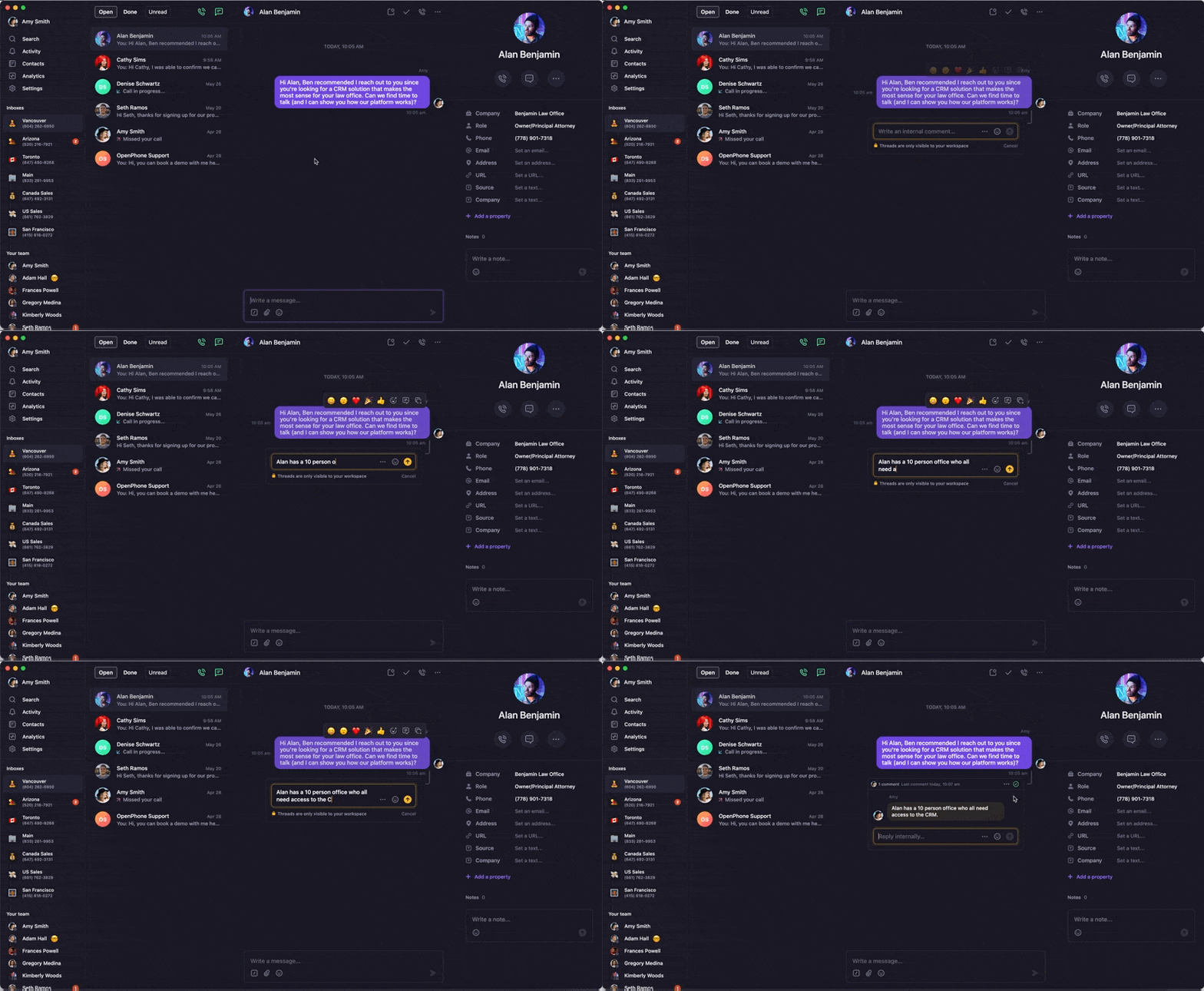
Adding thread comments
- Web/Desktop
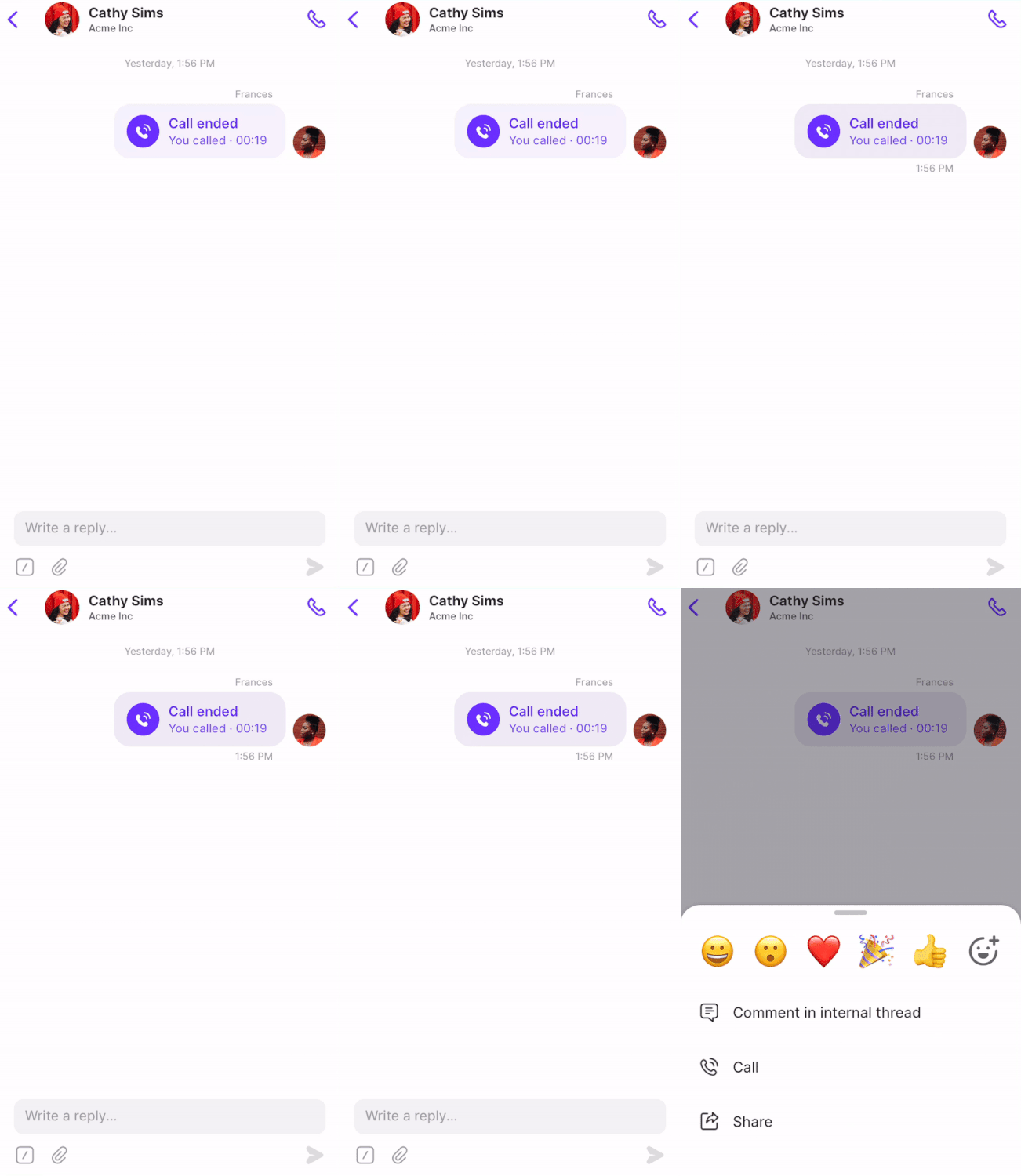
- Mobile
- Click the message, call, or voicemail you want to comment on
- Select the chat icon from the popup menu
- Type your comment and send
- Click Three dots (…) above any comment
- Select “Mark as resolved” to complete action items
Editing thread comments
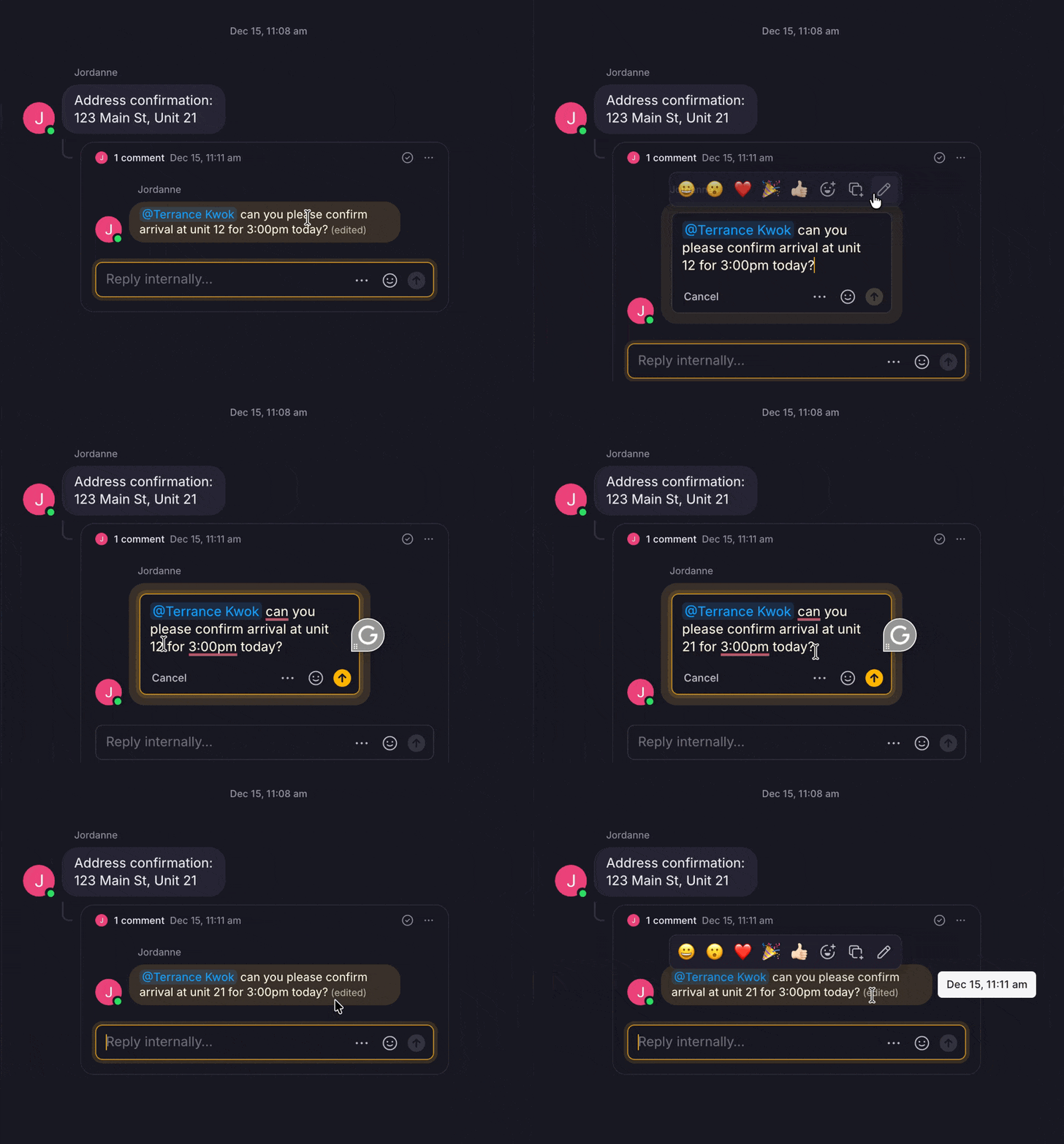
You can edit your own internal thread comments after posting. This makes it easy to fix typos, add missing details, or clarify your message.Edit a comment
- Hover over your comment in the thread
- Click the menu icon that appears
- Select Edit comment
- Make your changes
- Click Save
How edits work
- You can only edit your own comments
- There is no time limit for editing comments
- Only the latest version of a comment is saved
- Hover over an edited comment to see the timestamp of the last edit
Editing thread comments is available on all plans and platforms, including iOS, Android, and web or desktop.
Mentions and notifications
How mentions work
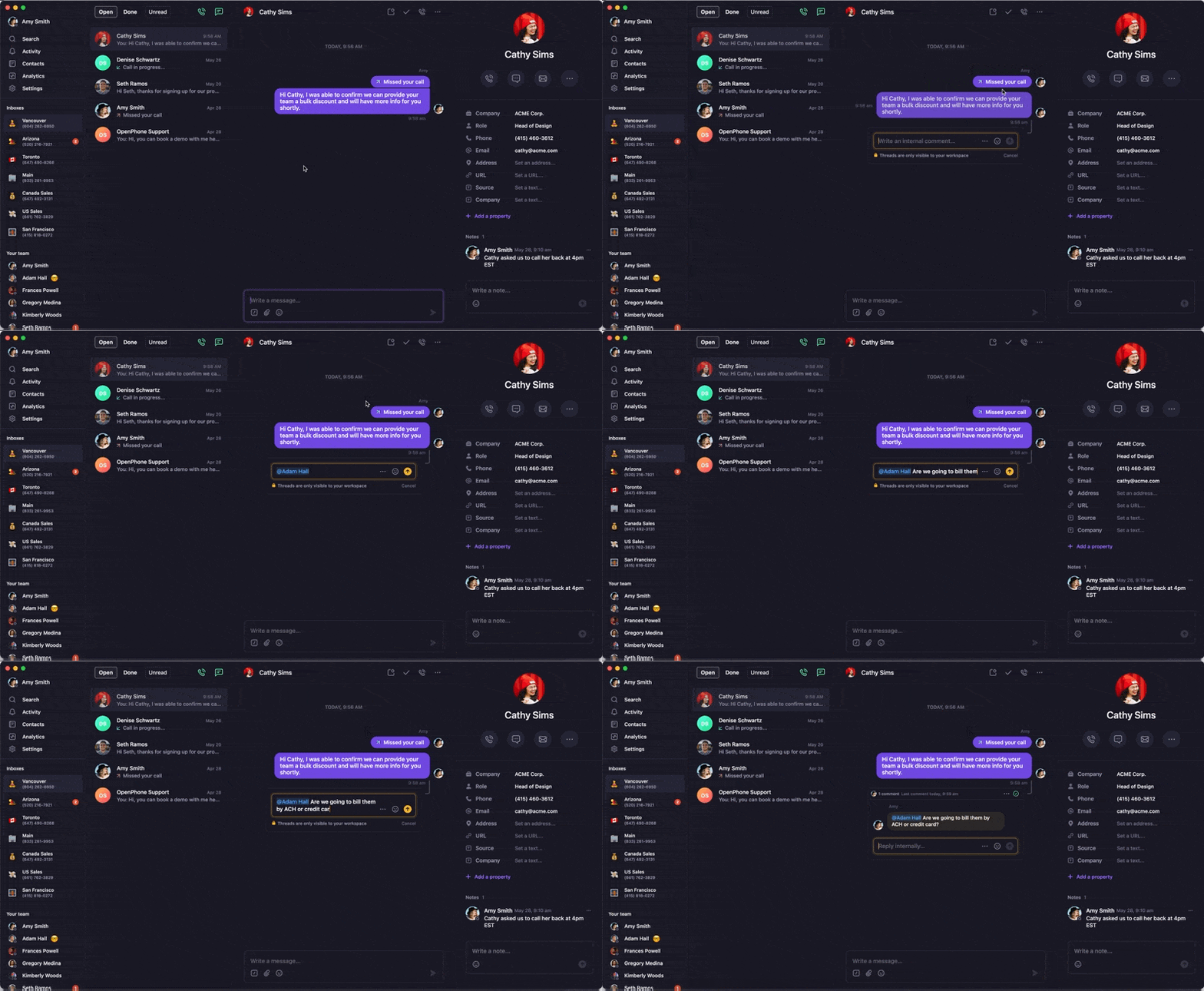
Mentioning teammates:- Type ”@” followed by teammate or group name
- Select from popup options as you type
- Mentioned users receive activity notifications
- Both sender and recipient see badge notifications
Activity notifications
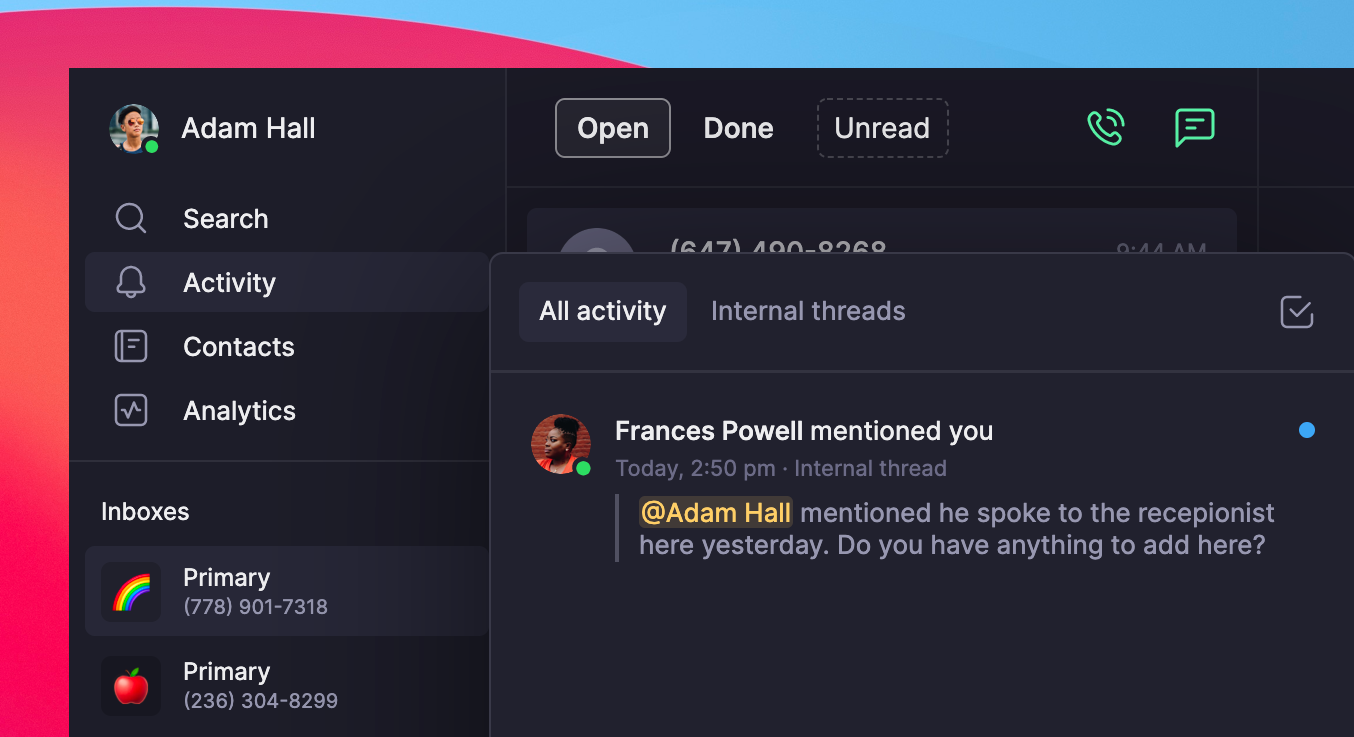
Notification system:- Badge notifications appear next to Activity in left menu
- Centralized feed shows all mentions and thread activity
- Context provided for each notification
FAQs
Can't see internal threads from teammate?
Can't see internal threads from teammate?
Verify you have access to the specific phone number where the thread was created. Internal threads are only visible to users with shared number access.
Mentions not working?
Mentions not working?
Ensure the mentioned teammate has access to the shared phone number. On Android, mention functionality is not yet available.
Activity notifications not appearing?
Activity notifications not appearing?
Check that you’re logged into Quo and have notification permissions enabled. Refresh the app or check the Activity feed manually.
Can't mark thread as resolved?
Can't mark thread as resolved?
Only team members with access to the shared number can mark threads as resolved. Ensure you have appropriate permissions for the phone number.
Threads missing after adding new team member?
Threads missing after adding new team member?
Historical threads remain visible only to users who had access when they were created. New team members see threads created after they gain access.
Can I edit comments in internal threads?
Can I edit comments in internal threads?
Yes, you can edit your own internal thread comments at any time. Edited comments show a timestamp, and only the latest version is saved.
Why don’t I see the edit option on a comment?
Why don’t I see the edit option on a comment?
You can only edit comments you created. Make sure you’re hovering over your own comment to see the edit option.