

Sona for lead capture is in beta.It’s rolling out to workspaces gradually — if you don’t see it yet, it’s on the way. The feature is actively in development, and we’ll keep sharing improvements as they land.
Overview
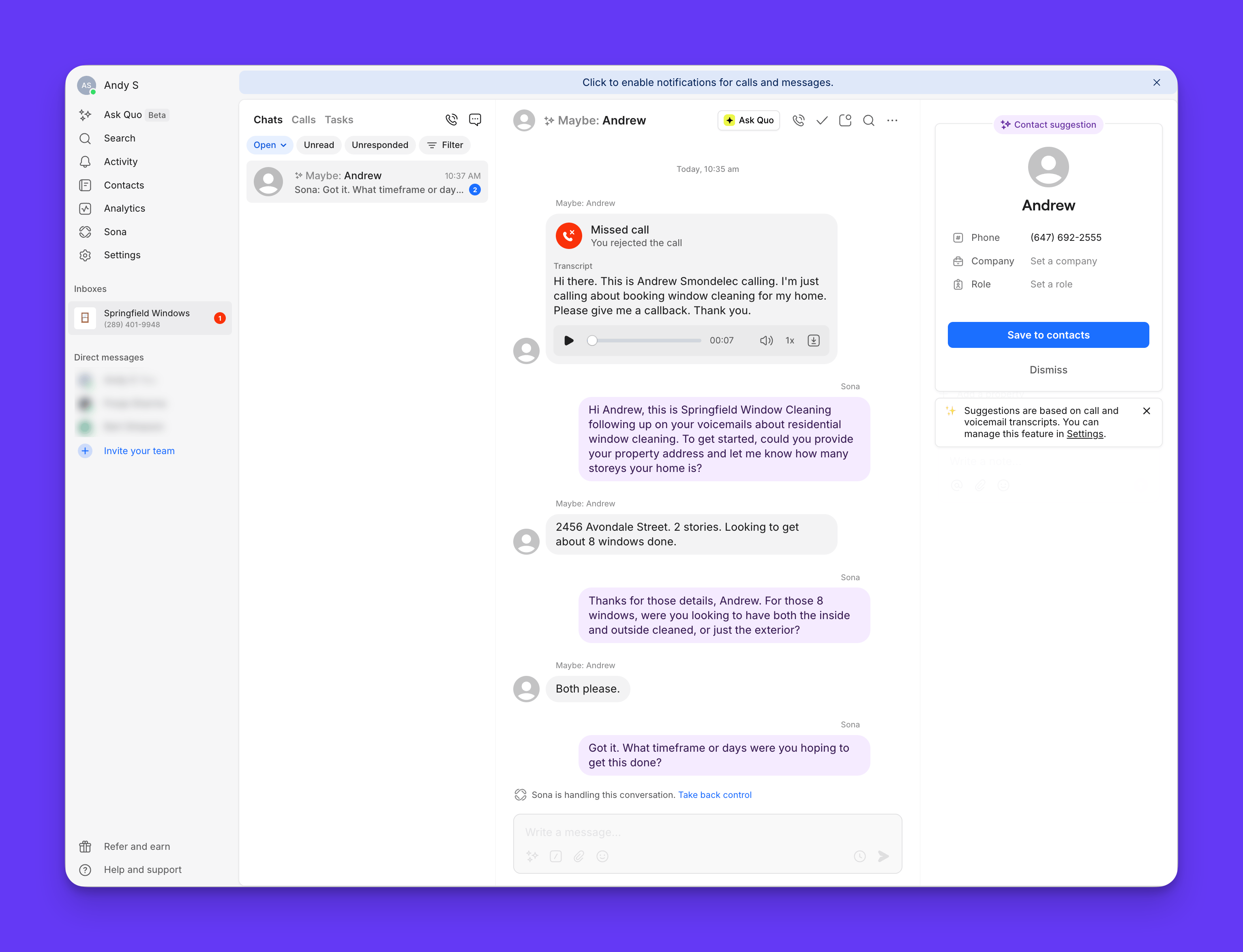
When someone new texts your business (or you miss their call) Sona texts them back right away, answers their questions about your business, collects the details your team needs, and posts a summary in the conversation so your team can pick up where Sona left off. You stay in control the whole time. You can watch any conversation as it unfolds and step in to take over whenever you want.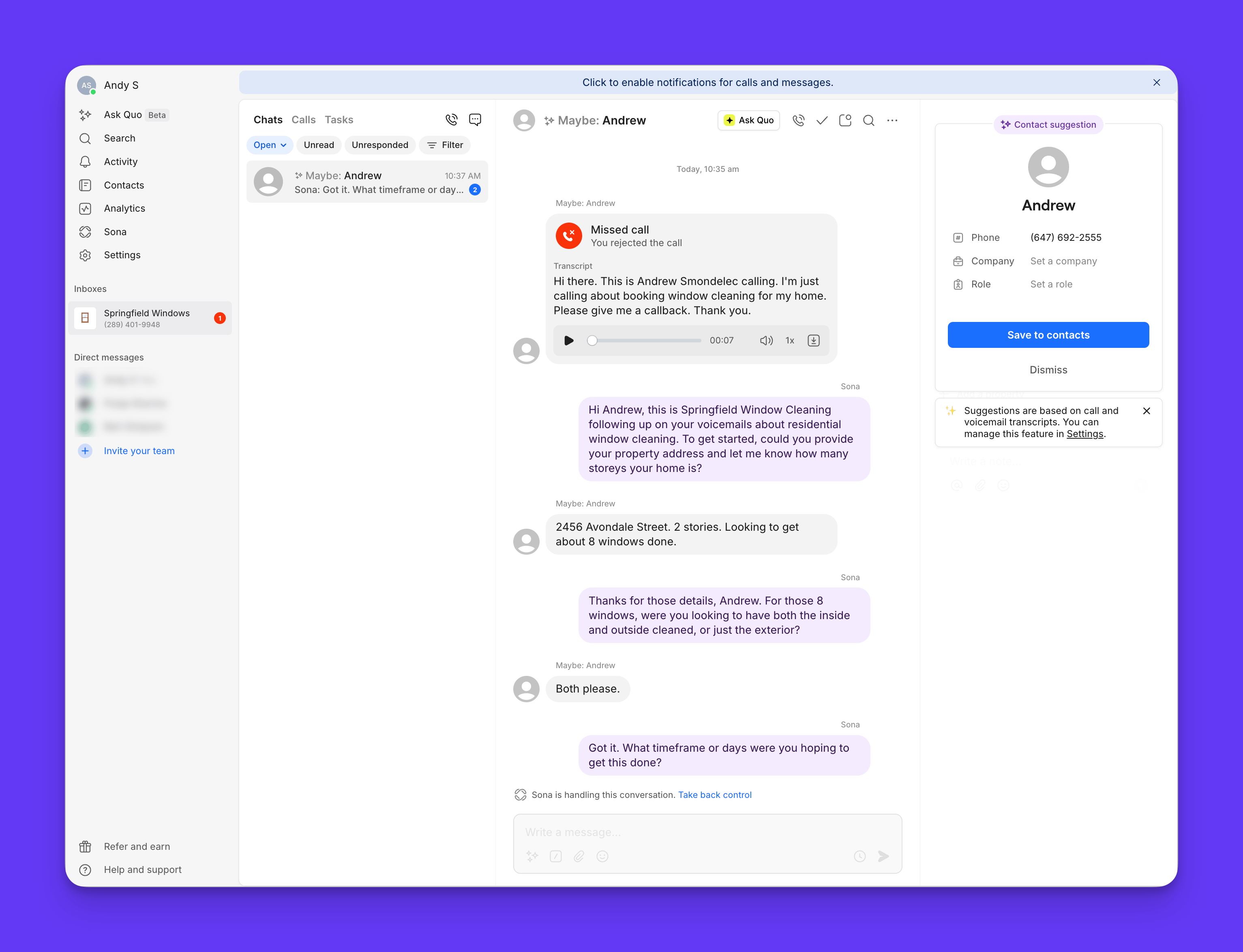
When Sona responds
Sona for lead capture is built to catch new leads the moment they reach out. It steps in on new conversations only — ones with no prior message history in the inbox. Right now that means:- A new inbound text starts a conversation. A brand-new text comes in from a number with no conversation history, and Sona replies.
- A missed call in a new conversation. A call comes in from a new number, goes unanswered, and wasn’t picked up by Sona for calling, Sona follows up by text to get the conversation started.
- A returning customer after you delete the conversation. If you delete all previous conversations with a customer from an inbox, Sona treats their next message as a new conversation and steps in again.
Sona works alongside your auto-replies — you don’t need to turn them off.When Sona steps in on a new conversation, it takes precedence, so customers won’t get duplicate messages. When Sona doesn’t step in for existing conversations, your auto-replies keep working as usual.If an auto-reply goes out on a conversation, that conversation counts as existing for Sona going forward, even if no one on your team has replied. Delete the conversation to make it eligible for Sona again.
What Sona does once triggered
Once Sona is triggered, it handles the conversation end to end:1
Says hello
Sona sends a personalized greeting
2
Figures out what they need
Asks what customers looking for, or what product or service they might be interested in
3
Answers customer questions
Sona draws on the Knowledge you trained it with — what you do, your services, pricing, hours, service area, and more — to answer accurately
4
Collects relevant details for your team
Based on the customer’s inquiry and how your business works, Sona gathers the information your team needs to follow up
5
Hands the conversation back to your team
Sona posts a summary and all the collected details in the conversation thread, then notifies your team so someone can take it from there
Monitor Sona’s conversations
While Sona is actively handling a conversation, you’ll be able to see its status on web, iOS, and Android - ensure that you’re using the latest app version.After Sona hands off
When Sona finishes, it posts a summary and the details it collected right in the conversation thread, then notifies your team. You’ll find it in your inbox, ready for someone to follow up. If the customer texts again after Sona hands off, it shows up in your inbox as a normal conversation for your team to answer.Before you start
Before setting up Sona for lead capture, check its availability, confirm that you have the right permissions, and complete your carrier registration.Availability and pricing
Sona for lead capture is available on every Quo plan — Starter, Business, and Scale — and it’s free during the beta. You’ll be notified of any price changes before the beta period ends.Permissions
Setting up and training Sona is done by a workspace admin or owner. Activating Sona on an inbox can be done by the inbox admin or owner.Carrier registration
Important: complete your carrier registration (A2P) first. If you’re not registered, texts to US numbers won’t be delivered. Learn how to complete your A2P registration.How to set up Sona for lead capture
You’ll find Sona for lead capture in Quo under Sona → Messaging (Beta), which has two tabs: Activate, and Train. We recommend setting it up in this order:- Train Sona on your business in the Train tab.
- Test and activate in the Activate tab.
Step 1: Train Sona on your business
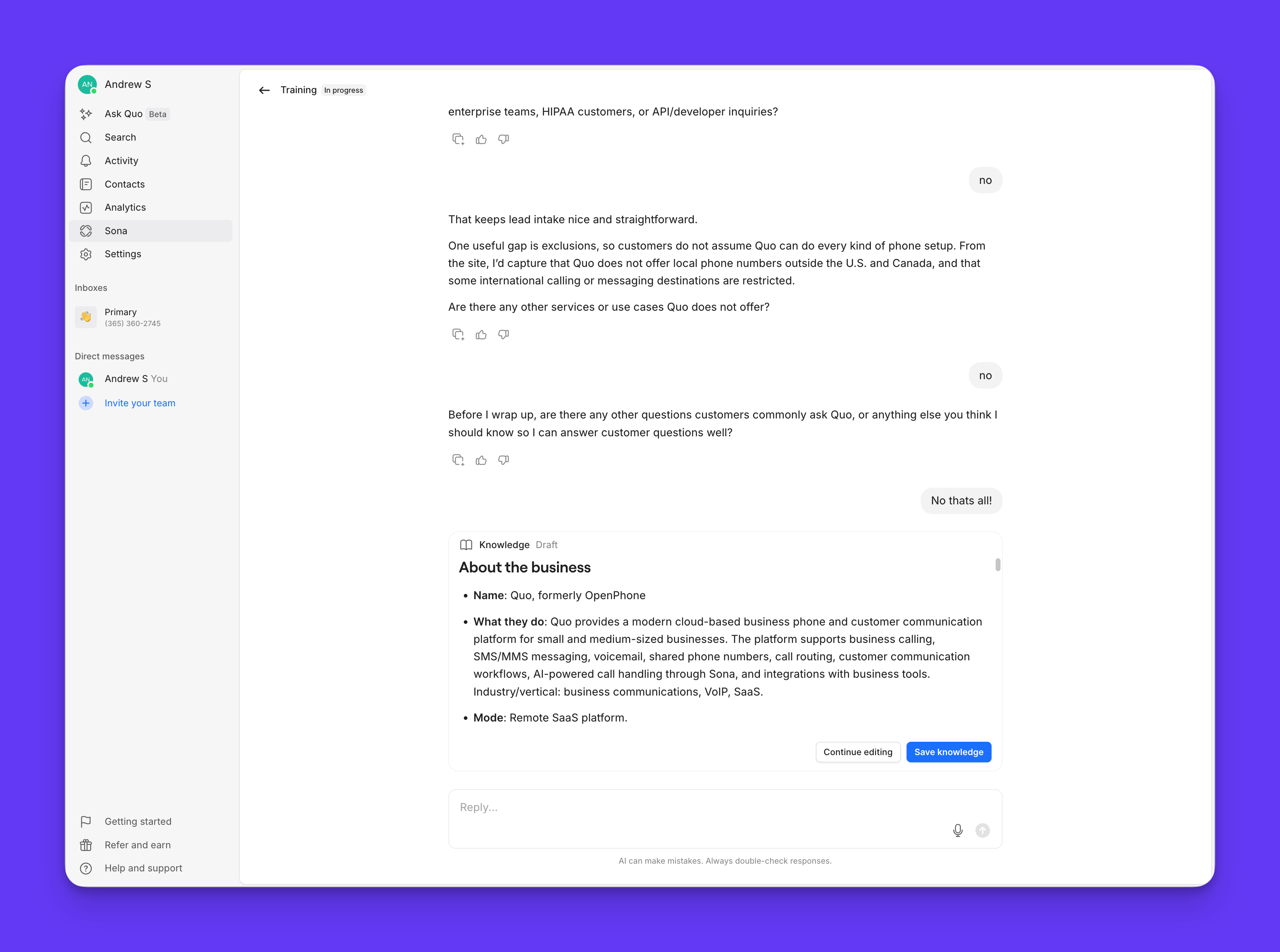
This is what makes Sona’s answers accurate. In the Train tab, you’ll have a short, five-minute, conversation with Sona and it builds a Knowledge doc from your answers.- Open the Train tab and start:
- Go to Sona → Messaging (Beta) → Train and click Train Sona.
- Answer a few questions
- Sona interviews you about how your business works: what you do, your services and pricing, hours, the areas you serve, who you’re a good fit for, and how you want new leads handled. You can type your answers or tap the mic and just talk. If you have a website, share it when Sona asks. Sona pulls what it can and confirms the details with you, so there’s less to type.
- Review and publish
- As you answer, Sona builds your Knowledge doc: a plain-language summary of your business. When it looks right, publish it.
What belongs in your Knowledge
Knowledge is a description of how your business works. Include things like what you do, your services and pricing, hours, service area, who you’re a fit for, and the questions customers commonly ask.Don’t use it to give Sona instructions about how to behave
Things like tone or personality, how to route or hand off conversations, or scheduling rules. Knowledge captures how your business works, not how Sona should act. If you try to add something that isn’t business information, Sona will let you know and steer you back.You build and edit Knowledge by chatting with Sona.You can’t edit the document directly. Tell Sona what to add or change, and it updates the document for you.
Step 2: Test and activate
Before you turn Sona on, you can start a test conversation to see how it responds using what you trained it with. When you’re happy with it, activate.- Test Sona:
- In the Activate tab, use Test Sona to have a sample conversation and check how it answers questions about your business.
- Not quite right? Head back to Train and tell Sona what to adjust.
- In the Activate tab, use Test Sona to have a sample conversation and check how it answers questions about your business.
- Activate:
- Confirm which inbox Sona will cover, then click Activate
- Sona will start replying to new conversations in that inbox.
- Confirm which inbox Sona will cover, then click Activate
FAQs
How much does Sona for lead capture cost?
How much does Sona for lead capture cost?
Sona for lead capture is available on every Quo plan — Starter, Business, and Scale — and is free during the beta. Pricing will be introduced after the beta, with advance notice before anything changes.
Is Sona for lead capture the same as Sona for calling?
Is Sona for lead capture the same as Sona for calling?
Not today. They’re set up and managed separately, and the Knowledge you build for Sona for lead capture isn’t shared with Sona for calling. If you already use Sona to handle calls, you’ll train Sona for lead capture from scratch.
Where do I see the conversation after Sona hands it back?
Where do I see the conversation after Sona hands it back?
In your inbox. Sona tags the inbox in the conversation thread with a summary and the details it collected, so your team can pick up from there.
What happens if a customer texts back after Sona finishes?
What happens if a customer texts back after Sona finishes?
Sona only handles the initial conversation. Once it hands the conversation back to your team, any follow-up messages will appear in your inbox as a normal conversation for your team to respond to.
Will Sona respond again if a customer texts after I delete our conversation?
Will Sona respond again if a customer texts after I delete our conversation?
Yes. Deleting all previous conversations with a customer from an inbox makes their next message eligible for Sona again, even if you’ve corresponded with them before.