

Overview
Quo inboxes organize all your communications around specific phone numbers, giving you a unified view of calls, messages, voicemails, and recordings in one place. Unlike traditional phone systems that scatter communications across different menus, inboxes provide a complete conversation history for better customer relationships and team collaboration.What is an inbox?
An inbox contains all communications tied to a specific phone number. Every call, text message, voicemail, and call recording appears in chronological order, creating a complete customer interaction history.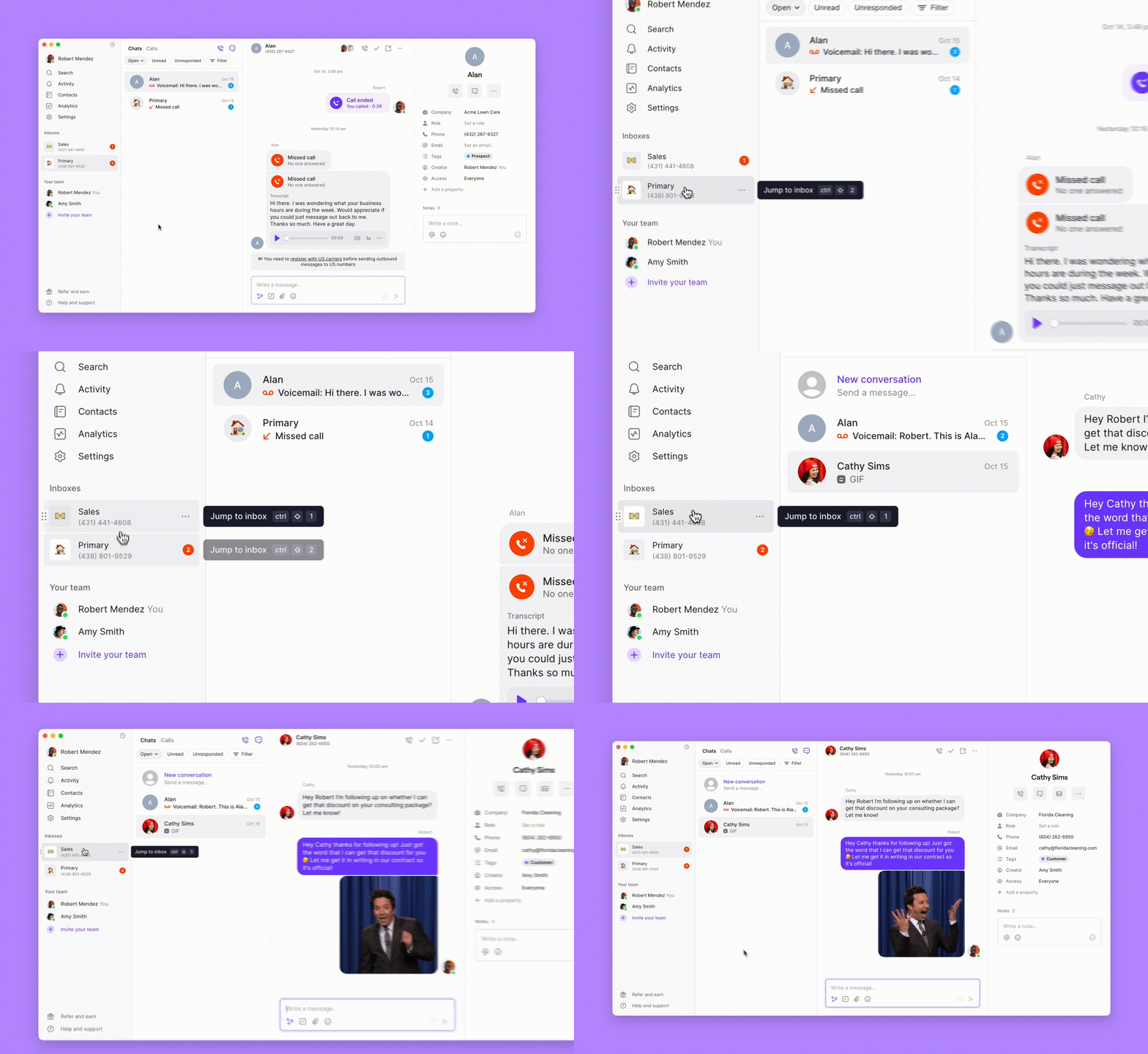
Key benefits
Unified conversation view
Unified conversation view
- All communication types in one thread
- Complete 360-degree view of customer interactions
- Historical context for new team members
Better organization
Better organization
- Custom names and numbers for easy identification
- Categorize conversations into different buckets
- Quick context switching between different business areas
Team collaboration
Team collaboration
- Inbox-level access control
- Real-time collaboration on customer issues
- Performance analytics and insights
Team collaboration with shared inboxes
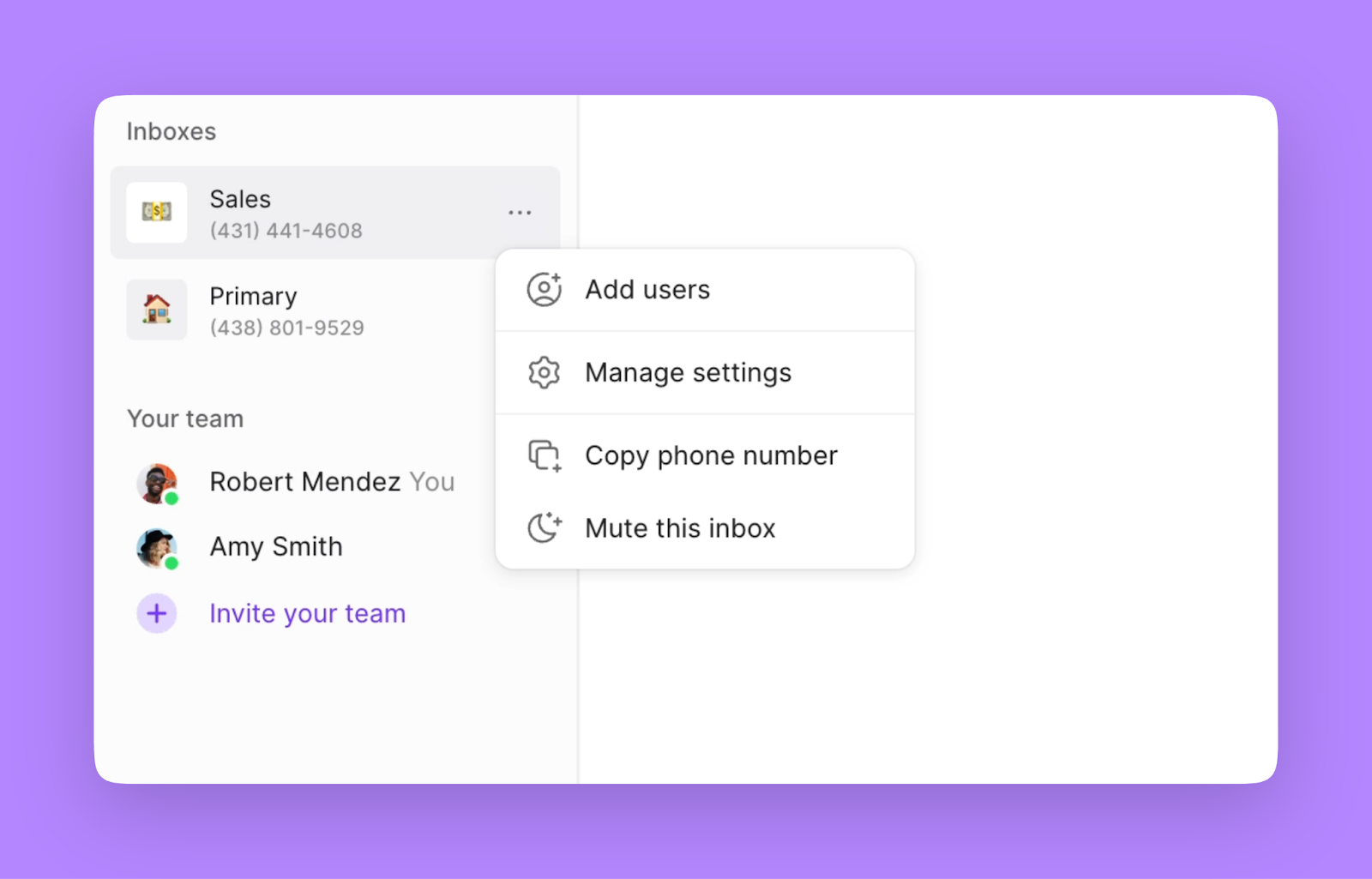
Quo works best when you share inboxes with your team.Why share inboxes?
- Visibility: See exactly which team members are communicating with customers, ensuring efficient team coordination.
- Collaboration: Get help from team members in real-time without switching between multiple apps to troubleshoot customer issues.
- Analytics: Clear picture of team performance with detailed call and message handling metrics.
Making calls and sending messages
Making calls
- Web/Desktop
- Mobile
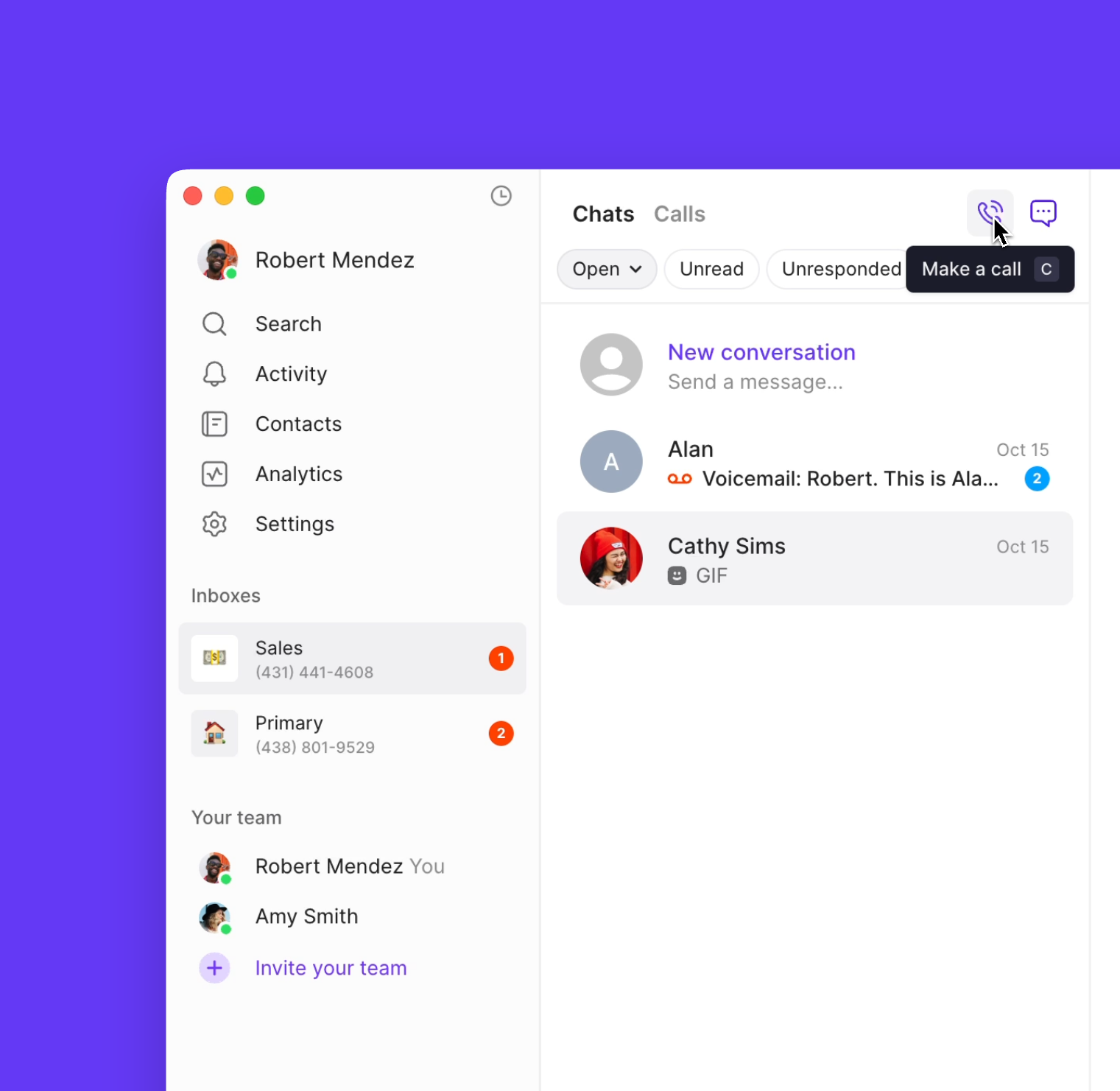
- Click the Call icon in the Calls or Chats menus
- Use keyboard shortcut Ctrl + C (Mac) or Alt + C (Windows) and dial a number
Sending messages
You’ll need to complete your 10DLC registration or toll-free number registration to send messages.
- Web/Desktop
- Mobile
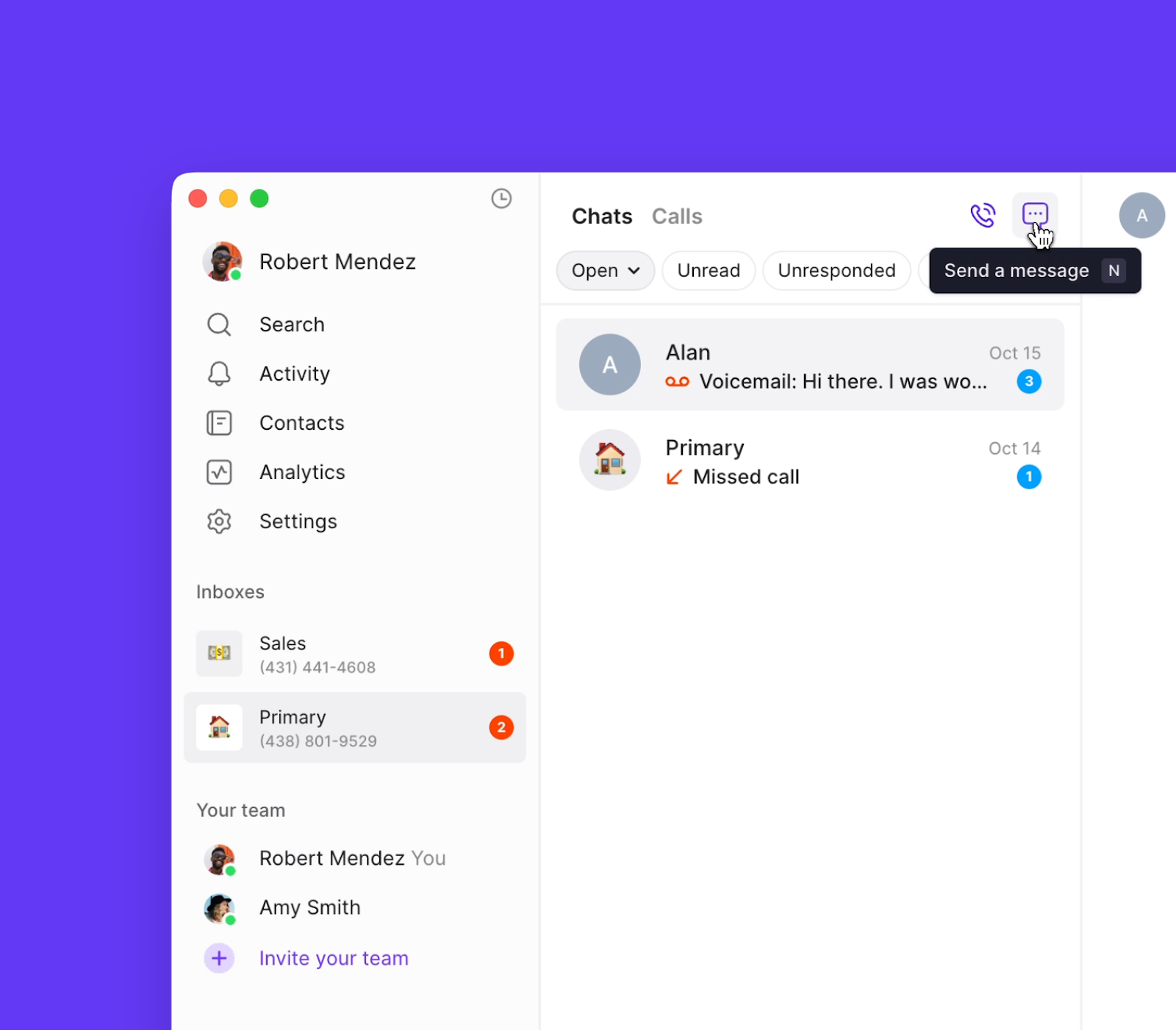
- Click the Chat icon in the Calls or Chats menus
- Use keyboard shortcut Ctrl + N (Mac) or Alt + N (Windows) and to start a new conversation
Navigating your communications
Chats view
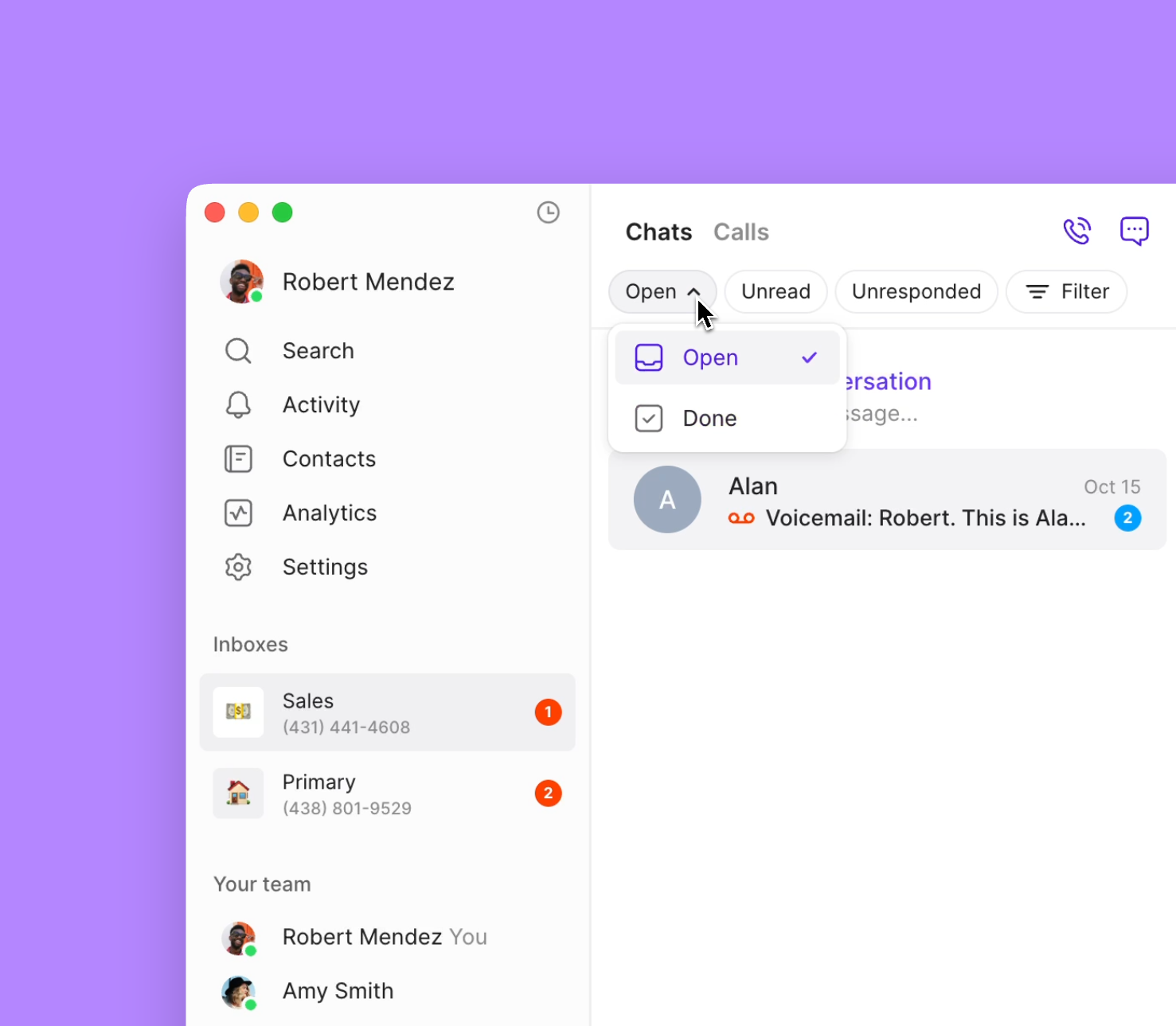
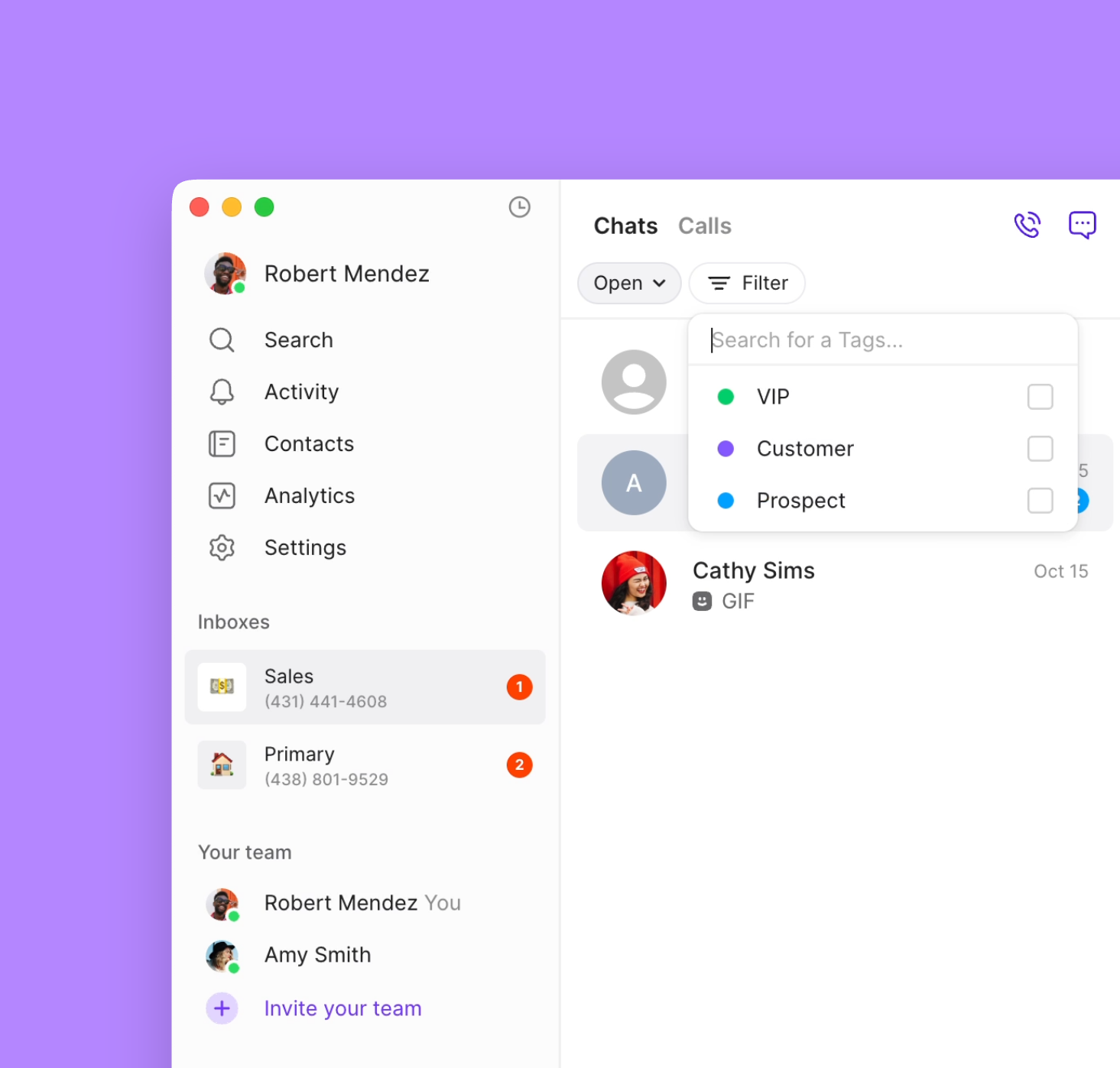
Your Chats menu shows all interactions with each contact, including texts, calls, recordings, and internal comments.- Conversation status management
- Filter conversations
- Open: Ongoing conversations requiring attention
- Done: Completed conversations ready for archival
Calls view
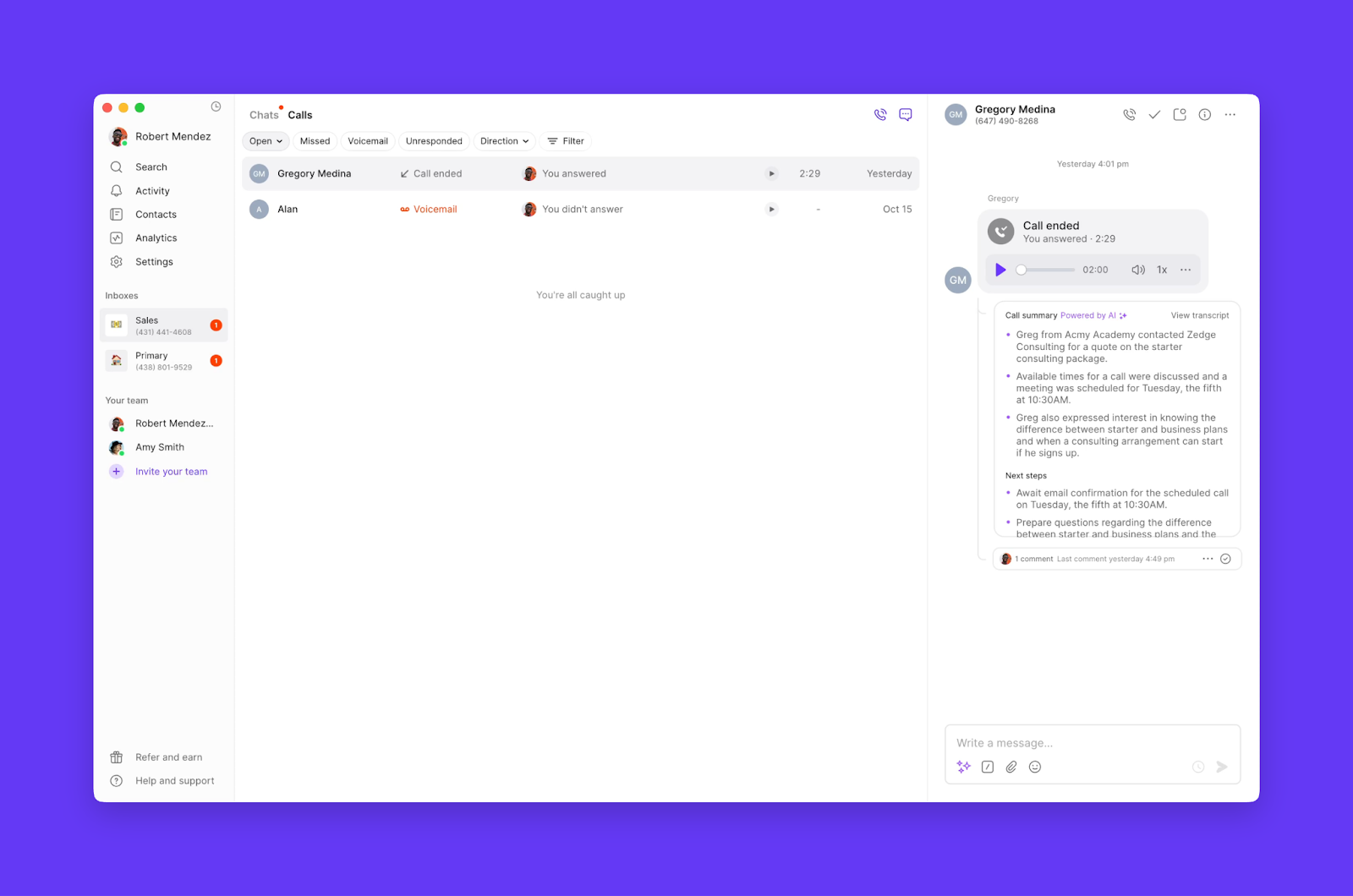
Your Calls menu provides a focused view of call data across your workspace- At-a-glance call status
- Call details
- Unresponded calls
- Voicemail indicators
- Inbound vs outbound call direction
- Team member call activity
Keyboard shortcuts
Boost your productivity with these keyboard shortcuts (web and desktop only):FAQs
Can I have multiple inboxes for different business lines?
Can I have multiple inboxes for different business lines?
Yes, each phone number gets its own inbox. This allows you to separate different business lines, departments, or customer types while maintaining organized communication threads.
What happens to conversations when I mark them as Done?
What happens to conversations when I mark them as Done?
Done conversations are archived but remain searchable. You can always change them back to Open status if follow-up is needed. This helps keep active conversations visible while preserving history.
Can I customize how conversations are sorted?
Can I customize how conversations are sorted?
Conversations are sorted by most recent activity by default. You can filter by various criteria (unread, unresponded, tags) but the chronological sorting helps ensure you never miss important communications.