

Overview
Inbox filtering in Quo lets you focus on the conversations and calls that matter most. Your inbox has two views, Chats and Calls, each with its own set of filters. Filter by status, company, team member, custom contact properties, and more to keep your workflow organized.Filters apply to the inbox and view you’re currently in.
Chats view filters help you find and prioritize conversations with contacts. You can filter by conversation status, company, or custom contact properties you’ve set up.
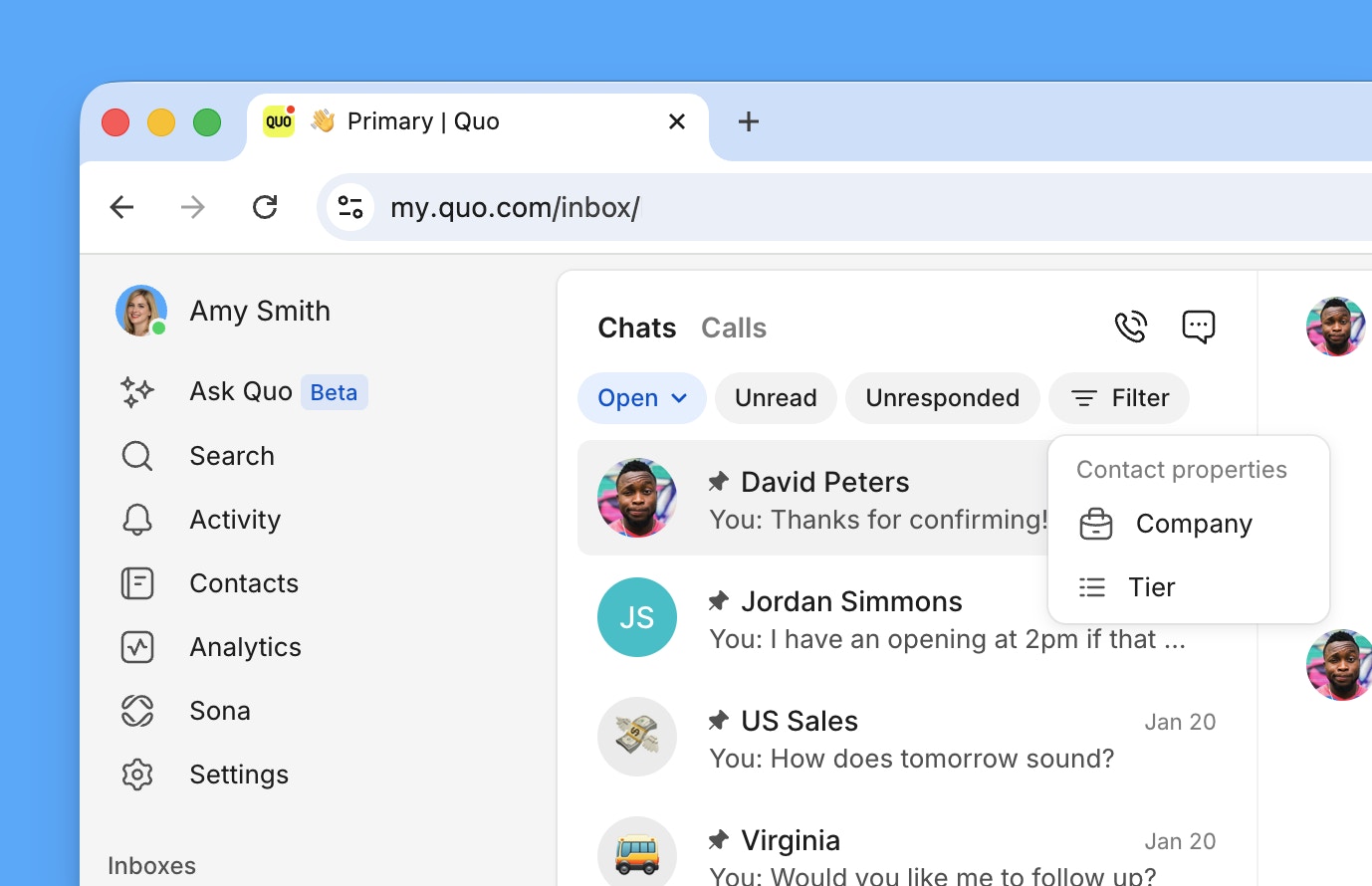
Calls view filters help you find specific call records. You can filter by call outcome, direction, team member, and more. Some filters are only available on web and desktop.
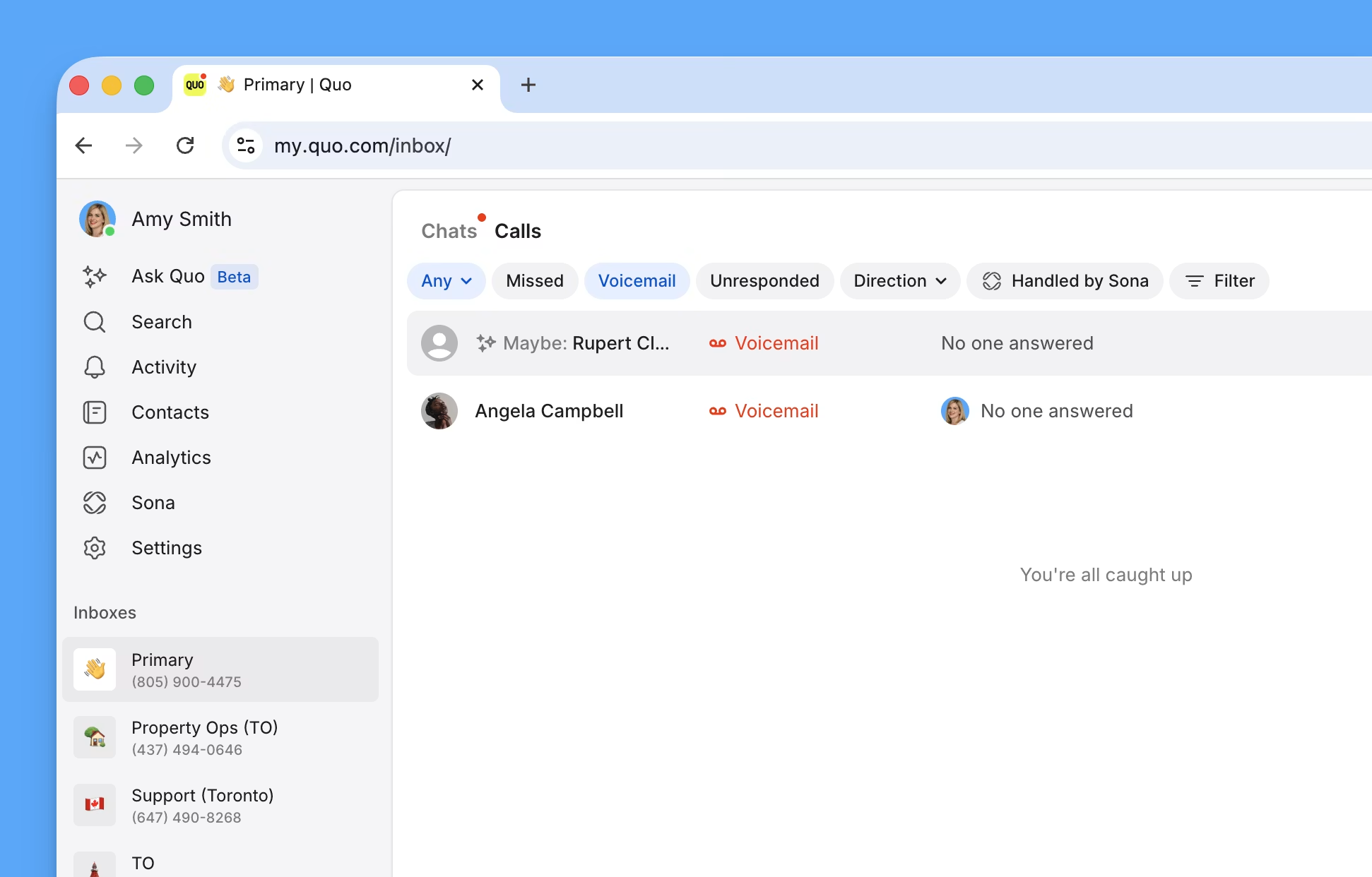
Understanding filtering concepts
Quo offers two types of filters that differ slightly depending on the view you’re in: Conversation status filters that appear as pill buttons in the toolbar, and Advanced filters that are accessed by clicking or tapping the Filter button. Learn more about the available filters in the toggles:Chats view filters
Filter conversations with contacts.
Chats view filters
Filter conversations with contacts.
Calls view filters
Filter call records.
Calls view filters
Filter call records.
Filters work within each phone number inbox, so select the correct inbox before applying filters for comprehensive results.
Basic conversation status management
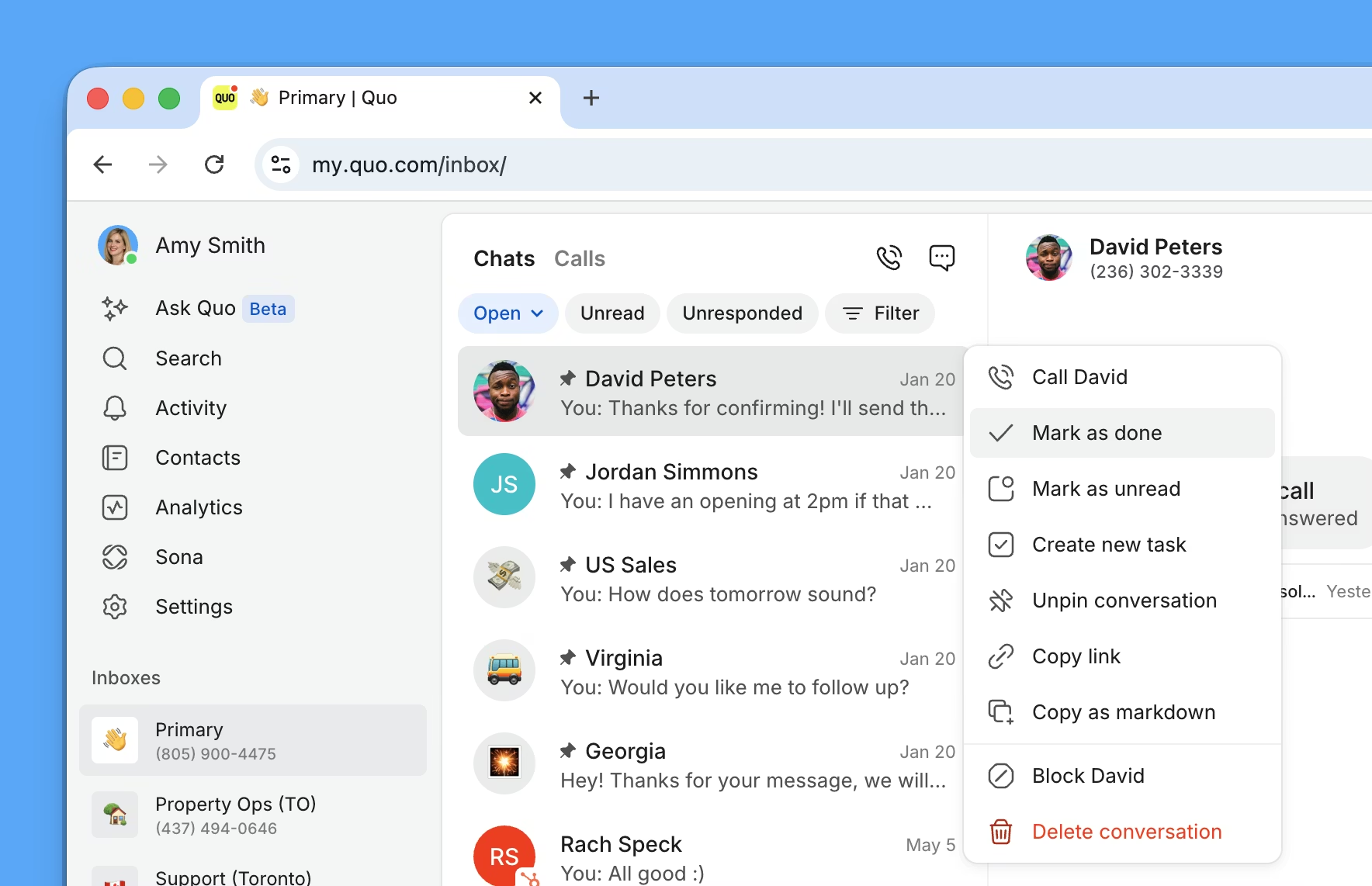
Understanding when and how to use each status helps maintain inbox organization.Statues are applied from the Chats view. You automatically land here when you open an inbox and this is where you can see all of your conversations.
- Use when conversations are completed and resolved
- Perfect for verification codes, confirmations, and one-time communications
- Removes conversations from main view while preserving history
- Creates active notifications for follow-up reminders
- Useful when you need to respond but aren’t immediately available
- Helps coordinate team responsibilities for shared conversations
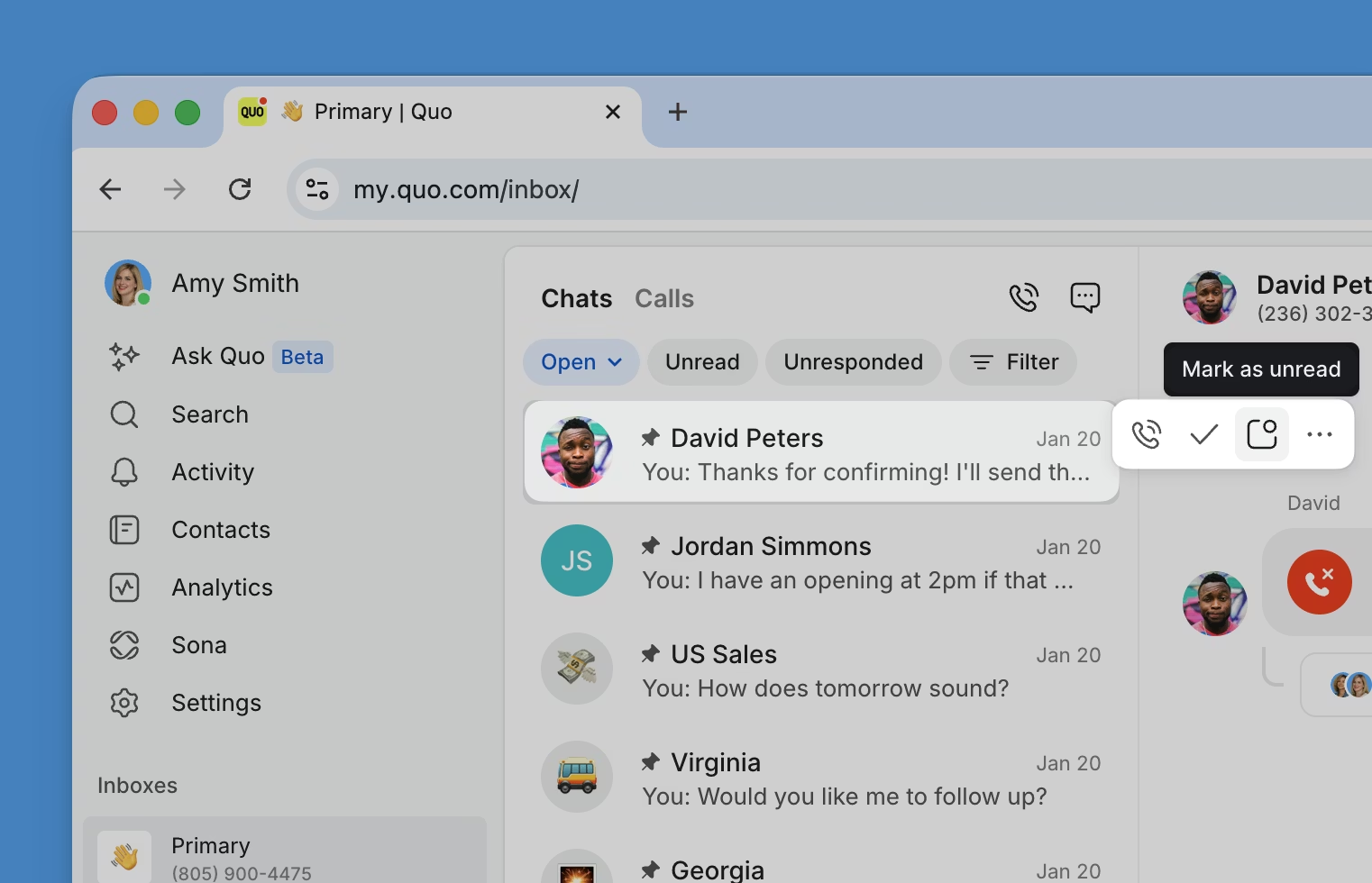
Hover over conversations to mark them Done or Unread quickly from your inbox.
- Status workflow (web/desktop)
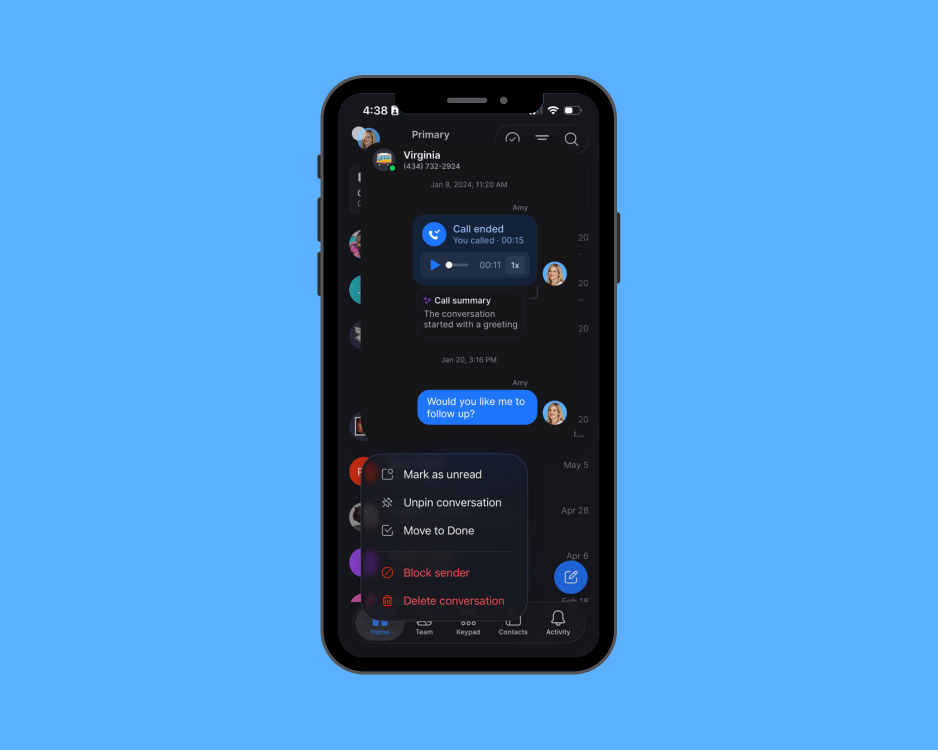
- Status workflow (mobile)
- Select a conversation from your inbox
- Choose a status action:
- Click the square icon to mark as unread
- Click the checkmark (✓) icon to mark as done
Advanced filtering features
Advanced filters are available with the Filter button in both the Chats and Calls views. The options differ depending on which view you’re in. Chats view advanced filters:- Company: Filter by company name associated with a contact
- Tags-type custom properties: Filter by any Tags-type custom contact property you’ve created (for example, a “Membership tier” property with tags like Gold, Silver, and Bronze)
- Team member: Filter calls by the team member who participated
- Ended / In progress: Filter by current call state
- Date: Filter by call date
- Call tags: Filter by AI-generated call tags. See AI call tags for more information.
Setting up custom contact properties for filtering
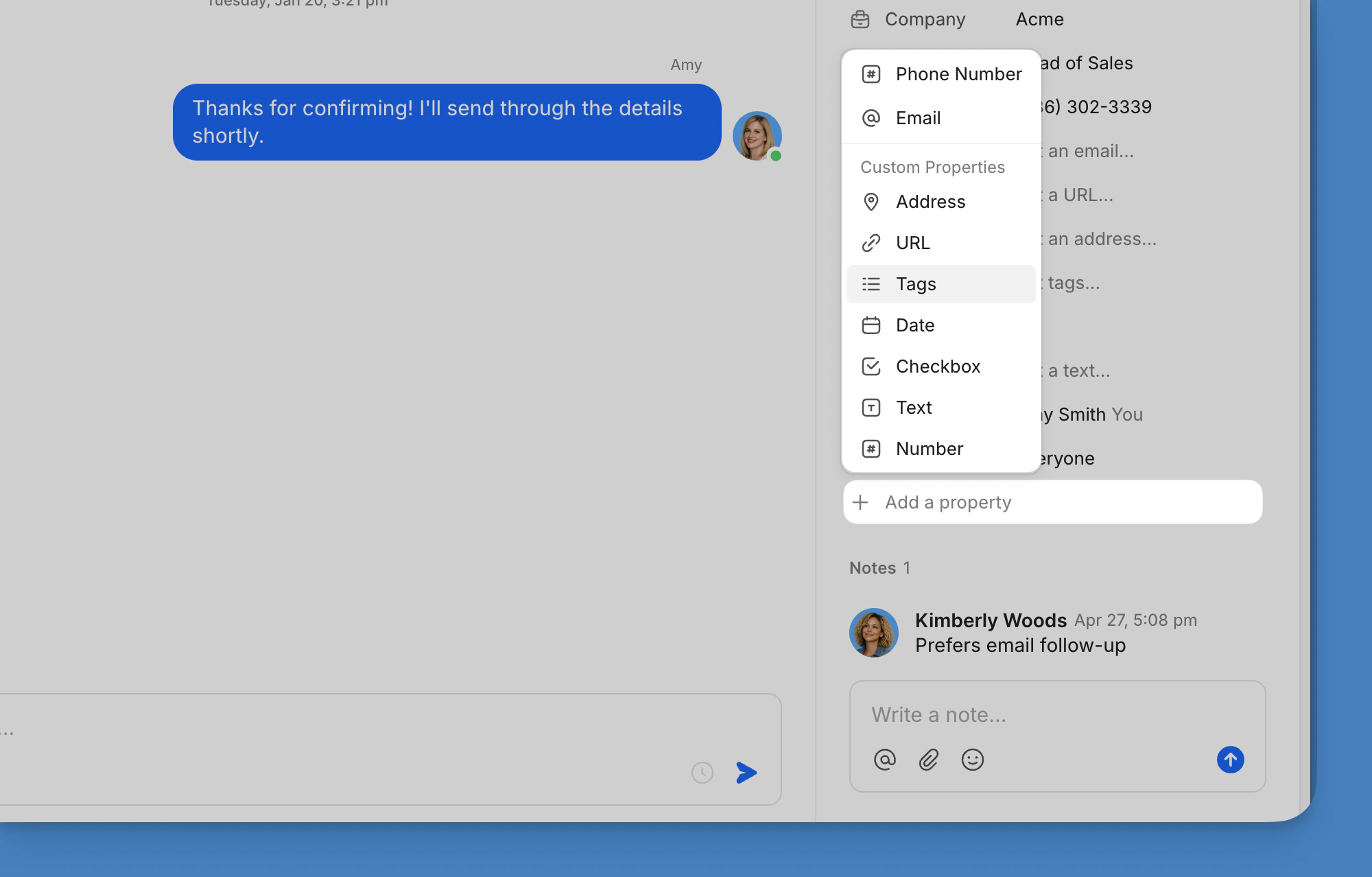
Only Tags-type custom contact properties appear as filter options in the Chats view. To use a custom property as a filter, create it as a Tags type first — once created, it appears on all contacts.- Create custom filter (web/desktop)
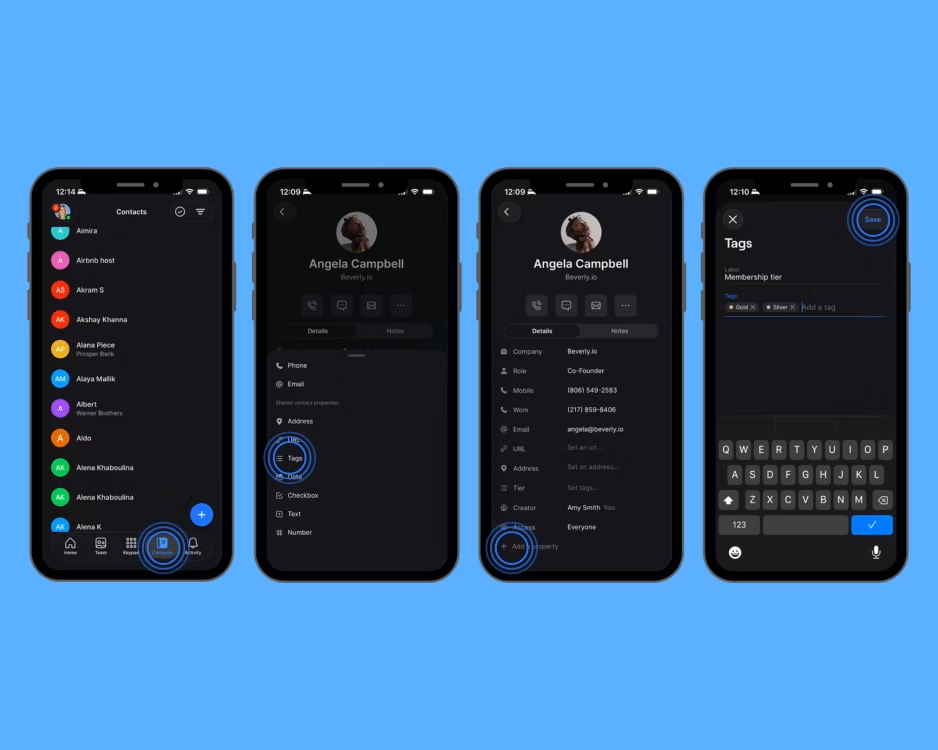
- Create custom filter (mobile)
- Open any conversation
- In the contact panel on the right, click Add a property
- Select Tags as the property type
- Name the property and add your tags (for example, a “Membership tier” property with tags like Gold, Silver, and Bronze)
Setting up advanced filters on web/desktop
- Chats view (web/desktop)
- Calls view (web/desktop)
- Click Chats to make sure you’re in the Chats view
- Click Filter
- Select a filter type:
- Company for organization-based filtering
- Any Tags-type custom contact property for tag-based filtering
- Select your criteria
- Click + to add additional filters
Managing multiple filters
Adding filters:- Click + to add additional filter criteria
- Combine different filter types for precise results
- Click is between the filter name and value to adjust criteria
- On web/desktop: Click x next to a filter name to remove it
- On mobile: Tap Clear all filters to return to the full view
Mobile filtering workflows
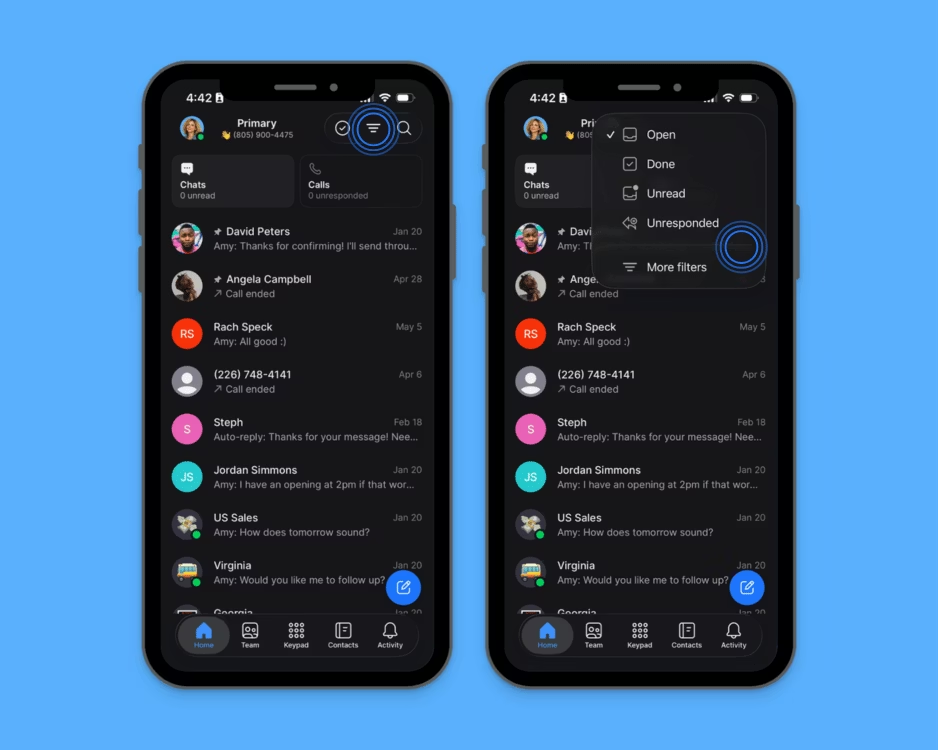
The Quo mobile app supports filtering in both the Chats and Calls views — use Chats to find specific conversations, or Calls to see how your calls have been handled.- Chats view (mobile)
- Calls view (mobile)
- Tap the filter icon in the upper right corner
- Select your filter criteria:
- Open, Done, Unread, or Unresponded for status filtering
- Company for organization-based filtering
- Any Tags-type custom contact property for tag-based filtering
- Tap Done to apply
- To add multiple filters, select additional options before tapping Done
- To clear all filters, tap Clear all
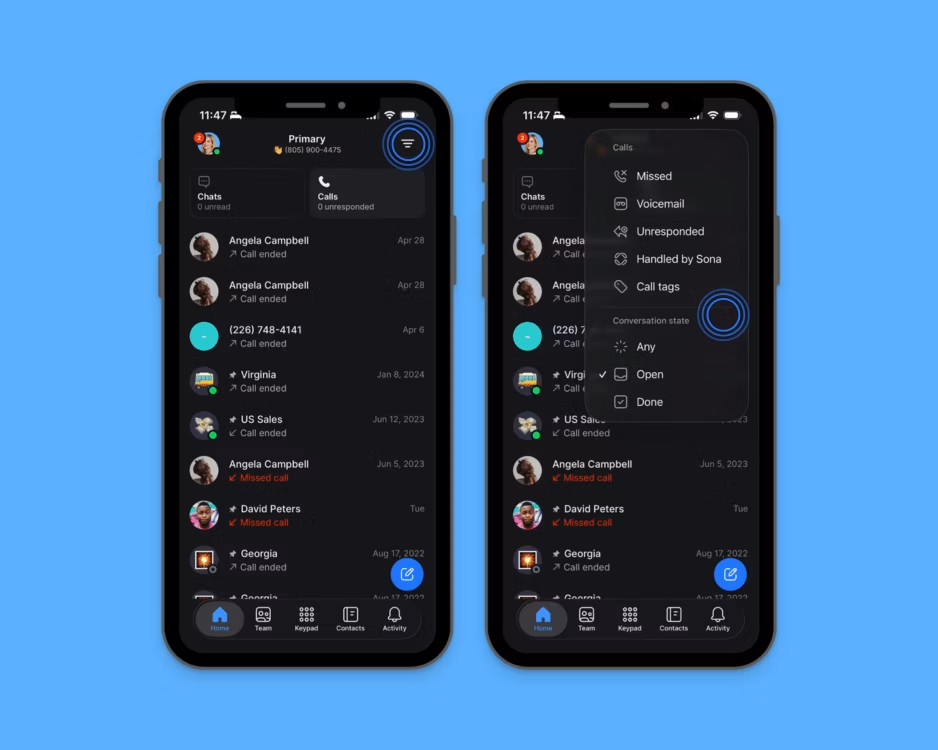
Team member filtering isn’t available on mobile. On web and desktop, it’s available in the Calls view only.
Managing multiple phone numbers
Phone number-specific filtering
Each phone number in your workspace maintains separate conversation filtering. Single number users:- Apply standard conversation status filters (Open, Done, Unread)
- Use advanced filters for contact properties and call management
- Focus on workflow optimization within a single inbox
- Separate filtering per inbox: Each phone number has independent filter settings
- Consistent organization: Apply similar filtering strategies across numbers
- Context switching: Each inbox’s filters stay in place when you switch back and forth between numbers
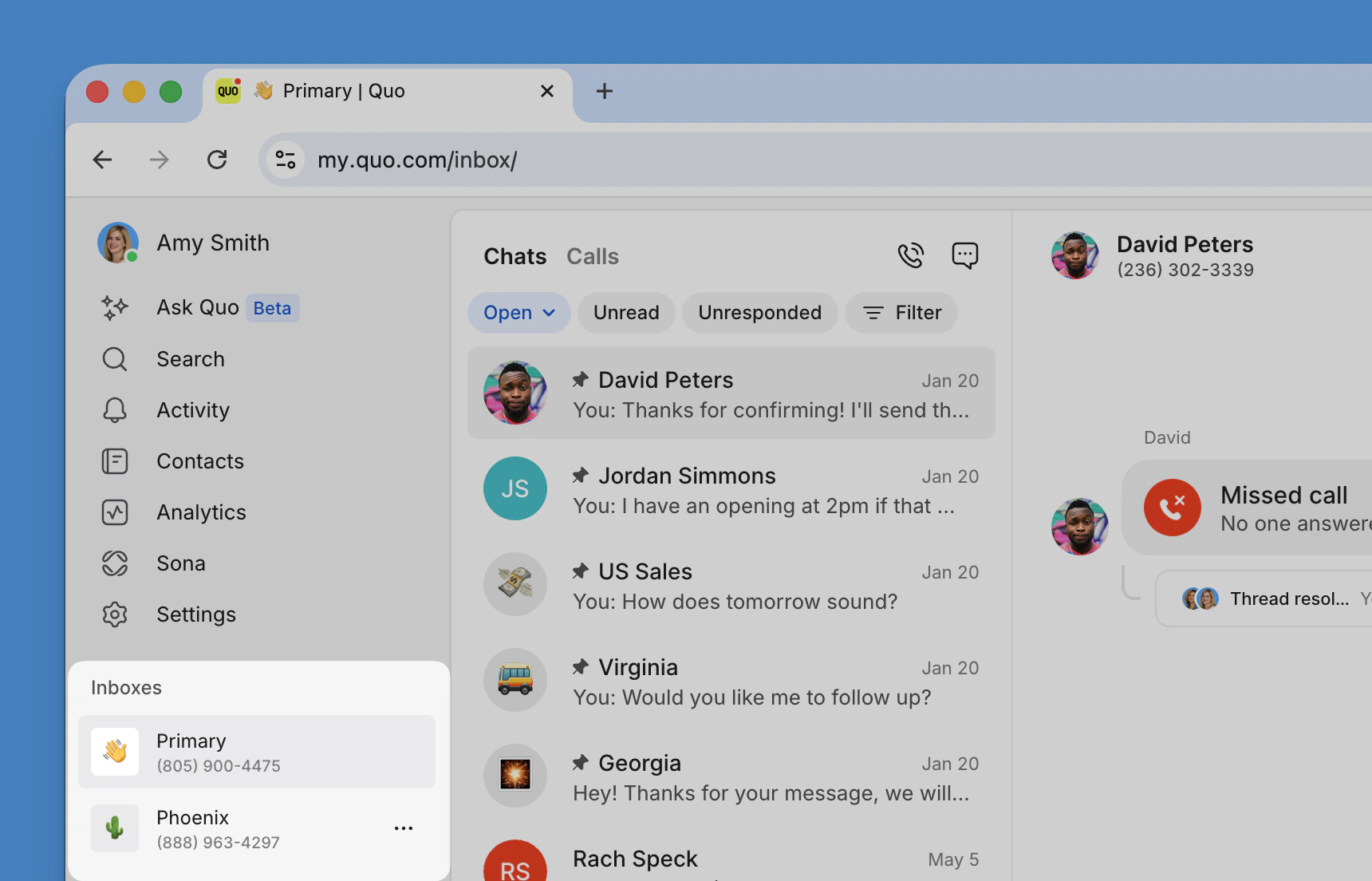
Switching between phone numbers
You’ll automatically land in the Chats view when you switch between inboxes.
- View available numbers under Inboxes in the left sidebar
- Click the Inbox you want to switch to
- Apply filters for that number’s conversations
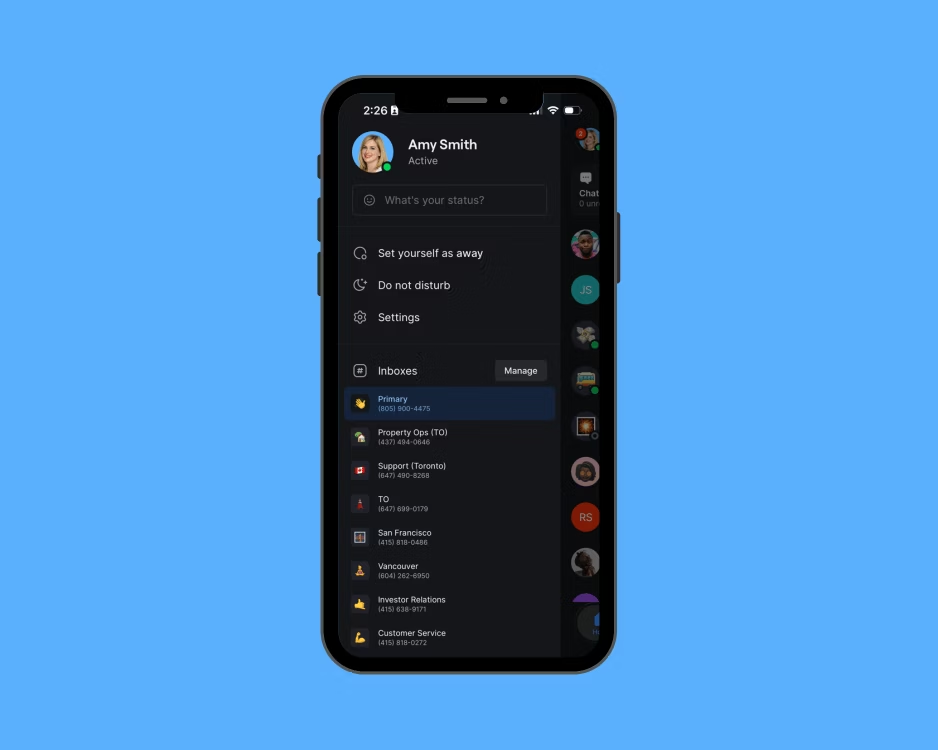
- Tap your account image in the upper left corner
- Select the number you want under Inboxes
- Apply filters for that number’s conversations
Filter workflow strategies
Daily productivity workflows
- Start with Unread to see new messages, then switch to Unresponded for anything needing a reply
- Mark conversations Done immediately on completion to keep your inbox accurate
- Use custom property filters to focus on specific client groups
Team collaboration strategies
- Establish shared conventions for marking conversations Done so filters stay reliable
- Use Team member in the Calls view (web/desktop) to see which calls each person handled
- Check Unresponded regularly to catch anything that’s fallen through the cracks
Troubleshooting filtering issues
If your filters aren’t returning the results you expect, or conversations are missing from a filtered view, the steps below can help you identify the cause and keep your filters working accurately over time.Filters not showing expected results
Filters not showing expected results
- Verify phone number selection: Make sure you’re viewing the correct inbox
- Check your view: Some filters are only available in the Chats or Calls view — confirm you’re in the right one
- Check filter criteria: Confirm filter settings match your intentions
- Review conversation states: Conversations may be in a different status than expected
Missing conversations in filtered view
Missing conversations in filtered view
- Expand filter criteria: Try broader or different filter combinations
- Check Done conversations: Completed conversations may be archived
- Verify contact properties: Make sure contacts have the necessary tags or properties
- Review team permissions: Confirm access to the relevant conversations
Maintain effective filtering
Maintain effective filtering
- Regular filter review: Periodically assess and update filter strategies
- Contact property maintenance: Keep custom properties current and relevant
- Team training: Make sure all team members understand filtering conventions
- Workflow documentation: Document effective filter combinations for consistent use
FAQs
What's the difference between Unread and Unresponded filters?
What's the difference between Unread and Unresponded filters?
- Unread shows conversations where no team member has viewed new messages.
- Unresponded shows conversations where you received messages or missed calls but haven’t replied.
Can I save custom filter combinations?
Can I save custom filter combinations?
Quo doesn’t save custom filter combinations, but you can quickly recreate useful filter sets. Consider documenting effective filter combinations for your team.
Do filters work across all my phone numbers?
Do filters work across all my phone numbers?
No. Filters apply to individual phone number inboxes. Each phone number has its own filter settings.
How do custom contact properties work with filtering?
How do custom contact properties work with filtering?
Only Tags-type custom contact properties appear as filter options in the Chats view. Other property types (Text, Number, Date, etc.) aren’t available as filters.
What happens when I filter by team member?
What happens when I filter by team member?
Team member filtering shows calls where a specific team member participated. It’s only available in the Calls view on web and desktop — it isn’t available on mobile or in the Chats view.
Can I filter by date ranges?
Can I filter by date ranges?
Date filtering is available in the Calls view on web and desktop via the Filter button. The Chats view doesn’t support date filtering.
How do filters affect search results?
How do filters affect search results?
Filters work alongside search to narrow results. When you search while filters are active, results include only conversations that match both your search terms and your active filters.
What happens to filters when team members leave?
What happens to filters when team members leave?
Filters remain functional after team members leave your workspace. Conversations previously associated with departed team members may show different attribution, so review and update team-based filters as needed.
How do I filter conversations by a custom contact property?
How do I filter conversations by a custom contact property?
Only Tags-type custom contact properties appear as filter options in the Chats view.To create a custom Tags property:
- Web/desktop
- Mobile
- Open any conversation
- Click Add a property in the contact panel
- Select Tags as the property type