

Overview
Conversation management in Quo, formerly OpenPhone, helps you stay organized and ensures important communications never slip through the cracks. Use conversation states, statuses, and organization features to maintain an efficient workflow and prioritize customer interactions effectively.Understanding conversation states
Conversations in Quo have distinct states that help you track and prioritize your communications:Conversation states help you maintain inbox zero while preserving important communication history.
Pinning conversations
Pin up to 50 conversations to keep important threads at the top of your inbox for quick access.Pinned conversations appear above all other messages in your inbox.
Pin or unpin a conversation
- Web or Desktop
- Mobile
- Right-click any conversation
- Select Pin conversation
If you’ve reached the 50 pin limit, you’ll see a notification.
Marking conversations as done
Use the “Done” status to clear completed tasks and keep your inbox organized. Available on web/desktop and for iOS and Android on the mobile app.From web or desktop app
- Single conversation
- Multiple conversations
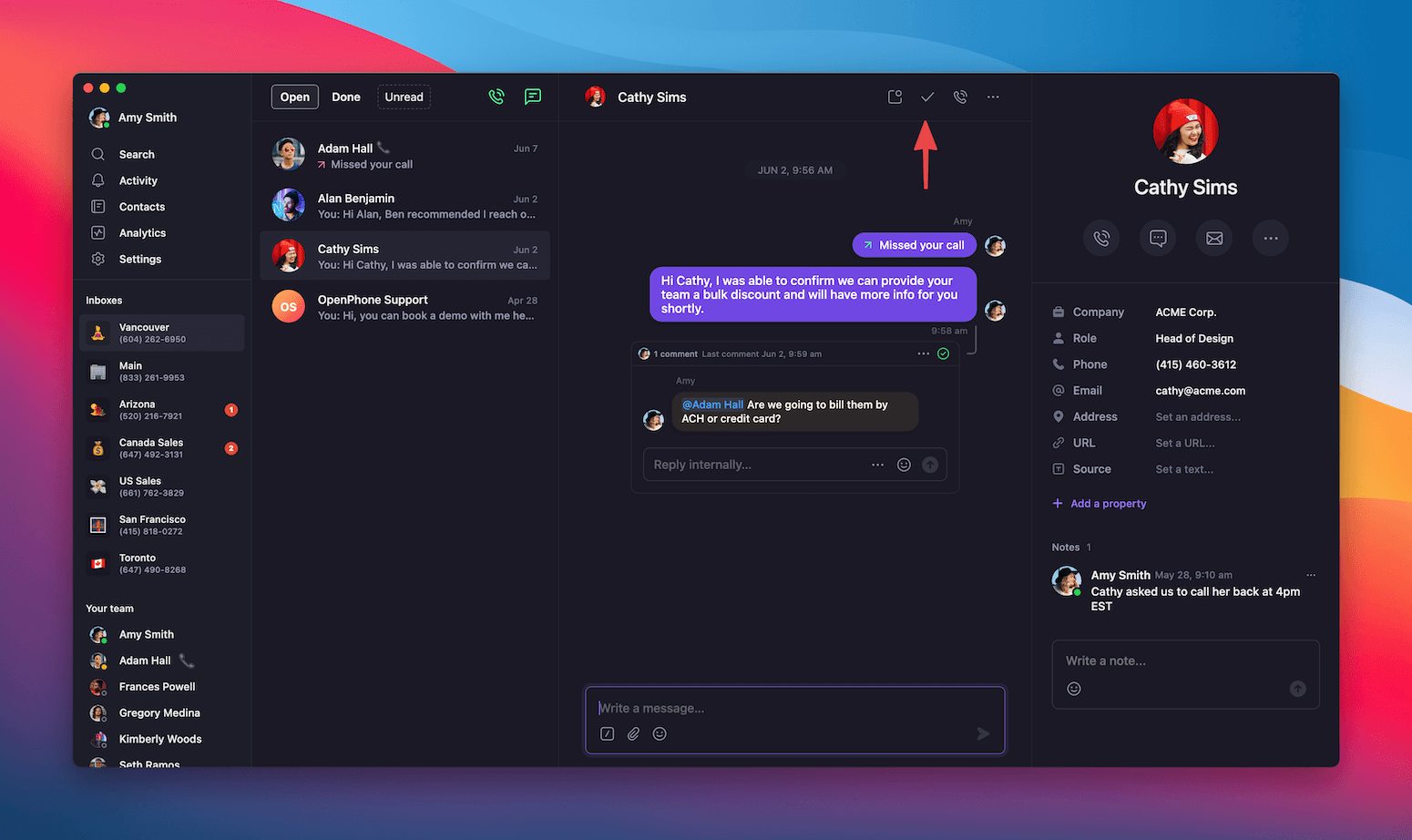
- Launch the Quo web app or desktop application
- Select the conversation you want to mark as done
- Click the Checkmark (✓) icon to mark the conversation as complete
From mobile app
- Single conversation (mobile)
- Multiple conversation (mobile)
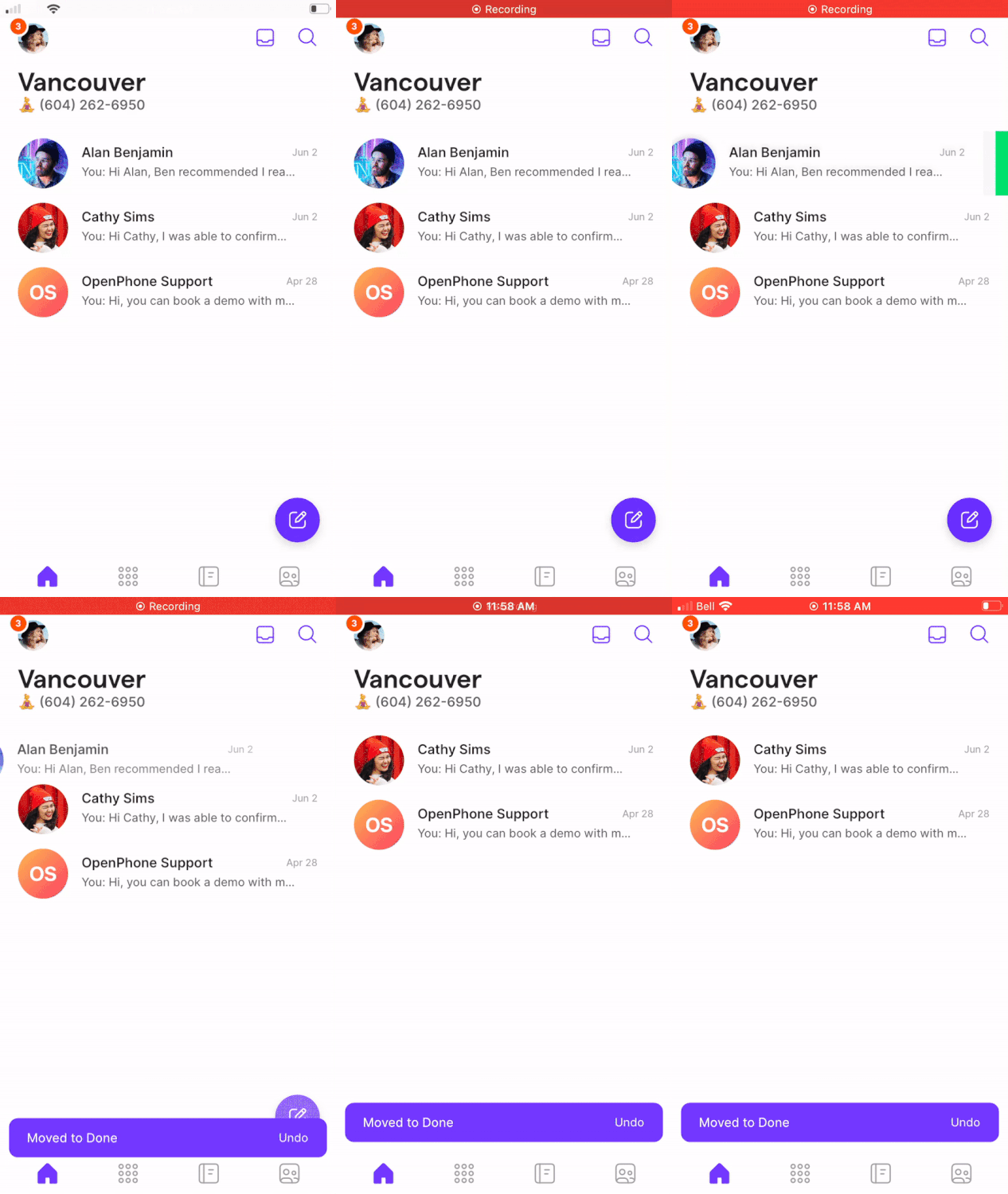
- Launch Quo on your mobile device
- From your conversation inbox, swipe the conversation left
- Tap Done to mark the conversation as complete
Marking conversations as unread
Use the “Unread” status as a personal or team reminder system. Available on web/desktop and for iOS and Android on the mobile app.From web or desktop app
- Single conversation
- Multiple conversations
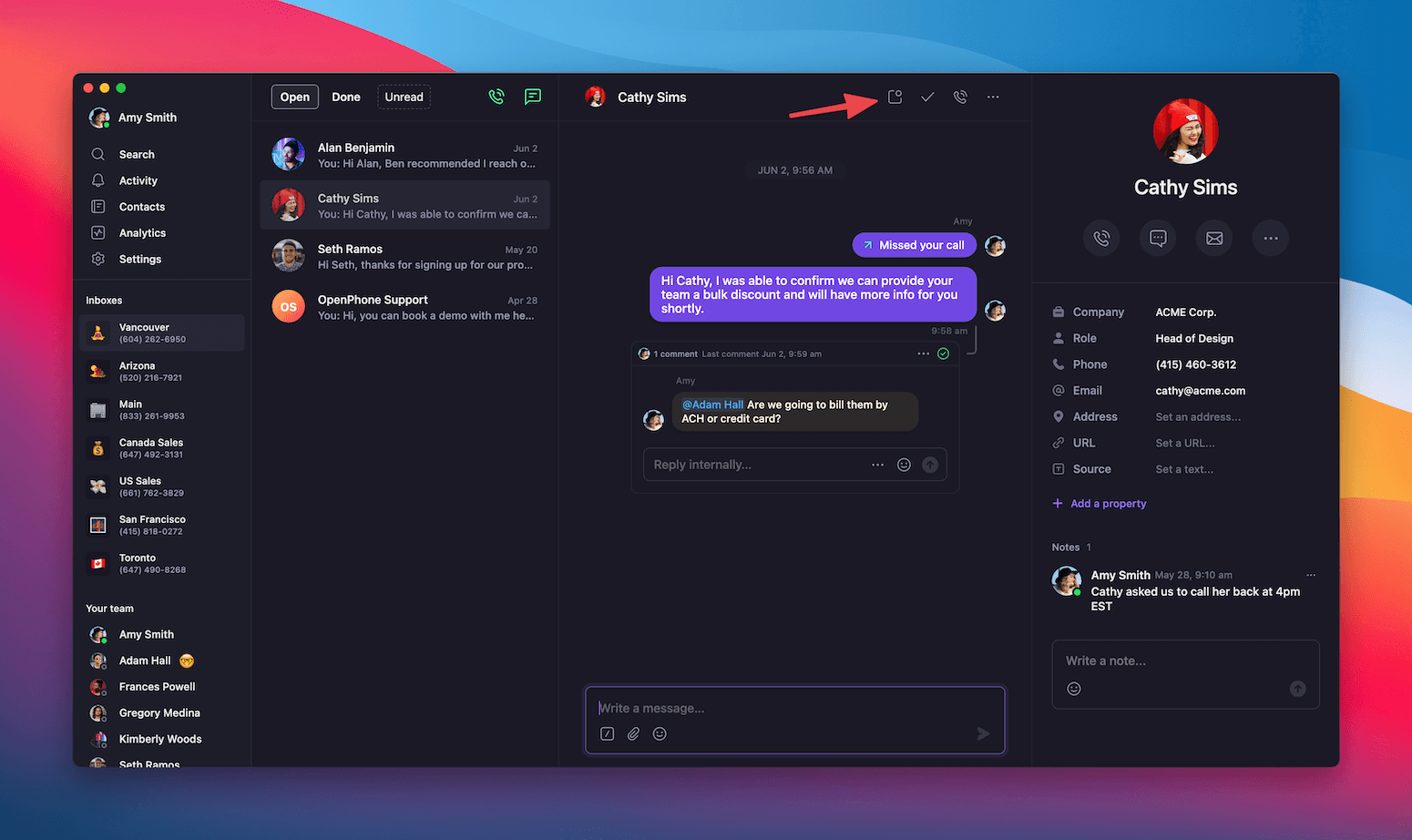
- Launch the Quo web app or desktop application
- Select the conversation you want to mark as unread
- Click the envelope icon to mark as unread
From mobile app
- Single conversation (mobile)
- Multiple conversation (mobile)
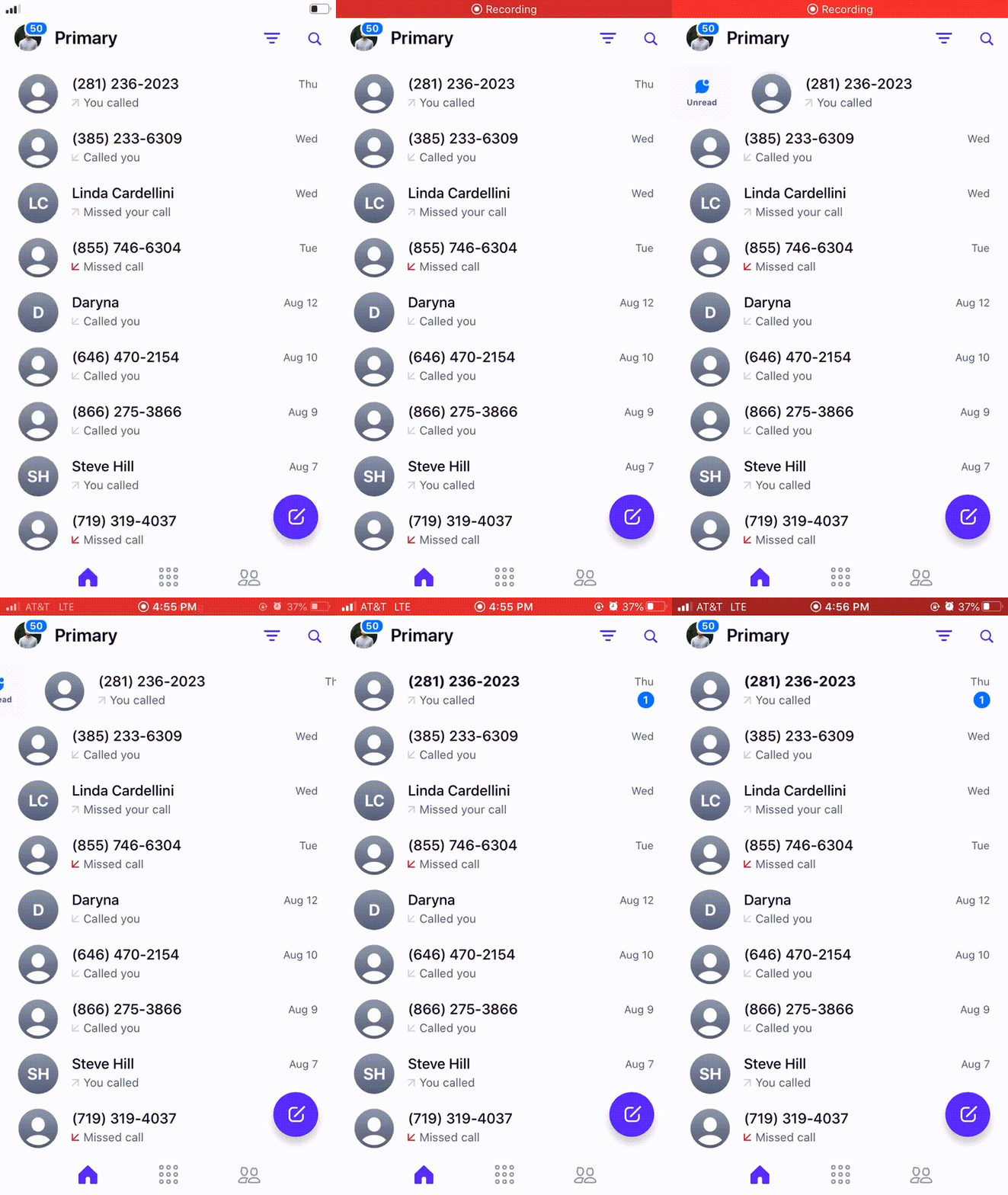
- Launch Quo on your mobile device
- From your conversation inbox, swipe the conversation right
- The conversation will be marked as unread with a notification indicator
Conversation workflow strategies
Personal productivity workflows
Daily inbox management
Daily inbox management
- Morning review: Check unread conversations and prioritize responses
- Active work: Keep important conversations open during discussions
- Completion tracking: Mark conversations done when resolved
- Follow-up system: Use unread status for items needing later attention
Task prioritization
Task prioritization
- Urgent: Keep open for immediate attention
- Follow-up needed: Mark unread as personal reminders
- Completed: Mark done to maintain inbox clarity
- Reference: Access through done filter when needed
Team collaboration workflows
Workflow optimization
Workflow optimization
- Morning standup: Review unread and open conversations as a team
- Coverage planning: Ensure all unread conversations have assigned owners
- End-of-day cleanup: Mark completed conversations as done
- Weekly review: Check done conversations for follow-up opportunities
Team workflow strategies for conversation management
When to mark conversations done
Done
Done
- Customer issue resolved: Problem solved and customer satisfied
- Information delivered: Verification codes, confirmations, or updates sent
- One-time interactions: Promotional messages or temporary communications
- Completed tasks: Delegated work finished and confirmed
- Archived references: Important but inactive conversations
When to mark conversations unread
Unread
Unread
- Follow-up required: Need to respond but not immediately available
- Team coordination: Alert colleagues to important messages
- Reminder system: Personal flags for later action
- Pending information: Waiting for details before responding
- Priority flagging: Mark important conversations for quick identification
Maintaining inbox organization
Daily habits
Daily habits
- Review unread conversations first thing each morning
- Mark conversations done immediately upon completion
- Use unread status strategically for genuine follow-ups
- Archive promotional or verification messages promptly
Weekly maintenance
Weekly maintenance
- Review done conversations for any missed follow-ups
- Clean up old conversations that no longer need tracking
- Assess conversation flow patterns for process improvements
- Update team workflows based on conversation volume
Advanced conversation management
Keyboard shortcuts
For faster conversation management on web and desktop:Integration with other features
Contact management:- Add notes to contacts based on conversation outcomes
- Tag contacts with relevant information for future reference
- Update contact properties based on conversation insights
- Use @ mentions in conversations for team member alerts
- Pin important conversations for team visibility
- Share conversation insights during team meetings
- Monitor response times to unread conversations
- Track conversation completion rates
- Analyze conversation patterns for workflow optimization
FAQs
What's the difference between open and unread conversations?
What's the difference between open and unread conversations?
Open conversations are active discussions that may or may not have been read, while unread conversations specifically contain messages that no team member has viewed yet. A conversation can be both open and unread, but once marked as done, it’s neither open nor unread.
Can I recover conversations marked as done?
Can I recover conversations marked as done?
Yes, conversations marked as done aren’t deleted. Access them through the “Done” filter in your inbox. You can also mark them as open or unread again if needed for continued communication.
Do conversation states sync across devices?
Do conversation states sync across devices?
Yes, conversation states (open, unread, done) sync across all your devices and team members in real-time. When you mark a conversation as done on your phone, it immediately updates on your desktop and for your team.
How do conversation states work with team members?
How do conversation states work with team members?
Conversation states are shared across your team. When any team member marks a conversation as read, unread, or done, it updates for everyone. This prevents duplicate work and ensures consistent conversation tracking.
Can I bulk mark conversations as done?
Can I bulk mark conversations as done?
Yes! You can mark multiple conversations as Done by selecting the conversations and tapping the checkmark that appears at the bottom of the conversation list.
What happens to conversation states when I archive a phone number?
What happens to conversation states when I archive a phone number?
When you archive a phone number, all conversation states are preserved. If you later reactivate the number, conversations will maintain their previous states (open, done, unread).
How long do done conversations remain accessible?
How long do done conversations remain accessible?
Done conversations remain accessible indefinitely through the Done filter. There’s no automatic deletion of conversation history, ensuring you always have access to past communications when needed.
Can I set up automatic conversation marking?
Can I set up automatic conversation marking?
While there’s no automatic conversation marking, you can use filters to quickly identify conversations that might be ready for marking as done, such as conversations with only verification codes or promotional messages.
Can I rearrange pinned conversations?
Can I rearrange pinned conversations?
Pinned conversations appear in the order they were pinned. They can’t be manually rearranged.