

Overview
Quo Analytics provides comprehensive insights into your team’s communication patterns and performance. Track call and text volume, identify peak activity times, monitor team performance, and export detailed reports for deeper analysis.Analytics is available on Business and Scale plans. Data from Starter plan usage becomes available when you upgrade.
Accessing analytics
Getting to the dashboard
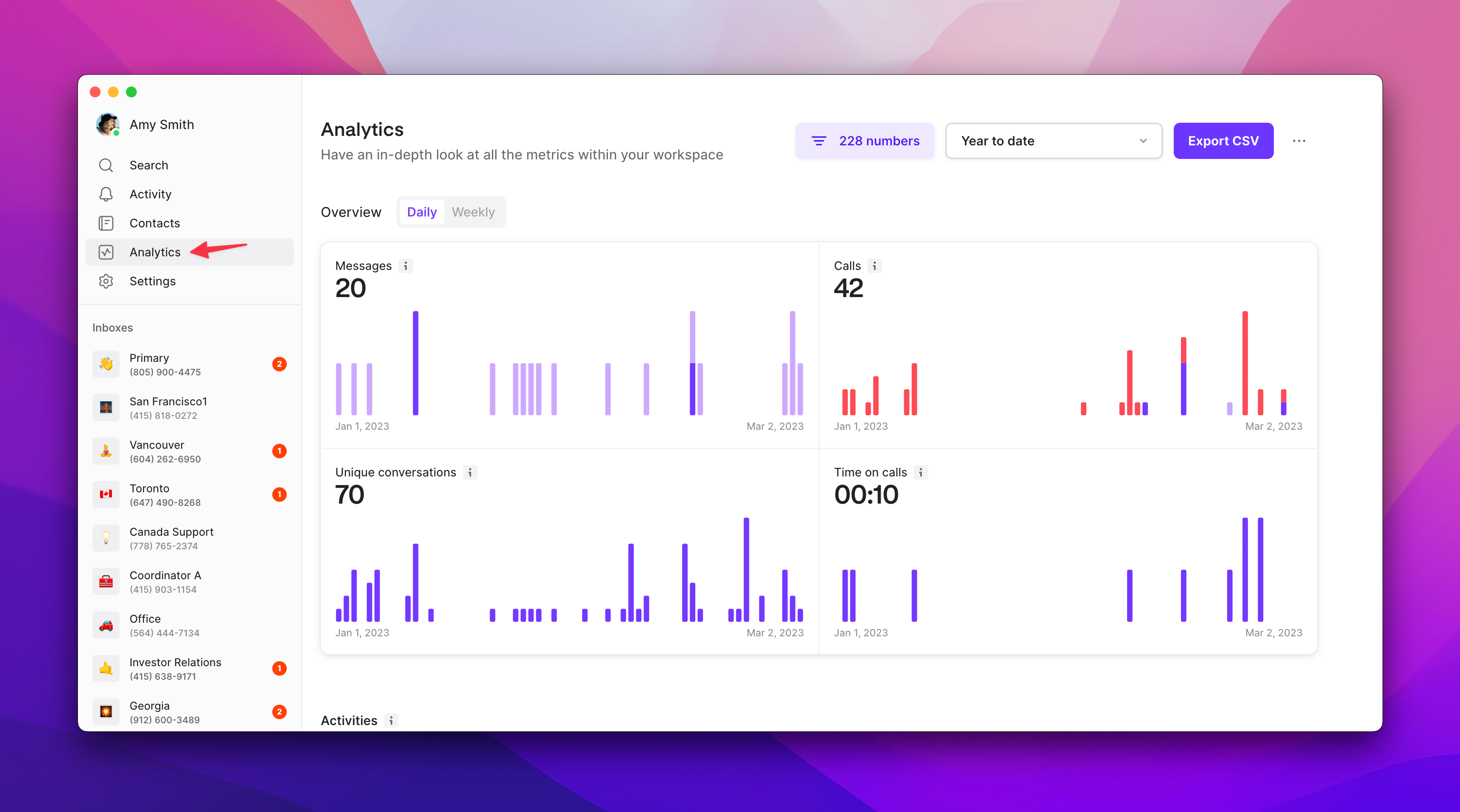
To view analytics:- Click Analytics in the left sidebar (web and desktop only)
- Select time period and filters
- Review metrics and export data as needed
- Available on web and desktop applications
- Mobile app support coming soon
Owners and Admins can view analytics for all numbers. Members can only view analytics for numbers they’re assigned to.
Analytics dashboard overview
Key metrics displayed
Summary statistics:- Total outgoing and incoming messages
- Total outgoing and incoming calls
- Total unique conversations
- Total time spent on calls
Team performance breakdown
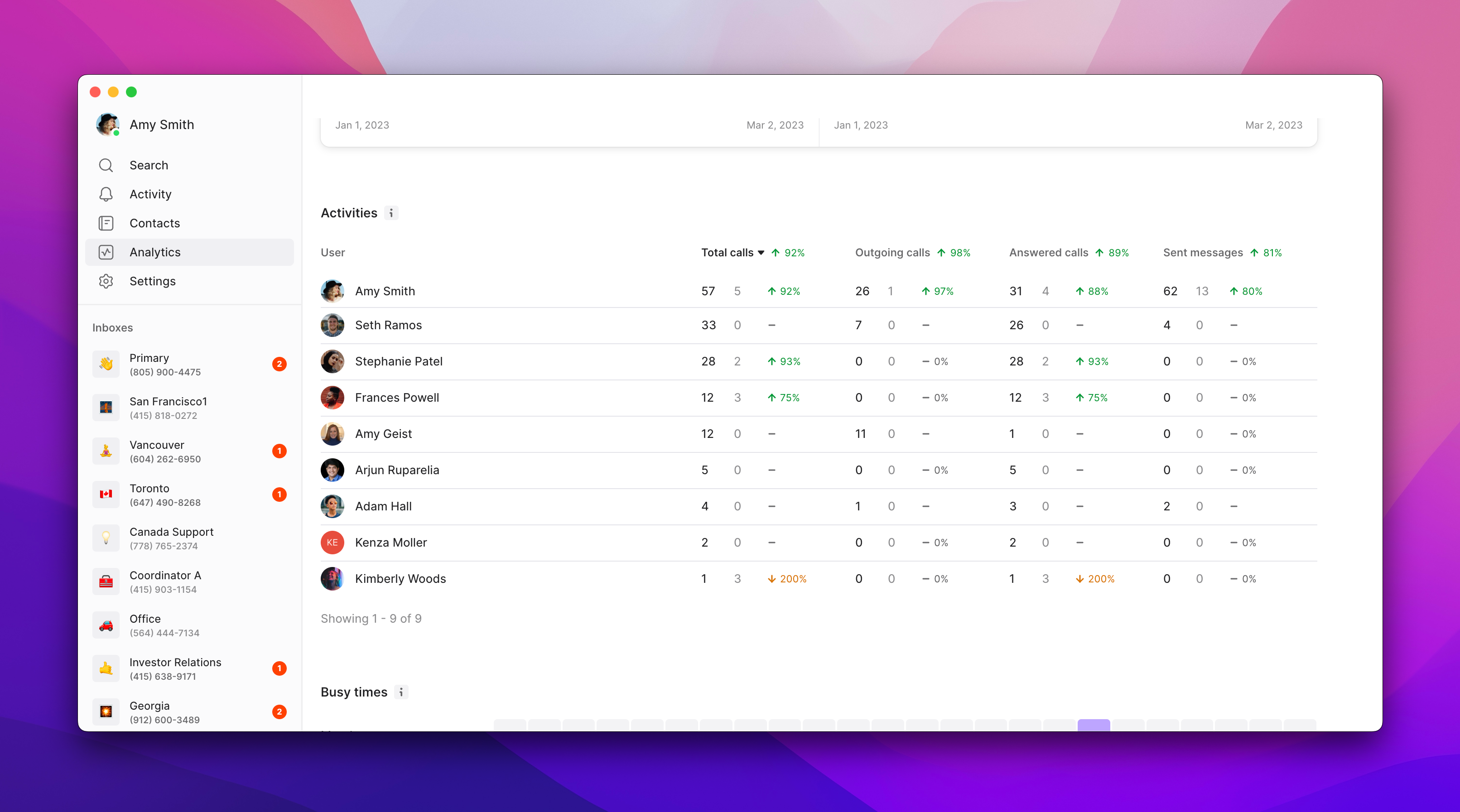
User activity analysis:- Individual team member call and message volumes
- Performance comparisons across team
- Activity trends over selected time periods
Activity heat map
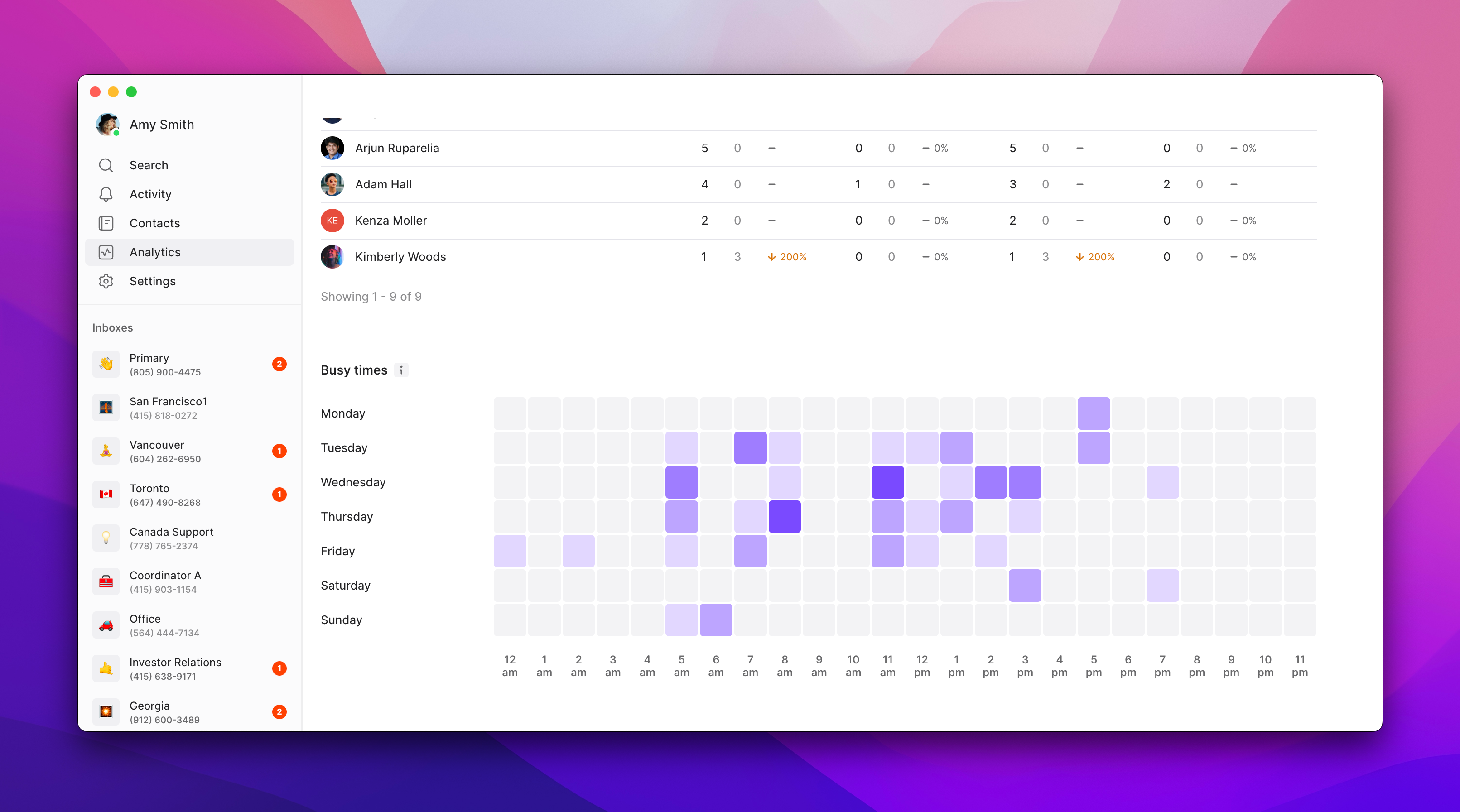
Peak activity identification:- Visual representation of busiest times by day and hour
- Helps optimize team scheduling and coverage
- Identifies communication patterns
Filtering and customizing data
Available filter options
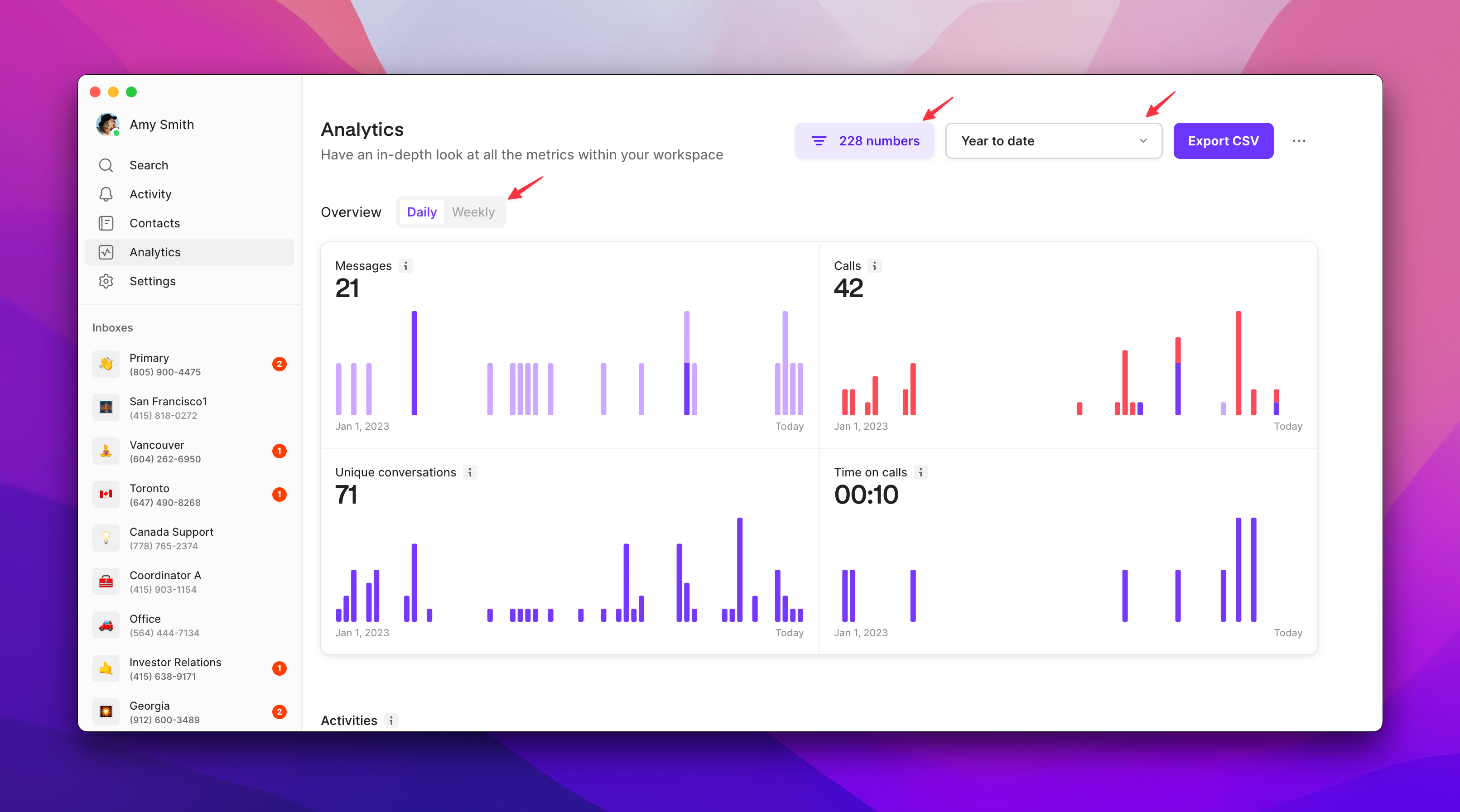
Time period filters:- Predefined ranges: Today, last 7 days, 4 weeks, 3 months, 12 months
- Business periods: Month-to-Date (MtD), Quarter-to-Date (QtD), Year-to-Date (YtD)
- Custom date range selection
- Week view for broader trends
- Day view for detailed daily patterns
- Filter by specific phone numbers
- Analyze individual number performance
- Compare performance across different numbers
Data export and reporting
CSV export process
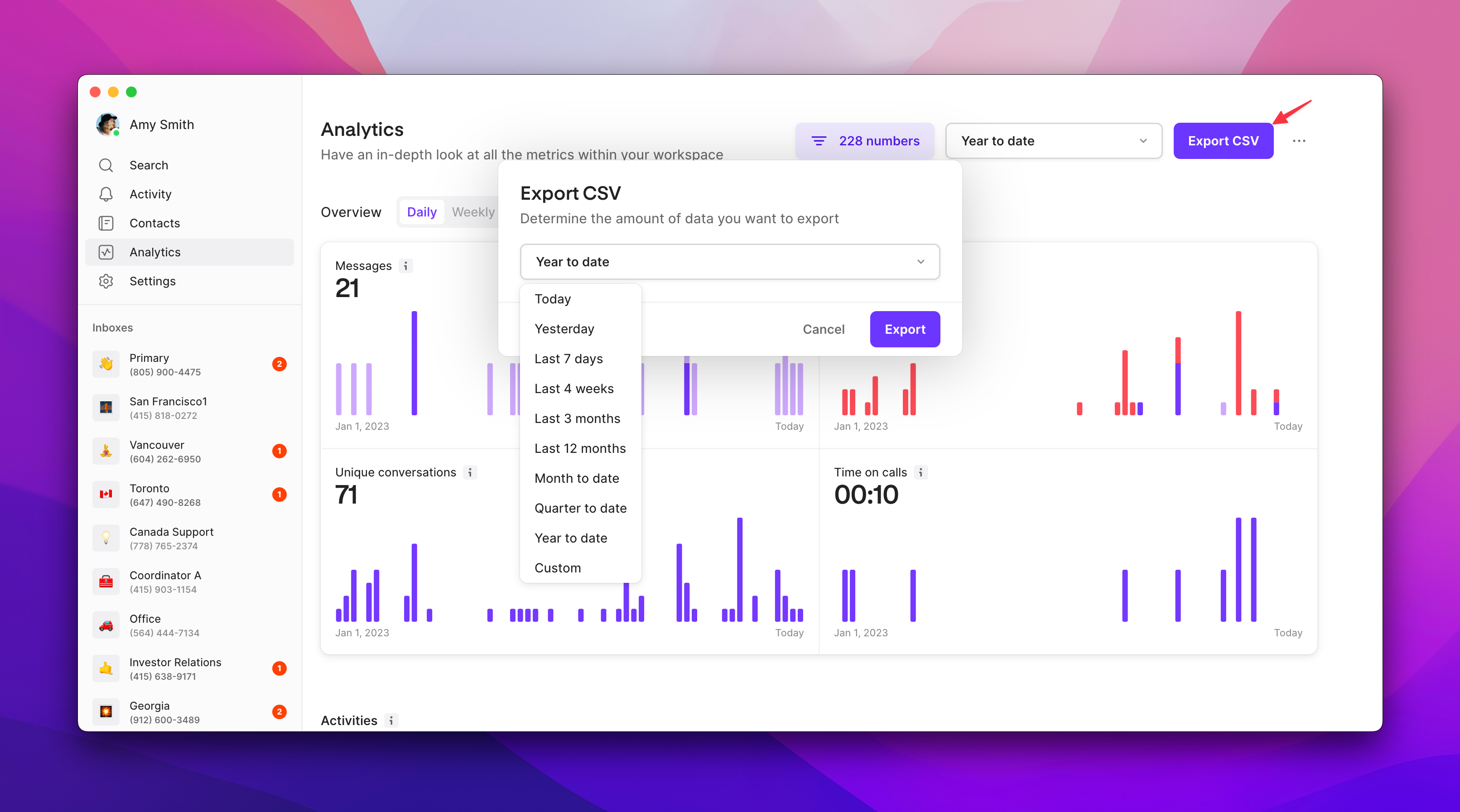
To export analytics data:- Apply desired filters and time range
- Click Export CSV in upper right corner
- Report will be emailed to your Quo account email
- Download and analyze in spreadsheet application
Export data points
Included in CSV exports (24+ data points):- Team member assignment for calls and messages
- Call duration and timing details
- Caller and message sender phone numbers
- Timestamp information for all activities
- Status breakdowns for calls, messages, and voicemail
- Direction indicators (incoming vs outgoing)
Understanding status indicators
Call status definitions
Call completion statuses:- Completed: Successfully connected calls (incoming or outgoing)
- Missed: Incoming or outgoing calls that weren’t answered
- Ringing: Outgoing calls disconnected immediately (no duration recorded)
- Cancelled: Incoming calls abandoned by caller before connection
Message status definitions
Message delivery statuses:- Received: Successfully received incoming messages
- Delivered: Outgoing messages successfully delivered to recipient
- Undelivered: Outgoing messages that failed to reach recipient
Use the “direction” data point in exports to distinguish between incoming and outgoing communications for each status type.
Common use cases
Performance optimization
Team management:- Identify top performers and training opportunities
- Balance workload distribution across team members
- Set performance benchmarks and track improvements
- Monitor response times and call completion rates
Operational insights
Business intelligence:- Optimize staffing during peak communication times
- Identify customer contact patterns and preferences
- Track service level agreements and response metrics
- Analyze communication trends for business planning
Reporting and compliance
Documentation purposes:- Generate reports for management and stakeholders
- Track compliance with communication policies
- Maintain records for audit and review purposes
- Export data for integration with business intelligence tools
FAQs
Who can access analytics in Quo?
Who can access analytics in Quo?
Analytics is available to users on Business and Scale plans.
- Owners and Admins can view analytics for all phone numbers.
- Members can only view data for numbers they’re assigned to.
Can I see historical data after upgrading my plan?
Can I see historical data after upgrading my plan?
Yes! If you upgrade from the Starter plan to the Business plan, Analytics will show historical data from the entire time you’ve had your Quo account, including when you were on the Starter plan.
What data can I export from analytics?
What data can I export from analytics?
CSV exports include 24+ data points such as call duration, timestamps, message and call status, direction (incoming vs outgoing), and team member assignments.After clicking Export CSV, the report is sent to your email where you can download it.
Is analytics available on mobile?
Is analytics available on mobile?
Not yet, Analytics is currently available on web and desktop only.
How do I use the heat map to improve scheduling?
How do I use the heat map to improve scheduling?
The heat map shows your busiest days and hours at a glance. Use the darkest cells to align your business hours, staff for peak windows, and spot gaps where call volume is high but coverage is low.
Can I filter analytics by ring group or call flow?
Can I filter analytics by ring group or call flow?
Not directly. The Analytics dashboard filters by phone number, so if you use ring groups on a shared number, all activity appears together. As a workaround, export the CSV and filter by the “team member” column, which reflects who handled each call. For deeper call-level analysis, combine this with call views filtered by team member and date.
How far back does analytics data go? Is there a retention limit?
How far back does analytics data go? Is there a retention limit?
Analytics data goes back to the date your workspace was created, with no rolling cutoff. Use the custom date range selector to pull any window within that history. Your data is retained for the life of your active workspace, so if you ever plan to close your account, export anything you need beforehand.
I exported my analytics but haven't received the CSV email. What should I do?
I exported my analytics but haven't received the CSV email. What should I do?
Check your spam or promotions folder first. The export goes to your Quo account email, so confirm that’s the address you’re checking. If the email arrived but the download link isn’t working, it may have expired (links are valid for 72 hours). Just re-run the export from the Analytics dashboard to get a fresh one.
What's the difference between the Analytics CSV and the Data Export feature?
What's the difference between the Analytics CSV and the Data Export feature?
- Analytics CSV (from the Analytics dashboard) exports performance metrics: call volume, message counts, timestamps, and team activity. Analytics doesn’t include message content or call recordings. If you need that, use Data Export.
- Data Export feature (Settings > Export) exports raw workspace data including contact lists, message logs, and call logs for compliance or backup. Only workspace Owners or Admins can run a full data export, while Owners and Admins can export analytics.