

Overview
Setting up Sona involves incorporating it into your call flows, configuring greetings, adding knowledge for answering customer questions, and defining the jobs it should perform during calls. This guide walks you through each step so you can deploy Sona quickly and start having it handle customer calls with confidence.Sona configuration requires either Workspace-level Owner or Admin permissions, or Inbox-level Owner or Admin permissions. and is available on web and desktop apps only.
Accessing Sona
Getting to the Sona dashboard
- Open Quo on web or desktop
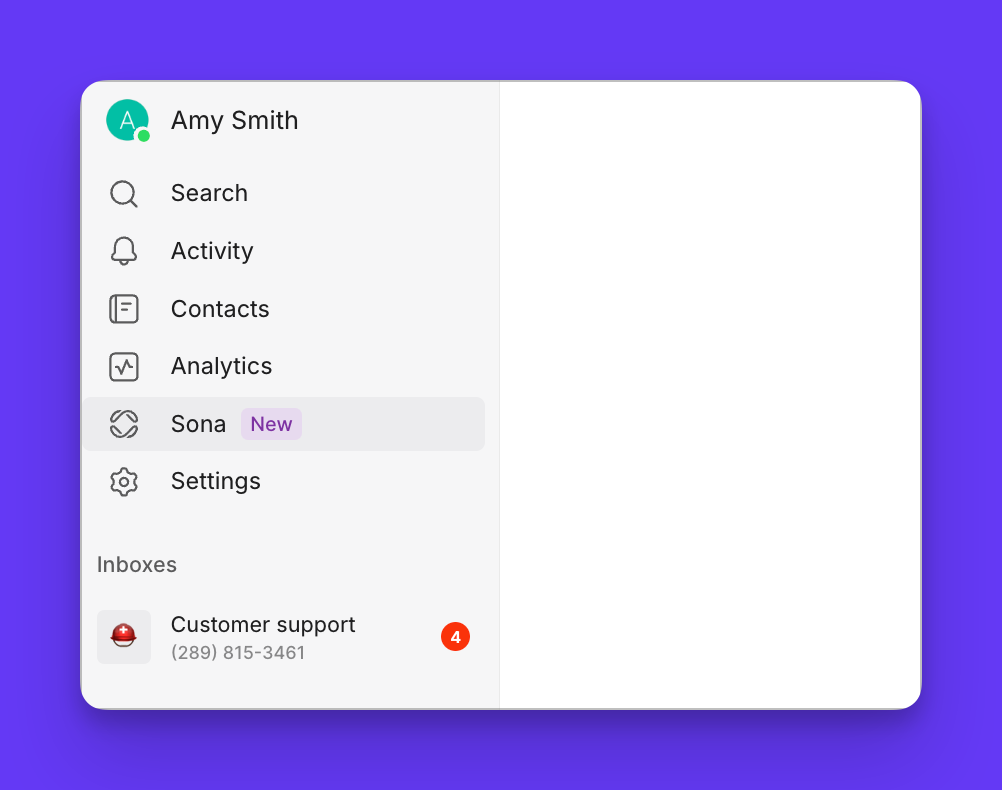
- Click Sona in the left sidebar navigation
- View available inboxes that you have admin or owner access to
- Click Set up on an inbox to open the call flow builder and continue configuring Sona
Adding Sona to call flows
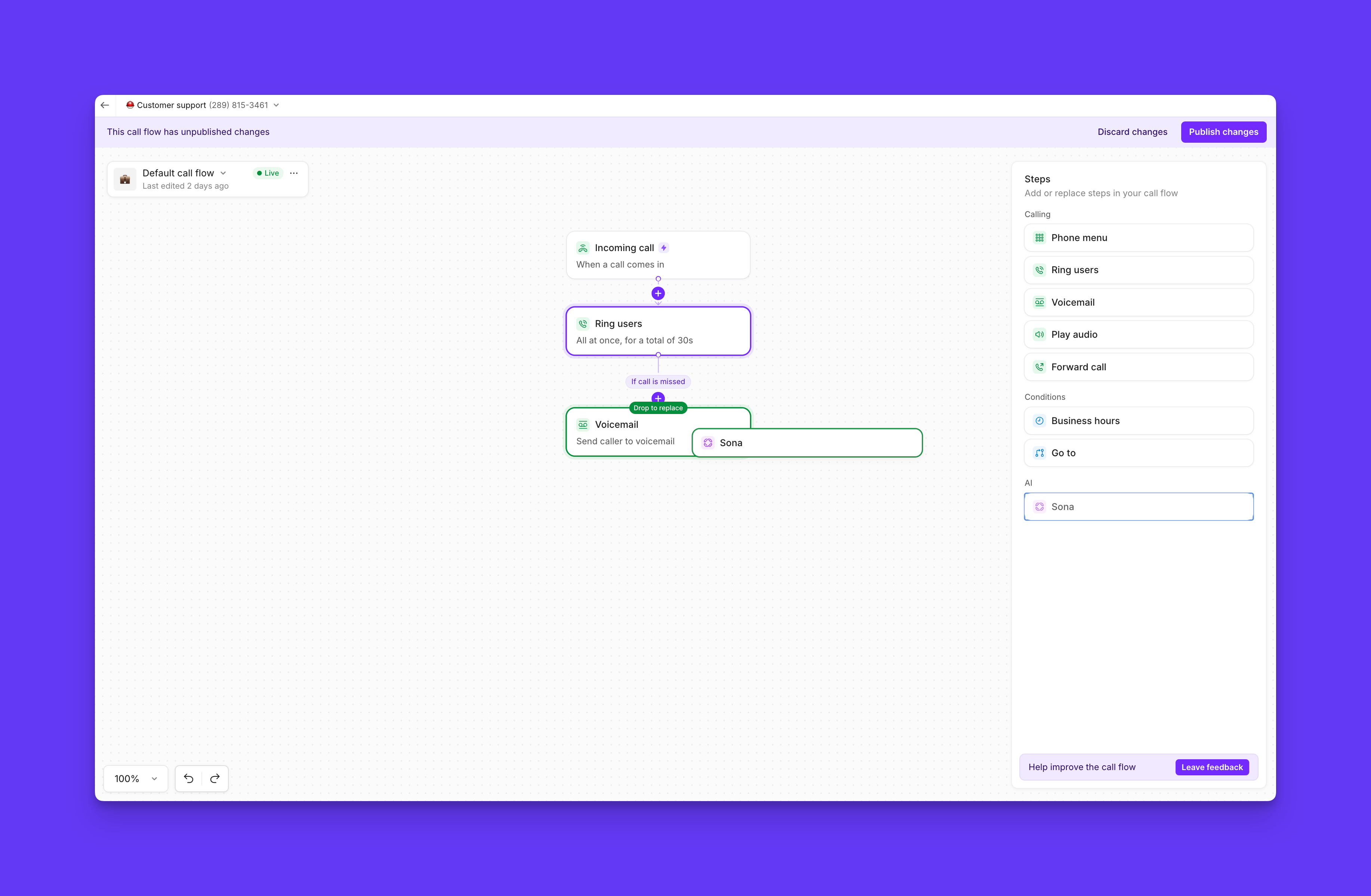
Adding Sona steps- Access call flow builder canvas
- Find Sona step in available steps list
- Drag Sona step into your call flow
Prefer a walkthrough?
Practice using call flows with interactive demos, videos, and more in the Quo Academy.
- After Ring users step: Handle missed calls automatically
- After phone menu step: Provide specific department assistance
- After business hours step: Offer after-hours support and message taking
- After incoming call: Have Sona support every caller
- Add multiple Sona steps in different call flow positions
- Configure each step with unique greetings and knowledge
- Customize jobs for different scenarios
Configuring Sona greetings
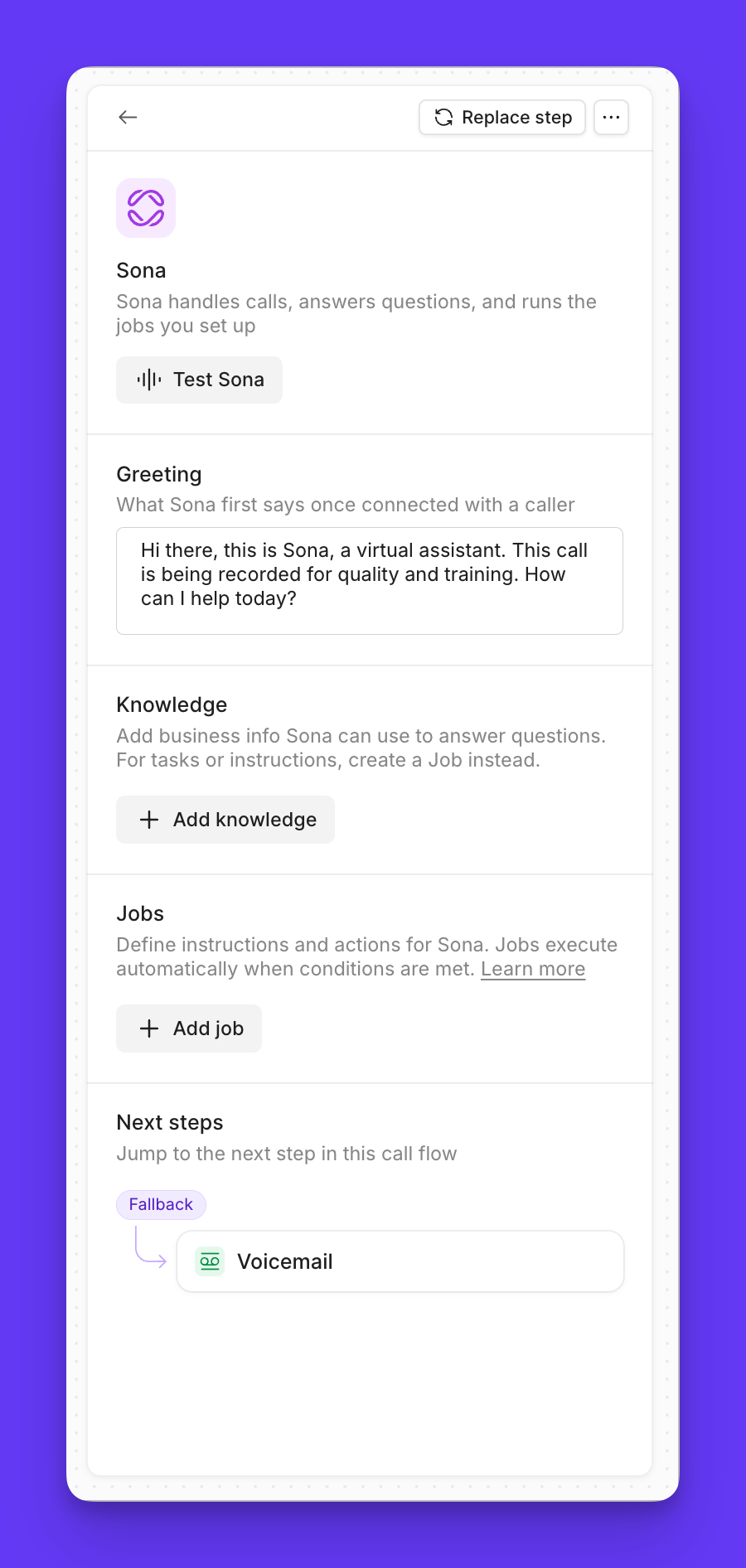
Greeting configuration:- Select Sona step in call flow builder
- Locate Greeting section in settings panel
- Customize greeting text to reflect your brand voice
- Include required elements for compliance and clarity
- Business identification: Include your business name
- AI disclosure: Clearly identify Sona as AI assistant or virtual assistant
- Recording notice: Mention that calls are being recorded for compliance
- Helpful tone: Maintain friendly, professional voice
“Hi there, this is Sona, a virtual assistant for Acme Services. I’m here to help answer your questions or take a message. Please note this call is being recorded. How can I assist you today?”Pro tips:
- Keep greetings concise but informative
- Test greetings with mock calls before publishing
- Update greetings seasonally or for special circumstances
Choosing Sona’s tone and voice
Sona can match the way your business sounds on the phone. You control this from the Personality button in the Sona step.How to set Sona’s tone
- In the call flow builder, select the Sona step.
- Click Personality.
- Under Tone, choose one of the available options.
- Publish your changes.
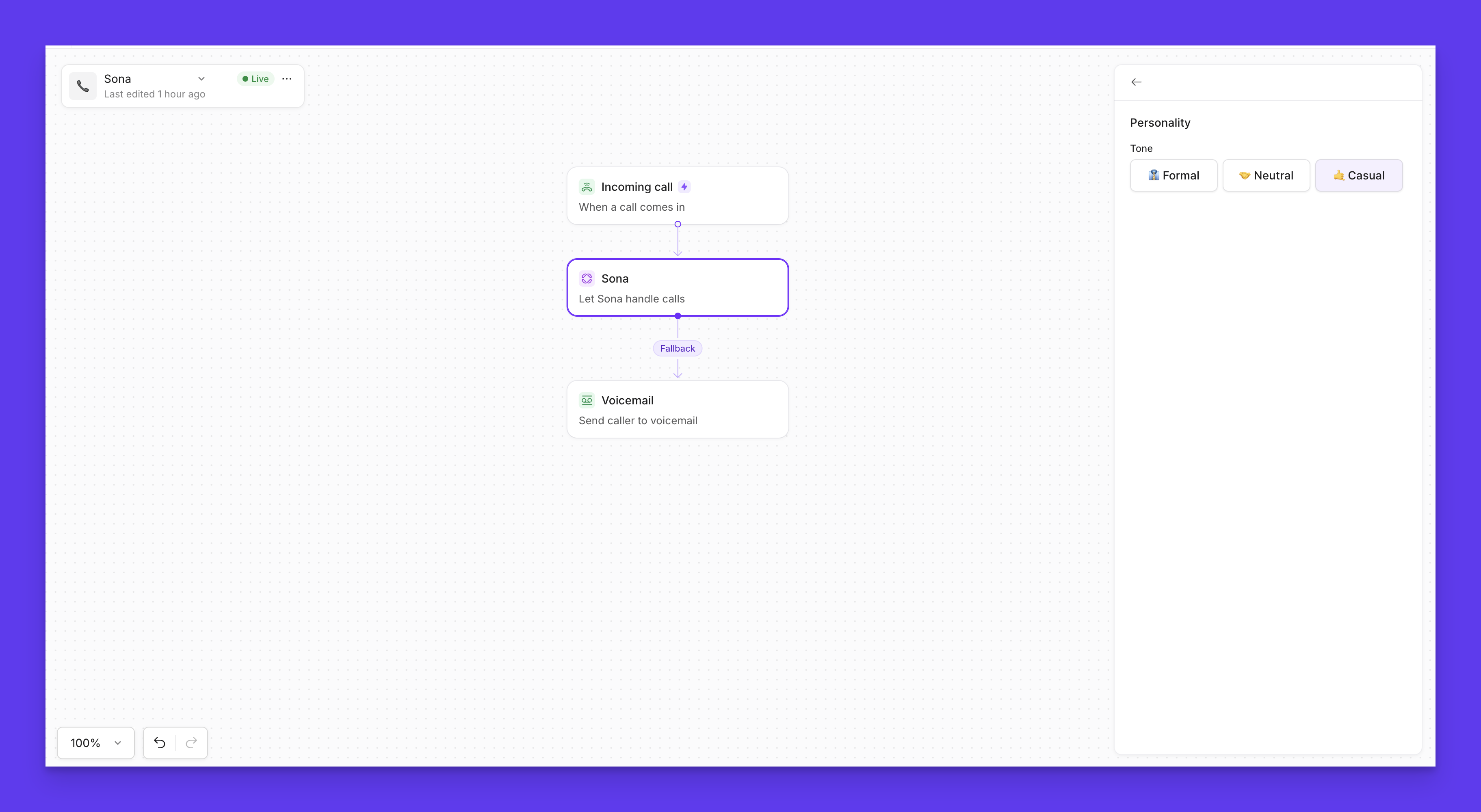
- Formal: Professional and structured. Sona speaks like an executive assistant at a high-end firm: clear, polished, no slang or contractions.
- Neutral: Polite and businesslike. Sona focuses on solving the caller’s request clearly and efficiently, with a calm, helpful tone.
- Casual: Warm and conversational. Sona sounds friendly and human, uses everyday language and contractions, and builds quick rapport with callers.
- Tone affects how Sona speaks, not what it can do. Your greeting, knowledge, and jobs still define behavior.
How to set Sona’s voice
- In the call flow builder, select the Sona step.
- Click Personality
- Under Voice, choose one of the available options
- Publish your changes
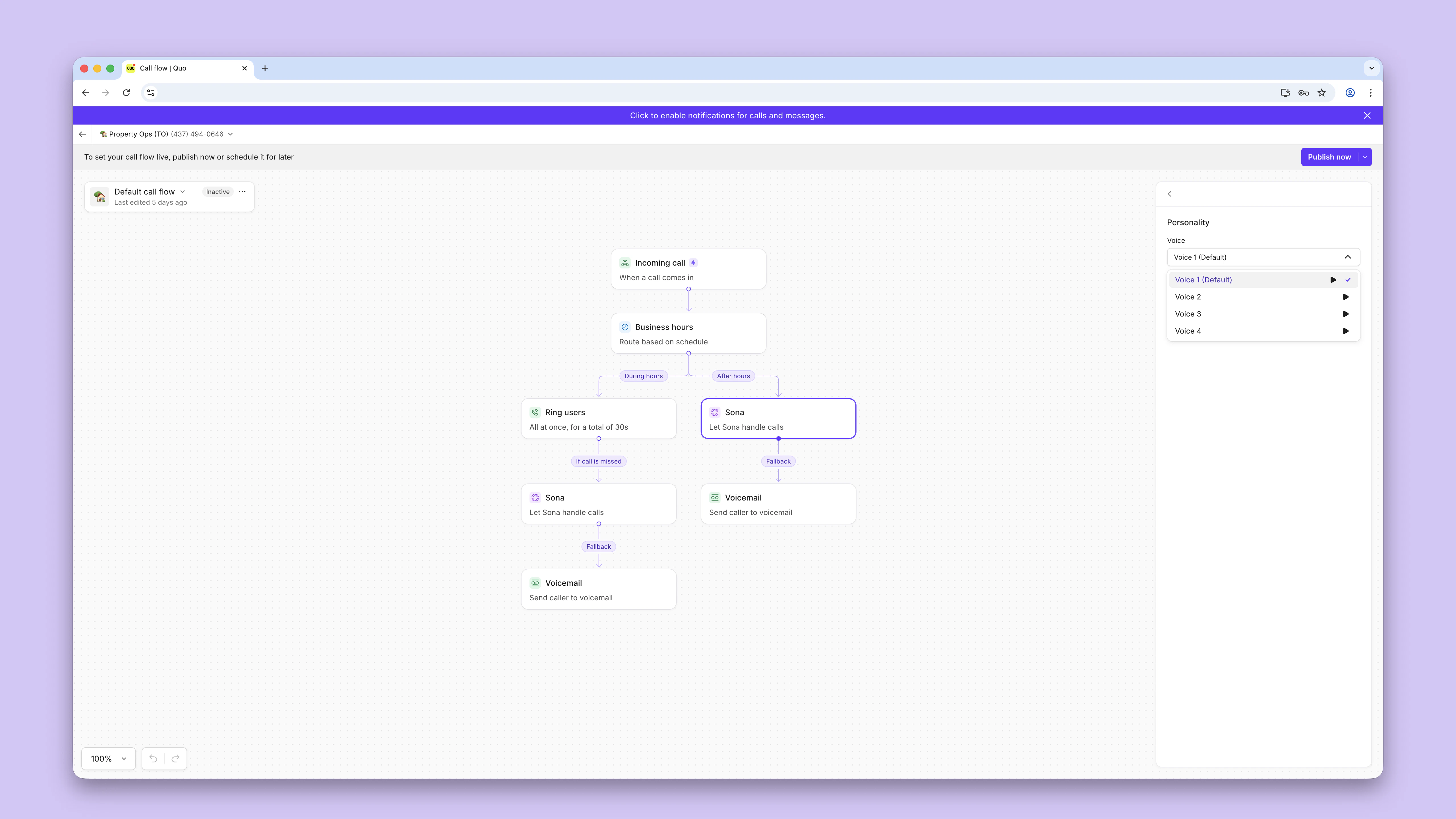

- Use the Play arrow next to each voice to hear a sample.
Setting Sona’s language Beta
Sona speaks English by default, but you can also configure it to speak Spanish and French. Language is set using Sona step from the Personality button in the call flow builder. How to set the language:- In the call flow builder, select the Sona step
- Click Personality
- Under Language, open the dropdown and choose one or more languages: English, Spanish, or French
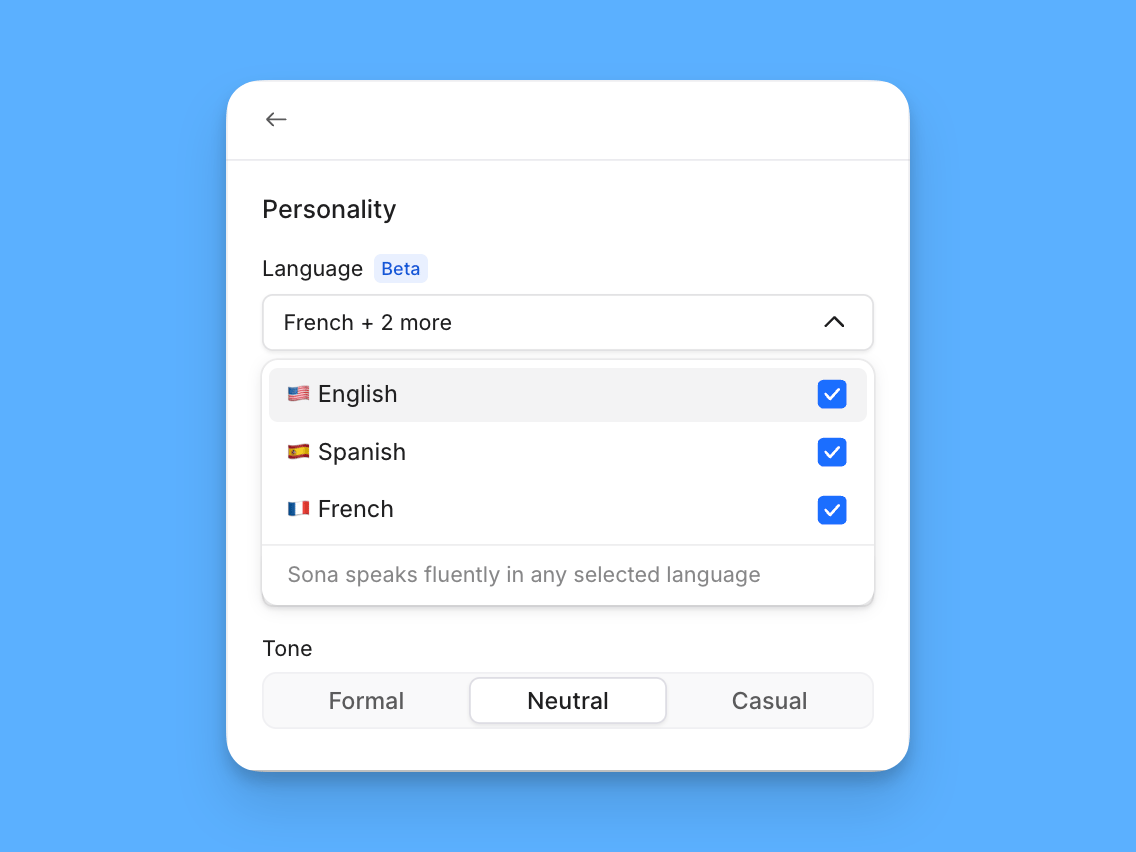
- Publish your changes
How Sona handles the languages you select
The number of languages you select determines what Sona can do on a call:- One language: Sona speaks only that language for the entire call.
- Two or three languages: Sona can speak any of the languages you selected on the same call. It will either:
- Ask the caller which language they’d prefer and continue the conversation in that language, or
- Detect the language the caller is speaking and respond in that same language.
Sona only ever uses the languages you’ve selected. For example, if you select English and Spanish, Sona won’t respond in French — even if a caller speaks it.
Match your greeting to the selected language
Sona reads the greeting exactly as written and does not translate it automatically. Whatever language your greeting is written in will be the language callers will hear it in, no matter how many languages you’ve selected. Because the greeting plays before Sona adapts to the caller, write it with your full audience in mind. For a multilingual setup, a short greeting that welcomes callers and invites them to pick a language works well. Example greeting that invites a language choice:“Hi, this is Sona, the virtual assistant for Acme Services. I can help you in English, Spanish, or French — just let me know which you’d prefer. Please note this call is being recorded.”
Call summaries are always generated in English, even when Sona responds to callers in Spanish or French.
Configuring Sona jobs
Jobs tell Sona what to do in specific situations during a call. While knowledge equips Sona with facts about your business, jobs give it step-by-step instructions—like collecting caller details, qualifying a lead, or escalating an issue. Together, they shape how Sona handles real conversations. To create a Sona job, you’ll need to write detailed intsructions that include:- What the caller says or asks that should activate the job.
- What Sona should say or do in response.
- Message taking → When a caller wants to leave a message, Sona confirms the request, gathers their details, and reassures them someone will follow up.
- Lead qualification → When a new customer shows interest, Sona collects key details (like name, contact info, and service needs) so your team can follow up effectively.
Visit our Sona job guide to learn how to customize Sona’s actions step-by-step.
Testing and deployment
Mock call testing:- Configure Sona step with greeting, knowledge, and jobs
- Click Test Sona in call flow builder
- Conduct mock calls to verify behavior
- Refine configuration based on test results
Publishing Sona
Going live:- Complete configuration of all Sona elements and be sure to add Knowlede about your business.
- Publish call flow to activate Sona. This is the button at the top of the screen, changes won’t go live until you press it.
- Monitor initial calls for quality and issues, every Sona call is recorded and transcribed for your reference.
- Iterate and improve based on real-world performance. If you notice Sona isn’t answering how you’d like, add more info to your knowledge or update your job configuration.
FAQs
Can't access Sona dashboard
Can't access Sona dashboard
Verify you have Workspace-level Owner or Admin permissions, or Inbox-level Owner or Admin permissions. Sona configuration requires administrative access to call flow builder.
Can I change Sona's voice?
Can I change Sona's voice?
Yes! You can choose from 4 different voice options by:
- Opening your call flow, then select the Sona step
- Click Personality
- Under Voice, choose one of the available options
- Click the Play button next to each option to hear a sample
- Publish your changes
What language will my call summary be in?
What language will my call summary be in?
Sona always creates call summaries in English, even when it’s configured to respond to callers in another available language.