

Documentation Index
Fetch the complete documentation index at: https://support.quo.com/llms.txt
Use this file to discover all available pages before exploring further.
Overview
Quo is a reliable, collaborative, and easy-to-use business communication system for small and medium-sized businesses. This guide will walk you through what makes Quo different, how to get set up in minutes, and where to go next.Why Quo?
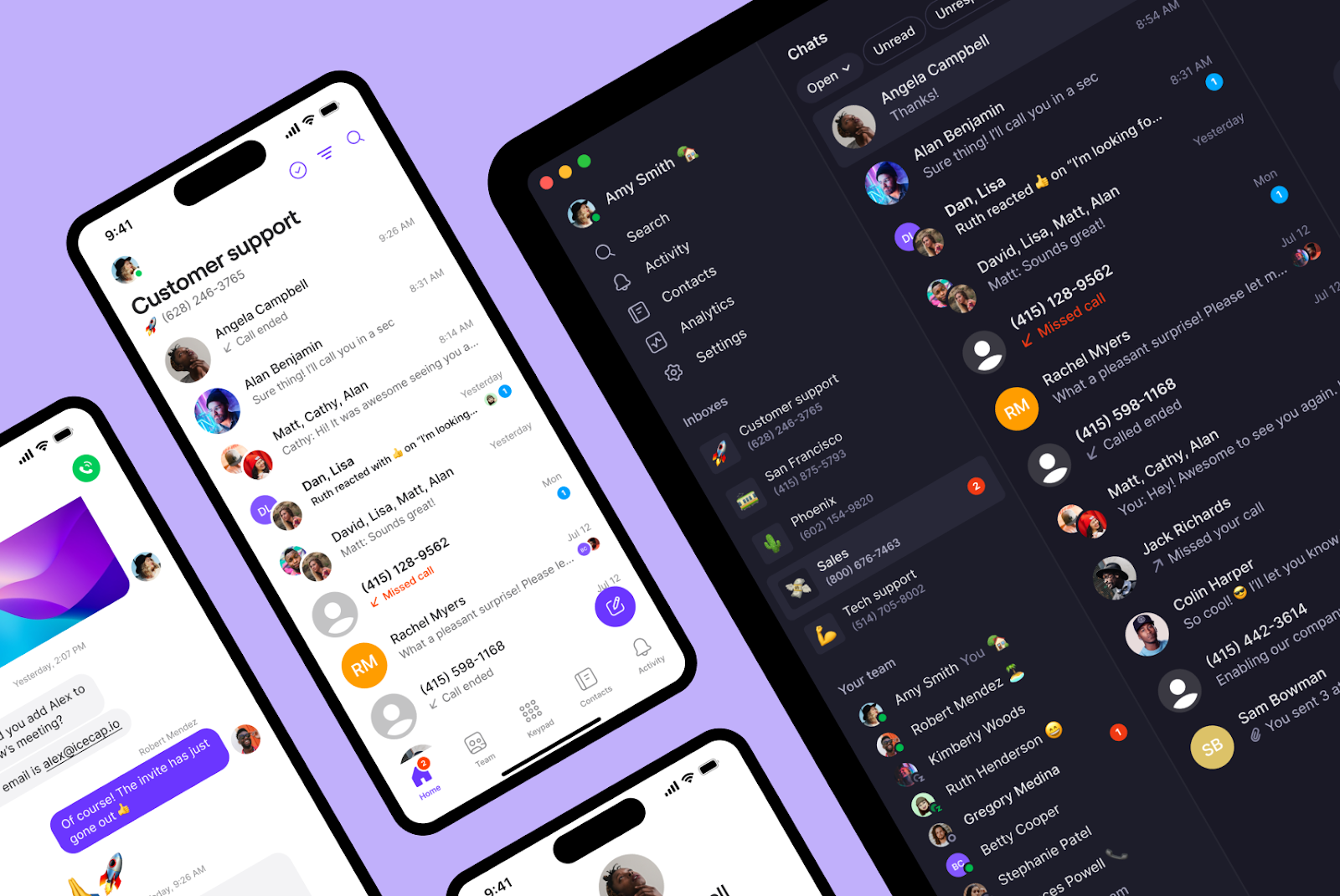
If you’ve used any business phone before, whether it’s a traditional desk phone or a virtual phone, you might be wondering what’s different about Quo. Here are three reasons:- Collaborative: Quo is designed to help your team work better together. Share numbers with team members, take calls and send messages together, troubleshoot customer issues as a group, and so much more.
- Customizable: Use Quo your way with a business phone setup that works for you. Set your team’s business hours, phone menu, ring groups, auto-replies, and more. You can even set up branded voicemail greetings for a delightful touch when customers call you.
- Convenient: Wherever you go, Quo comes with you. With our desktop, mobile, and browser apps, you can take calls anywhere, at any time. Leave your desk phone in the past, where it belongs.
How does Quo work?
Quo is a Voice over Internet Protocol (VoIP) phone system. While traditional phone lines transmit voice signals over physical copper wires, VoIP systems take a different approach. They break your voice data down into digital signals (“packets”), send them over the Internet, and then convert those packets into analog signals for recipients to hear you. This is what allows you and your colleagues to use Quo from your computer, your phone, or your tablet. You can instantly add new team members to your Quo workspace, share your numbers, and customize every aspect of your calling and messaging experience. And you can do all that without paying for niche telecom hardware or bulky desk phones.Get set up in 3 steps
Create your account
Start your free seven-day trial and choose your business phone number:
- Sign up for Quo
- Select a local or toll-free number
- Customize your caller ID and phone number settings
Invite your team
Add team members to collaborate on customer communications:
- Go to Settings → Team
- Click Invite team members
- Assign access and roles
- They’ll receive an email to join your workspace
Download the apps
Use Quo across all your devices:
- Download desktop apps
- Install for iOS or Android
- Or use the web app
Prefer a walkthrough?
Access interactive demos, videos, and more in the Quo Academy.
Explore more features
Port your phone numbers
Bring your existing numbers to Quo
Explore inboxes
Organize calls, messages, and voicemails
Team collaboration
Share numbers and respond together
Automation basics
Save time by automating routine tasks
FAQs
Do I need Internet for calling and texting?
Do I need Internet for calling and texting?
Yes, Quo requires an internet connection. You can use WiFi, data, hotspot, or even forward calls to your personal number if needed.
Does Quo use minutes from my phone plan?
Does Quo use minutes from my phone plan?
No, Quo uses your internet connection (WiFi or cellular data), not your carrier minutes.
What are the Internet requirements?
What are the Internet requirements?
A stable internet connection is enough. Quo works even when traveling or roaming.
How much data does Quo use?
How much data does Quo use?
About 0.5 MB per minute of calling — similar to music streaming.
Do I need special hardware?
Do I need special hardware?
No hardware needed. Quo works on your phone, tablet, or computer via an app.
How long is the free trial?
How long is the free trial?
Quo offers a 7-day free trial. You can cancel anytime — and we’ll remind you before it’s over.
Can I keep my existing phone number?
Can I keep my existing phone number?
Yes! You can port your existing numbers to Quo. We handle the process for you - all you have to do is submit the porting request.
How many team members can I add?
How many team members can I add?
As many as you need. Each phone number requires a subscription, but shared numbers can be used at no extra cost.
Is Quo HIPAA compliant?
Is Quo HIPAA compliant?
Yes! Quo is fully HIPPA compliant. Customers on our Business and Scale plans get:
- A signed Business Associate Agreement (BAA) on request, which is necessary for HIPPA compliance. Fill out this form to get one.
- Secure PHI storage for calls, texts, and voicemails
- Access controls and audit logs
- Simple setup — no months-long implementation or enterprise pricing. As soon as you get your BAA, you’re all set.
Can I use Quo for faxes?
Can I use Quo for faxes?
Quo doesn’t support faxing directly, but many businesses pair their phone system with an online fax service to send and receive faxes digitally. Learn more about how how modern online fax services work and what to look for in our guide, The Best Online Fax Services.