> ## Documentation Index
> Fetch the complete documentation index at: https://support.quo.com/llms.txt
> Use this file to discover all available pages before exploring further.
# Connection issues
> Resolve connectivity problems affecting calls, notifications, and Quo, formerly OpenPhone, functionality
## Overview
Quo relies on stable internet connectivity for optimal performance. Connection issues can affect call quality, notification delivery, and overall app functionality. This guide helps diagnose and resolve common connectivity problems.
As a VoIP service, Quo requires reliable internet connection via WiFi or cellular data. Most connection issues can be resolved by optimizing network settings.
## Common connection problems
**Symptoms:**
* Receiving missed call notifications without hearing ring
* Calls going straight to voicemail
* No incoming call alerts
**Primary causes:**
* Caller hanging up before connection completes
* Network connectivity issues
* Quo configuration settings
* Push notification problems
**Quick diagnosis:**
1. Check if issue happens with all calls or specific callers
2. Verify Quo settings (Do Not Disturb, business hours)
3. Ensure push notifications are enabled
4. Test on different networks
5. Compare behavior across devices
**Symptoms:**
* "Call failed" error messages
* Calls not connecting to recipients
* Immediate disconnections when dialing
**Common causes:**
* Internet connection instability
* Destination number issues
* Network blocking or filtering
* Service configuration problems
**Quick fixes:**
1. Switch between WiFi and cellular data
2. Reset router and test connection
3. Check if specific numbers are affected
4. Verify account is active and in good standing
5. Try calling from different device
**Symptoms:**
* "Could not establish a connection" messages
* "Unable to establish media connection" errors
* App functionality failures
**Primary causes:**
* Network connection quality
* Firewall or VPN interference
* Router configuration issues
* Internet service provider problems
**Quick fixes:**
1. Temporarily disable VPN and test
2. Reset network equipment
3. Check firewall settings
4. Test from different location/network
5. Contact ISP about VoIP compatibility
## Network troubleshooting
**Quick network fixes:**
1. **Switch networks**: Try WiFi to cellular data or vice versa
2. **Router reset**: Power cycle router for 30 seconds
3. **Speed test**: Verify adequate bandwidth for voice calls
4. **Network stability**: Check for consistent connection quality
**Advanced network solutions:**
* **Wired connection**: Use Ethernet instead of WiFi when possible
* **QoS configuration**: Prioritize voice traffic on router settings
* **DNS changes**: Try alternative DNS servers (8.8.8.8, 1.1.1.1)
* **Bandwidth management**: Close bandwidth-intensive applications
**Common blocking issues:**
* **Corporate firewalls**: May block VoIP traffic
* **VPN interference**: Can affect call routing and quality
* **Antivirus blocking**: Security software may interfere with connections
* **Router security**: Overly restrictive settings blocking voice traffic
**Resolution steps:**
1. **Temporarily disable VPN** and test connectivity
2. **Whitelist Quo** in firewall settings
3. **Check antivirus settings** for VoIP blocking
4. **Configure router** to allow VoIP traffic
**Port requirements:**
* Voice traffic ports: 10,000 - 20,000 (UDP)
* Both inbound and outbound required
* Contact IT for corporate network configuration
## Device-specific troubleshooting
**Notification requirements:**
Push notifications are essential for receiving calls and ensuring proper Quo functionality.
**Setup steps:**
1. Look for blue alert bar: "Click to enable notifications and messages"
2. Click the bar to grant permission
3. Verify browser notification settings allow Quo
4. Check system notification preferences
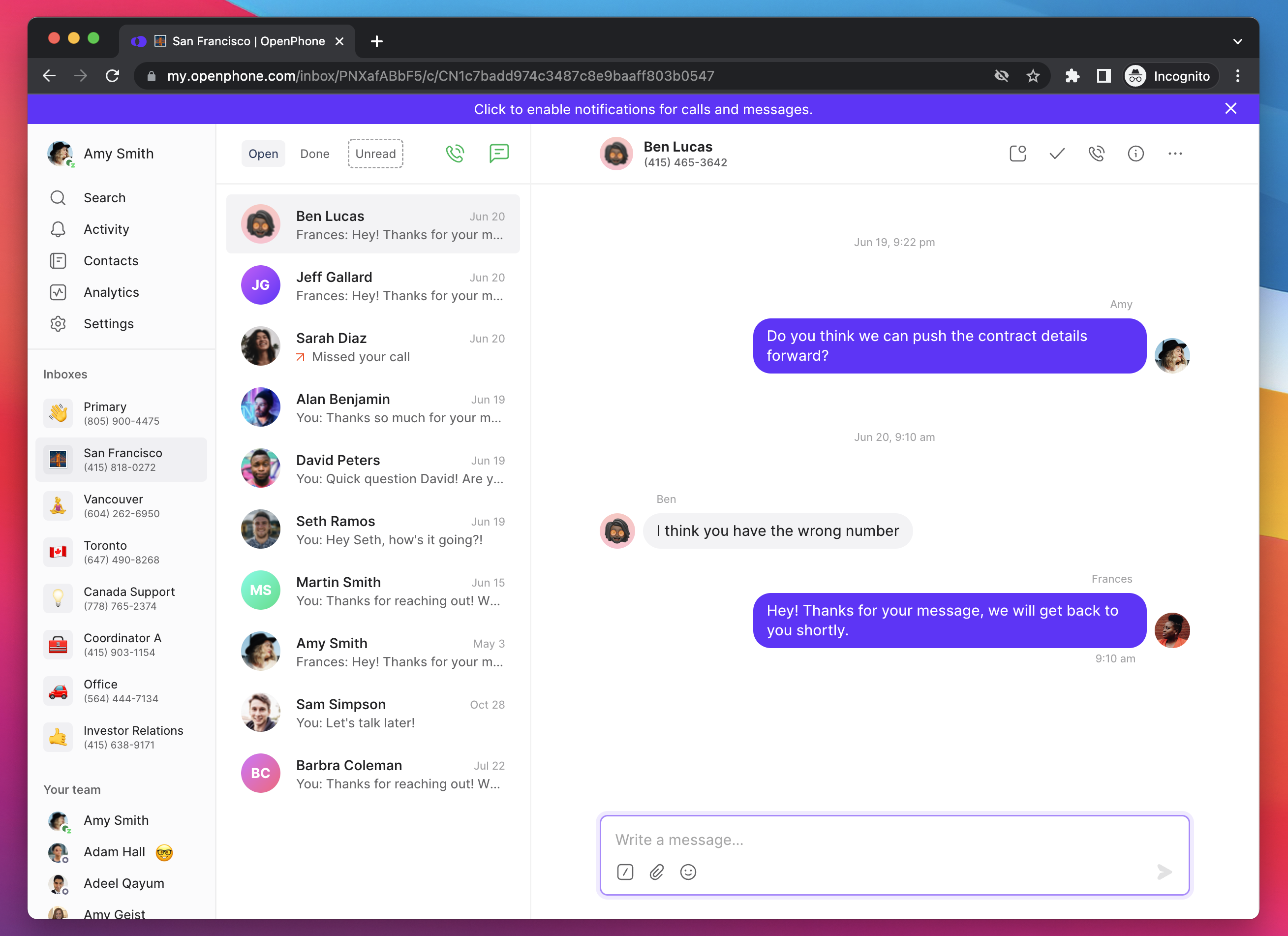 **Browser-specific settings:**
* **Chrome**: Click lock icon → Set Notifications to "Allow"
* **Firefox**: Click shield icon → Allow notifications
* **Safari**: Safari → Preferences → Websites → Notifications → Allow Quo
**Setup steps:**
1. Open **Settings** app
2. Find **Quo** in apps list
3. Ensure **Notifications** are enabled
4. Verify **Allow Notifications** is turned on
5. Check **Do Not Disturb** settings in Control Center
**Additional iOS settings:**
* **Background App Refresh**: Settings → General → Background App Refresh → Enable for Quo
* **Lock Screen**: Allow notifications on lock screen
* **Notification Center**: Enable in notification center
* **Sounds**: Enable notification sounds
**Setup steps:**
1. Go to **Settings** (gear icon)
2. Select **Apps** or **Application Manager**
3. Find **Quo** in app list
4. Select **Notifications**
5. Ensure notifications are enabled
6. Check **Do Not Disturb** in Quick Settings
**Battery optimization (important):**
1. Settings → Battery → Battery Optimization
2. Find Quo in app list
3. Select "Don't optimize" or "Not optimized"
4. This prevents Android from limiting notifications
**Common on Windows 10/11 causing outbound call errors.**
**Windows 10 microphone setup:**
1. Open **Settings**
2. Click **System** → **Sound**
3. Under **Input**, click **Device properties**
4. Ensure microphone is set to **Enabled**
**Windows 11 microphone setup:**
1. Open **Settings**
2. Click **System** → **Sound**
3. Under **Input**, select your microphone
4. Under **General**, set **Audio** to **Allow**
**Audio driver troubleshooting:**
1. Open **Device Manager**
2. Expand **Audio inputs and outputs**
3. Right-click microphone → **Uninstall device**
4. Restart computer for automatic driver reinstall
5. If needed, download latest drivers from manufacturer
## Quo settings and account
**Business hours settings:**
* Calls outside business hours go to voicemail
* Check **Settings** → **Phone Numbers** → **Business Hours**
* Verify hours match your availability needs
* Adjust timezone settings if necessary
**Do Not Disturb status:**
* Disables incoming call notifications
* Check in Quo app settings
* Verify work schedule configuration
* Review phone number muting settings
If you're missing calls during work hours, business hours or Do Not Disturb settings are often the cause.
**Subscription verification:**
* Expired subscriptions prevent Quo functionality
* Check for banner notifications about billing issues
* Verify payment method and subscription status
* Update billing information if needed
**Phone number configuration:**
* Ensure numbers are properly activated
* Check for any service restrictions
* Verify number assignments to users
* Review call forwarding settings
An expired subscription will prevent all Quo functionality including calls and messages.
## Troubleshooting specific scenarios
**Diagnostic questions:**
1. **Frequency**: Does this happen to every call or just some?
2. **Device specificity**: Occurs on one device or multiple platforms?
3. **Notification status**: Are you receiving other push notifications?
**Systematic troubleshooting:**
1. **Test call patterns**: Identify if issue is caller-specific
2. **Check Quo settings**: Review Do Not Disturb, business hours
3. **Verify notifications**: Ensure push permissions enabled
4. **Network testing**: Try different internet connections
5. **Device comparison**: Test across multiple devices
**Most common causes:**
* Push notifications disabled
* Business hours misconfigured
* Do Not Disturb enabled
* Poor network connectivity
**Connection error resolution:**
1. **Network switching**: Try different internet source
2. **Router reset**: Power cycle network equipment
3. **VPN disabling**: Temporarily turn off VPN services
4. **Firewall checking**: Review security software settings
5. **App restart**: Close and reopen Quo completely
**For persistent issues:**
* Contact internet service provider about VoIP compatibility
* Check [Quo status page](https://status.openphone.co) for service issues
* Document specific error messages and timing
* Test from different locations or networks
**Required ports:**
* UDP ports 10,000-20,000 must be open
* Both inbound and outbound required
**Common scenarios:**
* **Verification calls**: 2FA or bank calls may not connect to VoIP numbers
* **Caller hangups**: Quick disconnections by calling party
* **Network instability**: Poor connection causing drops
* **Service blocking**: Some numbers block VoIP calls
**Resolution approach:**
1. **Identify patterns**: Note if specific number types affected
2. **Network optimization**: Improve connection stability
3. **Alternative methods**: Use for non-VoIP verification when needed
4. **Documentation**: Record specific examples for support
Some services (banks, government) may not accept calls from VoIP numbers for security reasons.
## Advanced troubleshooting
**Connection testing methods:**
* **Ping tests**: Check latency to Quo servers
* **Traceroute**: Identify network path issues
* **Bandwidth monitoring**: Ensure adequate upload/download speeds
* **Jitter testing**: Measure connection stability
**Professional network tools:**
* **Network analyzers**: Identify specific connection problems
* **VoIP testing tools**: Verify voice traffic compatibility
* **Router logs**: Review for blocked or dropped packets
* **ISP consultation**: Work with provider on VoIP optimization
**Basic network test commands:**
```
# Test latency
ping 8.8.8.8
# Check route to servers
traceroute openphone.co
# Speed test
speedtest-cli (or use fast.com)
```
**Enterprise requirements:**
* **IT department coordination**: Work with network administrators
* **Firewall exceptions**: Request VoIP traffic allowances
* **QoS implementation**: Prioritize voice traffic
* **Network segmentation**: Consider dedicated voice VLANs
**Information for IT teams:**
```
Ports required: UDP 10000-20000
Protocols: SIP, RTP, WebSocket
Domains: *.openphone.co
Bandwidth: 100kbps per concurrent call
```
**Common enterprise solutions:**
* Add Quo to firewall whitelist
* Configure QoS for voice traffic priority
* Implement SIP ALG bypass if needed
* Set up dedicated voice VLAN
## Prevention and support
**Regular maintenance schedule:**
* **Daily**: Monitor call quality informally
* **Weekly**: Restart router and devices
* **Monthly**: Run speed tests and document
* **Quarterly**: Update all software and firmware
**Environment optimization checklist:**
* ✓ Business-grade internet connection (minimum 25 Mbps)
* ✓ Quality router with QoS capabilities
* ✓ Backup connection method (cellular/secondary ISP)
* ✓ Optimized WiFi placement and settings
* ✓ Regular performance monitoring
**Best practices:**
* Use wired connections for desk phones
* Maintain 20% bandwidth headroom
* Document working configurations
* Test backup systems monthly
**Escalate to support when:**
* Issues persist after all troubleshooting steps
* Problems affect business operations significantly
* Network optimization doesn't resolve connectivity
* Multiple users experience same issues
**Information to gather first:**
* **Specific examples**: Recent call details with dates/times
* **Frequency data**: How often issues occur
* **Troubleshooting attempted**: Steps already taken
* **Network details**: ISP, connection type, equipment used
* **Error messages**: Exact text of any error messages
**Support submission tips:**
* Include 3-5 specific examples
* Mention business impact
* Attach screenshots of errors
* Note any patterns observed
* Submit at: [support.quo.com](https://support.quo.com/help/submit-a-request)
## Additional resources
**Need assistance?** Submit a support request at [support.quo.com](https://support.quo.com/help/submit-a-request) with specific connection details for personalized troubleshooting help.
**Browser-specific settings:**
* **Chrome**: Click lock icon → Set Notifications to "Allow"
* **Firefox**: Click shield icon → Allow notifications
* **Safari**: Safari → Preferences → Websites → Notifications → Allow Quo
**Setup steps:**
1. Open **Settings** app
2. Find **Quo** in apps list
3. Ensure **Notifications** are enabled
4. Verify **Allow Notifications** is turned on
5. Check **Do Not Disturb** settings in Control Center
**Additional iOS settings:**
* **Background App Refresh**: Settings → General → Background App Refresh → Enable for Quo
* **Lock Screen**: Allow notifications on lock screen
* **Notification Center**: Enable in notification center
* **Sounds**: Enable notification sounds
**Setup steps:**
1. Go to **Settings** (gear icon)
2. Select **Apps** or **Application Manager**
3. Find **Quo** in app list
4. Select **Notifications**
5. Ensure notifications are enabled
6. Check **Do Not Disturb** in Quick Settings
**Battery optimization (important):**
1. Settings → Battery → Battery Optimization
2. Find Quo in app list
3. Select "Don't optimize" or "Not optimized"
4. This prevents Android from limiting notifications
**Common on Windows 10/11 causing outbound call errors.**
**Windows 10 microphone setup:**
1. Open **Settings**
2. Click **System** → **Sound**
3. Under **Input**, click **Device properties**
4. Ensure microphone is set to **Enabled**
**Windows 11 microphone setup:**
1. Open **Settings**
2. Click **System** → **Sound**
3. Under **Input**, select your microphone
4. Under **General**, set **Audio** to **Allow**
**Audio driver troubleshooting:**
1. Open **Device Manager**
2. Expand **Audio inputs and outputs**
3. Right-click microphone → **Uninstall device**
4. Restart computer for automatic driver reinstall
5. If needed, download latest drivers from manufacturer
## Quo settings and account
**Business hours settings:**
* Calls outside business hours go to voicemail
* Check **Settings** → **Phone Numbers** → **Business Hours**
* Verify hours match your availability needs
* Adjust timezone settings if necessary
**Do Not Disturb status:**
* Disables incoming call notifications
* Check in Quo app settings
* Verify work schedule configuration
* Review phone number muting settings
If you're missing calls during work hours, business hours or Do Not Disturb settings are often the cause.
**Subscription verification:**
* Expired subscriptions prevent Quo functionality
* Check for banner notifications about billing issues
* Verify payment method and subscription status
* Update billing information if needed
**Phone number configuration:**
* Ensure numbers are properly activated
* Check for any service restrictions
* Verify number assignments to users
* Review call forwarding settings
An expired subscription will prevent all Quo functionality including calls and messages.
## Troubleshooting specific scenarios
**Diagnostic questions:**
1. **Frequency**: Does this happen to every call or just some?
2. **Device specificity**: Occurs on one device or multiple platforms?
3. **Notification status**: Are you receiving other push notifications?
**Systematic troubleshooting:**
1. **Test call patterns**: Identify if issue is caller-specific
2. **Check Quo settings**: Review Do Not Disturb, business hours
3. **Verify notifications**: Ensure push permissions enabled
4. **Network testing**: Try different internet connections
5. **Device comparison**: Test across multiple devices
**Most common causes:**
* Push notifications disabled
* Business hours misconfigured
* Do Not Disturb enabled
* Poor network connectivity
**Connection error resolution:**
1. **Network switching**: Try different internet source
2. **Router reset**: Power cycle network equipment
3. **VPN disabling**: Temporarily turn off VPN services
4. **Firewall checking**: Review security software settings
5. **App restart**: Close and reopen Quo completely
**For persistent issues:**
* Contact internet service provider about VoIP compatibility
* Check [Quo status page](https://status.openphone.co) for service issues
* Document specific error messages and timing
* Test from different locations or networks
**Required ports:**
* UDP ports 10,000-20,000 must be open
* Both inbound and outbound required
**Common scenarios:**
* **Verification calls**: 2FA or bank calls may not connect to VoIP numbers
* **Caller hangups**: Quick disconnections by calling party
* **Network instability**: Poor connection causing drops
* **Service blocking**: Some numbers block VoIP calls
**Resolution approach:**
1. **Identify patterns**: Note if specific number types affected
2. **Network optimization**: Improve connection stability
3. **Alternative methods**: Use for non-VoIP verification when needed
4. **Documentation**: Record specific examples for support
Some services (banks, government) may not accept calls from VoIP numbers for security reasons.
## Advanced troubleshooting
**Connection testing methods:**
* **Ping tests**: Check latency to Quo servers
* **Traceroute**: Identify network path issues
* **Bandwidth monitoring**: Ensure adequate upload/download speeds
* **Jitter testing**: Measure connection stability
**Professional network tools:**
* **Network analyzers**: Identify specific connection problems
* **VoIP testing tools**: Verify voice traffic compatibility
* **Router logs**: Review for blocked or dropped packets
* **ISP consultation**: Work with provider on VoIP optimization
**Basic network test commands:**
```
# Test latency
ping 8.8.8.8
# Check route to servers
traceroute openphone.co
# Speed test
speedtest-cli (or use fast.com)
```
**Enterprise requirements:**
* **IT department coordination**: Work with network administrators
* **Firewall exceptions**: Request VoIP traffic allowances
* **QoS implementation**: Prioritize voice traffic
* **Network segmentation**: Consider dedicated voice VLANs
**Information for IT teams:**
```
Ports required: UDP 10000-20000
Protocols: SIP, RTP, WebSocket
Domains: *.openphone.co
Bandwidth: 100kbps per concurrent call
```
**Common enterprise solutions:**
* Add Quo to firewall whitelist
* Configure QoS for voice traffic priority
* Implement SIP ALG bypass if needed
* Set up dedicated voice VLAN
## Prevention and support
**Regular maintenance schedule:**
* **Daily**: Monitor call quality informally
* **Weekly**: Restart router and devices
* **Monthly**: Run speed tests and document
* **Quarterly**: Update all software and firmware
**Environment optimization checklist:**
* ✓ Business-grade internet connection (minimum 25 Mbps)
* ✓ Quality router with QoS capabilities
* ✓ Backup connection method (cellular/secondary ISP)
* ✓ Optimized WiFi placement and settings
* ✓ Regular performance monitoring
**Best practices:**
* Use wired connections for desk phones
* Maintain 20% bandwidth headroom
* Document working configurations
* Test backup systems monthly
**Escalate to support when:**
* Issues persist after all troubleshooting steps
* Problems affect business operations significantly
* Network optimization doesn't resolve connectivity
* Multiple users experience same issues
**Information to gather first:**
* **Specific examples**: Recent call details with dates/times
* **Frequency data**: How often issues occur
* **Troubleshooting attempted**: Steps already taken
* **Network details**: ISP, connection type, equipment used
* **Error messages**: Exact text of any error messages
**Support submission tips:**
* Include 3-5 specific examples
* Mention business impact
* Attach screenshots of errors
* Note any patterns observed
* Submit at: [support.quo.com](https://support.quo.com/help/submit-a-request)
## Additional resources
**Need assistance?** Submit a support request at [support.quo.com](https://support.quo.com/help/submit-a-request) with specific connection details for personalized troubleshooting help.