> ## Documentation Index
> Fetch the complete documentation index at: https://support.quo.com/llms.txt
> Use this file to discover all available pages before exploring further.
# Number porting
> Transfer your existing phone numbers from any carrier to Quo, formerly OpenPhone, with our simple porting process
## Overview
Porting lets you move your existing phone number from another provider to Quo so you can keep the number your customers already know, while using Quo’s features.
## What is porting?
Number porting is the process of **transferring a phone number** from your current provider to a new one. This FCC-mandated process ensures you can keep your phone number when changing carriers, whether it’s a landline, wireless, or internet-based number.
Porting your number to Quo converts it from a cellular line to a VoIP (internet-based) line.
### The porting process
We submit a port request to your current provider and negotiate a port date on your behalf.
Once we hear back from your carrier, we’ll inform you of the scheduled port date and time.
On the port date, your phone number becomes available in your Quo account.
After successful porting, contact your old carrier to make sure your subscription is canceled. Some carriers automatically cancel subscriptions, while others need to be notified.
## Before you transfer your number
### What you need to know
Before you start a port request, keep these in mind:
**Service limitations**
* Only call and SMS functions transfer with your number
* Internet or bundled services tied to the number won't transfer
* Once ported, **your SIM card and cellular service will be deactivated.** Your number will require Wi-Fi or mobile data to call and text
* Previous conversations and call history don't carry over
* Carrier registration **does not** continue from previous providers and **must be completed after transferring your number to Quo**
**You cannot send texts to US numbers your [A2P 10DLC registration](https://support.quo.com/getting-started/carrier-registration/carrier-registration) is complete.** \
\
Most approvals happen in 24–48 hours, but may take 30+ days in rare cases if key information can't be verified. \
\
**We strongly recommend starting your registration before or at the same time as your port request** you can text as soon as your number arrives. \
\
[Start your A2P Registration →](https://support.quo.com/getting-started/carrier-registration/carrier-registration)
* RCS messaging is not supported and **must be disabled before you port**
Contacts with RCS-capable devices (primarily android users) may be unable to text you for up to 30 days if RCS **is not** disabled before you transfer your number to Quo. \
\
[How to disable RCS messaging on Android → ](https://support.quo.com/getting-started/porting/overview#special-considerations-for-android-users)
**Technical requirements**
* Internet access is required to use Quo
* SMS functionality may take up to 48 hours to fully stabilize after the transfer
* Emergency services (911) aren't available through Quo
* Some services won't send SMS verification codes to virtual numbers
* Porting removes the number from your current carrier's cellular network
**Don't cancel your current service until the port is complete.** Canceling early risks losing your number permanently.
### Supported number types
We can port most North American numbers:
* **US local numbers**: All states supported
* **Canadian local numbers**: All provinces supported
* **Puerto Rico local numbers**: Supported
* **Toll-free numbers**: North American toll-free prefixes (800, 833, 844, 855, 866, 877, 888)
* **Not supported**: International numbers outside US/Canada
### Cost considerations
* **Quo fees**: No charges for porting in or out
* **Previous carrier fees**: Your current provider may charge a port-out fee
* **Additional numbers**: Numbers beyond your user count are billed at \$5/month starting 14 days after porting
## How to transfer your number
You must be a workspace Owner or Admin to initiate porting requests. Access the porting feature through the desktop or web app.
### Choose your porting flow
For transferring one phone number from a different carrier onto Quo.
For transferring multiple phone numbers (ex. a block of phone numbers) onto Quo.
The timeline, what happens during the port, and how to check status are the same for both flows. See [what to expect during and after your port](#what-to-expect-during-and-after-your-transfer).
### Video walkthrough
***
## How to port your phone number
Use this flow when you want to port one phone number into Quo directly from the app.
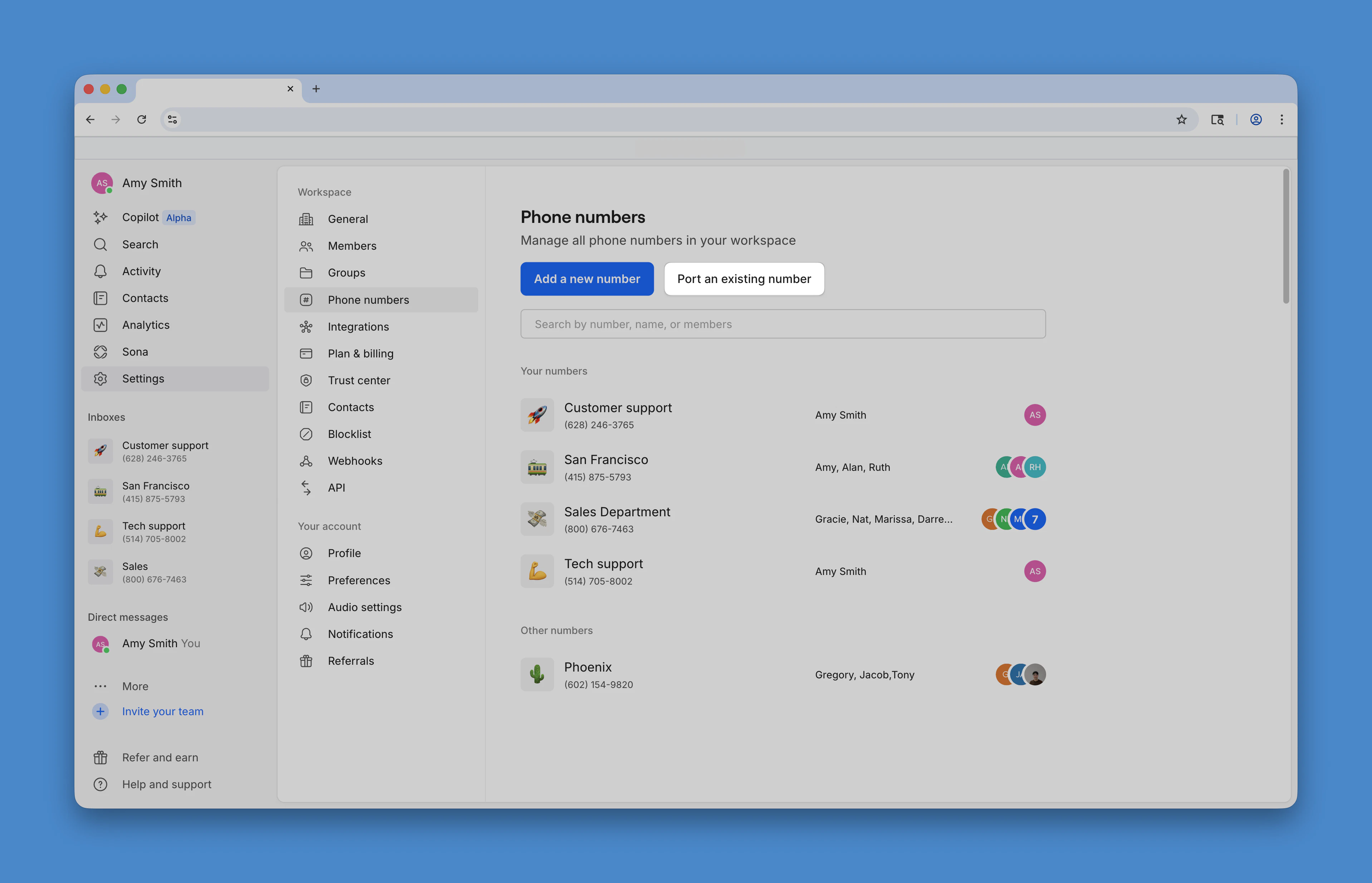
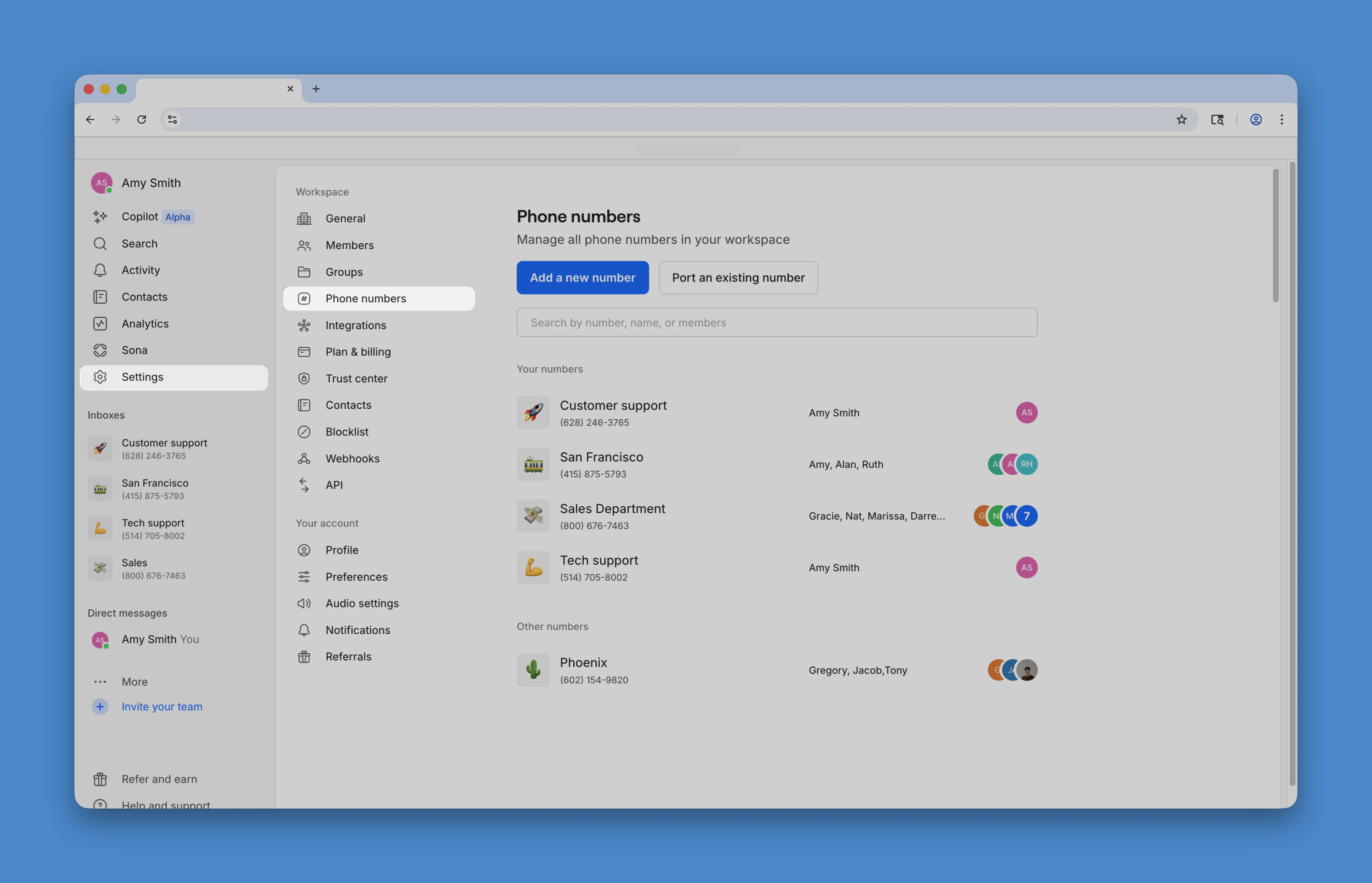
1. Navigate to **Settings → Phone numbers**, then click **Port an existing number**
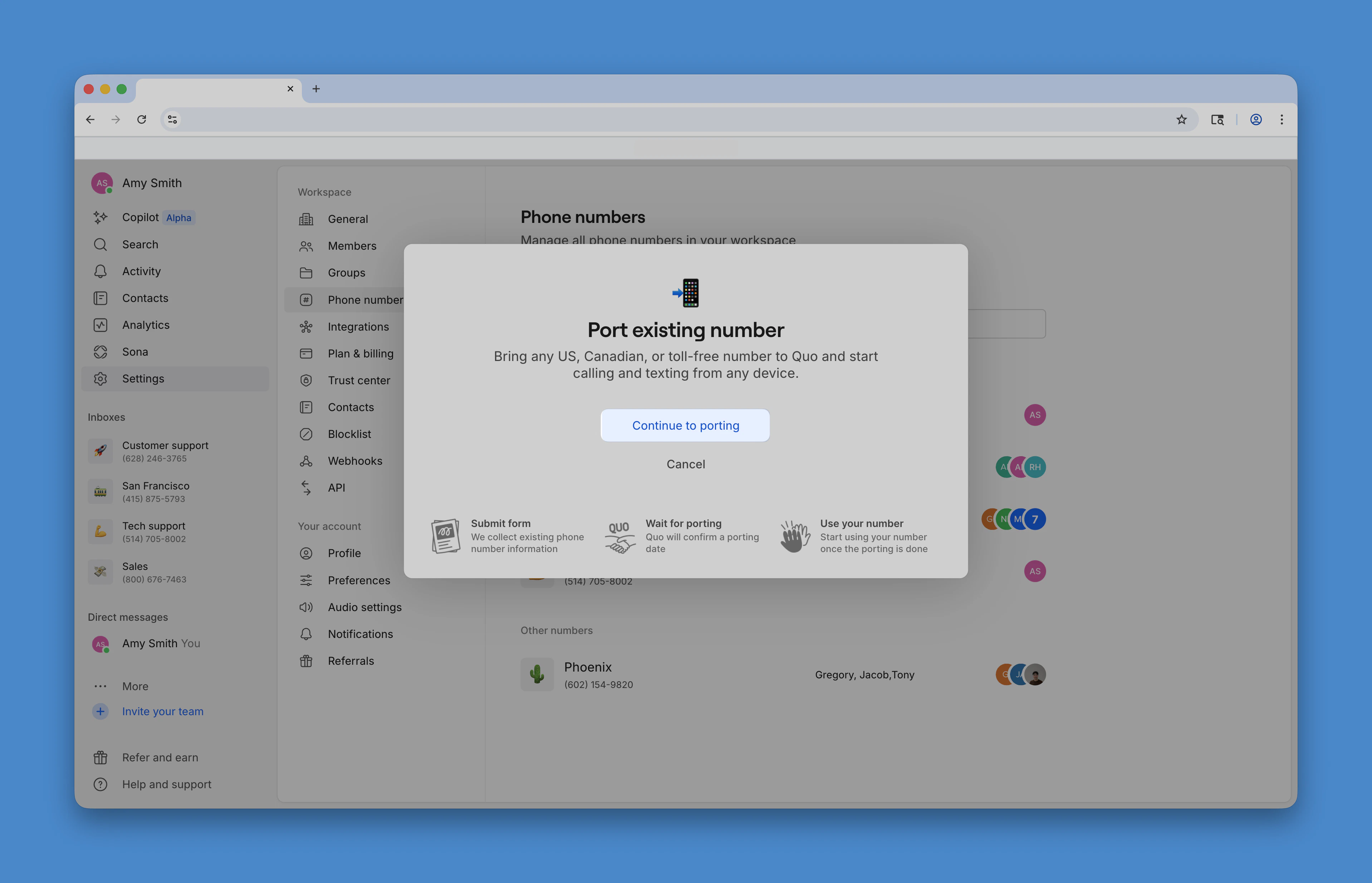
 2. Click **Continue to porting**
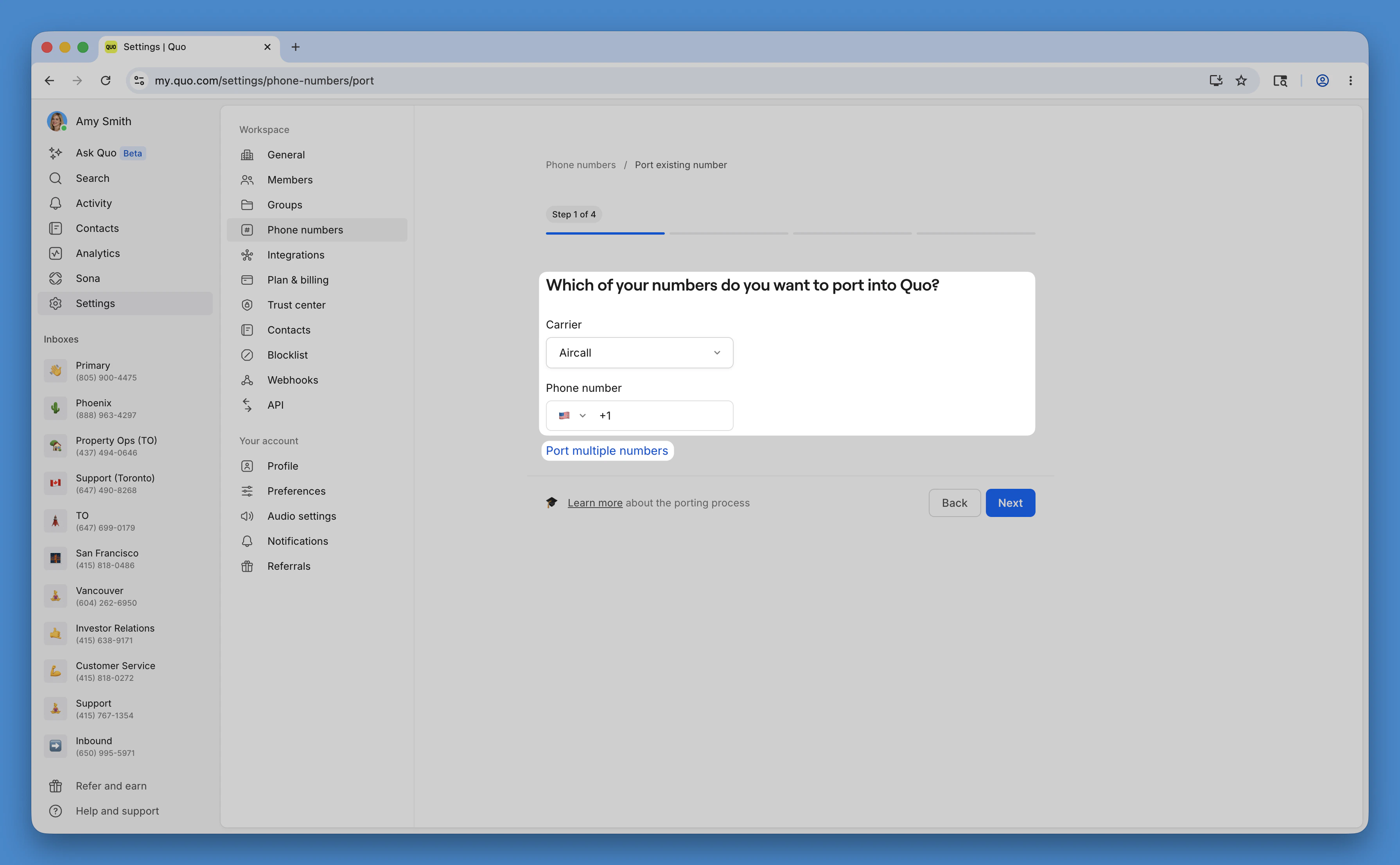
 3. Select your current carrier. If your carrier isn't listed, type it manually.
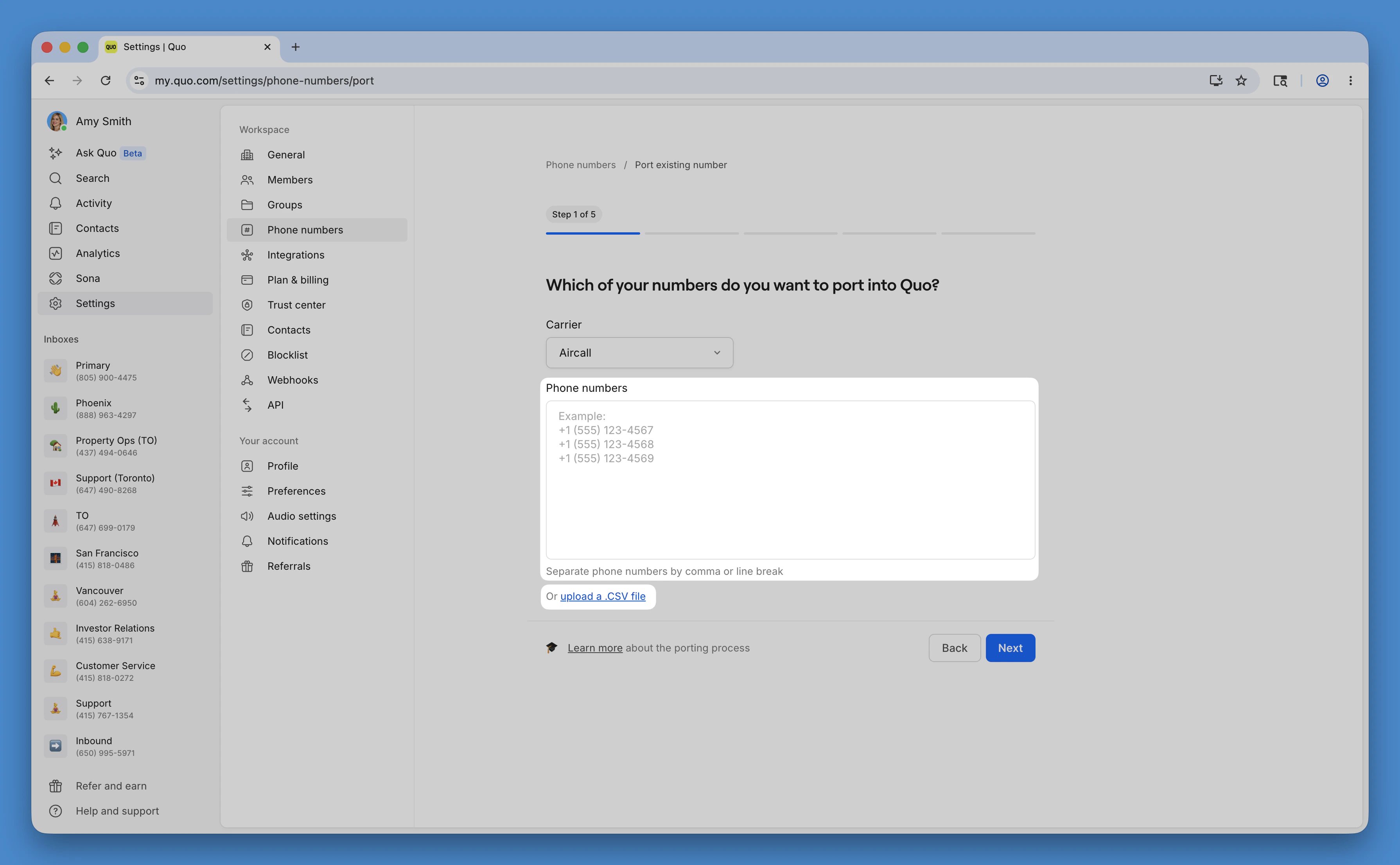
4. Enter the number you want to port, or click **Port multiple numbers**
3. Select your current carrier. If your carrier isn't listed, type it manually.
4. Enter the number you want to port, or click **Port multiple numbers**
 5. Upload your billing information and a recent statement.
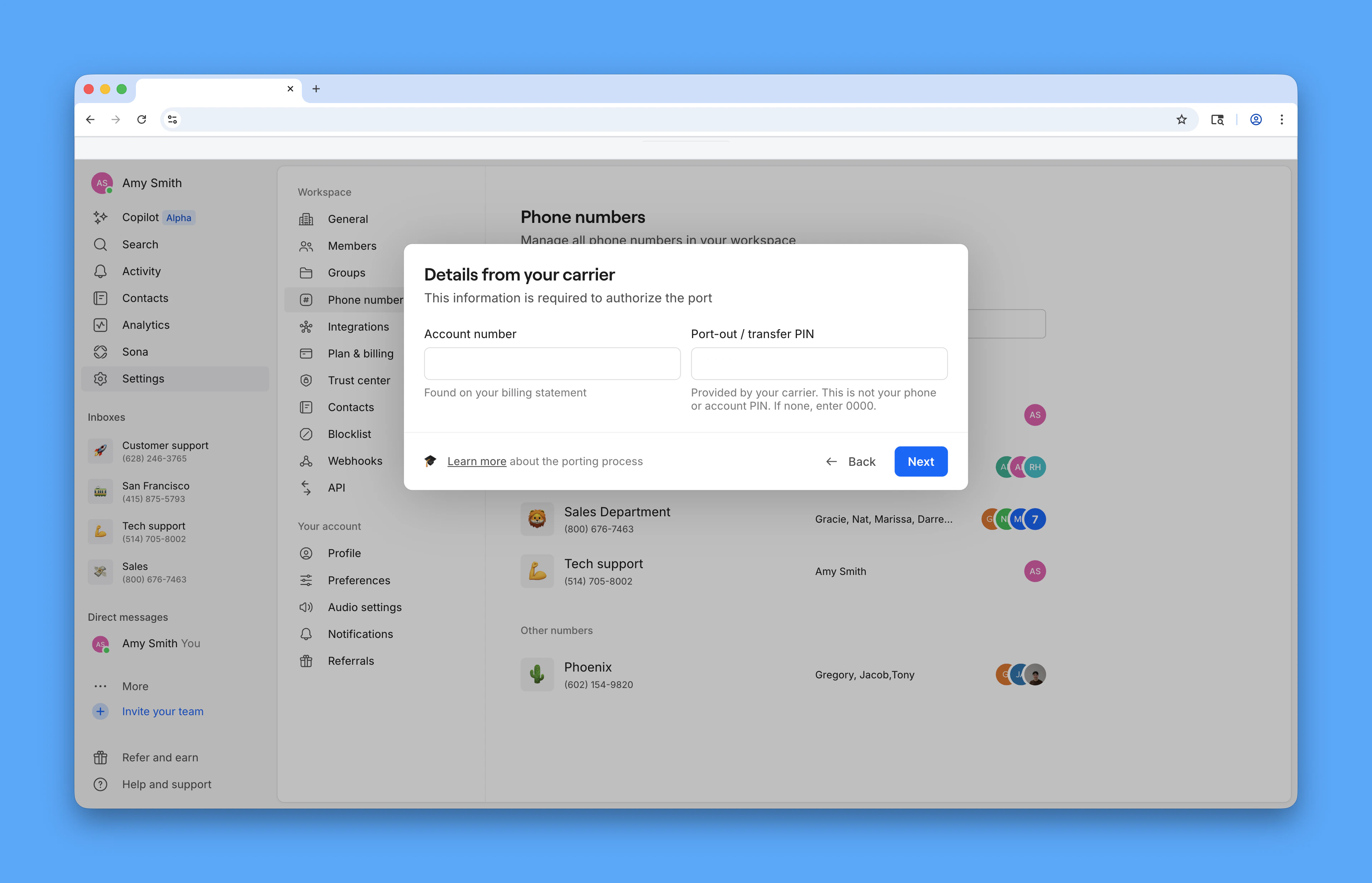
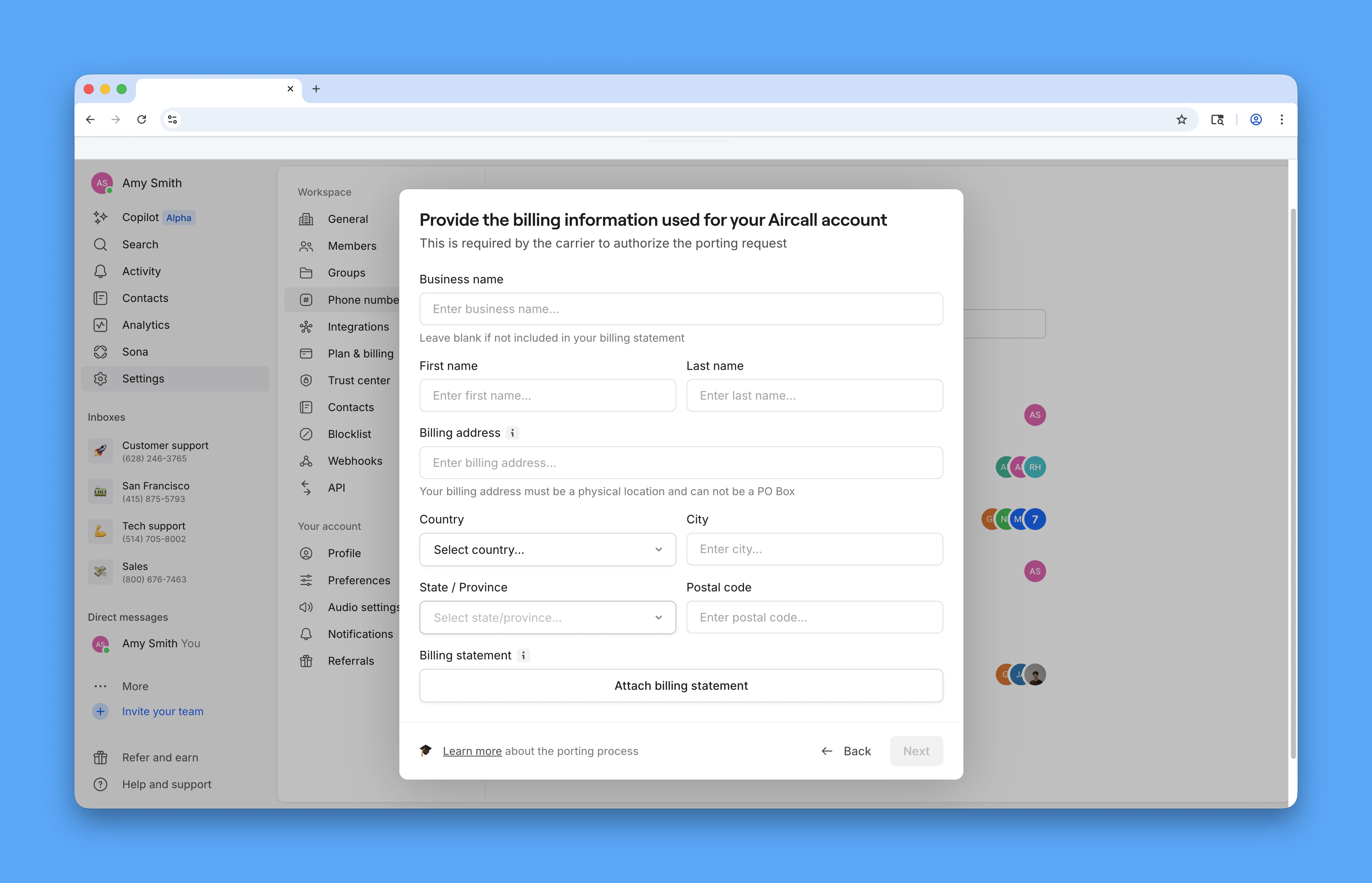 5. Enter your carrier credentials:
* **Account number**: Found on your bill or carrier dashboard
* **Account PIN**: Usually in your carrier account settings (contact carrier if unsure)
5. Enter your carrier credentials:
* **Account number**: Found on your bill or carrier dashboard
* **Account PIN**: Usually in your carrier account settings (contact carrier if unsure)
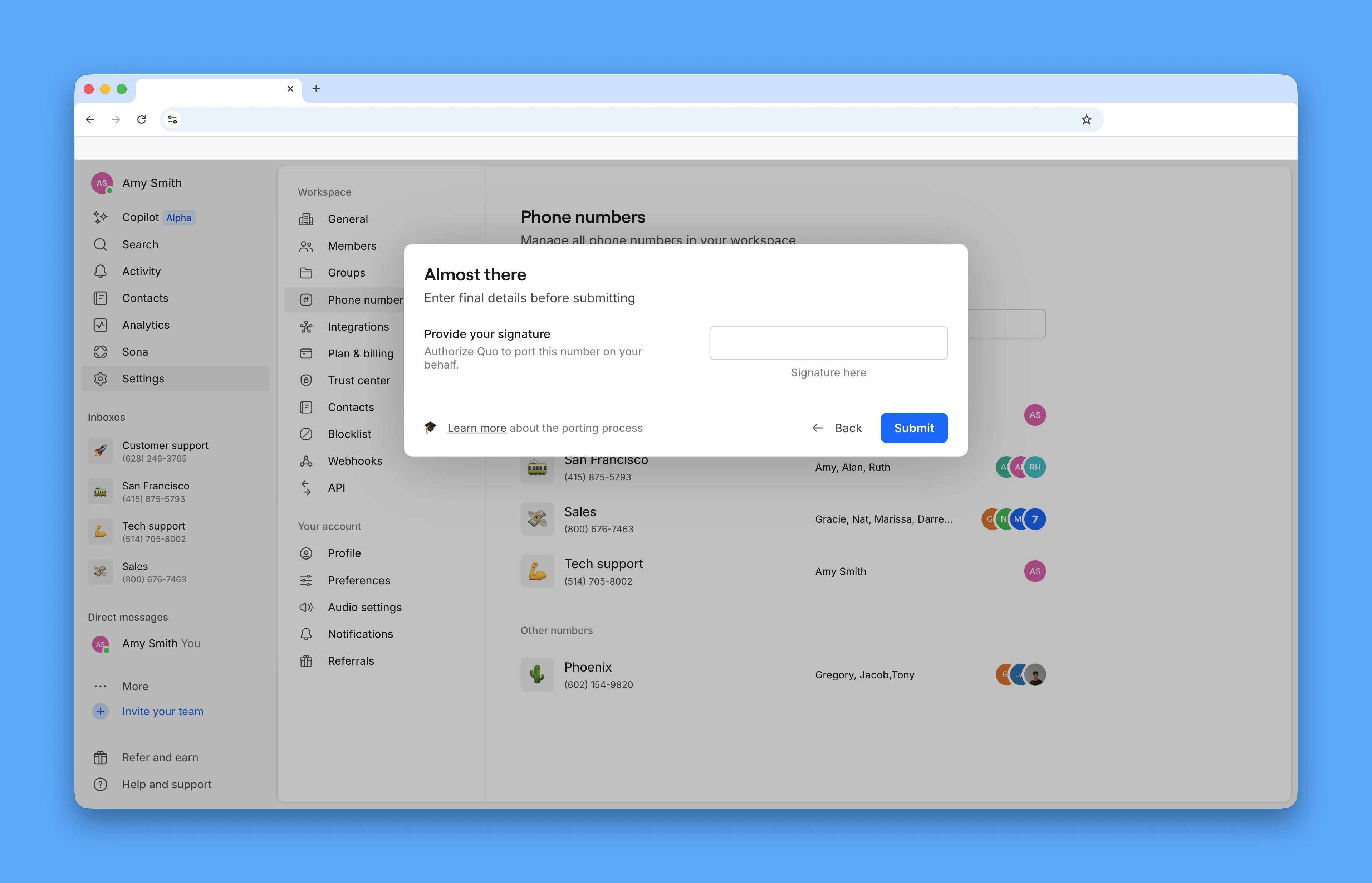
 6. Digitally sign the authorization.
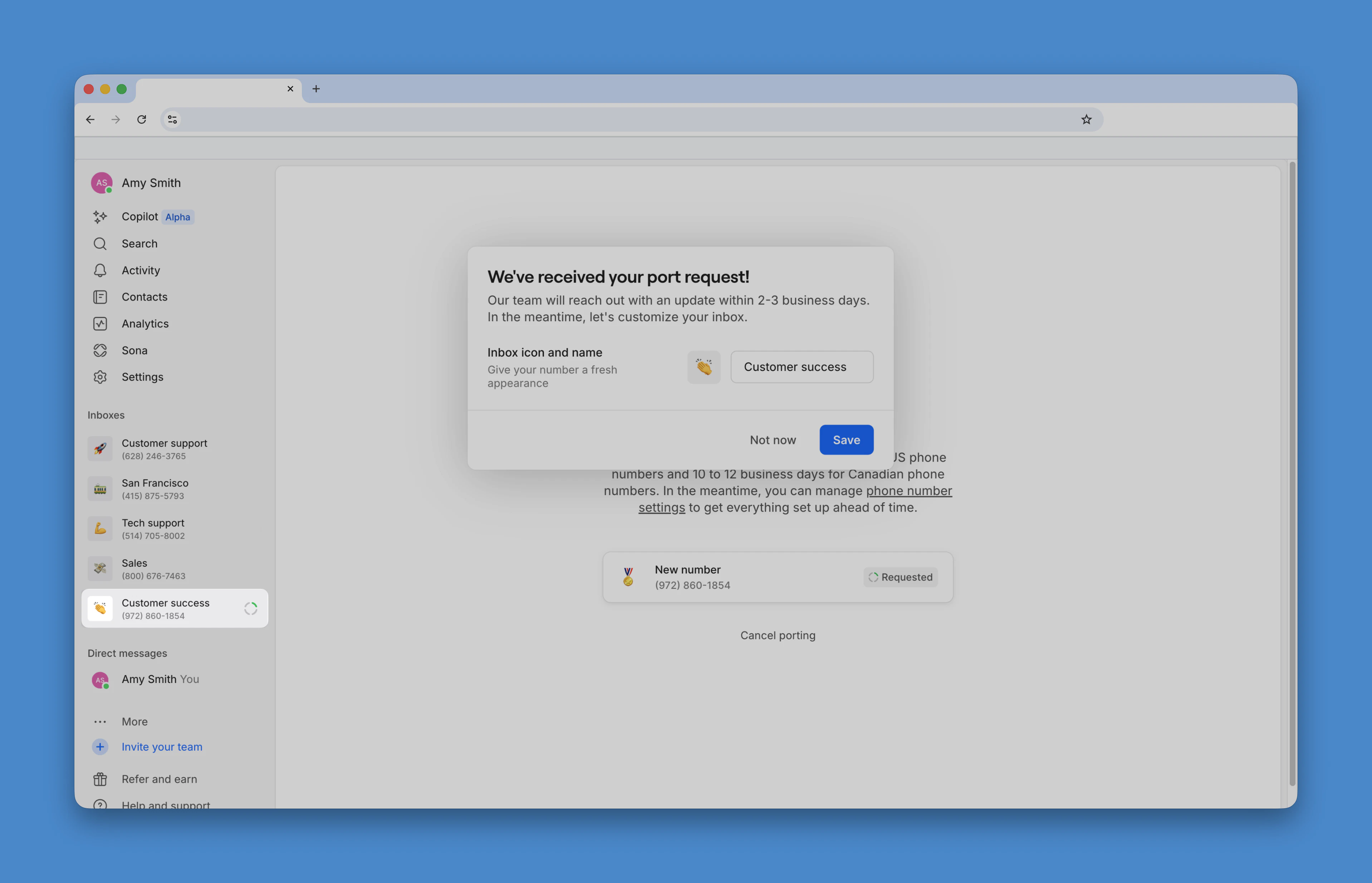
 7. Customize your number settings while you wait.
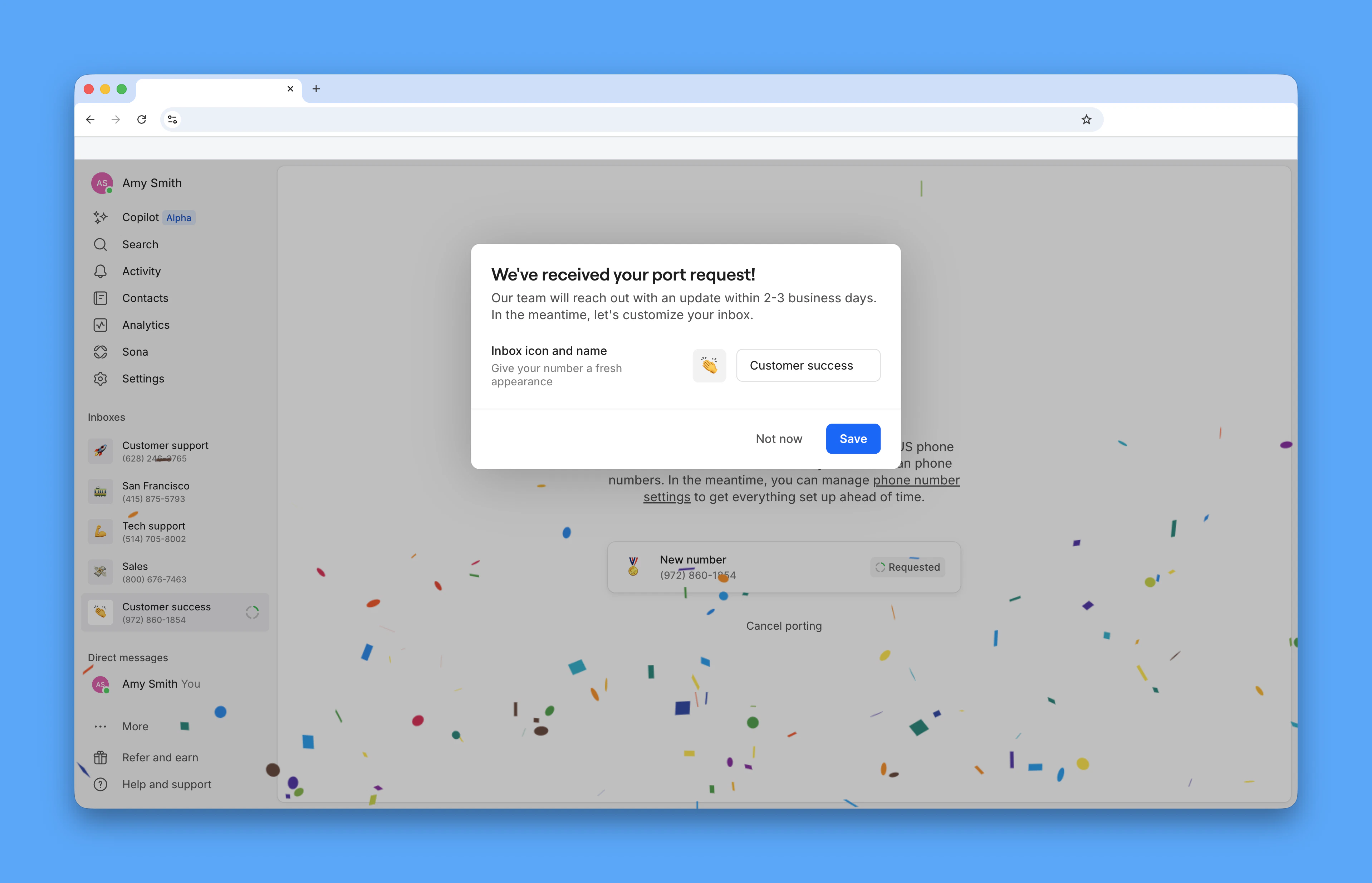 After you submit your request, you **can't** make any changes. Our team will review and submit this to your carrier.
***
## How to port multiple phone numbers
**Multiple phone numbers can now be ported using Quo on Web or Desktop.**
[**Follow the steps here →**](https://support.quo.com/getting-started/porting/overview#how-to-port-your-phone-number)
If you want to port a group or block of numbers into Quo using a mobile device, the steps below are available.[ For best results, we recommend using **the standard porting flow on the Quo web or desktop app instead.**](https://support.quo.com/getting-started/porting/overview#how-to-port-your-phone-number)
1. Begin a new [Port In Request](https://toolbox.quo.com/p/portrequest/newsubmission) using this form.
* Enter your **first name** and **last name**
* Enter the **email address linked to your Quo account**
* This is where the phone numbers will be initially assigned
After you submit your request, you **can't** make any changes. Our team will review and submit this to your carrier.
***
## How to port multiple phone numbers
**Multiple phone numbers can now be ported using Quo on Web or Desktop.**
[**Follow the steps here →**](https://support.quo.com/getting-started/porting/overview#how-to-port-your-phone-number)
If you want to port a group or block of numbers into Quo using a mobile device, the steps below are available.[ For best results, we recommend using **the standard porting flow on the Quo web or desktop app instead.**](https://support.quo.com/getting-started/porting/overview#how-to-port-your-phone-number)
1. Begin a new [Port In Request](https://toolbox.quo.com/p/portrequest/newsubmission) using this form.
* Enter your **first name** and **last name**
* Enter the **email address linked to your Quo account**
* This is where the phone numbers will be initially assigned
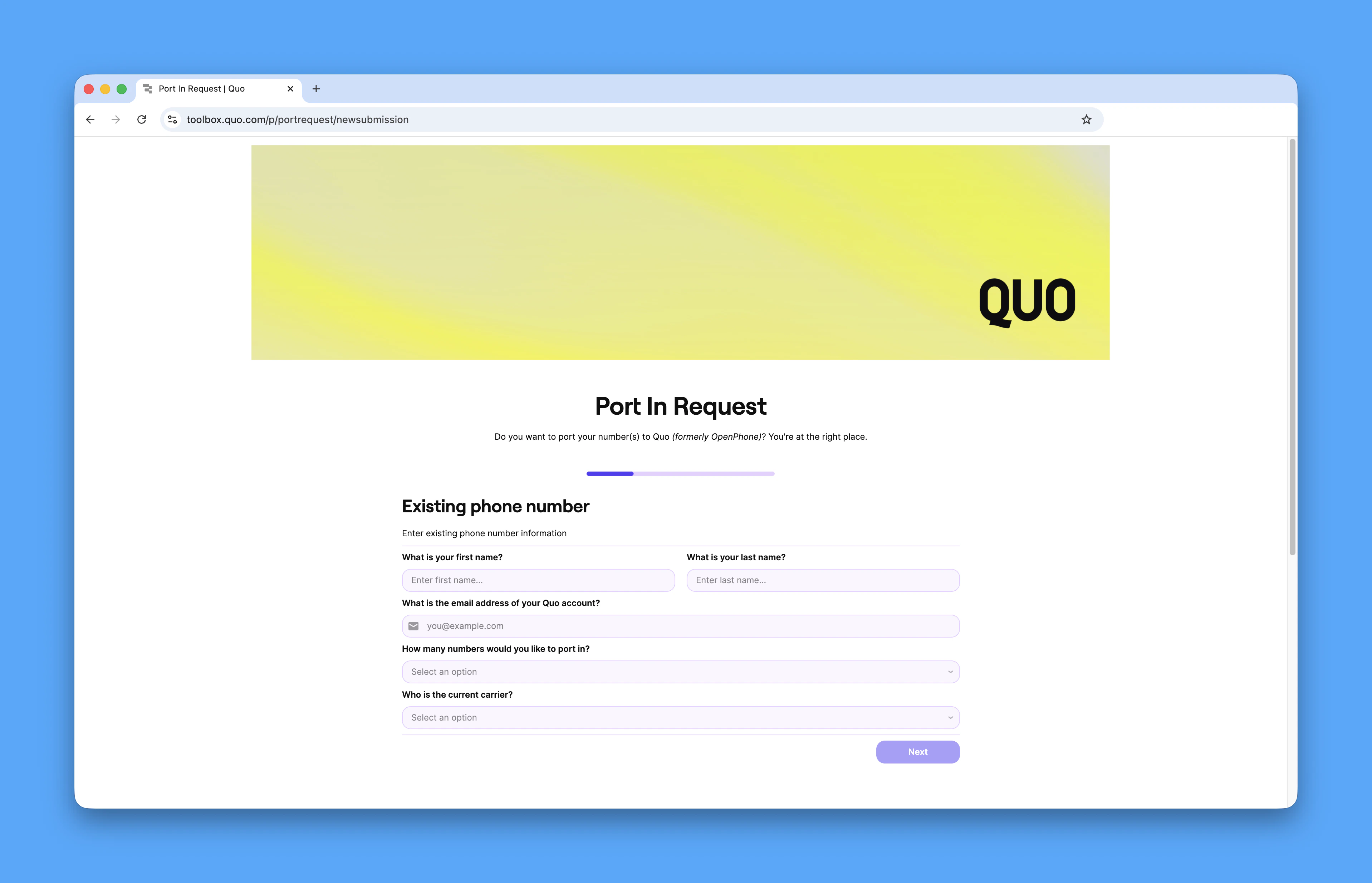 2. Please select, **More than one** from the drop down under **How many numbers would you like to port in?**
* There are two ways to upload your numbers:
1. Click the **Copy & Paste Number** button and paste the phone numbers in the field, *or*
2. Click the **Upload CSV** button to upload a CSV file with the phone numbers
* If you do not have a ready CSV file, you can click the **Download Template** button to provide the phone numbers to the file before uploading.
You may also use this form to porting **a single phone number**. Simply select, "**One"** from the dropdown and type your number into the field. However, [the easiest way to transfer a single number into Quo is with the in-app flow. ](https://support.quo.com/getting-started/porting/overview#porting-a-single-phone-number-in-the-app)
2. Please select, **More than one** from the drop down under **How many numbers would you like to port in?**
* There are two ways to upload your numbers:
1. Click the **Copy & Paste Number** button and paste the phone numbers in the field, *or*
2. Click the **Upload CSV** button to upload a CSV file with the phone numbers
* If you do not have a ready CSV file, you can click the **Download Template** button to provide the phone numbers to the file before uploading.
You may also use this form to porting **a single phone number**. Simply select, "**One"** from the dropdown and type your number into the field. However, [the easiest way to transfer a single number into Quo is with the in-app flow. ](https://support.quo.com/getting-started/porting/overview#porting-a-single-phone-number-in-the-app)
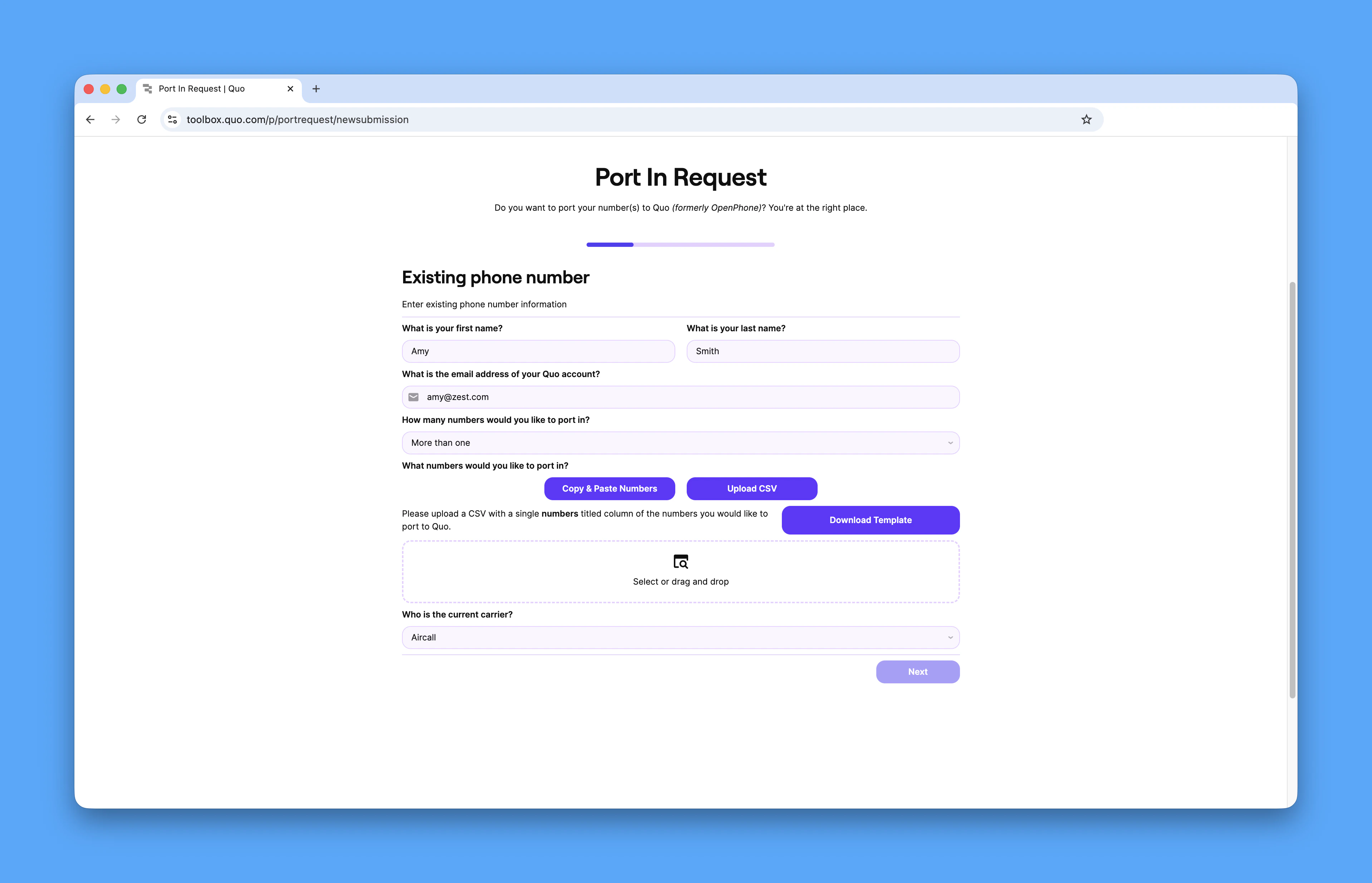 3. Choose the **current carrier**
* If your carrier is not listed, select **Other** and enter the name of your carrier
4. Click the **Review Numbers** button.
* This checks for duplicates and format validity.
3. Choose the **current carrier**
* If your carrier is not listed, select **Other** and enter the name of your carrier
4. Click the **Review Numbers** button.
* This checks for duplicates and format validity.
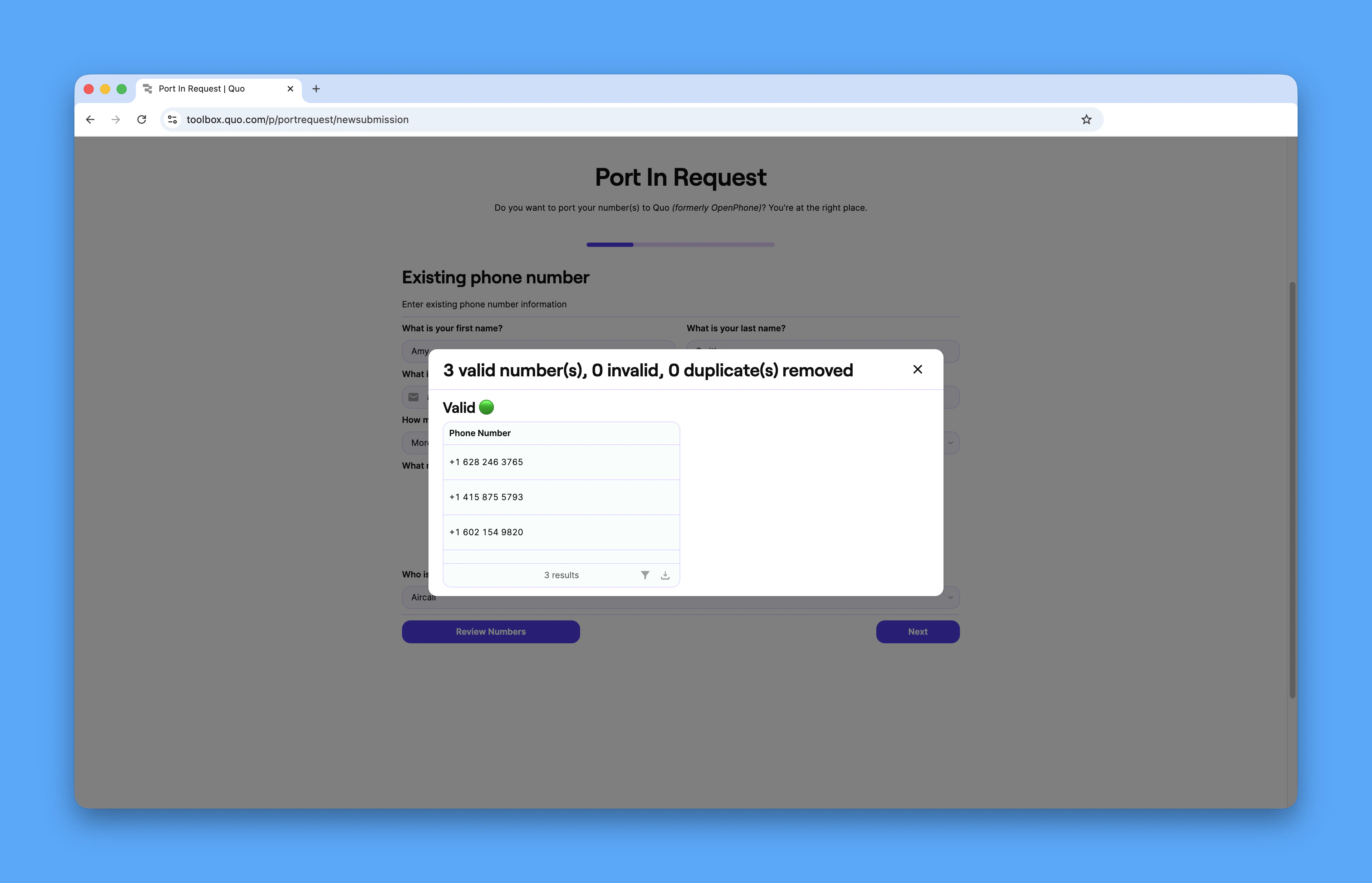 5. Click the **Next** button.
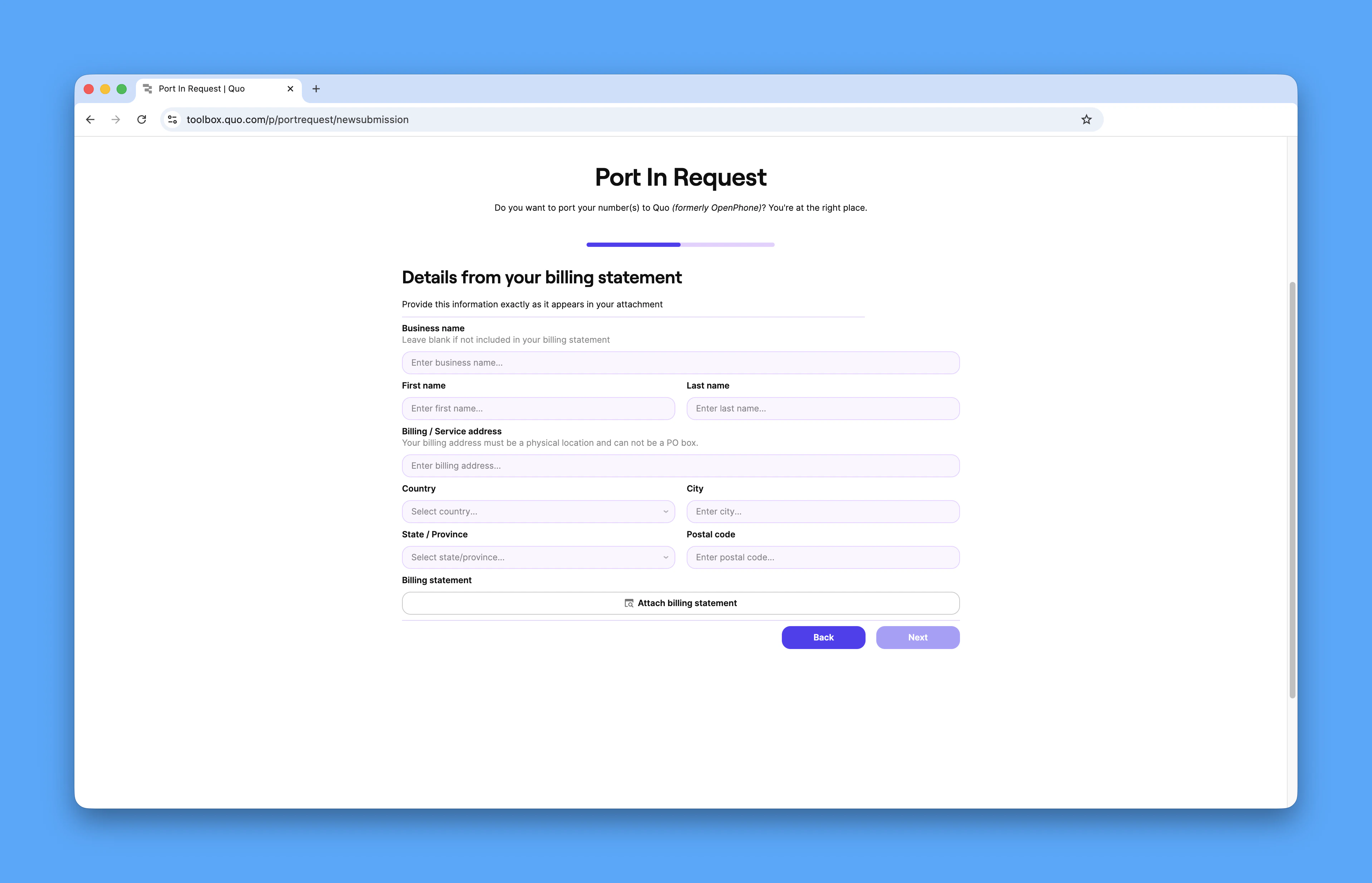
6. On the next page, enter the account holder and billing details exactly as they appear on your carrier’s records:
* Business name (leave blank if you don’t have one)
* First and last name of the number owner
* Full billing/service address — must be a physical address, not a PO Box
* Country, city, state/province, and zip/postal code
7. Click the **Attach billing statement** and upload your file (max file size 4MB). If you don’t have a statement, you can upload a **receipt, invoice, Customer Service Record (CSR), or a screenshot** showing the phone number.
5. Click the **Next** button.
6. On the next page, enter the account holder and billing details exactly as they appear on your carrier’s records:
* Business name (leave blank if you don’t have one)
* First and last name of the number owner
* Full billing/service address — must be a physical address, not a PO Box
* Country, city, state/province, and zip/postal code
7. Click the **Attach billing statement** and upload your file (max file size 4MB). If you don’t have a statement, you can upload a **receipt, invoice, Customer Service Record (CSR), or a screenshot** showing the phone number.
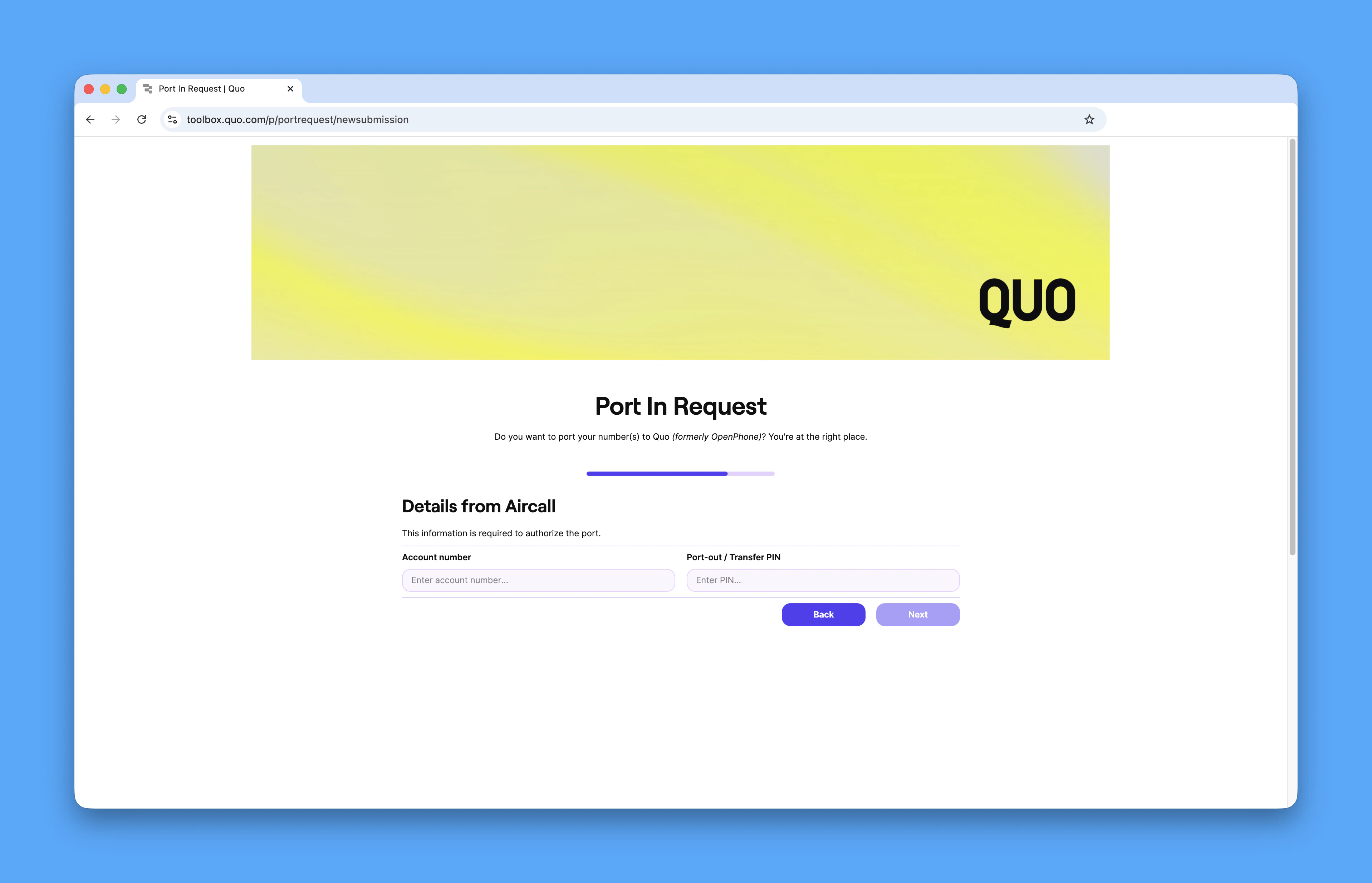
 8. On the next page, provide the following information:
* **Account Number:** Found on your bill or carrier dashboard
* **Port-out/Transfer PIN:** This should be newly generated; enter 0000 if your carrier does not provide a PIN
8. On the next page, provide the following information:
* **Account Number:** Found on your bill or carrier dashboard
* **Port-out/Transfer PIN:** This should be newly generated; enter 0000 if your carrier does not provide a PIN
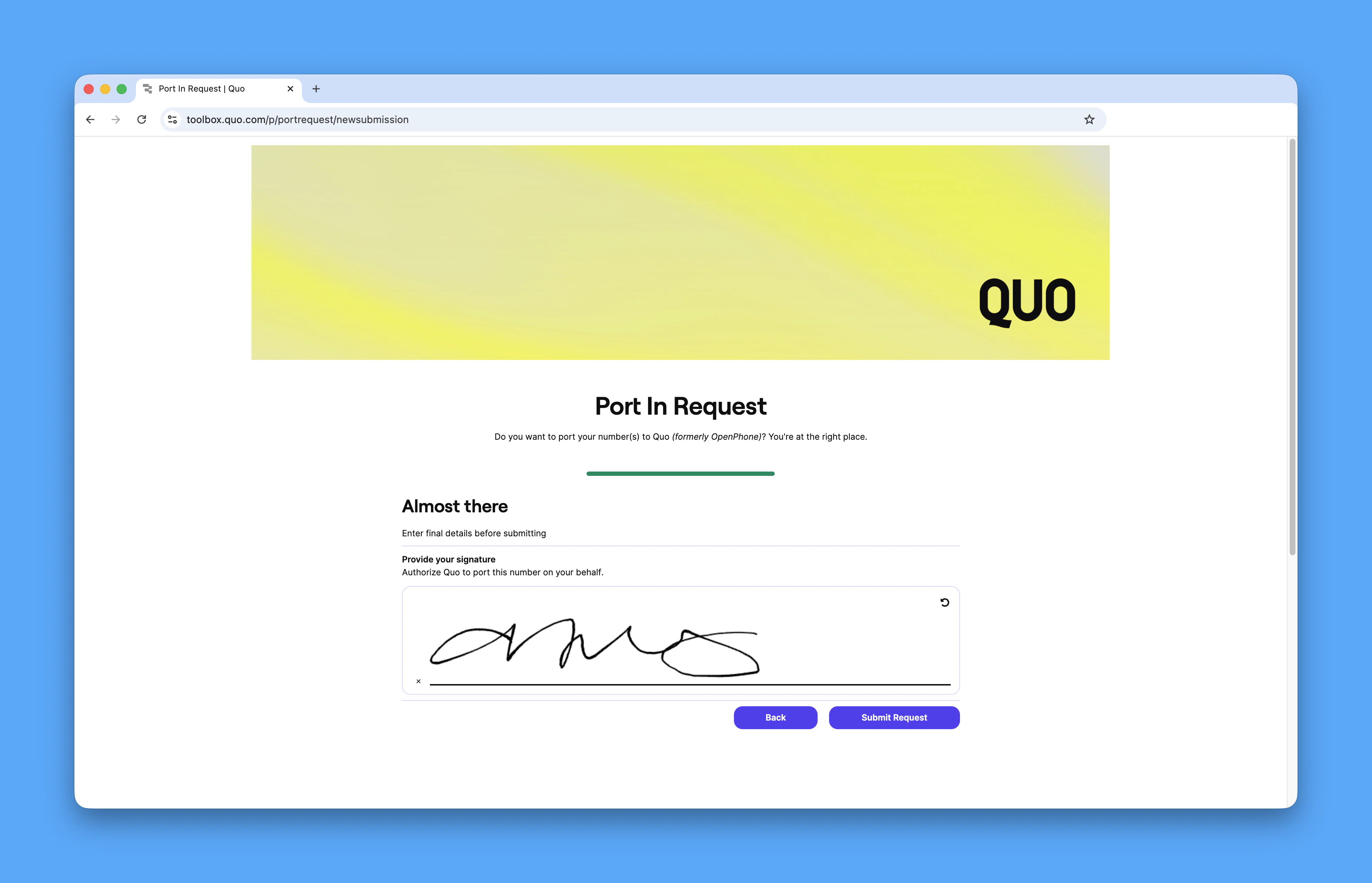
 8. **Digitally sign** the authorization.
9. Click the **Submit Request** button.
8. **Digitally sign** the authorization.
9. Click the **Submit Request** button.
 ***
## What to expect during and after your transfer
These details apply whether you’re porting a single number or multiple numbers into Quo.
### Timeline expectations
* **Processing time**: Typically 1–2 weeks, depending on carrier response
* **Service continuity**: No interruption — continue using your existing provider until the confirmed port date
* **Activation**: Calling usually works immediately once the port completes; SMS may take up to 48 hours to stabilize
Customize your phone numbers while you wait! [Update your phone number settings](https://support.quo.com/core-concepts/phone-numbers/overview#naming-and-organizing-numbers) in Quo so everything is ready on day one.
### Checking port status
Track your porting request progress in two ways:
#### Email updates
We send status updates to your account email address throughout the porting process. Check your inbox for:
* Initial confirmation
* Carrier response updates
* Port date notification
* Completion confirmation
#### In-app status
View real-time status directly in Quo:
1. Click on your pending port number
2. Select **Phone number settings**
3. View current status and any required actions
***
## What to expect during and after your transfer
These details apply whether you’re porting a single number or multiple numbers into Quo.
### Timeline expectations
* **Processing time**: Typically 1–2 weeks, depending on carrier response
* **Service continuity**: No interruption — continue using your existing provider until the confirmed port date
* **Activation**: Calling usually works immediately once the port completes; SMS may take up to 48 hours to stabilize
Customize your phone numbers while you wait! [Update your phone number settings](https://support.quo.com/core-concepts/phone-numbers/overview#naming-and-organizing-numbers) in Quo so everything is ready on day one.
### Checking port status
Track your porting request progress in two ways:
#### Email updates
We send status updates to your account email address throughout the porting process. Check your inbox for:
* Initial confirmation
* Carrier response updates
* Port date notification
* Completion confirmation
#### In-app status
View real-time status directly in Quo:
1. Click on your pending port number
2. Select **Phone number settings**
3. View current status and any required actions
 ### How to delete a temporary phone number
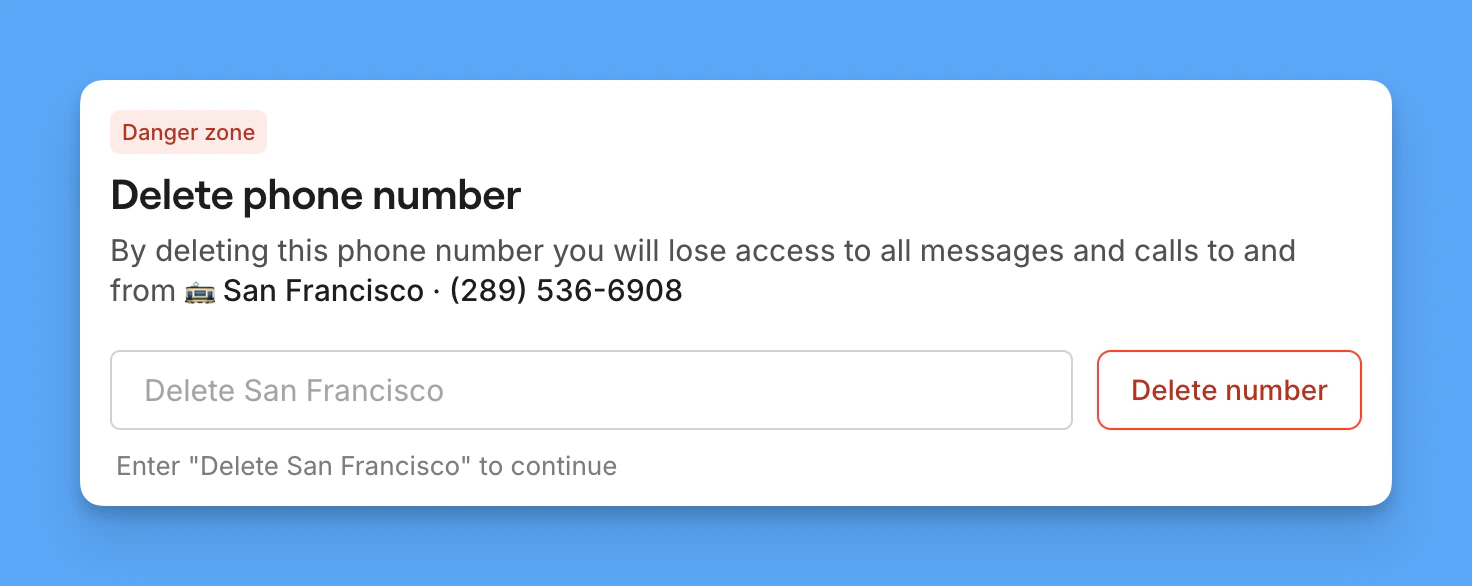
Once your number is transferred and fully active, you'll be able to delete the temporary number from your Quo workspace. Deleting a phone number doesn’t cancel your subscription. It only removes that specific number and adjusts your billing automatically.
**Owner or Admin permissions are required to delete phone numbers**, and must be done on Web or Desktop.
1. Go to [**Phone Numbers**](https://my.openphone.co/settings/my-phone-numbers) in workspace settings
2. Click the number you want to remove
3. Scroll to **Danger Zone**
4. Click **Delete \[phone number name]**
5. Type **Delete \[phone number name]** to confirm
### How to delete a temporary phone number
Once your number is transferred and fully active, you'll be able to delete the temporary number from your Quo workspace. Deleting a phone number doesn’t cancel your subscription. It only removes that specific number and adjusts your billing automatically.
**Owner or Admin permissions are required to delete phone numbers**, and must be done on Web or Desktop.
1. Go to [**Phone Numbers**](https://my.openphone.co/settings/my-phone-numbers) in workspace settings
2. Click the number you want to remove
3. Scroll to **Danger Zone**
4. Click **Delete \[phone number name]**
5. Type **Delete \[phone number name]** to confirm
 ***
## Special considerations for iPhone users
When porting from an iPhone, you must deactivate iMessage and FaceTime to ensure all messages and calls route correctly to Quo.
### Remove from iMessage
1. Go to iPhone **Settings**
2. Tap **Messages**
3. Tap **Send & Receive**
4. Uncheck your ported number in **You can be reached by iMessage at**
### Remove from FaceTime
1. Go to iPhone **Settings**
2. Tap **FaceTime**
3. Uncheck your ported number in **You can be reached by FaceTime at**
If messages still aren't routing correctly, you may need to [deregister iMessage](https://selfsolve.apple.com/deregister-imessage/) completely.
## Special considerations for Android users
### **Disable RCS before porting your number**
Quo uses SMS and MMS for text messaging. If your number still has an active RCS registration when it ports, other RCS-capable devices will continue trying to send you messages via RCS instead of SMS and those messages won't be delivered. **The RCS cache can take up to 30 days to expire on its own.**
If your phone number is registered for RCS messaging (the default on most Android devices), **you must disable RCS before your number ports to Quo**.
If you wait until after the port, the de-registration cannot be completed from your device.
### Disable RCS from Google Messages
1. Open the **Google Messages** app
2. Tap your **profile picture** → **Messages settings**
3. Tap **RCS chats**
4. Toggle off **Turn on RCS chats**
5. Wait for confirmation that RCS has been turned off
### Disable RCS from Samsung Messages
1. Open the **Samsung Messages** app
2. Tap **⋮ (three dots) → Settings**
3. Tap **Chat settings** or **RCS chats**
4. Toggle off **Rich Communication Settings**
Do this while the number is still active on your phone — once the transfer to Quo is in progress and the number leaves your device, you can no longer deregister.
### Restart group conversations
**Group conversations will not automatically convert to SMS/MMS, even after RCS is disabled.** Your contacts will need to delete the old group conversation thread on their devices and create a new one for you to reliably receive messages to Quo.
Need assistance? [Submit a request](https://support.quo.com/help/submit-a-request) to our support team or [chat with us](https://support.quo.com/help/chat-with-us).
***
## FAQs
Yes, but consider these limitations:
* \*\*You'll need a data plan or WiFi to make/receive calls and texts: \*\*Your SIM card and cellular service will be deactivated when you transfer your number to Quo, so a separate internet connection is required.
* **Some services won't send verification codes to virtual numbers:** You may not be able to receive two-factor authentication codes
* **Emergency services (911) aren't available**
**Recommendation:** Get a new Quo number and keep your personal number with your carrier for emergencies and 2FA.
Yes. Porting your number to Quo converts it from a cellular line to a VoIP line.
Your number will only work with an internet connection (Wi-Fi or mobile data), and no longer has traditional cellular service. Quo replaces your phone number and calling service, but not your internet connection.
Yes. Quo routes calls and texts over the internet rather than your carrier's cellular network, so a cellular plan is not required. You just need a Wi-Fi or mobile data connection to use the app.
If you do have a cellular plan, it works alongside Quo without any conflict; your carrier plan and your Quo number operate independently.
Porting your number to Quo moves it from your carrier's network to Quo's internet-based system. Your carrier plan itself is not automatically cancelled, **but the number you ported will no longer be active on it.**
From there, it's up to you:
* **Keep your carrier plan** if you want a separate cellular number on the same device
* **Cancel or downgrade your carrier plan** if Quo is replacing it entirely; you just need Wi-Fi or mobile data to use Quo
Contact your previous carrier and ask them to "resume ported subscriber service" with a new number.
They'll assign a new number to your SIM and reactivate your cellular connection. **Your Quo number stays with Quo.**
Yes! Since Quo works over the internet, your number travels with you. As long as you have a Wi-Fi or mobile data connection, you can make and receive calls and texts on your Quo number from anywhere in the world. A few options for staying connected abroad:
* Connect to Wi-Fi and use Quo at no extra cost
* Use your existing carrier's international roaming plan for mobile data
* Pick up a local SIM card for data only — Quo will work through it just the same
Simply type your carrier's name manually in the field. Our porting team handles requests from all US and Canadian carriers.
Yes, you can submit multiple porting requests. Each number requires its own complete application with billing information and authorization. If you have a port of 5+ numbers, please [submit your port in request here](https://toolbox.quo.com/p/portrequest/newsubmission), or feel free to contact our [Porting team](https://support.quo.com/help/submit-a-request) to initiate the process.
Common rejection reasons include:
* Mismatched account information
* Active contract obligations
* Unpaid balances
We'll notify you of any issues and help resolve them to resubmit.
Porting timelines are set by the releasing carrier and typically can't be expedited. Business numbers may take longer than personal numbers.
This means we currently don't have coverage for your phone number's location. Rate centers are tied to the original telephone exchange and determine geographic coverage for local calling.
If your number can't be ported, you have a couple of options:
* Choose a new Quo number with a local area code that matches your area during setup
* Wait for expanded coverage (though there's no ETA for specific rate centers)
No. Once the number has ported, disabling RCS on the old device does not fix the issue. Because the number is no longer active on that device, the cache won't be updated. The 30-day expiry window starts as soon as your transfer is completed.
**Messages will not route correctly for 30 days or longer.** You'll need to wait until the cache expires. Unfortunately, there is no workaround for this at this time
Group message threads that existed before you transferred your number to Quo will not convert to SMS/MMS even after the 30-day cache expires.
**To fix it:** Your contacts will need to **start a new group conversation** for messages to route correctly using SMS/MMS.
When you port a landline number to Quo, it becomes a VOIP number. Your number will move to Quo's network and will only ring in the Quo app. It won't ring on your physical desk phone. Your physical device stops receiving calls on that number.
If keeping the number on your physical device is important, porting may not be the right move. You have a couple of alternatives:
* Keep your existing number at your carrier and get a separate Quo number, then use call forwarding to route calls between them
* Use your call flow to forward incoming Quo calls to your physical phone's number
***
## Special considerations for iPhone users
When porting from an iPhone, you must deactivate iMessage and FaceTime to ensure all messages and calls route correctly to Quo.
### Remove from iMessage
1. Go to iPhone **Settings**
2. Tap **Messages**
3. Tap **Send & Receive**
4. Uncheck your ported number in **You can be reached by iMessage at**
### Remove from FaceTime
1. Go to iPhone **Settings**
2. Tap **FaceTime**
3. Uncheck your ported number in **You can be reached by FaceTime at**
If messages still aren't routing correctly, you may need to [deregister iMessage](https://selfsolve.apple.com/deregister-imessage/) completely.
## Special considerations for Android users
### **Disable RCS before porting your number**
Quo uses SMS and MMS for text messaging. If your number still has an active RCS registration when it ports, other RCS-capable devices will continue trying to send you messages via RCS instead of SMS and those messages won't be delivered. **The RCS cache can take up to 30 days to expire on its own.**
If your phone number is registered for RCS messaging (the default on most Android devices), **you must disable RCS before your number ports to Quo**.
If you wait until after the port, the de-registration cannot be completed from your device.
### Disable RCS from Google Messages
1. Open the **Google Messages** app
2. Tap your **profile picture** → **Messages settings**
3. Tap **RCS chats**
4. Toggle off **Turn on RCS chats**
5. Wait for confirmation that RCS has been turned off
### Disable RCS from Samsung Messages
1. Open the **Samsung Messages** app
2. Tap **⋮ (three dots) → Settings**
3. Tap **Chat settings** or **RCS chats**
4. Toggle off **Rich Communication Settings**
Do this while the number is still active on your phone — once the transfer to Quo is in progress and the number leaves your device, you can no longer deregister.
### Restart group conversations
**Group conversations will not automatically convert to SMS/MMS, even after RCS is disabled.** Your contacts will need to delete the old group conversation thread on their devices and create a new one for you to reliably receive messages to Quo.
Need assistance? [Submit a request](https://support.quo.com/help/submit-a-request) to our support team or [chat with us](https://support.quo.com/help/chat-with-us).
***
## FAQs
Yes, but consider these limitations:
* \*\*You'll need a data plan or WiFi to make/receive calls and texts: \*\*Your SIM card and cellular service will be deactivated when you transfer your number to Quo, so a separate internet connection is required.
* **Some services won't send verification codes to virtual numbers:** You may not be able to receive two-factor authentication codes
* **Emergency services (911) aren't available**
**Recommendation:** Get a new Quo number and keep your personal number with your carrier for emergencies and 2FA.
Yes. Porting your number to Quo converts it from a cellular line to a VoIP line.
Your number will only work with an internet connection (Wi-Fi or mobile data), and no longer has traditional cellular service. Quo replaces your phone number and calling service, but not your internet connection.
Yes. Quo routes calls and texts over the internet rather than your carrier's cellular network, so a cellular plan is not required. You just need a Wi-Fi or mobile data connection to use the app.
If you do have a cellular plan, it works alongside Quo without any conflict; your carrier plan and your Quo number operate independently.
Porting your number to Quo moves it from your carrier's network to Quo's internet-based system. Your carrier plan itself is not automatically cancelled, **but the number you ported will no longer be active on it.**
From there, it's up to you:
* **Keep your carrier plan** if you want a separate cellular number on the same device
* **Cancel or downgrade your carrier plan** if Quo is replacing it entirely; you just need Wi-Fi or mobile data to use Quo
Contact your previous carrier and ask them to "resume ported subscriber service" with a new number.
They'll assign a new number to your SIM and reactivate your cellular connection. **Your Quo number stays with Quo.**
Yes! Since Quo works over the internet, your number travels with you. As long as you have a Wi-Fi or mobile data connection, you can make and receive calls and texts on your Quo number from anywhere in the world. A few options for staying connected abroad:
* Connect to Wi-Fi and use Quo at no extra cost
* Use your existing carrier's international roaming plan for mobile data
* Pick up a local SIM card for data only — Quo will work through it just the same
Simply type your carrier's name manually in the field. Our porting team handles requests from all US and Canadian carriers.
Yes, you can submit multiple porting requests. Each number requires its own complete application with billing information and authorization. If you have a port of 5+ numbers, please [submit your port in request here](https://toolbox.quo.com/p/portrequest/newsubmission), or feel free to contact our [Porting team](https://support.quo.com/help/submit-a-request) to initiate the process.
Common rejection reasons include:
* Mismatched account information
* Active contract obligations
* Unpaid balances
We'll notify you of any issues and help resolve them to resubmit.
Porting timelines are set by the releasing carrier and typically can't be expedited. Business numbers may take longer than personal numbers.
This means we currently don't have coverage for your phone number's location. Rate centers are tied to the original telephone exchange and determine geographic coverage for local calling.
If your number can't be ported, you have a couple of options:
* Choose a new Quo number with a local area code that matches your area during setup
* Wait for expanded coverage (though there's no ETA for specific rate centers)
No. Once the number has ported, disabling RCS on the old device does not fix the issue. Because the number is no longer active on that device, the cache won't be updated. The 30-day expiry window starts as soon as your transfer is completed.
**Messages will not route correctly for 30 days or longer.** You'll need to wait until the cache expires. Unfortunately, there is no workaround for this at this time
Group message threads that existed before you transferred your number to Quo will not convert to SMS/MMS even after the 30-day cache expires.
**To fix it:** Your contacts will need to **start a new group conversation** for messages to route correctly using SMS/MMS.
When you port a landline number to Quo, it becomes a VOIP number. Your number will move to Quo's network and will only ring in the Quo app. It won't ring on your physical desk phone. Your physical device stops receiving calls on that number.
If keeping the number on your physical device is important, porting may not be the right move. You have a couple of alternatives:
* Keep your existing number at your carrier and get a separate Quo number, then use call forwarding to route calls between them
* Use your call flow to forward incoming Quo calls to your physical phone's number