> ## Documentation Index
> Fetch the complete documentation index at: https://support.quo.com/llms.txt
> Use this file to discover all available pages before exploring further.
# Team messaging
> Send direct messages to teammates within Quo, formerly OpenPhone, for seamless internal communication
## Overview
Quo's team messaging enables direct communication with teammates without switching platforms. Send private messages, see online status, and coordinate team activities all within the Quo workspace for seamless internal collaboration.
Team messaging currently supports 1-to-1 direct messaging. Group direct messaging is planned for a future release.
## Sending direct messages
### How to message teammates
**Basic messaging process:**
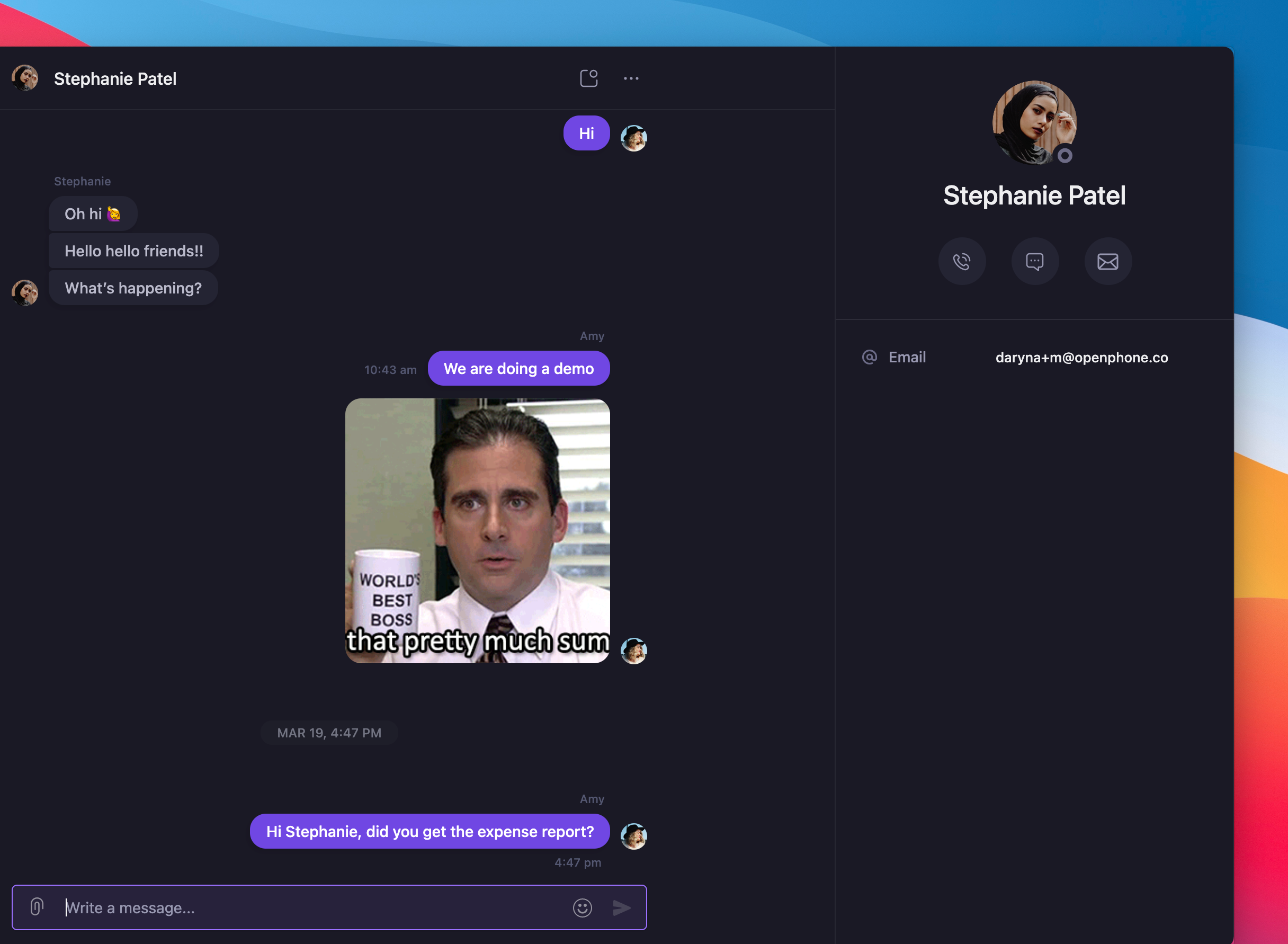
1. **Click on your teammate's name** in the team list
2. **Type your message** in the "Write a message..." box
3. **Send your message** and continue the conversation
<>
 ### Team status visibility
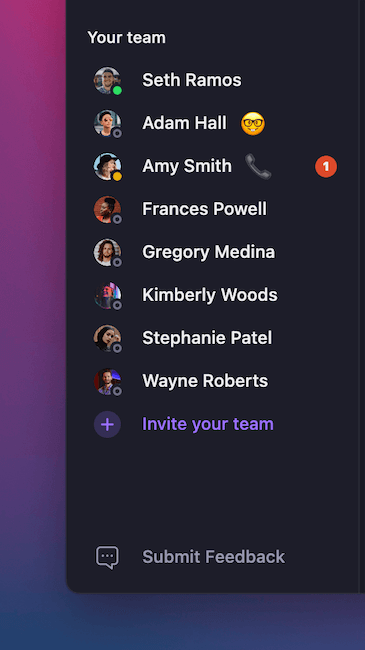
**Online status indicators:**
* See which teammates are currently active
* Identify availability for immediate communication
* Coordinate real-time collaboration opportunities
**Message delivery:**
* Instant message delivery to active teammates
* Notification badges for unread messages
* Message history maintained across sessions
## Receiving messages
### Notification system
**Message alerts:**
* Notification badges appear next to teammate names
* Visual indicators for new messages
* Clear distinction between read and unread conversations
### Team status visibility
**Online status indicators:**
* See which teammates are currently active
* Identify availability for immediate communication
* Coordinate real-time collaboration opportunities
**Message delivery:**
* Instant message delivery to active teammates
* Notification badges for unread messages
* Message history maintained across sessions
## Receiving messages
### Notification system
**Message alerts:**
* Notification badges appear next to teammate names
* Visual indicators for new messages
* Clear distinction between read and unread conversations
 Group direct messaging is in development. Current 1-to-1 messaging provides essential team coordination capabilities.
## FAQs
Ensure your teammate is added to your Quo workspace and has an active account. Only workspace members appear in the team messaging list.
Check that your teammate is logged into Quo and has a stable internet connection. Message notifications may be delayed if they're offline.
Refresh the Quo app or check your notification settings. Ensure notifications are enabled for team messaging.
Team message history is preserved within each conversation thread. Click on the specific teammate's name to view your conversation history.
Status indicators may take time to update. Try refreshing the app or checking with your teammate directly about their availability.
<>
Group direct messaging is in development. Current 1-to-1 messaging provides essential team coordination capabilities.
## FAQs
Ensure your teammate is added to your Quo workspace and has an active account. Only workspace members appear in the team messaging list.
Check that your teammate is logged into Quo and has a stable internet connection. Message notifications may be delayed if they're offline.
Refresh the Quo app or check your notification settings. Ensure notifications are enabled for team messaging.
Team message history is preserved within each conversation thread. Click on the specific teammate's name to view your conversation history.
Status indicators may take time to update. Try refreshing the app or checking with your teammate directly about their availability.
<>