> ## Documentation Index
> Fetch the complete documentation index at: https://support.quo.com/llms.txt
> Use this file to discover all available pages before exploring further.
# Tasks
Tasks lets you create action items directly from conversations and track them alongside your inbox. Assign tasks to teammates, set due dates, and mark them complete without leaving Quo.
[Business and Scale plans](https://support.quo.com/core-concepts/administration/billing/pricing) have unlimited tasks, while Starter plans can have up to **10 open tasks**. On the Starter plan, **Completed** tasks don't count toward your limit.
***
## Create a task on web or desktop
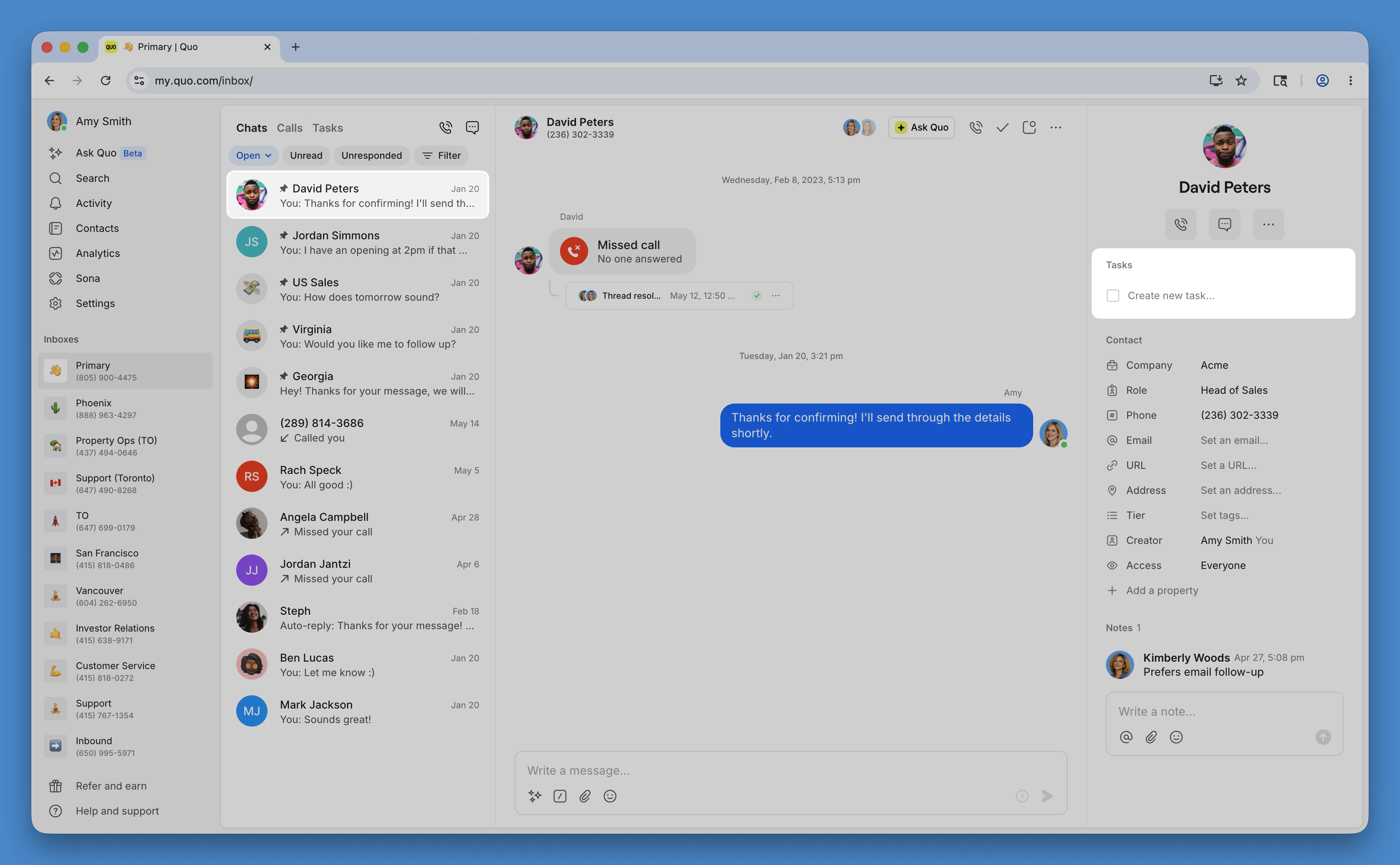
1. Open a conversation and locate the **Tasks** section in the right sidebar
2. Click **Create new task** and enter a task name and description
3. Add an assignee, and due date
4. Click **Create task** to save the task
Tasks will appear in the sidebar with the contact’s information **and** in the inbox-level Tasks view.
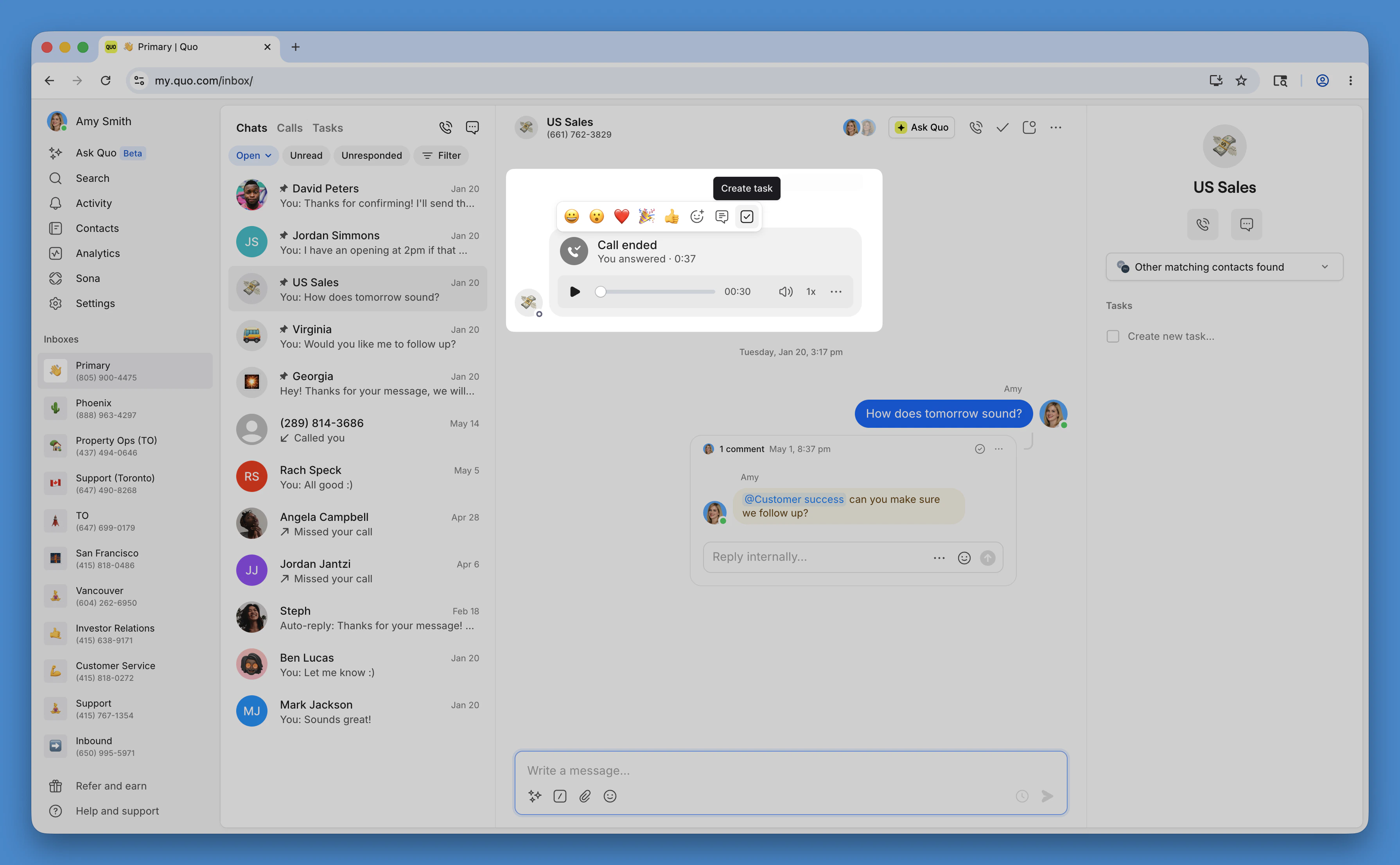
 1. Open a conversation and locate a call or message activity
2. Hover over that activity until the menu bar appears
3. Click **Create new task** and enter a task name and description
4. Add an assignee, and due date
5. Click **Create task** to save the task
1. Open a conversation and locate a call or message activity
2. Hover over that activity until the menu bar appears
3. Click **Create new task** and enter a task name and description
4. Add an assignee, and due date
5. Click **Create task** to save the task
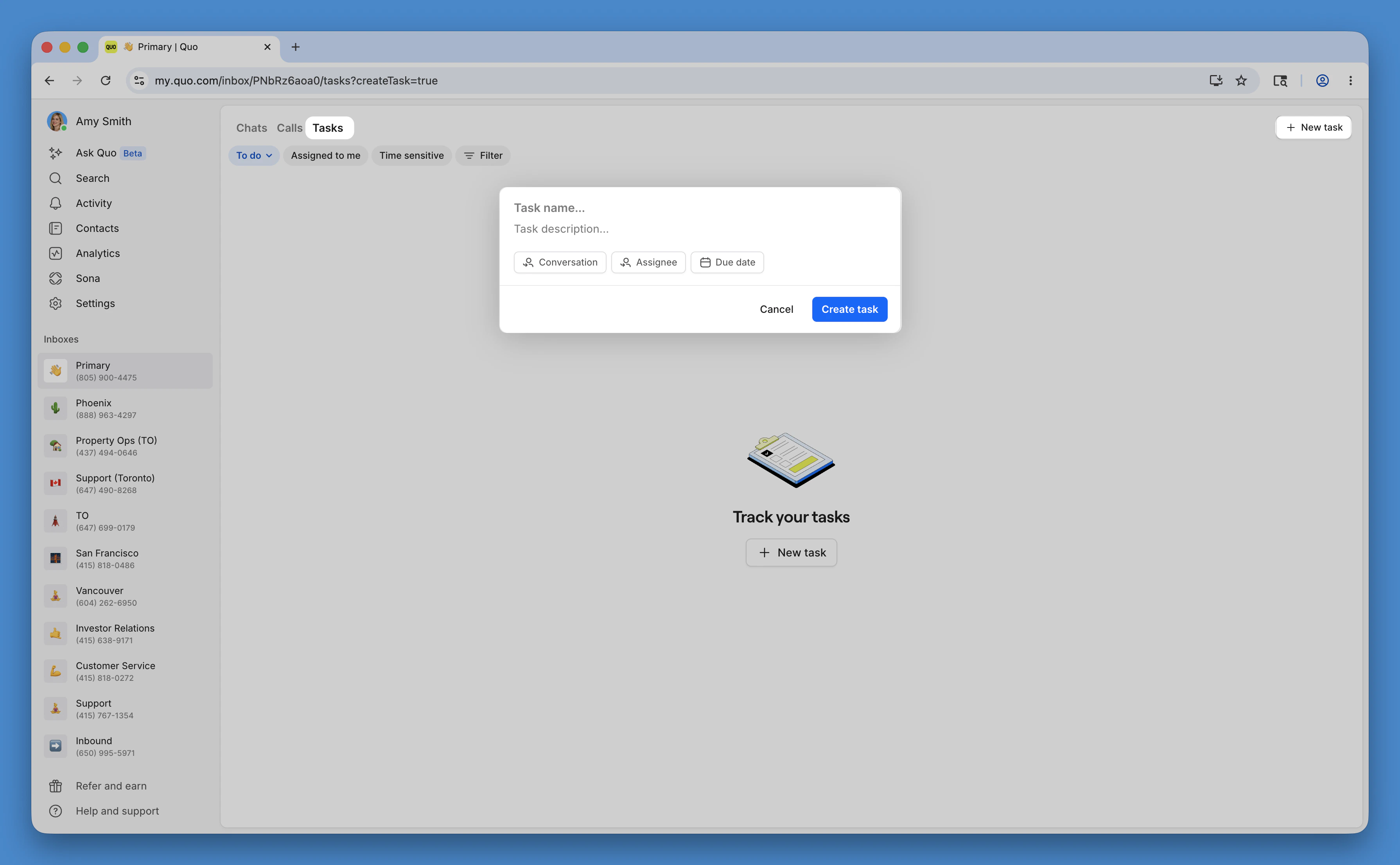
 1. Open the **Tasks** tab of an inbox
2. Click the **New task** button and enter a task name and description
3. Add an assignee, and due date
4. Click **Create task** to save the task
**Tasks are always attached to something:** a conversation, an activity, or an inbox. They don’t exist as standalone to-dos.
1. Open the **Tasks** tab of an inbox
2. Click the **New task** button and enter a task name and description
3. Add an assignee, and due date
4. Click **Create task** to save the task
**Tasks are always attached to something:** a conversation, an activity, or an inbox. They don’t exist as standalone to-dos.
 ***
## Create a task on mobile
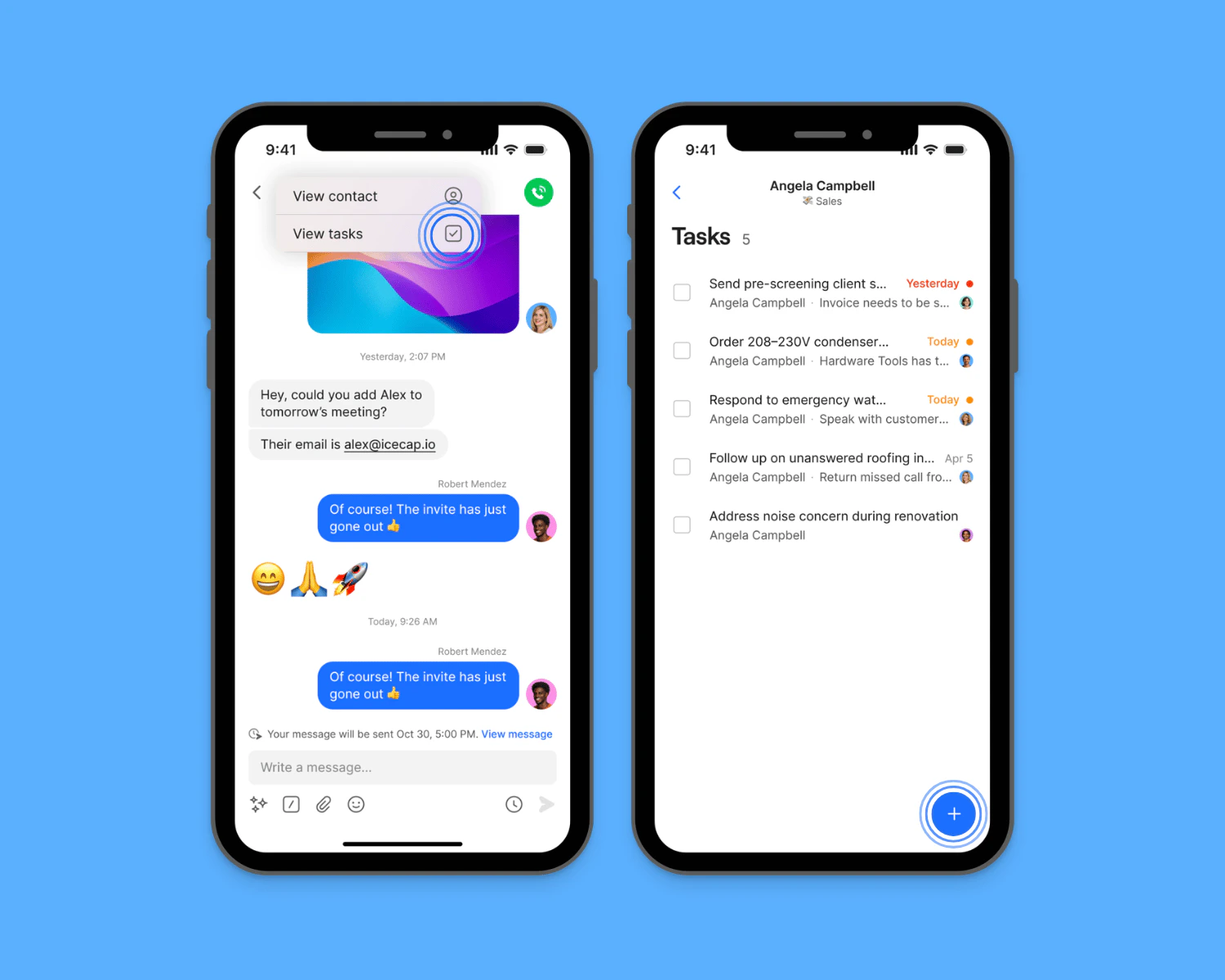
1. Open a conversation and tap the contact name
2. Tap **View tasks**
3. Tap the **+** button
4. Enter a task name and description
5. Add an assignee, and due date
6. Tap **Create task** to save the task
***
## Create a task on mobile
1. Open a conversation and tap the contact name
2. Tap **View tasks**
3. Tap the **+** button
4. Enter a task name and description
5. Add an assignee, and due date
6. Tap **Create task** to save the task
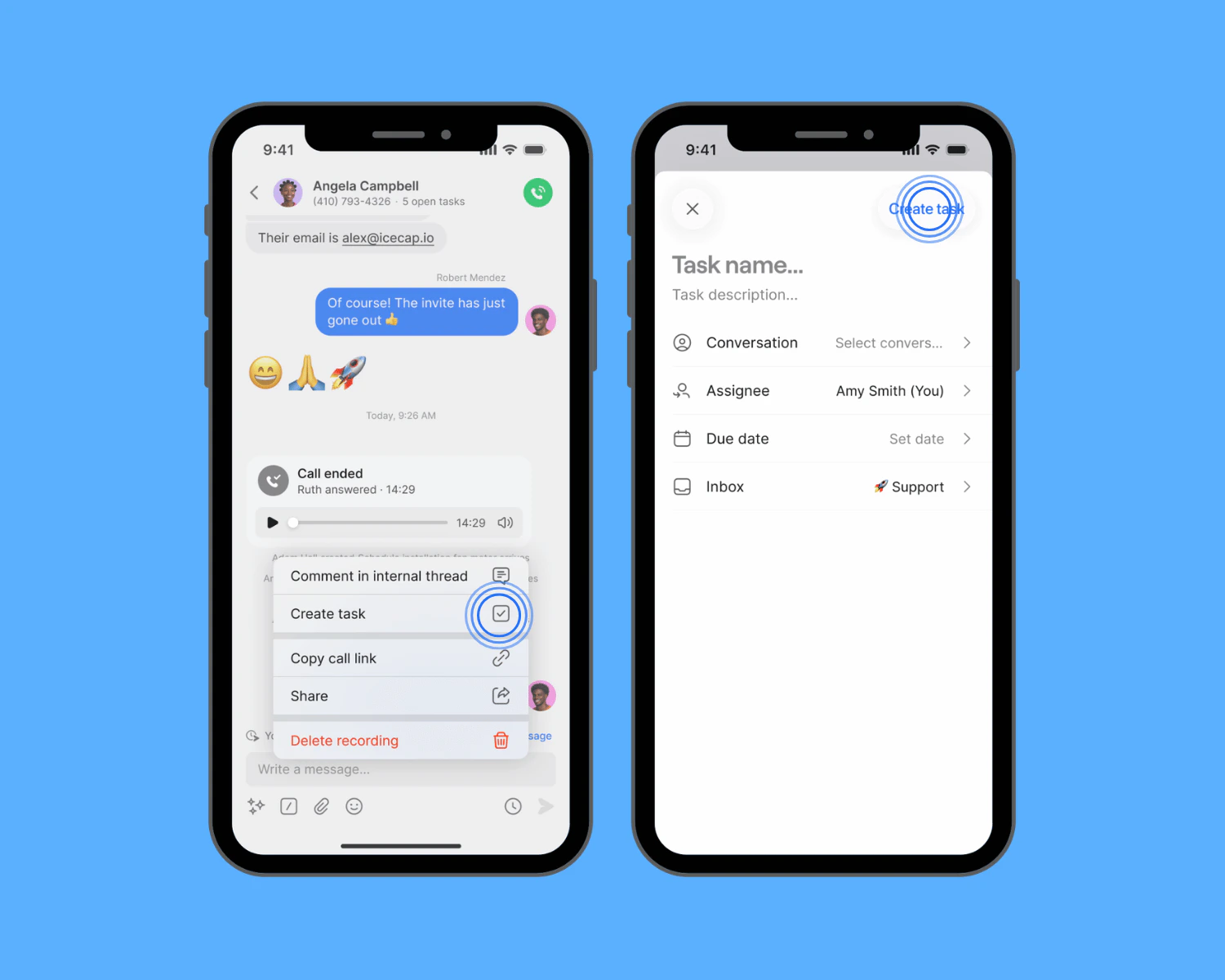
 1. Open a conversation
2. Tap call or message activity you want to create a task from
3. Tap **Create new task** and enter a task name and description
4. Add an assignee, and due date
5. Tap **Create task** to save the task
1. Open a conversation
2. Tap call or message activity you want to create a task from
3. Tap **Create new task** and enter a task name and description
4. Add an assignee, and due date
5. Tap **Create task** to save the task
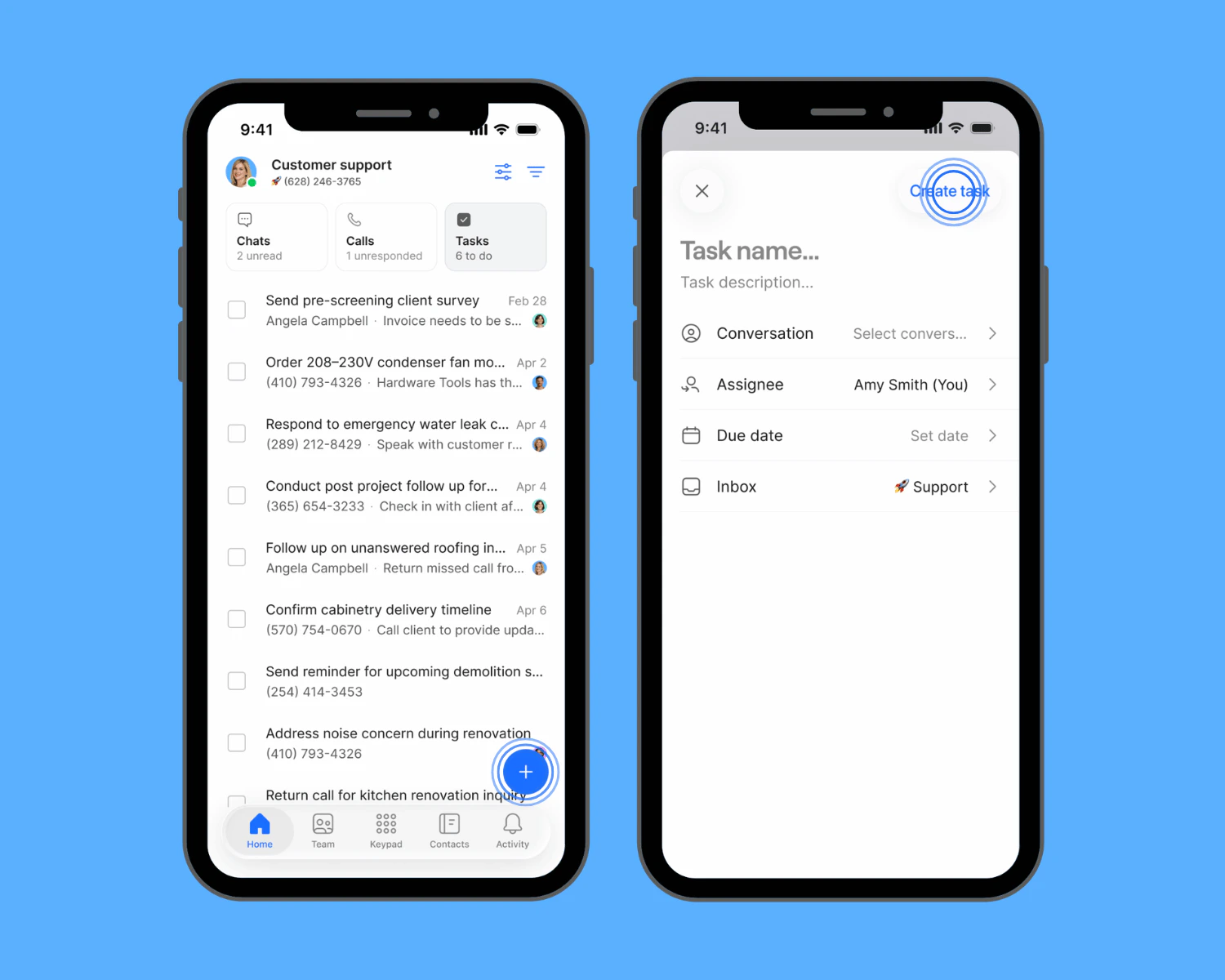
 1. Open the **Tasks** section at the top of your conversations list in an inbox
2. Tap the **+** button
3. Enter a task name and description
4. Add an assignee, and due date
5. Tap **Create task** to save the task
1. Open the **Tasks** section at the top of your conversations list in an inbox
2. Tap the **+** button
3. Enter a task name and description
4. Add an assignee, and due date
5. Tap **Create task** to save the task
 **Tasks created from a conversation or activity stay linked to their source.** When you open the task later, you can navigate back to where it was created.
***
## Manage Tasks at the inbox level
**Tasks created from a conversation or activity stay linked to their source.** When you open the task later, you can navigate back to where it was created.
***
## Manage Tasks at the inbox level
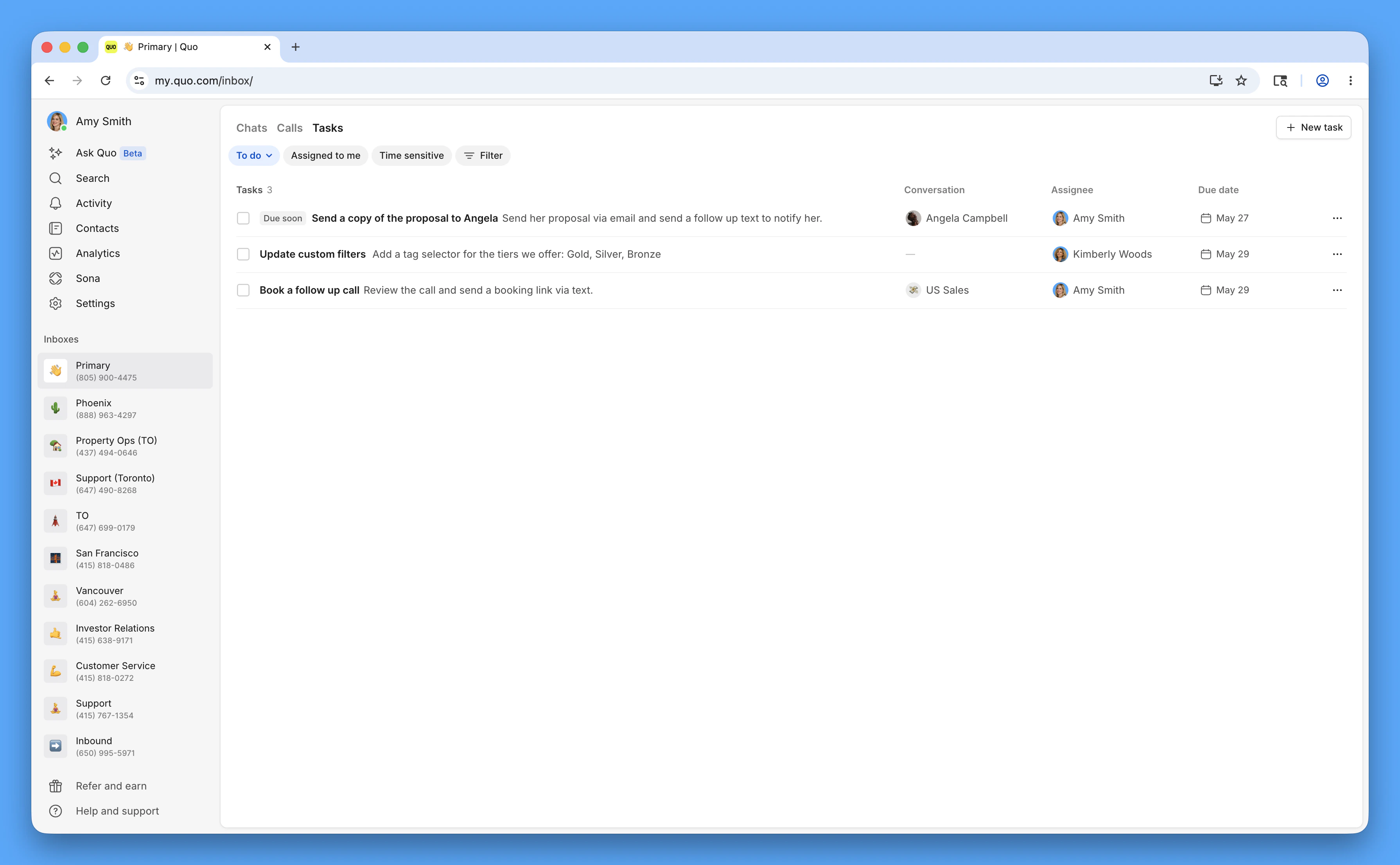
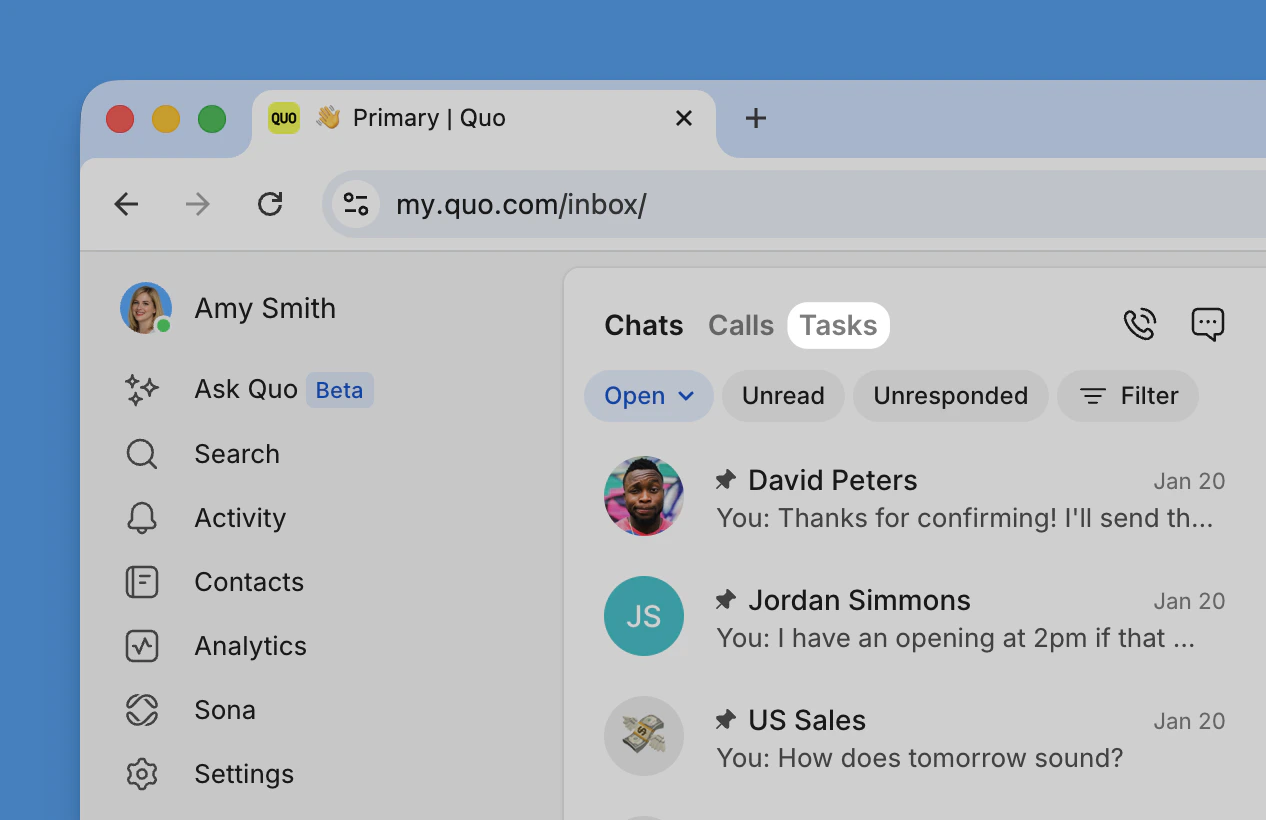 The **Tasks** tab in your inbox rolls up all tasks across conversations in that inbox. You can find it next to **Chats** and **Calls** in your inbox.
From the Tasks tab, you can:
* See all tasks for the inbox in one place
* See which conversation the task belongs to
* Filter by owner, due date, or status
* Group tasks to focus on what's yours or what's overdue
The **Tasks** tab in your inbox rolls up all tasks across conversations in that inbox. You can find it next to **Chats** and **Calls** in your inbox.
From the Tasks tab, you can:
* See all tasks for the inbox in one place
* See which conversation the task belongs to
* Filter by owner, due date, or status
* Group tasks to focus on what's yours or what's overdue
 * View completed tasks, or reopen them
* Copy a link to the task
* Delete the task
* Review a history of changes
* View completed tasks, or reopen them
* Copy a link to the task
* Delete the task
* Review a history of changes
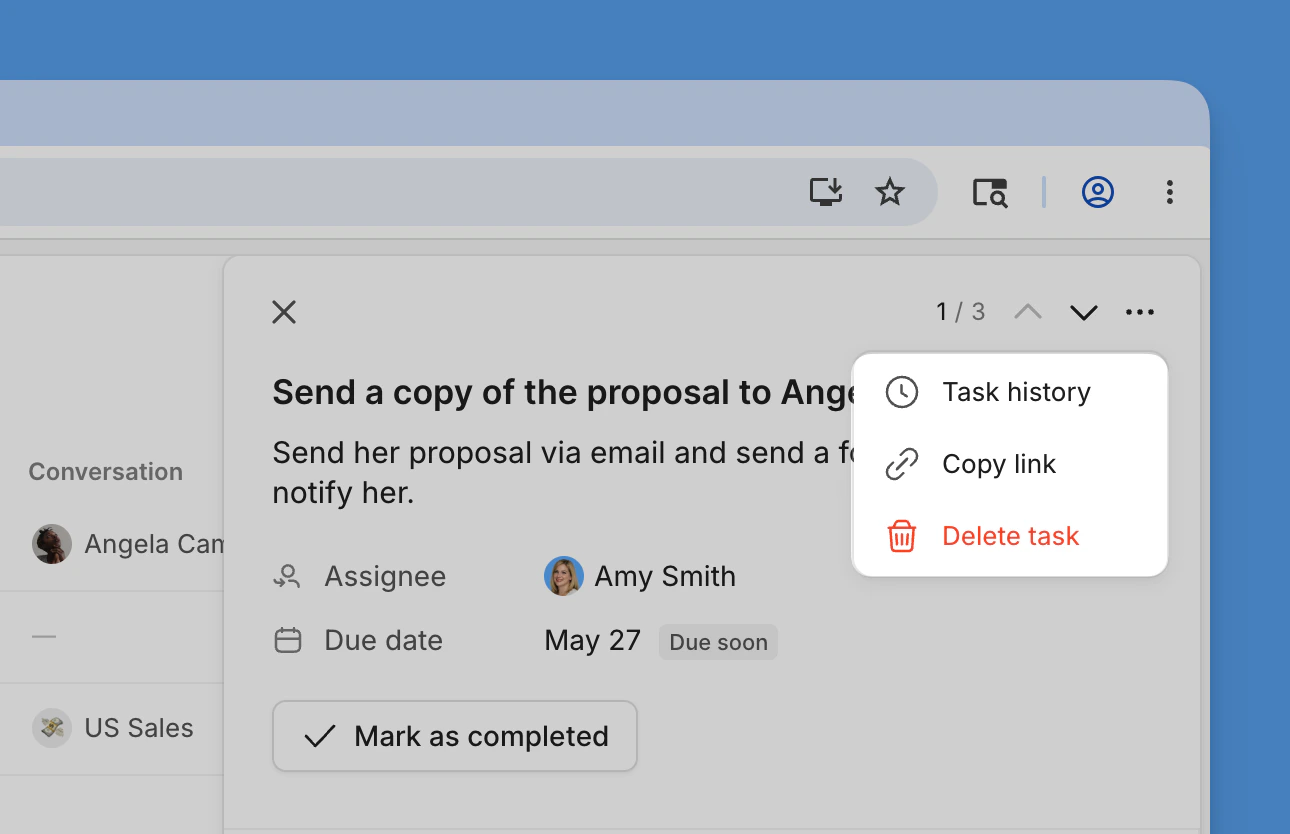 Use this view to manage your personal work queue and keep an eye on what needs attention across all conversations in an inbox.
***
## Manage Tasks by conversation
Use this view to manage your personal work queue and keep an eye on what needs attention across all conversations in an inbox.
***
## Manage Tasks by conversation
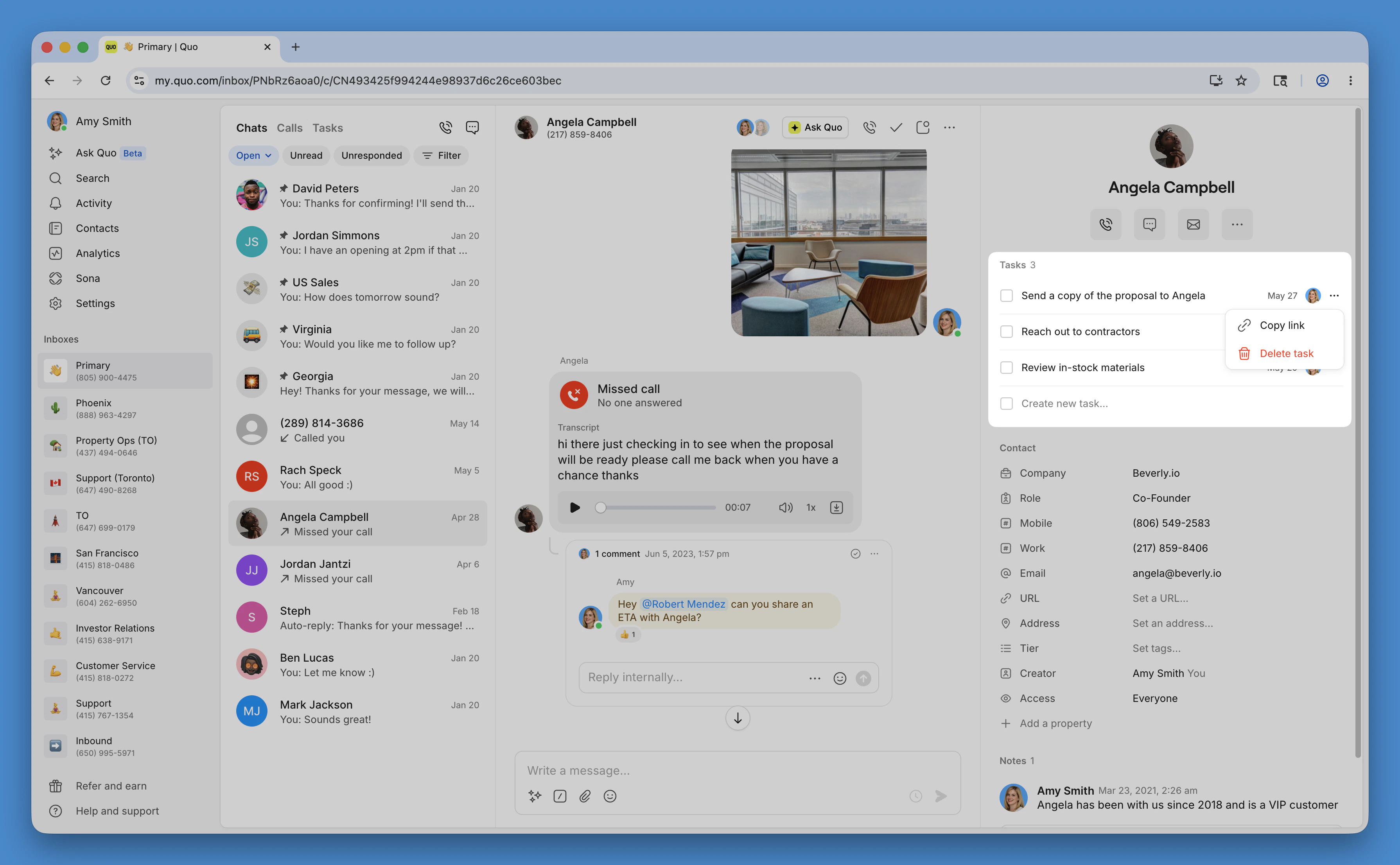 Click any task in the conversation sidebar on web or desktop to open its detail view. From there you can:
* Edit the title, description, assignee, or due date
* Team members are notified when they're assigned a task and if it becomes overdue.
* Mark the task complete or reopen it
* Copy a link to the task
* Delete the task
* Review a history of changes
Overdue tasks are flagged in the **Tasks view** so they're easy to spot.
***
## FAQs
* **Starter workspaces are limited to 10 open tasks**. Any task **not marked complete** counts toward that limit, including tasks assigned to teammates.
**Completed Tasks do not** count toward the 10-task limit on the Starter plan.
* [Business and Scale](https://support.quo.com/core-concepts/administration/billing/pricing) plans can have unlimited open tasks.
Completed tasks move to the **Completed** section in the **Tasks** tab. You can reopen a completed task at any time by editing it and changing its status.
Anyone with access to an inbox can create, assign, and view its tasks. This includes tasks on conversations they don't own.
No. **Tasks must be linked to an activity, conversation, or inbox.** At minimum, a task needs to be attached to an inbox — there's no way to create a standalone task right now.
Tasks are attached to conversations, inboxes, and activities, **not to contacts directly.**
**To find tasks related to a contact**, open one of their conversations and check the **Tasks** section there.
At this time, there is no workspace-level or inbox-agnostic view of tasks. Tasks are viewed per-inbox, and you can **filter by assignee** to find yours.
**Tasks are grouped by inbox**, so you'll **need to switch** between inboxes to see everything.
**Two things to check:**
1. Make sure an assignee is set (tasks without one don't trigger notifications)
2. Confirm they have access to the inbox the task was created in
Tasks don’t have any direct integrations just yet, but you can access them via Quo's API and build your own.
If you need to track work in an external tool, you can **copy a link to any task and paste it elsewhere**.
Yes. Task events can trigger [webhooks](https://support.quo.com/core-concepts/integrations/webhooks), so your service gets notified when tasks change. For the task endpoints and webhook details, see the [Quo API reference](https://www.quo.com/docs/mdx/api-reference/introduction).
Yes! Once you've connected [Claude](https://support.quo.com/core-concepts/integrations/mcp/claude) or [ChatGPT](https://support.quo.com/core-concepts/integrations/mcp/chatgpt) to your workspace, you'll be able to ask about your Tasks directly from your chat.
Yes! Tasks is available on iOS and Android.
***
**Need help?** [Submit a support request](https://support.quo.com/help/submit-a-request) and we'll jump in.
Click any task in the conversation sidebar on web or desktop to open its detail view. From there you can:
* Edit the title, description, assignee, or due date
* Team members are notified when they're assigned a task and if it becomes overdue.
* Mark the task complete or reopen it
* Copy a link to the task
* Delete the task
* Review a history of changes
Overdue tasks are flagged in the **Tasks view** so they're easy to spot.
***
## FAQs
* **Starter workspaces are limited to 10 open tasks**. Any task **not marked complete** counts toward that limit, including tasks assigned to teammates.
**Completed Tasks do not** count toward the 10-task limit on the Starter plan.
* [Business and Scale](https://support.quo.com/core-concepts/administration/billing/pricing) plans can have unlimited open tasks.
Completed tasks move to the **Completed** section in the **Tasks** tab. You can reopen a completed task at any time by editing it and changing its status.
Anyone with access to an inbox can create, assign, and view its tasks. This includes tasks on conversations they don't own.
No. **Tasks must be linked to an activity, conversation, or inbox.** At minimum, a task needs to be attached to an inbox — there's no way to create a standalone task right now.
Tasks are attached to conversations, inboxes, and activities, **not to contacts directly.**
**To find tasks related to a contact**, open one of their conversations and check the **Tasks** section there.
At this time, there is no workspace-level or inbox-agnostic view of tasks. Tasks are viewed per-inbox, and you can **filter by assignee** to find yours.
**Tasks are grouped by inbox**, so you'll **need to switch** between inboxes to see everything.
**Two things to check:**
1. Make sure an assignee is set (tasks without one don't trigger notifications)
2. Confirm they have access to the inbox the task was created in
Tasks don’t have any direct integrations just yet, but you can access them via Quo's API and build your own.
If you need to track work in an external tool, you can **copy a link to any task and paste it elsewhere**.
Yes. Task events can trigger [webhooks](https://support.quo.com/core-concepts/integrations/webhooks), so your service gets notified when tasks change. For the task endpoints and webhook details, see the [Quo API reference](https://www.quo.com/docs/mdx/api-reference/introduction).
Yes! Once you've connected [Claude](https://support.quo.com/core-concepts/integrations/mcp/claude) or [ChatGPT](https://support.quo.com/core-concepts/integrations/mcp/chatgpt) to your workspace, you'll be able to ask about your Tasks directly from your chat.
Yes! Tasks is available on iOS and Android.
***
**Need help?** [Submit a support request](https://support.quo.com/help/submit-a-request) and we'll jump in.