> ## Documentation Index
> Fetch the complete documentation index at: https://support.quo.com/llms.txt
> Use this file to discover all available pages before exploring further.
# Internal threads
> Create internal team discussions on calls, messages, and voicemail with task management
## Overview
Internal threads enable private team discussions on customer communications without external visibility. Create comments, assign action items, mention teammates, and track task completion directly within the context of calls, messages, and voicemail.
Internal threads are only visible to team members with access to the shared phone number - customers never see these discussions.
## Creating internal threads
### Thread capabilities
**What you can comment on:**
* Messages (SMS/MMS)
* Calls and call recordings
* Voicemail messages
* Any customer communication item
**Team collaboration features:**
* Create action items for yourself or teammates
* Mark comments as resolved when tasks are complete
* Tag team members with **@mentions**
* View activity in centralized feed
### Adding thread comments
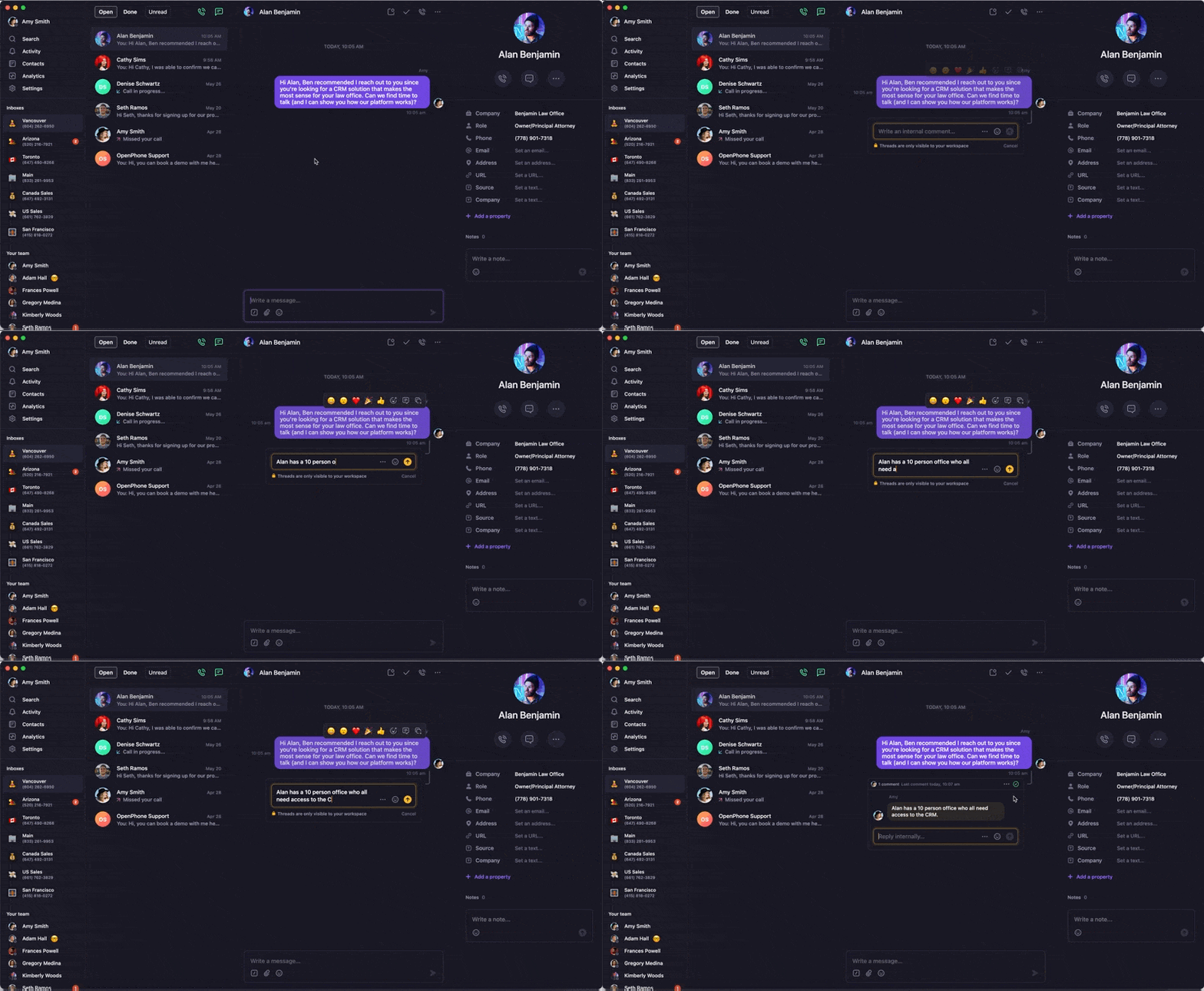
1. **Click the message, call, or voicemail** you want to comment on
2. **Select the chat icon** from the popup menu
3. **Type your comment** and send
 **Managing thread resolution:**
* Click **Three dots (...)** above any comment
* Select **"Mark as resolved"** to complete action items
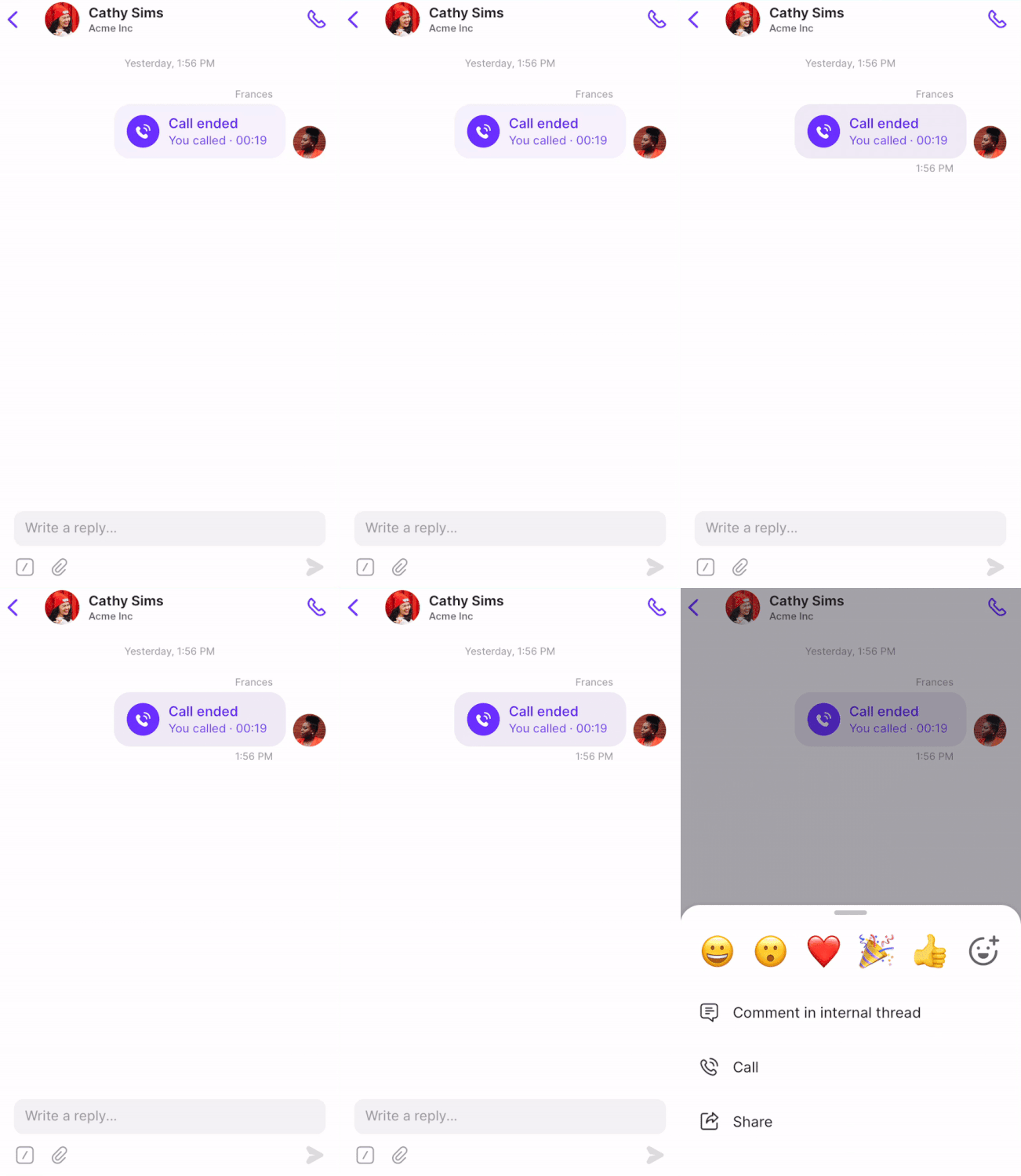
1. **Tap the message, call, or voicemail** you want to comment on
2. **Select "Comment in internal thread"**
3. **Type your comment** under "Reply internally..." and send
**Managing thread resolution:**
* Click **Three dots (...)** above any comment
* Select **"Mark as resolved"** to complete action items
1. **Tap the message, call, or voicemail** you want to comment on
2. **Select "Comment in internal thread"**
3. **Type your comment** under "Reply internally..." and send
 **Viewing and resolving on mobile:**
* Check **Activity** in bottom menu for mentions and notifications
* Long tap specific activity items to view context
* Tap comment → upper right corner → **"Mark thread as resolved"**
## Editing thread comments
You can edit your own internal thread comments after posting. This makes it easy to fix typos, add missing details, or clarify your message.
### Edit a comment
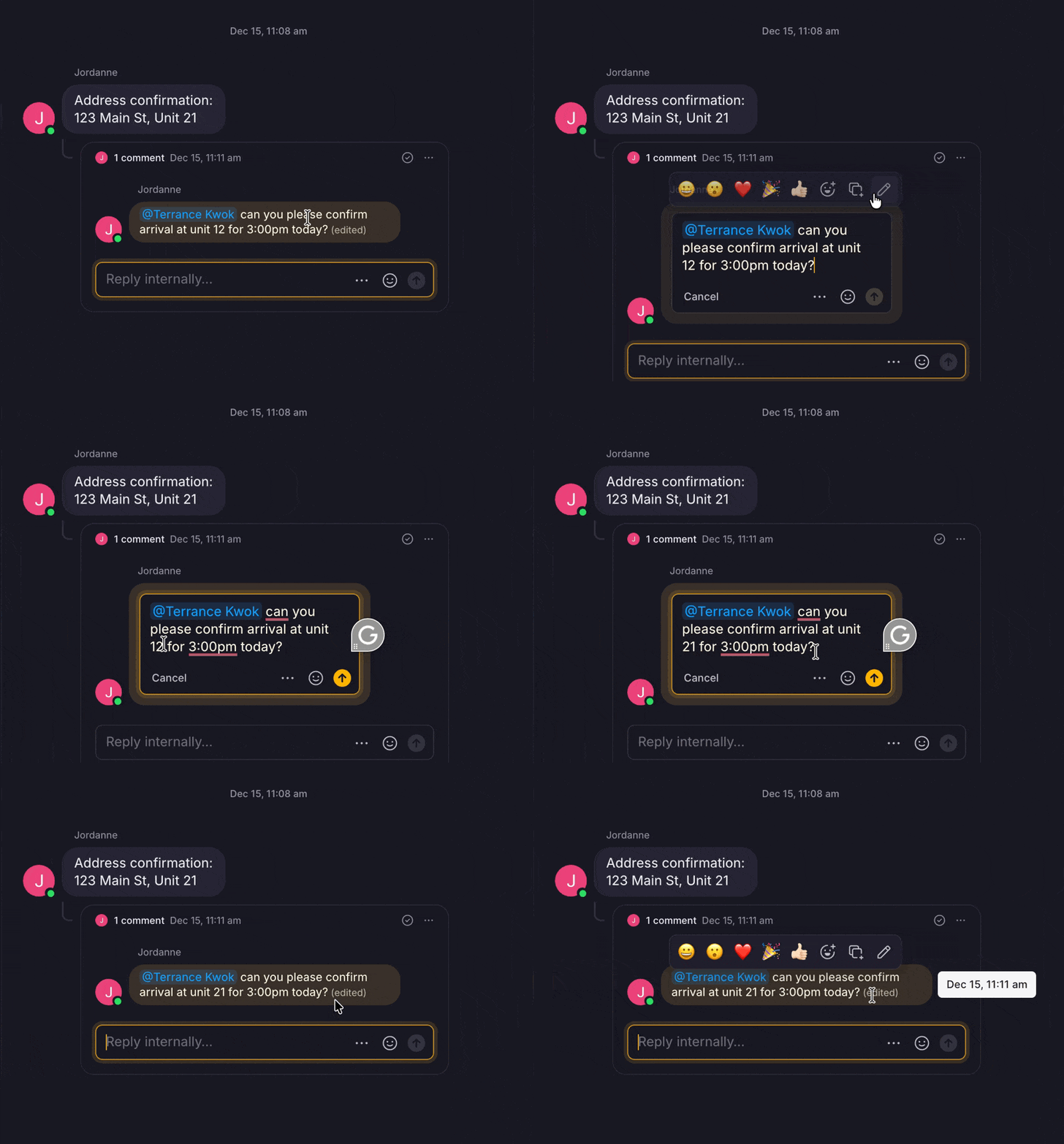
1. Hover over your comment in the thread
2. Click the menu icon that appears
3. Select **Edit comment**
4. Make your changes
5. Click **Save**
**Viewing and resolving on mobile:**
* Check **Activity** in bottom menu for mentions and notifications
* Long tap specific activity items to view context
* Tap comment → upper right corner → **"Mark thread as resolved"**
## Editing thread comments
You can edit your own internal thread comments after posting. This makes it easy to fix typos, add missing details, or clarify your message.
### Edit a comment
1. Hover over your comment in the thread
2. Click the menu icon that appears
3. Select **Edit comment**
4. Make your changes
5. Click **Save**
 ### How edits work
* You can only edit your own comments
* There is no time limit for editing comments
* Only the latest version of a comment is saved
* Hover over an edited comment to see the timestamp of the last edit
Editing thread comments is available on all plans and platforms, including iOS, Android, and web or desktop.
## Mentions and notifications
### How mentions work
**Mentioning teammates:**
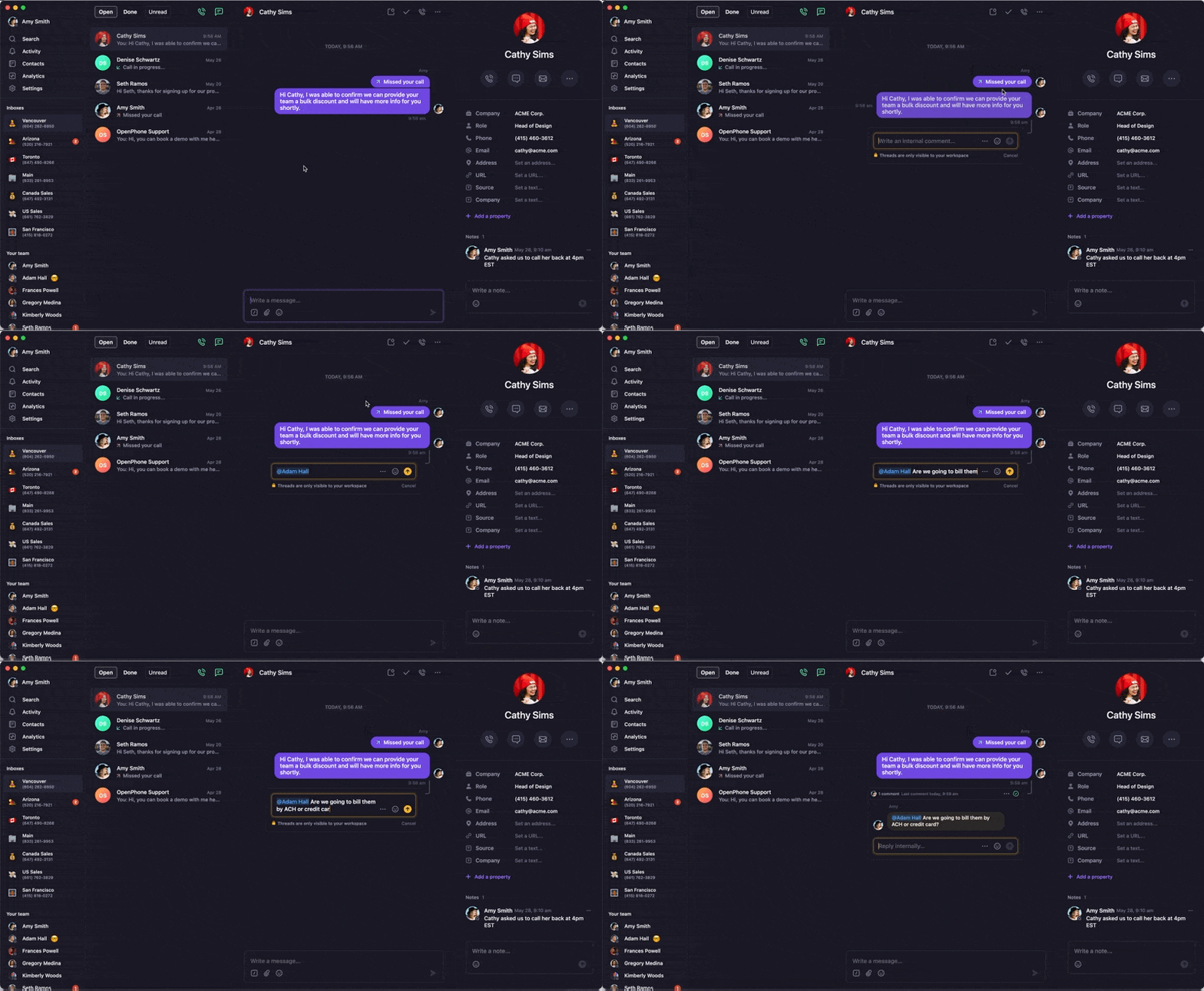
1. Type **"@"** followed by teammate or group name
2. Select from popup options as you type
3. Mentioned users receive activity notifications
4. Both sender and recipient see badge notifications
### How edits work
* You can only edit your own comments
* There is no time limit for editing comments
* Only the latest version of a comment is saved
* Hover over an edited comment to see the timestamp of the last edit
Editing thread comments is available on all plans and platforms, including iOS, Android, and web or desktop.
## Mentions and notifications
### How mentions work
**Mentioning teammates:**
1. Type **"@"** followed by teammate or group name
2. Select from popup options as you type
3. Mentioned users receive activity notifications
4. Both sender and recipient see badge notifications
 ### Activity notifications
**Notification system:**
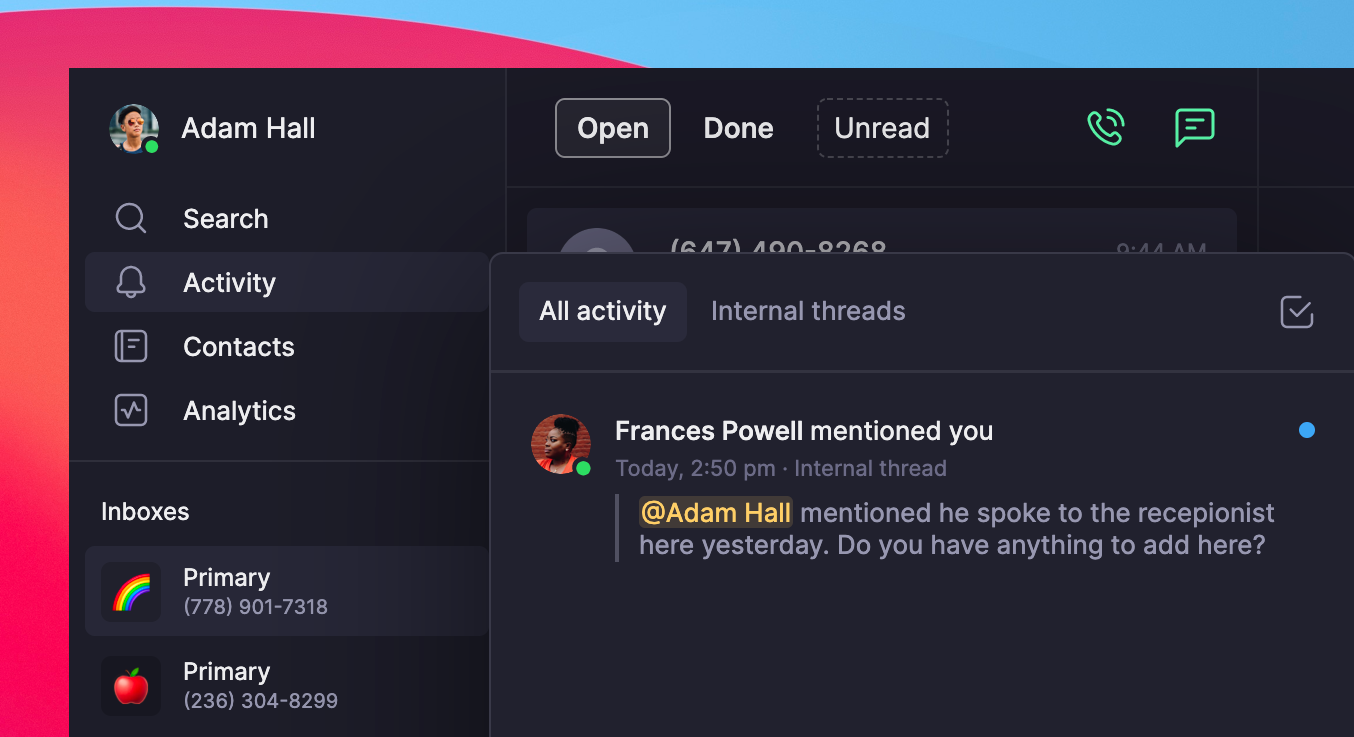
* Badge notifications appear next to **Activity** in left menu
* Centralized feed shows all mentions and thread activity
* Context provided for each notification
### Activity notifications
**Notification system:**
* Badge notifications appear next to **Activity** in left menu
* Centralized feed shows all mentions and thread activity
* Context provided for each notification
 Mentioned teammates must have access to the shared phone number to see the mention. Mentions are currently not available on Android.
## FAQs
Verify you have access to the specific phone number where the thread was created. Internal threads are only visible to users with shared number access.
Ensure the mentioned teammate has access to the shared phone number. On Android, mention functionality is not yet available.
Check that you're logged into Quo and have notification permissions enabled. Refresh the app or check the Activity feed manually.
Only team members with access to the shared number can mark threads as resolved. Ensure you have appropriate permissions for the phone number.
Historical threads remain visible only to users who had access when they were created. New team members see threads created after they gain access.
Yes, you can edit your own internal thread comments at any time. Edited comments show a timestamp, and only the latest version is saved.
You can only edit comments you created. Make sure you’re hovering over your own comment to see the edit option.
Mentioned teammates must have access to the shared phone number to see the mention. Mentions are currently not available on Android.
## FAQs
Verify you have access to the specific phone number where the thread was created. Internal threads are only visible to users with shared number access.
Ensure the mentioned teammate has access to the shared phone number. On Android, mention functionality is not yet available.
Check that you're logged into Quo and have notification permissions enabled. Refresh the app or check the Activity feed manually.
Only team members with access to the shared number can mark threads as resolved. Ensure you have appropriate permissions for the phone number.
Historical threads remain visible only to users who had access when they were created. New team members see threads created after they gain access.
Yes, you can edit your own internal thread comments at any time. Edited comments show a timestamp, and only the latest version is saved.
You can only edit comments you created. Make sure you’re hovering over your own comment to see the edit option.