> ## Documentation Index
> Fetch the complete documentation index at: https://support.quo.com/llms.txt
> Use this file to discover all available pages before exploring further.
# Inbox sharing
> Share phone numbers with team members for collaborative customer communication
## Overview
Shared phone numbers allow multiple team members to call and text from a single number, enabling collaborative customer communication. Teams can delegate tasks, stay updated on customer interactions, and ensure seamless communication continuity.
## How shared numbers work
### Collaborative features
**Simultaneous call handling:**
* Incoming calls ring for everyone with access
* First person to answer stops ringing for others
* Multiple concurrent calls supported - number never shows as busy
**Unified communication:**
* All messages, voicemail, and call history synced across team
* Clear identification of which team member sent each message
* Real-time typing indicators when teammates are responding
* Shared business address book for all team members
**Internal collaboration:**
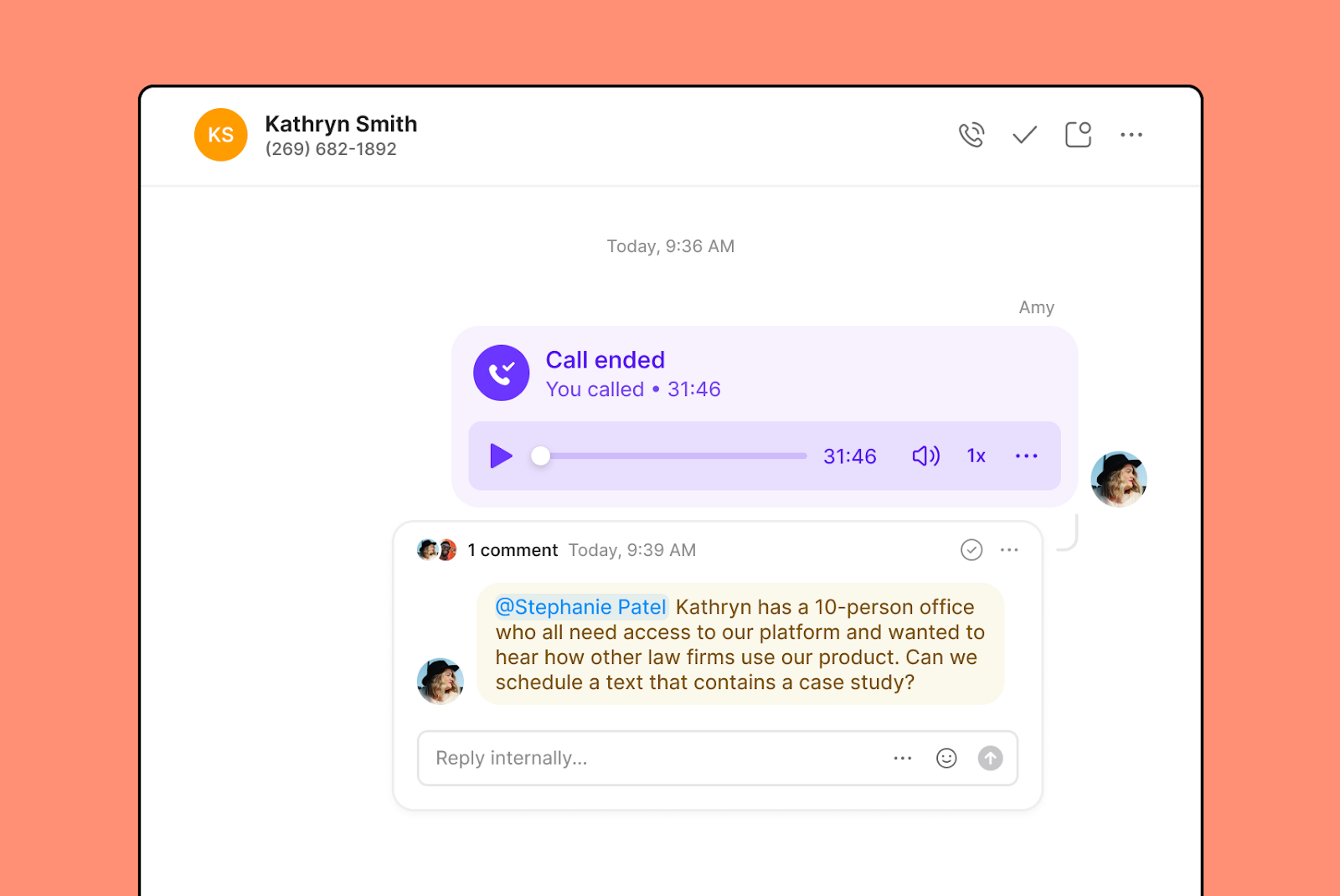
* Leave internal comments on messages, calls, or voicemail
* View and reply to internal threads
* See when conversations were opened and by whom
 ### User limits by plan
**Starter plan:**
* Up to **10 users** can call and text from one number
* Up to **10 people** can receive incoming calls simultaneously
**Business plan:**
* Up to **100 users** can call and text from one number
* Up to **10 people** can receive incoming calls simultaneously
For larger teams needing custom ring distribution to more than 10 people, set up ring groups with custom ring orders in call flows.
## Setting up shared numbers
### Adding team members to numbers
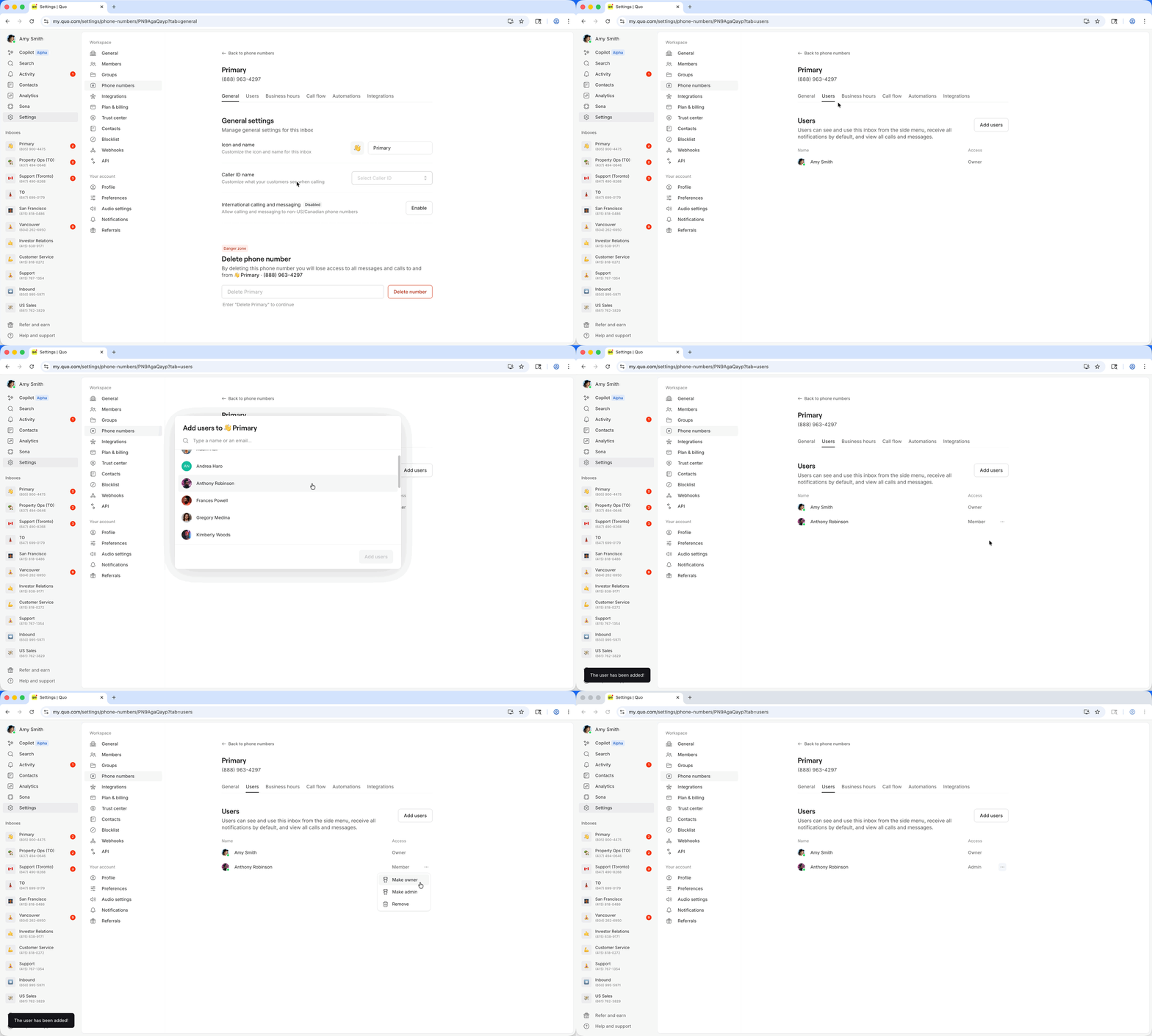
**From phone number settings:**
1. Go to **Settings** → **Phone Numbers**
2. Click the number you want to share
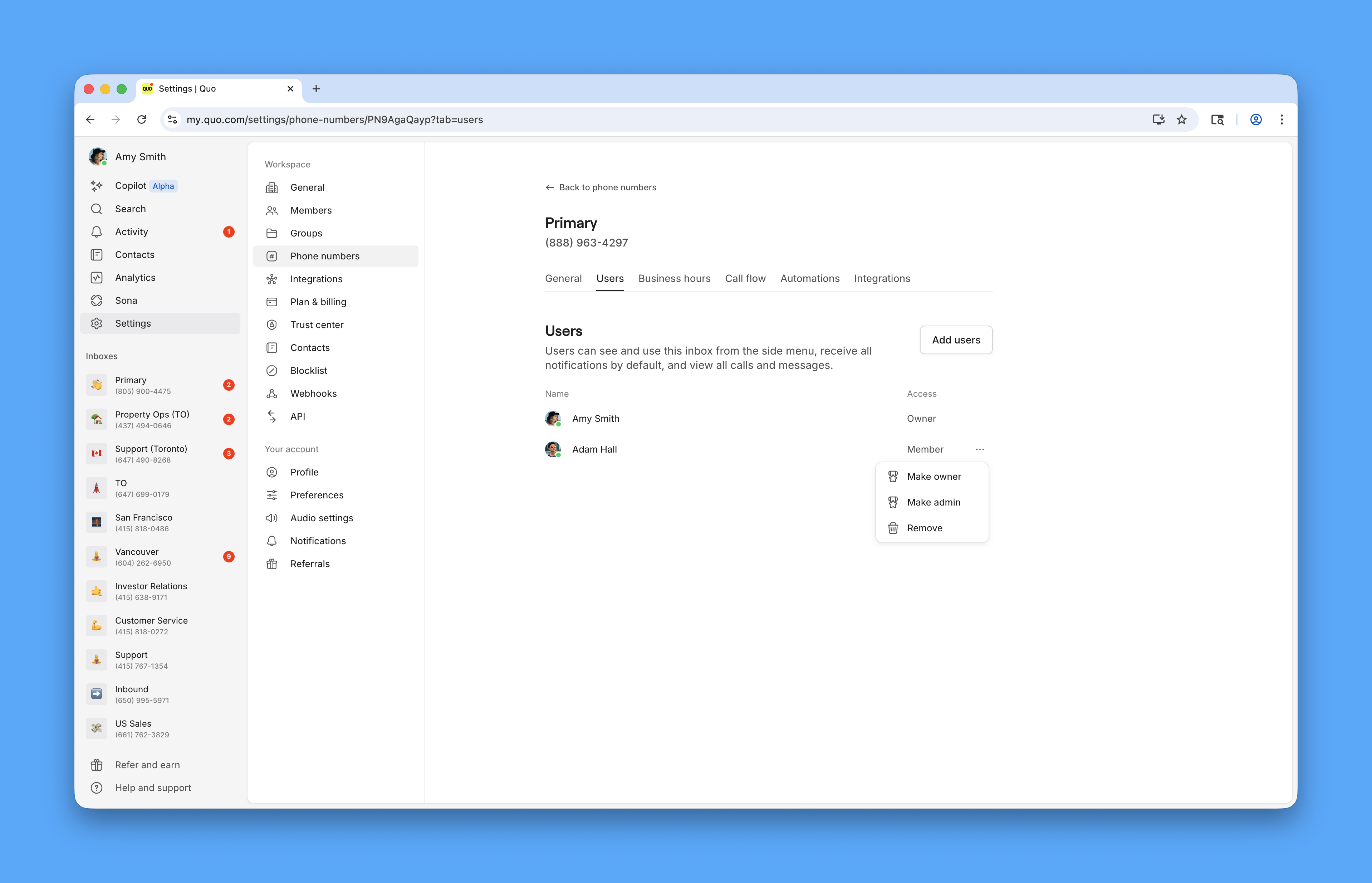
3. Under **Users**, click **Add users**
4. Search for and select team member
5. Users are automatically added as with **Member** permissions
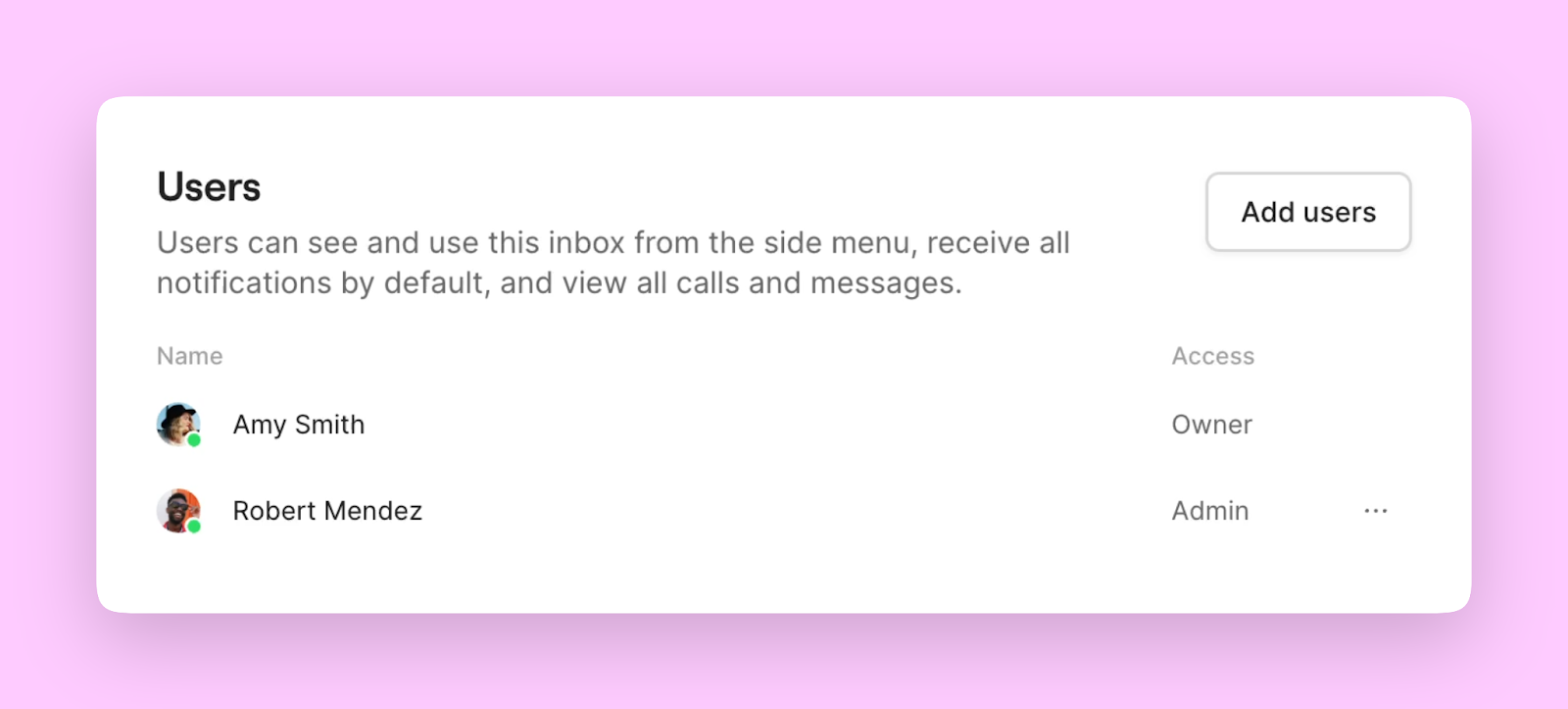
6. **Optional:** Click the three dots (...) to change someone's role (Admin or Owner)
### User limits by plan
**Starter plan:**
* Up to **10 users** can call and text from one number
* Up to **10 people** can receive incoming calls simultaneously
**Business plan:**
* Up to **100 users** can call and text from one number
* Up to **10 people** can receive incoming calls simultaneously
For larger teams needing custom ring distribution to more than 10 people, set up ring groups with custom ring orders in call flows.
## Setting up shared numbers
### Adding team members to numbers
**From phone number settings:**
1. Go to **Settings** → **Phone Numbers**
2. Click the number you want to share
3. Under **Users**, click **Add users**
4. Search for and select team member
5. Users are automatically added as with **Member** permissions
6. **Optional:** Click the three dots (...) to change someone's role (Admin or Owner)
 **From team member settings:**
1. Go to **Settings** → **Members**
2. Enter colleague's email address
3. Specify their role (Owner, Admin, or Member)
4. Select phone numbers they should access
5. Send invitation
**From team member settings:**
1. Go to **Settings** → **Members**
2. Enter colleague's email address
3. Specify their role (Owner, Admin, or Member)
4. Select phone numbers they should access
5. Send invitation
 ### Permission levels
**Owner access:**
* Full control of the phone number settings
* Can add or remove team members from the number
* Full calling and texting capabilities
* Internal thread and comment access
**Admin access:**
* Can modify phone number settings
* Can add other team members to the number
* Full calling and texting capabilities
* Internal thread and comment access
Only account **Owners and Admins** can assign numbers to team members. This feature is available on web, desktop, and iOS apps.
**Member access:**
* Calling and texting capabilities
* View all conversations and history
* Internal thread and comment access
* Cannot modify settings or add users
### Permission levels
**Owner access:**
* Full control of the phone number settings
* Can add or remove team members from the number
* Full calling and texting capabilities
* Internal thread and comment access
**Admin access:**
* Can modify phone number settings
* Can add other team members to the number
* Full calling and texting capabilities
* Internal thread and comment access
Only account **Owners and Admins** can assign numbers to team members. This feature is available on web, desktop, and iOS apps.
**Member access:**
* Calling and texting capabilities
* View all conversations and history
* Internal thread and comment access
* Cannot modify settings or add users
 View complete feature comparisons and current pricing on our [pricing page](https://www.quo.com/pricing).
## FAQs
Verify the team member has been added to the specific phone number in **Settings** → **Phone Numbers**. Access is granted per number, not account-wide.
Check that all team members have the Quo app installed and notifications enabled, and that they're logged into their accounts on their devices.
Only account Owners and Admins can add users to phone numbers. Verify your role permissions and ensure you're using a supported platform (web, desktop, or iOS).
Internal threads are only visible to users who have access to the specific phone number. Ensure all relevant team members are added to the shared number.
Check your plan's user limits (10 for Starter, 100 for Business). Consider upgrading your plan or redistributing users across multiple numbers.
Owners have full control over the number and can add or move members. Admins can modify number settings and add users, but cannot remove users. Members can call and text but cannot modify settings or manage access. Workspace-wide Owners and Admins can always manage any number regardless of number-level role.
***
**Need help?** [Submit a support request](https://support.quo.com/help/submit-a-request) and we'll jump in.
View complete feature comparisons and current pricing on our [pricing page](https://www.quo.com/pricing).
## FAQs
Verify the team member has been added to the specific phone number in **Settings** → **Phone Numbers**. Access is granted per number, not account-wide.
Check that all team members have the Quo app installed and notifications enabled, and that they're logged into their accounts on their devices.
Only account Owners and Admins can add users to phone numbers. Verify your role permissions and ensure you're using a supported platform (web, desktop, or iOS).
Internal threads are only visible to users who have access to the specific phone number. Ensure all relevant team members are added to the shared number.
Check your plan's user limits (10 for Starter, 100 for Business). Consider upgrading your plan or redistributing users across multiple numbers.
Owners have full control over the number and can add or move members. Admins can modify number settings and add users, but cannot remove users. Members can call and text but cannot modify settings or manage access. Workspace-wide Owners and Admins can always manage any number regardless of number-level role.
***
**Need help?** [Submit a support request](https://support.quo.com/help/submit-a-request) and we'll jump in.