> ## Documentation Index
> Fetch the complete documentation index at: https://support.quo.com/llms.txt
> Use this file to discover all available pages before exploring further.
# How to collaborate better as a team in Quo
> Set up shared inboxes, roles, and settings that make teamwork easier and help your team stay aligned in Quo.
Looking to reduce your response times or work together to reply to customers? With Quo (formerly OpenPhone), you can easily collaborate alongside your team to deliver a better experience.
This article breaks down how you can collaborate with your team and efficiently communicate with your customers.
## **Set up your workspace to foster collaboration**
Help your team collaborate by bringing them together in Quo. Here are the essential settings you need to create a collaborative workspace:
### **Share a number with your team**
The first step to splitting responsibility for incoming calls and texts with your team is to share your number with them.
There are two ways you can share a number with your team:
**New Quo users:** Invite team members who aren’t already in your Quo workspace.
1. Select **Invite your team** under the list of team members in your workspace.
2. Enter emails for colleagues you wish to invite.
3. Choose their number assignment — **Shared** or **Direct**.
4. Select their workspace role — **Member** or **Admin**.
5. Click **Send invites** to the list of invited team members.
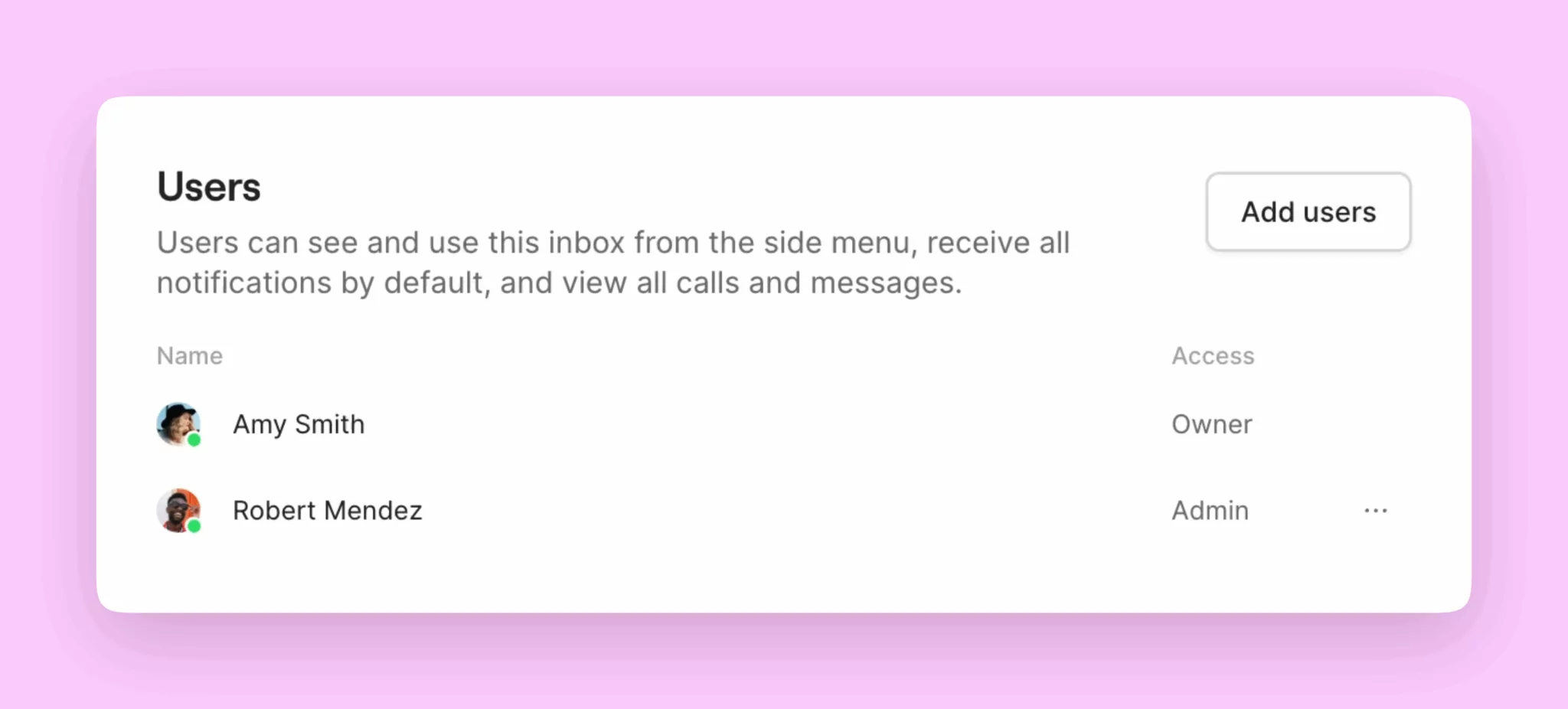
**Existing users:** Add teammates to a number in your workspace.
1. Go to **Settings → Phone numbers**
2. Select the phone number you wish to share
3. Go to **Users → Add users**
 ### **Customize your ring groups and work schedules**
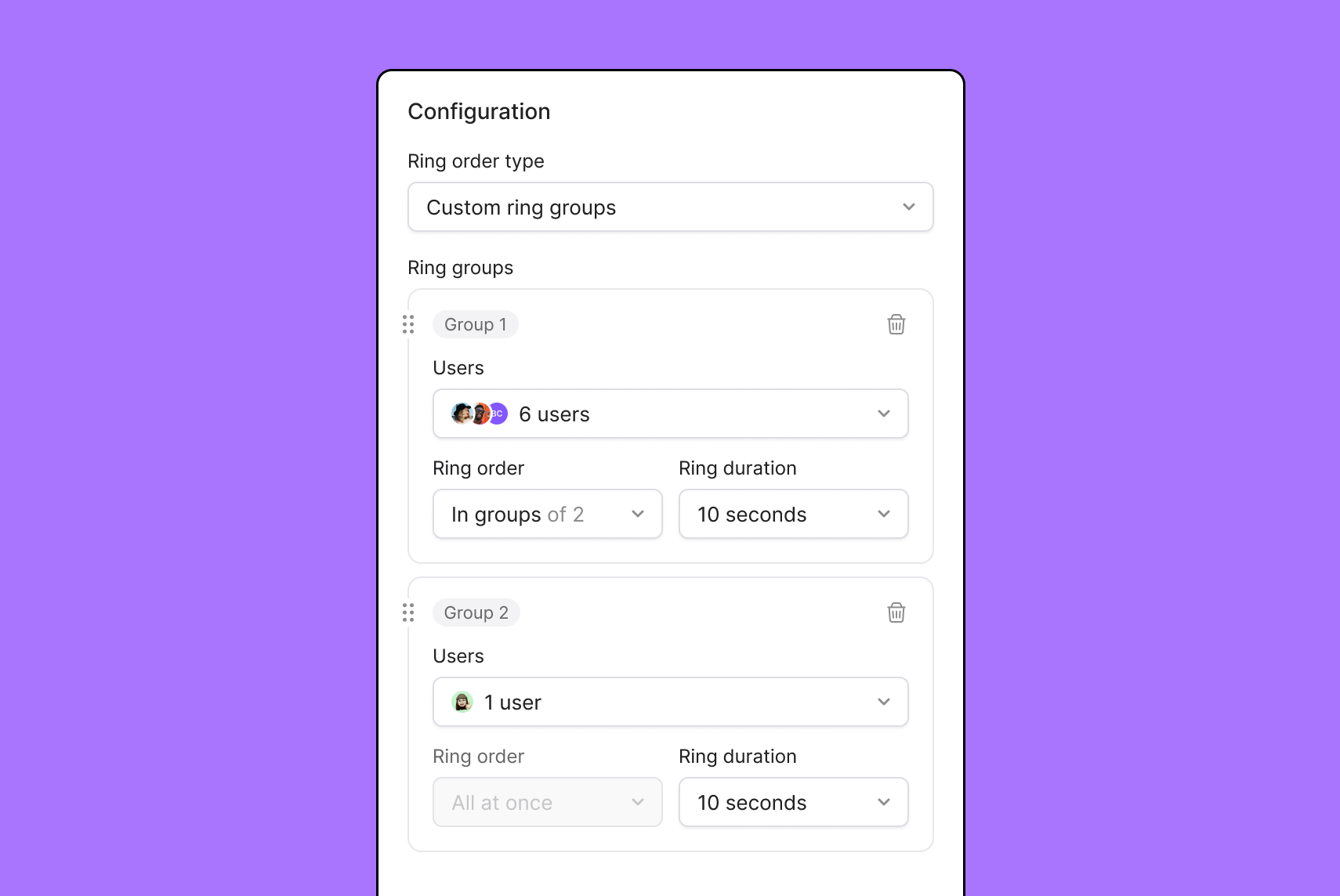
With Quo (formerly OpenPhone), you can share incoming calls with your team just the way you like. Choose which members of your team get dialed first during business hours with ring order.
By default, incoming calls will dial all users of a shared number. With custom ring order, you can decide which members receive incoming calls first.
To set up your ring groups:
1. Open Quo on web or desktop
2. Navigate to **Settings** → **Phone numbers**
3. Select the number to configure
4. Click **Edit call flow** under Call flow section
5. Drag the **Ring users** call flow step into canvas
6. Place after:
* Incoming call trigger
* Business hours condition
* Phone menu selection
7. Configure ring strategy and timing
### **Customize your ring groups and work schedules**
With Quo (formerly OpenPhone), you can share incoming calls with your team just the way you like. Choose which members of your team get dialed first during business hours with ring order.
By default, incoming calls will dial all users of a shared number. With custom ring order, you can decide which members receive incoming calls first.
To set up your ring groups:
1. Open Quo on web or desktop
2. Navigate to **Settings** → **Phone numbers**
3. Select the number to configure
4. Click **Edit call flow** under Call flow section
5. Drag the **Ring users** call flow step into canvas
6. Place after:
* Incoming call trigger
* Business hours condition
* Phone menu selection
7. Configure ring strategy and timing
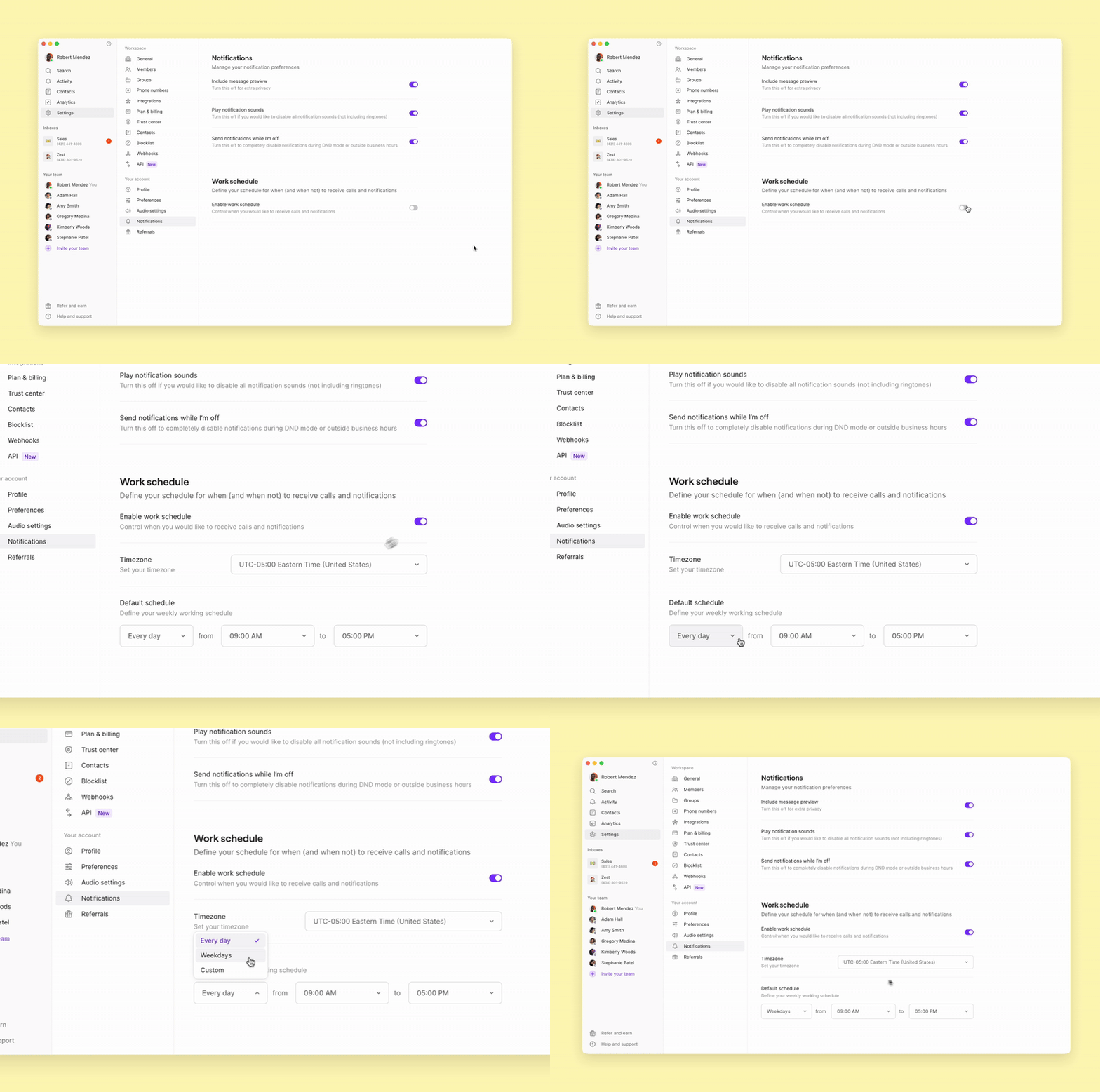
 Team members who work in shifts can set individual [work schedules](https://support.quo.com/core-concepts/account/schedule) to control when they receive incoming calls and messages. Having a work schedule doesn’t just make it easier to take turns using a shared number, it also promotes a healthy work-life balance for your team.
To set your work schedule:
* Click [**Settings**](https://my.quo.com/settings/) from the left-hand menu
* Under Your account, select [**Notifications**](https://my.quo.com/settings/notifications)
* Scroll down to the Work schedule section and toggle on **Enable work schedule**
* Set the times in which you are available during the week to take calls and wish to receive notifications.
Team members who work in shifts can set individual [work schedules](https://support.quo.com/core-concepts/account/schedule) to control when they receive incoming calls and messages. Having a work schedule doesn’t just make it easier to take turns using a shared number, it also promotes a healthy work-life balance for your team.
To set your work schedule:
* Click [**Settings**](https://my.quo.com/settings/) from the left-hand menu
* Under Your account, select [**Notifications**](https://my.quo.com/settings/notifications)
* Scroll down to the Work schedule section and toggle on **Enable work schedule**
* Set the times in which you are available during the week to take calls and wish to receive notifications.
 ### **Add custom properties and enable call transcriptions**
Custom properties and transcriptions give your team additional customer context. They ensure that your colleagues can quickly catch up on past customer conversations and can build on existing relationships, which makes handoffs easier.
Here are a few example custom properties to get you started:
* **Lead status:** Use the **Multi-select** option to track contacts through your sales process, from ‘Prospect’ to ‘Closed Won’.
* **Priority:** You can also use the **Multi-select** option to track customers depending on their priority for your business. For example, if you want to flag VIP or Churn Risk customers.
* **Next appointment:** Use the **Date** field to add when an upcoming call is scheduled with a contact.
* **Website:** Use the **URL** field to add a customer’s website so that your team can quickly check the products and services a contact offers.
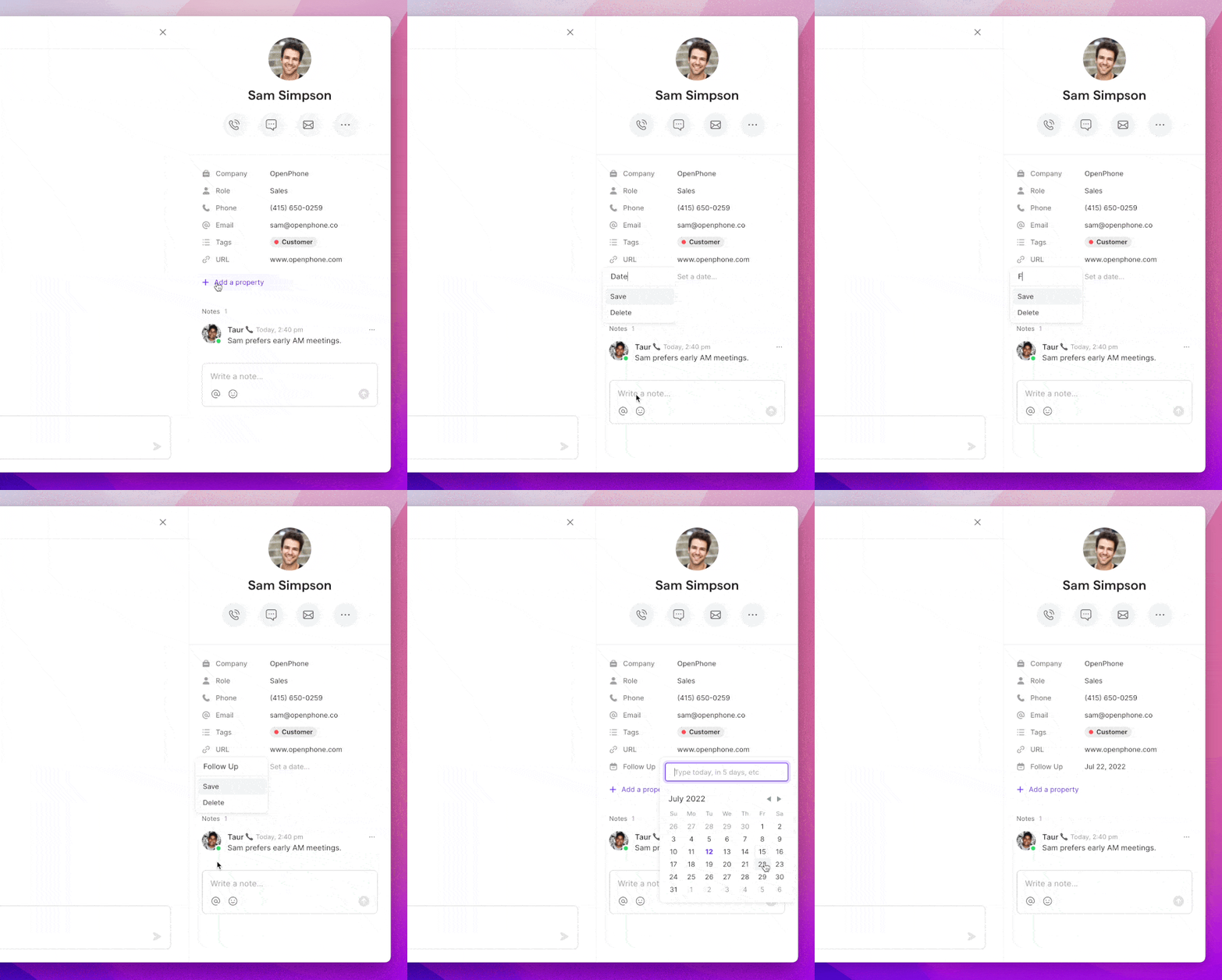
To add a custom property:
1. Select a contact from an existing conversation in your **Chats** view or go to your **Contacts**.
2. You will see a set of information for your chosen contact such as their name and number. Here you can add their company name and role, a follow-up date, or whatever you choose.
3. To add another field, select **+ Add a Property**
4. A dropdown menu will appear. You’ll see options to add Multi-select tags, dates, URLs, addresses, and much more.
### **Add custom properties and enable call transcriptions**
Custom properties and transcriptions give your team additional customer context. They ensure that your colleagues can quickly catch up on past customer conversations and can build on existing relationships, which makes handoffs easier.
Here are a few example custom properties to get you started:
* **Lead status:** Use the **Multi-select** option to track contacts through your sales process, from ‘Prospect’ to ‘Closed Won’.
* **Priority:** You can also use the **Multi-select** option to track customers depending on their priority for your business. For example, if you want to flag VIP or Churn Risk customers.
* **Next appointment:** Use the **Date** field to add when an upcoming call is scheduled with a contact.
* **Website:** Use the **URL** field to add a customer’s website so that your team can quickly check the products and services a contact offers.
To add a custom property:
1. Select a contact from an existing conversation in your **Chats** view or go to your **Contacts**.
2. You will see a set of information for your chosen contact such as their name and number. Here you can add their company name and role, a follow-up date, or whatever you choose.
3. To add another field, select **+ Add a Property**
4. A dropdown menu will appear. You’ll see options to add Multi-select tags, dates, URLs, addresses, and much more.
 Call transcriptions also make following up and personalizing every conversation as a team easier. To enable call transcriptions:
* Go to **Settings → Phone numbers**.
* Select the phone number for which you want to enable transcriptions.
* Go to the **Call assistant** and toggle on **Transcribe and summarize calls**.
Call transcriptions are available to Business and Scale plan users.
## **Loop in your team where it matters**
After you’ve set up your shared number, you can work together on any incoming call or message. Here’s how:
### **Start a group call with your team**
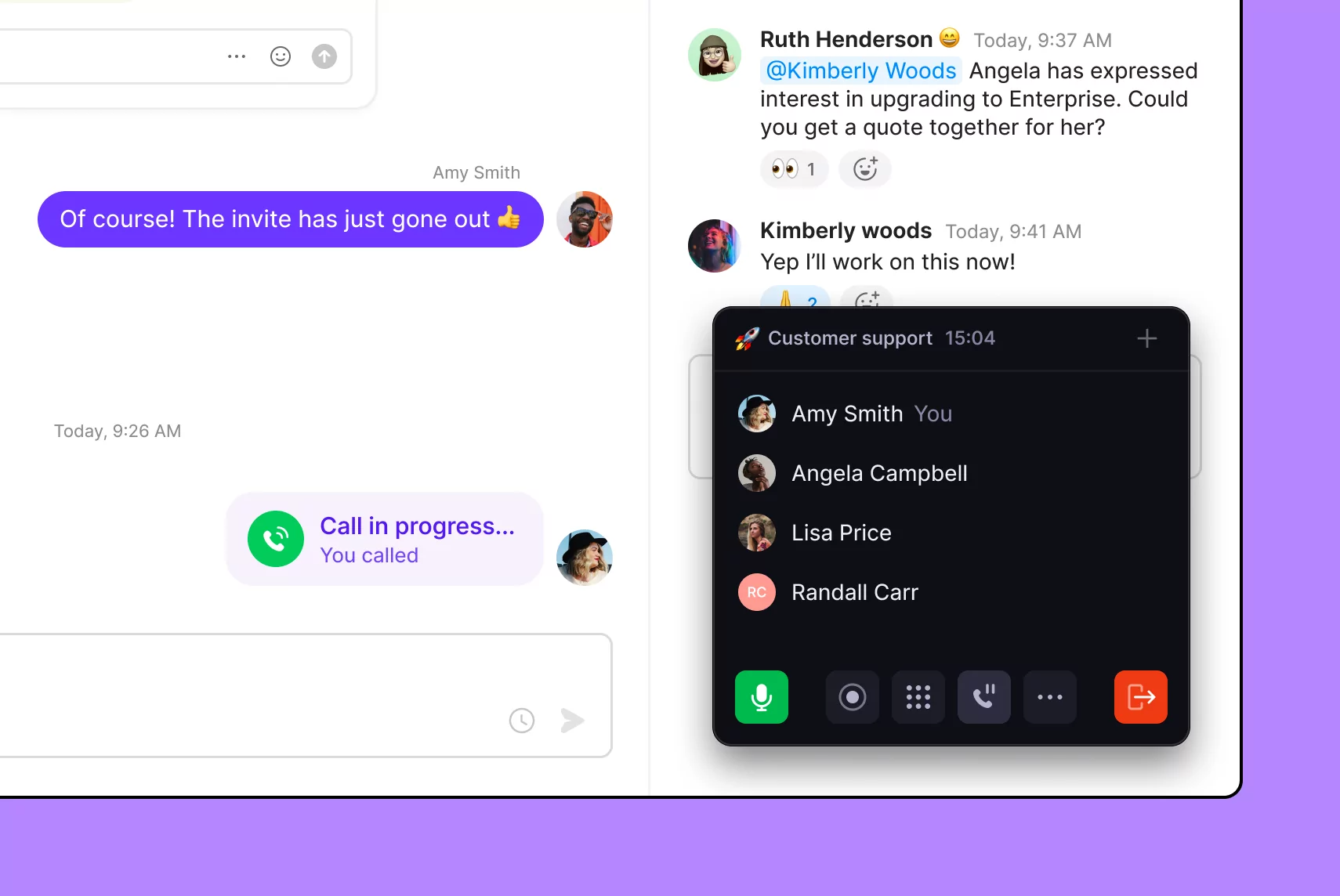
Want to work through a customer problem as a team? Or add a team member for a call escalation? Adding team members to an existing call or starting a new group call is easy. Here’s how you can do it:
1. During a call, click the **+👤 icon** on the call screen.
2. Add people to the call by typing in a contact’s name or phone number in the search bar. If you invite teammates in your workspace to a group call, you can add a short message to be sent along with the call invitation. Once you’re ready to invite the contact, hit **Add**.
In live coaching situations where teammates want to listen in to provide feedback, **make sure to put customers on hold** before dialing colleagues in.
Group calling is available to Business and Scale plan users.
Call transcriptions also make following up and personalizing every conversation as a team easier. To enable call transcriptions:
* Go to **Settings → Phone numbers**.
* Select the phone number for which you want to enable transcriptions.
* Go to the **Call assistant** and toggle on **Transcribe and summarize calls**.
Call transcriptions are available to Business and Scale plan users.
## **Loop in your team where it matters**
After you’ve set up your shared number, you can work together on any incoming call or message. Here’s how:
### **Start a group call with your team**
Want to work through a customer problem as a team? Or add a team member for a call escalation? Adding team members to an existing call or starting a new group call is easy. Here’s how you can do it:
1. During a call, click the **+👤 icon** on the call screen.
2. Add people to the call by typing in a contact’s name or phone number in the search bar. If you invite teammates in your workspace to a group call, you can add a short message to be sent along with the call invitation. Once you’re ready to invite the contact, hit **Add**.
In live coaching situations where teammates want to listen in to provide feedback, **make sure to put customers on hold** before dialing colleagues in.
Group calling is available to Business and Scale plan users.
 ### **Work behind-the-scenes together**
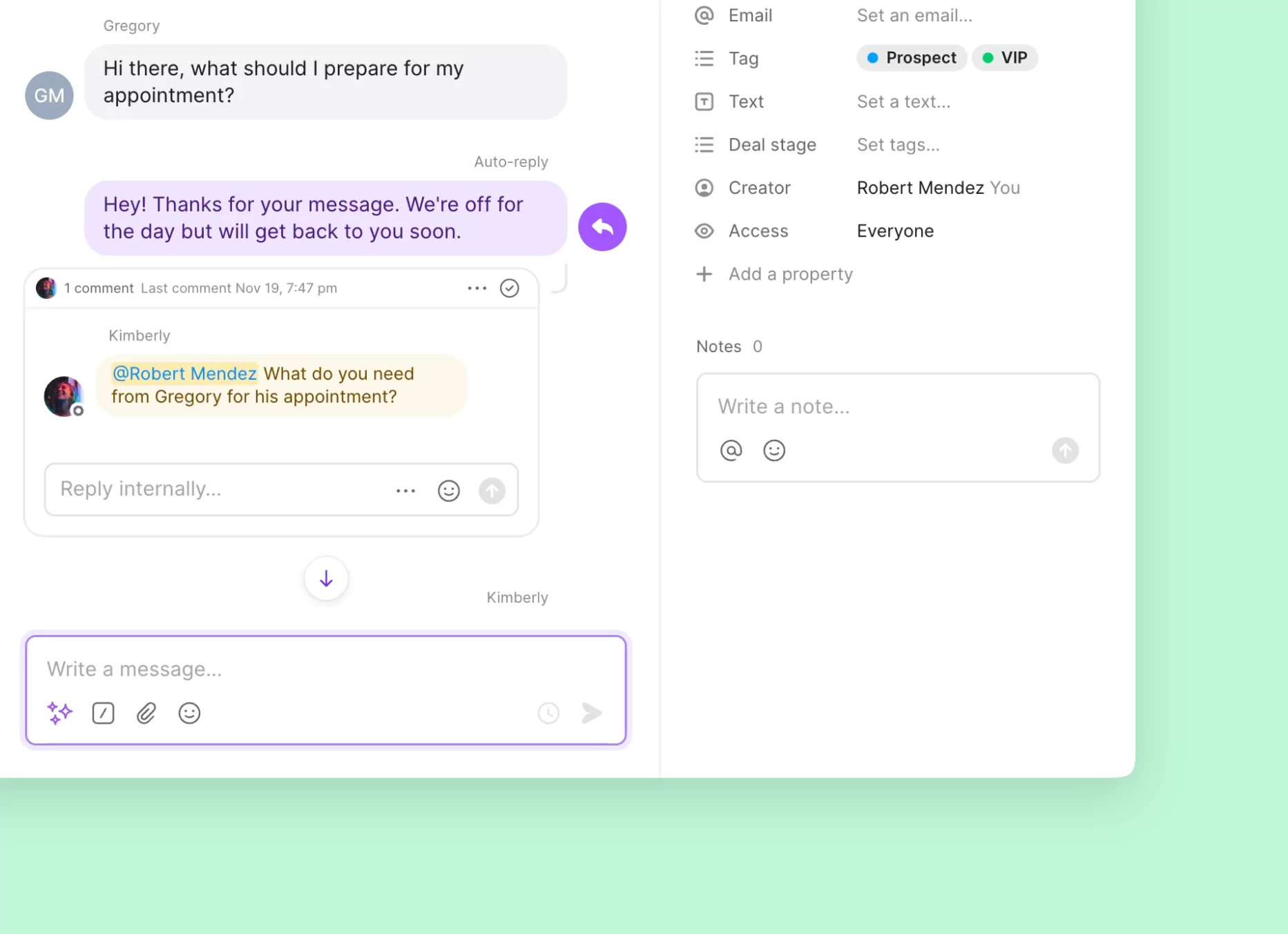
Need help from a colleague to craft the right reply? Want a specific team member to take the lead on a customer issue? Tag them in an internal thread to notify them.
[Internal threads](https://support.quo.com/core-concepts/team-collaboration/internal-threads#adding-thread-comments) are the easiest way to collaborate and assign tasks in Quo because it gives your team the same shared context. Leave a comment right under an activity — texts, missed calls, voicemails, and more — to get a team discussion going.
To create an internal thread:
1. For a conversation, hover over any text message or call and select **Comment in internal thread**.
2. **Type @ and start typing the team member’s name** – select their name when it pops up.
3. Type out the rest of your message and **Send**.
### **Work behind-the-scenes together**
Need help from a colleague to craft the right reply? Want a specific team member to take the lead on a customer issue? Tag them in an internal thread to notify them.
[Internal threads](https://support.quo.com/core-concepts/team-collaboration/internal-threads#adding-thread-comments) are the easiest way to collaborate and assign tasks in Quo because it gives your team the same shared context. Leave a comment right under an activity — texts, missed calls, voicemails, and more — to get a team discussion going.
To create an internal thread:
1. For a conversation, hover over any text message or call and select **Comment in internal thread**.
2. **Type @ and start typing the team member’s name** – select their name when it pops up.
3. Type out the rest of your message and **Send**.
 ## **Pro tip:** Is your team spending a lot of time drafting responses to common questions?
One way to increase your team’s efficiency and stay on brand is to use [snippets](https://support.quo.com/core-concepts/messaging/snippets). Create text templates that answer your most common questions and save them in Quo.
Your team can simply hit **/snippets** in your text box to quickly answer questions and keep their conversations moving.
### **Follow up when absolutely necessary**
Constantly checking in with a colleague on whether they’ve received a recording or a conversation gets old fast.
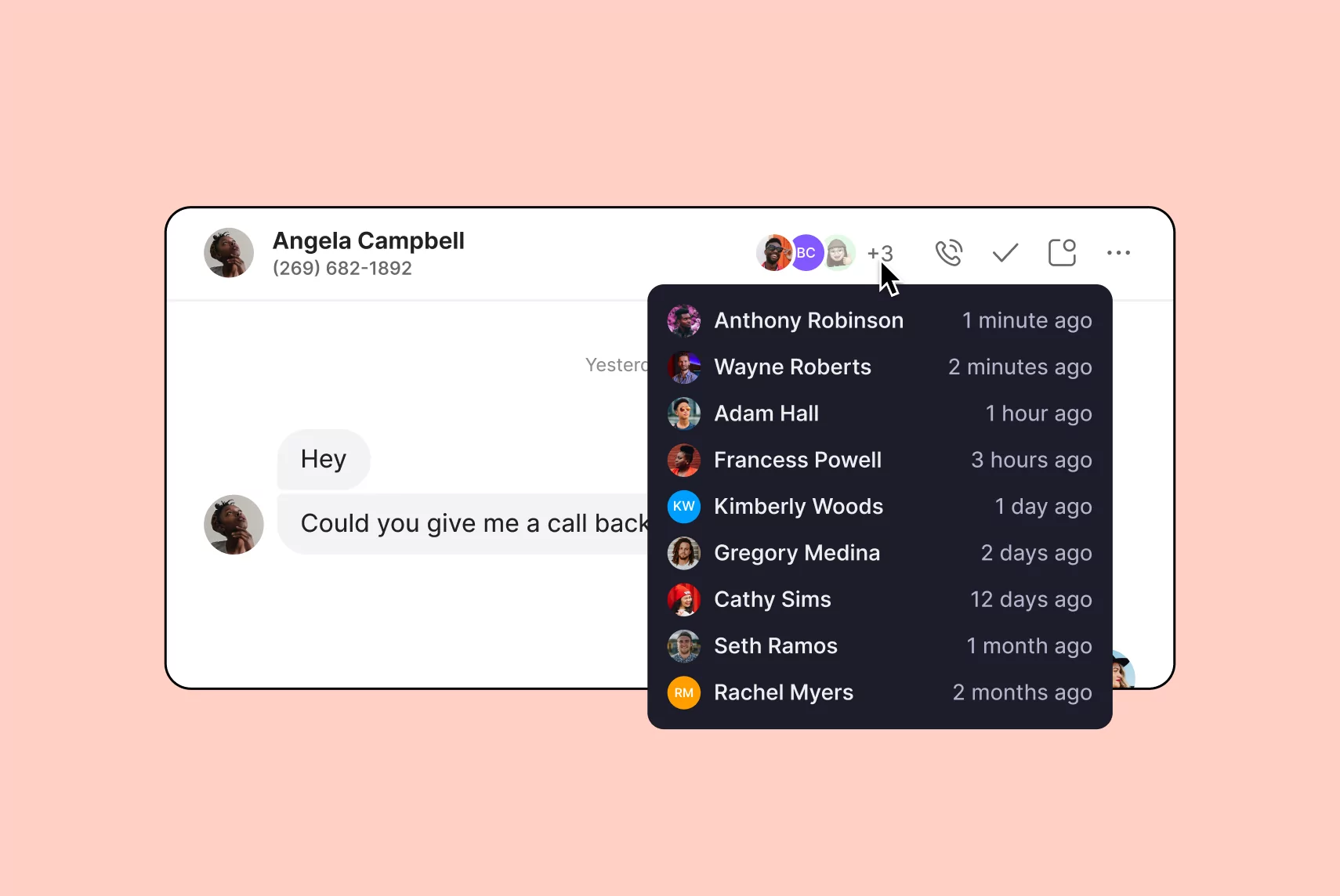
Inbox viewers reduces the need to follow up repeatedly. Effortlessly track who’s in the loop by seeing a list of team members currently or previously viewing a conversation.
Inbox viewers is enabled by default and you’ll see it in your Quo inbox after sharing your number with your team.
## **Pro tip:** Is your team spending a lot of time drafting responses to common questions?
One way to increase your team’s efficiency and stay on brand is to use [snippets](https://support.quo.com/core-concepts/messaging/snippets). Create text templates that answer your most common questions and save them in Quo.
Your team can simply hit **/snippets** in your text box to quickly answer questions and keep their conversations moving.
### **Follow up when absolutely necessary**
Constantly checking in with a colleague on whether they’ve received a recording or a conversation gets old fast.
Inbox viewers reduces the need to follow up repeatedly. Effortlessly track who’s in the loop by seeing a list of team members currently or previously viewing a conversation.
Inbox viewers is enabled by default and you’ll see it in your Quo inbox after sharing your number with your team.
 Want to go deeper on managing your team and inbox? Here are a few related resources for you:
* [How to analyze and improve team performance](https://www.quo.com/blog/analyze-and-improve-team-performance/)
* [How to prevent conversations from slipping through the cracks](https://www.quo.com/blog/prevent-conversations-from-slipping-through-cracks/)
Want to go deeper on managing your team and inbox? Here are a few related resources for you:
* [How to analyze and improve team performance](https://www.quo.com/blog/analyze-and-improve-team-performance/)
* [How to prevent conversations from slipping through the cracks](https://www.quo.com/blog/prevent-conversations-from-slipping-through-cracks/)