> ## Documentation Index
> Fetch the complete documentation index at: https://support.quo.com/llms.txt
> Use this file to discover all available pages before exploring further.
# Message snippets
> Create, share, and use snippets for quick messaging and consistent responses
## Overview
Snippets (also known as canned responses, saved replies, or message templates) help you send common messages quickly and consistently. Perfect for sales teams, customer support, operations, and marketing, snippets eliminate repetitive typing and ensure professional, standardized communication across your team.
Snippets are available on all Quo, formerly OpenPhone, plans and work across web, desktop, Android, and iOS apps.
## Creating snippets
### **Watch a quick overview**
### Basic snippet creation
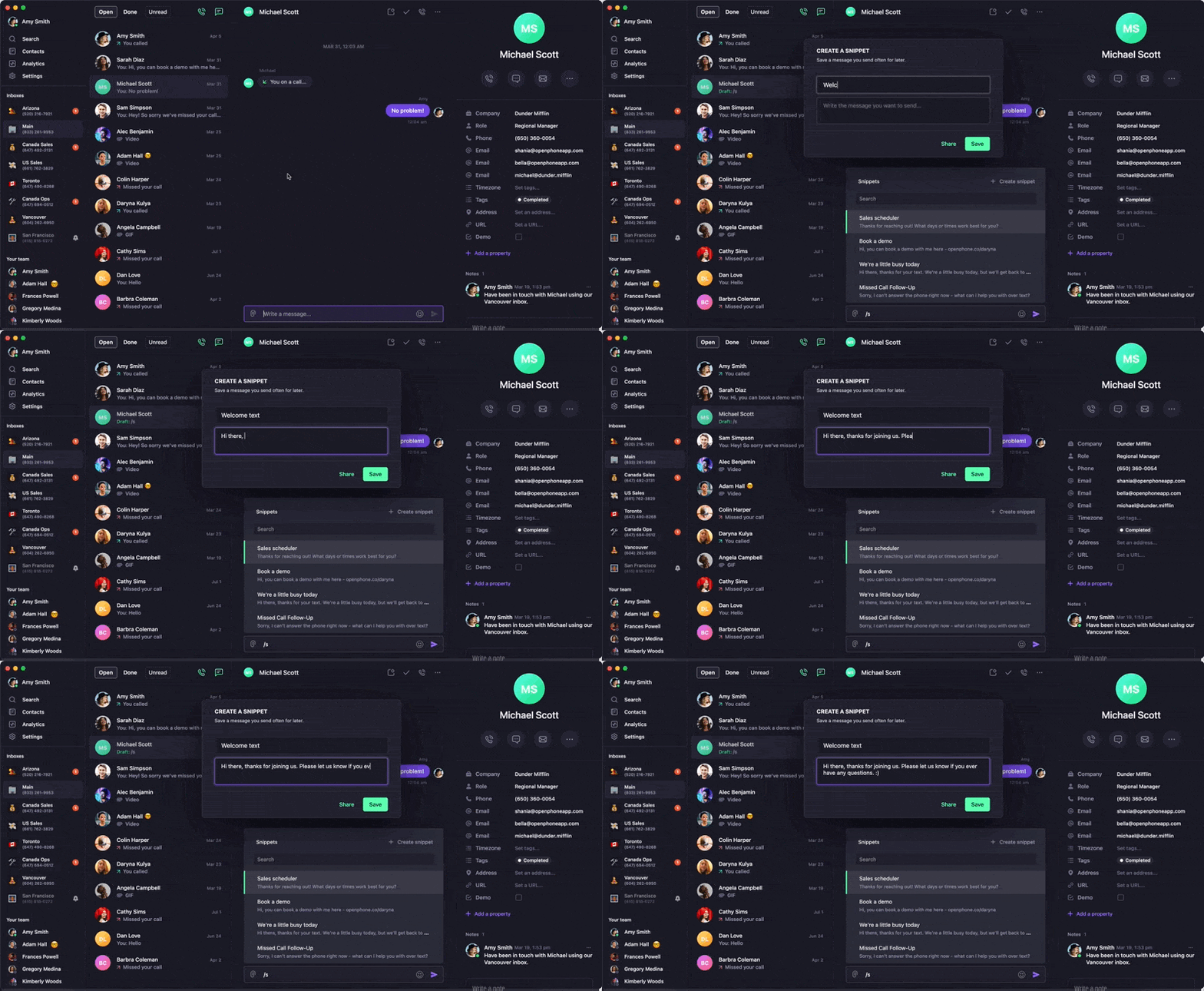
1. **Navigate to any message thread** in your inbox
2. **`Type /snippets`** in the message box and press **Enter**
3. **Click "+ Create snippet"** from the popup menu
4. **Enter snippet details**:
* Snippet name (for easy identification)
* Message content
* Sharing preferences
5. **Click "Save"** to create your snippet
 Access interactive demos, videos, and more in the Quo Academy.
1. **Open any conversation**
2. **`Type /snippets`** in the message field
3. **Tap "+ Create snippet"**
4. **Fill in snippet information**:
* Name and message content
* Team sharing options
5. **Save your snippet**
***
### Snippet sharing options
**Individual use:** Create personal snippets that only you can access for your specific messaging needs.
**Team sharing:** Share snippets with:
* Specific team members
* All users in your workspace
* Specific phone numbers/departments
**Benefits of team sharing:**
* Consistent brand voice across communications
* Standardized responses for common inquiries
* Faster onboarding for new team members
* Quality control for customer interactions
***
## Using snippets
### Accessing snippets
**Quick access method:**
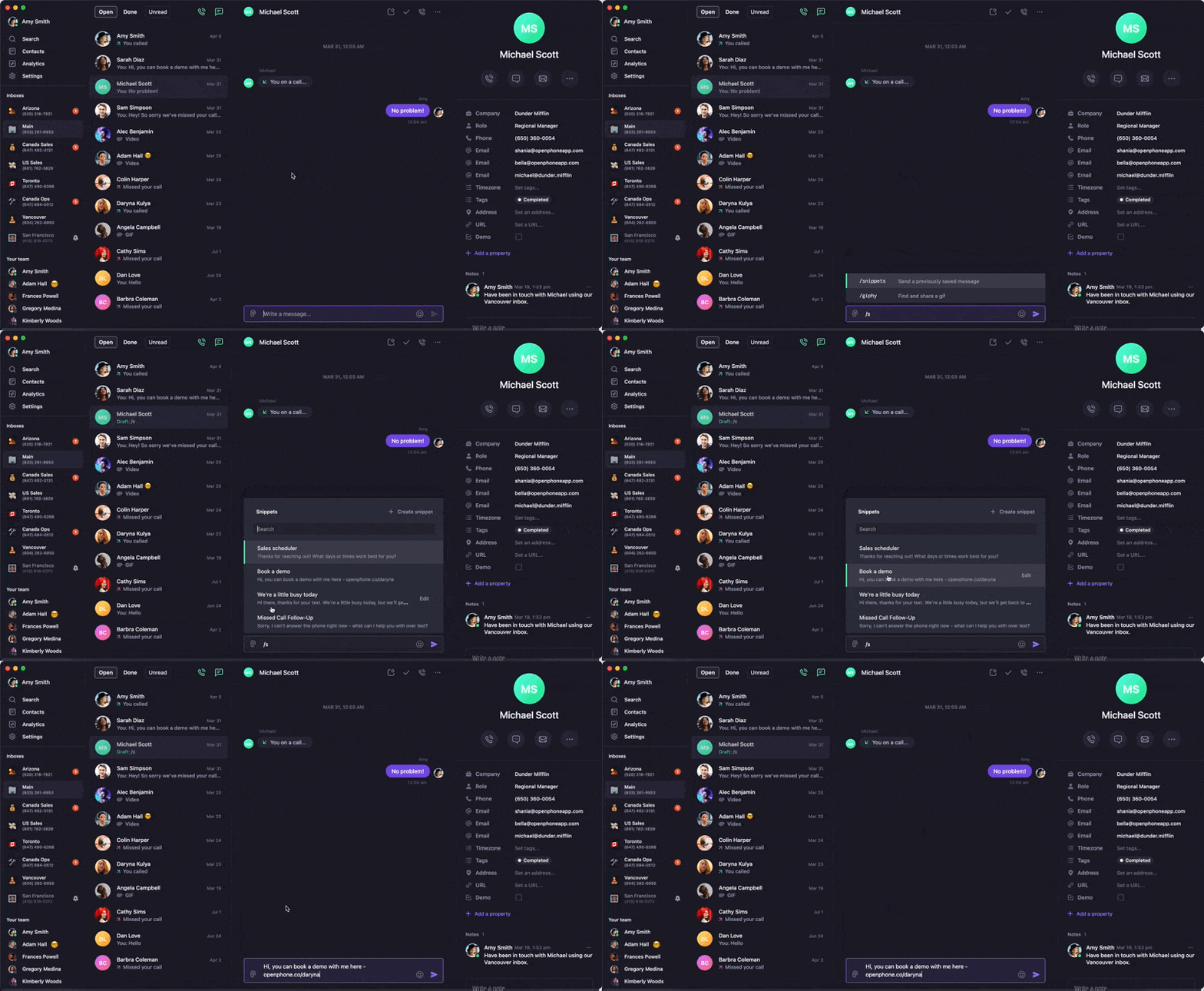
1. **`Type /`** in any message box to open the command menu
2. **`Select /snippets`** from the available options
3. **Choose your desired snippet** from the list
4. **Customize if needed** and send
Access interactive demos, videos, and more in the Quo Academy.
1. **Open any conversation**
2. **`Type /snippets`** in the message field
3. **Tap "+ Create snippet"**
4. **Fill in snippet information**:
* Name and message content
* Team sharing options
5. **Save your snippet**
***
### Snippet sharing options
**Individual use:** Create personal snippets that only you can access for your specific messaging needs.
**Team sharing:** Share snippets with:
* Specific team members
* All users in your workspace
* Specific phone numbers/departments
**Benefits of team sharing:**
* Consistent brand voice across communications
* Standardized responses for common inquiries
* Faster onboarding for new team members
* Quality control for customer interactions
***
## Using snippets
### Accessing snippets
**Quick access method:**
1. **`Type /`** in any message box to open the command menu
2. **`Select /snippets`** from the available options
3. **Choose your desired snippet** from the list
4. **Customize if needed** and send
 ### Snippet search and selection
**Search functionality:**
* Type keywords in the search bar to find specific snippets
* Browse by category or recent usage
* Filter by personal vs. shared snippets
**Message customization:**
* Edit snippet content before sending
* Add personalized details to template messages
* Combine multiple snippets if needed
***
### Common snippet categories
**Customer service:**
* Appointment confirmations and reminders
* Business hours and contact information
* Frequently asked questions responses
* Service follow-up messages
**Sales and marketing:**
* Product information and pricing
* Meeting scheduling messages
* Thank you and welcome messages
* Promotional announcements
**Operations:**
* Delivery and pickup notifications
* Payment and billing reminders
* Policy and procedure updates
* Emergency or urgent communications
***
## FAQs
Type "/" in the message box to open the command menu. If "/snippets" doesn't appear, ensure you have the latest app version.
Check sharing permissions and ensure the snippet was saved with appropriate team access. Refresh the app if recently shared snippets don't appear.
Only the snippet creator or workspace admins can edit shared snippets. Contact the original creator or admin for modifications.
Some formatting may not transfer perfectly when using snippets. Review and adjust formatting after inserting the snippet content.
Use descriptive names and consider archiving unused snippets. Organize by department or function to improve navigation.
### Snippet search and selection
**Search functionality:**
* Type keywords in the search bar to find specific snippets
* Browse by category or recent usage
* Filter by personal vs. shared snippets
**Message customization:**
* Edit snippet content before sending
* Add personalized details to template messages
* Combine multiple snippets if needed
***
### Common snippet categories
**Customer service:**
* Appointment confirmations and reminders
* Business hours and contact information
* Frequently asked questions responses
* Service follow-up messages
**Sales and marketing:**
* Product information and pricing
* Meeting scheduling messages
* Thank you and welcome messages
* Promotional announcements
**Operations:**
* Delivery and pickup notifications
* Payment and billing reminders
* Policy and procedure updates
* Emergency or urgent communications
***
## FAQs
Type "/" in the message box to open the command menu. If "/snippets" doesn't appear, ensure you have the latest app version.
Check sharing permissions and ensure the snippet was saved with appropriate team access. Refresh the app if recently shared snippets don't appear.
Only the snippet creator or workspace admins can edit shared snippets. Contact the original creator or admin for modifications.
Some formatting may not transfer perfectly when using snippets. Review and adjust formatting after inserting the snippet content.
Use descriptive names and consider archiving unused snippets. Organize by department or function to improve navigation.