> ## Documentation Index
> Fetch the complete documentation index at: https://support.quo.com/llms.txt
> Use this file to discover all available pages before exploring further.
# Scheduled messages
> Schedule text messages to send at specific times with timezone support
## Overview
Quo, formerly OpenPhone, allows you to schedule text messages to send at specific future times, perfect for sending messages outside business hours or planning communication in advance. Scheduled messages support timezone detection, flexible timing options, and cancellation conditions based on recipient activity.
Scheduling is not available for group text messages - only individual conversations.
## Creating scheduled messages
### Basic scheduling process
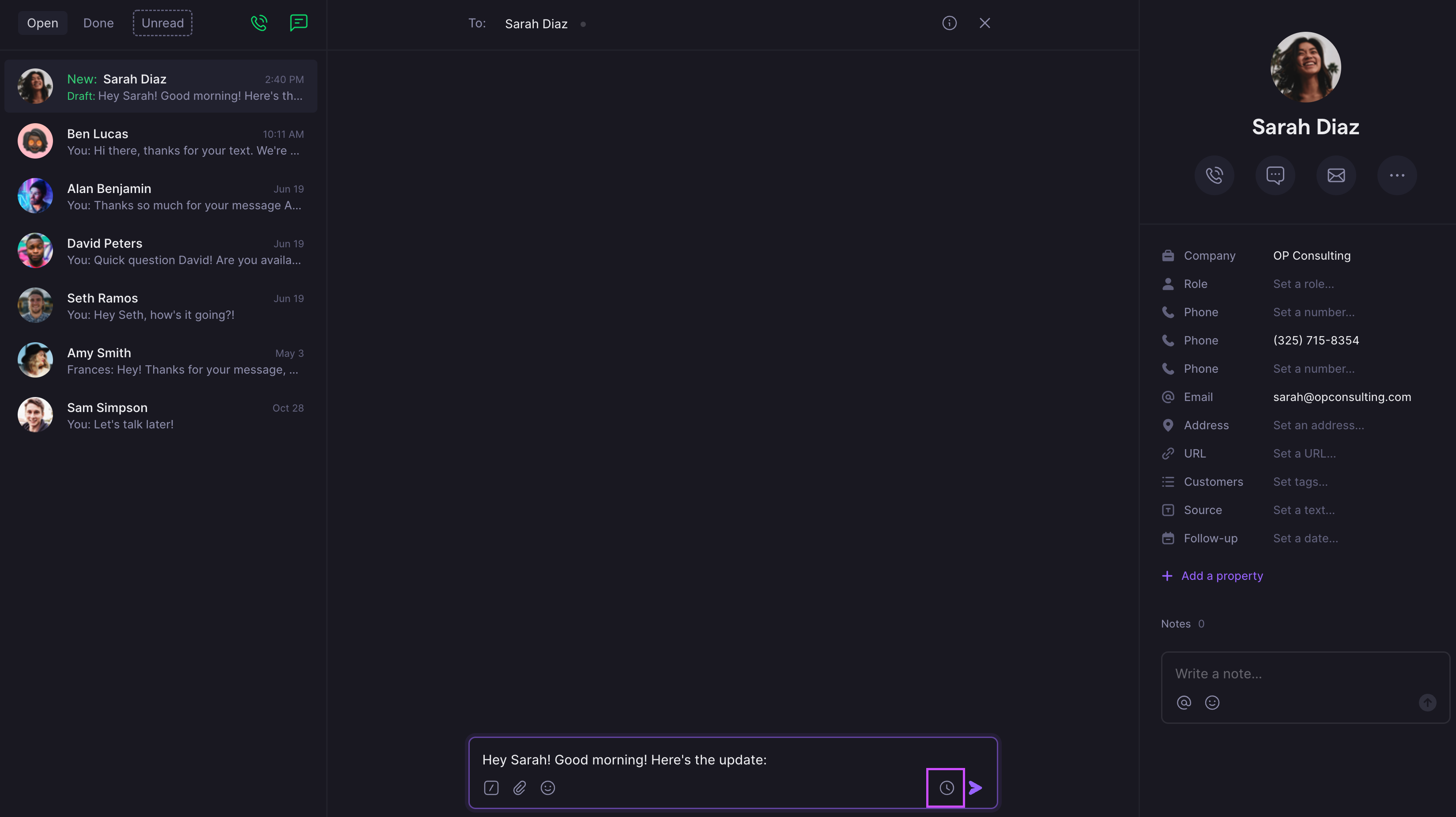
1. **Navigate to the contact** you want to message
2. **Draft your message** in the text field
3. **Click the clock icon** instead of send
4. **Set your delivery preferences** in the scheduling interface
 1. **Open the conversation** with your contact
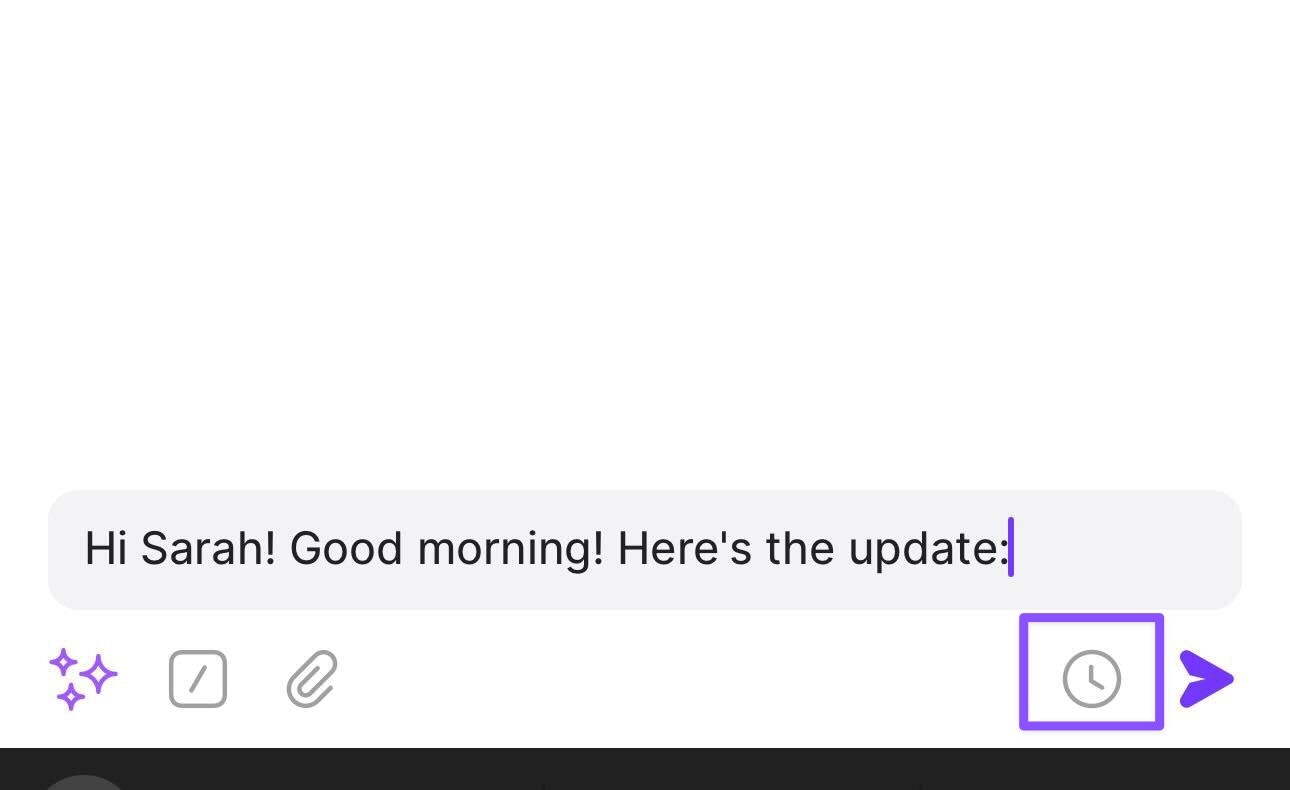
2. **Type your message**
3. **Tap the clock icon** next to the send button
4. **Configure timing and conditions**
1. **Open the conversation** with your contact
2. **Type your message**
3. **Tap the clock icon** next to the send button
4. **Configure timing and conditions**
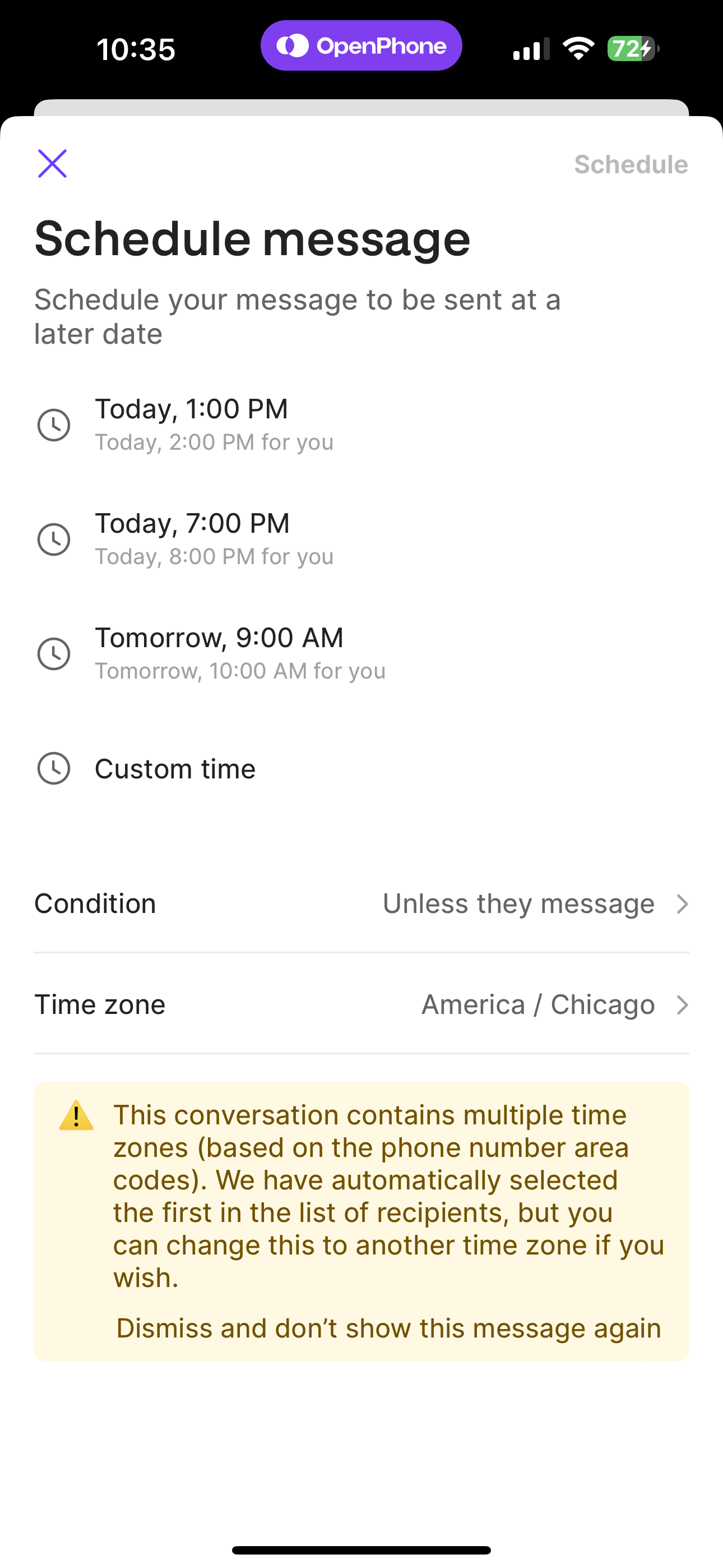 Message scheduling is not currently available on Android. This feature is available on web, desktop, and iOS applications only.
 ### Scheduling options
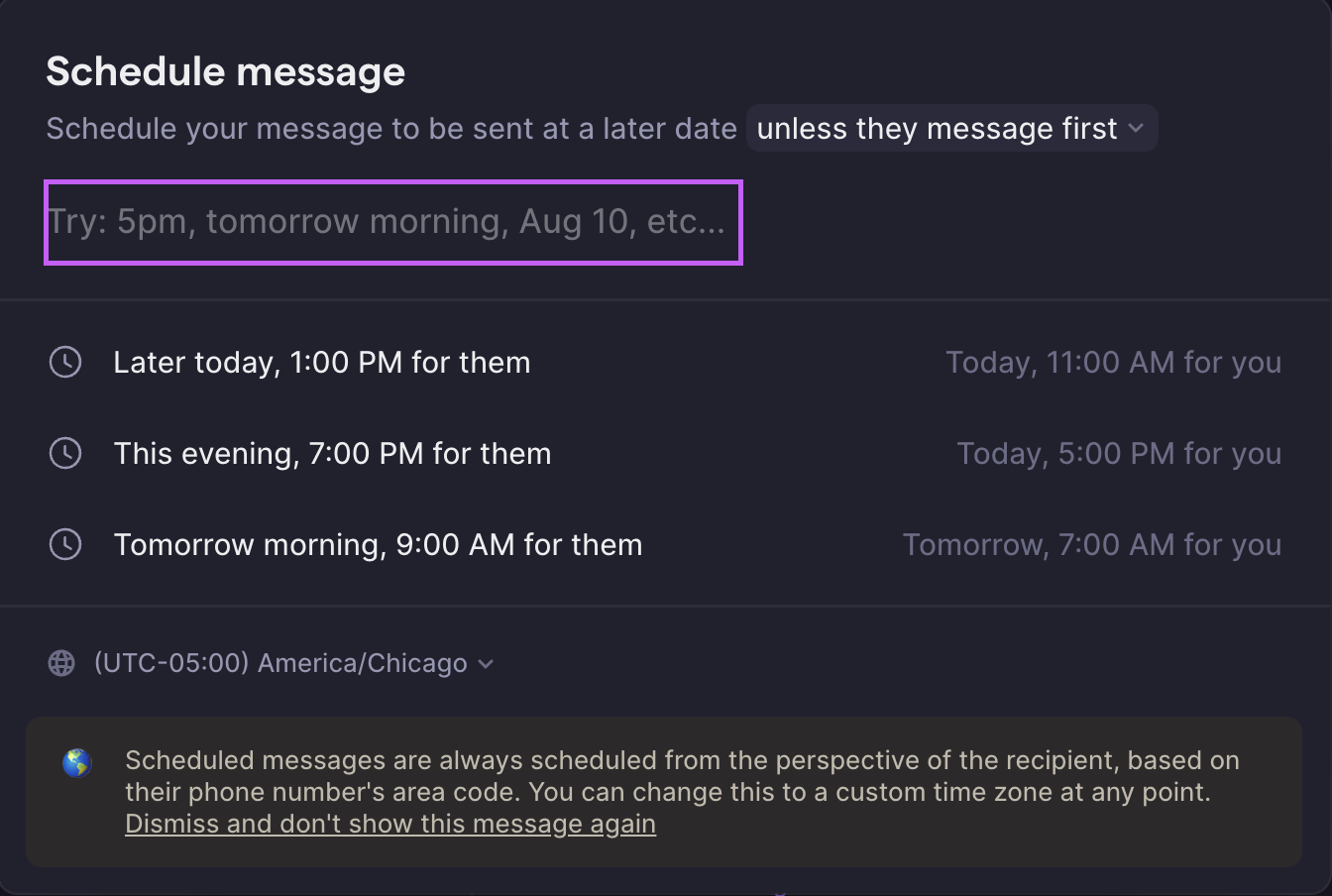
**Timezone detection:** Quo automatically estimates your recipient's timezone based on their phone number's area code. You can manually select a different timezone from the dropdown menu.
### Scheduling options
**Timezone detection:** Quo automatically estimates your recipient's timezone based on their phone number's area code. You can manually select a different timezone from the dropdown menu.
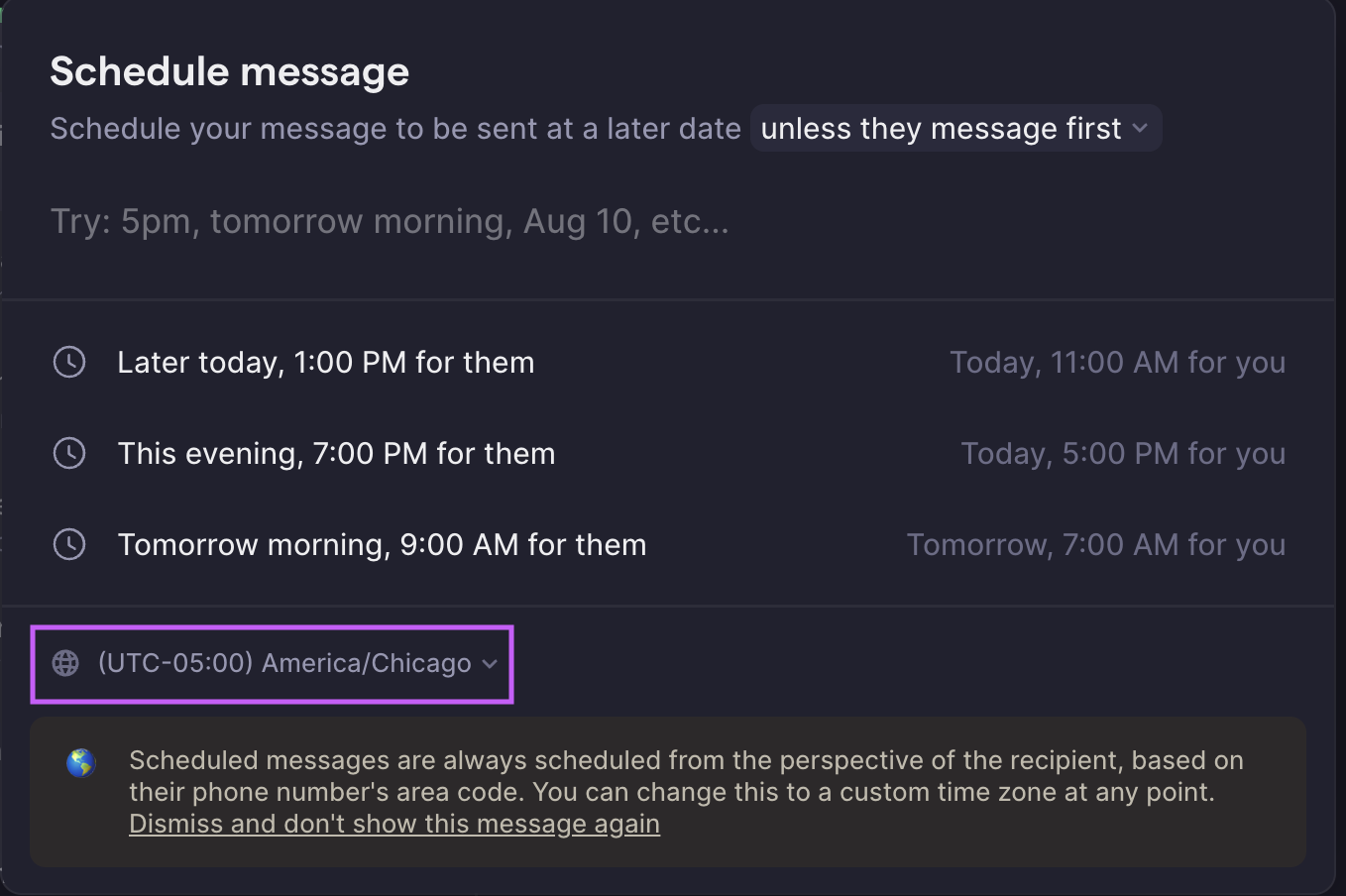 **Flexible time input:** Type natural language time expressions like:
* "5 PM"
* "tomorrow morning"
* "Aug 10"
* "in 5 min"
* Specific dates and times
Always confirm the time zone shown before sending. If the detected time zone is wrong, you change it manually before scheduling your message.
**Flexible time input:** Type natural language time expressions like:
* "5 PM"
* "tomorrow morning"
* "Aug 10"
* "in 5 min"
* Specific dates and times
Always confirm the time zone shown before sending. If the detected time zone is wrong, you change it manually before scheduling your message.
 ## Delivery conditions
### Automatic cancellation
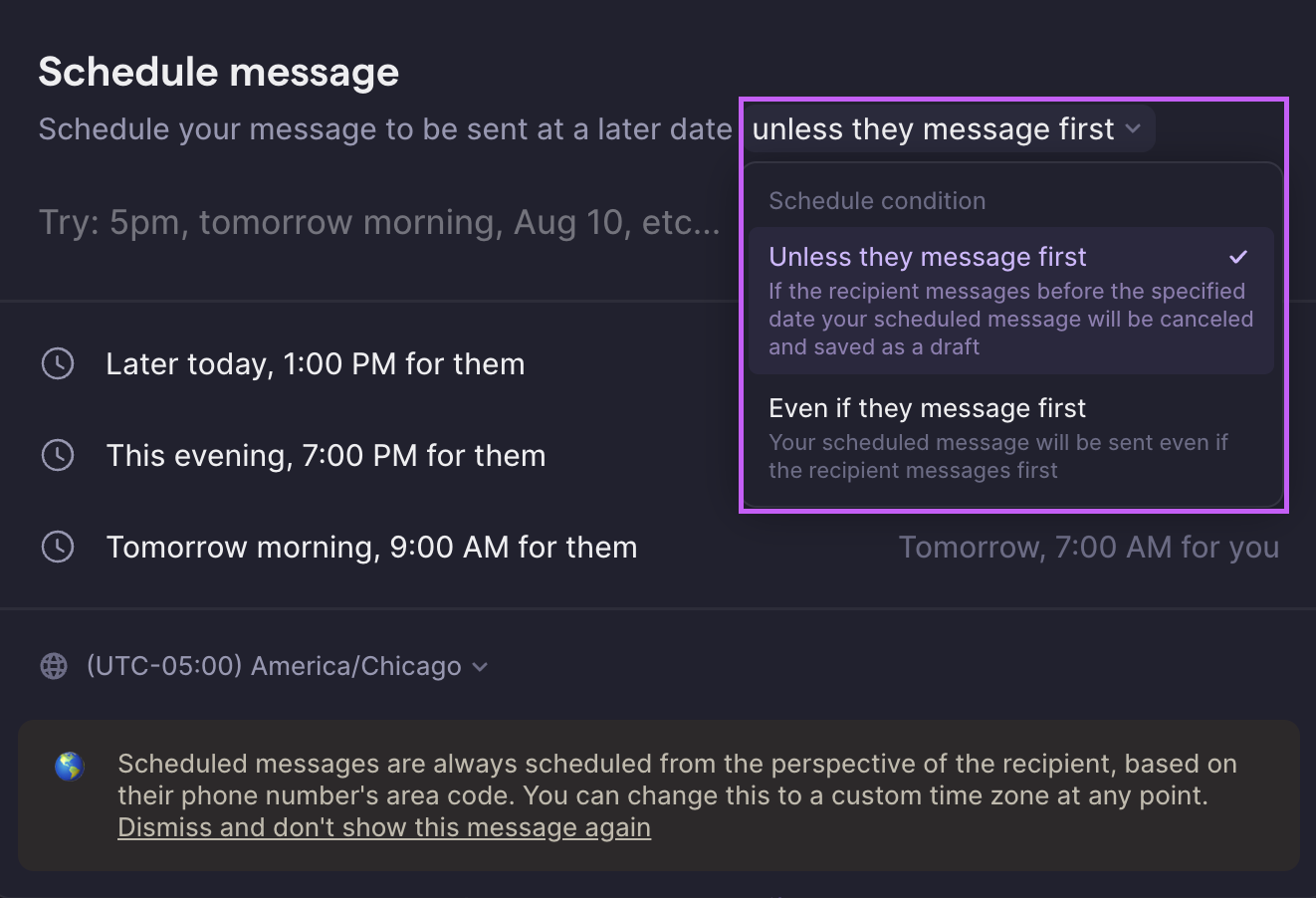
**Default behavior:** By default, if your recipient messages you before your scheduled message is sent, the scheduled message will be automatically canceled and saved as a draft.
**Override option:** You can change this setting to "even if they message first" to ensure your message sends regardless of recipient activity.
## Delivery conditions
### Automatic cancellation
**Default behavior:** By default, if your recipient messages you before your scheduled message is sent, the scheduled message will be automatically canceled and saved as a draft.
**Override option:** You can change this setting to "even if they message first" to ensure your message sends regardless of recipient activity.
 ### Visual indicators
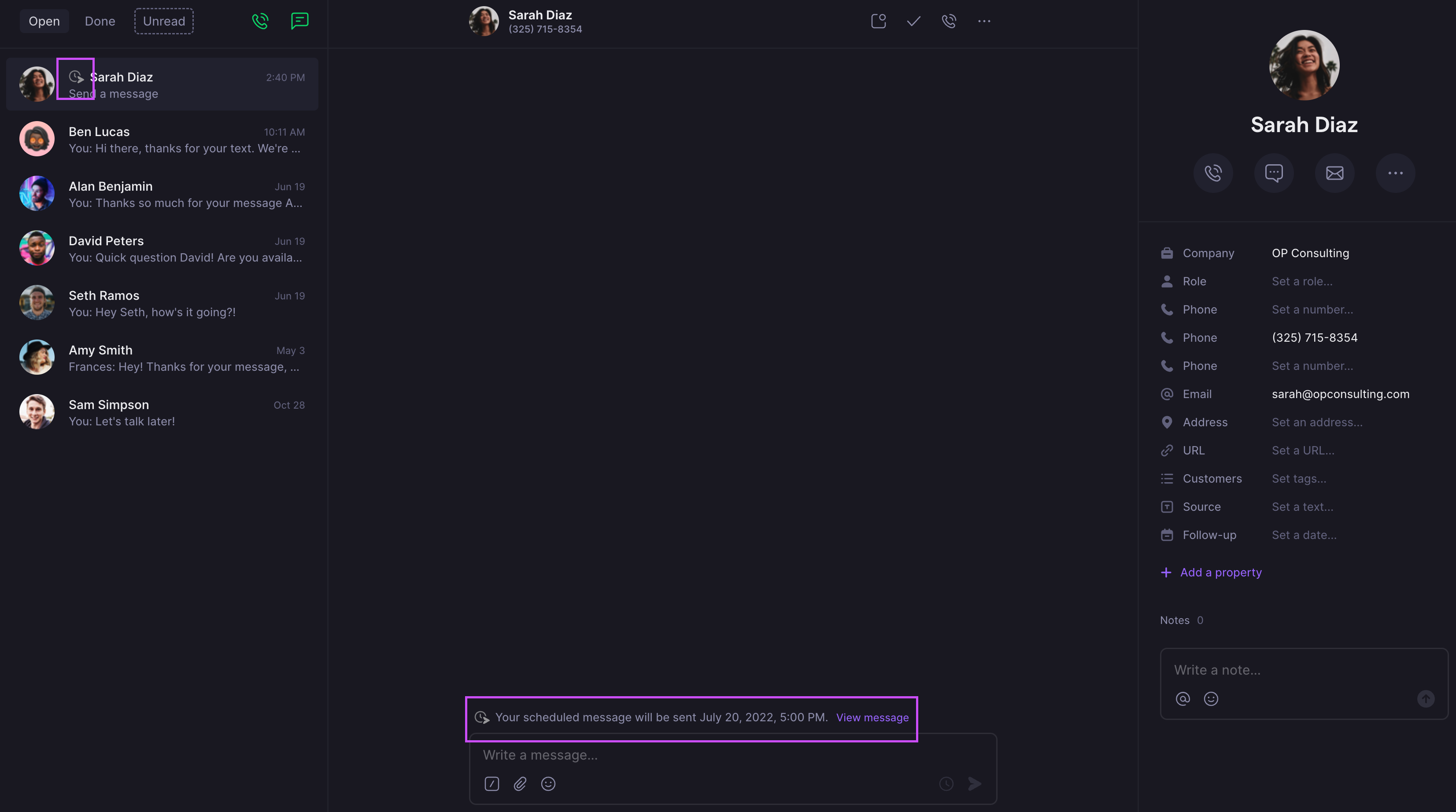
Once successfully scheduled, you'll see:
* **Clock icon** next to the contact's name
* **Scheduled time** displayed at the bottom of the conversation thread
### Visual indicators
Once successfully scheduled, you'll see:
* **Clock icon** next to the contact's name
* **Scheduled time** displayed at the bottom of the conversation thread
 ## Managing scheduled messages
### Viewing scheduled messages
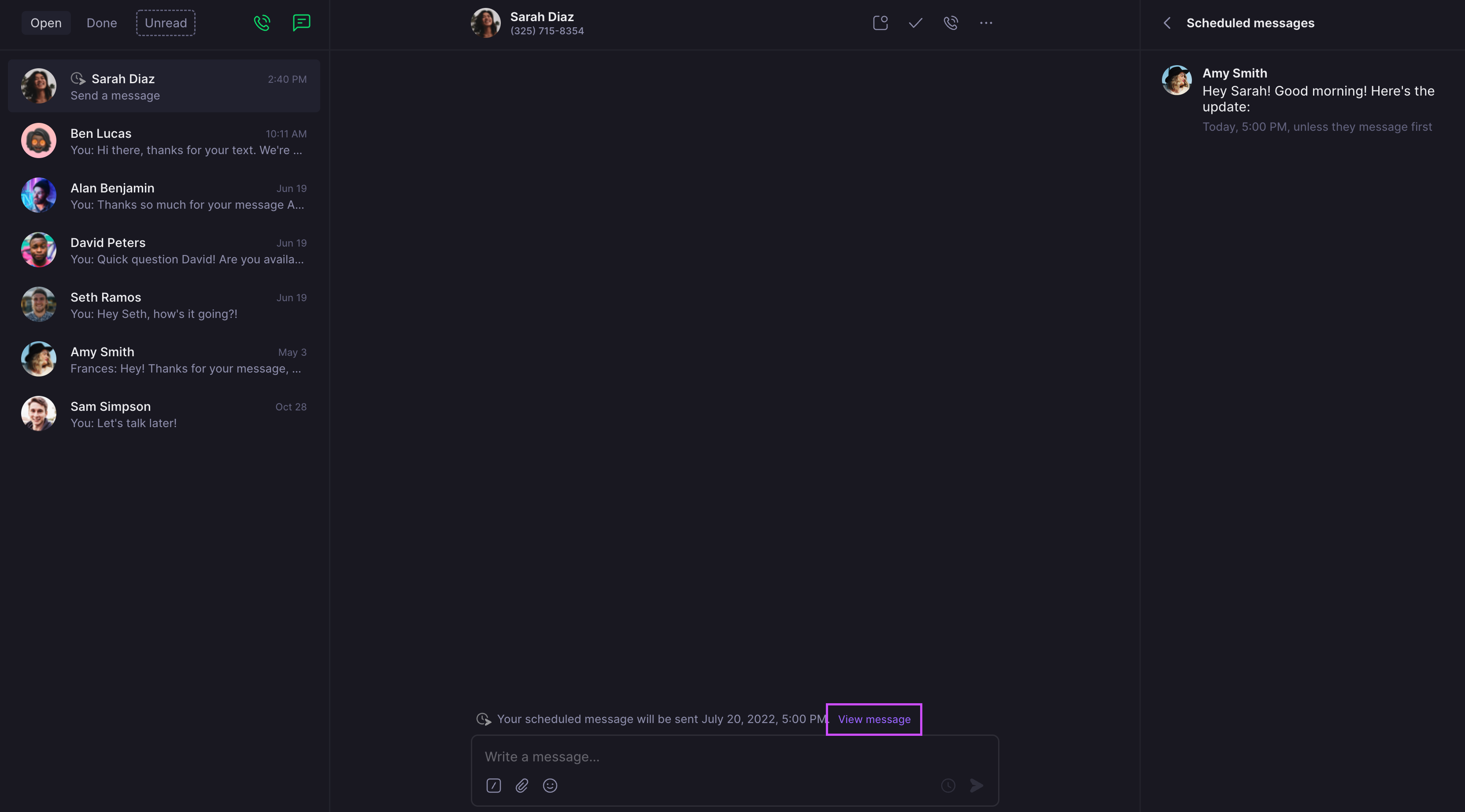
**Access your scheduled messages:**
1. Navigate to the contact with scheduled messages
2. Click **"View messages"**
3. Scheduled messages appear on the right side panel
## Managing scheduled messages
### Viewing scheduled messages
**Access your scheduled messages:**
1. Navigate to the contact with scheduled messages
2. Click **"View messages"**
3. Scheduled messages appear on the right side panel
 ### Editing scheduled messages
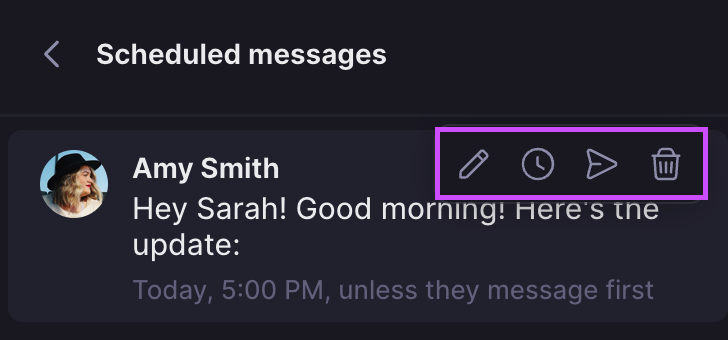
**Available actions:**
* **Edit**: Modify message content
* **Reschedule**: Change delivery time
* **Send now**: Deliver immediately
* **Delete**: Cancel the scheduled message
### Editing scheduled messages
**Available actions:**
* **Edit**: Modify message content
* **Reschedule**: Change delivery time
* **Send now**: Deliver immediately
* **Delete**: Cancel the scheduled message
 ## FAQs
Check if the recipient messaged you first and auto-cancellation was enabled. Also verify the scheduled time hasn't passed and that your internet connection is stable.
Timezone detection is based on area code, which may not always be accurate. Manually select the correct timezone from the dropdown menu.
Navigate to the specific contact and click "View messages" to see all scheduled messages for that conversation.
This happens when the recipient messages you first and auto-cancellation is enabled. Change the condition to "even if they message first" or send the draft manually.
Try using more specific formats like "2:30 PM" or "March 15" if Quo doesn't recognize your time expression.
Message scheduling is currently only available on web, desktop, and iOS apps. Use these platforms to schedule messages that will send from your Android device.
## FAQs
Check if the recipient messaged you first and auto-cancellation was enabled. Also verify the scheduled time hasn't passed and that your internet connection is stable.
Timezone detection is based on area code, which may not always be accurate. Manually select the correct timezone from the dropdown menu.
Navigate to the specific contact and click "View messages" to see all scheduled messages for that conversation.
This happens when the recipient messages you first and auto-cancellation is enabled. Change the condition to "even if they message first" or send the draft manually.
Try using more specific formats like "2:30 PM" or "March 15" if Quo doesn't recognize your time expression.
Message scheduling is currently only available on web, desktop, and iOS apps. Use these platforms to schedule messages that will send from your Android device.