> ## Documentation Index
> Fetch the complete documentation index at: https://support.quo.com/llms.txt
> Use this file to discover all available pages before exploring further.
# Salesforce
> Sync contacts, calls, and messages between Quo, formerly OpenPhone, and Salesforce for complete CRM integration
To use integrations, you must have the [Quo Desktop app installed](https://support.quo.com/getting-started/install-apps).
## Overview
Quo's Salesforce integration connects your communications with your CRM, automatically syncing contact details and logging all call and message activities. Streamline your sales process with seamless data flow between Quo and Salesforce.
Salesforce integration requires Business plan, Salesforce API access, and admin permissions in both platforms.
## Prerequisites
### Salesforce requirements
**API access required:**
* **Included:** Enterprise, Unlimited, Performance, Developer editions
* **Available as add-on:** Professional edition
* **Not available:** Group and Essentials editions
**Permissions needed:**
* Salesforce admin permissions for setup
* Quo workspace Owner or Admin role
### Quo requirements
**Plan required:**
* Business plan subscription
**Permissions needed:**
* Workspace Owner or Admin role
* Phone numbers configured for integration
## How the integration works
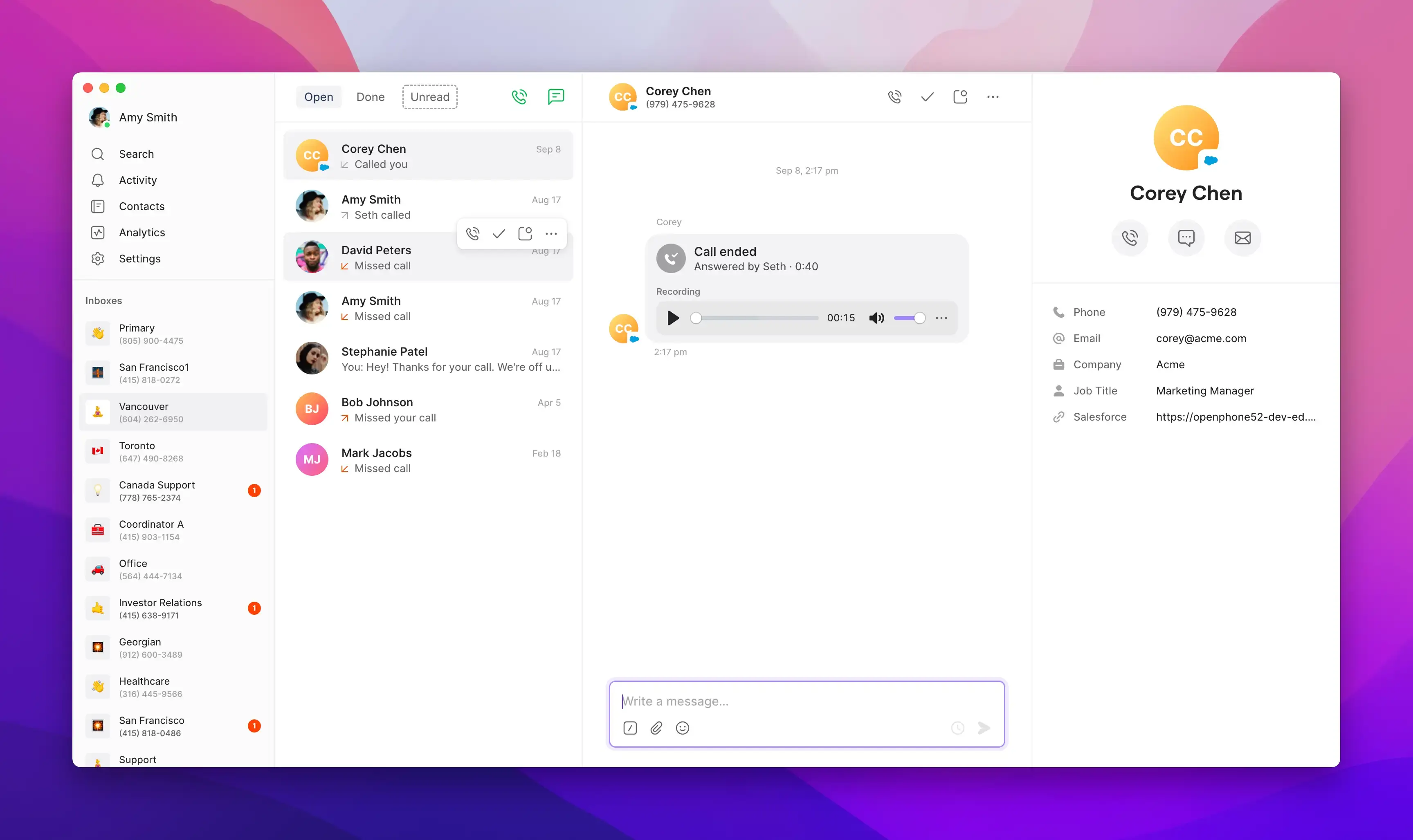
### Contact syncing
**Automatic contact display:**\
When Salesforce contacts call or you dial them, their details automatically appear in Quo.
**Synced fields:**
* First Name and Last Name
* Phone and Email
* Mobile Phone (if available)
* Company and Job Title (if available)
* Contact/Lead Owner (if available)
* Direct link to Salesforce record
Salesforce contacts typically appear in Quo within about one minute. This may take longer if you're close to your Salesforce API limits.
 ### Activity logging
**Automatic call logging:**\
All Quo calls automatically log to Salesforce with detailed information.
Quo attributes each logged activity by matching the Quo user's email to a Salesforce User's email. If no match is found, Salesforce defaults the Task owner to the person who set up the integration, so all activity appears under their name instead.
### Activity logging
**Automatic call logging:**\
All Quo calls automatically log to Salesforce with detailed information.
Quo attributes each logged activity by matching the Quo user's email to a Salesforce User's email. If no match is found, Salesforce defaults the Task owner to the person who set up the integration, so all activity appears under their name instead.
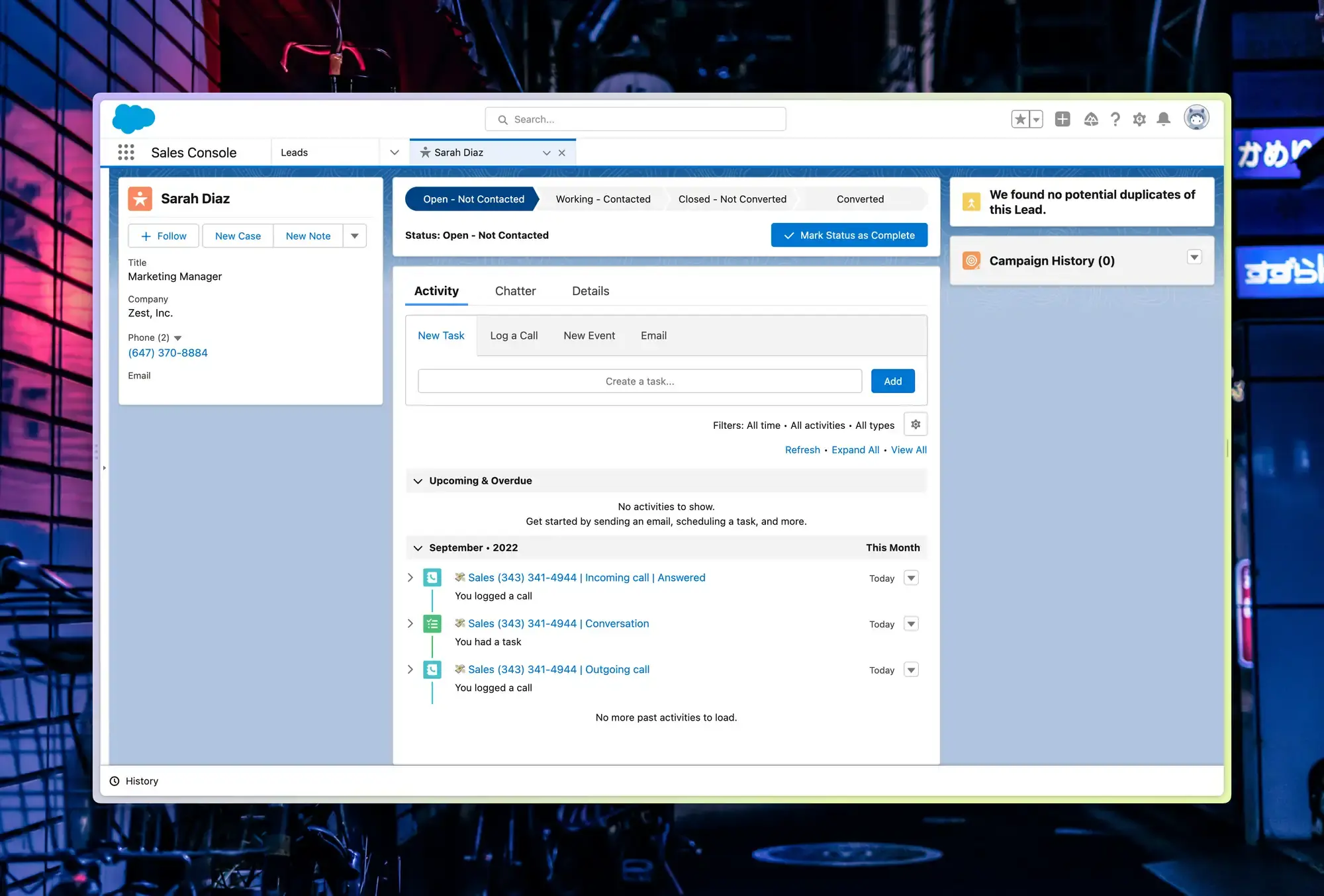 **Call activity details:**
| Call Direction | Subject Line | Description Content |
| -------------- | --------------------------------------------- | --------------------------------------------------------------------------------------------------------------------- |
| **Inbound** | `{Inbox Name} {Phone Number} - Incoming Call` | `{Call Status}, Call duration: {time}, Answered by {Username}, {call summary}, Recording URL, View conversation link` |
| **Outbound** | `{Inbox Name} {Phone Number} - Outgoing Call` | `Call duration: {time}, Initiated by {Username}, {call summary}, Recording URL, View conversation link` |
Activity logs typically appear in Salesforce within 10 minutes of a call or message.
### Activity logging with multiple matching records
**When a call or text is logged, Quo searches for all matching Lead and Contact records based on the phone number**. If multiple matches exist (e.g. one Contact and two Leads), activity is logged to all matching records, and no records are not automatically consolidated. Converted Leads (`IsConverted: true`) are excluded from logging.
### Sona integration
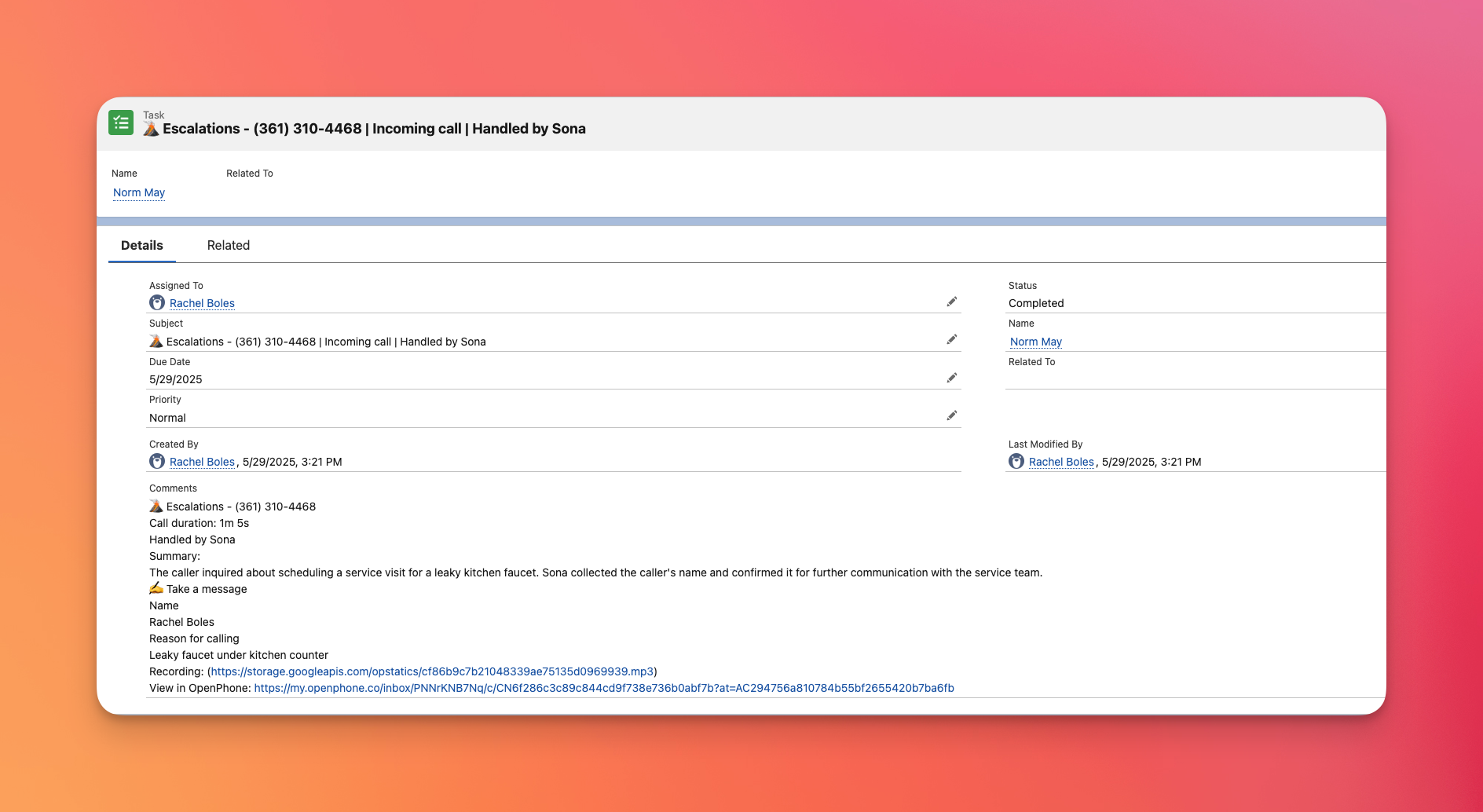
**AI agent call logging:**\
Calls handled by Sona automatically sync with subject "Handled by Sona".
**Call activity details:**
| Call Direction | Subject Line | Description Content |
| -------------- | --------------------------------------------- | --------------------------------------------------------------------------------------------------------------------- |
| **Inbound** | `{Inbox Name} {Phone Number} - Incoming Call` | `{Call Status}, Call duration: {time}, Answered by {Username}, {call summary}, Recording URL, View conversation link` |
| **Outbound** | `{Inbox Name} {Phone Number} - Outgoing Call` | `Call duration: {time}, Initiated by {Username}, {call summary}, Recording URL, View conversation link` |
Activity logs typically appear in Salesforce within 10 minutes of a call or message.
### Activity logging with multiple matching records
**When a call or text is logged, Quo searches for all matching Lead and Contact records based on the phone number**. If multiple matches exist (e.g. one Contact and two Leads), activity is logged to all matching records, and no records are not automatically consolidated. Converted Leads (`IsConverted: true`) are excluded from logging.
### Sona integration
**AI agent call logging:**\
Calls handled by Sona automatically sync with subject "Handled by Sona".
 ### Message logging
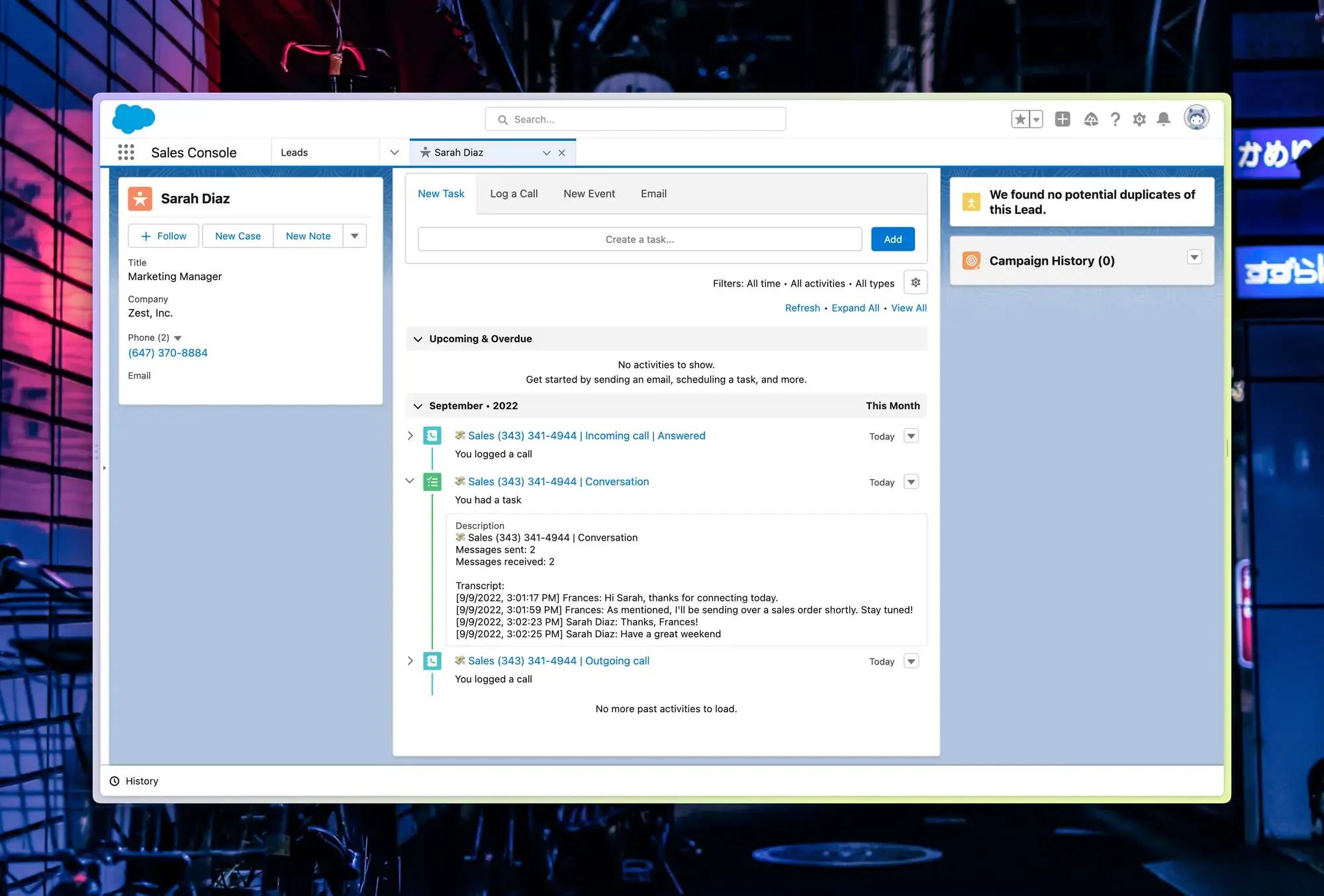
**Text conversation tracking:**\
Text messages automatically log to Salesforce with intelligent grouping:
* Messages grouped by conversation within one-hour windows
* Complete text exchange history
* Contact attribution and timing
* Integration with Salesforce communication history
### Message logging
**Text conversation tracking:**\
Text messages automatically log to Salesforce with intelligent grouping:
* Messages grouped by conversation within one-hour windows
* Complete text exchange history
* Contact attribution and timing
* Integration with Salesforce communication history
 ## Call summaries and next steps
Quo's AI generates two types of post-call content: a **call summary** and **next steps**.
* **Call summary:** A brief recap of what was discussed. This syncs to Salesforce and appears in the activity description.
* **Next steps:** Action items identified during the call. Next steps do NOT sync to Salesforce. They are visible in Quo only.
**Next steps are not automatically synced to Salesforce.** To capture them in Salesforce, copy them manually from the Quo call summary into the Salesforce activity notes.
## Setting up Salesforce integration
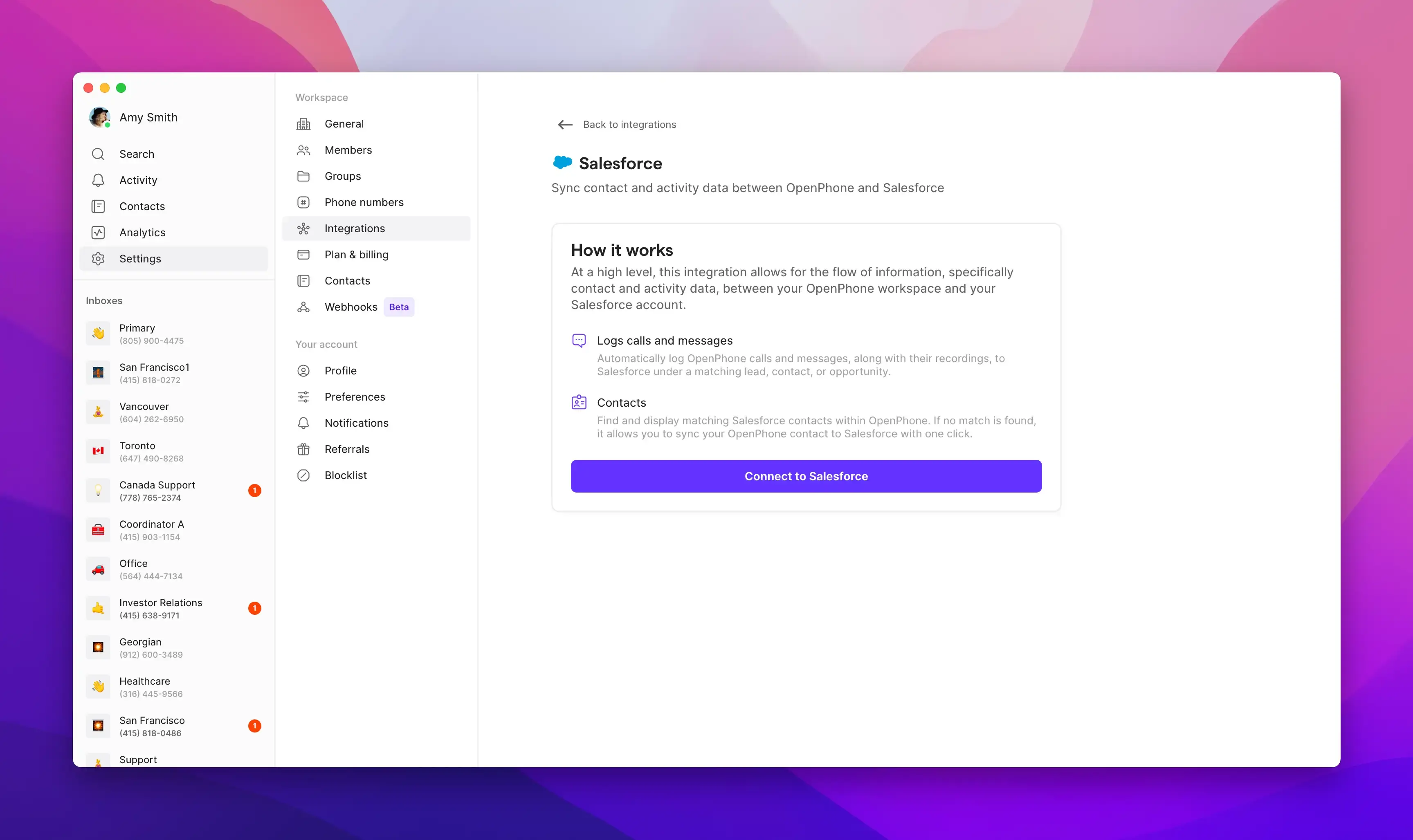
### Connection process
**To connect Quo to Salesforce:**
1. Open Quo web or desktop app
2. Navigate to **Settings** → **Integrations**
3. Select **Salesforce** and click **Connect to Salesforce**
4. Log into your Salesforce account
5. Authorize the connection
6. Configure logging preferences
## Call summaries and next steps
Quo's AI generates two types of post-call content: a **call summary** and **next steps**.
* **Call summary:** A brief recap of what was discussed. This syncs to Salesforce and appears in the activity description.
* **Next steps:** Action items identified during the call. Next steps do NOT sync to Salesforce. They are visible in Quo only.
**Next steps are not automatically synced to Salesforce.** To capture them in Salesforce, copy them manually from the Quo call summary into the Salesforce activity notes.
## Setting up Salesforce integration
### Connection process
**To connect Quo to Salesforce:**
1. Open Quo web or desktop app
2. Navigate to **Settings** → **Integrations**
3. Select **Salesforce** and click **Connect to Salesforce**
4. Log into your Salesforce account
5. Authorize the connection
6. Configure logging preferences
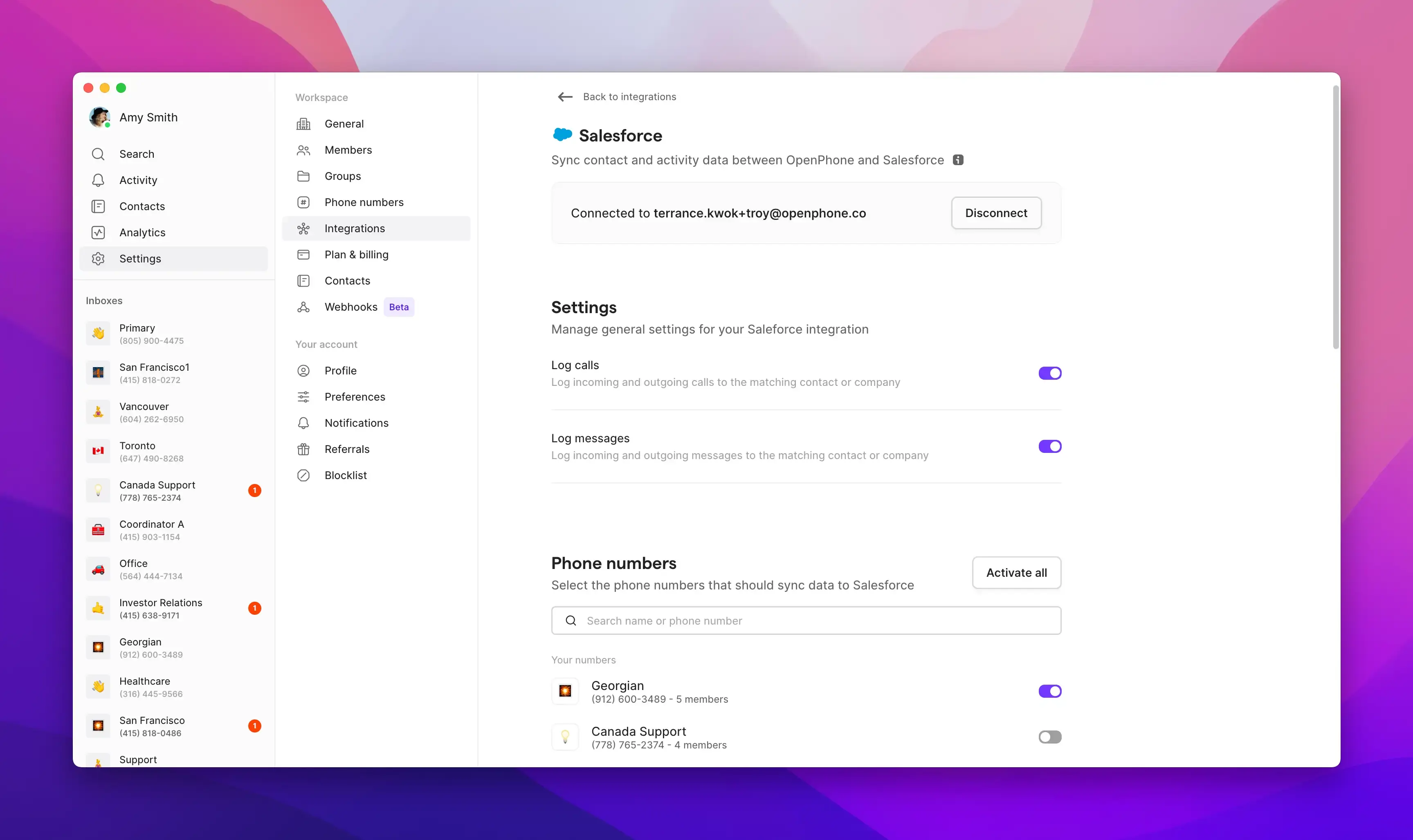
 ### Configuration options
**Activity logging settings:**
* Choose to log calls for all numbers or specific inboxes
* Enable/disable message logging
* Configure call recording and summary sync
* Set up Sona integration if applicable
### Configuration options
**Activity logging settings:**
* Choose to log calls for all numbers or specific inboxes
* Enable/disable message logging
* Configure call recording and summary sync
* Set up Sona integration if applicable
 ## Features and capabilities
### Call recordings and summaries
**Enhanced logging:**
* Call recording URLs included in activities
* Recording duration tracked
* AI-generated call summaries synced
* Complete conversation context preserved
### Lead and opportunity management
**Sales workflow integration:**
* New leads automatically tracked
* Call history attached to opportunities
* Contact interaction timeline maintained
* Sales activity reporting enhanced
### Team collaboration
**Shared visibility:**
* All team calls logged consistently
* Contact interaction history shared
* Activity attribution by team member
* Comprehensive communication audit trail
## Best practices
### Setup optimization
**Effective configuration:**
* Enable logging for sales and support numbers
* Configure appropriate Salesforce permissions
* Train team on integrated workflow
* Regular review of logged activities
### Data management
**Maintaining quality:**
* Keep Salesforce contact information current
* Ensure phone number matching accuracy
* Regular cleanup of duplicate records
* Monitor integration performance
### Workflow integration
**Daily usage:**
* Use Salesforce for lead planning and research
* Leverage Quo for communication execution
* Review call summaries for follow-up planning
* Coordinate with other Salesforce automation
## Troubleshooting
### Common setup issues
**API access problems:**
* Verify Salesforce edition includes API access
* Check admin permissions in both platforms
* Confirm integration is properly authorized
* Test with sample calls and messages
### Data sync issues
**Contact matching:**
* Ensure phone numbers match exactly in Salesforce
* Check for duplicate contact records
* Verify contact permissions and visibility
* Review field mapping configuration
### Performance optimization
**Maintaining efficiency:**
* Monitor API usage limits
* Regular review of logged activities
* Cleanup of unnecessary logged items
* Optimization of logging preferences
***
## FAQs
Not yet. You make calls from the Quo app, and those calls are automatically logged in Salesforce.
Quo logs the activity to all matching Lead and Contact records- there is no deduplication. The only exception is converted Leads (IsConverted: true), which are excluded.
No. Quo's Salesforce integration does not use Open CTI. The integration works via contact sync, call logging, and activity tracking, not embedded telephony controls. The Salesforce Open CTI retirement in 2028 will not affect this integration.
Not currently.
Quo matches each user's email to a Salesforce User's email to attribute activity correctly.
**If no match is found**, Salesforce defaults the Task owner to the OAuth user — the person who connected the integration.
To fix this, make sure every active Quo user's email matches an active Salesforce User's email in both platforms. If you're unsure who to update, check with your Salesforce admin.
Activities appear on any Salesforce record that Salesforce associates them with, including **Leads** and **Opportunities**.
**Quo explicitly sets links to Contacts, Leads, and Opportunities only.** Any other associations are handled by Salesforce based on your own configuration.
No. Only the call summary syncs to Salesforce. Next steps are visible in Quo only. To include them in Salesforce, copy them manually from the Quo call detail into the activity notes.
***
**Need help?** [Submit a support request](https://support.quo.com/help/submit-a-request) and we'll jump in.
## Features and capabilities
### Call recordings and summaries
**Enhanced logging:**
* Call recording URLs included in activities
* Recording duration tracked
* AI-generated call summaries synced
* Complete conversation context preserved
### Lead and opportunity management
**Sales workflow integration:**
* New leads automatically tracked
* Call history attached to opportunities
* Contact interaction timeline maintained
* Sales activity reporting enhanced
### Team collaboration
**Shared visibility:**
* All team calls logged consistently
* Contact interaction history shared
* Activity attribution by team member
* Comprehensive communication audit trail
## Best practices
### Setup optimization
**Effective configuration:**
* Enable logging for sales and support numbers
* Configure appropriate Salesforce permissions
* Train team on integrated workflow
* Regular review of logged activities
### Data management
**Maintaining quality:**
* Keep Salesforce contact information current
* Ensure phone number matching accuracy
* Regular cleanup of duplicate records
* Monitor integration performance
### Workflow integration
**Daily usage:**
* Use Salesforce for lead planning and research
* Leverage Quo for communication execution
* Review call summaries for follow-up planning
* Coordinate with other Salesforce automation
## Troubleshooting
### Common setup issues
**API access problems:**
* Verify Salesforce edition includes API access
* Check admin permissions in both platforms
* Confirm integration is properly authorized
* Test with sample calls and messages
### Data sync issues
**Contact matching:**
* Ensure phone numbers match exactly in Salesforce
* Check for duplicate contact records
* Verify contact permissions and visibility
* Review field mapping configuration
### Performance optimization
**Maintaining efficiency:**
* Monitor API usage limits
* Regular review of logged activities
* Cleanup of unnecessary logged items
* Optimization of logging preferences
***
## FAQs
Not yet. You make calls from the Quo app, and those calls are automatically logged in Salesforce.
Quo logs the activity to all matching Lead and Contact records- there is no deduplication. The only exception is converted Leads (IsConverted: true), which are excluded.
No. Quo's Salesforce integration does not use Open CTI. The integration works via contact sync, call logging, and activity tracking, not embedded telephony controls. The Salesforce Open CTI retirement in 2028 will not affect this integration.
Not currently.
Quo matches each user's email to a Salesforce User's email to attribute activity correctly.
**If no match is found**, Salesforce defaults the Task owner to the OAuth user — the person who connected the integration.
To fix this, make sure every active Quo user's email matches an active Salesforce User's email in both platforms. If you're unsure who to update, check with your Salesforce admin.
Activities appear on any Salesforce record that Salesforce associates them with, including **Leads** and **Opportunities**.
**Quo explicitly sets links to Contacts, Leads, and Opportunities only.** Any other associations are handled by Salesforce based on your own configuration.
No. Only the call summary syncs to Salesforce. Next steps are visible in Quo only. To include them in Salesforce, copy them manually from the Quo call detail into the activity notes.
***
**Need help?** [Submit a support request](https://support.quo.com/help/submit-a-request) and we'll jump in.