> ## Documentation Index
> Fetch the complete documentation index at: https://support.quo.com/llms.txt
> Use this file to discover all available pages before exploring further.
# ChatGPT
> Connect Quo ChatGPT and manage your conversations, contacts, and call transcripts in plain English. No coding required.
To use integrations, you must have the [Quo Desktop app installed](https://support.quo.com/getting-started/install-apps).
## Overview
Quo is an official app in the ChatGPT directory. Send messages, pull call transcripts, and look up contacts just by asking ChatGPT.
**ChatGPT Plus or Pro** is required to connect apps in ChatGPT.
 ***
## Connect to ChatGPT
Quo is available to **ChatGPT Plus and Pro** users directly in [ChatGPT's app directory](https://chatgpt.com/apps).
1. Open ChatGPT.
2. From the left sidebar, click **More,** then click [**Apps**](https://chatgpt.com/apps)
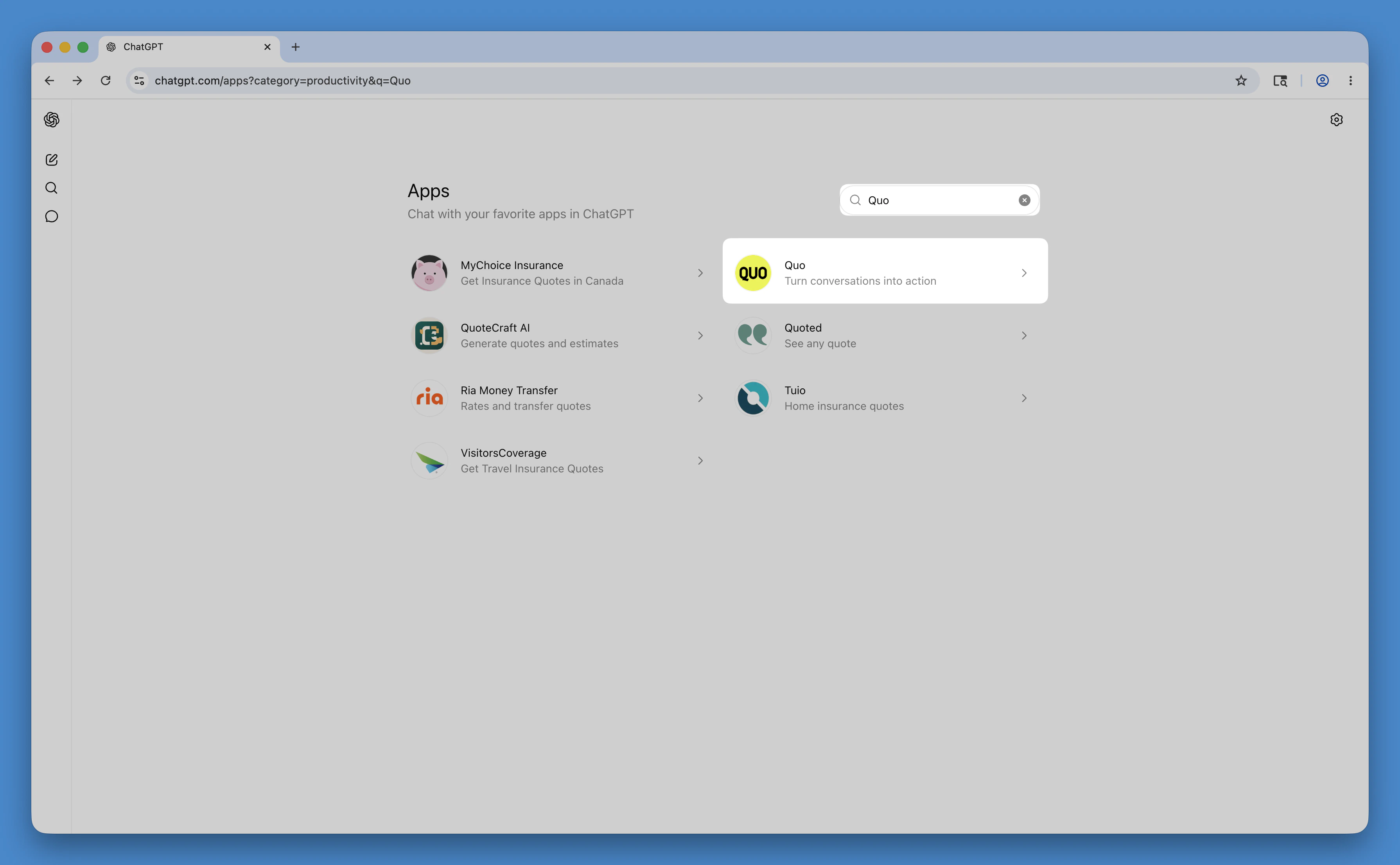
3. Search for **Quo**, click the app listing
***
## Connect to ChatGPT
Quo is available to **ChatGPT Plus and Pro** users directly in [ChatGPT's app directory](https://chatgpt.com/apps).
1. Open ChatGPT.
2. From the left sidebar, click **More,** then click [**Apps**](https://chatgpt.com/apps)
3. Search for **Quo**, click the app listing
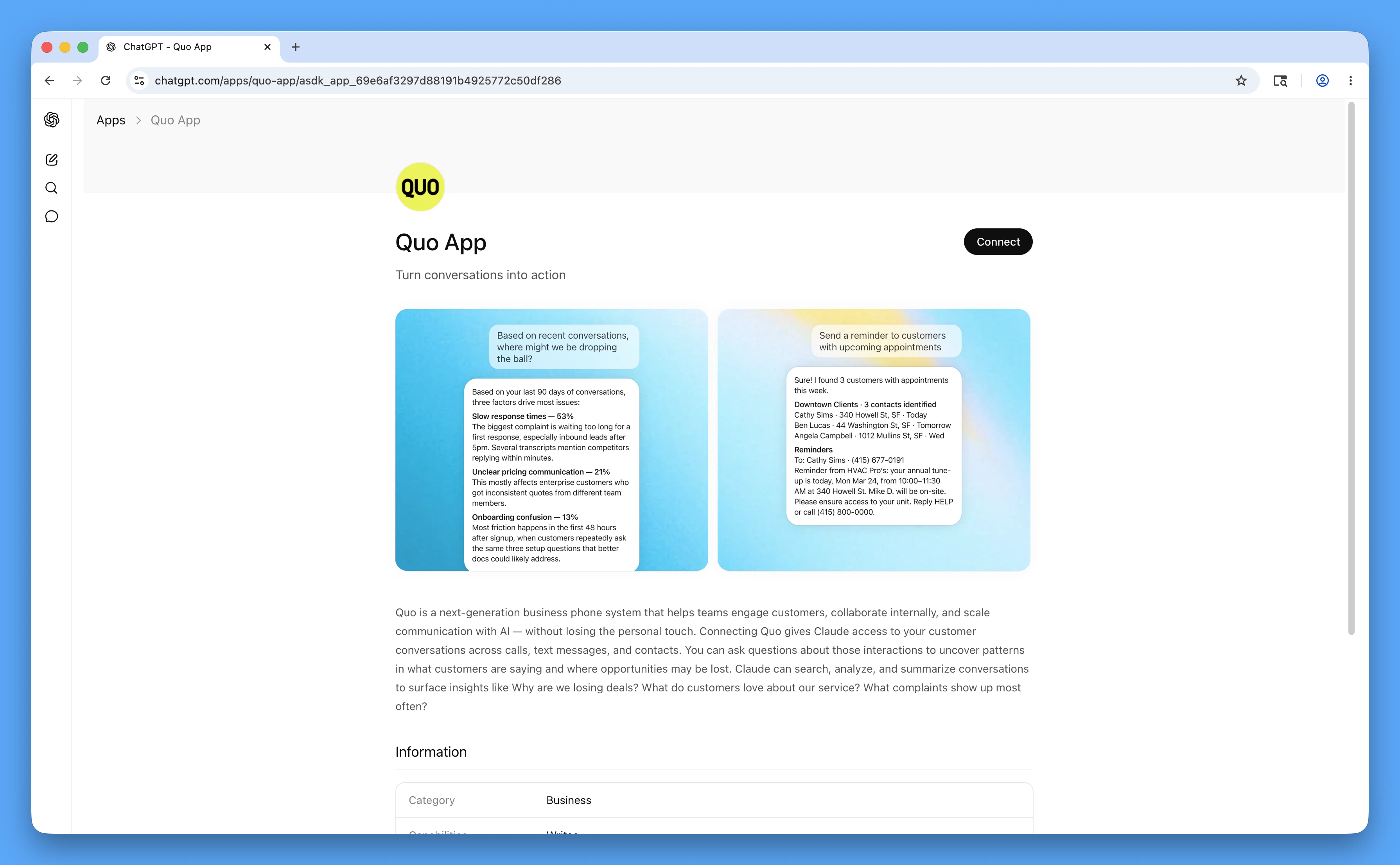
 4. Click **Connect**
 5. Toggle on **Reference memories and chats**
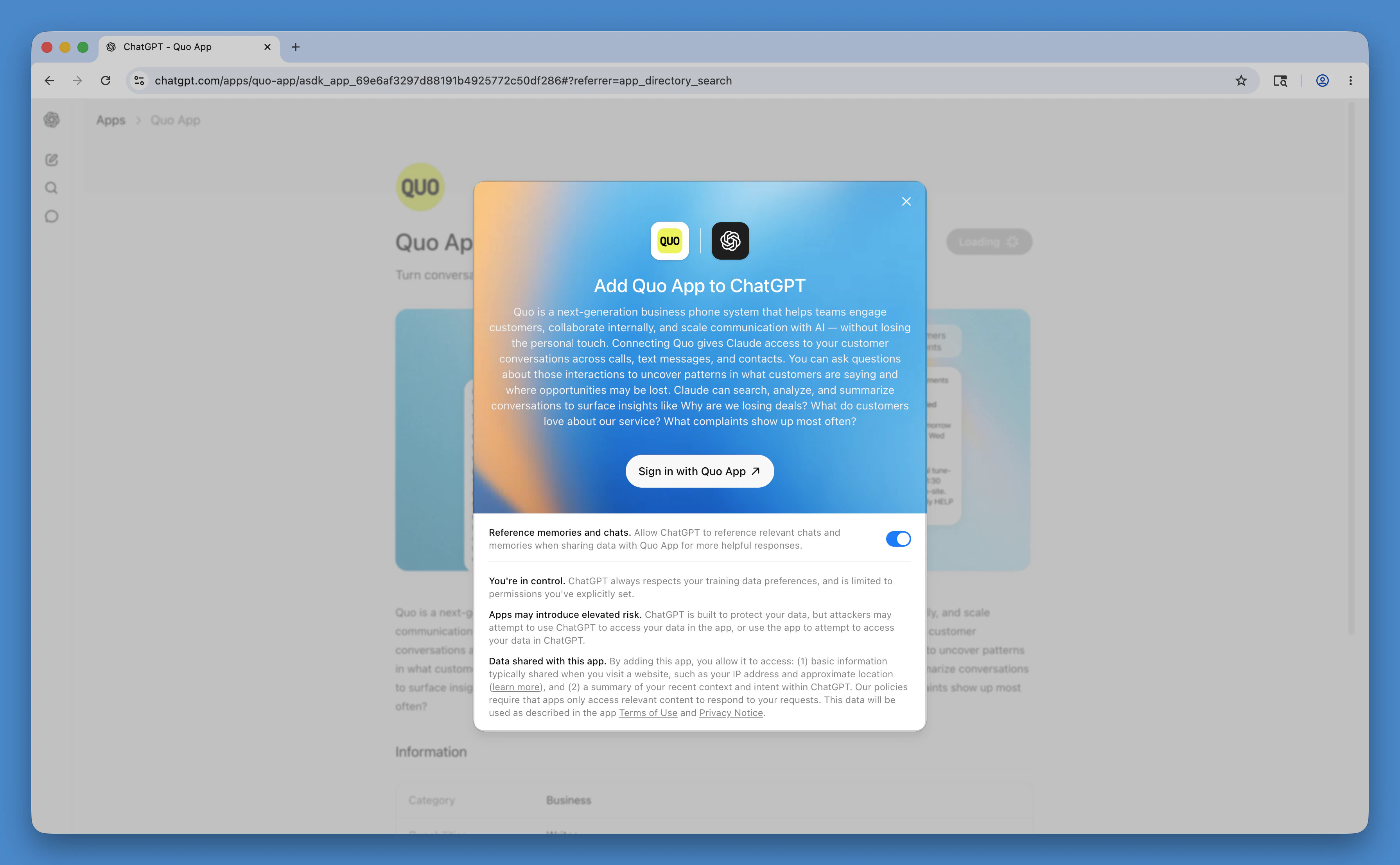 6. Click **Sign in with Quo App**
7. On the next screen, click **Allow**
6. Click **Sign in with Quo App**
7. On the next screen, click **Allow**
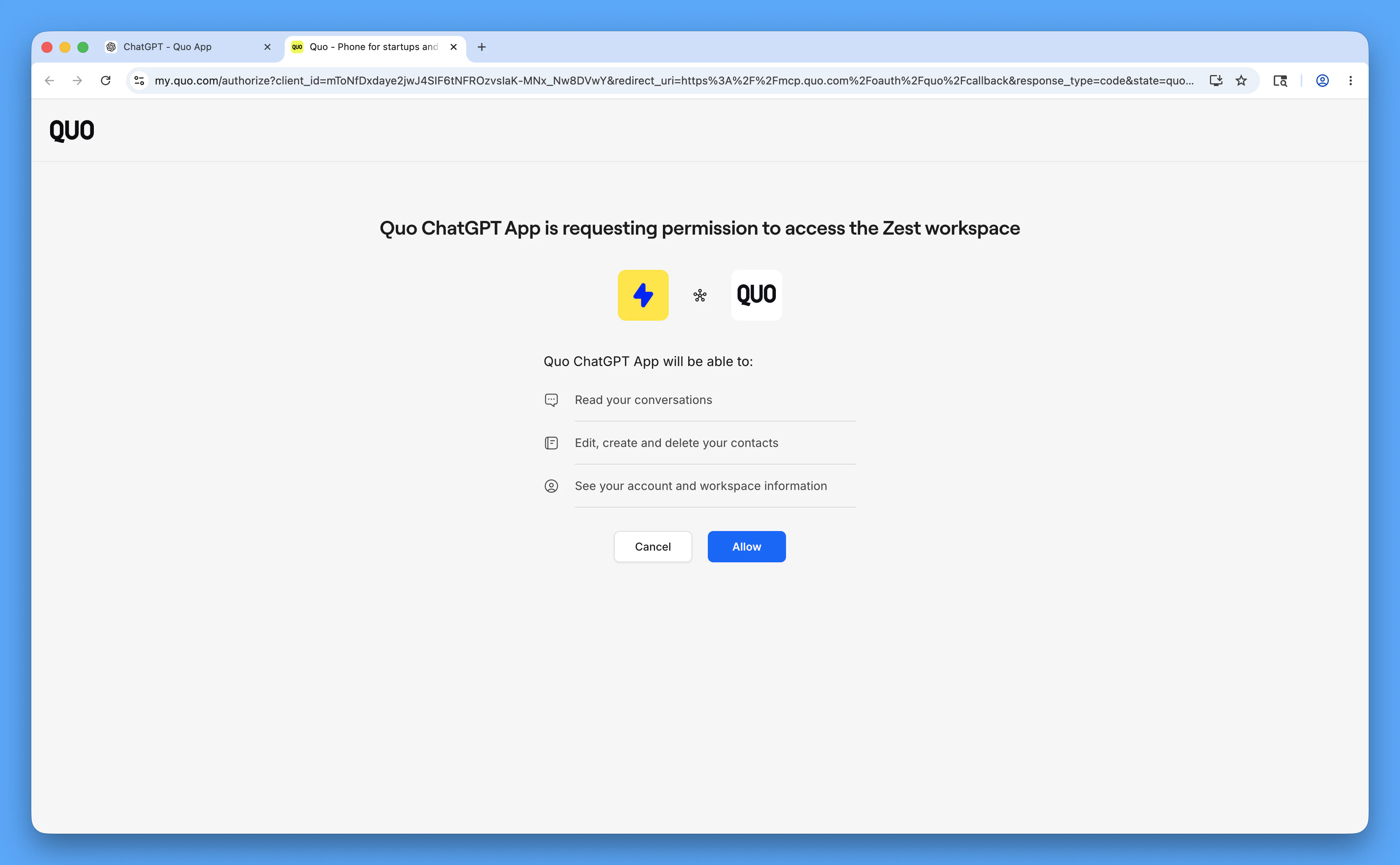 Make sure you're logged in to the Quo account you want to connect before clicking **Sign in with Quo App**.
***
## What you can do
Once connected, talk to ChatGPT like you'd talk to a teammate. Expand any action below to learn more.
**Pre-paid credits are needed to send texts from Quo using ChatGPT.** These messages count as API messages. [Learn more about pre-paid credits →](https://support.quo.com/core-concepts/administration/billing/credits-and-usage)
Pull messages and call activity directly from Quo and ask ChatGPT for a summary. Instantly review conversations, catch up on missed messages, or understand what customers are asking about.
Sample prompt:
1. Pull my last 100 calls from (604) 262-6950 and summarize: what questions do prospects ask most?
Send a text to one person or the same text to multiple people at once from your Quo number, without opening your workspace.
Sample prompts:
1. Text (434) 732-2924 from my (604) 262-6950 number: Running 10 minutes late.
2. Send this update to the entire crew: Job site moved to Oak Street.
This action uses your API messaging credits. [Learn about API credit pricing](https://www.quo.com/docs/mdx/pricing-support/pricing-overview) →
Pull your message history from any Quo inbox, filter by contact or date, or list all your inboxes to see which numbers are available.
Sample prompts:
1. Show my last 10 texts with (434) 732-2924.
2. What inboxes do I have in Quo?
Retrieve call history and voicemail transcripts from your Quo number.
Sample prompt:
1. Pull today's voicemails for our main number.
Only available for Quo numbers with [call transcripts enabled](https://support.quo.com/core-concepts/calling/summaries-and-transcripts#call-transcripts-and-summaries).
Search your contact list, look up a specific contact's details, add new contacts, or update existing ones — all just by asking.
Sample prompts:
1. List all my contacts in Quo.
2. Look up the contact details for (858) 282-0483.
3. Add contact: Seth Ramos, ABC Plumbing, (858) 282-0483, role Foreman.
4. Update the contact for Lisa Price with her new email: [lisa@acme.com](mailto:lisa@acme.com).
Get info about your missed calls and see their voicemail transcripts from your chat.
**Sample prompts:**
1. Did I miss any calls on my Customer Support line yesterday?
2. Who do I need to call back from my main line?
***
## Safety and permissions
Before sending any text or creating a contact, ChatGPT asks for your approval.
The integration only accesses what your Quo account can already see.
Remove the integration from **Apps** in ChatGPT whenever you want.
***
## Disconnect Quo from ChatGPT
1. In the ChatGPT left sidebar, click **More**, then click **Apps**
2. Click the gear icon in the top right corner
3. Click **Quo**
4. Click **Disconnect**
***
## FAQs
Make sure you're using the full number with country code (like `+14155550100`). You can also use the number ID from your Quo settings.
Check that the number has message history. If you're searching by contact, make sure the number is spelled correctly. Try increasing the result limit or widening your date range.
Transcripts are only available on certain Quo plans and only for calls where transcription was turned on. Check your plan settings or widen your date range.
Your credentials are encrypted and handled securely. The integration only accesses what your Quo account can already see. Treat your API key like a password — don't share it publicly.
A few things to try:
* Make sure you're logged in to the correct Quo workspace before clicking **Sign in with Quo App**
* Confirm you clicked **Allow** on the permissions screen. Skipping this step leaves the connection incomplete.
* To reconnect, go to **Apps** in ChatGPT, remove Quo, then re-add it from the directory
* The connection must be set up from [chatgpt.com](https://chatgpt.com) — the mobile and desktop apps don't support app connections
Need help? [Submit a support request](https://support.quo.com/help/submit-a-request) and we'll jump in.
Make sure you're logged in to the Quo account you want to connect before clicking **Sign in with Quo App**.
***
## What you can do
Once connected, talk to ChatGPT like you'd talk to a teammate. Expand any action below to learn more.
**Pre-paid credits are needed to send texts from Quo using ChatGPT.** These messages count as API messages. [Learn more about pre-paid credits →](https://support.quo.com/core-concepts/administration/billing/credits-and-usage)
Pull messages and call activity directly from Quo and ask ChatGPT for a summary. Instantly review conversations, catch up on missed messages, or understand what customers are asking about.
Sample prompt:
1. Pull my last 100 calls from (604) 262-6950 and summarize: what questions do prospects ask most?
Send a text to one person or the same text to multiple people at once from your Quo number, without opening your workspace.
Sample prompts:
1. Text (434) 732-2924 from my (604) 262-6950 number: Running 10 minutes late.
2. Send this update to the entire crew: Job site moved to Oak Street.
This action uses your API messaging credits. [Learn about API credit pricing](https://www.quo.com/docs/mdx/pricing-support/pricing-overview) →
Pull your message history from any Quo inbox, filter by contact or date, or list all your inboxes to see which numbers are available.
Sample prompts:
1. Show my last 10 texts with (434) 732-2924.
2. What inboxes do I have in Quo?
Retrieve call history and voicemail transcripts from your Quo number.
Sample prompt:
1. Pull today's voicemails for our main number.
Only available for Quo numbers with [call transcripts enabled](https://support.quo.com/core-concepts/calling/summaries-and-transcripts#call-transcripts-and-summaries).
Search your contact list, look up a specific contact's details, add new contacts, or update existing ones — all just by asking.
Sample prompts:
1. List all my contacts in Quo.
2. Look up the contact details for (858) 282-0483.
3. Add contact: Seth Ramos, ABC Plumbing, (858) 282-0483, role Foreman.
4. Update the contact for Lisa Price with her new email: [lisa@acme.com](mailto:lisa@acme.com).
Get info about your missed calls and see their voicemail transcripts from your chat.
**Sample prompts:**
1. Did I miss any calls on my Customer Support line yesterday?
2. Who do I need to call back from my main line?
***
## Safety and permissions
Before sending any text or creating a contact, ChatGPT asks for your approval.
The integration only accesses what your Quo account can already see.
Remove the integration from **Apps** in ChatGPT whenever you want.
***
## Disconnect Quo from ChatGPT
1. In the ChatGPT left sidebar, click **More**, then click **Apps**
2. Click the gear icon in the top right corner
3. Click **Quo**
4. Click **Disconnect**
***
## FAQs
Make sure you're using the full number with country code (like `+14155550100`). You can also use the number ID from your Quo settings.
Check that the number has message history. If you're searching by contact, make sure the number is spelled correctly. Try increasing the result limit or widening your date range.
Transcripts are only available on certain Quo plans and only for calls where transcription was turned on. Check your plan settings or widen your date range.
Your credentials are encrypted and handled securely. The integration only accesses what your Quo account can already see. Treat your API key like a password — don't share it publicly.
A few things to try:
* Make sure you're logged in to the correct Quo workspace before clicking **Sign in with Quo App**
* Confirm you clicked **Allow** on the permissions screen. Skipping this step leaves the connection incomplete.
* To reconnect, go to **Apps** in ChatGPT, remove Quo, then re-add it from the directory
* The connection must be set up from [chatgpt.com](https://chatgpt.com) — the mobile and desktop apps don't support app connections
Need help? [Submit a support request](https://support.quo.com/help/submit-a-request) and we'll jump in.