> ## Documentation Index
> Fetch the complete documentation index at: https://support.quo.com/llms.txt
> Use this file to discover all available pages before exploring further.
# Clio
> Connect Quo to Clio Manage to sync contacts, log calls and messages automatically, and launch calls directly from Clio.
To use integrations, you must have the [Quo Desktop app installed](https://support.quo.com/getting-started/install-apps).
## Overview
Quo's native integration with **Clio Manage** syncs your contacts from Clio into Quo, automatically logs every call and message back to Clio with AI summaries, and lets you launch calls directly from a contact's page in Clio.
This integration works with **Clio Manage** and is available for Quo [Business and Scale plan](https://support.quo.com/core-concepts/administration/billing/pricing) users.
***
## What the Clio integration does
Contacts created, updated, or deleted in Clio sync into Quo automatically in real time. Synced contacts are read-only in Quo.
Every call — inbound, outbound, missed, forwarded, voicemail, and Sona-handled — is logged as a Communication in Clio with direction, duration, AI summary, next steps, and a deep link back to Quo.
Inbound and outbound SMS messages are logged as Notes on the matching Contact record in Clio, with message content and a deep link back to Quo.
A **Call with Quo** button on Contact detail pages in Clio opens the Quo desktop app with the contact's number ready to dial.
***
## Set up the Clio integration
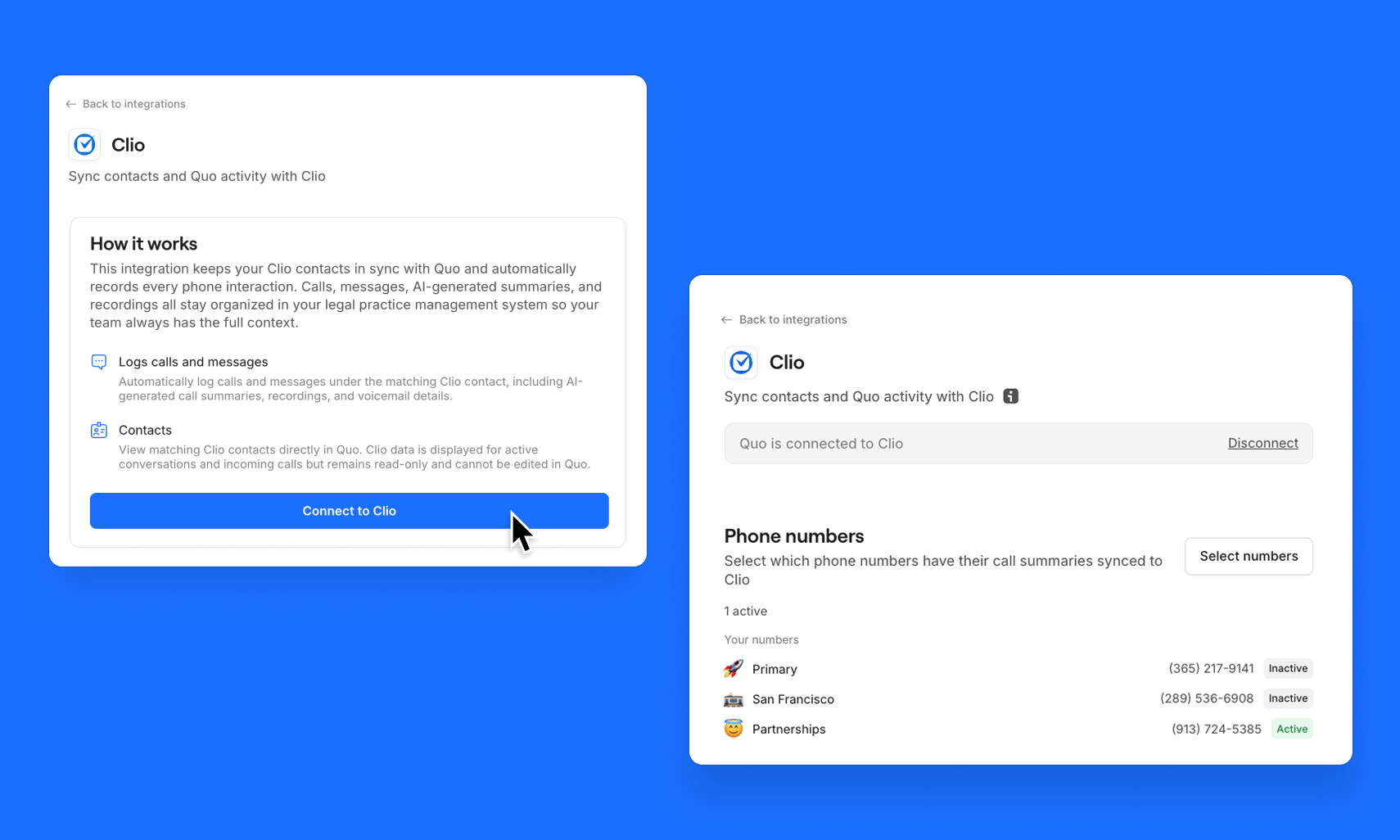 You'll be redirected to Clio's OAuth flow to authorize the connection.
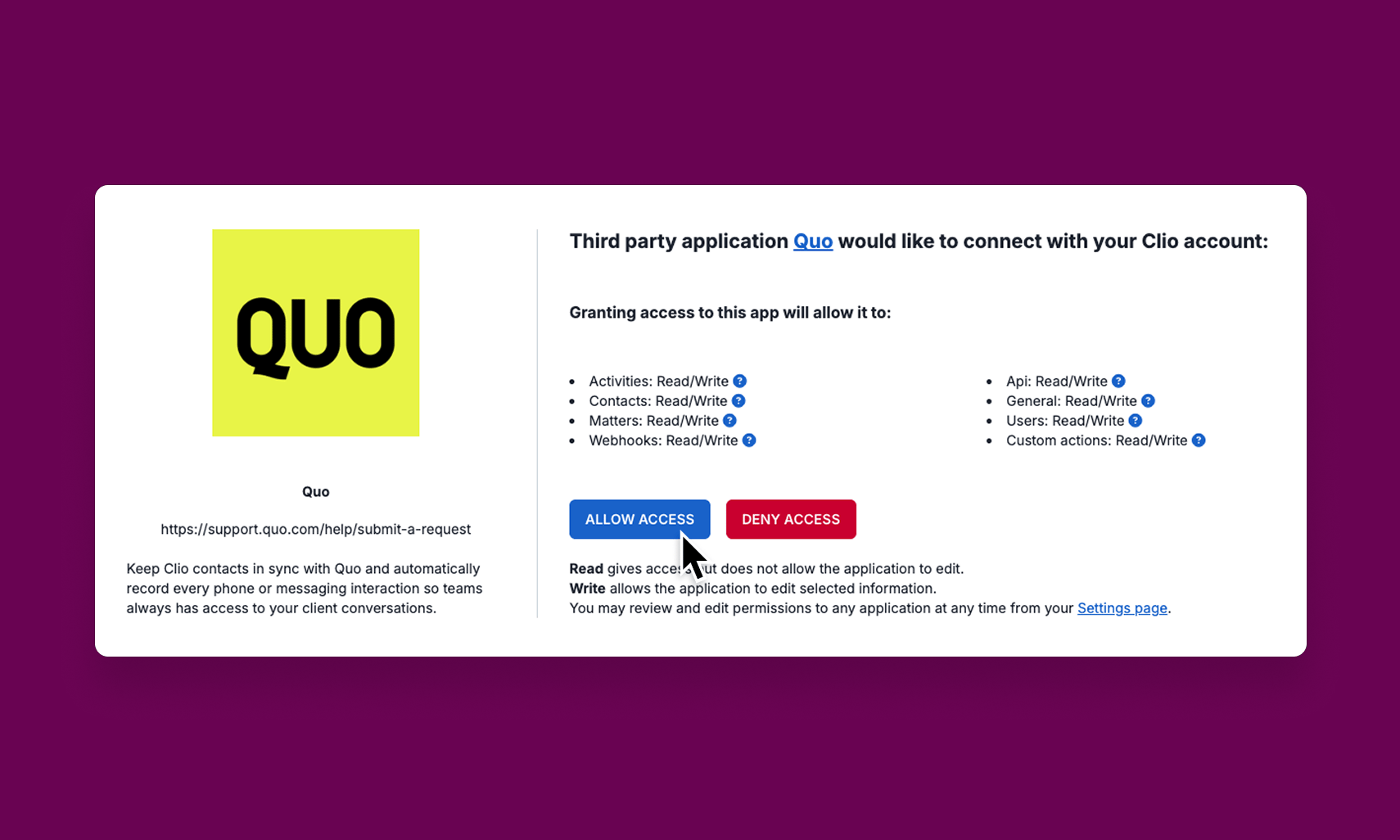 Quo detects your firm's Clio data region (US or Canada) automatically during this step.
For most firms this takes a few minutes — larger databases may take longer. After the initial import, new changes in Clio sync in real time.
From Settings → Integrations → Clio, you can:
* Enable or disable call logging and message logging
* Choose which phone numbers sync activity
* Configure which of your contacts are synced
***
## Manage your settings
Owners and Admins can configure the Clio integration from **their Quo workspace**.
1. In Quo, go to **Settings → Integrations**
2. Select **Clio**
3. Adjust your settings using the options below
4. Click **Save**
| Setting | What it controls |
| ---------------------- | ----------------------------------------------------------------------- |
| **Call logging** | Toggles whether calls are logged as Communications in Clio |
| **Message logging** | Toggles whether SMS messages are logged as Notes in Clio |
| **Phone numbers** | Choose which Quo phone numbers sync activity to Clio |
| **Contact sync scope** | Filter which Clio contacts sync into Quo (all contacts or clients only) |
**Activity is logged at the contact level in Clio**, not the **Matter** level. This helps prevent interfering with your existing billing workflows.
***
## How contact sync works
Contact sync is one-way, from Clio to Quo. Contacts created or edited in Clio sync into Quo automatically. Synced contacts are read-only in Quo; make all edits in Clio and they'll flow over automatically.
Quo detects your firm's Clio data region (US or Canada) automatically during this step.
For most firms this takes a few minutes — larger databases may take longer. After the initial import, new changes in Clio sync in real time.
From Settings → Integrations → Clio, you can:
* Enable or disable call logging and message logging
* Choose which phone numbers sync activity
* Configure which of your contacts are synced
***
## Manage your settings
Owners and Admins can configure the Clio integration from **their Quo workspace**.
1. In Quo, go to **Settings → Integrations**
2. Select **Clio**
3. Adjust your settings using the options below
4. Click **Save**
| Setting | What it controls |
| ---------------------- | ----------------------------------------------------------------------- |
| **Call logging** | Toggles whether calls are logged as Communications in Clio |
| **Message logging** | Toggles whether SMS messages are logged as Notes in Clio |
| **Phone numbers** | Choose which Quo phone numbers sync activity to Clio |
| **Contact sync scope** | Filter which Clio contacts sync into Quo (all contacts or clients only) |
**Activity is logged at the contact level in Clio**, not the **Matter** level. This helps prevent interfering with your existing billing workflows.
***
## How contact sync works
Contact sync is one-way, from Clio to Quo. Contacts created or edited in Clio sync into Quo automatically. Synced contacts are read-only in Quo; make all edits in Clio and they'll flow over automatically.
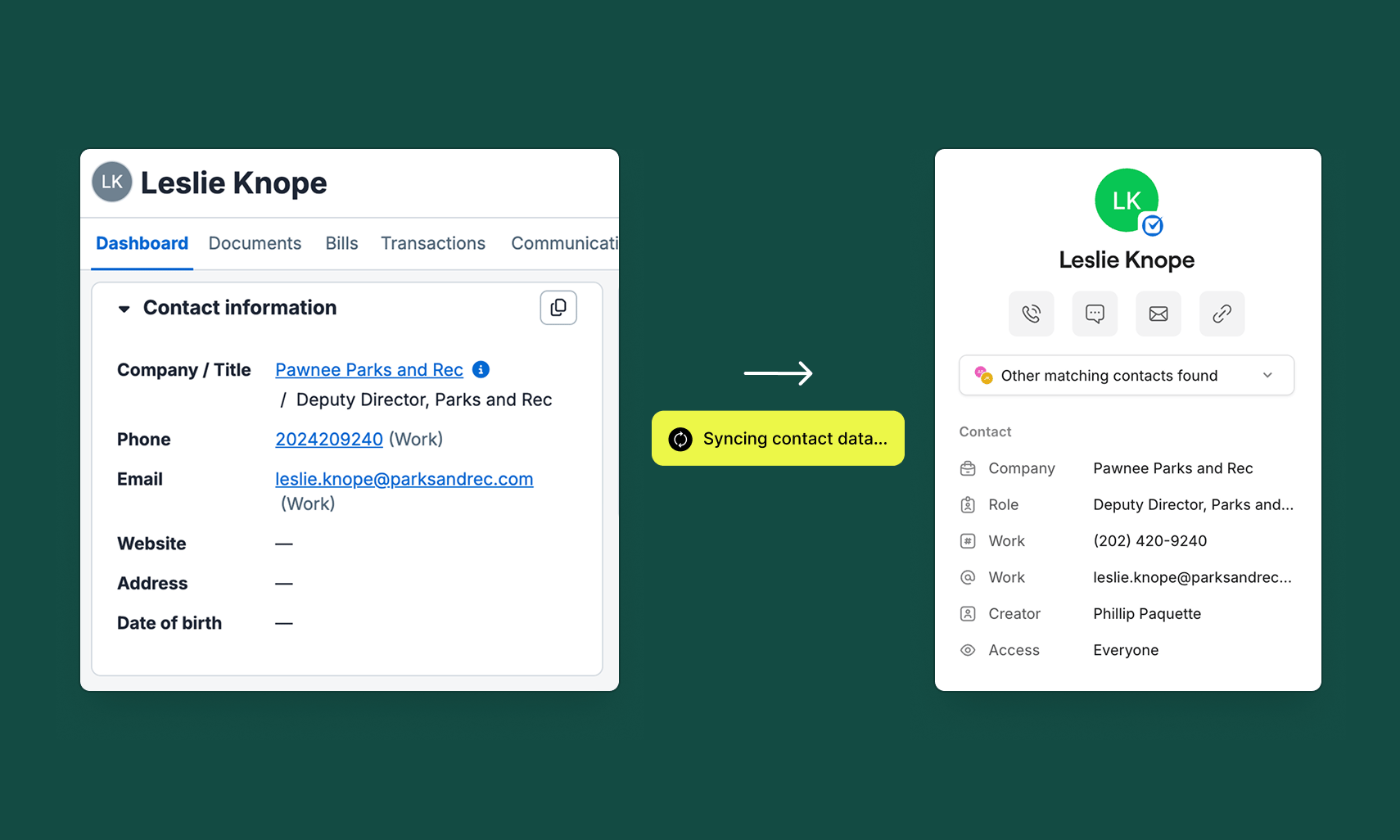 **Imported fields:**
* First and last name
* Phone numbers
* Email address
* Company
* Role
Both **Person** and **Company** contact types are supported.
**Limitations of contact sync:**
* **One-way sync only:** Contact details flow from Clio into Quo, not bidirectionally.
* **Editing in Quo does not update Clio:** To update a contact's details, make the change in Clio and it will sync over automatically.
* **Contacts created in Quo don't sync to Clio:** If you need a contact in both systems, create it in Clio first.
***
## How call logging works
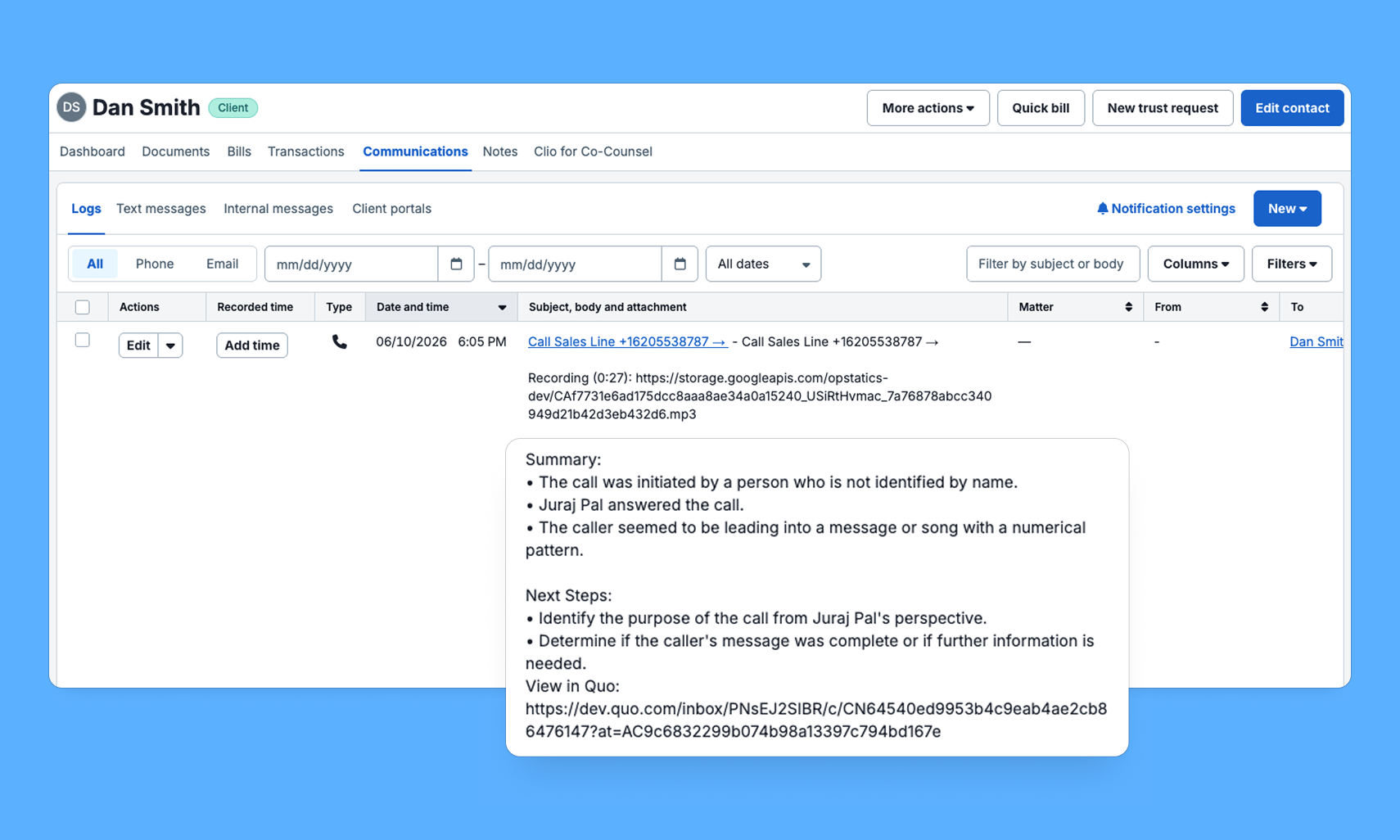
When a call ends, Quo creates a **Communication record** in Clio on the matching contact. Logged calls can be associated to Matters from Clio, and Recorded time is added separately.
**The record includes:**
* Direction (inbound or outbound)
* Phone numbers involved
* Who answered or handled the call
* Duration
* A deep link back to the activity in Quo
When AI enrichment is ready (summary, next steps, and transcript), the Communication record in Clio is updated automatically. Calls handled by **Sona** are also logged.
**Imported fields:**
* First and last name
* Phone numbers
* Email address
* Company
* Role
Both **Person** and **Company** contact types are supported.
**Limitations of contact sync:**
* **One-way sync only:** Contact details flow from Clio into Quo, not bidirectionally.
* **Editing in Quo does not update Clio:** To update a contact's details, make the change in Clio and it will sync over automatically.
* **Contacts created in Quo don't sync to Clio:** If you need a contact in both systems, create it in Clio first.
***
## How call logging works
When a call ends, Quo creates a **Communication record** in Clio on the matching contact. Logged calls can be associated to Matters from Clio, and Recorded time is added separately.
**The record includes:**
* Direction (inbound or outbound)
* Phone numbers involved
* Who answered or handled the call
* Duration
* A deep link back to the activity in Quo
When AI enrichment is ready (summary, next steps, and transcript), the Communication record in Clio is updated automatically. Calls handled by **Sona** are also logged.
 ***
## How message logging works
When an SMS message is sent or received, Quo logs it as a **Note** on the corresponding Contact record in Clio.
**Each note includes:**
* Direction (inbound or outbound)
* Phone numbers involved
* Message content
* A deep link back to the conversation in Quo
**Notes** appear on the contact's timeline, so your team has a complete message history without leaving Clio.
***
## Use "Call with Quo" from Clio
The **Call with Quo** button appears on Contact detail pages in Clio. Clicking it opens the Quo desktop app with the contact's primary phone number ready to dial.
***
## How message logging works
When an SMS message is sent or received, Quo logs it as a **Note** on the corresponding Contact record in Clio.
**Each note includes:**
* Direction (inbound or outbound)
* Phone numbers involved
* Message content
* A deep link back to the conversation in Quo
**Notes** appear on the contact's timeline, so your team has a complete message history without leaving Clio.
***
## Use "Call with Quo" from Clio
The **Call with Quo** button appears on Contact detail pages in Clio. Clicking it opens the Quo desktop app with the contact's primary phone number ready to dial.
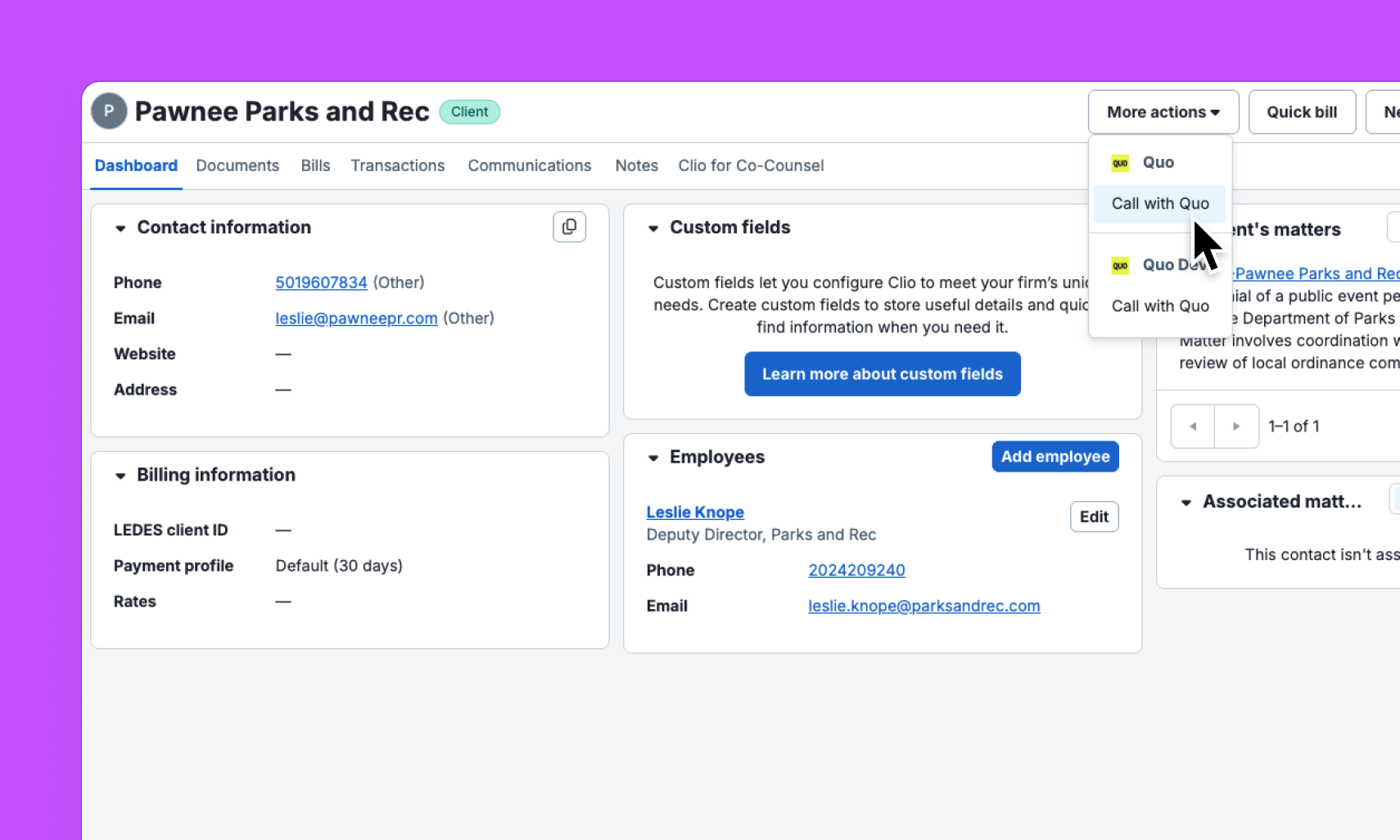 **How to place a call from a Contact record:**
1. **From Clio**, select a contact you want to call
2. Open the **Contact record**
3. Click **More actions**
4. Click **Call with Quo**
**Requirements:**
* The Quo desktop app must be installed on your computer
* Quo must be set as your [default calling app](https://support.quo.com/core-concepts/calling/click-to-call#click-to-call)
**The call is made through the Quo app**, not inside Clio. If the button does nothing or opens the wrong app, check that Quo is installed and set as your default phone handler.
***
## How to disconnect the Clio integration
### From Quo
1. In your Quo workspace, navigate to **Settings → Integrations → Clio**
2. Click **Disconnect**
### From Clio
1. In Clio, navigate to **Settings → Marketplace**
2. Find Quo and select **Uninstall**
**While the integration is disconnected, Quo won't log any activity to Clio.** Activity generated during downtime can't be synced retroactively, though it remains visible in Quo.
***
## FAQs
Yes. You can choose to sync all contacts or filter for specific contacts only. Adjust this in **Settings → Integrations → Clio**.
It depends on the size of your Clio contact database. For most firms, the bulk import completes within a few minutes. Larger databases may take longer.
No. Make contact edits in Clio to ensure your contacts stay in sync. Changes in Clio will automatically flow into Quo.
All call types are logged: inbound, outbound, missed, forwarded, voicemail, and Sona-handled calls. Each is logged as a Communication on the matching Clio contact.
Contacts previously synced may need to re-import. Activity logged during the disconnected period won't be retroactively synced.
No. The integration is currently available for Clio Manage only.
No, currently this integration is only available to Clio Manage accounts in the US and Canada.
***
Need help? [Submit a support request](https://support.quo.com/help/submit-a-request) and we'll jump in.
**How to place a call from a Contact record:**
1. **From Clio**, select a contact you want to call
2. Open the **Contact record**
3. Click **More actions**
4. Click **Call with Quo**
**Requirements:**
* The Quo desktop app must be installed on your computer
* Quo must be set as your [default calling app](https://support.quo.com/core-concepts/calling/click-to-call#click-to-call)
**The call is made through the Quo app**, not inside Clio. If the button does nothing or opens the wrong app, check that Quo is installed and set as your default phone handler.
***
## How to disconnect the Clio integration
### From Quo
1. In your Quo workspace, navigate to **Settings → Integrations → Clio**
2. Click **Disconnect**
### From Clio
1. In Clio, navigate to **Settings → Marketplace**
2. Find Quo and select **Uninstall**
**While the integration is disconnected, Quo won't log any activity to Clio.** Activity generated during downtime can't be synced retroactively, though it remains visible in Quo.
***
## FAQs
Yes. You can choose to sync all contacts or filter for specific contacts only. Adjust this in **Settings → Integrations → Clio**.
It depends on the size of your Clio contact database. For most firms, the bulk import completes within a few minutes. Larger databases may take longer.
No. Make contact edits in Clio to ensure your contacts stay in sync. Changes in Clio will automatically flow into Quo.
All call types are logged: inbound, outbound, missed, forwarded, voicemail, and Sona-handled calls. Each is logged as a Communication on the matching Clio contact.
Contacts previously synced may need to re-import. Activity logged during the disconnected period won't be retroactively synced.
No. The integration is currently available for Clio Manage only.
No, currently this integration is only available to Clio Manage accounts in the US and Canada.
***
Need help? [Submit a support request](https://support.quo.com/help/submit-a-request) and we'll jump in.