> ## Documentation Index
> Fetch the complete documentation index at: https://support.quo.com/llms.txt
> Use this file to discover all available pages before exploring further.
# Attio
> Using Quo’s Attio integration allows you to connect Quo with your CRM. This article walks you through how the integration works, how to set it up, and what your team can do once everything is connected.
To use integrations, you must have the [Quo Desktop app installed](https://support.quo.com/getting-started/install-apps).
## Overview
The Attio integration brings your CRM and phone system together so your team always has the most up-to-date customer context. Once connected, Quo will automatically sync your Attio contacts into Quo and log all calls, texts, voicemails, recordings, and AI-powered call summaries back to the correct Attio Person.
This allows sales, success, and support teams to work directly from Attio with complete communication history without manual updates, or switching tools.
To enable the Attio integration, you'll need to be on the **Quo Business or Scale plan**. Only workspace Owners and Admins can set up the integration.
## How the integration works
### Contact syncing
Quo automatically imports and displays contact information from Attio when a call or text matches an existing Attio Person’s phone number. The integration focuses on displaying Attio contact information **during active conversations** rather than syncing entire contact databases.
**Contact must exist in Attio for syncing to work.** For Quo to sync and display Attio contact information, the person you're communicating with must already exist as a Person in Attio with their phone number on file. If a call or text comes in from a number that doesn't match any existing Attio contact, the integration won't be able to pull or display that contact's information.
**Imported fields:**
* First name
* Last name
* Phone
* Email address
* Link to Quo record
**If available:**
* Job title
* Company
### Limitations of contact syncing with Attio
* **One-way sync only:** Contact details flow from Attio to Quo, not bidirectionally at this time.
* **Contact matching is phone-number based:** Quo displays Attio contact details only when the incoming/outgoing phone number matches a *Person*’s number in Attio.
* **Editing in Quo does not update Attio:** If you need to update names, numbers, or emails for a *Person*, make those changes directly in Attio.
* **Contacts created or edited in Quo do not sync back to Attio.**
## Quo activity syncing
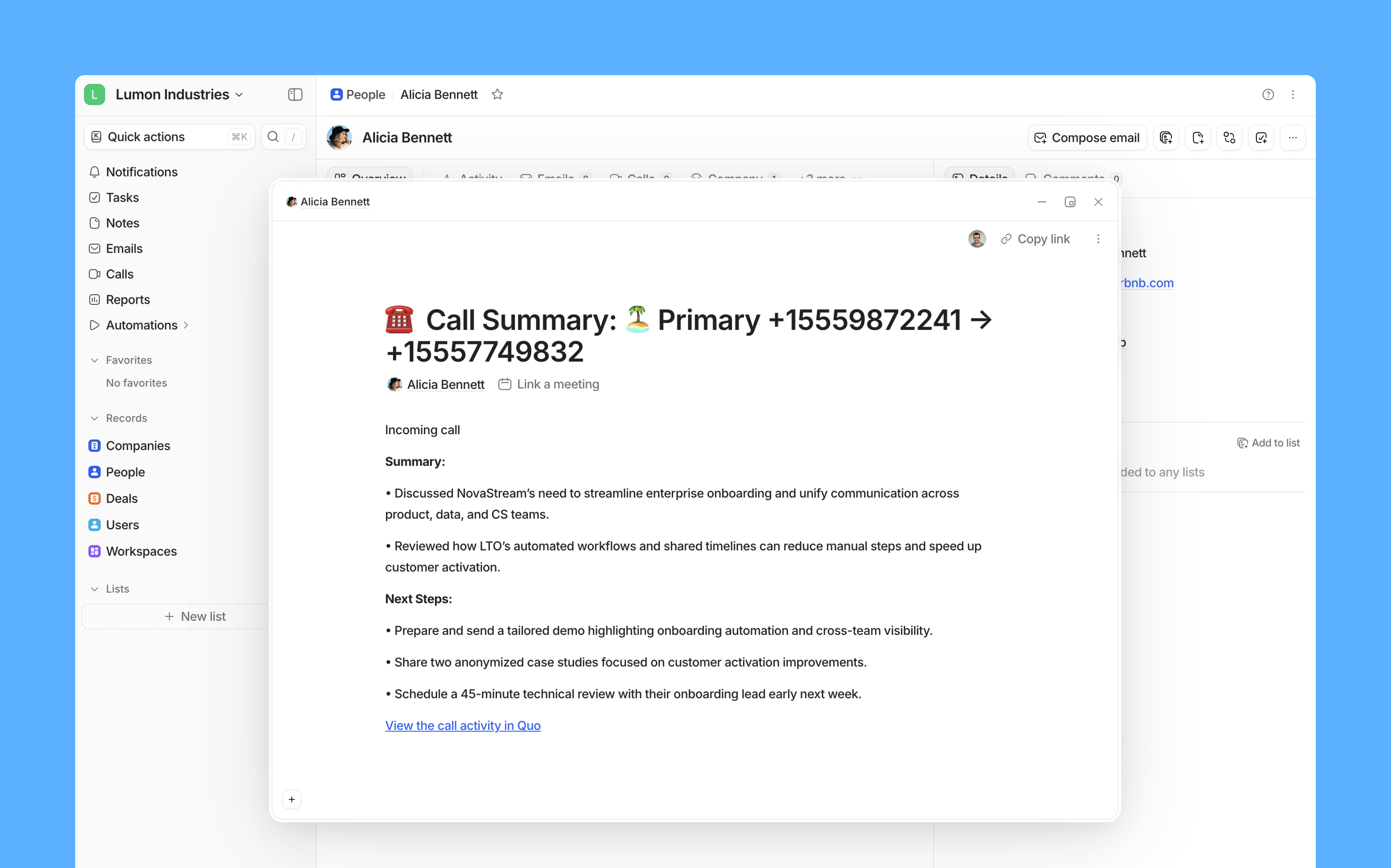
Quo can automatically log communication activity to the correct **Attio Person**, giving your team a unified timeline of every customer interaction. These include all of the following:
* Incoming calls
* Outgoing calls
* Call recordings
* Call summaries and next steps
* Voicemail
* SMS messages
 ### Number-level control
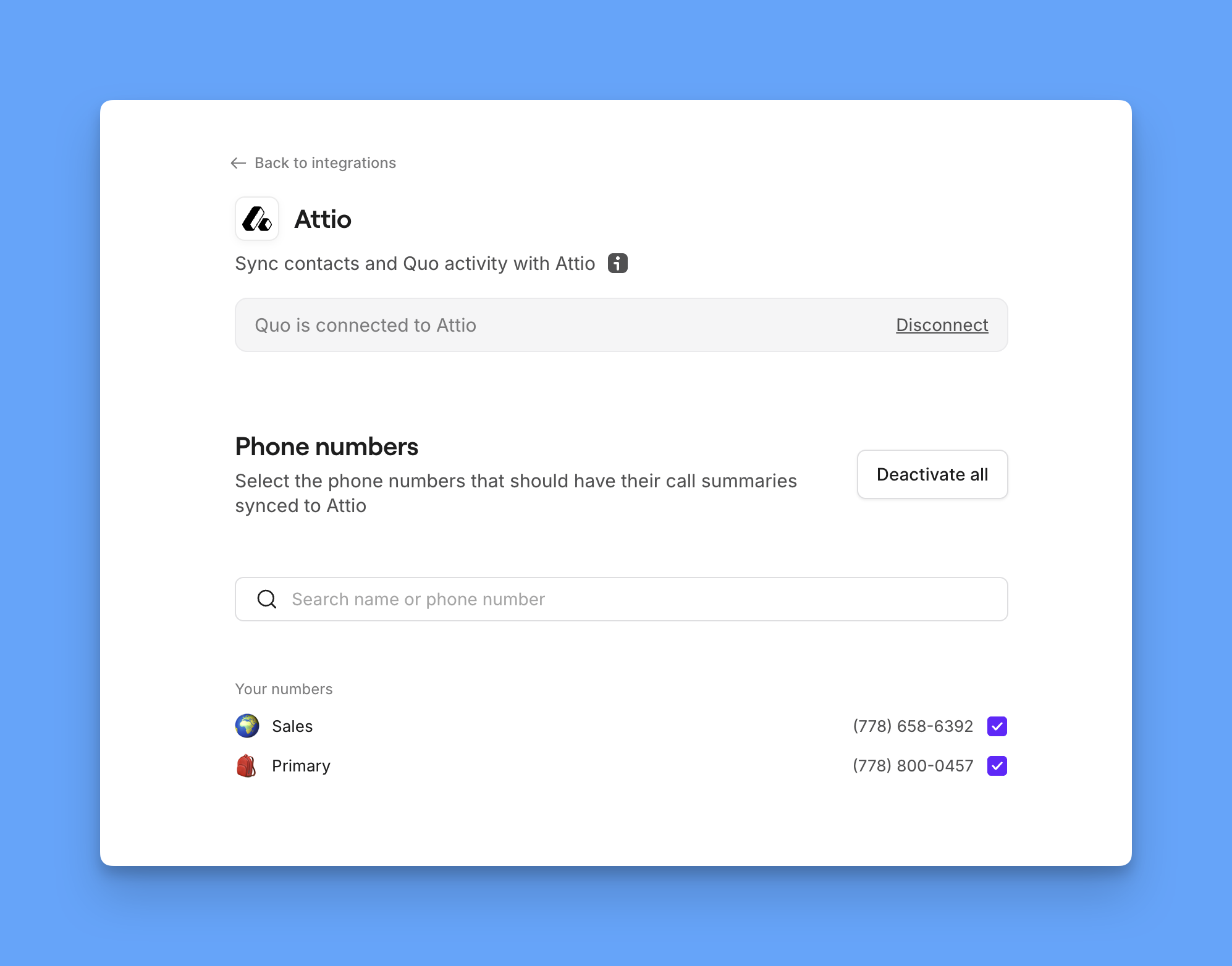
You can choose which Quo phone numbers sync activity to Attio, giving teams flexibility in managing what data flows to the CRM.
### Number-level control
You can choose which Quo phone numbers sync activity to Attio, giving teams flexibility in managing what data flows to the CRM.
 ## Click-to-call from Attio
The **Call in Quo** button appears on Person records in Attio. Clicking it opens the Quo desktop app with the contact's phone number ready to dial.
**How to place a call from a Person record:**
1. In Attio, open the **Person** record you want to call
2. Click **Call in Quo**
3. In the Quo desktop app, click **Call** to connect
The call is placed through the Quo desktop app, not inside Attio.
**Requirements:**
* The Quo desktop app must be installed on your computer
* Quo must be set as your [**default calling app**](https://support.quo.com/core-concepts/calling/click-to-call#click-to-call)
**Call in Quo** works from the Attio web app, not the desktop app on Mac. To use click-to-call, place the call from Attio in your browser.
## Who can access and set up the integration?
All customers on the [**Quo Scale and Business plans**](https://support.quo.com/core-concepts/administration/billing/pricing#plan-comparison) have access to the integration. Only an Quo workspace Owner or Admin can set up the integration.
From Attio, you can access this integration with any Attio plan.
## How to set up the Attio integration
1. If you are an Quo workspace Owner or Admin, go to the Quo [**web**](https://my.quo.com/signup) or desktop app.
2. In your workspace settings, select [**Integrations**](https://get.quo.com/integrations-attio).
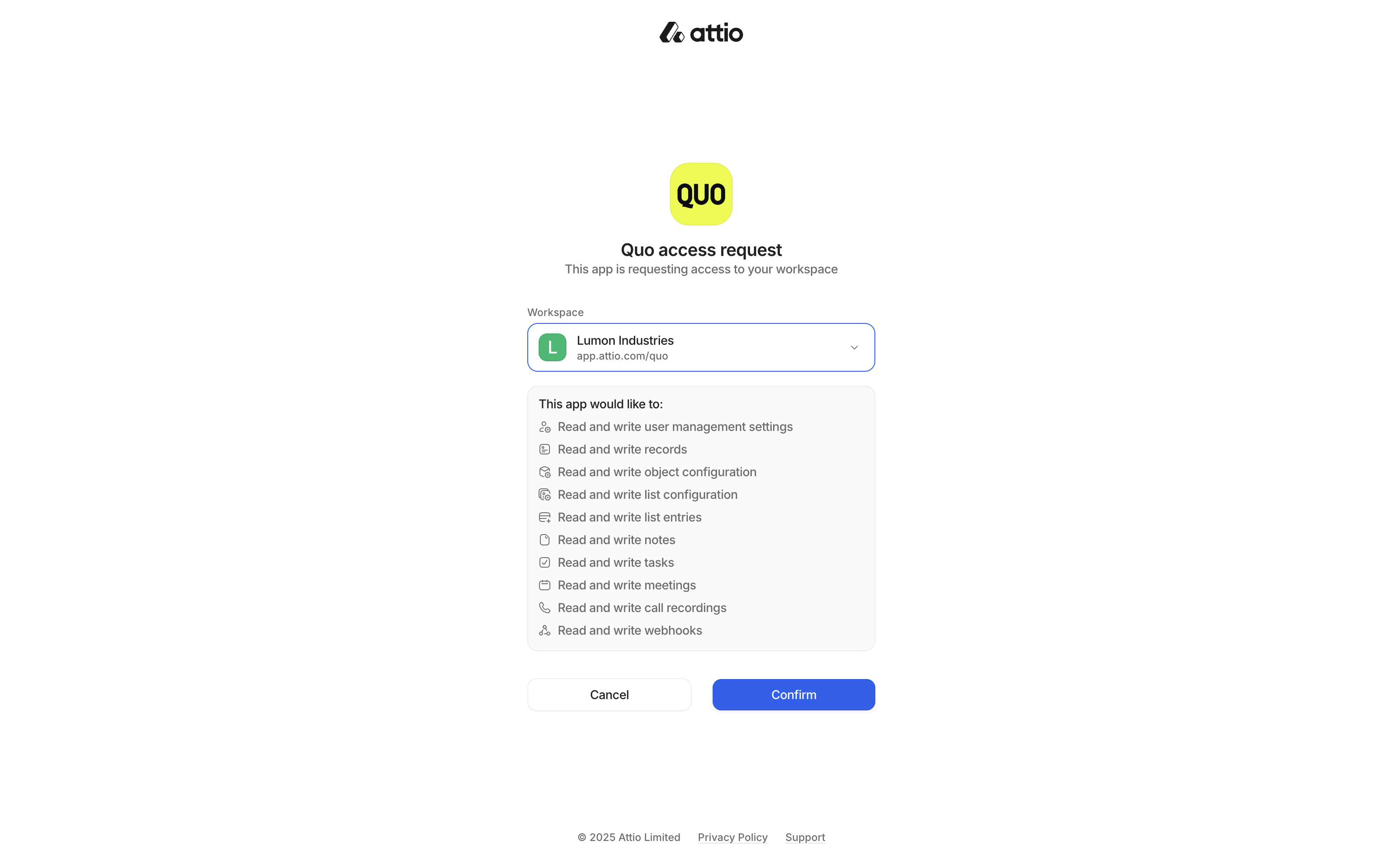
3. Select Attio and click the **Connect to Attio** button. Attio will ask you to confirm the Attio account you want to connect to Quo.
## Click-to-call from Attio
The **Call in Quo** button appears on Person records in Attio. Clicking it opens the Quo desktop app with the contact's phone number ready to dial.
**How to place a call from a Person record:**
1. In Attio, open the **Person** record you want to call
2. Click **Call in Quo**
3. In the Quo desktop app, click **Call** to connect
The call is placed through the Quo desktop app, not inside Attio.
**Requirements:**
* The Quo desktop app must be installed on your computer
* Quo must be set as your [**default calling app**](https://support.quo.com/core-concepts/calling/click-to-call#click-to-call)
**Call in Quo** works from the Attio web app, not the desktop app on Mac. To use click-to-call, place the call from Attio in your browser.
## Who can access and set up the integration?
All customers on the [**Quo Scale and Business plans**](https://support.quo.com/core-concepts/administration/billing/pricing#plan-comparison) have access to the integration. Only an Quo workspace Owner or Admin can set up the integration.
From Attio, you can access this integration with any Attio plan.
## How to set up the Attio integration
1. If you are an Quo workspace Owner or Admin, go to the Quo [**web**](https://my.quo.com/signup) or desktop app.
2. In your workspace settings, select [**Integrations**](https://get.quo.com/integrations-attio).
3. Select Attio and click the **Connect to Attio** button. Attio will ask you to confirm the Attio account you want to connect to Quo.
 ## How to disconnect the Attio integration
If you wish to uninstall your Attio integration, there are two ways to do so:
* In your Quo workspace, navigate to **Settings →** **Integration → Attio**. From there, click **Disconnect.**
* In Attio, to deactivate the Quo app navigate to your **Apps and integrations** and uninstall.
While the integration is disconnected, Quo will not send any activity to Attio. Activities generated during downtime cannot be synced retroactively, though they remain visible in Quo.
## Need Support?
Submit a support request at [**support.quo.com**](http://support.quo.com) for help with the Attio integration setup.
## How to disconnect the Attio integration
If you wish to uninstall your Attio integration, there are two ways to do so:
* In your Quo workspace, navigate to **Settings →** **Integration → Attio**. From there, click **Disconnect.**
* In Attio, to deactivate the Quo app navigate to your **Apps and integrations** and uninstall.
While the integration is disconnected, Quo will not send any activity to Attio. Activities generated during downtime cannot be synced retroactively, though they remain visible in Quo.
## Need Support?
Submit a support request at [**support.quo.com**](http://support.quo.com) for help with the Attio integration setup.