> ## Documentation Index
> Fetch the complete documentation index at: https://support.quo.com/llms.txt
> Use this file to discover all available pages before exploring further.
# Inbox search
> Find contacts and conversations quickly using powerful search features across your Quo, formerly OpenPhone, workspace
## Overview
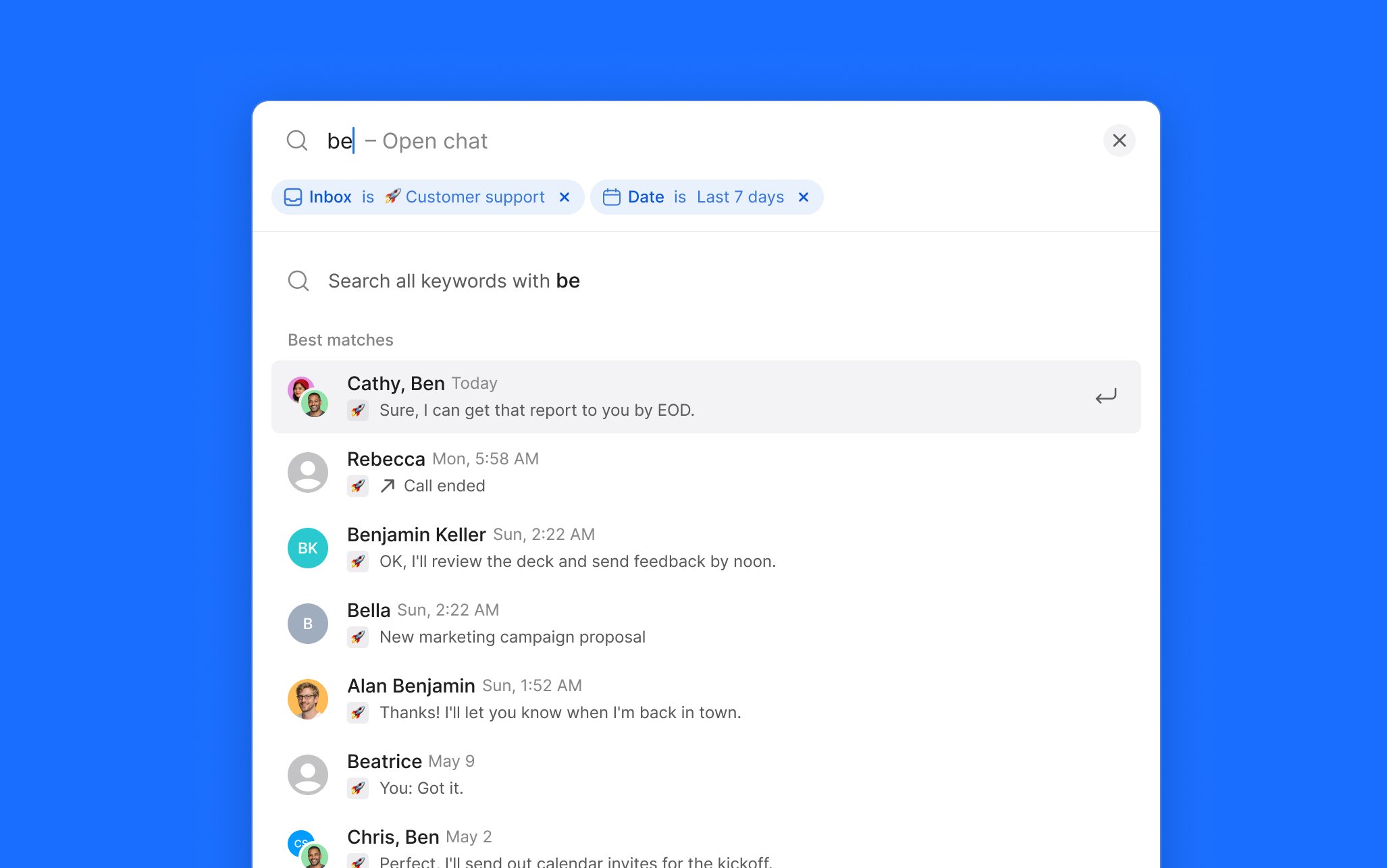
Quo's search functionality helps you find contacts, conversations, and messages across your entire Quo workspace. Start typing to see results instantly, filter by inbox or date, and search message content to dig into conversation history.
 ***
## Understanding search capabilities
Quo search works across multiple data types and locations:
**Searchable content:**
* Contact names and company information
* Phone numbers and contact details (in any format)
* Conversation content and message text
* Custom contact properties and tags
* Call history and voicemail transcripts
* Integration contacts synced from tools like HubSpot, Salesforce, and Pipedrive
**Search scope:**
* All workspace contacts
* Conversations across all inboxes
* Archived conversations in "Done" status
* Group conversations
* Team member activity and assignments
Message content search and inbox and date filters are available on web and desktop only.
***
## Searching for contacts
### From web or desktop app
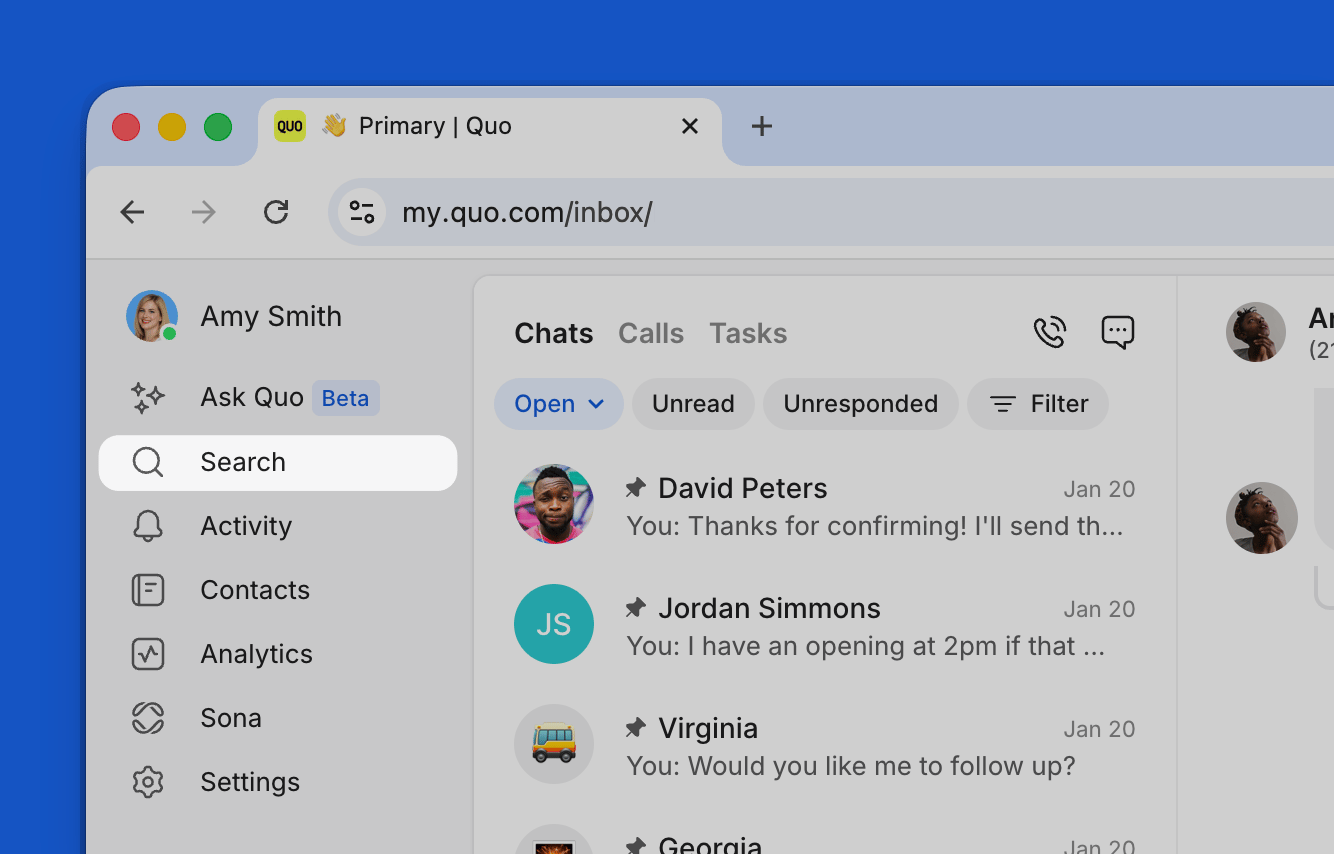
1. Open the **Quo desktop app** or using your web browser
2. From the left sidebar, click **🔍 Search** or use the **keyboard shortcut**
* **Mac**: Cmd+/
* **Windows**: Ctrl+/
3. Type a contact name, phone number, or company into the search bar
4. Click a result to open the contact or your conversation with them
Contacts appear in results as you type alongside conversations.
***
## Understanding search capabilities
Quo search works across multiple data types and locations:
**Searchable content:**
* Contact names and company information
* Phone numbers and contact details (in any format)
* Conversation content and message text
* Custom contact properties and tags
* Call history and voicemail transcripts
* Integration contacts synced from tools like HubSpot, Salesforce, and Pipedrive
**Search scope:**
* All workspace contacts
* Conversations across all inboxes
* Archived conversations in "Done" status
* Group conversations
* Team member activity and assignments
Message content search and inbox and date filters are available on web and desktop only.
***
## Searching for contacts
### From web or desktop app
1. Open the **Quo desktop app** or using your web browser
2. From the left sidebar, click **🔍 Search** or use the **keyboard shortcut**
* **Mac**: Cmd+/
* **Windows**: Ctrl+/
3. Type a contact name, phone number, or company into the search bar
4. Click a result to open the contact or your conversation with them
Contacts appear in results as you type alongside conversations.
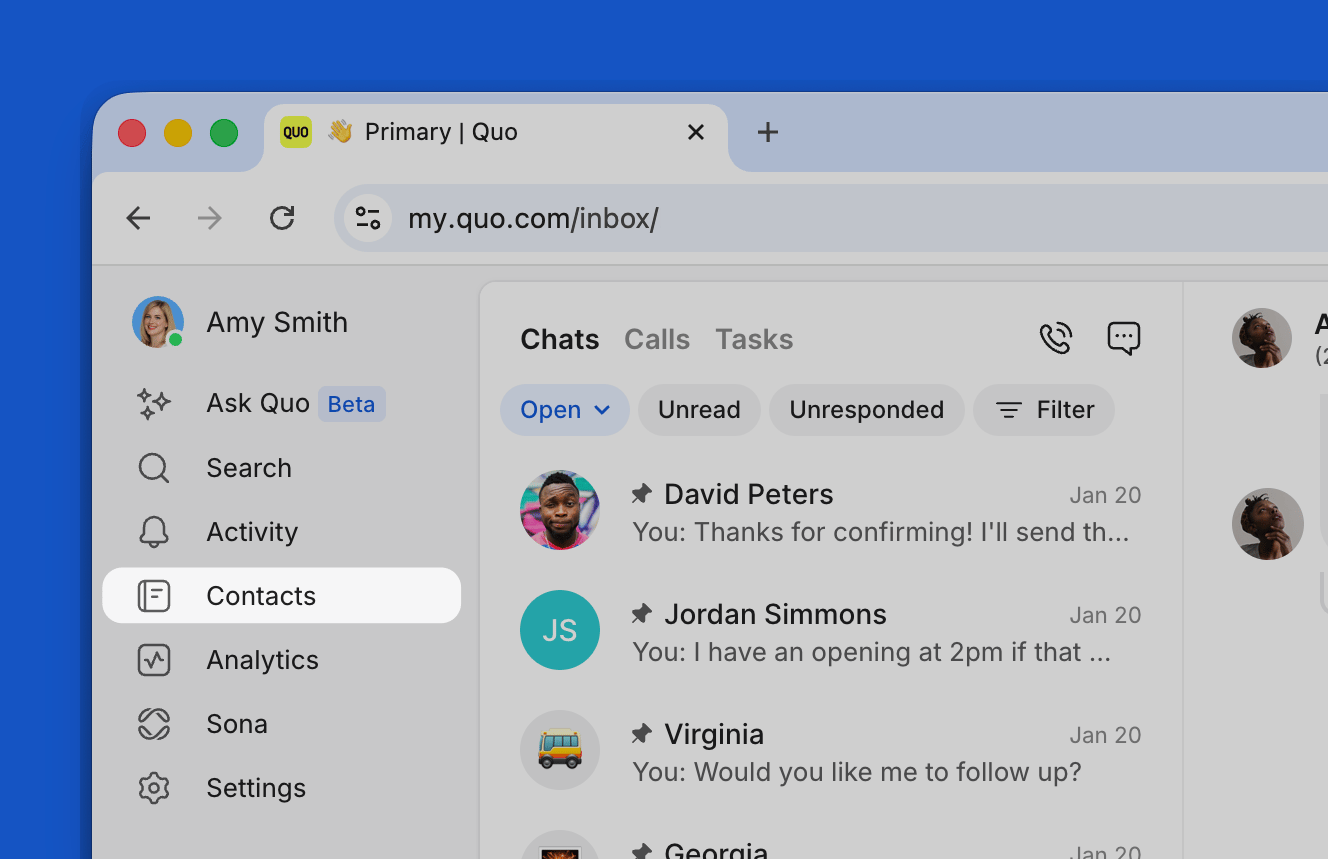
 1. Launch the Quo web app
2. Click **Contacts** in the left sidebar
3. Use the search bar at the top of the contacts list
4. Type the contact name, company, or phone number
5. Select the contact from the results
1. Launch the Quo web app
2. Click **Contacts** in the left sidebar
3. Use the search bar at the top of the contacts list
4. Type the contact name, company, or phone number
5. Select the contact from the results
 ### From mobile app
1. Open the Quo mobile app
2. Tap the search icon (🔍) in the top right corner
3. Type the contact name, number, or company
4. Select the contact from the search results
5. Choose to call or message directly from the contact profile
### From mobile app
1. Open the Quo mobile app
2. Tap the search icon (🔍) in the top right corner
3. Type the contact name, number, or company
4. Select the contact from the search results
5. Choose to call or message directly from the contact profile
 ***
## Searching conversations
### Inbox-specific search
1. Open the **Quo desktop app** or using your web browser
2. From the left sidebar, click **🔍 Search** or use the **keyboard shortcut**
* **Mac**: Cmd+/
* **Windows**: Ctrl+/
3. Type the keywords you're looking for
4. Click **Search \[*keyword*] across all conversations** to search your messages.
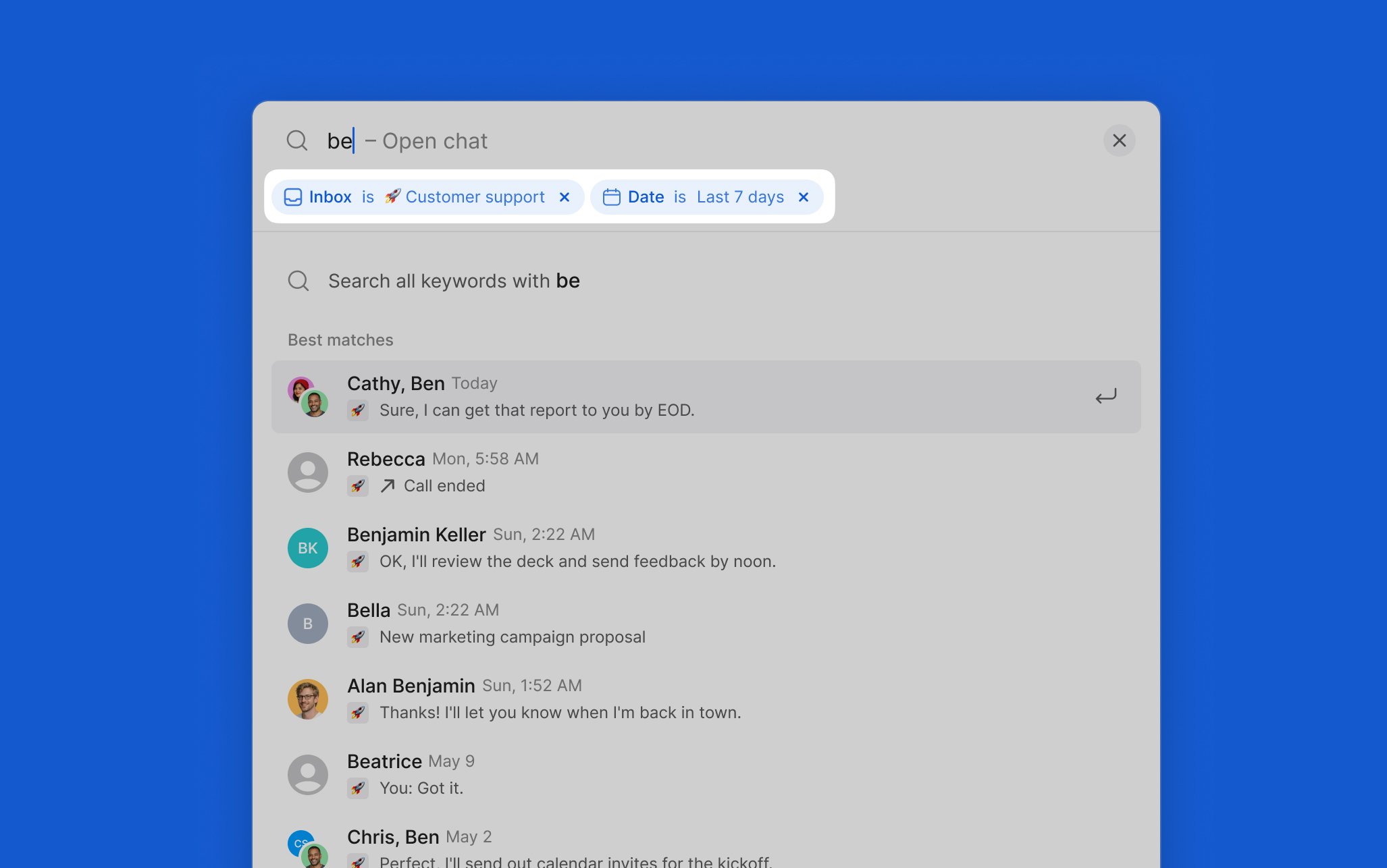
5. **To narrow results by inbox:** Click **Inbox** and select one or more phone numbers.
6. To narrow results by date (web/desktop only): Click **Date** and choose a date or range
***
## Searching conversations
### Inbox-specific search
1. Open the **Quo desktop app** or using your web browser
2. From the left sidebar, click **🔍 Search** or use the **keyboard shortcut**
* **Mac**: Cmd+/
* **Windows**: Ctrl+/
3. Type the keywords you're looking for
4. Click **Search \[*keyword*] across all conversations** to search your messages.
5. **To narrow results by inbox:** Click **Inbox** and select one or more phone numbers.
6. To narrow results by date (web/desktop only): Click **Date** and choose a date or range
 1. Open the **Quo mobile app**
2. Tap your **profile photo** on the top left
3. Select the **Inbox** you want to search in
4. Tap the **Search icon 🔍** in the top right corner
5. **Type your keywords** to search within that inbox
***
### Can't find a specific conversation
When searching within a specific phone number's inbox:
1. Check whether an inbox or date filter is active and clear it if needed.
2. Try searching by phone number instead of name.
3. Make sure you have access to the inbox where the conversation occurred.
### Cross-inbox contact tracking
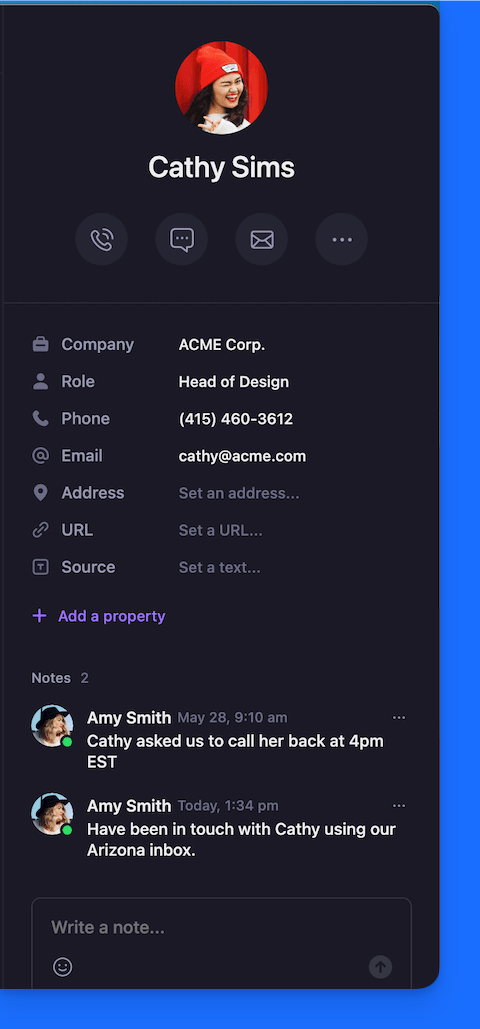
Contacts in Quo are shared across your entire workspace. If a contact calls from multiple numbers (like a personal line and an office line), you can add each number to their contact profile so they always show up as the same person using **Contact properties**.
Each conversation lives in the inbox that received the call, but can be found with search.
**Add contact notes to stay organized**: Include any useful context about how or where a contact typically reaches you:
1. Open the **Quo mobile app**
2. Tap your **profile photo** on the top left
3. Select the **Inbox** you want to search in
4. Tap the **Search icon 🔍** in the top right corner
5. **Type your keywords** to search within that inbox
***
### Can't find a specific conversation
When searching within a specific phone number's inbox:
1. Check whether an inbox or date filter is active and clear it if needed.
2. Try searching by phone number instead of name.
3. Make sure you have access to the inbox where the conversation occurred.
### Cross-inbox contact tracking
Contacts in Quo are shared across your entire workspace. If a contact calls from multiple numbers (like a personal line and an office line), you can add each number to their contact profile so they always show up as the same person using **Contact properties**.
Each conversation lives in the inbox that received the call, but can be found with search.
**Add contact notes to stay organized**: Include any useful context about how or where a contact typically reaches you:
 ***
## Advanced search techniques
### Search operators and filters
* Use quotation marks for exact phrase matching
* Example: "project update" finds only messages containing that exact phrase
* Search by custom contact fields and tags
* Filter results by company, role, or custom properties
* Combine multiple search criteria for precise results
* Use conversation filters to narrow by timeframe
* Combine with search terms for time-specific results
* Access historical conversations through the "Done" filter
### Search best practices
* **Be specific**: Use unique names or distinctive phrases
* **Try variations**: Search different spellings or formats
* **Use contact info**: Search by phone numbers if names don't work
* **Check all inboxes**: Verify you're searching the correct phone number
* **Include archived**: Don't forget to check "Done" conversations
* **Complete contact profiles**: Add company names and relevant details
* **Use consistent naming**: Standardize how you save contact names
* **Add descriptive notes**: Include context that helps with future searches
* **Tag appropriately**: Use custom properties for categorization
***
## Troubleshooting search issues
### Common search problems
1. Verify you're in the correct phone number inbox
2. Check if the conversation is marked as "Done"
3. Ensure you have access to that phone number
4. Try searching by contact phone number instead of name
1. Confirm the contact is saved in your workspace
2. Check for typos in contact name or search term
3. Try searching by phone number or company name
4. Verify the contact isn't deleted or archived
1. Expand search to include "Done" conversations
2. Try broader search terms or partial matches
3. Check if contact properties contain searchable information
4. Consider if the contact communicated through a different phone number
### Search optimization strategies
* **Regular cleanup**: Remove duplicate or outdated contacts
* **Consistent formatting**: Use standard naming conventions
* **Rich profiles**: Add company, role, and relevant details
* **Strategic tagging**: Use custom properties for easy filtering
* **Shared naming conventions**: Establish team standards for contact names
* **Contact ownership**: Assign primary contact managers for complex accounts
* **Search documentation**: Share tips for finding specific contact types
* **Regular training**: Keep team updated on search features and best practices
***
## Search workflow integration
### Daily search habits
* Search for priority contacts requiring follow-up
* Review recent conversations with key clients
* Identify new contacts needing profile completion
* Quick contact lookup before important calls
* Search conversation history for context before responding
* Find relevant team members for collaboration
* Search for incomplete conversations needing follow-up
* Update contact information based on recent interactions
* Tag conversations for easy future retrieval
### Team collaboration
* Document common search terms for important clients
* Share contact property conventions across the team
* Create searchable references for complex account structures
* Maintain updated contact profiles for team accessibility
***
## FAQs
Check whether an **Inbox filter** or **Date filter** is active. These narrow results and may be excluding the conversation. Try clearing filters and searching again. You can also search by phone number instead of name.
Yes! Results show matching messages with the search term highlighted. For call transcripts, you can use the built-in [search within transcripts](/core-concepts/calling/summaries-and-transcripts#searching-within-transcripts) feature to find specific words or phrases (Business and Scale plans).
Contact search works across your entire workspace regardless of phone number. For conversations, use **search on web or desktop** to see results from multiple inboxes at once, rather than searching each one individually.
Contact search includes names, company names, phone numbers, and custom contact properties you've added. It also searches notes and tags associated with contacts, making comprehensive contact profiles important for search success.
Your recent searches are stored and appear when you open search before typing, so you can return to them quickly. For contacts you search regularly, you can also use **custom contact properties** and **tags** to create searchable categories.
Simply type their name or phone number in Search and choose from the results. Alternatively, you can go to the **Contacts section** to see all saved contacts, regardless of whether they have active conversations, and search there.
Contacts and conversations remain searchable even after team members leave. However, contact ownership or assignment information may change, so it's helpful to update contact records when team changes occur.
Yes. On **web and desktop**, open search and click the **Date** dropdown to filter by a preset range or a custom date range. You can combine date filters with the **Inbox** filter to narrow results further.
On mobile, you can only search the inbox you have open. To search a different inbox, tap your profile photo, select the inbox, and then tap the search icon. Date filtering is available on web and desktop only.
***
**Need help?** [Submit a support request](https://support.quo.com/help/submit-a-request) and we'll jump in.
***
## Advanced search techniques
### Search operators and filters
* Use quotation marks for exact phrase matching
* Example: "project update" finds only messages containing that exact phrase
* Search by custom contact fields and tags
* Filter results by company, role, or custom properties
* Combine multiple search criteria for precise results
* Use conversation filters to narrow by timeframe
* Combine with search terms for time-specific results
* Access historical conversations through the "Done" filter
### Search best practices
* **Be specific**: Use unique names or distinctive phrases
* **Try variations**: Search different spellings or formats
* **Use contact info**: Search by phone numbers if names don't work
* **Check all inboxes**: Verify you're searching the correct phone number
* **Include archived**: Don't forget to check "Done" conversations
* **Complete contact profiles**: Add company names and relevant details
* **Use consistent naming**: Standardize how you save contact names
* **Add descriptive notes**: Include context that helps with future searches
* **Tag appropriately**: Use custom properties for categorization
***
## Troubleshooting search issues
### Common search problems
1. Verify you're in the correct phone number inbox
2. Check if the conversation is marked as "Done"
3. Ensure you have access to that phone number
4. Try searching by contact phone number instead of name
1. Confirm the contact is saved in your workspace
2. Check for typos in contact name or search term
3. Try searching by phone number or company name
4. Verify the contact isn't deleted or archived
1. Expand search to include "Done" conversations
2. Try broader search terms or partial matches
3. Check if contact properties contain searchable information
4. Consider if the contact communicated through a different phone number
### Search optimization strategies
* **Regular cleanup**: Remove duplicate or outdated contacts
* **Consistent formatting**: Use standard naming conventions
* **Rich profiles**: Add company, role, and relevant details
* **Strategic tagging**: Use custom properties for easy filtering
* **Shared naming conventions**: Establish team standards for contact names
* **Contact ownership**: Assign primary contact managers for complex accounts
* **Search documentation**: Share tips for finding specific contact types
* **Regular training**: Keep team updated on search features and best practices
***
## Search workflow integration
### Daily search habits
* Search for priority contacts requiring follow-up
* Review recent conversations with key clients
* Identify new contacts needing profile completion
* Quick contact lookup before important calls
* Search conversation history for context before responding
* Find relevant team members for collaboration
* Search for incomplete conversations needing follow-up
* Update contact information based on recent interactions
* Tag conversations for easy future retrieval
### Team collaboration
* Document common search terms for important clients
* Share contact property conventions across the team
* Create searchable references for complex account structures
* Maintain updated contact profiles for team accessibility
***
## FAQs
Check whether an **Inbox filter** or **Date filter** is active. These narrow results and may be excluding the conversation. Try clearing filters and searching again. You can also search by phone number instead of name.
Yes! Results show matching messages with the search term highlighted. For call transcripts, you can use the built-in [search within transcripts](/core-concepts/calling/summaries-and-transcripts#searching-within-transcripts) feature to find specific words or phrases (Business and Scale plans).
Contact search works across your entire workspace regardless of phone number. For conversations, use **search on web or desktop** to see results from multiple inboxes at once, rather than searching each one individually.
Contact search includes names, company names, phone numbers, and custom contact properties you've added. It also searches notes and tags associated with contacts, making comprehensive contact profiles important for search success.
Your recent searches are stored and appear when you open search before typing, so you can return to them quickly. For contacts you search regularly, you can also use **custom contact properties** and **tags** to create searchable categories.
Simply type their name or phone number in Search and choose from the results. Alternatively, you can go to the **Contacts section** to see all saved contacts, regardless of whether they have active conversations, and search there.
Contacts and conversations remain searchable even after team members leave. However, contact ownership or assignment information may change, so it's helpful to update contact records when team changes occur.
Yes. On **web and desktop**, open search and click the **Date** dropdown to filter by a preset range or a custom date range. You can combine date filters with the **Inbox** filter to narrow results further.
On mobile, you can only search the inbox you have open. To search a different inbox, tap your profile photo, select the inbox, and then tap the search icon. Date filtering is available on web and desktop only.
***
**Need help?** [Submit a support request](https://support.quo.com/help/submit-a-request) and we'll jump in.