> ## Documentation Index
> Fetch the complete documentation index at: https://support.quo.com/llms.txt
> Use this file to discover all available pages before exploring further.
# Inboxes
> Understand how inboxes organize conversations and streamline team communication in Quo, formerly OpenPhone
## Overview
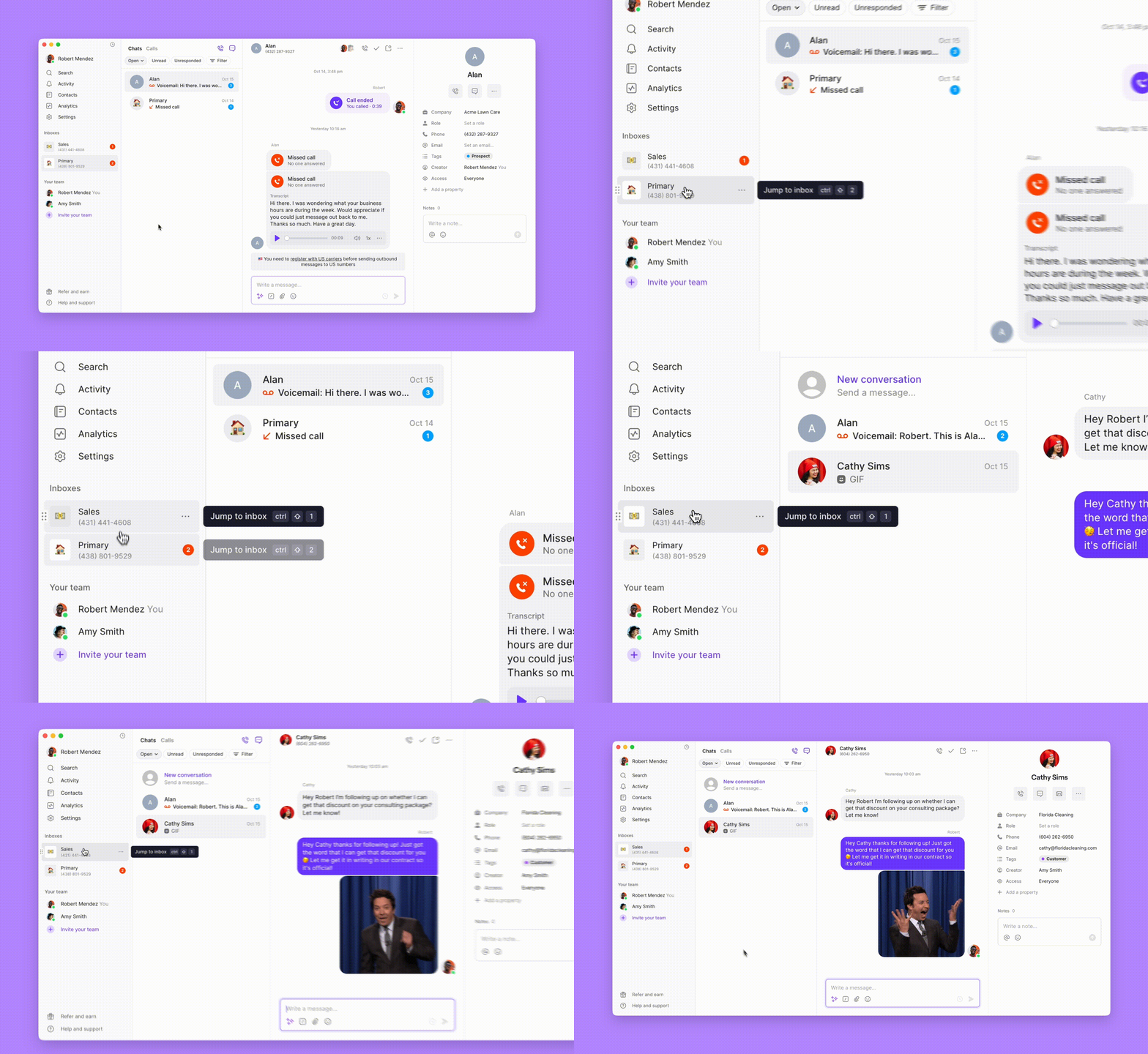
Quo inboxes organize all your communications around specific phone numbers, giving you a unified view of calls, messages, voicemails, and recordings in one place. Unlike traditional phone systems that scatter communications across different menus, inboxes provide a complete conversation history for better customer relationships and team collaboration.
## What is an inbox?
An inbox contains all communications tied to a specific phone number. Every call, text message, voicemail, and call recording appears in chronological order, creating a complete customer interaction history.
 ### Key benefits
* All communication types in one thread
* Complete 360-degree view of customer interactions
* Historical context for new team members
* Custom names and numbers for easy identification
* Categorize conversations into different buckets
* Quick context switching between different business areas
* Inbox-level access control
* Real-time collaboration on customer issues
* Performance analytics and insights
***
## Team collaboration with shared inboxes
Quo works best when you share inboxes with your team.
### Why share inboxes?
* **Visibility**: See exactly which team members are communicating with customers, ensuring efficient team coordination.
* **Collaboration**: Get help from team members in real-time without switching between multiple apps to troubleshoot customer issues.
* **Analytics**: Clear picture of team performance with detailed call and message handling metrics.
### Key benefits
* All communication types in one thread
* Complete 360-degree view of customer interactions
* Historical context for new team members
* Custom names and numbers for easy identification
* Categorize conversations into different buckets
* Quick context switching between different business areas
* Inbox-level access control
* Real-time collaboration on customer issues
* Performance analytics and insights
***
## Team collaboration with shared inboxes
Quo works best when you share inboxes with your team.
### Why share inboxes?
* **Visibility**: See exactly which team members are communicating with customers, ensuring efficient team coordination.
* **Collaboration**: Get help from team members in real-time without switching between multiple apps to troubleshoot customer issues.
* **Analytics**: Clear picture of team performance with detailed call and message handling metrics.
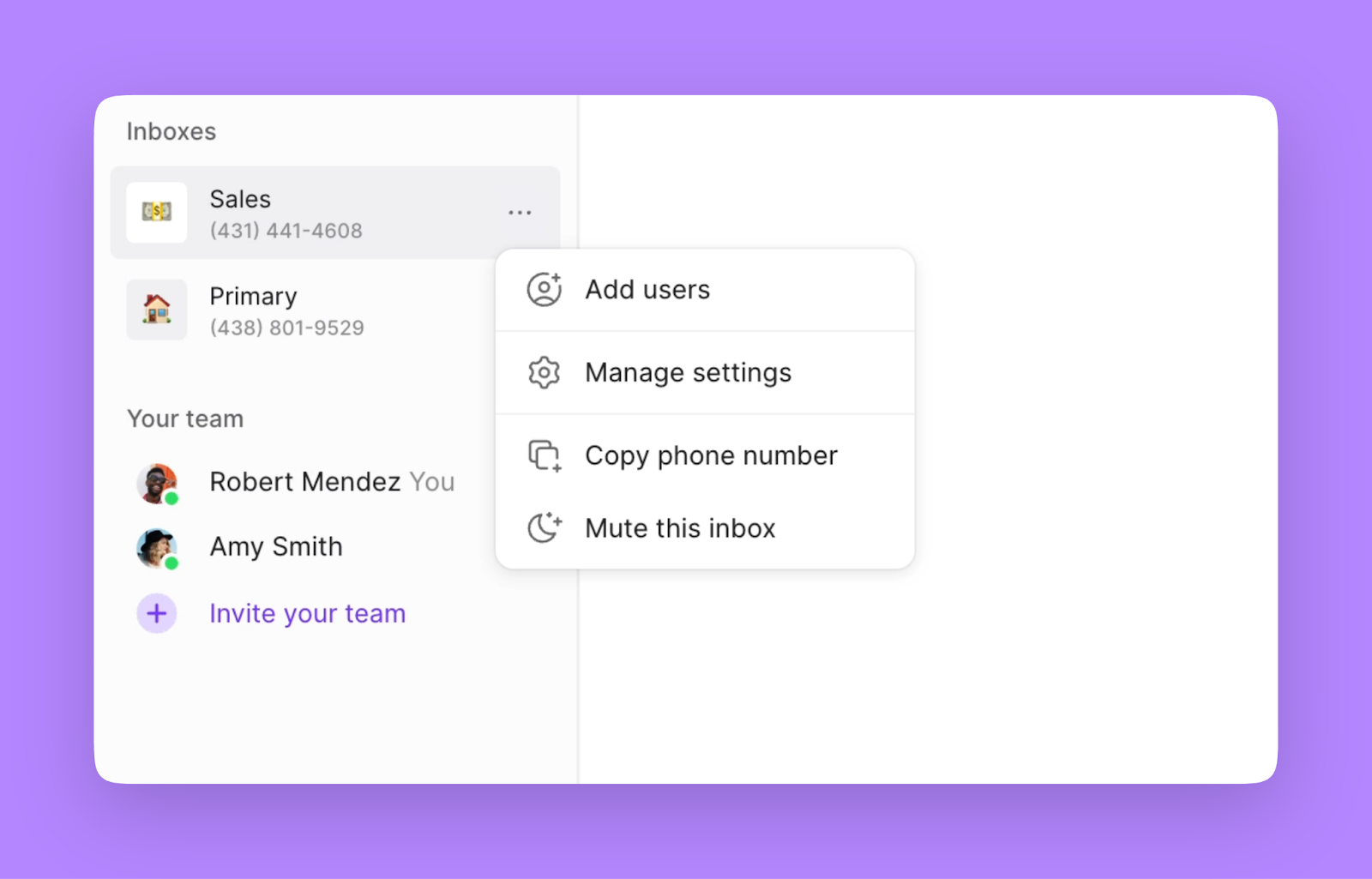 Perfect for businesses with multiple locations, sales teams handling different regions, or any scenario where specific team members need access to particular phone numbers.
***
## Making calls and sending messages
### Making calls
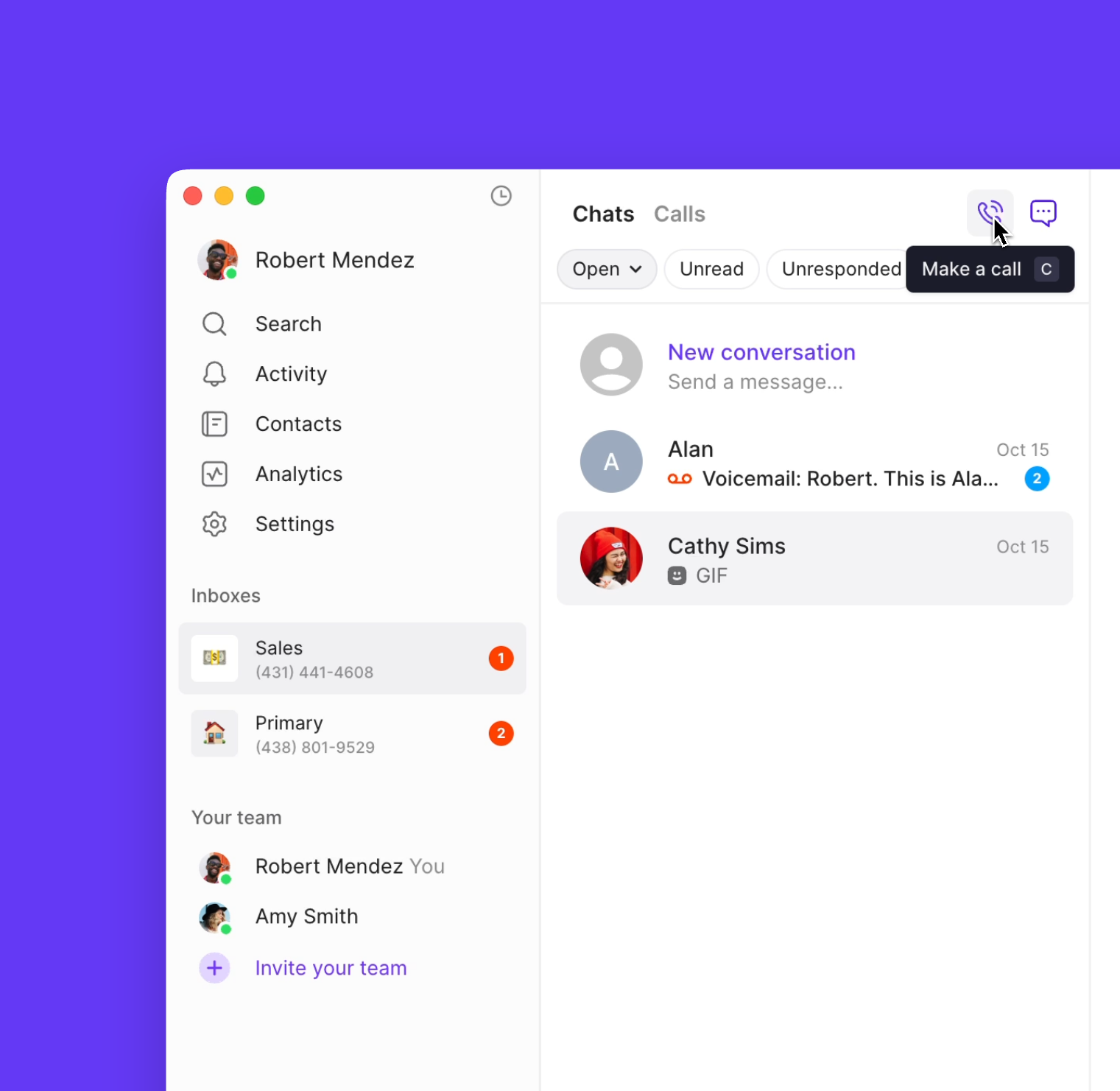
* Click the **Call icon** in the Calls or Chats menus
* Use keyboard shortcut Ctrl + C (Mac) **or** Alt + C (Windows) and dial a number
Perfect for businesses with multiple locations, sales teams handling different regions, or any scenario where specific team members need access to particular phone numbers.
***
## Making calls and sending messages
### Making calls
* Click the **Call icon** in the Calls or Chats menus
* Use keyboard shortcut Ctrl + C (Mac) **or** Alt + C (Windows) and dial a number
 * Tap the **Keypad** at the bottom of your screen
* Direct dial from your mobile interface
### Sending messages
You'll need to complete your [10DLC registration](https://support.quo.com/getting-started/carrier-registration/carrier-registration#all-openphone-users-must-register-to-text-us-numbers) or [toll-free number registration](https://support.quo.com/getting-started/carrier-registration/toll-free-registration#toll-free-registration) to send messages.
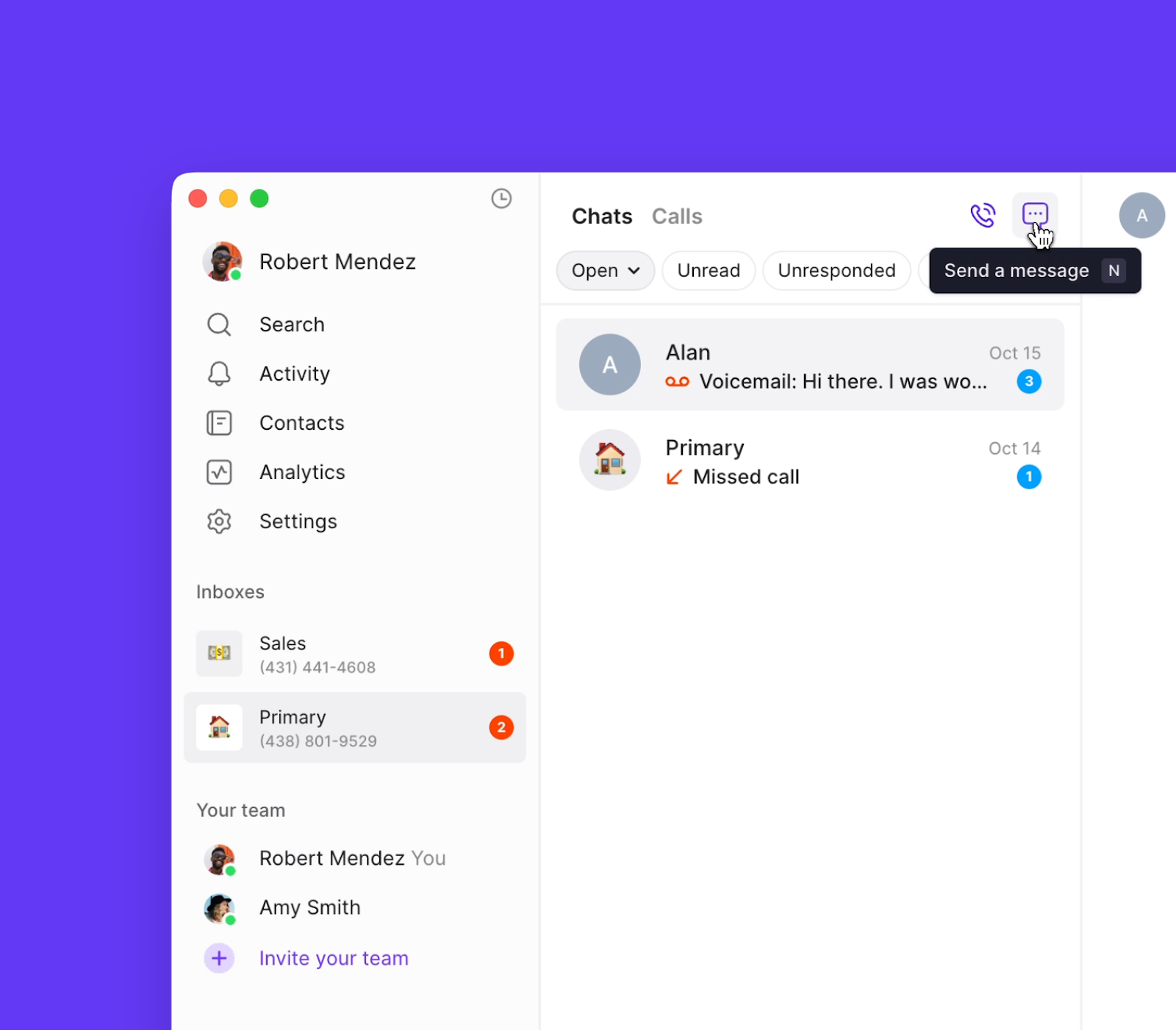
* Click the **Chat icon** in the Calls or Chats menus
* Use keyboard shortcut Ctrl + N (Mac) **or** Alt + N (Windows) and to start a new conversation
* Tap the **Keypad** at the bottom of your screen
* Direct dial from your mobile interface
### Sending messages
You'll need to complete your [10DLC registration](https://support.quo.com/getting-started/carrier-registration/carrier-registration#all-openphone-users-must-register-to-text-us-numbers) or [toll-free number registration](https://support.quo.com/getting-started/carrier-registration/toll-free-registration#toll-free-registration) to send messages.
* Click the **Chat icon** in the Calls or Chats menus
* Use keyboard shortcut Ctrl + N (Mac) **or** Alt + N (Windows) and to start a new conversation
 * Tap the **Pencil icon** in the lower right corner
***
## Navigating your communications
### Chats view
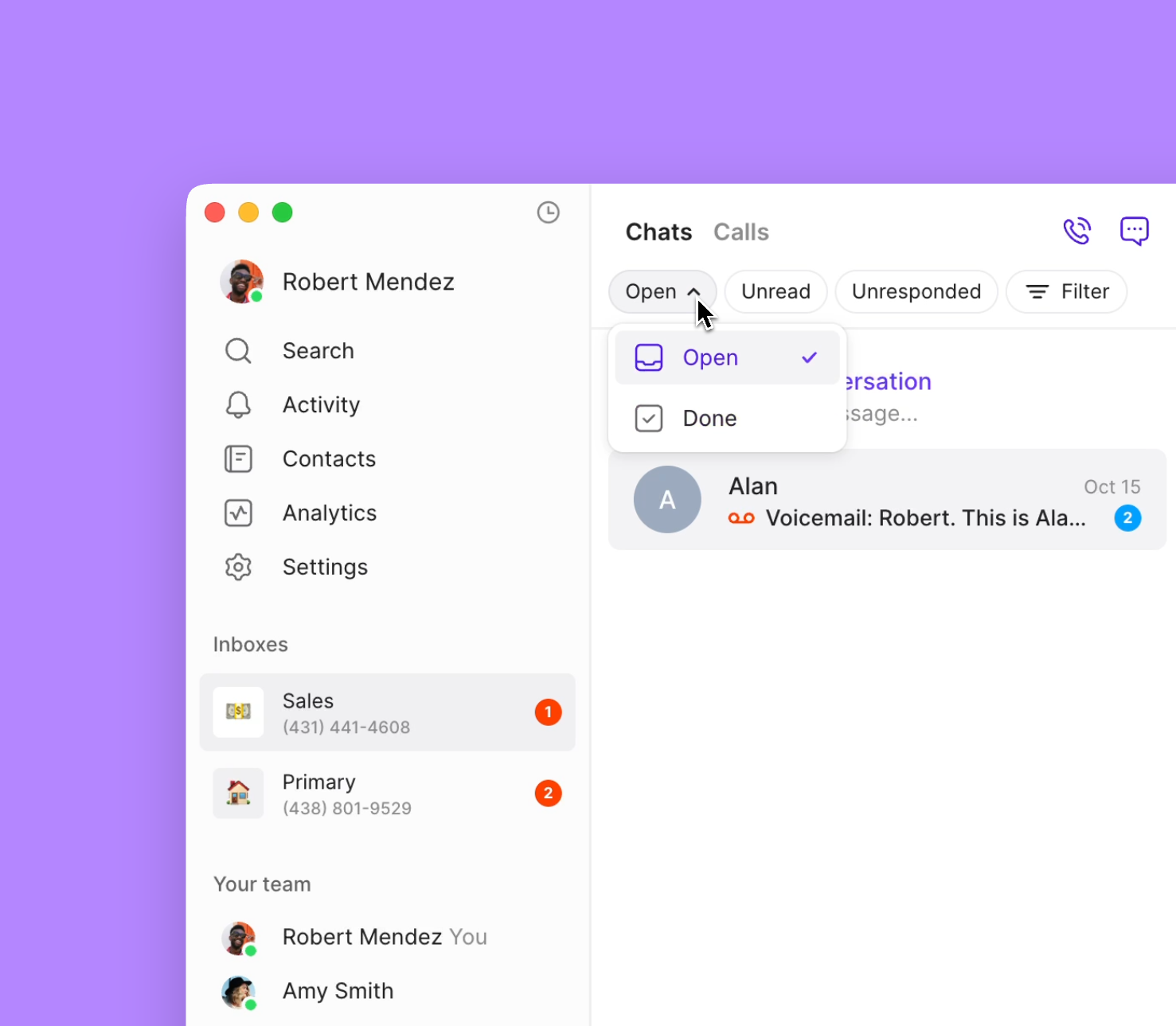
Your Chats menu shows all interactions with each contact, including texts, calls, recordings, and internal comments.
* **Open**: Ongoing conversations requiring attention
* **Done**: Completed conversations ready for archival
* Tap the **Pencil icon** in the lower right corner
***
## Navigating your communications
### Chats view
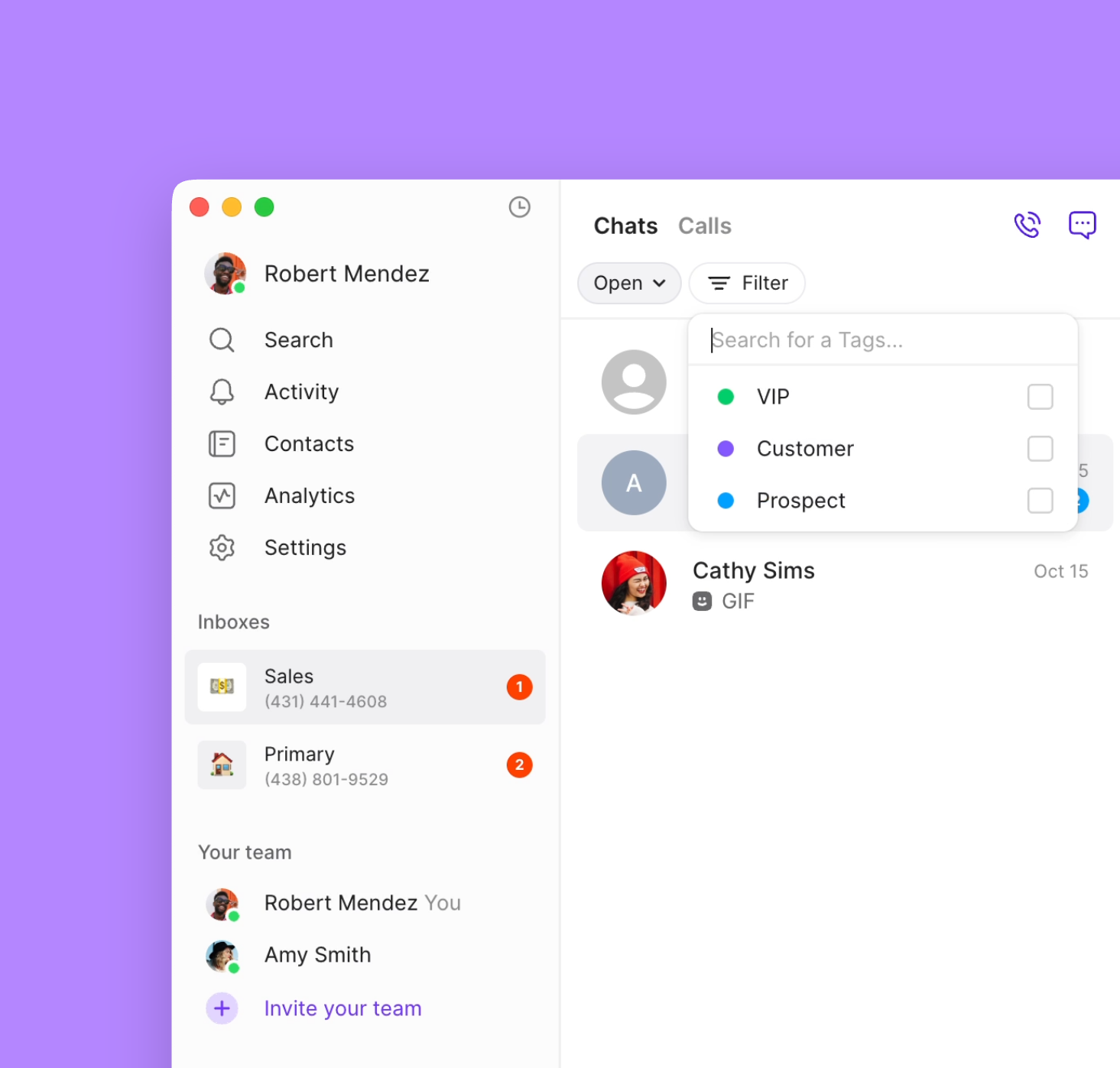
Your Chats menu shows all interactions with each contact, including texts, calls, recordings, and internal comments.
* **Open**: Ongoing conversations requiring attention
* **Done**: Completed conversations ready for archival
 * **Unread**: New messages requiring attention
* **Unresponded**: Messages awaiting your reply
* **Company**: Filter by business or organization
* **Custom tags**: Filter by VIP status or other custom properties
* **Unread**: New messages requiring attention
* **Unresponded**: Messages awaiting your reply
* **Company**: Filter by business or organization
* **Custom tags**: Filter by VIP status or other custom properties
 ### Calls view
Your Calls menu provides a focused view of call data across your workspace
* Unresponded calls
* Voicemail indicators
* Inbound vs outbound call direction
* Team member call activity
* Call recordings (when enabled)
* AI call summaries and transcriptions
* Team member filtering options
### Calls view
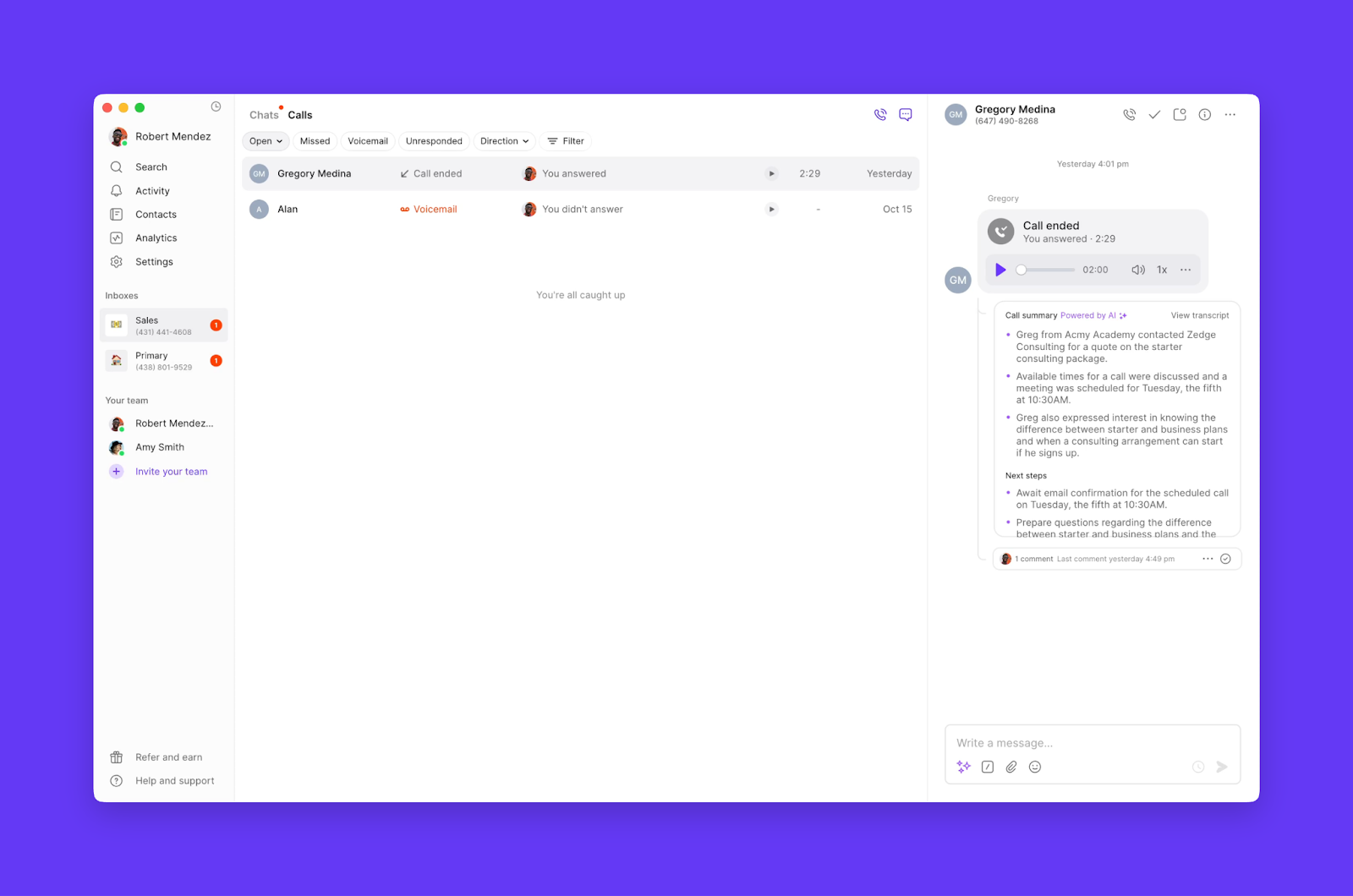
Your Calls menu provides a focused view of call data across your workspace
* Unresponded calls
* Voicemail indicators
* Inbound vs outbound call direction
* Team member call activity
* Call recordings (when enabled)
* AI call summaries and transcriptions
* Team member filtering options
 ***
## Keyboard shortcuts
Boost your productivity with these keyboard shortcuts (web and desktop only):
| Mac | Windows | Action |
| ---------------------------------------------- | ------------------------------------------------- | ------------------------------------------------------- |
| ↑ / ↓ | ↑ / ↓ | Preview conversations without marking as read |
| Enter | Enter | Reply to selected conversation |
| / | / | Access snippets, GIFs, and invites in the message field |
| ⌘ + E | Ctrl + E | Mark conversation as done |
| ⌘ + U | Ctrl + U | Mark conversation as read or unread |
| Ctrl + C | Alt + C | Start a call from anywhere |
| ⌘ + Shift + I | Ctrl + Shift + I | Call the contact from the conversation you have open |
| Ctrl + N | Alt + N | Start a new message from anywhere |
| ⌘ + / | Ctrl + / | Search your workspace |
| ⌘ + K | Ctrl + K | Access command menu to see available actions |
***
## FAQs
Yes, each phone number gets its own inbox. This allows you to separate different business lines, departments, or customer types while maintaining organized communication threads.
When you share an inbox, all assigned team members can view and participate in conversations. You control access at the phone number level, so team members only see inboxes they're assigned to.
Done conversations are archived but remain searchable. You can always change them back to Open status if follow-up is needed. This helps keep active conversations visible while preserving history.
Conversations are sorted by most recent activity by default. You can filter by various criteria (unread, unresponded, tags) but the chronological sorting helps ensure you never miss important communications.
***
## Keyboard shortcuts
Boost your productivity with these keyboard shortcuts (web and desktop only):
| Mac | Windows | Action |
| ---------------------------------------------- | ------------------------------------------------- | ------------------------------------------------------- |
| ↑ / ↓ | ↑ / ↓ | Preview conversations without marking as read |
| Enter | Enter | Reply to selected conversation |
| / | / | Access snippets, GIFs, and invites in the message field |
| ⌘ + E | Ctrl + E | Mark conversation as done |
| ⌘ + U | Ctrl + U | Mark conversation as read or unread |
| Ctrl + C | Alt + C | Start a call from anywhere |
| ⌘ + Shift + I | Ctrl + Shift + I | Call the contact from the conversation you have open |
| Ctrl + N | Alt + N | Start a new message from anywhere |
| ⌘ + / | Ctrl + / | Search your workspace |
| ⌘ + K | Ctrl + K | Access command menu to see available actions |
***
## FAQs
Yes, each phone number gets its own inbox. This allows you to separate different business lines, departments, or customer types while maintaining organized communication threads.
When you share an inbox, all assigned team members can view and participate in conversations. You control access at the phone number level, so team members only see inboxes they're assigned to.
Done conversations are archived but remain searchable. You can always change them back to Open status if follow-up is needed. This helps keep active conversations visible while preserving history.
Conversations are sorted by most recent activity by default. You can filter by various criteria (unread, unresponded, tags) but the chronological sorting helps ensure you never miss important communications.