> ## Documentation Index
> Fetch the complete documentation index at: https://support.quo.com/llms.txt
> Use this file to discover all available pages before exploring further.
# Conversations
> Manage conversation states with marking as unread, done, and organizing your inbox for efficient follow-ups
## Overview
Conversation management in Quo, formerly OpenPhone, helps you stay organized and ensures important communications never slip through the cracks. Use conversation states, statuses, and organization features to maintain an efficient workflow and prioritize customer interactions effectively.
## Understanding conversation states
Conversations in Quo have distinct states that help you track and prioritize your communications:
| | |
| ------ | ---------------------------------------------------------------------------------------------------------------------------------------------------------------------------------------------- |
| Open | - Active conversations requiring attention or follow-up
- Default state for new incoming messages and calls
- Visible in your main inbox view for immediate access
|
| Unread | - Messages or calls not yet viewed by any team member
- Display notification indicators on phone numbers
- Serve as automatic reminders for timely responses
|
| Done | - Completed interactions archived from main view
- Accessible through the "Done" filter when needed
- Maintain conversation history for future reference
|
Conversation states help you maintain inbox zero while preserving important communication history.
***
## Pinning conversations
Pin up to 50 conversations to keep important threads at the top of your inbox for quick access.
Pinned conversations appear above all other messages in your inbox.
### Pin or unpin a conversation
1. Right-click any conversation
2. Select **Pin conversation**
To unpin, right-click the pinned conversation and select **Unpin conversation**.
If you’ve reached the 50 pin limit, you’ll see a notification.
***
## Marking conversations as done
Use the "Done" status to clear completed tasks and keep your inbox organized. Available on web/desktop and for iOS and Android on the mobile app.
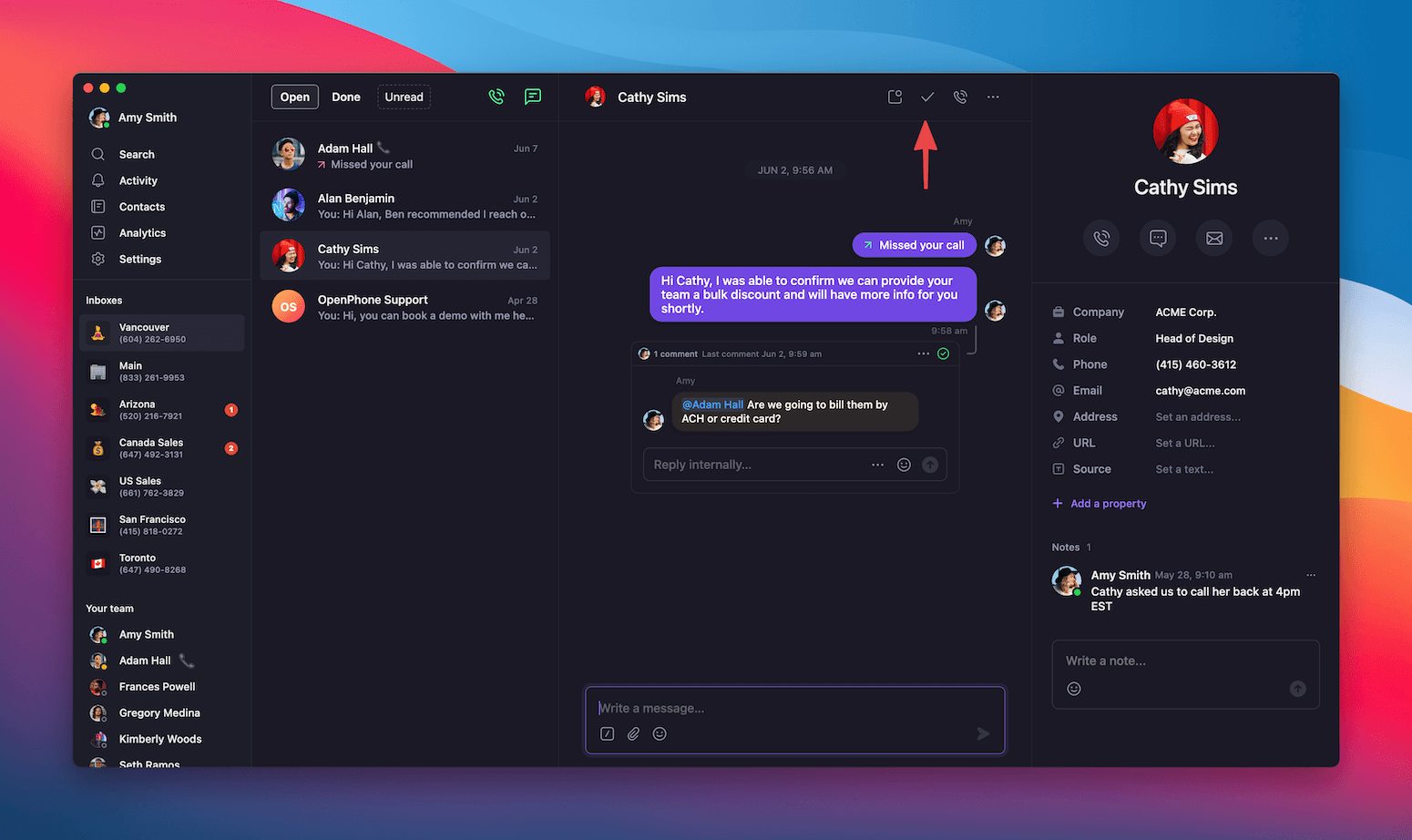
### From web or desktop app
1. Launch the Quo web app or desktop application
2. Select the conversation you want to mark as done
3. Click the **Checkmark (✓)** icon to mark the conversation as complete
The conversation will move out of your main inbox but remain accessible through the **"Done"** filter.
 1. Launch the Quo web app or desktop application
2. Click the photos next to each conversation that you want to mark as **Done**
3. Click the **Checkmark (✓)** icon at the bottom of the conversation tab
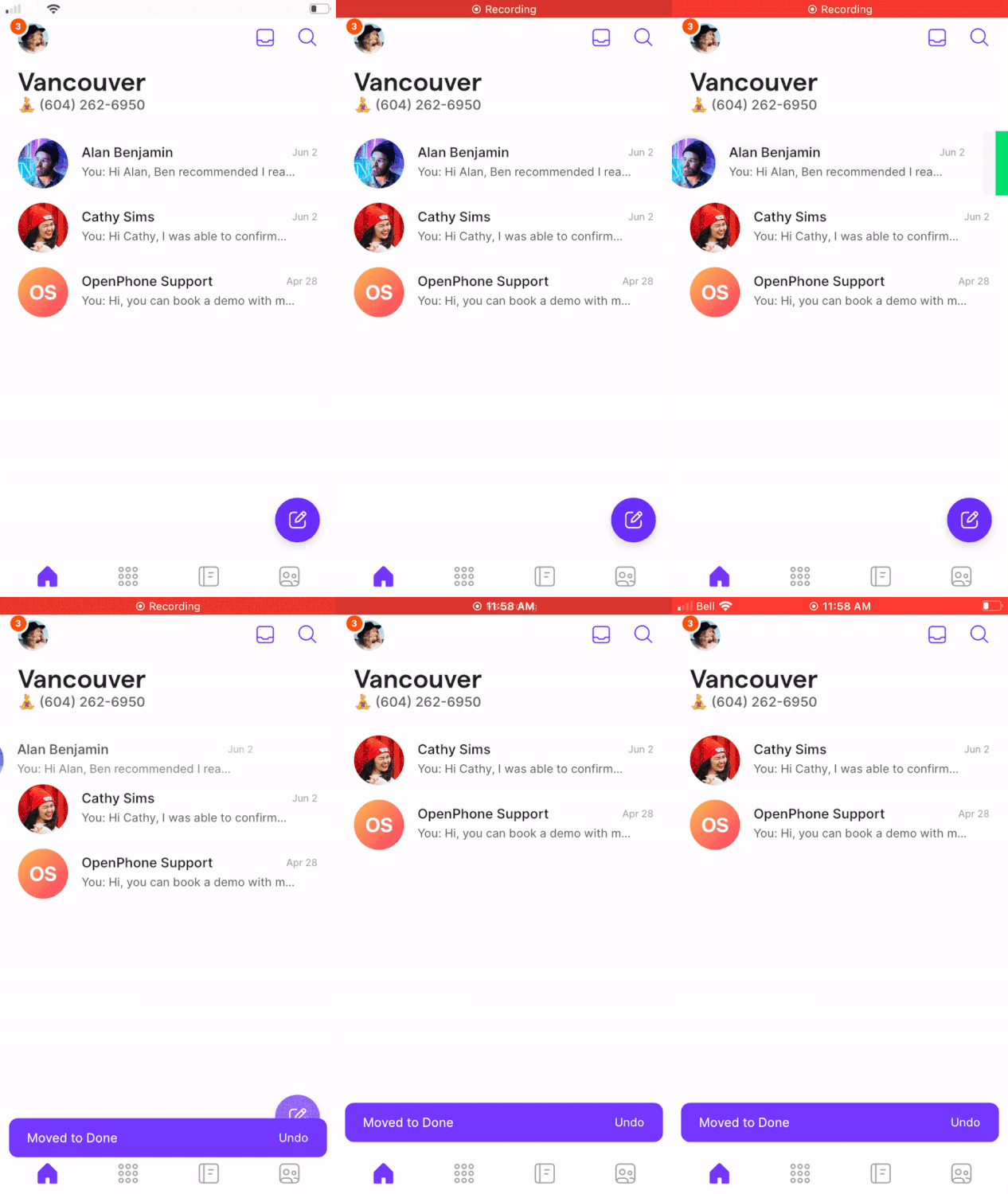
### From mobile app
1. Launch Quo on your mobile device
2. From your conversation inbox, swipe the conversation left
3. Tap **Done** to mark the conversation as complete
1. Launch the Quo web app or desktop application
2. Click the photos next to each conversation that you want to mark as **Done**
3. Click the **Checkmark (✓)** icon at the bottom of the conversation tab
### From mobile app
1. Launch Quo on your mobile device
2. From your conversation inbox, swipe the conversation left
3. Tap **Done** to mark the conversation as complete
 1. Launch the Quo on your mobile device
2. Tap the **Circled Checkmark** icon to the top right of your inbox name
3. Tap the conversations you want to mark as **Done**
4. Tap **Move to Done** at the bottom of the screen
***
## Marking conversations as unread
Use the **"Unread"** status as a personal or team reminder system. Available on web/desktop and for iOS and Android on the mobile app.
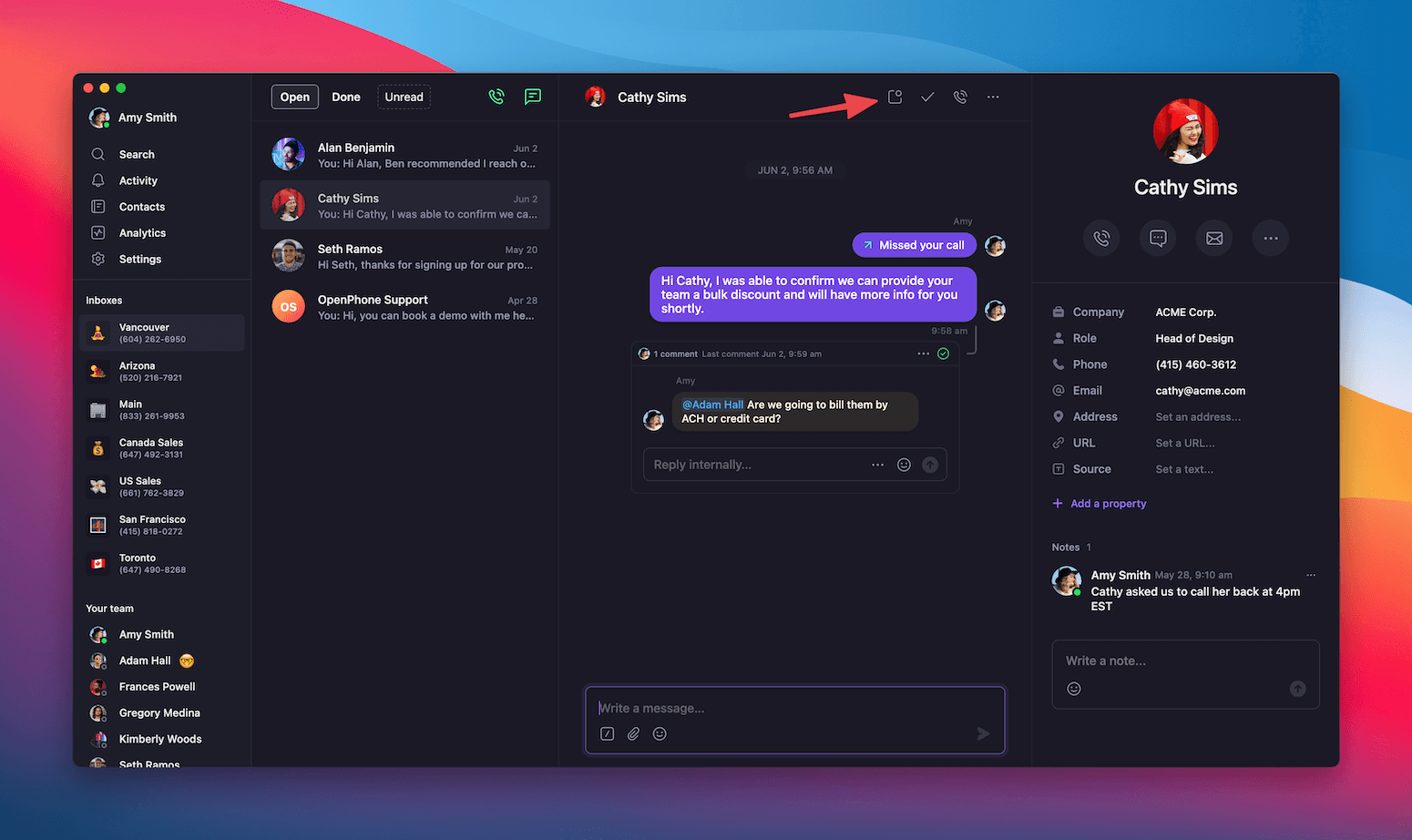
### From web or desktop app
1. Launch the Quo web app or desktop application
2. Select the conversation you want to mark as unread
3. Click the **envelope** icon to mark as unread
1. Launch the Quo on your mobile device
2. Tap the **Circled Checkmark** icon to the top right of your inbox name
3. Tap the conversations you want to mark as **Done**
4. Tap **Move to Done** at the bottom of the screen
***
## Marking conversations as unread
Use the **"Unread"** status as a personal or team reminder system. Available on web/desktop and for iOS and Android on the mobile app.
### From web or desktop app
1. Launch the Quo web app or desktop application
2. Select the conversation you want to mark as unread
3. Click the **envelope** icon to mark as unread
 1. Launch the Quo web app or desktop application
2. Click the photos next to each conversation that you want to mark as **Unread**
3. Click the **envelope** icon at the bottom of the conversation tab
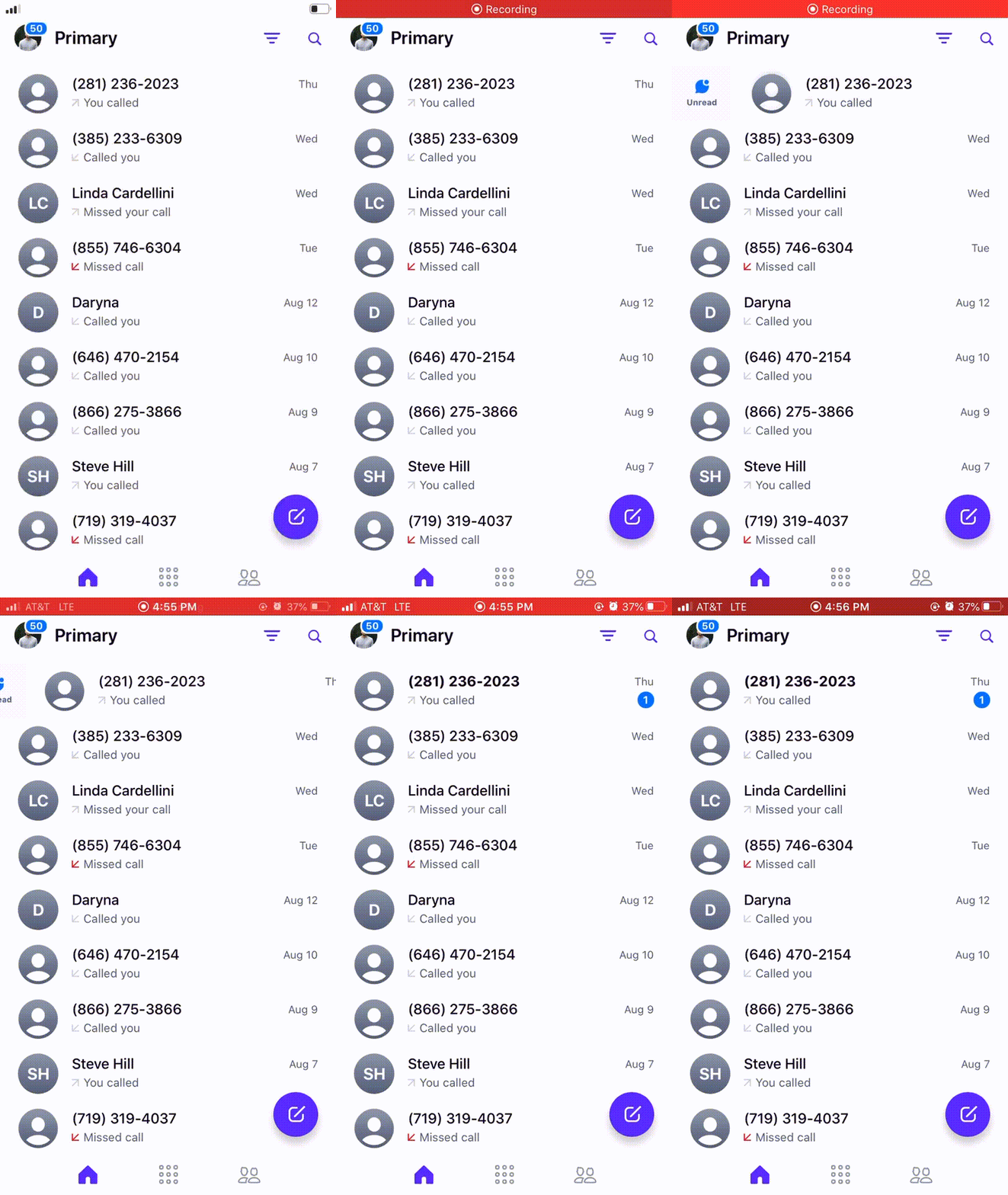
### From mobile app
1. Launch Quo on your mobile device
2. From your conversation inbox, swipe the conversation right
3. The conversation will be marked as unread with a notification indicator
1. Launch the Quo web app or desktop application
2. Click the photos next to each conversation that you want to mark as **Unread**
3. Click the **envelope** icon at the bottom of the conversation tab
### From mobile app
1. Launch Quo on your mobile device
2. From your conversation inbox, swipe the conversation right
3. The conversation will be marked as unread with a notification indicator
 1. Launch the Quo on your mobile device
2. Tap the **Circled Checkmark** icon to the top right of your inbox name
3. Tap the conversations you want to mark as **Unread**
4. Tap **Mark as unread** at the bottom of the screen
***
## Conversation workflow strategies
### Personal productivity workflows
1. **Morning review**: Check unread conversations and prioritize responses
2. **Active work**: Keep important conversations open during discussions
3. **Completion tracking**: Mark conversations done when resolved
4. **Follow-up system**: Use unread status for items needing later attention
* **Urgent**: Keep open for immediate attention
* **Follow-up needed**: Mark unread as personal reminders
* **Completed**: Mark done to maintain inbox clarity
* **Reference**: Access through done filter when needed
### Team collaboration workflows
* **Unread indicators**: Alert team members to new customer messages
* **Status coordination**: Use consistent marking to avoid duplicate work
* **Handoff management**: Mark unread when passing conversations between team members
* **Completion tracking**: Mark done when customer issues are resolved
* **Morning standup**: Review unread and open conversations as a team
* **Coverage planning**: Ensure all unread conversations have assigned owners
* **End-of-day cleanup**: Mark completed conversations as done
* **Weekly review**: Check done conversations for follow-up opportunities
***
## Team workflow strategies for conversation management
### When to mark conversations done
* **Customer issue resolved**: Problem solved and customer satisfied
* **Information delivered**: Verification codes, confirmations, or updates sent
* **One-time interactions**: Promotional messages or temporary communications
* **Completed tasks**: Delegated work finished and confirmed
* **Archived references**: Important but inactive conversations
### When to mark conversations unread
* **Follow-up required**: Need to respond but not immediately available
* **Team coordination**: Alert colleagues to important messages
* **Reminder system**: Personal flags for later action
* **Pending information**: Waiting for details before responding
* **Priority flagging**: Mark important conversations for quick identification
### Maintaining inbox organization
* Review unread conversations first thing each morning
* Mark conversations done immediately upon completion
* Use unread status strategically for genuine follow-ups
* Archive promotional or verification messages promptly
* Review done conversations for any missed follow-ups
* Clean up old conversations that no longer need tracking
* Assess conversation flow patterns for process improvements
* Update team workflows based on conversation volume
***
## Advanced conversation management
### Keyboard shortcuts
For faster conversation management on web and desktop:
| Mac | Windows | Action |
| ------------------------------ | ------------------------------------------------- | ------------------------------------------------------- |
| ↑ / ↓ | ↑ / ↓ | Preview conversations without marking as read |
| Enter | Enter | Reply to selected conversation |
| / | / | Access snippets, GIFs, and invites in the message field |
| ⌘ + E | Ctrl + E | Mark conversation as done |
| ⌘ + U | Ctrl + U | Mark conversation as read or unread |
| Ctrl + C | Alt + C | Start a call from anywhere |
| ⌘ + I | Ctrl + Shift + I | Call the contact from the conversation you have open |
| Ctrl + N | Alt + N | Start a new message from anywhere |
| ⌘ + / | Ctrl + / | Search your workspace |
| ⌘ + K | Ctrl + K | Access command menu to see available actions |
***
### Integration with other features
**Contact management:**
* Add notes to contacts based on conversation outcomes
* Tag contacts with relevant information for future reference
* Update contact properties based on conversation insights
**Team coordination:**
* Use @ mentions in conversations for team member alerts
* Pin important conversations for team visibility
* Share conversation insights during team meetings
**Performance tracking:**
* Monitor response times to unread conversations
* Track conversation completion rates
* Analyze conversation patterns for workflow optimization
***
## FAQs
Open conversations are active discussions that may or may not have been read, while unread conversations specifically contain messages that no team member has viewed yet. A conversation can be both open and unread, but once marked as done, it's neither open nor unread.
Yes, conversations marked as done aren't deleted. Access them through the "Done" filter in your inbox. You can also mark them as open or unread again if needed for continued communication.
Yes, conversation states (open, unread, done) sync across all your devices and team members in real-time. When you mark a conversation as done on your phone, it immediately updates on your desktop and for your team.
Conversation states are shared across your team. When any team member marks a conversation as read, unread, or done, it updates for everyone. This prevents duplicate work and ensures consistent conversation tracking.
Yes! You can mark multiple conversations as **Done** by selecting the conversations and tapping the checkmark that appears at the bottom of the conversation list.
1. Launch the Quo on your mobile device
2. Tap the **Circled Checkmark** icon to the top right of your inbox name
3. Tap the conversations you want to mark as **Unread**
4. Tap **Mark as unread** at the bottom of the screen
***
## Conversation workflow strategies
### Personal productivity workflows
1. **Morning review**: Check unread conversations and prioritize responses
2. **Active work**: Keep important conversations open during discussions
3. **Completion tracking**: Mark conversations done when resolved
4. **Follow-up system**: Use unread status for items needing later attention
* **Urgent**: Keep open for immediate attention
* **Follow-up needed**: Mark unread as personal reminders
* **Completed**: Mark done to maintain inbox clarity
* **Reference**: Access through done filter when needed
### Team collaboration workflows
* **Unread indicators**: Alert team members to new customer messages
* **Status coordination**: Use consistent marking to avoid duplicate work
* **Handoff management**: Mark unread when passing conversations between team members
* **Completion tracking**: Mark done when customer issues are resolved
* **Morning standup**: Review unread and open conversations as a team
* **Coverage planning**: Ensure all unread conversations have assigned owners
* **End-of-day cleanup**: Mark completed conversations as done
* **Weekly review**: Check done conversations for follow-up opportunities
***
## Team workflow strategies for conversation management
### When to mark conversations done
* **Customer issue resolved**: Problem solved and customer satisfied
* **Information delivered**: Verification codes, confirmations, or updates sent
* **One-time interactions**: Promotional messages or temporary communications
* **Completed tasks**: Delegated work finished and confirmed
* **Archived references**: Important but inactive conversations
### When to mark conversations unread
* **Follow-up required**: Need to respond but not immediately available
* **Team coordination**: Alert colleagues to important messages
* **Reminder system**: Personal flags for later action
* **Pending information**: Waiting for details before responding
* **Priority flagging**: Mark important conversations for quick identification
### Maintaining inbox organization
* Review unread conversations first thing each morning
* Mark conversations done immediately upon completion
* Use unread status strategically for genuine follow-ups
* Archive promotional or verification messages promptly
* Review done conversations for any missed follow-ups
* Clean up old conversations that no longer need tracking
* Assess conversation flow patterns for process improvements
* Update team workflows based on conversation volume
***
## Advanced conversation management
### Keyboard shortcuts
For faster conversation management on web and desktop:
| Mac | Windows | Action |
| ------------------------------ | ------------------------------------------------- | ------------------------------------------------------- |
| ↑ / ↓ | ↑ / ↓ | Preview conversations without marking as read |
| Enter | Enter | Reply to selected conversation |
| / | / | Access snippets, GIFs, and invites in the message field |
| ⌘ + E | Ctrl + E | Mark conversation as done |
| ⌘ + U | Ctrl + U | Mark conversation as read or unread |
| Ctrl + C | Alt + C | Start a call from anywhere |
| ⌘ + I | Ctrl + Shift + I | Call the contact from the conversation you have open |
| Ctrl + N | Alt + N | Start a new message from anywhere |
| ⌘ + / | Ctrl + / | Search your workspace |
| ⌘ + K | Ctrl + K | Access command menu to see available actions |
***
### Integration with other features
**Contact management:**
* Add notes to contacts based on conversation outcomes
* Tag contacts with relevant information for future reference
* Update contact properties based on conversation insights
**Team coordination:**
* Use @ mentions in conversations for team member alerts
* Pin important conversations for team visibility
* Share conversation insights during team meetings
**Performance tracking:**
* Monitor response times to unread conversations
* Track conversation completion rates
* Analyze conversation patterns for workflow optimization
***
## FAQs
Open conversations are active discussions that may or may not have been read, while unread conversations specifically contain messages that no team member has viewed yet. A conversation can be both open and unread, but once marked as done, it's neither open nor unread.
Yes, conversations marked as done aren't deleted. Access them through the "Done" filter in your inbox. You can also mark them as open or unread again if needed for continued communication.
Yes, conversation states (open, unread, done) sync across all your devices and team members in real-time. When you mark a conversation as done on your phone, it immediately updates on your desktop and for your team.
Conversation states are shared across your team. When any team member marks a conversation as read, unread, or done, it updates for everyone. This prevents duplicate work and ensures consistent conversation tracking.
Yes! You can mark multiple conversations as **Done** by selecting the conversations and tapping the checkmark that appears at the bottom of the conversation list.
 When you archive a phone number, all conversation states are preserved. If you later reactivate the number, conversations will maintain their previous states (open, done, unread).
Done conversations remain accessible indefinitely through the Done filter. There's no automatic deletion of conversation history, ensuring you always have access to past communications when needed.
While there's no automatic conversation marking, you can use filters to quickly identify conversations that might be ready for marking as done, such as conversations with only verification codes or promotional messages.
Pinned conversations appear in the order they were pinned. They can’t be manually rearranged.
When you archive a phone number, all conversation states are preserved. If you later reactivate the number, conversations will maintain their previous states (open, done, unread).
Done conversations remain accessible indefinitely through the Done filter. There's no automatic deletion of conversation history, ensuring you always have access to past communications when needed.
While there's no automatic conversation marking, you can use filters to quickly identify conversations that might be ready for marking as done, such as conversations with only verification codes or promotional messages.
Pinned conversations appear in the order they were pinned. They can’t be manually rearranged.