> ## Documentation Index
> Fetch the complete documentation index at: https://support.quo.com/llms.txt
> Use this file to discover all available pages before exploring further.
# Call views
> Monitor and manage all your calls with dedicated views for missed calls, voicemails, and call recordings
## Overview
Call views provide a call-centric perspective of your communications, making it easy to monitor, prioritize, and respond to important calls. Whether you need to return missed calls, review voicemails, or analyze team calling patterns, call views help you manage your communications more efficiently.
## Understanding call views
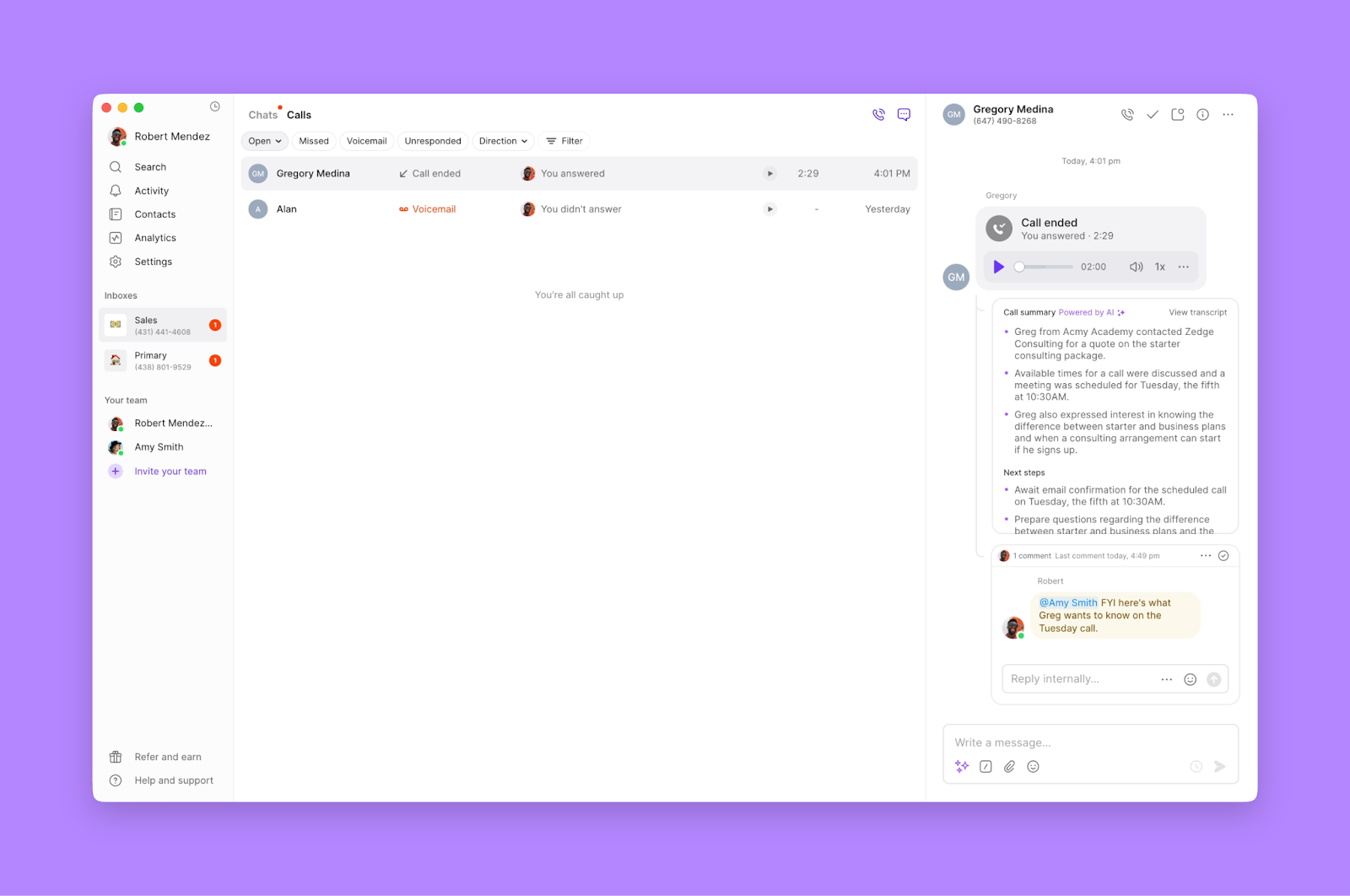
Call views offer a comprehensive overview of all calling activity with powerful filtering and organization features:
* **Centralized call management**: See all calls in one dedicated interface
* **Advanced filtering**: Focus on specific call types, team members, or timeframes
* **Quick actions**: Return calls, review recordings, and follow up directly from the view
* **Team collaboration**: Monitor team calling activity and coach performance
Call views are available for phone number-level Owners, Admins, and Members in your workspace across all Quo, formerly OpenPhone, plans.
## Accessing call views
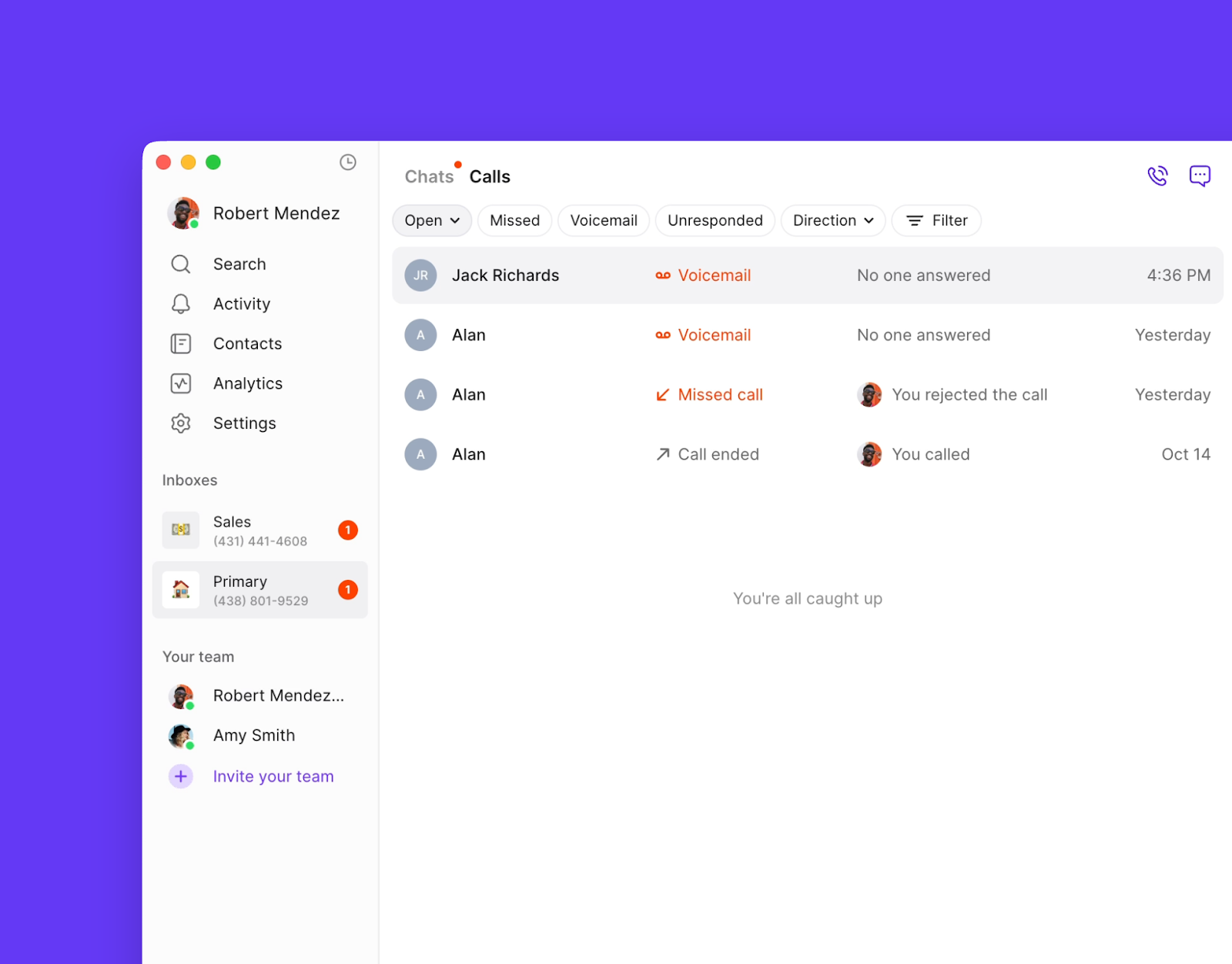
### From web or desktop app
1. Select your desired phone number from the workspace sidebar
2. Click **Calls** at the top of your inbox (next to **Chats**)
3. Use filters to focus on specific call types or criteria
<>
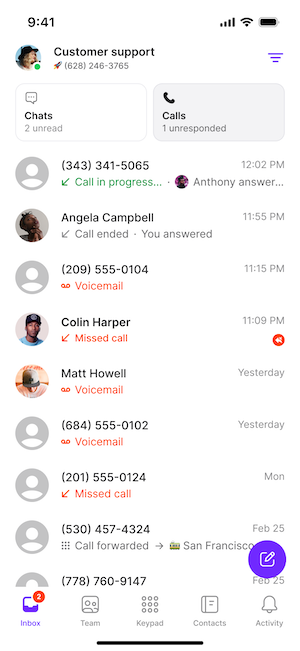
 ### From mobile app
1. If you have multiple numbers, tap your account image in the upper left
2. Select your desired phone number
3. Tap **Calls** at the top of your inbox
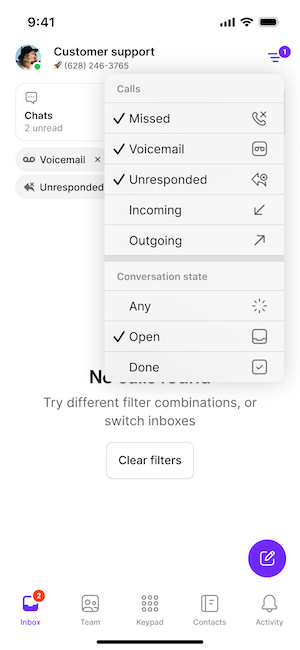
4. Use the filter icon in the upper right to refine your view
<>
### From mobile app
1. If you have multiple numbers, tap your account image in the upper left
2. Select your desired phone number
3. Tap **Calls** at the top of your inbox
4. Use the filter icon in the upper right to refine your view
<>
 ## Call view properties
Each call entry displays essential information for quick assessment and action:
**Contact information:**
* Contact name or phone number
* Company name (if available)
**Call details:**
* Call state: Voicemail, Call Ended, or Missed Call
* Call duration
* Call date and time
* Direction: Incoming or outgoing
**Team context:**
* Team member who handled the call
* Voicemail or call recording indicators
* Conversation status and tags
## Filtering call views
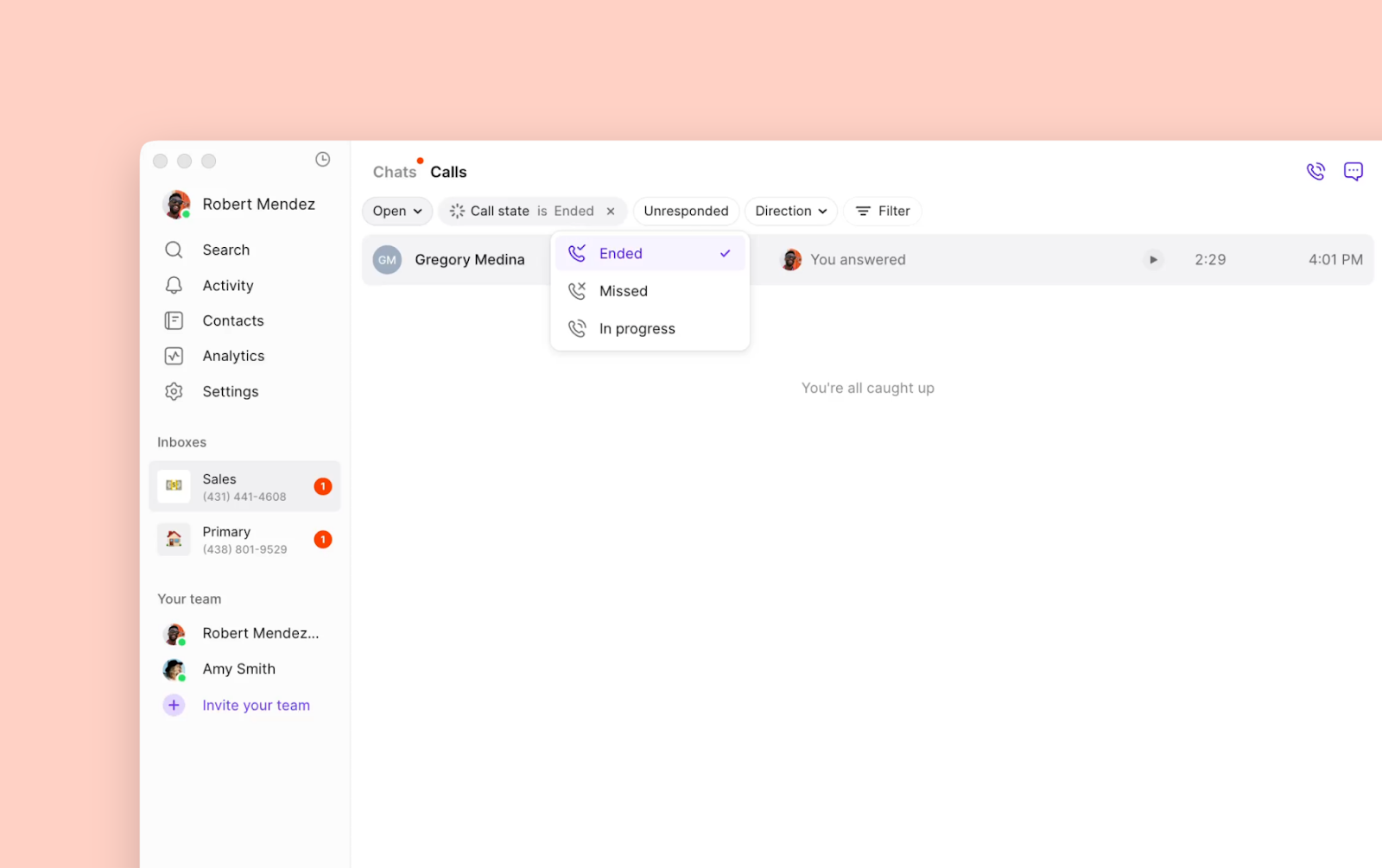
Use filters to focus on the calls that matter most to your workflow:
### Basic filters
* **Conversation state**: Open, Done, Any
* **Missed calls**: Recent missed calls requiring follow-up
* **Voicemail**: Calls with voicemail messages
* **Unresponded**: Missed calls or voicemails without team response
* **Direction**: Filter by incoming or outgoing calls
### Advanced filters
* **Team member**: View calls handled by specific team members
* **Date range**: Focus on calls from specific timeframes
* **Call duration**: Filter by call length
* **Custom properties**: Use contact tags or custom fields
## Call view properties
Each call entry displays essential information for quick assessment and action:
**Contact information:**
* Contact name or phone number
* Company name (if available)
**Call details:**
* Call state: Voicemail, Call Ended, or Missed Call
* Call duration
* Call date and time
* Direction: Incoming or outgoing
**Team context:**
* Team member who handled the call
* Voicemail or call recording indicators
* Conversation status and tags
## Filtering call views
Use filters to focus on the calls that matter most to your workflow:
### Basic filters
* **Conversation state**: Open, Done, Any
* **Missed calls**: Recent missed calls requiring follow-up
* **Voicemail**: Calls with voicemail messages
* **Unresponded**: Missed calls or voicemails without team response
* **Direction**: Filter by incoming or outgoing calls
### Advanced filters
* **Team member**: View calls handled by specific team members
* **Date range**: Focus on calls from specific timeframes
* **Call duration**: Filter by call length
* **Custom properties**: Use contact tags or custom fields
 ## Taking action from call views
Call views enable immediate action without switching interfaces:
### Direct actions
* **Return calls**: Click to call back missed contacts
* **Send messages**: Start text conversations from call history
* **Review recordings**: Access AI-generated summaries and transcripts
* **Update conversation status**: Mark as done or set follow-up reminders
### Team collaboration
* **Tag team members**: Alert colleagues about important calls
* **Pin conversations**: Mark priority interactions for later follow-up
* **Add notes**: Document call outcomes and next steps
* **Share insights**: Use call data for coaching and performance review
## Taking action from call views
Call views enable immediate action without switching interfaces:
### Direct actions
* **Return calls**: Click to call back missed contacts
* **Send messages**: Start text conversations from call history
* **Review recordings**: Access AI-generated summaries and transcripts
* **Update conversation status**: Mark as done or set follow-up reminders
### Team collaboration
* **Tag team members**: Alert colleagues about important calls
* **Pin conversations**: Mark priority interactions for later follow-up
* **Add notes**: Document call outcomes and next steps
* **Share insights**: Use call data for coaching and performance review
 ## Workflow optimization
### Daily call management
1. **Morning review**: Check unresponded calls and voicemails
2. **Priority calling**: Use filters to identify urgent callbacks
3. **Team coordination**: Monitor team response times and coverage
4. **End-of-day cleanup**: Mark completed calls as done
### Performance monitoring
* **Response time tracking**: Monitor how quickly calls are returned
* **Missed call analysis**: Identify patterns in missed calls
* **Team performance**: Compare calling metrics across team members
* **Customer satisfaction**: Track call outcomes and follow-up success
## FAQs
The Unresponded filter shows conversations where you received a missed call or voicemail from a contact and haven't attempted to call them back or send a message. Auto-replies aren't considered responses for this filter, ensuring you see calls that genuinely need human follow-up.
Call views refresh automatically every five seconds, ensuring you always see the most current information about your calling activity.
While direct export isn't available from call views, you can access detailed call history and analytics through your workspace settings for reporting and analysis purposes.
Call views focus specifically on phone calls and voicemails, while conversation views show both calls and text messages. Use call views when you need to prioritize calling activities and voice communication follow-ups.
Call views are specific to each phone number in your workspace. To see calls from multiple numbers, you'll need to switch between phone numbers or use workspace-level reporting features.
Use call views to monitor response times, identify missed opportunities, and review call recordings. Filter by team member to analyze individual performance and identify coaching opportunities for improved customer communication.
Calls handled by former team members remain visible in call views, but their names may be replaced with their phone numbers. This ensures continuity in your call history and customer relationship tracking.
While call views don't have custom notifications, you can use the Unresponded filter to quickly identify calls requiring attention and check this view regularly as part of your daily workflow.
<>
## Workflow optimization
### Daily call management
1. **Morning review**: Check unresponded calls and voicemails
2. **Priority calling**: Use filters to identify urgent callbacks
3. **Team coordination**: Monitor team response times and coverage
4. **End-of-day cleanup**: Mark completed calls as done
### Performance monitoring
* **Response time tracking**: Monitor how quickly calls are returned
* **Missed call analysis**: Identify patterns in missed calls
* **Team performance**: Compare calling metrics across team members
* **Customer satisfaction**: Track call outcomes and follow-up success
## FAQs
The Unresponded filter shows conversations where you received a missed call or voicemail from a contact and haven't attempted to call them back or send a message. Auto-replies aren't considered responses for this filter, ensuring you see calls that genuinely need human follow-up.
Call views refresh automatically every five seconds, ensuring you always see the most current information about your calling activity.
While direct export isn't available from call views, you can access detailed call history and analytics through your workspace settings for reporting and analysis purposes.
Call views focus specifically on phone calls and voicemails, while conversation views show both calls and text messages. Use call views when you need to prioritize calling activities and voice communication follow-ups.
Call views are specific to each phone number in your workspace. To see calls from multiple numbers, you'll need to switch between phone numbers or use workspace-level reporting features.
Use call views to monitor response times, identify missed opportunities, and review call recordings. Filter by team member to analyze individual performance and identify coaching opportunities for improved customer communication.
Calls handled by former team members remain visible in call views, but their names may be replaced with their phone numbers. This ensures continuity in your call history and customer relationship tracking.
While call views don't have custom notifications, you can use the Unresponded filter to quickly identify calls requiring attention and check this view regularly as part of your daily workflow.
<>