> ## Documentation Index
> Fetch the complete documentation index at: https://support.quo.com/llms.txt
> Use this file to discover all available pages before exploring further.
# Making calls
> Learn how to make calls from Quo, formerly OpenPhone, using different platforms and manage multiple phone numbers
## Overview
Making calls with Quo is simple and intuitive across all platforms. Whether you're using the mobile app, web browser, or desktop application, you can connect with customers and colleagues instantly while maintaining your professional business identity.
Access interactive demos, videos, and more in the Quo Academy.
## Getting started with calls
Quo offers multiple ways to make calls depending on your preferred platform:
Launch the [Quo web app](https://my.quo.com/inbox/) or desktop application to access powerful calling features.
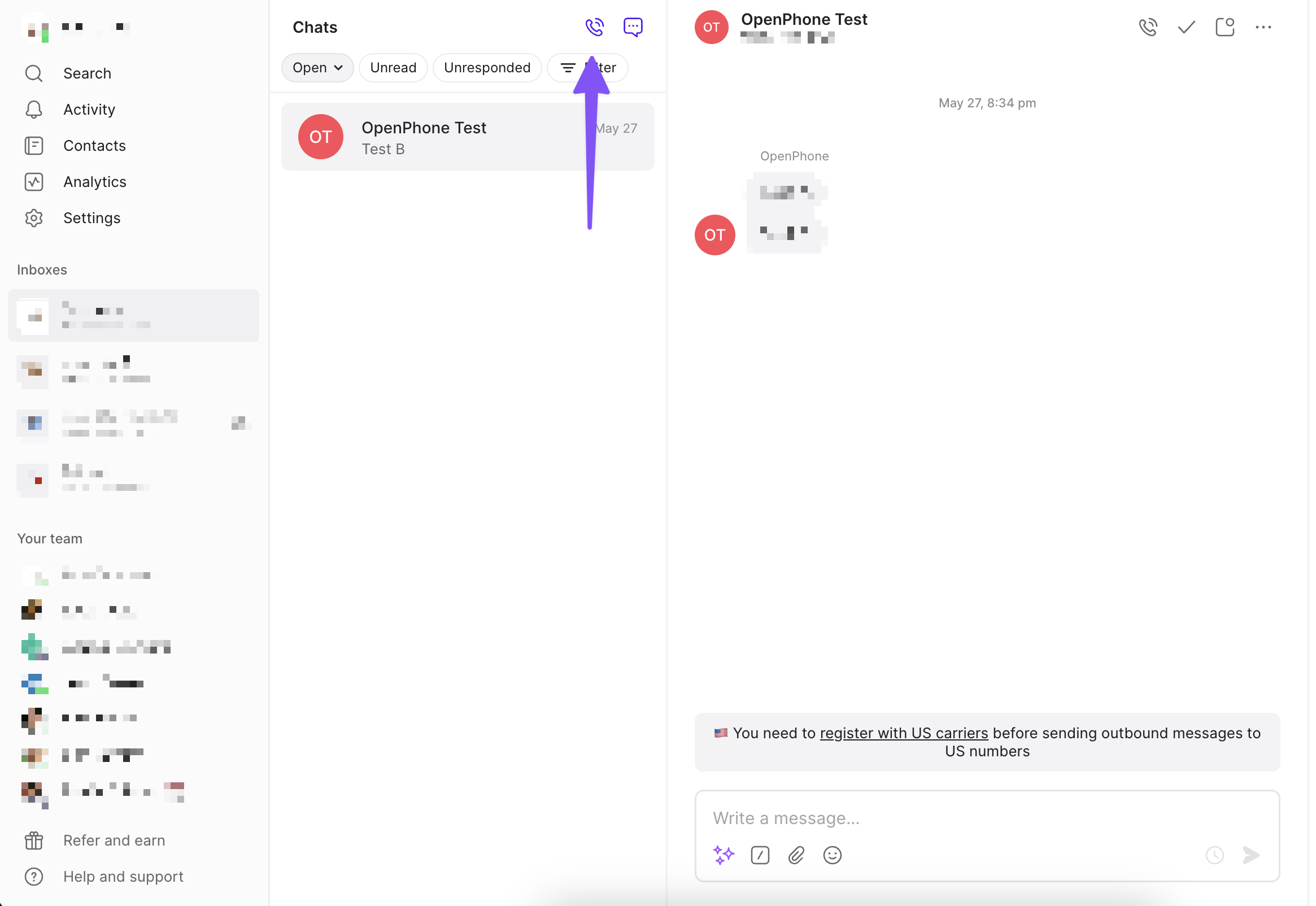
### Method 1: Quick dial
Press Ctrl+C (Mac) or Alt+C (Windows)
or click the dialer icon at the top of the page. A pop-up window appears where you can:
* Type a phone number directly
* Search for a contact by name
* Select from recent conversations
 ### Method 2: From a conversation
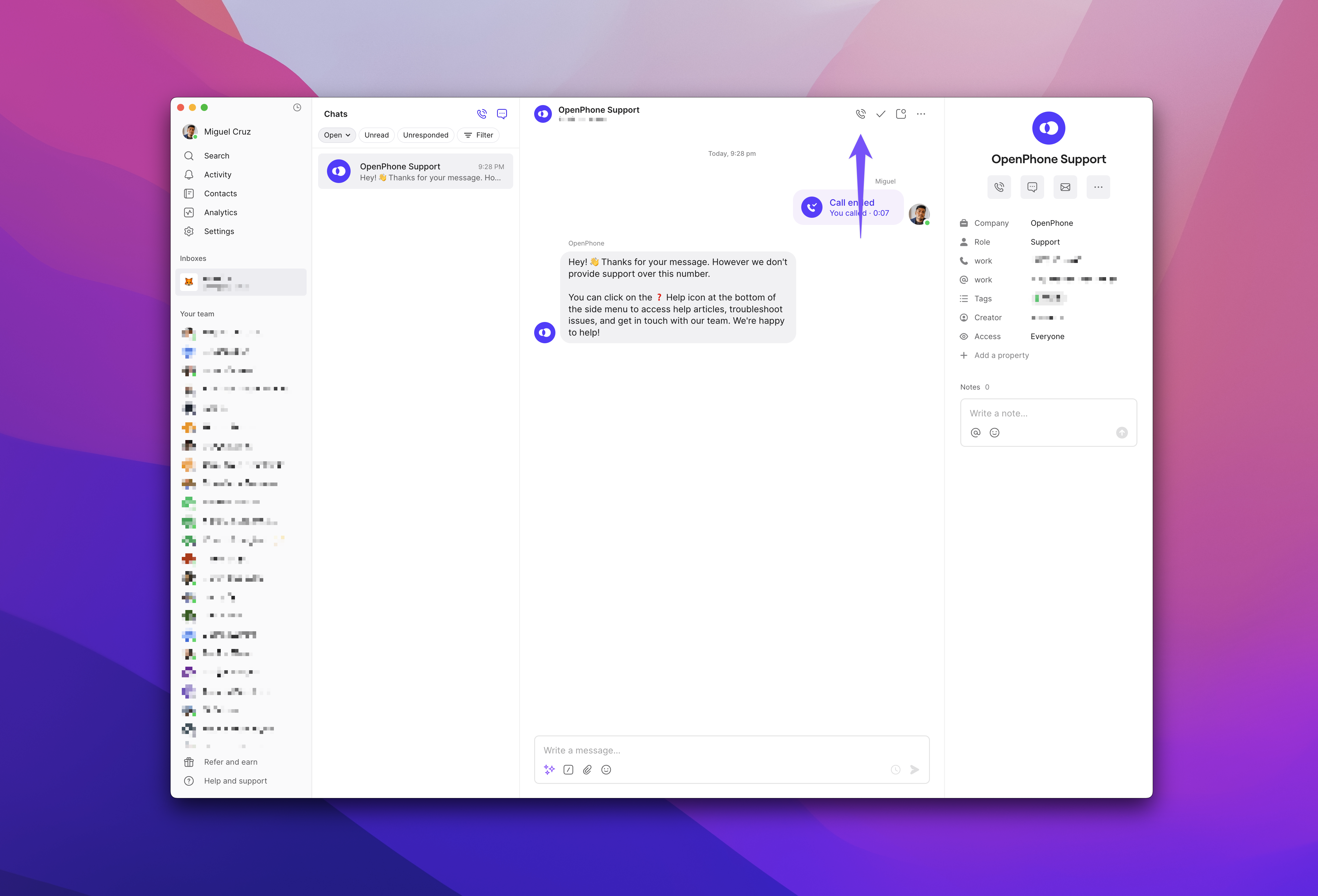
Open any conversation and click the phone icon at the top to call that contact.
### Method 2: From a conversation
Open any conversation and click the phone icon at the top to call that contact.
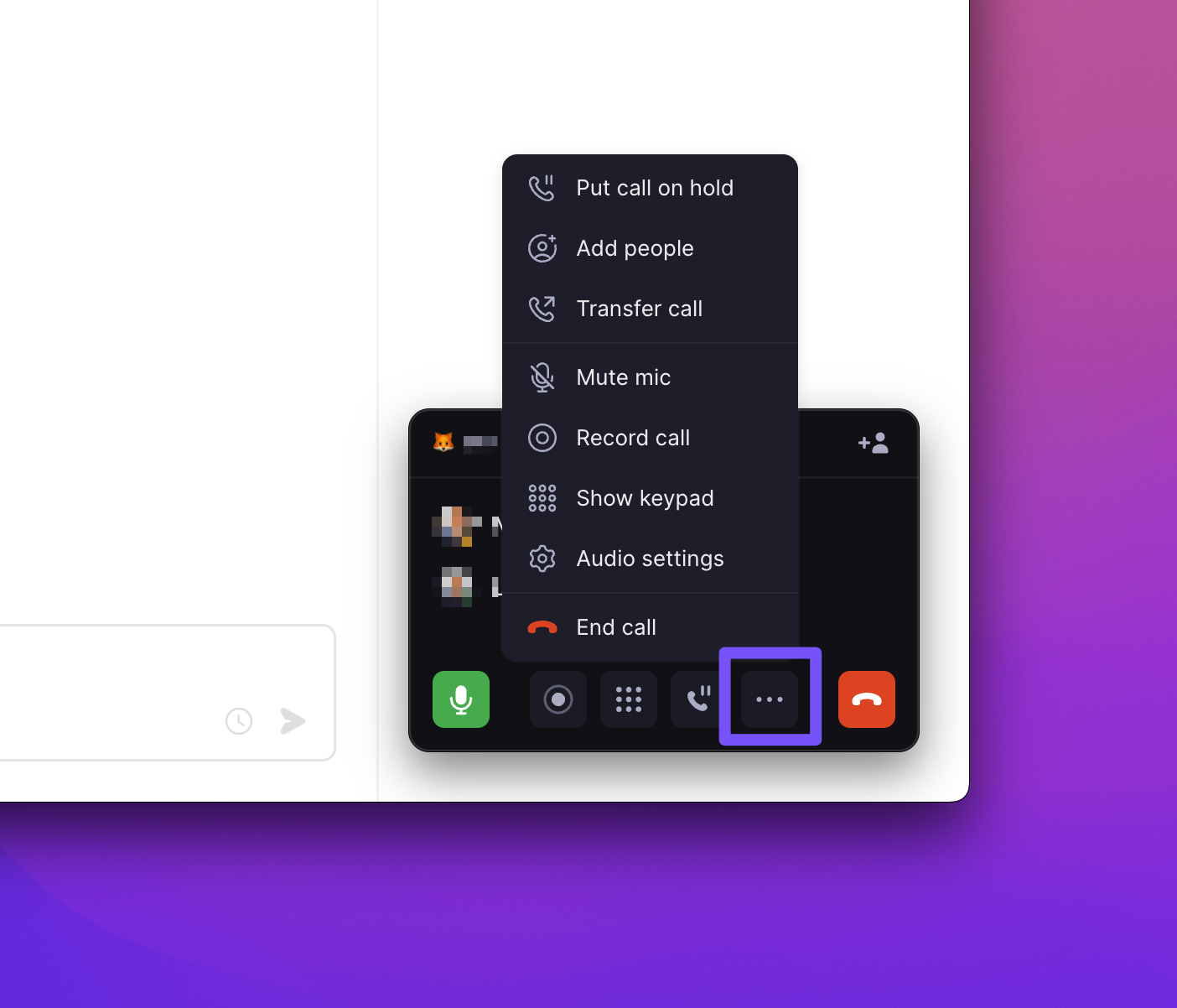
 ### Managing audio settings
During calls, you can adjust your audio settings:
1. Click the settings gear (⚙️) during an active call
2. Select your preferred microphone and speaker
3. Changes apply immediately without dropping the call
### Managing audio settings
During calls, you can adjust your audio settings:
1. Click the settings gear (⚙️) during an active call
2. Select your preferred microphone and speaker
3. Changes apply immediately without dropping the call
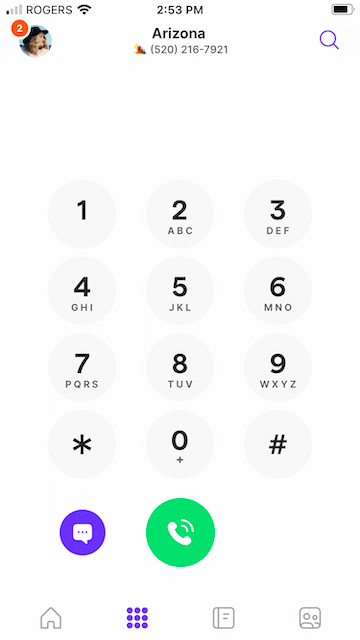
 The Quo mobile app offers three convenient ways to make calls:
### Method 1: Using the dial pad
Tap the keypad icon and enter the number directly - perfect for calling new contacts or numbers not saved in your system.
The Quo mobile app offers three convenient ways to make calls:
### Method 1: Using the dial pad
Tap the keypad icon and enter the number directly - perfect for calling new contacts or numbers not saved in your system.
 ### Method 2: From a conversation
Open any conversation and tap the phone icon in the top right corner to call that contact instantly.
### Method 2: From a conversation
Open any conversation and tap the phone icon in the top right corner to call that contact instantly.
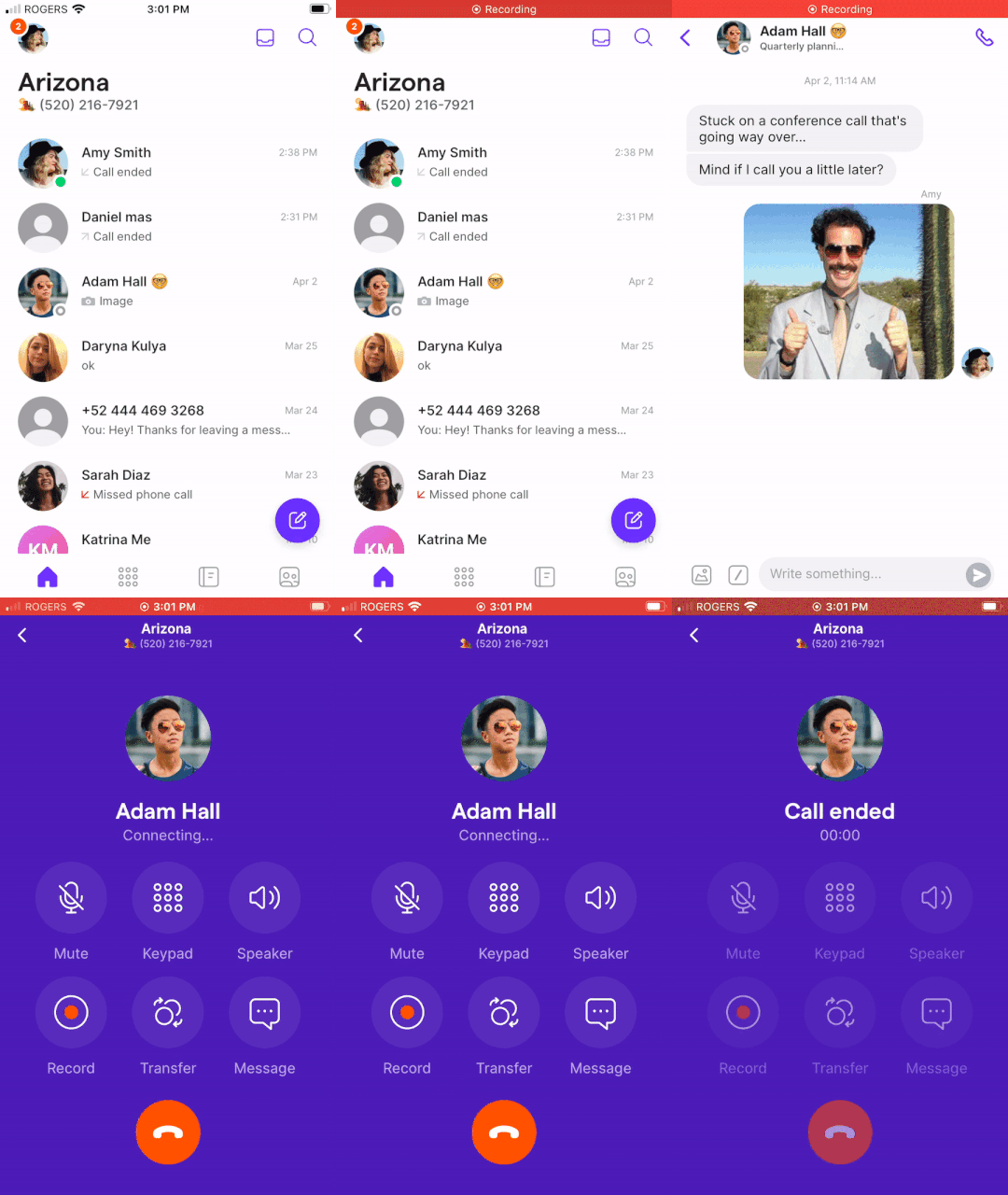 ### Method 3: From your contacts
Browse your address book, select a contact, and choose which number to call from their contact details.
### Method 3: From your contacts
Browse your address book, select a contact, and choose which number to call from their contact details.
 ***
## Calling from multiple numbers
If you manage multiple phone numbers in Quo, you can easily switch between them before making calls.
Select the number you want to use from the "Inboxes" section in the left sidebar:
***
## Calling from multiple numbers
If you manage multiple phone numbers in Quo, you can easily switch between them before making calls.
Select the number you want to use from the "Inboxes" section in the left sidebar:
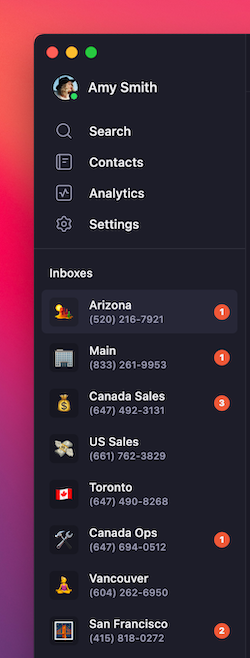 The selected number will appear on the recipient's caller ID.
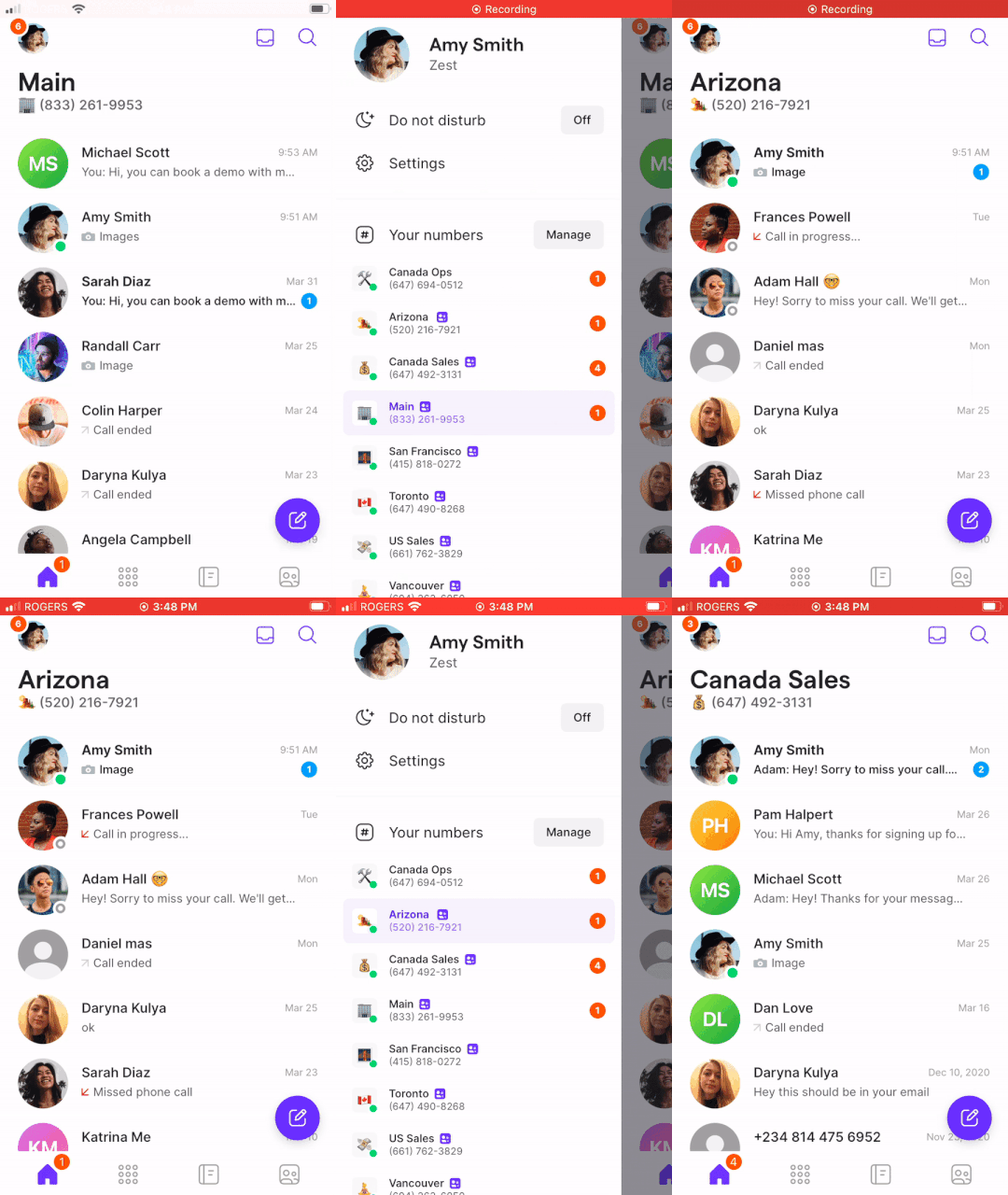
1. Tap your account icon in the upper left corner
2. Select the desired number under "Your numbers"
3. This number will appear on the recipient's caller ID
The selected number will appear on the recipient's caller ID.
1. Tap your account icon in the upper left corner
2. Select the desired number under "Your numbers"
3. This number will appear on the recipient's caller ID
 ***
## Caller ID and appearance
When you call someone through Quo, they see:
* Your Quo business number
* The city where your number is registered
* Your caller ID name (if configured)
***
## Caller ID and appearance
When you call someone through Quo, they see:
* Your Quo business number
* The city where your number is registered
* Your caller ID name (if configured)
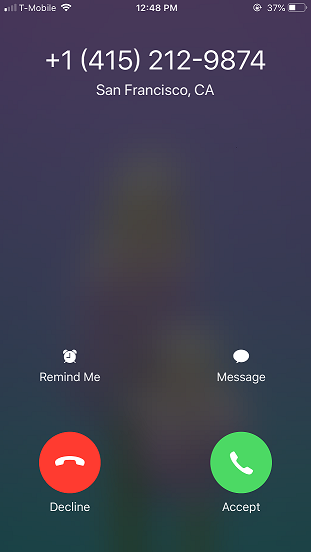 Recipients don't need Quo installed. They'll receive calls just like they normally would from any business phone.
***
## Custom hold music
Personalize your caller's waiting experience with custom hold music. Choose from Quo's built-in library or upload your own audio to match your brand's tone. Custom hold music is available on all plans.
By default, hold music is already enabled for your phone numbers, so you don't need to take any action unless you want to change it.
### Available music options
* **Upbeat (default)**: Friendly and energetic
* **Mellow:** Warm and approachable
* **Supported formats**: MP3, WAV.
* For best results, use MP3 format with standard bitrates (128–192 kbps).
Audio automatically loops while callers are on hold.
Recipients don't need Quo installed. They'll receive calls just like they normally would from any business phone.
***
## Custom hold music
Personalize your caller's waiting experience with custom hold music. Choose from Quo's built-in library or upload your own audio to match your brand's tone. Custom hold music is available on all plans.
By default, hold music is already enabled for your phone numbers, so you don't need to take any action unless you want to change it.
### Available music options
* **Upbeat (default)**: Friendly and energetic
* **Mellow:** Warm and approachable
* **Supported formats**: MP3, WAV.
* For best results, use MP3 format with standard bitrates (128–192 kbps).
Audio automatically loops while callers are on hold.
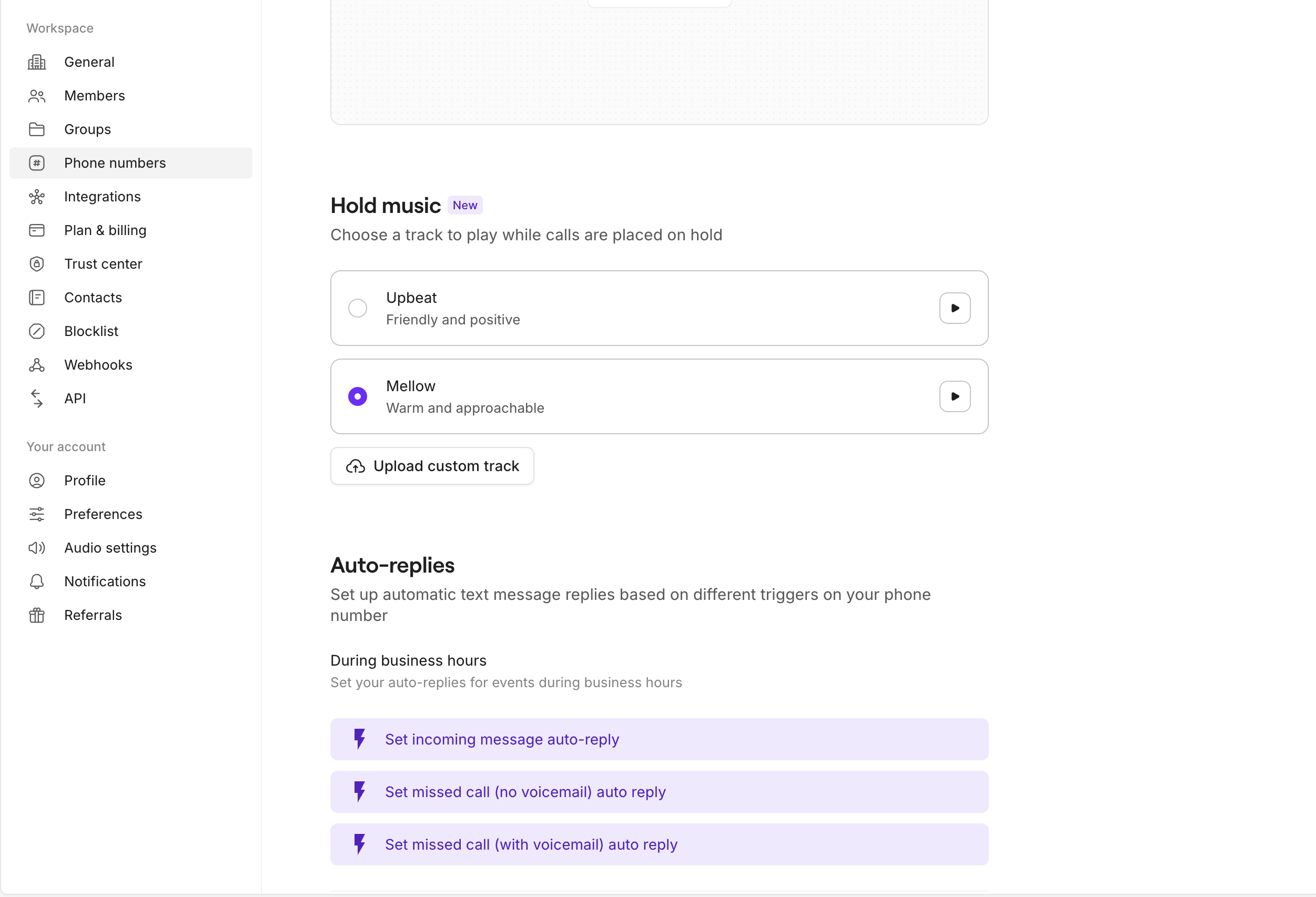 ### Set up hold music for a phone number
*Setup is available on web and desktop only. Once enabled, hold music applies across all devices.*
1. Go to **Phone numbers**, then select a number
2. Scroll to **Hold music**
3. Choose one option:
* Select a library track, or
* Upload a custom audio file
4. Click **Play** to preview the audio
5. Select the **radio button** to activate your choice. Your hold music goes live immediately
### Managing custom music uploads
* After uploading a custom track, you must select its **radio button** to make it live
* You can delete a custom track at any time. If you do, hold music automatically reverts to the default library track
### Troubleshooting custom hold music
If your file won't upload, confirm that it's in MP3 or WAV format. For best results, use an MP3 file with standard bitrates between 128 and 192 kbps.
If you're still hearing the default track, make sure the radio button is selected, since previewing alone doesn't activate hold music. Keep in mind that hold music plays only when a caller is placed on hold.
If a custom track is currently selected, switch to a different library track first. Then upload your new audio file and select it to make it live.
You can return to **Phone numbers → Hold music** at any time to update or switch your selection.
***
## Call quality considerations
Quo delivers crystal-clear call quality that depends on your internet connection strength. On a reliable connection, you'll experience:
* Professional-grade audio quality
* No noticeable difference from traditional phone calls
* Consistent performance across all devices
For optimal call quality:
* Use a strong WiFi or cellular data connection
* Close bandwidth-heavy applications during calls
* Consider using a headset for better audio clarity
Monitor and troubleshoot your calls live with Quo's [call quality metrics panel](https://support.quo.com/core-concepts/calling/call-quality-metrics). Available on desktop.
### Quick fixes to improve your call quality
You can often fix call quality issues without digging into settings or restarting your device. The way your call sounds can point directly to one of the network metrics you'll see in the diagnostics panel. Check out our [Call quality metrics](https://support.quo.com/core-concepts/calling/call-quality-metrics) article to learn more.
| Issue | What this means | Likely cause | What to try |
| -------------------------------- | ------------------------------------------------------------------------- | -------------------------------------------------------- | ---------------------------------------------------------------------------------- |
| Choppy or robotic audio | Parts of the sound are arriving at different times, making voices distort | Unstable internet connection (Jitter) | Move closer to your router, restart your modem, or use a wired internet connection |
| Delays / talking over each other | Your voice is taking too long to reach the other person | Slow or congested internet (Latency) | Close video calls or streaming apps, avoid VPNs, or switch to a faster network |
| Words cutting out | Segments of your audio aren't making it through | Weak or interrupted signal (Packet loss) | Pause large downloads/uploads, reduce WiFi users, or move closer to your router |
| Muffled or low-quality sound | There isn't enough internet capacity for clear audio | Too many devices or apps using your internet (Bandwidth) | Pause downloads or streaming, or use a wired internet connection |
***
## Platform-specific features
### Keyboard shortcuts
Speed up your workflow with these shortcuts:
| Mac | Windows | Action |
| ---------------------------------------------- | ------------------------------------------------- | ------------------------------------------------------- |
| ↑ / ↓ | ↑ / ↓ | Preview conversations without marking as read |
| Enter | Enter | Reply to selected conversation |
| / | / | Access snippets, GIFs, and invites in the message field |
| ⌘ + E | Ctrl + E | Mark conversation as done |
| ⌘ + Shift + U | Ctrl + Shift + U | Mark conversation as unread or read |
| Ctrl + C | Alt + C | Start a call from anywhere |
| ⌘ + Shift + I | Ctrl + Shift + I | Call the contact from the conversation you have open |
| Ctrl + N | Alt + N | Start a new message from anywhere |
| ⌘ + / | Ctrl + / | Search your workspace |
| ⌘ + K | Ctrl + K | Access command menu to see available actions |
### Advanced audio controls
* Select specific input/output devices
* Adjust volume levels during calls
* Test audio before making important calls
### Touch gestures
* Swipe between conversations quickly
* Long-press for additional options
* Pull down to refresh your inbox
### Mobile-specific features
* Make calls using your device's native dialer integration
* Access Quo from your lock screen
* Use with Bluetooth headsets and car systems
***
## Additional calling features
Enhance your calling experience with:
* **Call recording**: Record important conversations at the touch of a button
* **Call transfer**: Seamlessly hand off calls to team members
* **Conference calling**: Add multiple participants to your calls
* **Voicemail**: Professional greetings when you can't answer
## FAQs
No, recipients only see your Quo business number on their caller ID. Your personal phone number remains completely private.
No, anyone can receive your Quo calls on their regular phone. They don't need any special app or service.
Yes, Quo supports international calling. You'll need to enable international calling in your settings and add credit to your account for calls outside the US and Canada.
If your connection is interrupted, Quo will attempt to reconnect automatically. For important calls, ensure you have a stable internet connection before dialing.
Yes, Quo works with any headset or speaker system connected to your device. You can select your preferred audio devices in the settings during a call.
While core calling functionality is consistent across platforms, web/desktop offers keyboard shortcuts and advanced audio controls, while mobile provides touch gestures and native phone integration. Choose the platform that best fits your workflow.
### Set up hold music for a phone number
*Setup is available on web and desktop only. Once enabled, hold music applies across all devices.*
1. Go to **Phone numbers**, then select a number
2. Scroll to **Hold music**
3. Choose one option:
* Select a library track, or
* Upload a custom audio file
4. Click **Play** to preview the audio
5. Select the **radio button** to activate your choice. Your hold music goes live immediately
### Managing custom music uploads
* After uploading a custom track, you must select its **radio button** to make it live
* You can delete a custom track at any time. If you do, hold music automatically reverts to the default library track
### Troubleshooting custom hold music
If your file won't upload, confirm that it's in MP3 or WAV format. For best results, use an MP3 file with standard bitrates between 128 and 192 kbps.
If you're still hearing the default track, make sure the radio button is selected, since previewing alone doesn't activate hold music. Keep in mind that hold music plays only when a caller is placed on hold.
If a custom track is currently selected, switch to a different library track first. Then upload your new audio file and select it to make it live.
You can return to **Phone numbers → Hold music** at any time to update or switch your selection.
***
## Call quality considerations
Quo delivers crystal-clear call quality that depends on your internet connection strength. On a reliable connection, you'll experience:
* Professional-grade audio quality
* No noticeable difference from traditional phone calls
* Consistent performance across all devices
For optimal call quality:
* Use a strong WiFi or cellular data connection
* Close bandwidth-heavy applications during calls
* Consider using a headset for better audio clarity
Monitor and troubleshoot your calls live with Quo's [call quality metrics panel](https://support.quo.com/core-concepts/calling/call-quality-metrics). Available on desktop.
### Quick fixes to improve your call quality
You can often fix call quality issues without digging into settings or restarting your device. The way your call sounds can point directly to one of the network metrics you'll see in the diagnostics panel. Check out our [Call quality metrics](https://support.quo.com/core-concepts/calling/call-quality-metrics) article to learn more.
| Issue | What this means | Likely cause | What to try |
| -------------------------------- | ------------------------------------------------------------------------- | -------------------------------------------------------- | ---------------------------------------------------------------------------------- |
| Choppy or robotic audio | Parts of the sound are arriving at different times, making voices distort | Unstable internet connection (Jitter) | Move closer to your router, restart your modem, or use a wired internet connection |
| Delays / talking over each other | Your voice is taking too long to reach the other person | Slow or congested internet (Latency) | Close video calls or streaming apps, avoid VPNs, or switch to a faster network |
| Words cutting out | Segments of your audio aren't making it through | Weak or interrupted signal (Packet loss) | Pause large downloads/uploads, reduce WiFi users, or move closer to your router |
| Muffled or low-quality sound | There isn't enough internet capacity for clear audio | Too many devices or apps using your internet (Bandwidth) | Pause downloads or streaming, or use a wired internet connection |
***
## Platform-specific features
### Keyboard shortcuts
Speed up your workflow with these shortcuts:
| Mac | Windows | Action |
| ---------------------------------------------- | ------------------------------------------------- | ------------------------------------------------------- |
| ↑ / ↓ | ↑ / ↓ | Preview conversations without marking as read |
| Enter | Enter | Reply to selected conversation |
| / | / | Access snippets, GIFs, and invites in the message field |
| ⌘ + E | Ctrl + E | Mark conversation as done |
| ⌘ + Shift + U | Ctrl + Shift + U | Mark conversation as unread or read |
| Ctrl + C | Alt + C | Start a call from anywhere |
| ⌘ + Shift + I | Ctrl + Shift + I | Call the contact from the conversation you have open |
| Ctrl + N | Alt + N | Start a new message from anywhere |
| ⌘ + / | Ctrl + / | Search your workspace |
| ⌘ + K | Ctrl + K | Access command menu to see available actions |
### Advanced audio controls
* Select specific input/output devices
* Adjust volume levels during calls
* Test audio before making important calls
### Touch gestures
* Swipe between conversations quickly
* Long-press for additional options
* Pull down to refresh your inbox
### Mobile-specific features
* Make calls using your device's native dialer integration
* Access Quo from your lock screen
* Use with Bluetooth headsets and car systems
***
## Additional calling features
Enhance your calling experience with:
* **Call recording**: Record important conversations at the touch of a button
* **Call transfer**: Seamlessly hand off calls to team members
* **Conference calling**: Add multiple participants to your calls
* **Voicemail**: Professional greetings when you can't answer
## FAQs
No, recipients only see your Quo business number on their caller ID. Your personal phone number remains completely private.
No, anyone can receive your Quo calls on their regular phone. They don't need any special app or service.
Yes, Quo supports international calling. You'll need to enable international calling in your settings and add credit to your account for calls outside the US and Canada.
If your connection is interrupted, Quo will attempt to reconnect automatically. For important calls, ensure you have a stable internet connection before dialing.
Yes, Quo works with any headset or speaker system connected to your device. You can select your preferred audio devices in the settings during a call.
While core calling functionality is consistent across platforms, web/desktop offers keyboard shortcuts and advanced audio controls, while mobile provides touch gestures and native phone integration. Choose the platform that best fits your workflow.