> ## Documentation Index
> Fetch the complete documentation index at: https://support.quo.com/llms.txt
> Use this file to discover all available pages before exploring further.
# Conference calling
> Host multi-party calls with up to 10 participants for team meetings, client consultations, and collaborative discussions
## Overview
Conference calling allows you to connect multiple people on a single call for team meetings, client consultations, or collaborative discussions. Add participants during calls and manage the conversation with professional call controls.
Conference calling is available on Business and Scale plans. [Upgrade your plan →](https://support.quo.com/core-concepts/administration/billing/managing-your-subscription#change-your-plan)
## Starting a conference call
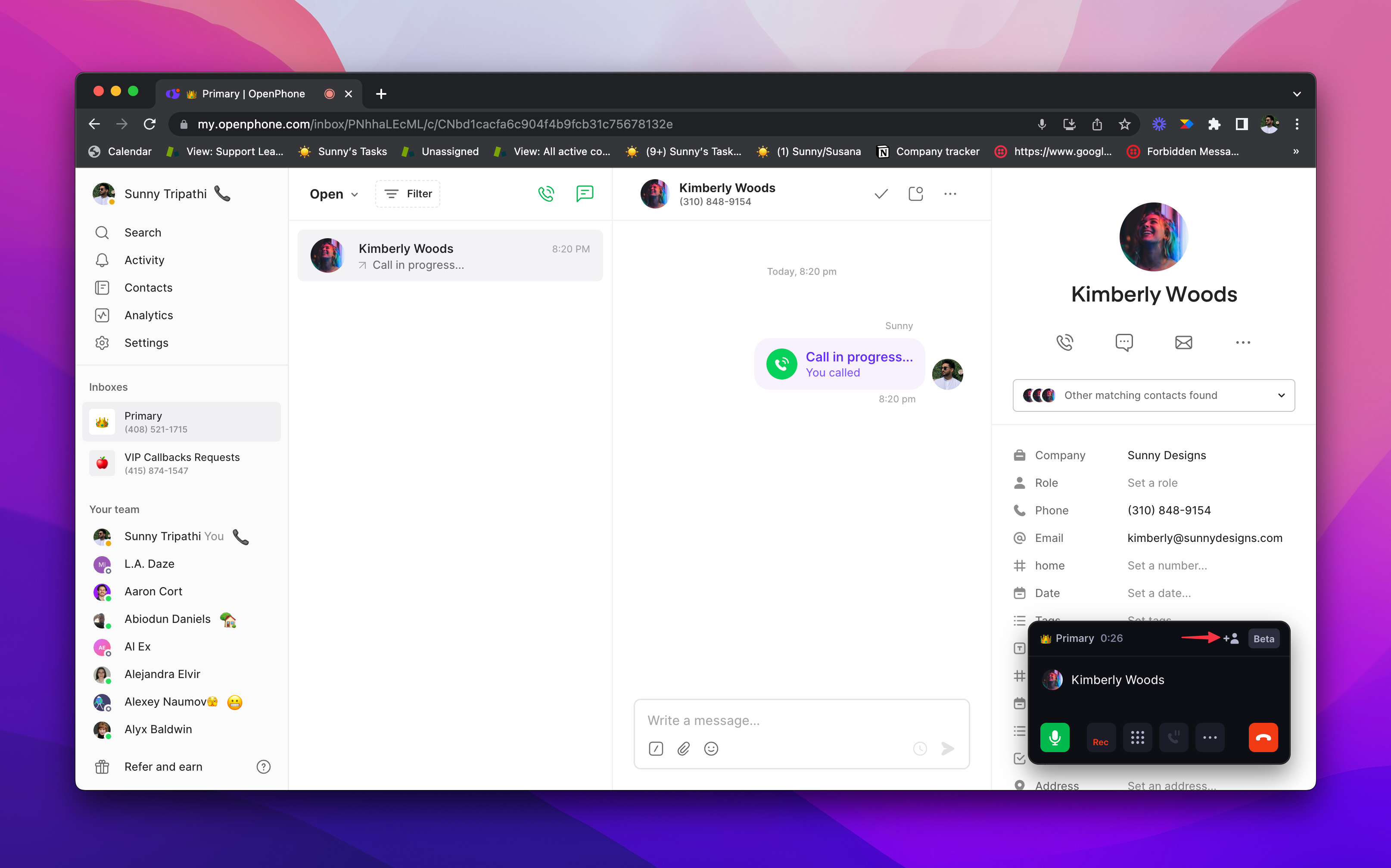
1. Begin with any active call (incoming or outgoing)
2. Click the **+👤** icon in the call controls
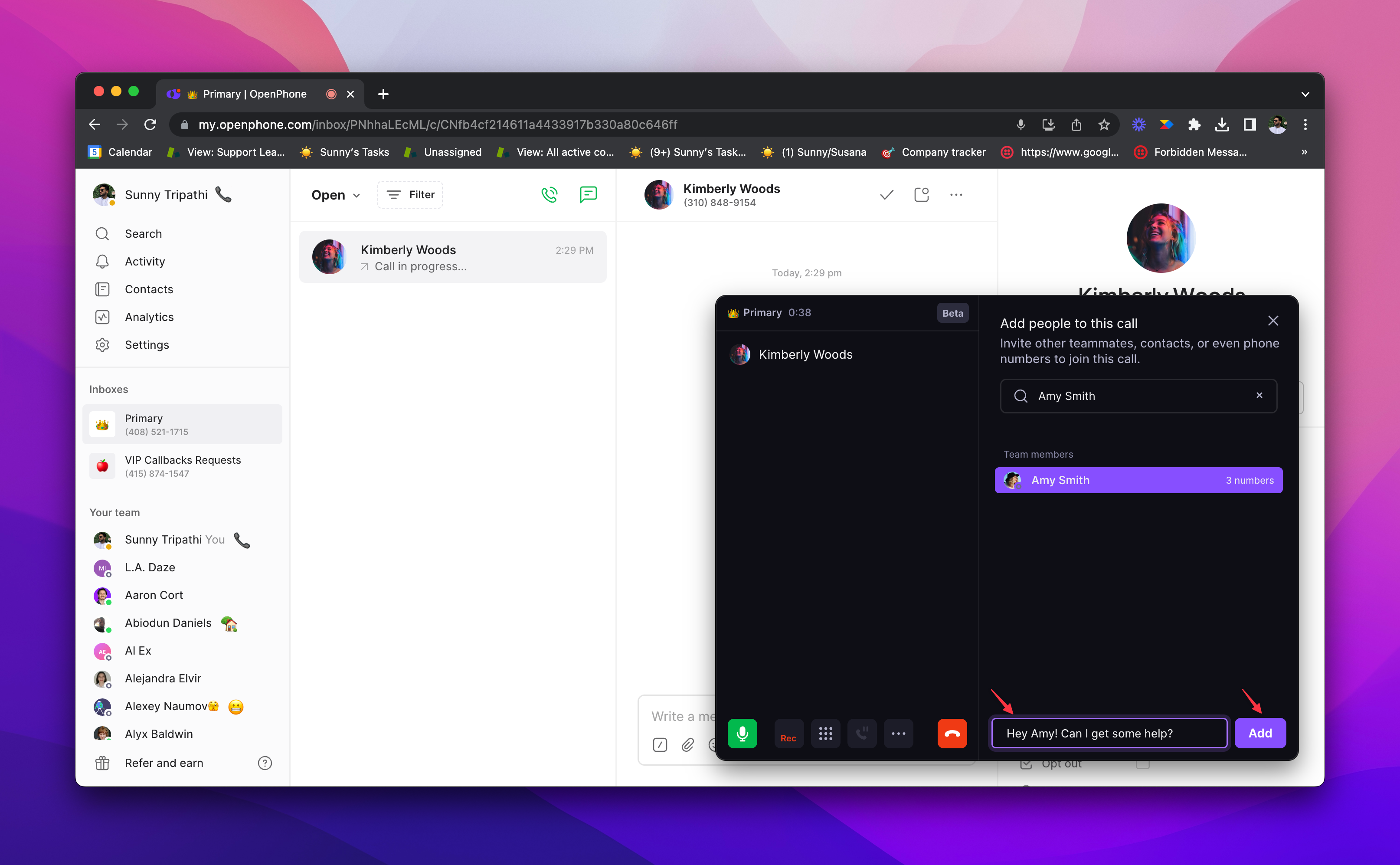
3. Search for participants by name or enter phone numbers
4. Add invitation messages for team members (optional)
5. Click **Add** to invite each participant
 1. Start with any active call (incoming or outgoing)
2. Tap the **+👤** icon in the call interface
3. Search contacts or enter phone numbers
4. Include invitation messages for team members (optional)
5. Tap **Add** to invite each participant
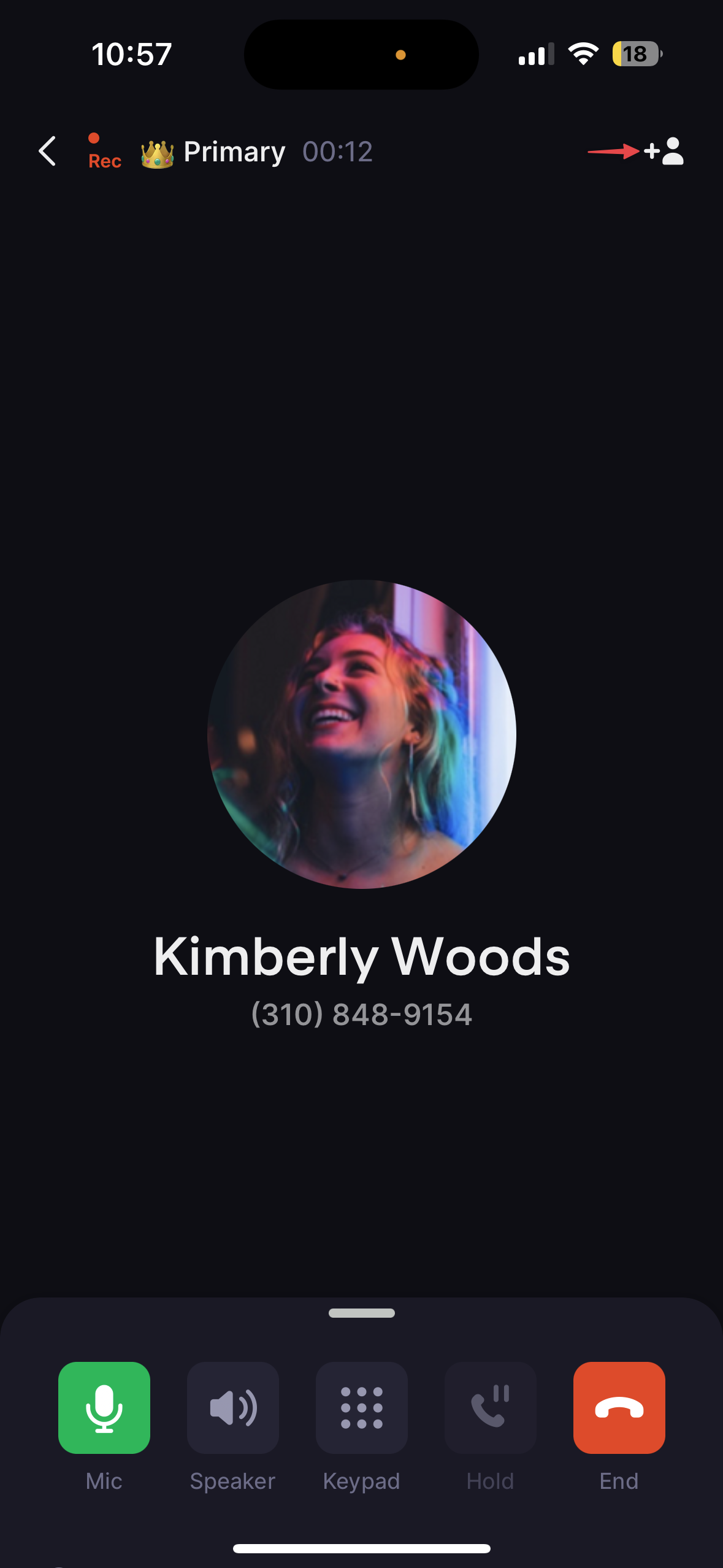
1. Start with any active call (incoming or outgoing)
2. Tap the **+👤** icon in the call interface
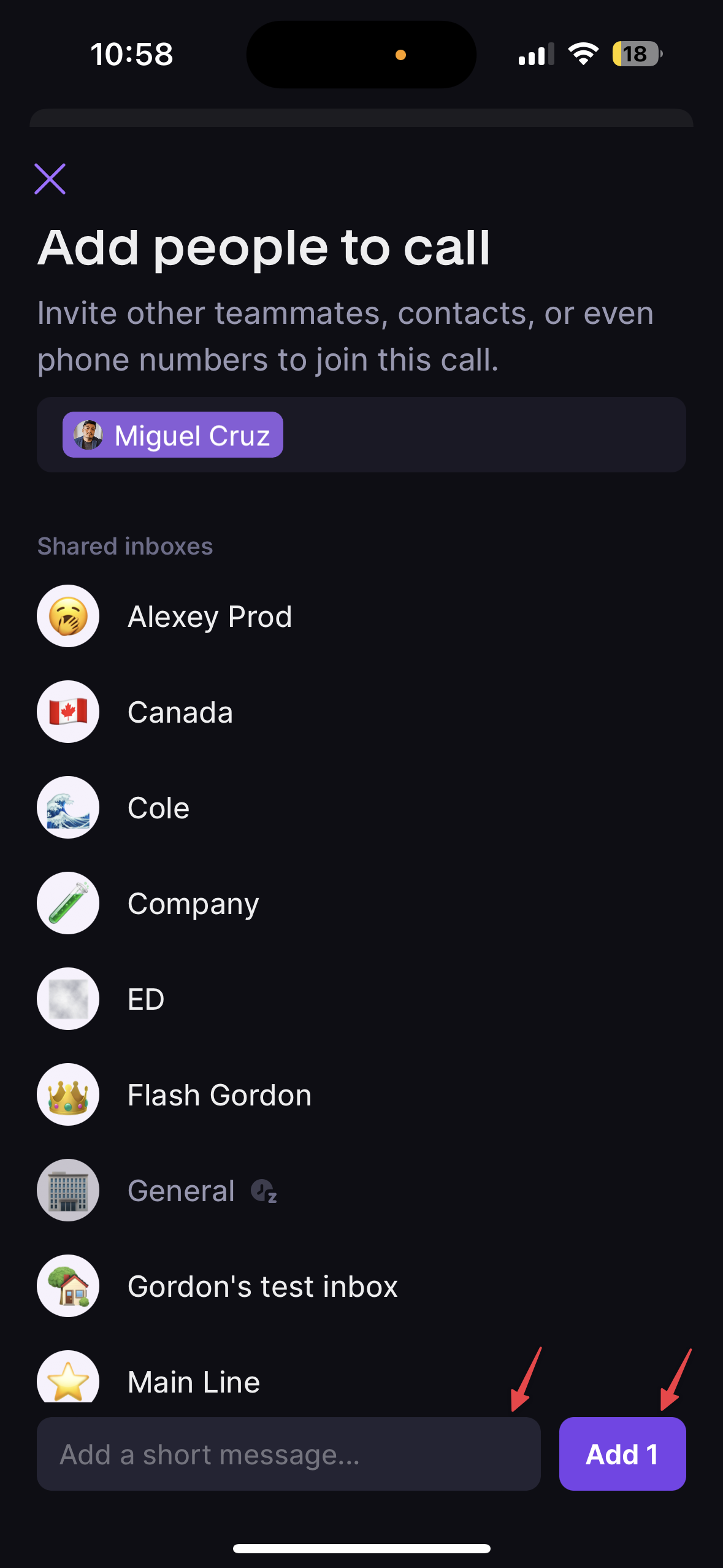
3. Search contacts or enter phone numbers
4. Include invitation messages for team members (optional)
5. Tap **Add** to invite each participant
 ## Managing participants
### Adding participants
* **Team members**: Select from your workspace directory with optional invitation messages
* **External contacts**: Choose from your address book or enter phone numbers directly
* **During calls**: Add participants at any time during the conversation
* **Invitation messages**: Include context when inviting team members
### Participant invitations
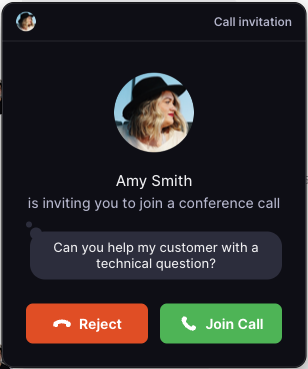
When invited to a conference call, participants receive:
* **Incoming call notification** with accept/decline options
* **Invitation message** (if included by the host)
* **Clear indication** that it's a group call
## Managing participants
### Adding participants
* **Team members**: Select from your workspace directory with optional invitation messages
* **External contacts**: Choose from your address book or enter phone numbers directly
* **During calls**: Add participants at any time during the conversation
* **Invitation messages**: Include context when inviting team members
### Participant invitations
When invited to a conference call, participants receive:
* **Incoming call notification** with accept/decline options
* **Invitation message** (if included by the host)
* **Clear indication** that it's a group call
 ### Removing participants
To remove someone from the call:
1. Click the **"..."** next to their name
2. Select **Remove from call**
3. They're immediately disconnected
### Removing participants
To remove someone from the call:
1. Click the **"..."** next to their name
2. Select **Remove from call**
3. They're immediately disconnected
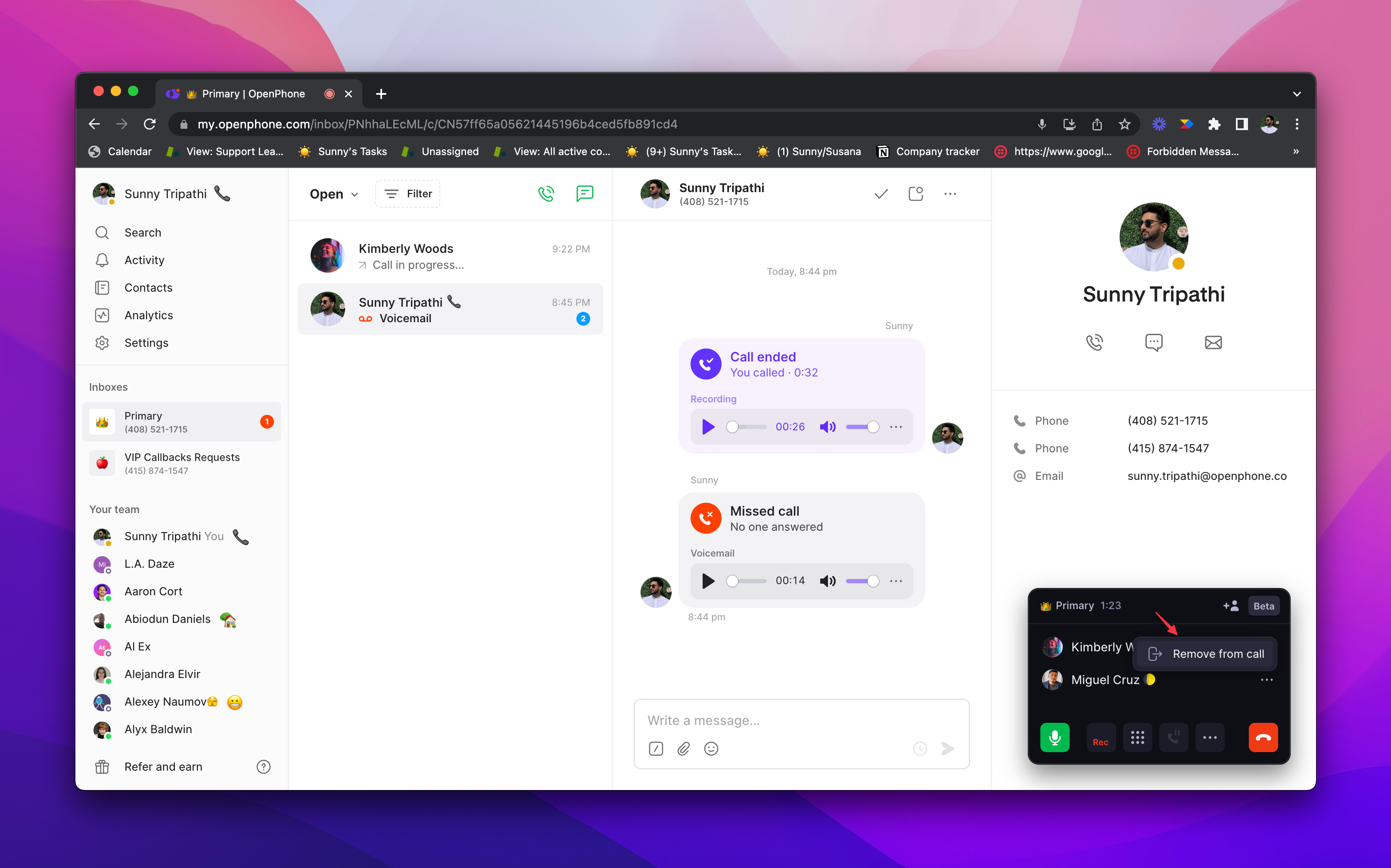 You can only remove participants that you added to the call. Other participants can only be removed by the person who invited them.
## FAQs
Conference calling requires a Business or Scale plan. Starter plan users need to upgrade to access group calling functionality.
Check that you haven't exceeded the 10-participant recommendation. Also verify that you're trying to add external numbers, not exceeding system limits.
Ensure the participant's number is correct and they have good cell coverage. They may need to manually accept the incoming call invitation.
You can only remove participants that you personally added to the call. Participants added by others can only be removed by their inviter.
Reduce the number of participants or ensure all participants have strong network connections. Consider using fewer participants for better audio quality.
Quo, formerly OpenPhone, doesn't currently show visual indicators of who's speaking. Encourage participants to identify themselves when speaking in larger groups.
<>
You can only remove participants that you added to the call. Other participants can only be removed by the person who invited them.
## FAQs
Conference calling requires a Business or Scale plan. Starter plan users need to upgrade to access group calling functionality.
Check that you haven't exceeded the 10-participant recommendation. Also verify that you're trying to add external numbers, not exceeding system limits.
Ensure the participant's number is correct and they have good cell coverage. They may need to manually accept the incoming call invitation.
You can only remove participants that you personally added to the call. Participants added by others can only be removed by their inviter.
Reduce the number of participants or ensure all participants have strong network connections. Consider using fewer participants for better audio quality.
Quo, formerly OpenPhone, doesn't currently show visual indicators of who's speaking. Encourage participants to identify themselves when speaking in larger groups.
<>