> ## Documentation Index
> Fetch the complete documentation index at: https://support.quo.com/llms.txt
> Use this file to discover all available pages before exploring further.
# Click-to-call
> Set Quo, formerly OpenPhone, as your default calling app to dial phone numbers directly from websites, emails, and other applications
## Overview
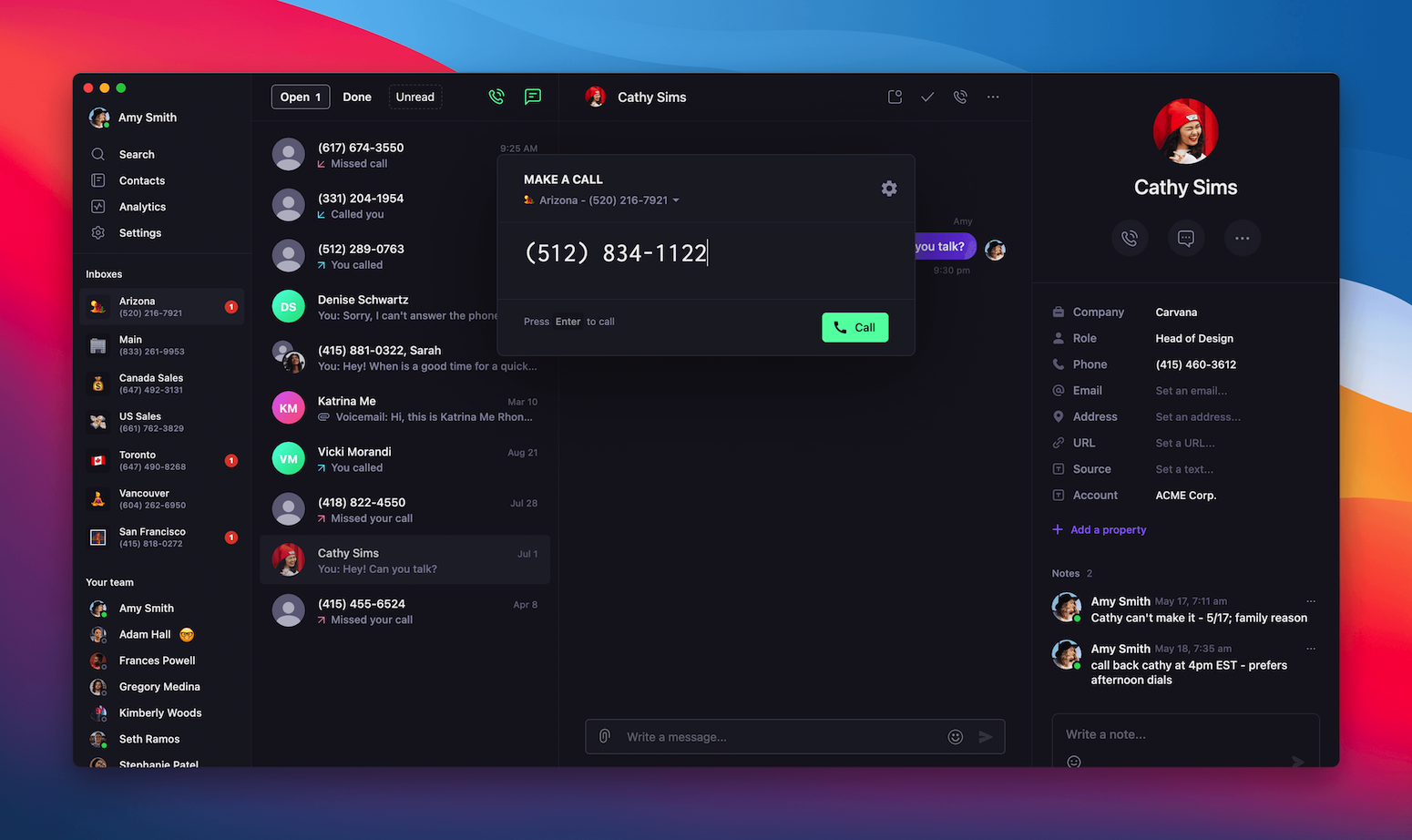
Click-to-call functionality lets you dial phone numbers directly from websites, emails, and other applications without copying and pasting. Set Quo as your default calling app to streamline your calling workflow and improve productivity.
Click-to-call requires the Quo desktop app for Windows and Mac, or mobile app for Android. Web browser alone doesn't support default calling app functionality.
## Platform setup
### Install and configure Quo
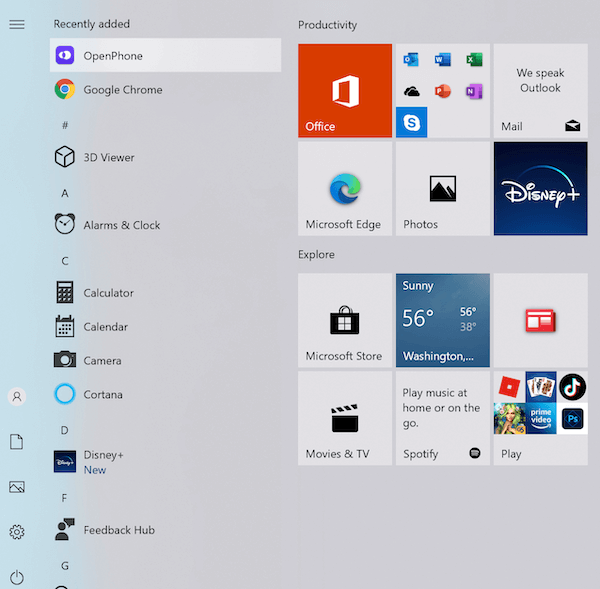
1. **Download the Quo Windows app** from [Quo Downloads](https://www.quo.com/downloads)
2. **Open Windows Settings**: Click the start menu and search "default app"
3. **Select "Default app System settings"**
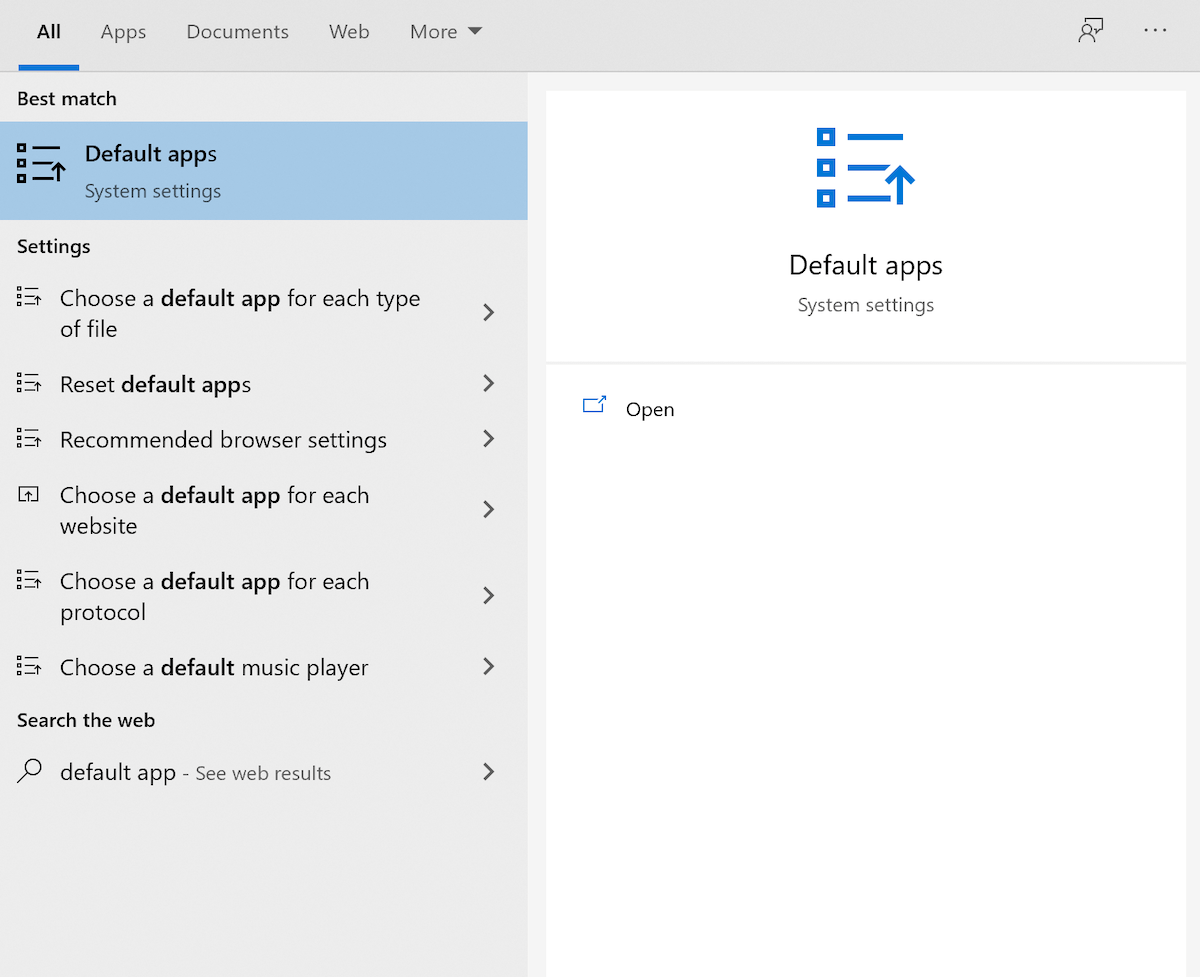 4. **Navigate to protocol settings**: Scroll down and click "Choose default apps by protocol"
5. **Set Quo for TEL protocol**: Find "TEL" in the list and select Quo
4. **Navigate to protocol settings**: Scroll down and click "Choose default apps by protocol"
5. **Set Quo for TEL protocol**: Find "TEL" in the list and select Quo
 ### Using click-to-call on Windows
* **Click any phone number** on websites or in applications
* **Quo launches automatically** with the number pre-filled
* **Click "Call"** to connect immediately
### Install and configure Quo
1. **Download the Quo Mac app** from [Quo Downloads](https://www.quo.com/downloads)
2. **Open FaceTime**: Launch FaceTime from Applications
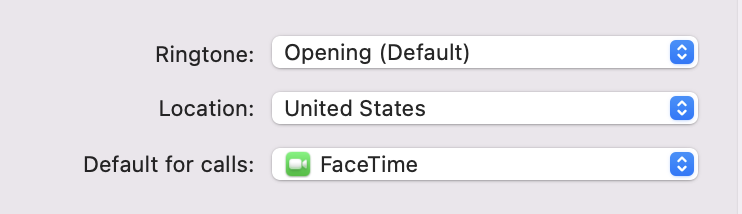
3. **Access FaceTime Settings**: Click "FaceTime" in the menu bar → "Settings"
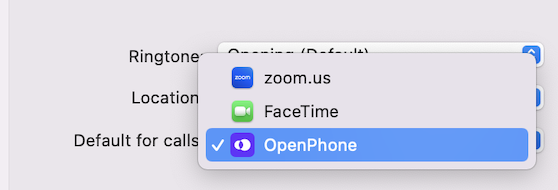
4. **Set default calling app**: In the dropdown next to "Default for calls", select "Quo"
### Using click-to-call on Windows
* **Click any phone number** on websites or in applications
* **Quo launches automatically** with the number pre-filled
* **Click "Call"** to connect immediately
### Install and configure Quo
1. **Download the Quo Mac app** from [Quo Downloads](https://www.quo.com/downloads)
2. **Open FaceTime**: Launch FaceTime from Applications
3. **Access FaceTime Settings**: Click "FaceTime" in the menu bar → "Settings"
4. **Set default calling app**: In the dropdown next to "Default for calls", select "Quo"
 ### Using click-to-call on Mac
* **Click phone numbers** on websites or in applications
* **Confirmation popup appears** asking to dial with Quo
* **Confirm the action** to open Quo with the number ready
* **Click "Call"** to connect
### Using click-to-call on Mac
* **Click phone numbers** on websites or in applications
* **Confirmation popup appears** asking to dial with Quo
* **Confirm the action** to open Quo with the number ready
* **Click "Call"** to connect
 ### Install and configure Quo
1. **Download the Quo Android app** from [Quo Downloads](https://www.quo.com/downloads)
2. **Open Android Settings** on your device
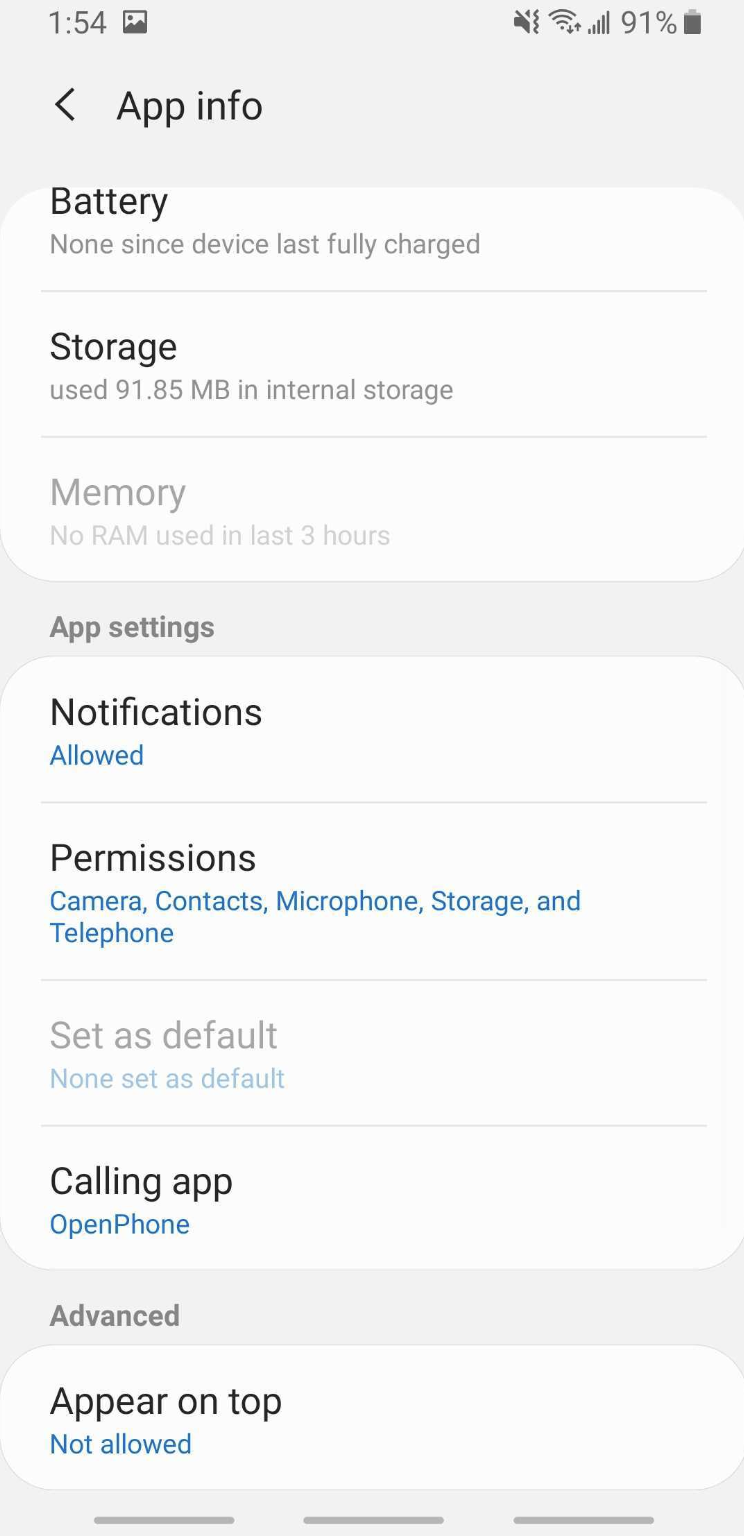
3. **Navigate to Apps**: Go to Settings → Apps → Quo
4. **Set as default dialer**: Select "Calling app" → Choose "Quo"
### Install and configure Quo
1. **Download the Quo Android app** from [Quo Downloads](https://www.quo.com/downloads)
2. **Open Android Settings** on your device
3. **Navigate to Apps**: Go to Settings → Apps → Quo
4. **Set as default dialer**: Select "Calling app" → Choose "Quo"
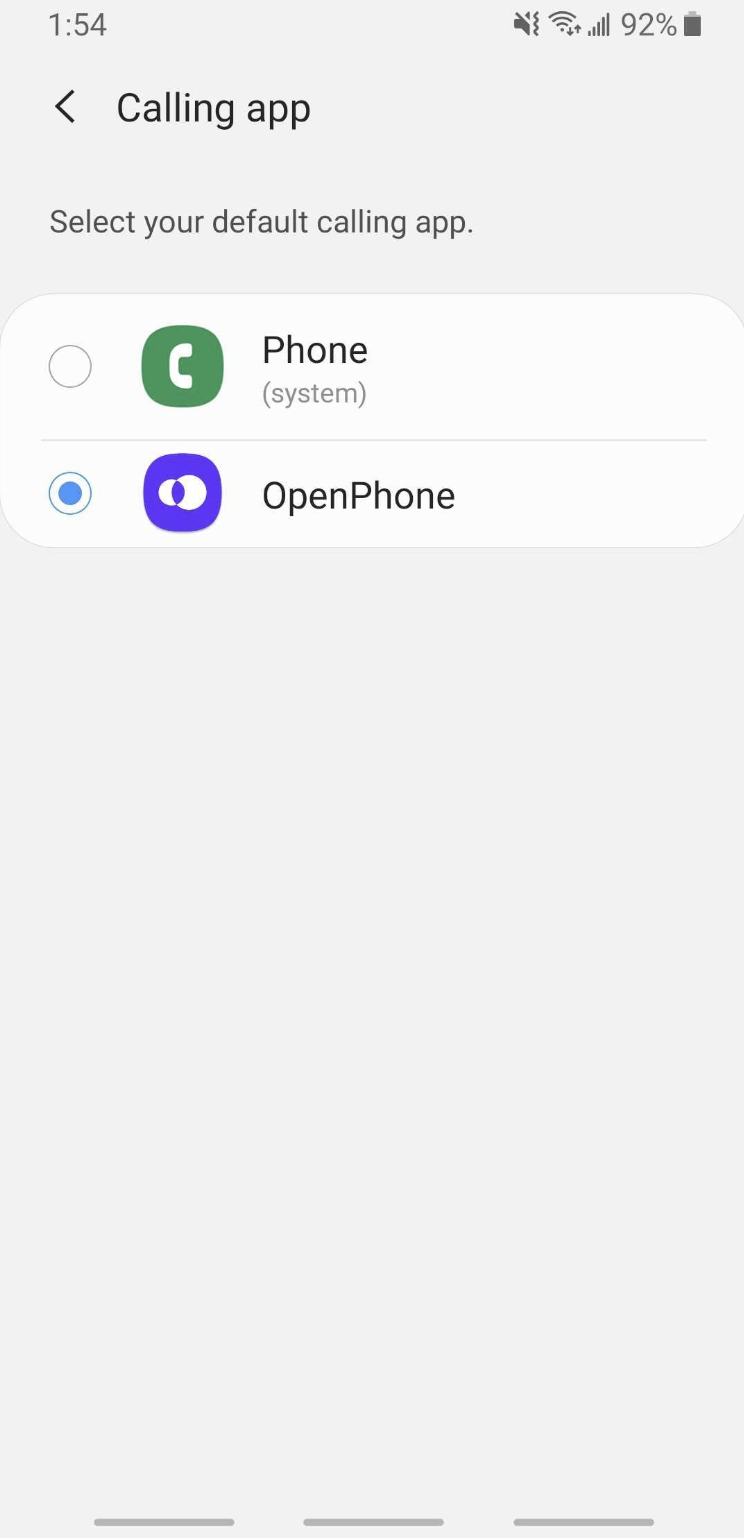 Default dialer functionality is only available on Android 12 and lower. Newer Android versions may have different configuration requirements.
### Using click-to-call on Android
* **Tap phone numbers** in apps, websites, or messages
* **Quo opens automatically** with the number ready
* **Tap "Call"** to connect immediately
# FAQs
Ensure you've set Quo for the TEL protocol in Windows default app settings. You may need to restart your browser after making the change.
Make sure the Quo desktop app is installed in the Applications folder and that you've configured FaceTime settings properly. Restart your browser if needed.
Check your Android version - default dialer functionality is limited on Android 13 and newer. Older versions may have different menu structures.
Some websites and applications may not format phone numbers as clickable links. The number format and website coding determine clickability.
Verify the Quo desktop or mobile app is properly installed and running. Try manually opening the app first to ensure it's working correctly.
Default dialer functionality is only available on Android 12 and lower. Newer Android versions may have different configuration requirements.
### Using click-to-call on Android
* **Tap phone numbers** in apps, websites, or messages
* **Quo opens automatically** with the number ready
* **Tap "Call"** to connect immediately
# FAQs
Ensure you've set Quo for the TEL protocol in Windows default app settings. You may need to restart your browser after making the change.
Make sure the Quo desktop app is installed in the Applications folder and that you've configured FaceTime settings properly. Restart your browser if needed.
Check your Android version - default dialer functionality is limited on Android 13 and newer. Older versions may have different menu structures.
Some websites and applications may not format phone numbers as clickable links. The number format and website coding determine clickability.
Verify the Quo desktop or mobile app is properly installed and running. Try manually opening the app first to ensure it's working correctly.