> ## Documentation Index
> Fetch the complete documentation index at: https://support.quo.com/llms.txt
> Use this file to discover all available pages before exploring further.
# Caller ID
> Set up and manage outgoing caller ID names to increase answer rates and build trust with recipients
## Overview
An effective outgoing caller ID name helps you stand out and connect with your contacts more successfully. When recipients see your business name instead of just a phone number, they're more likely to answer your calls and trust the communication.
Caller ID name is exclusively available to paying customers who represent a business with a Tax ID and an approved US carrier registration. This feature is not available for personal use.
## Understanding caller ID
### How caller ID works
When you make a call, carriers reference authoritative databases to display your business name on the recipient's phone. This process involves:
1. **Database registration**: Quo, formerly OpenPhone, submits your caller ID information to national databases
2. **Carrier lookup**: Recipients' carriers pull your information when you call
3. **Display on device**: Your business name appears on their screen
If you've ever seen a caller's name without having them in your contacts, this is the same system at work.
### Requirements and limitations
**Caller ID name requirements:**
* Maximum 15 characters
* Only letters, numbers, periods, commas, and spaces
* No special characters like "+" allowed
* Cannot use "Private", "Unavailable", or "Unknown"
* Must relate to your registered business name
**Feature availability:**
* ✅ US local numbers only
* ❌ Not available for toll-free numbers
* ❌ Not supported for Canadian numbers
* ✅ Requires admin or owner permissions
## Setting up caller ID
Watch this quick tutorial or follow the steps below:
### Step 1: Create a caller ID name
1. Click **Settings** from the left-hand menu
2. Under "Workspace", select **General**
3. Click **Add a name** under "Caller ID names"
4. Enter your preferred caller ID (must match your business registration)
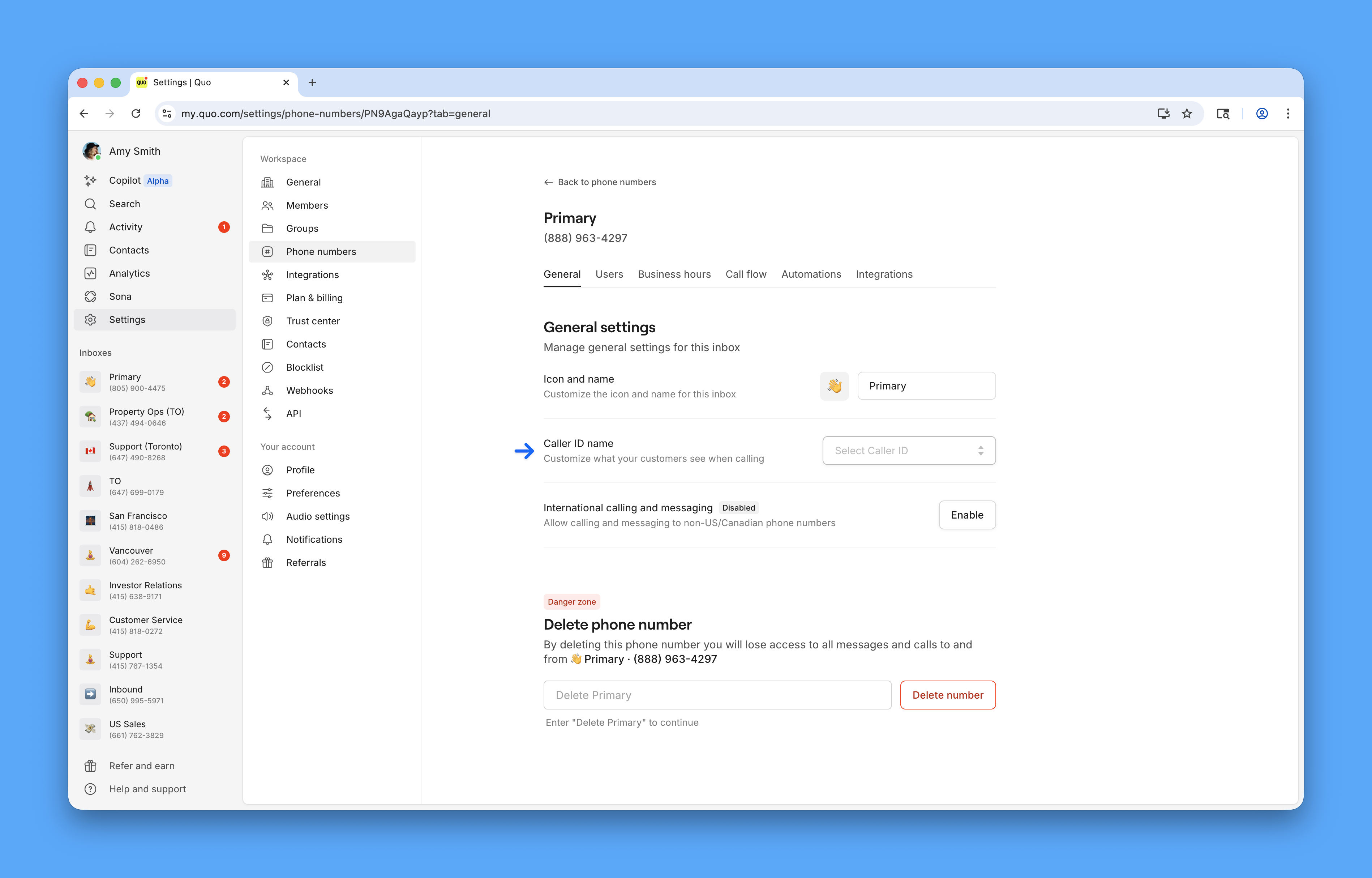 Your caller ID name must be related to the business name on your US carrier registration. If there's no visible relationship, it will be rejected.
### Step 2: Assign to phone numbers
After creating your caller ID name:
1. Click the "0 numbers" link next to your pending caller ID
2. Select all numbers that should display this caller ID
3. Click outside the pop-up to save
4. Status will show as "Pending" during approval
### Step 3: Wait for approval
* Approval typically takes 48 hours
* Updates are processed weekly
* After approval, it may take 2-3 additional days to propagate across all carriers
## Managing existing caller IDs
### Updating a caller ID name
1. Go to **Settings → General**
2. Find your existing caller ID name
3. Click the three dots and choose **Update name**
4. Enter your new preferred name
5. Submit for approval
Your caller ID name must be related to the business name on your US carrier registration. If there's no visible relationship, it will be rejected.
### Step 2: Assign to phone numbers
After creating your caller ID name:
1. Click the "0 numbers" link next to your pending caller ID
2. Select all numbers that should display this caller ID
3. Click outside the pop-up to save
4. Status will show as "Pending" during approval
### Step 3: Wait for approval
* Approval typically takes 48 hours
* Updates are processed weekly
* After approval, it may take 2-3 additional days to propagate across all carriers
## Managing existing caller IDs
### Updating a caller ID name
1. Go to **Settings → General**
2. Find your existing caller ID name
3. Click the three dots and choose **Update name**
4. Enter your new preferred name
5. Submit for approval
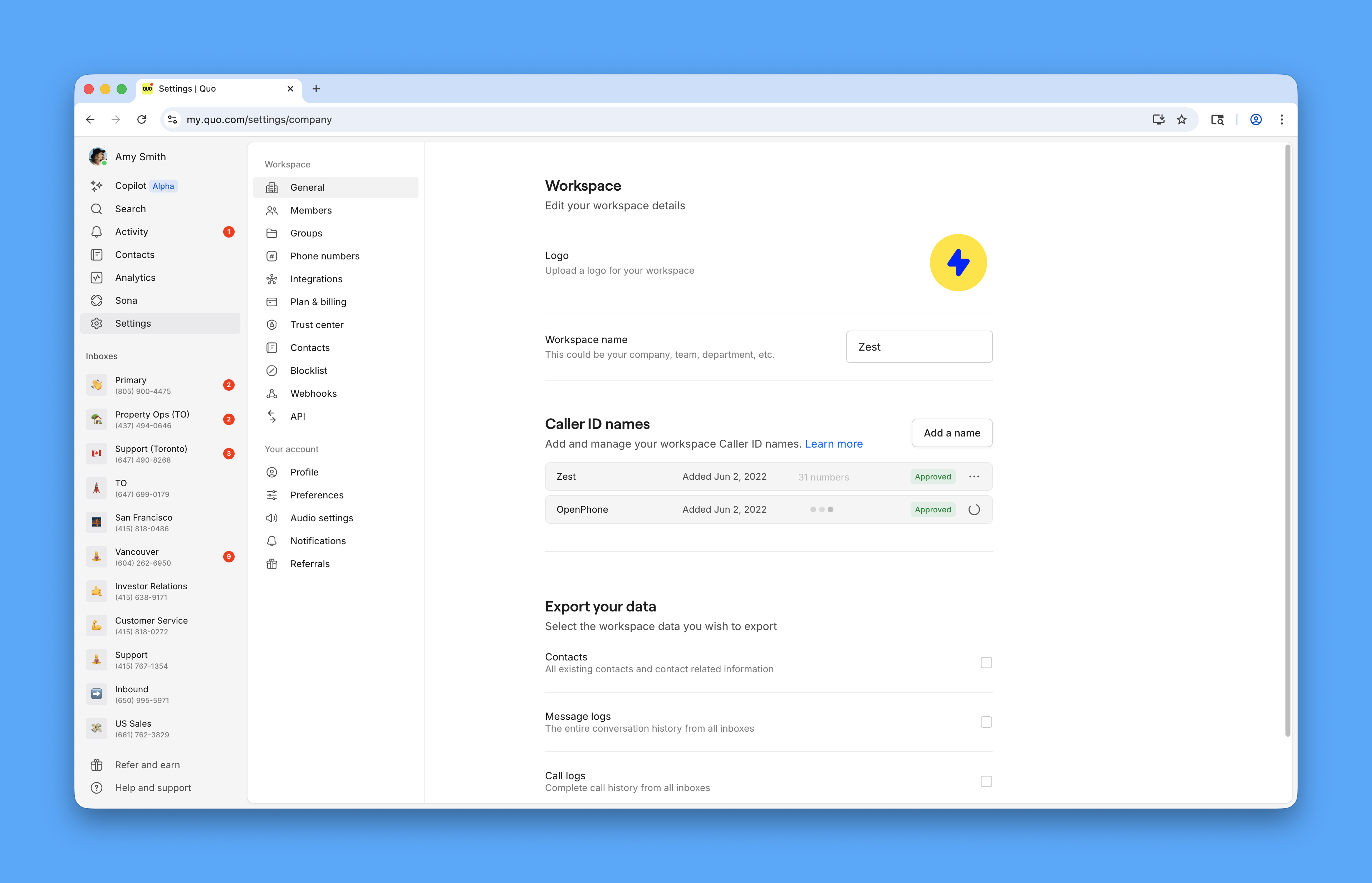 While changes are pending approval, your previously approved caller ID name will continue to display.
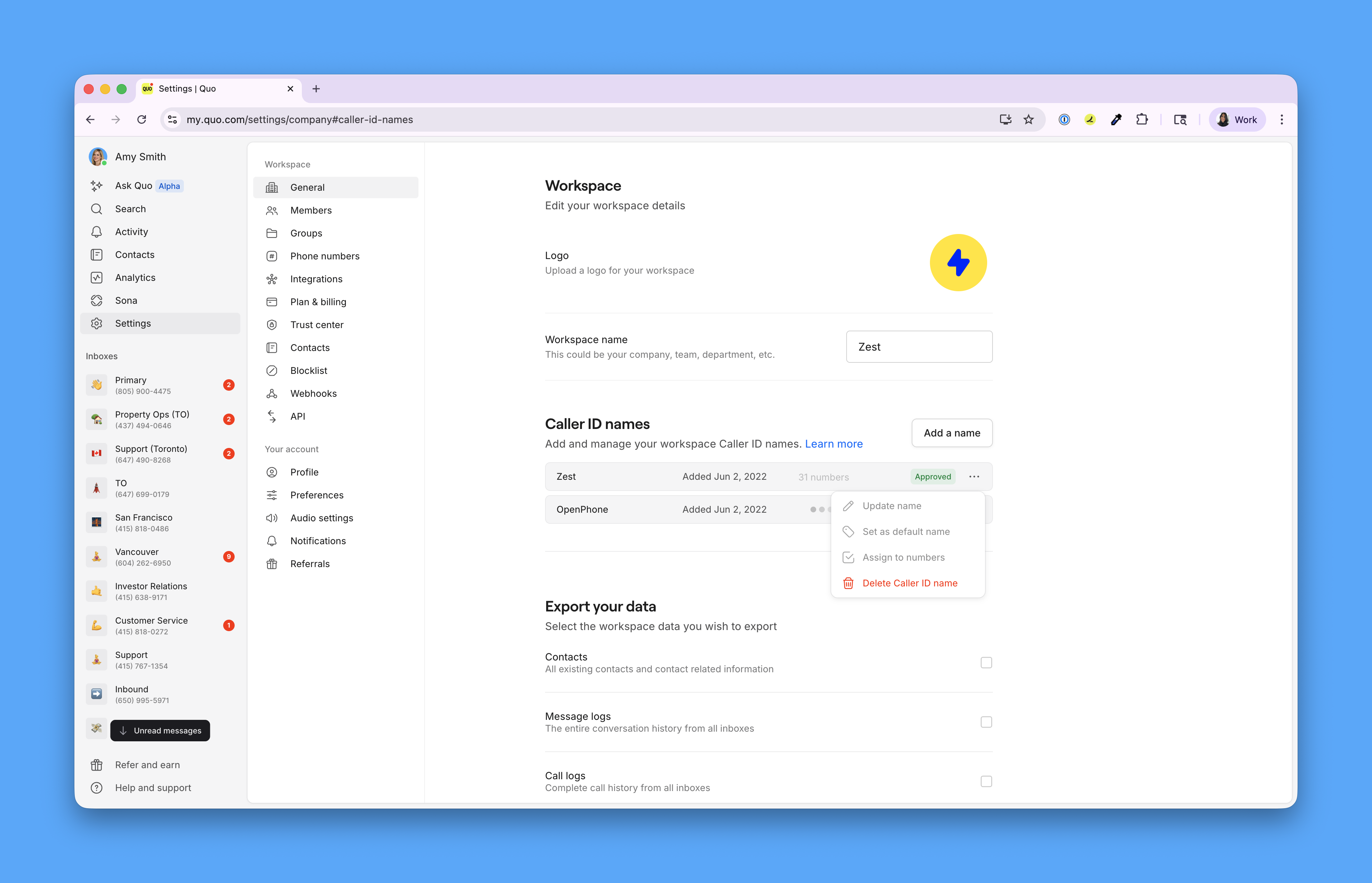
### Deleting a caller ID name
You can delete a caller ID name at any time without affecting affect your carrier registration status.
**Caller ID names created before Dec 31, 2023 can’t be edited or reassigned to new numbers**, they can only be deleted.
If you need a different caller ID name, create a new one and assign your numbers to it.
1. Go to **Settings → General**
2. Find the caller ID name you want to remove
3. Click the three dots and choose **Delete**
4. Confirm the deletion
While changes are pending approval, your previously approved caller ID name will continue to display.
### Deleting a caller ID name
You can delete a caller ID name at any time without affecting affect your carrier registration status.
**Caller ID names created before Dec 31, 2023 can’t be edited or reassigned to new numbers**, they can only be deleted.
If you need a different caller ID name, create a new one and assign your numbers to it.
1. Go to **Settings → General**
2. Find the caller ID name you want to remove
3. Click the three dots and choose **Delete**
4. Confirm the deletion
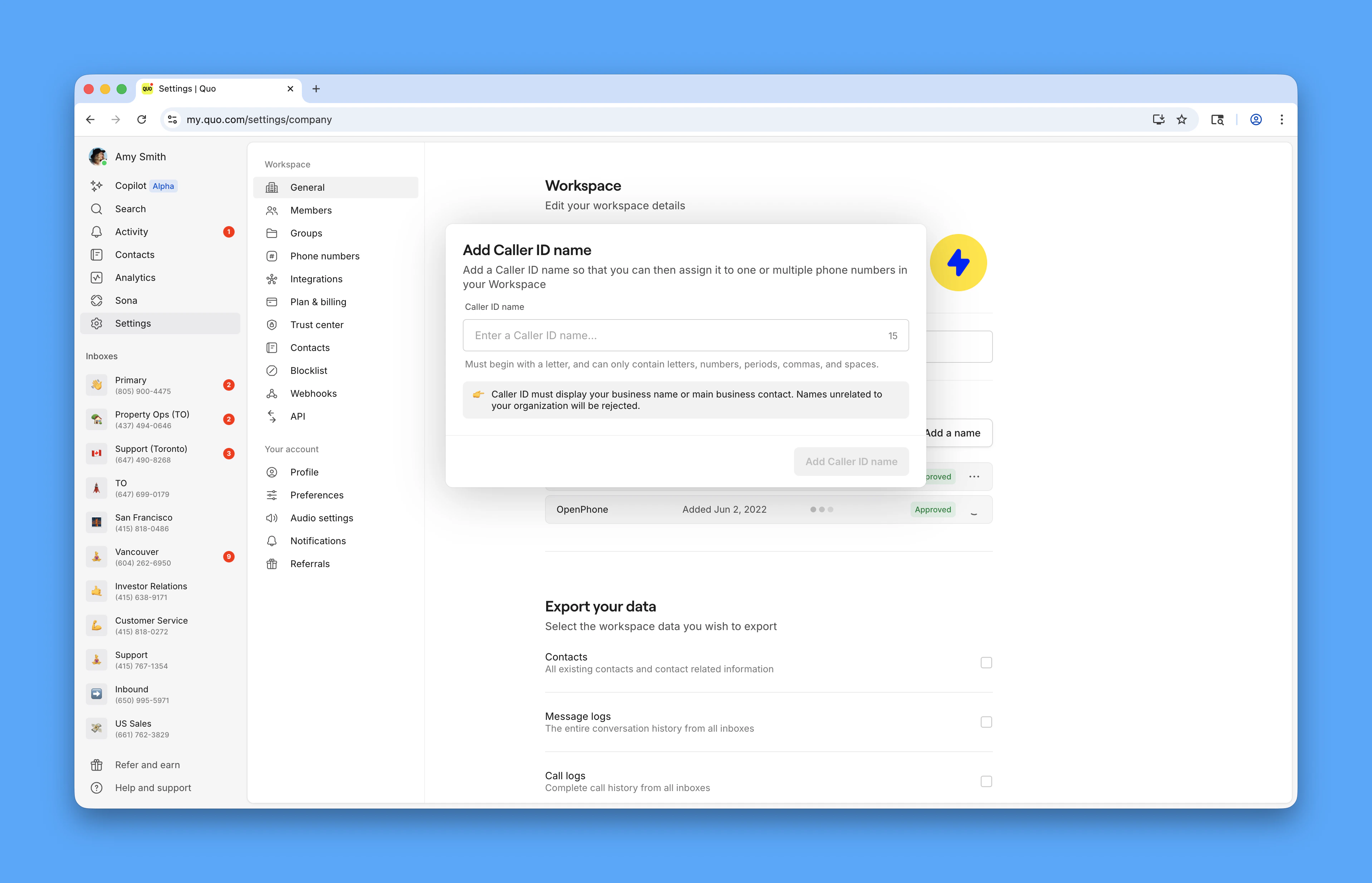
 ### Assigning to individual numbers
To manage caller ID for a specific number:
1. Find the number in your workspace
2. Click the three dots → **Manage settings**
3. Under General settings, find "Caller ID name"
4. Select or change the assigned caller ID
### Assigning to individual numbers
To manage caller ID for a specific number:
1. Find the number in your workspace
2. Click the three dots → **Manage settings**
3. Under General settings, find "Caller ID name"
4. Select or change the assigned caller ID
 ## Troubleshooting display issues
Even with proper setup, caller ID may not always display correctly due to various factors:
### Common reasons for non-display
**Carrier variations**
* Each carrier has its own update schedule
* Some carriers use outdated databases
* Display policies vary by provider
**Number type limitations**
* **Toll-free numbers**: Cannot display caller ID names (designed for receiving calls only)
* **Canadian numbers**: Caller ID not supported due to carrier limitations
**Timing issues**
* New caller IDs take 2-3 days to propagate
* Database updates occur weekly
* Some carriers update less frequently
### What you can control vs. what you can't
**You can control:**
* Accuracy of submitted information
* Keeping caller ID updated
* Ensuring compliance with naming requirements
**You cannot control:**
* How often carriers update their databases
* Whether all carriers will display your ID
* Display on international calls
## Legacy caller ID management
If you created a caller ID name before Dec 31, 2023, you may encounter limitations with modifications.
Caller ID names created before Dec 31, 2023 can’t be edited or reassigned to new numbers, they can only be deleted.
If you need a different caller ID name, create a new one and assign your numbers to it.
***
## FAQs
Caller ID display depends on multiple factors including carrier database updates, recipient's carrier policies, and propagation time. While we submit your information to all major databases, we cannot guarantee universal display due to carrier variations.
No, caller ID is only available for businesses with a Tax ID and approved US carrier registration. The name must match your registered business name.
Initial approval typically takes 48 hours. After approval, allow 2-3 additional days for the caller ID to start displaying across all carriers.
Yes, you can create multiple caller ID names and assign them to different numbers in your workspace, as long as each name relates to your registered business.
Toll-free numbers were designed exclusively for receiving calls. The caller ID databases don't maintain listings for toll-free numbers, so they cannot display caller ID names.
For new customers we automatically enroll you in Voice Integrity, a program which helps prevent non-spam calls from being markted as spam.\
\
What if you're not a new customer (pre-October 2025)? Reach out to our Support team, and they can manually activate this for you. \
\
As an additional level of prevention, go to the Trust Page within your phone number settings and navigate to the FCR (Free Call Registry) registration page to join the registry, which also helps prevent your number from being marked as spam.
No, caller ID is set at the phone number level. All team members using the same phone number will display the same caller ID name.
Yes, you can delete your Caller ID name without affecting your carrier registration.
On web or desktop go to **Settings → General**, click the **three dots (..)** next to the Caller ID name you want to delete, click **Delete Caller ID name**.
## Troubleshooting display issues
Even with proper setup, caller ID may not always display correctly due to various factors:
### Common reasons for non-display
**Carrier variations**
* Each carrier has its own update schedule
* Some carriers use outdated databases
* Display policies vary by provider
**Number type limitations**
* **Toll-free numbers**: Cannot display caller ID names (designed for receiving calls only)
* **Canadian numbers**: Caller ID not supported due to carrier limitations
**Timing issues**
* New caller IDs take 2-3 days to propagate
* Database updates occur weekly
* Some carriers update less frequently
### What you can control vs. what you can't
**You can control:**
* Accuracy of submitted information
* Keeping caller ID updated
* Ensuring compliance with naming requirements
**You cannot control:**
* How often carriers update their databases
* Whether all carriers will display your ID
* Display on international calls
## Legacy caller ID management
If you created a caller ID name before Dec 31, 2023, you may encounter limitations with modifications.
Caller ID names created before Dec 31, 2023 can’t be edited or reassigned to new numbers, they can only be deleted.
If you need a different caller ID name, create a new one and assign your numbers to it.
***
## FAQs
Caller ID display depends on multiple factors including carrier database updates, recipient's carrier policies, and propagation time. While we submit your information to all major databases, we cannot guarantee universal display due to carrier variations.
No, caller ID is only available for businesses with a Tax ID and approved US carrier registration. The name must match your registered business name.
Initial approval typically takes 48 hours. After approval, allow 2-3 additional days for the caller ID to start displaying across all carriers.
Yes, you can create multiple caller ID names and assign them to different numbers in your workspace, as long as each name relates to your registered business.
Toll-free numbers were designed exclusively for receiving calls. The caller ID databases don't maintain listings for toll-free numbers, so they cannot display caller ID names.
For new customers we automatically enroll you in Voice Integrity, a program which helps prevent non-spam calls from being markted as spam.\
\
What if you're not a new customer (pre-October 2025)? Reach out to our Support team, and they can manually activate this for you. \
\
As an additional level of prevention, go to the Trust Page within your phone number settings and navigate to the FCR (Free Call Registry) registration page to join the registry, which also helps prevent your number from being marked as spam.
No, caller ID is set at the phone number level. All team members using the same phone number will display the same caller ID name.
Yes, you can delete your Caller ID name without affecting your carrier registration.
On web or desktop go to **Settings → General**, click the **three dots (..)** next to the Caller ID name you want to delete, click **Delete Caller ID name**.