> ## Documentation Index
> Fetch the complete documentation index at: https://support.quo.com/llms.txt
> Use this file to discover all available pages before exploring further.
# Call transfer
> Transfer calls seamlessly between team members with cold transfers, warm transfers, or transfers with notes for smooth customer handoffs
## Overview
Call transfer helps you seamlessly hand off calls to the right team member for better customer service. Choose from three transfer methods based on your needs: cold transfers for quick handoffs, warm transfers for consultations, or transfers with notes for context sharing.
Call transfer is available on Business and Scale plans. [Upgrade your plan →](https://support.quo.com/core-concepts/administration/billing/managing-your-subscription#change-your-plan)
## Transfer methods
| Type | What happens | Best for |
| ---------------------- | ----------------------------------------------------------------------------------------------------- | -------------------------------------------------------------------------------- |
| **Cold transfer** | Transfer a call directly to another person and immediately disconnect from the conversation. | Quick handoffs when the recipient doesn't need background context. |
| **Warm transfer** | Place the caller on hold, consult with the recipient first, then introduce them before disconnecting. | Complex issues requiring background explanation or when introducing specialists. |
| **Transfer with note** | Send a written message with the transfer to provide context without speaking to the recipient first. | Providing context when the recipient isn't immediately available. |
***
## How to transfer calls
Click through the interactive demo, or read on for additional instructions.
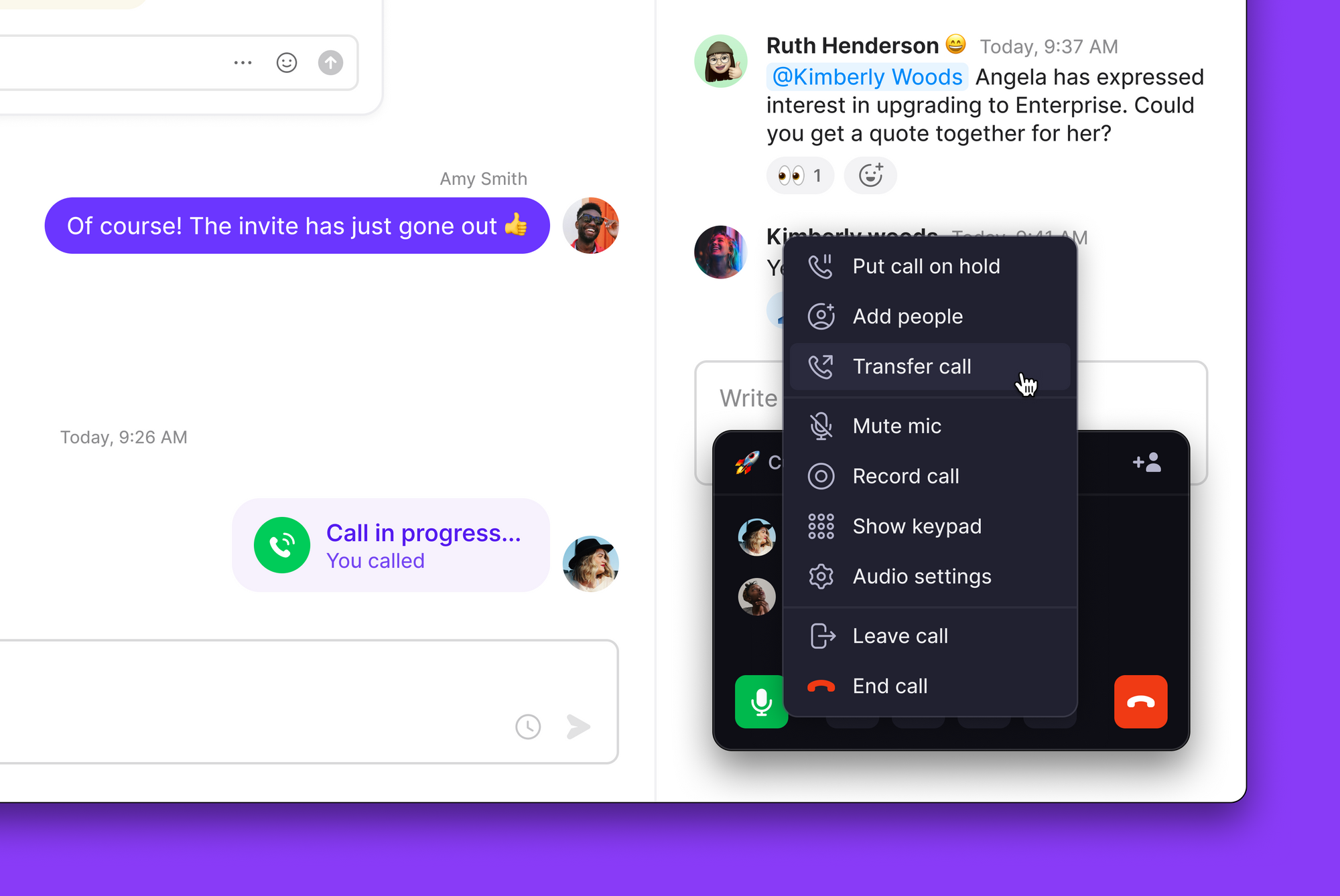
1. During an active call, click the **Hold** button ⏸️ to place the caller on hold
2. Click the **"..."** menu next to the hold option
3. Select **Transfer call**
 4. Choose your transfer method:
* **Search by name**: Find a team member in your workspace
* **Enter phone number**: Transfer to any external number as a cold transfer
4. Choose your transfer method:
* **Search by name**: Find a team member in your workspace
* **Enter phone number**: Transfer to any external number as a cold transfer
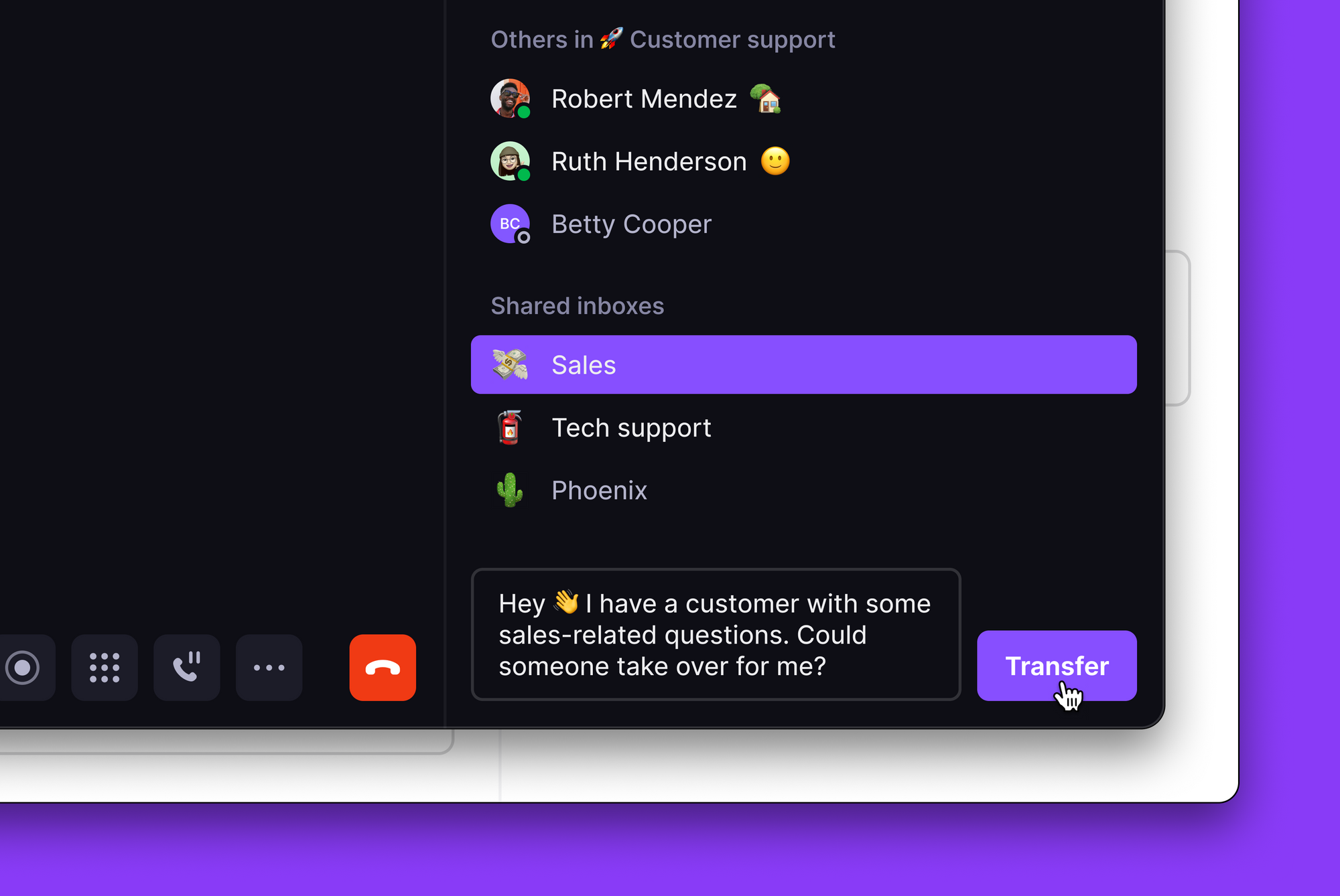 5. **(Optional) Add transfer note** to include context for team members
6. Click **Transfer** to complete the handoff
7. For warm transfers: Stay on the line to introduce the parties, then hang up
1. During an active call, tap the **Hold** button ⏸️ to place the caller on hold
2. Swipe up and select **Transfer call**
5. **(Optional) Add transfer note** to include context for team members
6. Click **Transfer** to complete the handoff
7. For warm transfers: Stay on the line to introduce the parties, then hang up
1. During an active call, tap the **Hold** button ⏸️ to place the caller on hold
2. Swipe up and select **Transfer call**
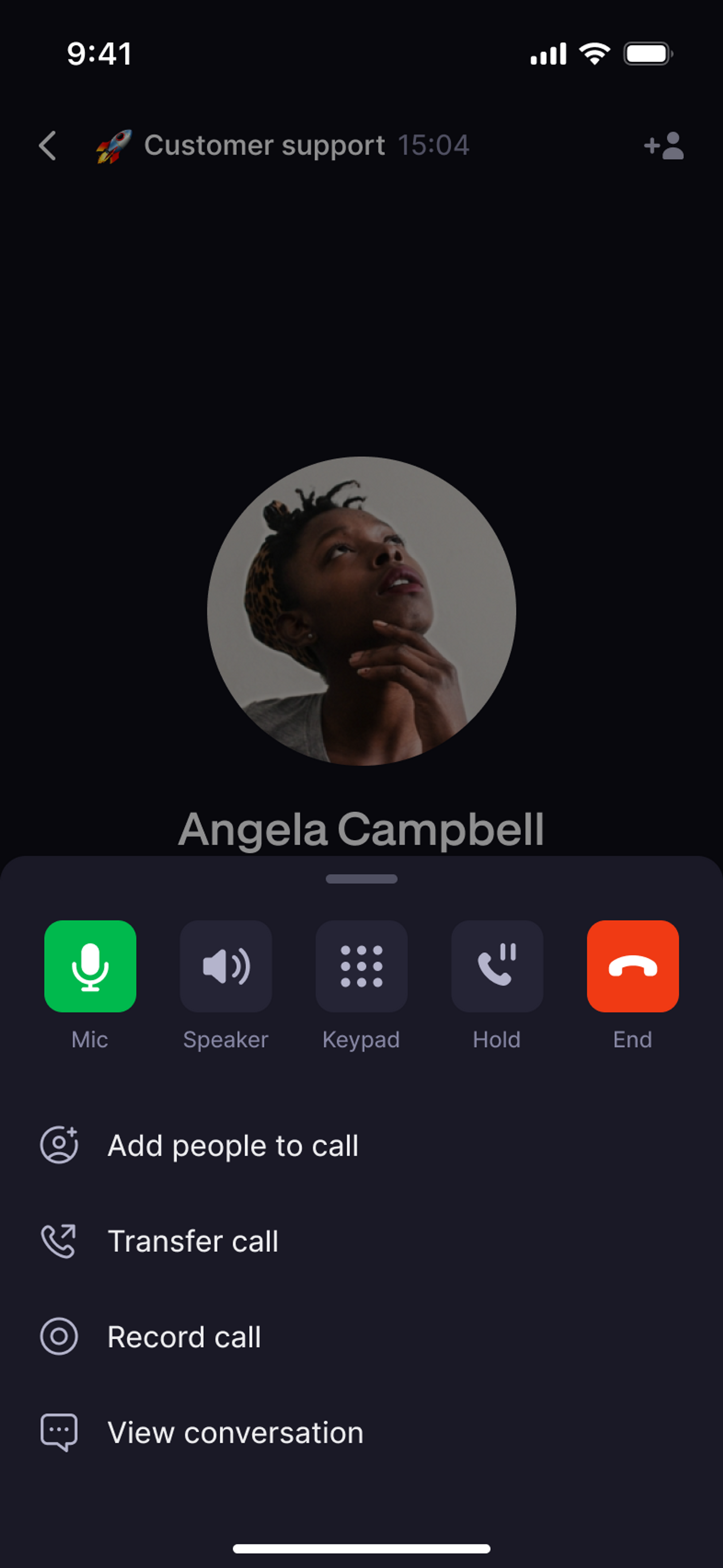 3. Choose your transfer destination:
* **Team member**: See availability status before transferring
* **Contact**: Select from your address book
* **Phone number**: Enter any external number
3. Choose your transfer destination:
* **Team member**: See availability status before transferring
* **Contact**: Select from your address book
* **Phone number**: Enter any external number
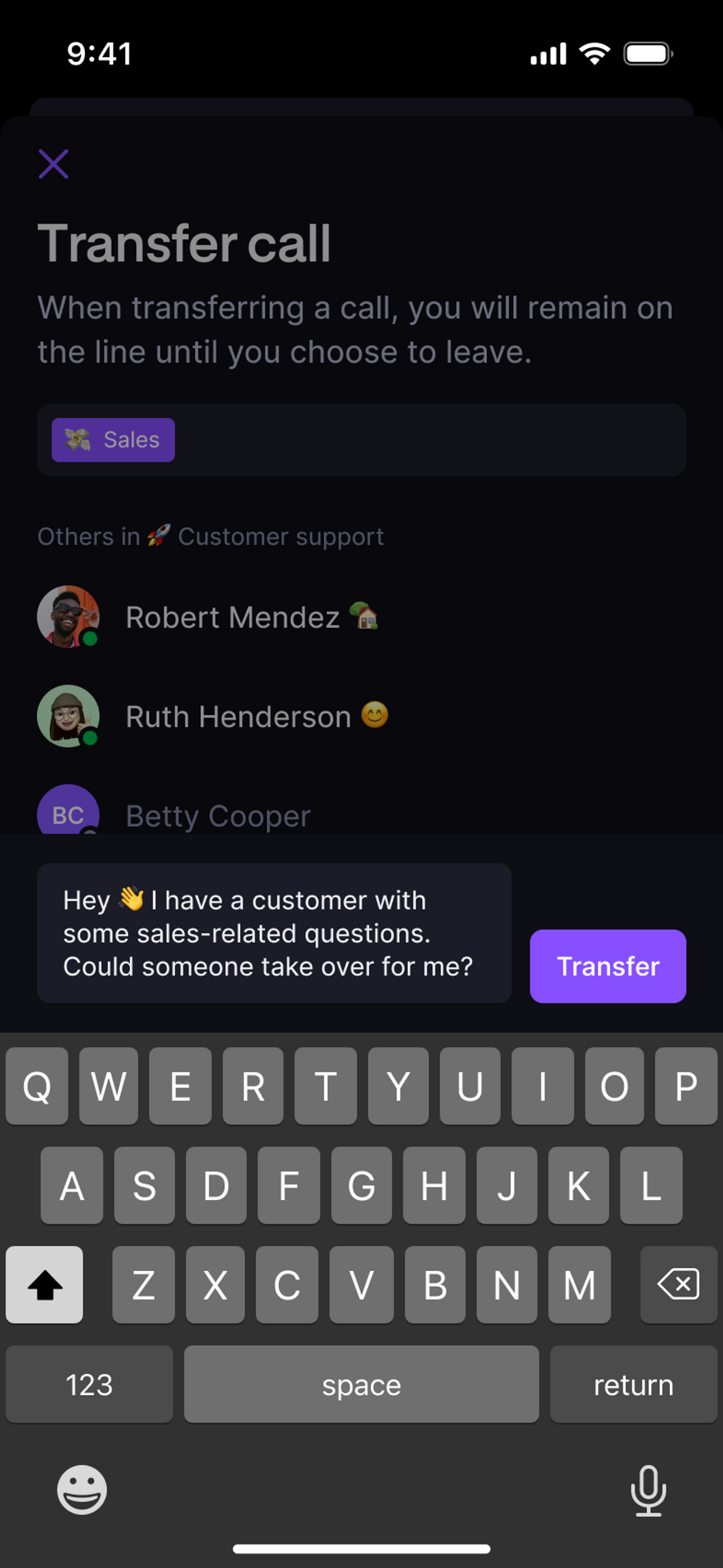 4. Add a note if transferring to a team member
5. Tap **Transfer** to complete
6. Take the caller off hold and introduce if needed, then hang up
***
## Transfer notes for team members
When transferring to workspace team members, include helpful context:
### What to include
* **Caller's name and company**
* **Reason for the call**
* **Previous conversation history**
* **Urgency level**
* **Specific questions or requests**
### Example notes
* "Sarah from Acme Corp - needs help with billing issue from last month"
* "New customer interested in Business plan features"
* "Existing client having technical problems with mobile app"
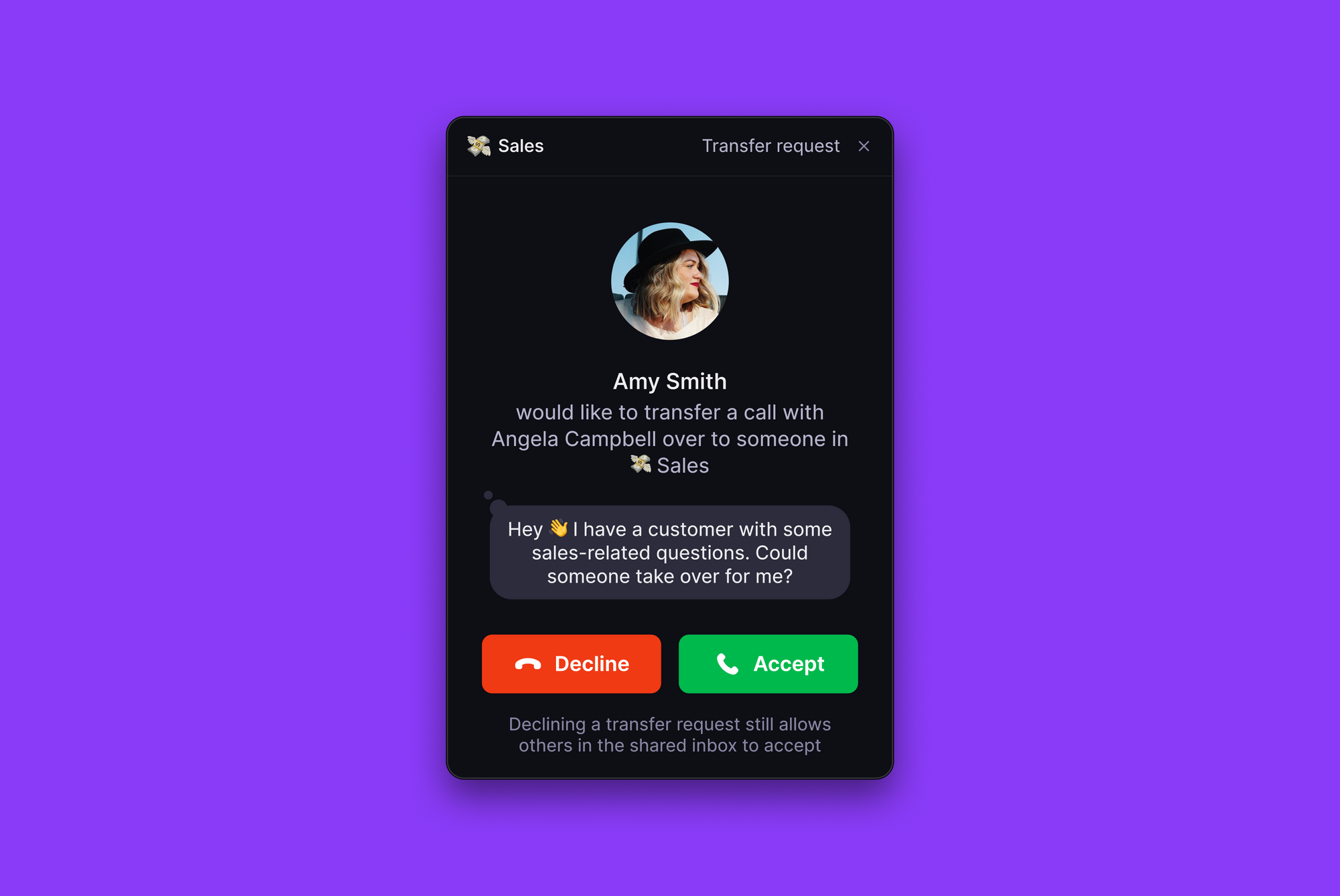
The transfer note appears with the incoming call notification, giving your teammate immediate context:
4. Add a note if transferring to a team member
5. Tap **Transfer** to complete
6. Take the caller off hold and introduce if needed, then hang up
***
## Transfer notes for team members
When transferring to workspace team members, include helpful context:
### What to include
* **Caller's name and company**
* **Reason for the call**
* **Previous conversation history**
* **Urgency level**
* **Specific questions or requests**
### Example notes
* "Sarah from Acme Corp - needs help with billing issue from last month"
* "New customer interested in Business plan features"
* "Existing client having technical problems with mobile app"
The transfer note appears with the incoming call notification, giving your teammate immediate context:
 ***
## Troubleshooting
Call transfer requires a Business or Scale plan. Starter plan users need to upgrade to access transfer functionality.
Hold functionality only works with external callers. **Internal calls between team members cannot be placed on hold.**
Check that you entered the correct number or selected the right team member. Verify the recipient's availability status and try again.
Transfer notes only appear when transferring to team members within your Quo, formerly OpenPhone, workspace. External transfers don't support notes.
Always place callers on hold before initiating transfers. This prevents them from hearing your dialing and connection attempts.
The call goes to that number's own voicemail. Quo can't bring the call back after an external transfer.
Yes. During the transfer flow, select Enter phone number and type any US or Canadian number. Transfer notes and Quo recording/transcription don't apply to external transfers.
***
## Troubleshooting
Call transfer requires a Business or Scale plan. Starter plan users need to upgrade to access transfer functionality.
Hold functionality only works with external callers. **Internal calls between team members cannot be placed on hold.**
Check that you entered the correct number or selected the right team member. Verify the recipient's availability status and try again.
Transfer notes only appear when transferring to team members within your Quo, formerly OpenPhone, workspace. External transfers don't support notes.
Always place callers on hold before initiating transfers. This prevents them from hearing your dialing and connection attempts.
The call goes to that number's own voicemail. Quo can't bring the call back after an external transfer.
Yes. During the transfer flow, select Enter phone number and type any US or Canadian number. Transfer notes and Quo recording/transcription don't apply to external transfers.