> ## Documentation Index
> Fetch the complete documentation index at: https://support.quo.com/llms.txt
> Use this file to discover all available pages before exploring further.
# Call recording
> Record important conversations for training, compliance, and quality assurance with manual and automatic recording options
## Overview
Quo, formerly OpenPhone's call recording helps you capture important conversations for training, compliance, and quality assurance. Record calls manually during conversations or set up automatic recording for consistent documentation.
14 US states require consent from all parties before recording calls. Always notify callers and get consent before recording to stay legally compliant.
## Recording methods
### Manual recording
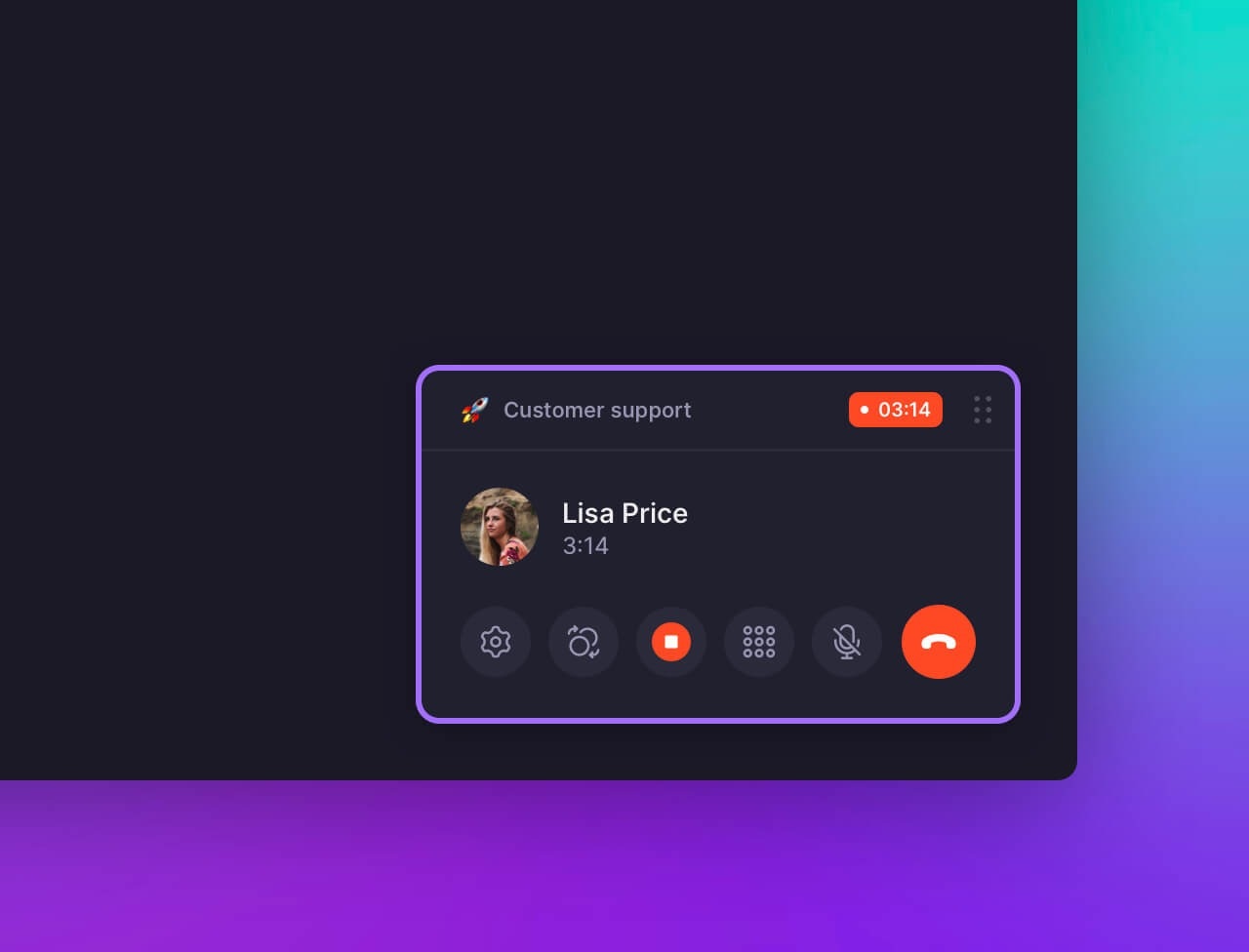
Start recording any call with one click:
1. During a call, locate the call control menu
2. Click the **Record** button ⏺️
3. Recording begins immediately
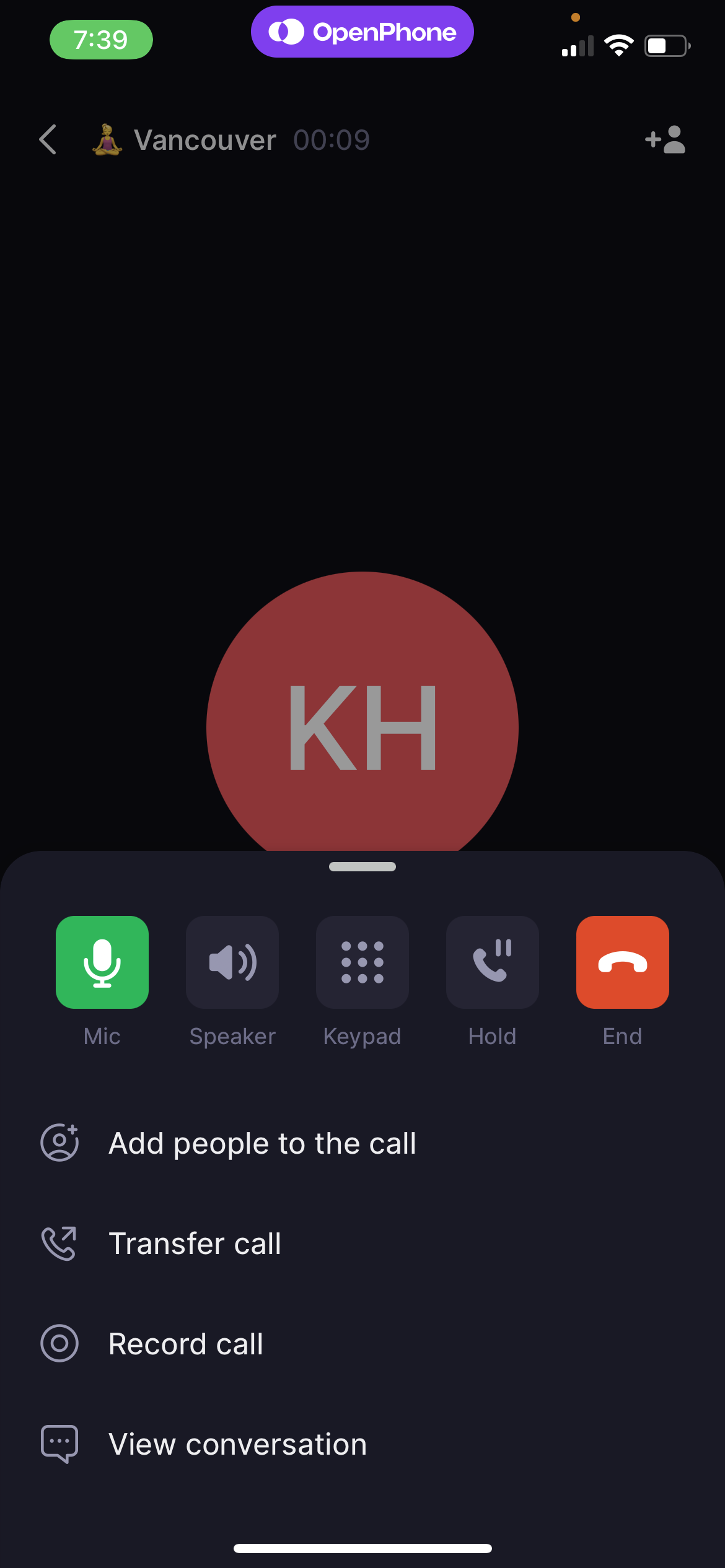
 1. Answer or make a call in the mobile app
2. Tap the **Record** button
3. Recording starts immediately
1. Answer or make a call in the mobile app
2. Tap the **Record** button
3. Recording starts immediately
 ### Automatic recording
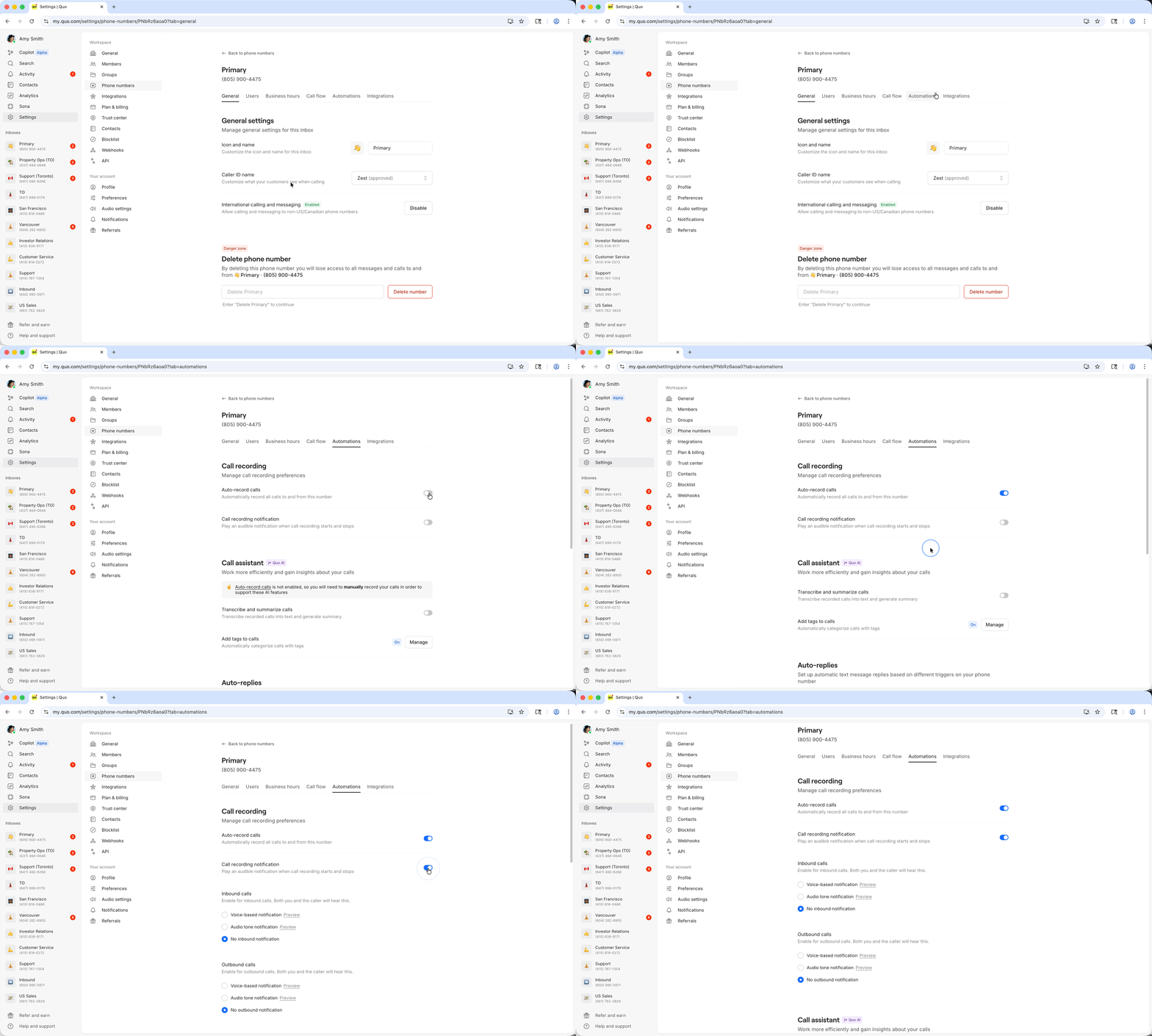
Business and Scale plan users can enable auto-recording for specific numbers:
1. Go to **Settings** → **Phone numbers**
2. Select the phone number to configure
3. Toggle on **Auto-record calls**
4. All future calls to that number will be recorded automatically
### Automatic recording
Business and Scale plan users can enable auto-recording for specific numbers:
1. Go to **Settings** → **Phone numbers**
2. Select the phone number to configure
3. Toggle on **Auto-record calls**
4. All future calls to that number will be recorded automatically
 Auto-record is number-specific and works across all platforms (web, desktop, mobile) for that number.
## Legal compliance notifications
### Notification types
Configure how callers are notified about recording:
1. Navigate to **Settings** → **Phone numbers**
2. Select the number to configure
3. Enable **Call recording notification**
4. Choose notification type for inbound and outbound calls:
* **Voice notification**: Automatic verbal announcement
* **Audio tone**: Beep reminder to manually notify
* **No notification**: Manual notification required
### Automatic voice notifications
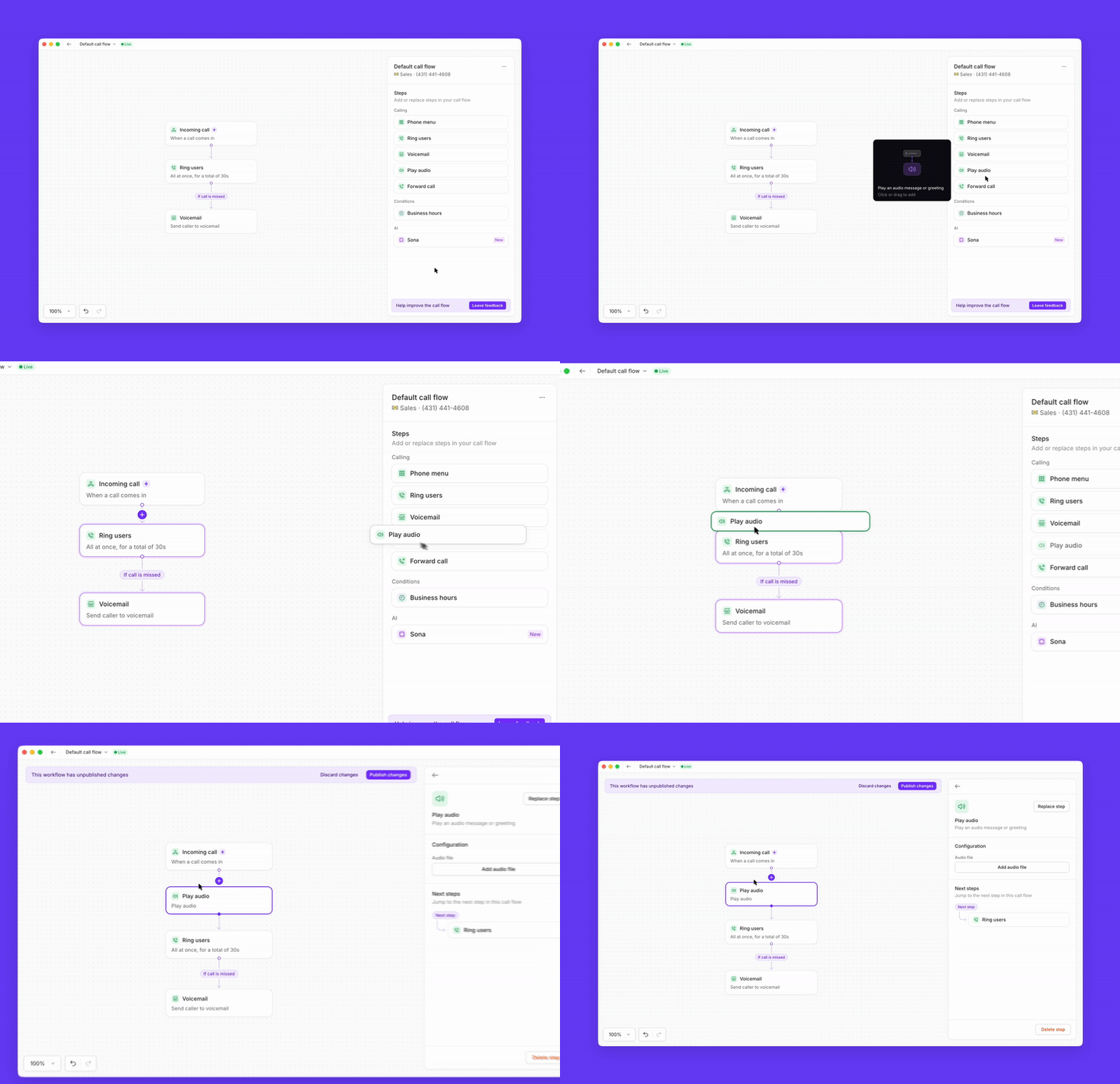
For professional call recording disclosures, add a custom message using call flows:
1. Go to **Settings** → **Phone numbers** → **Call flow**
2. Click **Edit call flow**
3. Drag **Play audio** step to the beginning of your flow
4. Upload your recording notification message
5. **Publish changes**
Auto-record is number-specific and works across all platforms (web, desktop, mobile) for that number.
## Legal compliance notifications
### Notification types
Configure how callers are notified about recording:
1. Navigate to **Settings** → **Phone numbers**
2. Select the number to configure
3. Enable **Call recording notification**
4. Choose notification type for inbound and outbound calls:
* **Voice notification**: Automatic verbal announcement
* **Audio tone**: Beep reminder to manually notify
* **No notification**: Manual notification required
### Automatic voice notifications
For professional call recording disclosures, add a custom message using call flows:
1. Go to **Settings** → **Phone numbers** → **Call flow**
2. Click **Edit call flow**
3. Drag **Play audio** step to the beginning of your flow
4. Upload your recording notification message
5. **Publish changes**
 This creates professional announcements like: "This call is being recorded for quality and training purposes."
## Accessing recordings
### View and manage recordings
All call recordings appear in conversation threads:
1. Open the conversation containing recorded calls
2. Look for call bubbles marked with "call"
3. Click to play recordings directly in the app
4. Download recordings (web, desktop, Android only)
### Call transcriptions
Business and Scale plans include AI-powered transcriptions:
* Automatic transcription of recorded calls
* Searchable text for quick reference
* Multi-language support
* Optional call summaries with key points
[Learn more about call transcriptions →](/core-concepts/calling/summaries-and-transcripts)
## Plan availability
| Feature | Starter | Business | Scale |
| ------------------- | ------- | -------- | ----- |
| Manual recording | ✓ | ✓ | ✓ |
| Auto-record | ✗ | ✓ | ✓ |
| Call transcriptions | ✗ | ✓ | ✓ |
| AI call summaries | ✗ | ✓ | ✓ |
## Troubleshooting
Ensure you're on a supported plan and have proper permissions. Restart the app if the recording interface doesn't load properly.
Verify the feature is enabled for the specific phone number in your settings. Auto-record is number-specific, not account-wide.
Download functionality is only available on web, desktop, and Android apps. iOS users can play recordings but cannot download them directly.
Consult our legal guide on call recording laws or speak with your legal team about specific compliance requirements for your business.
## Integration options
Call recordings integrate with popular business tools:
* **Gong**: Automatic sync for conversation analytics
* **Salesforce**: Link recordings to customer records
* **HubSpot**: Attach recordings to contact histories
* **Custom integrations**: API access for enterprise workflows
[Explore integrations →](/core-concepts/integrations)
This creates professional announcements like: "This call is being recorded for quality and training purposes."
## Accessing recordings
### View and manage recordings
All call recordings appear in conversation threads:
1. Open the conversation containing recorded calls
2. Look for call bubbles marked with "call"
3. Click to play recordings directly in the app
4. Download recordings (web, desktop, Android only)
### Call transcriptions
Business and Scale plans include AI-powered transcriptions:
* Automatic transcription of recorded calls
* Searchable text for quick reference
* Multi-language support
* Optional call summaries with key points
[Learn more about call transcriptions →](/core-concepts/calling/summaries-and-transcripts)
## Plan availability
| Feature | Starter | Business | Scale |
| ------------------- | ------- | -------- | ----- |
| Manual recording | ✓ | ✓ | ✓ |
| Auto-record | ✗ | ✓ | ✓ |
| Call transcriptions | ✗ | ✓ | ✓ |
| AI call summaries | ✗ | ✓ | ✓ |
## Troubleshooting
Ensure you're on a supported plan and have proper permissions. Restart the app if the recording interface doesn't load properly.
Verify the feature is enabled for the specific phone number in your settings. Auto-record is number-specific, not account-wide.
Download functionality is only available on web, desktop, and Android apps. iOS users can play recordings but cannot download them directly.
Consult our legal guide on call recording laws or speak with your legal team about specific compliance requirements for your business.
## Integration options
Call recordings integrate with popular business tools:
* **Gong**: Automatic sync for conversation analytics
* **Salesforce**: Link recordings to customer records
* **HubSpot**: Attach recordings to contact histories
* **Custom integrations**: API access for enterprise workflows
[Explore integrations →](/core-concepts/integrations)