> ## Documentation Index
> Fetch the complete documentation index at: https://support.quo.com/llms.txt
> Use this file to discover all available pages before exploring further.
# Call quality metrics
> Troubleshoot audio issues in real time using Quo's call quality metrics.
## Overview
Quo's **call quality metrics** helps you understand and fix audio issues while you're still on a call. Find out why your call sounds choppy, delayed, or unclear and resolve issues in a few simple steps.
***
## How to access the metrics panel
You can open the metrics panel during **any active call**.
### Web & desktop
1. Start or join a call
2. Click the **network icon** in the top-right corner of the call window, or click **Options** in the call controls
3. Select **Call quality metrics**
### Mobile (iOS & Android)
1. Start or join a call
2. Tap the screen to show call controls (if hidden)
3. Swipe up on the bottom menu
4. Tap **Connection status**
5. Start or join a call
6. Tap the screen to show call controls (if hidden)
7. Swipe up on the bottom menu
8. Tap **Connection status**
## What you'll see
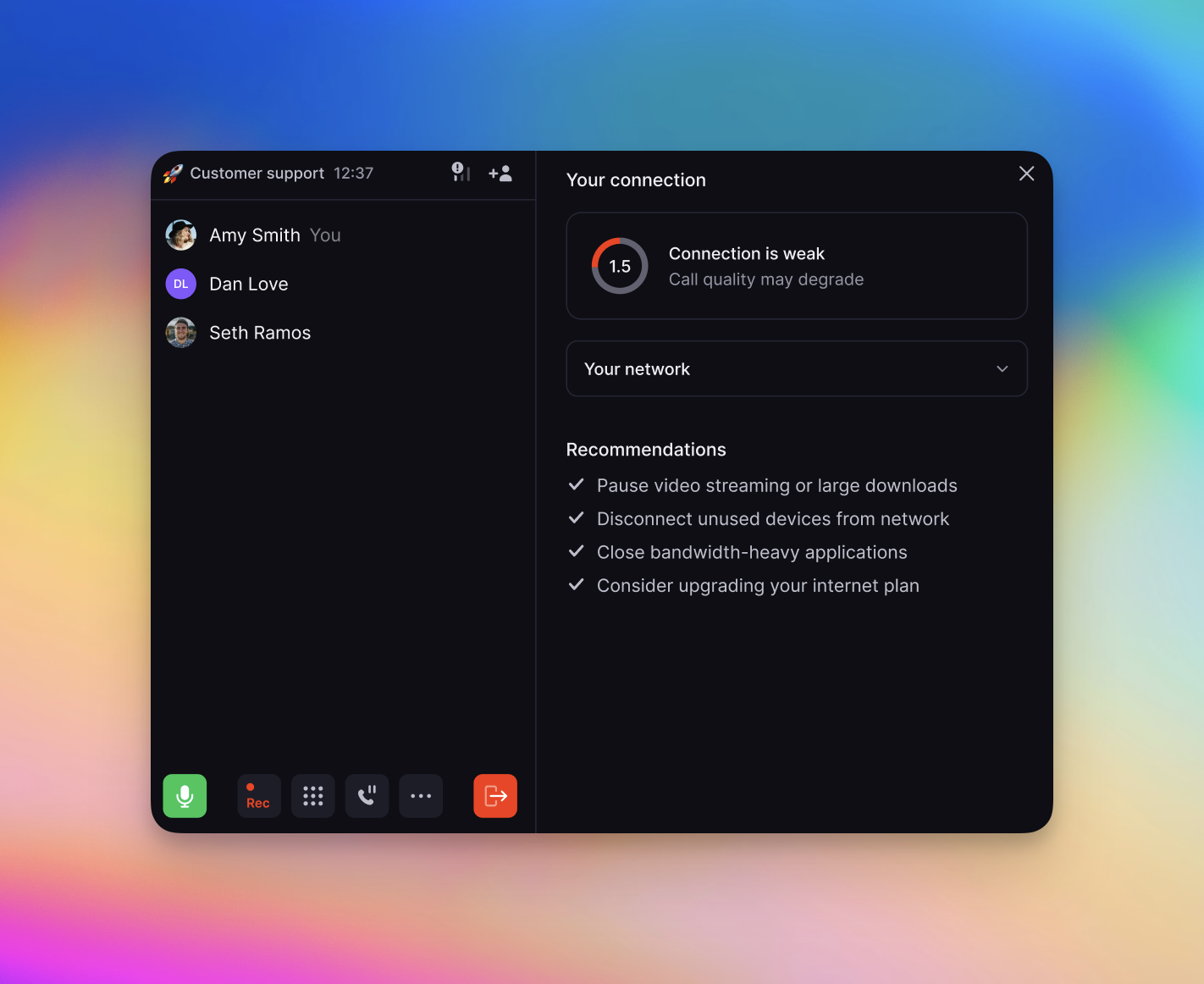
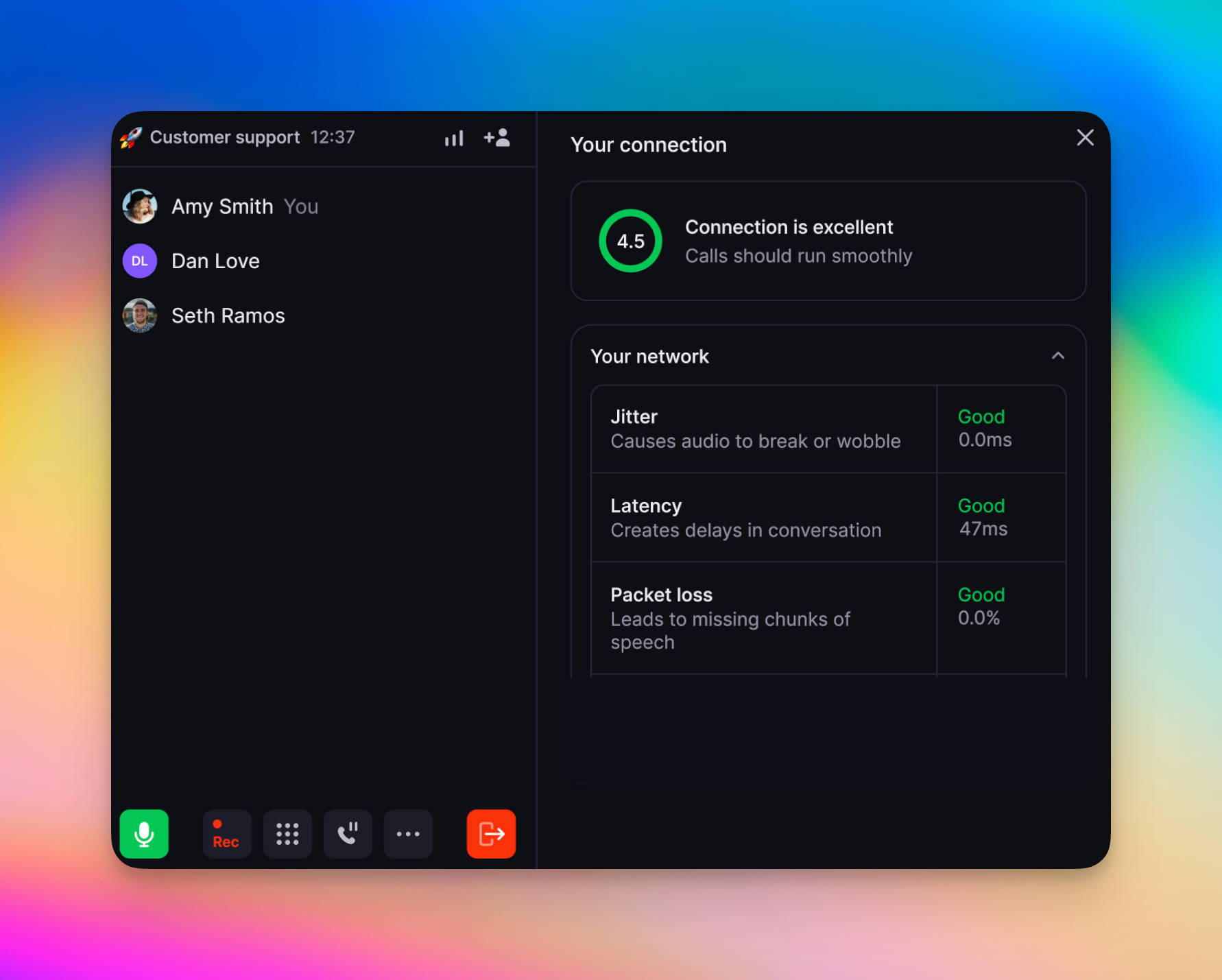
The metrics panel shows you how your call sounds, the metrics behind it, and what to do if there's an issue. You'll see:
1. A **connection quality gauge** that rates your overall audio experience
2. Three **network metrics** that affect call performance: *Jitter, Latency,* and *Packet Loss*
3. **Recommended action steps** when something needs your attention
Each part updates in real time, so you can identify issues quickly and fix them without leaving the call.
### Automatic warning banner
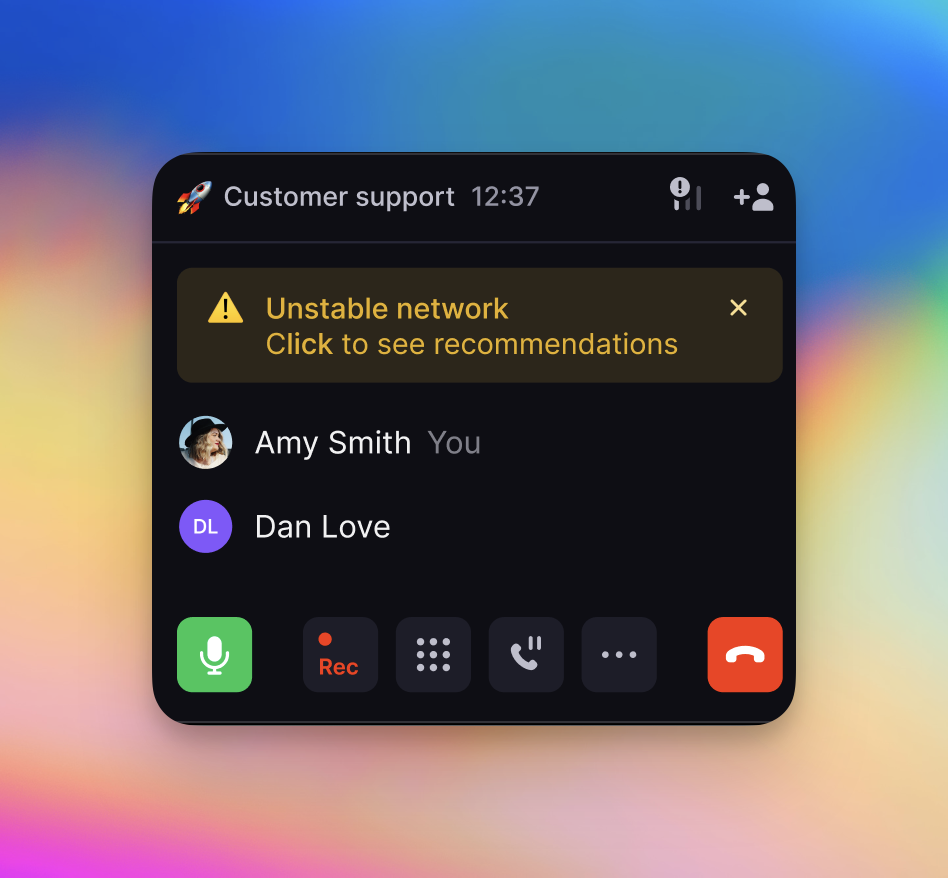
If your connection quality drops and stays poor for 15 seconds or more, you'll see the banner below. Click on the banner to open the metrics panel.
There's a 30-second cooldown between warnings, so we won't spam you.
***
## Understanding your connection quality
Your **connection quality gauge** gives you a real-time rating of how your call sounds overall. It reflects how easy it is for both people on the call to hear and understand each other.
| Rating | Meaning | Status |
| ------------- | ---------------------------- | ------ |
| **Excellent** | Crystal clear audio | 🟢 |
| **Good** | High quality, minimal issues | 🟢 |
| **Fair** | Acceptable with some issues | 🟡 |
| **Poor** | Noticeable quality problems | 🔴 |
Your gauge tells you the overall quality of the call, but not *why* it's happening. The network metrics below break down what's influencing your connection so you can pinpoint the source of any issues.
## What your network metrics mean
In addition to the **connection quality gauge**, the metrics panel displays **three key metrics** during your call. These numbers explain what's causing your call to sound delayed, choppy, or unclear. Each metric updates in real time as your call progresses.
Jitter tells you how steady your internet connection is. When the connection fluctuates, parts of the audio arrive at different times, which can make voices sound choppy, robotic, or distorted.
| Range | Status | Status color |
| :------ | :------ | :----------- |
| ≤ 20ms | Good | 🟢 |
| 21–50ms | Warning | 🟡 |
| > 50ms | Poor | 🔴 |
Latency measures how long it takes for your voice to reach the other person. High latency creates noticeable delays, which leads to awkward pauses or people talking over each other.
| Range | Status | Status color |
| :-------- | :------ | :----------- |
| ≤ 150ms | Good | 🟢 |
| 151–400ms | Warning | 🟡 |
| > 400ms | Poor | 🔴 |
Packet loss occurs when parts of your audio never make it to the other person. Small amounts are easy to miss, but higher levels cause words, sounds, or full sentences to drop out.
| Range | Status | Status color |
| :----- | :------ | :----------- |
| ≤ 1% | Good | 🟢 |
| 1.1–3% | Warning | 🟡 |
| > 3% | Poor | 🔴 |
## Recommendations during your call
You'll also receive recommendations based on what Quo detects during your call. These suggestions help you choose the most effective next step to improve your call quality.
**If all your metrics are green and you still hear issues**, the problem may be:
* On the other participant's end
* With the device you're using (microphone, speakers, etc.). Looking for hardware recommendations? [Check out our blog on the best VoIP headsets](https://www.quo.com/blog/best-voip-headset/).
***
## Quick fixes based on what you're hearing
Think of these symptoms as clues. The way your call sounds often points directly to one of the network metrics you'll see in the metrics panel.
| Issue | What this means | Likely cause | What to try |
| -------------------------------- | ------------------------------------------------------------------------- | ---------------------------------------- | ---------------------------------------------------------------------------------- |
| Choppy or robotic audio | Parts of the sound are arriving at different times, making voices distort | Unstable internet connection (Jitter) | Move closer to your router, restart your modem, or use a wired internet connection |
| Delays / talking over each other | Your voice is taking too long to reach the other person | Slow or congested internet (Latency) | Close video calls or streaming apps, avoid VPNs, or switch to a faster network |
| Words cutting out | Segments of your audio aren’t making it through | Weak or interrupted signal (Packet loss) | Pause large downloads/uploads, reduce WiFi users, or move closer to your router |
***
## FAQs
Not yet. Metrics are only available while you're on a live call so you can troubleshoot issues in real time.
No. For privacy and accuracy, each person can only view their own call metrics during their active call.
No. This feature is available to everyone since it helps ensure a smoother calling experience. However, team members can choose to dismiss call status banners if they prefer not to open the panel.
No. The metrics panel displays information that's already being measured behind the scenes. Viewing your metrics does not use extra bandwidth or change how your call performs in any way.
***
## More ways to improve call quality
Still noticing issues? Visit our [Call quality troubleshooting](https://support.quo.com/troubleshooting/call-quality-troubleshooting) article for additional steps, including device setup, browser permissions, and advanced network checks.
***
## Related articles
* [Making calls with Quo](https://support.quo.com/core-concepts/calling/making-calls)
* [Call quality troubleshooting](https://support.quo.com/troubleshooting/call-quality-troubleshooting)
* [Connection issues affecting calls notifications and functionality](https://support.quo.com/troubleshooting/connection-issues)
* [How we deliver our services: Quo subprocessors ](https://support.quo.com/core-concepts/administration/subprocessors-list)
* [10 Best VoIP Headsets for Professional Phone Calls](https://www.quo.com/blog/best-voip-headset/)
 ### Automatic warning banner
If your connection quality drops and stays poor for 15 seconds or more, you'll see the banner below. Click on the banner to open the metrics panel.
There's a 30-second cooldown between warnings, so we won't spam you.
### Automatic warning banner
If your connection quality drops and stays poor for 15 seconds or more, you'll see the banner below. Click on the banner to open the metrics panel.
There's a 30-second cooldown between warnings, so we won't spam you.
 ***
## Understanding your connection quality
Your **connection quality gauge** gives you a real-time rating of how your call sounds overall. It reflects how easy it is for both people on the call to hear and understand each other.
| Rating | Meaning | Status |
| ------------- | ---------------------------- | ------ |
| **Excellent** | Crystal clear audio | 🟢 |
| **Good** | High quality, minimal issues | 🟢 |
| **Fair** | Acceptable with some issues | 🟡 |
| **Poor** | Noticeable quality problems | 🔴 |
Your gauge tells you the overall quality of the call, but not *why* it's happening. The network metrics below break down what's influencing your connection so you can pinpoint the source of any issues.
## What your network metrics mean
In addition to the **connection quality gauge**, the metrics panel displays **three key metrics** during your call. These numbers explain what's causing your call to sound delayed, choppy, or unclear. Each metric updates in real time as your call progresses.
***
## Understanding your connection quality
Your **connection quality gauge** gives you a real-time rating of how your call sounds overall. It reflects how easy it is for both people on the call to hear and understand each other.
| Rating | Meaning | Status |
| ------------- | ---------------------------- | ------ |
| **Excellent** | Crystal clear audio | 🟢 |
| **Good** | High quality, minimal issues | 🟢 |
| **Fair** | Acceptable with some issues | 🟡 |
| **Poor** | Noticeable quality problems | 🔴 |
Your gauge tells you the overall quality of the call, but not *why* it's happening. The network metrics below break down what's influencing your connection so you can pinpoint the source of any issues.
## What your network metrics mean
In addition to the **connection quality gauge**, the metrics panel displays **three key metrics** during your call. These numbers explain what's causing your call to sound delayed, choppy, or unclear. Each metric updates in real time as your call progresses.