> ## Documentation Index
> Fetch the complete documentation index at: https://support.quo.com/llms.txt
> Use this file to discover all available pages before exploring further.
# Sona setup and configuration
> Complete guide to setting up Sona AI agent, from accessing the dashboard to configuring call flows and greetings
## Overview
Setting up Sona involves incorporating it into your call flows, configuring greetings, adding knowledge for answering customer questions, and defining the jobs it should perform during calls. This guide walks you through each step so you can deploy Sona quickly and start having it handle customer calls with confidence.
Sona configuration requires either Workspace-level Owner or Admin permissions, or Inbox-level Owner or Admin permissions. and is available on web and desktop apps only.
***
## Accessing Sona
### Getting to the Sona dashboard
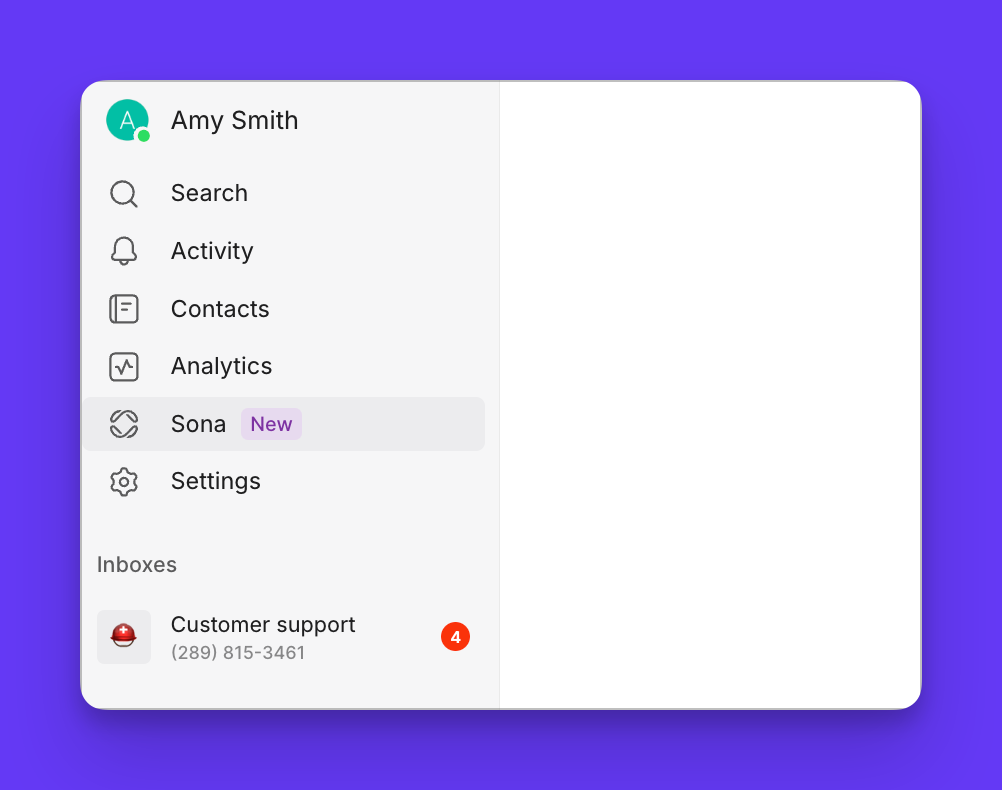
1. **Open Quo** on web or desktop
2. Click **Sona** in the left sidebar navigation
3. **View available inboxes** that you have admin or owner access to
4. Click **Set up** on an inbox to open the call flow builder and continue configuring Sona
 ## Adding Sona to call flows
**Adding Sona steps**
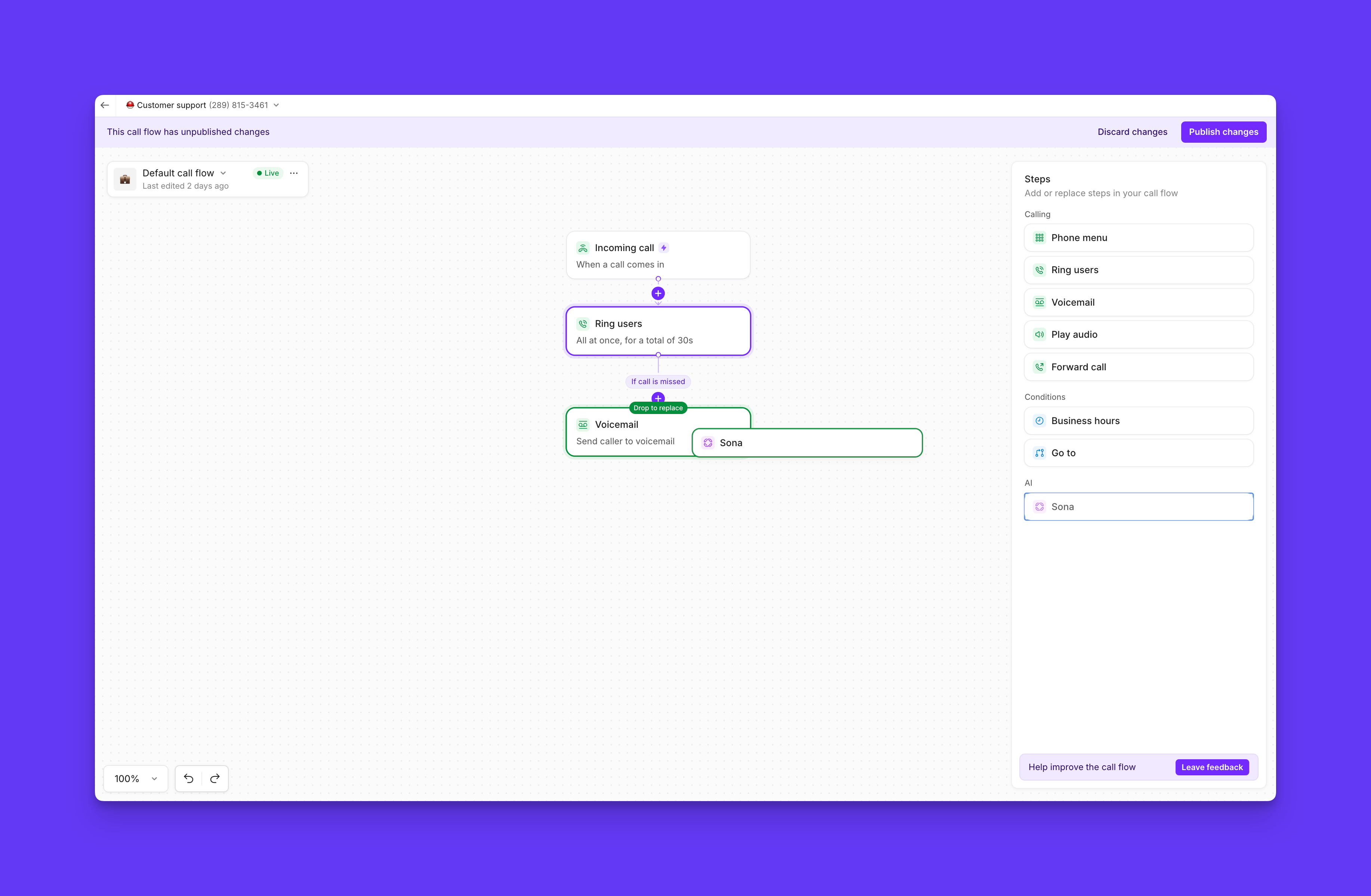
1. **Access call flow builder** canvas
2. **Find Sona step** in available steps list
3. **Drag Sona step** into your call flow
## Adding Sona to call flows
**Adding Sona steps**
1. **Access call flow builder** canvas
2. **Find Sona step** in available steps list
3. **Drag Sona step** into your call flow
 Practice using call flows with interactive demos, videos, and more in the Quo Academy.
**Common Sona placements:**
* **After Ring users step**: Handle missed calls automatically
* **After phone menu step**: Provide specific department assistance
* **After business hours step**: Offer after-hours support and message taking
* **After incoming call:** Have Sona support every caller
**Multiple Sona configurations:**
* Add multiple Sona steps in different call flow positions
* Configure each step with unique greetings and knowledge
* Customize jobs for different scenarios
***
## Configuring Sona greetings
**Greeting configuration:**
1. Select **Sona step** in call flow builder
2. Locate **Greeting section** in settings panel
3. **Customize greeting text** to reflect your brand voice
4. **Include required elements** for compliance and clarity
Practice using call flows with interactive demos, videos, and more in the Quo Academy.
**Common Sona placements:**
* **After Ring users step**: Handle missed calls automatically
* **After phone menu step**: Provide specific department assistance
* **After business hours step**: Offer after-hours support and message taking
* **After incoming call:** Have Sona support every caller
**Multiple Sona configurations:**
* Add multiple Sona steps in different call flow positions
* Configure each step with unique greetings and knowledge
* Customize jobs for different scenarios
***
## Configuring Sona greetings
**Greeting configuration:**
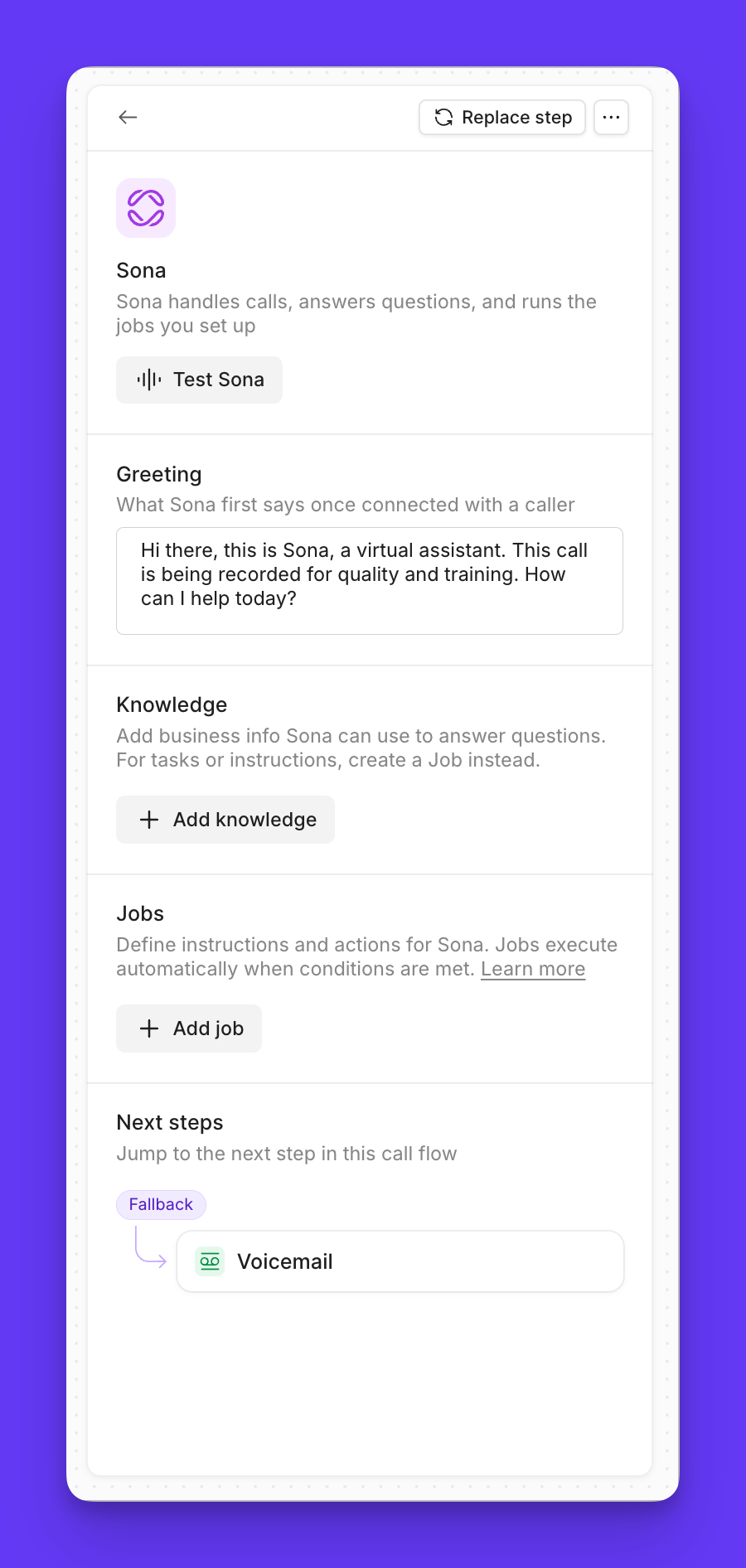
1. Select **Sona step** in call flow builder
2. Locate **Greeting section** in settings panel
3. **Customize greeting text** to reflect your brand voice
4. **Include required elements** for compliance and clarity
 **Essential elements:**
* **Business identification**: Include your business name
* **AI disclosure**: Clearly identify Sona as AI assistant or virtual assistant
* **Recording notice**: Mention that calls are being recorded for compliance
* **Helpful tone**: Maintain friendly, professional voice
**Example greeting:**
> *"Hi there, this is Sona, a virtual assistant for Acme Services. I'm here to help answer your questions or take a message. Please note this call is being recorded. How can I assist you today?"*
**Pro tips:**
* Keep greetings concise but informative
* Test greetings with mock calls before publishing
* Update greetings seasonally or for special circumstances
***
## Choosing Sona’s tone and voice
Sona can match the way your business sounds on the phone. You control this from the **Personality** button in the Sona step.
### **How to set Sona's tone**
1. In the call flow builder, select the Sona step.
2. Click **Personality**.
3. Under **Tone**, choose one of the available options.
4. Publish your changes.
**Essential elements:**
* **Business identification**: Include your business name
* **AI disclosure**: Clearly identify Sona as AI assistant or virtual assistant
* **Recording notice**: Mention that calls are being recorded for compliance
* **Helpful tone**: Maintain friendly, professional voice
**Example greeting:**
> *"Hi there, this is Sona, a virtual assistant for Acme Services. I'm here to help answer your questions or take a message. Please note this call is being recorded. How can I assist you today?"*
**Pro tips:**
* Keep greetings concise but informative
* Test greetings with mock calls before publishing
* Update greetings seasonally or for special circumstances
***
## Choosing Sona’s tone and voice
Sona can match the way your business sounds on the phone. You control this from the **Personality** button in the Sona step.
### **How to set Sona's tone**
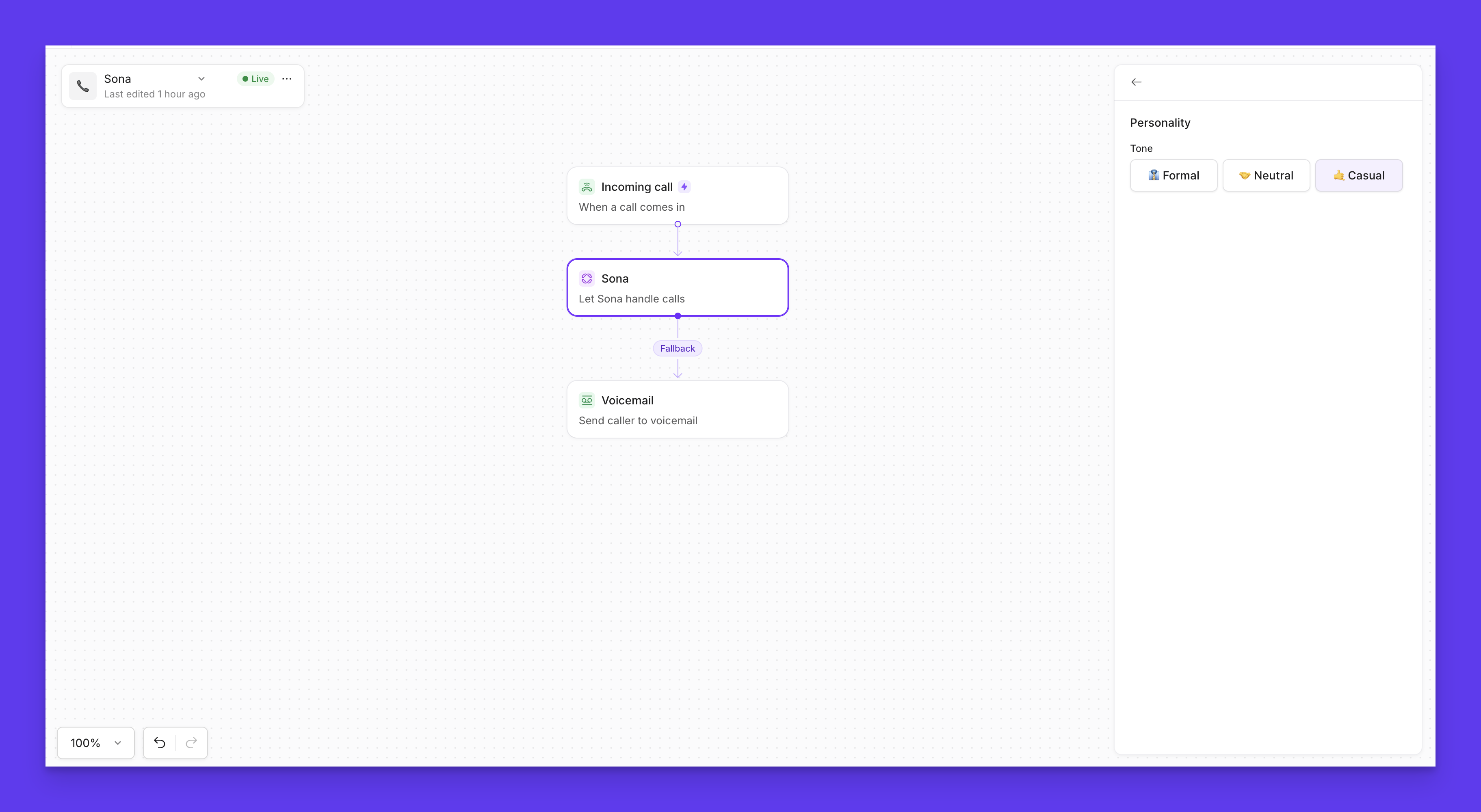
1. In the call flow builder, select the Sona step.
2. Click **Personality**.
3. Under **Tone**, choose one of the available options.
4. Publish your changes.
 **Tone options:**
* **Formal**: Professional and structured. Sona speaks like an executive assistant at a high-end firm: clear, polished, no slang or contractions.
* **Neutral**: Polite and businesslike. Sona focuses on solving the caller’s request clearly and efficiently, with a calm, helpful tone.
* **Casual**: Warm and conversational. Sona sounds friendly and human, uses everyday language and contractions, and builds quick rapport with callers.
**Notes:**
* Tone affects how Sona speaks, not what it can do. Your greeting, knowledge, and jobs still define behavior.
### **How to set Sona's voice**
1. In the call flow builder, select the Sona step.
2. Click **Personality**
3. Under **Voice**, choose one of the available options
4. Publish your changes
**Tone options:**
* **Formal**: Professional and structured. Sona speaks like an executive assistant at a high-end firm: clear, polished, no slang or contractions.
* **Neutral**: Polite and businesslike. Sona focuses on solving the caller’s request clearly and efficiently, with a calm, helpful tone.
* **Casual**: Warm and conversational. Sona sounds friendly and human, uses everyday language and contractions, and builds quick rapport with callers.
**Notes:**
* Tone affects how Sona speaks, not what it can do. Your greeting, knowledge, and jobs still define behavior.
### **How to set Sona's voice**
1. In the call flow builder, select the Sona step.
2. Click **Personality**
3. Under **Voice**, choose one of the available options
4. Publish your changes
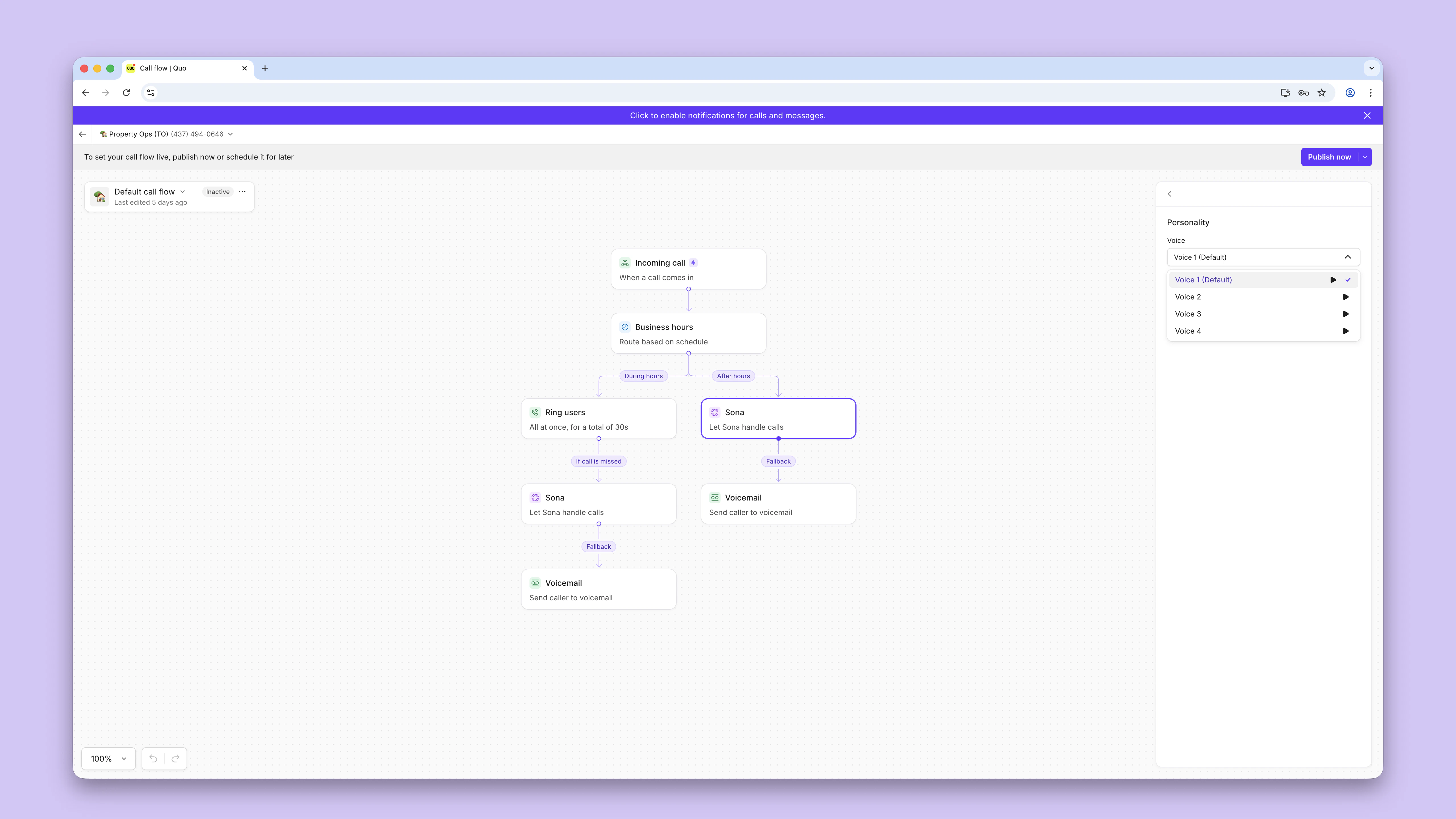
 **Voice options:**
Choose from 4 distinct voices with their own natural-sounding timbre.
* Use the **Play arrow** next to each voice to hear a sample.
***
## Setting Sona’s language Beta
Sona speaks English by default, but you can also configure it to speak **Spanish or French.** Language is set per Sona step from the **Personality** button in the call flow builder.
**How to set the language:**
1. In the call flow builder, select the **Sona step**
2. Click **Personality**
3. Under **Language** choose: **English**, **Spanish**, or **French**
4. Publish your changes.
Once a language is selected, **Sona will only speak that language for the entire call**. Sona can't switch languages mid-conversation or automatically detect the caller’s language.
### Match your greeting to the selected language
When changing Sona’s language to Spanish or French, you must also rewrite the greeting in that same language.
Sona reads the greeting exactly as written. If the greeting remains in English but the language is set to Spanish, Sona will say the greeting in English and then continue the rest of the conversation in Spanish. To avoid a confusing experience for callers, always update the greeting text before publishing.
### Serving callers in multiple languages
Each Sona step can only operate in one language at a time.
Since each Sona step is locked to a single language, the recommended approach for businesses that serve callers in multiple languages is:
1. Add a **Phone menu** step at the beginning of your call flow asking callers to select their preferred language.
> *For example: "Press 1 for English, oprima 2 para español, appuyez sur 3 pour le français"*
2. Route each option to a **separate Sona step**, configured with the appropriate language and a matching greeting.
This gives each caller a fully native-language experience from the first greeting message through the rest of the conversation.
***
## Configuring Sona jobs
Jobs tell Sona what to do in specific situations during a call. While knowledge equips Sona with facts about your business, jobs give it step-by-step instructions—like collecting caller details, qualifying a lead, or escalating an issue. Together, they shape how Sona handles real conversations.
**To create a Sona job, you'll need to write detailed intsructions that include:**
* What the caller says or asks that should activate the job.
* What Sona should say or do in response.
You can [create your own jobs from scratch](https://support.quo.com/core-concepts/ai-automations/sona/jobs-configuration) or start with templates designed for common scenarios. For example:
* **Message taking** → When a caller wants to leave a message, Sona confirms the request, gathers their details, and reassures them someone will follow up.
* **Lead qualification** → When a new customer shows interest, Sona collects key details (like name, contact info, and service needs) so your team can follow up effectively.
Jobs are reusable across your workspace, and you can attach up to 10 to any Sona step in your call flow. Once published, they allow Sona to recognize caller intent and follow clear, consistent instructions—making conversations feel natural while ensuring your team gets the information they need.
Visit our [Sona job guide](https://support.quo.com/core-concepts/ai-automations/sona/sona-job-guide) to learn how to customize Sona's actions step-by-step.
***
## Testing and deployment
**Mock call testing:**
1. **Configure Sona step** with greeting, knowledge, and jobs
2. Click **Test Sona** in call flow builder
3. **Conduct mock calls** to verify behavior
4. **Refine configuration** based on test results
### Publishing Sona
**Going live:**
1. **Complete configuration** of all Sona elements and be sure to add Knowlede about your business.
2. **Publish call flow** to activate Sona. This is the button at the top of the screen, changes won't go live until you press it.
3. **Monitor initial calls** for quality and issues, every Sona call is recorded and transcribed for your reference.
4. **Iterate and improve** based on real-world performance. If you notice Sona isn't answering how you'd like, add more info to your knowledge or update your job configuration.
***
## FAQs
Verify you have Workspace-level Owner or Admin permissions, or Inbox-level Owner or Admin permissions. Sona configuration requires administrative access to call flow builder.
Yes! You can choose from 4 different voice options by:
1. Opening your call flow, then select the **Sona step**
2. Click **Personality**
3. Under **Voice**, choose one of the available options
* Click the **Play button** next to each option to hear a sample
4. Publish your changes
Sona always creates call summaries in English, even when it's configured to respond to callers in another available language.
**Voice options:**
Choose from 4 distinct voices with their own natural-sounding timbre.
* Use the **Play arrow** next to each voice to hear a sample.
***
## Setting Sona’s language Beta
Sona speaks English by default, but you can also configure it to speak **Spanish or French.** Language is set per Sona step from the **Personality** button in the call flow builder.
**How to set the language:**
1. In the call flow builder, select the **Sona step**
2. Click **Personality**
3. Under **Language** choose: **English**, **Spanish**, or **French**
4. Publish your changes.
Once a language is selected, **Sona will only speak that language for the entire call**. Sona can't switch languages mid-conversation or automatically detect the caller’s language.
### Match your greeting to the selected language
When changing Sona’s language to Spanish or French, you must also rewrite the greeting in that same language.
Sona reads the greeting exactly as written. If the greeting remains in English but the language is set to Spanish, Sona will say the greeting in English and then continue the rest of the conversation in Spanish. To avoid a confusing experience for callers, always update the greeting text before publishing.
### Serving callers in multiple languages
Each Sona step can only operate in one language at a time.
Since each Sona step is locked to a single language, the recommended approach for businesses that serve callers in multiple languages is:
1. Add a **Phone menu** step at the beginning of your call flow asking callers to select their preferred language.
> *For example: "Press 1 for English, oprima 2 para español, appuyez sur 3 pour le français"*
2. Route each option to a **separate Sona step**, configured with the appropriate language and a matching greeting.
This gives each caller a fully native-language experience from the first greeting message through the rest of the conversation.
***
## Configuring Sona jobs
Jobs tell Sona what to do in specific situations during a call. While knowledge equips Sona with facts about your business, jobs give it step-by-step instructions—like collecting caller details, qualifying a lead, or escalating an issue. Together, they shape how Sona handles real conversations.
**To create a Sona job, you'll need to write detailed intsructions that include:**
* What the caller says or asks that should activate the job.
* What Sona should say or do in response.
You can [create your own jobs from scratch](https://support.quo.com/core-concepts/ai-automations/sona/jobs-configuration) or start with templates designed for common scenarios. For example:
* **Message taking** → When a caller wants to leave a message, Sona confirms the request, gathers their details, and reassures them someone will follow up.
* **Lead qualification** → When a new customer shows interest, Sona collects key details (like name, contact info, and service needs) so your team can follow up effectively.
Jobs are reusable across your workspace, and you can attach up to 10 to any Sona step in your call flow. Once published, they allow Sona to recognize caller intent and follow clear, consistent instructions—making conversations feel natural while ensuring your team gets the information they need.
Visit our [Sona job guide](https://support.quo.com/core-concepts/ai-automations/sona/sona-job-guide) to learn how to customize Sona's actions step-by-step.
***
## Testing and deployment
**Mock call testing:**
1. **Configure Sona step** with greeting, knowledge, and jobs
2. Click **Test Sona** in call flow builder
3. **Conduct mock calls** to verify behavior
4. **Refine configuration** based on test results
### Publishing Sona
**Going live:**
1. **Complete configuration** of all Sona elements and be sure to add Knowlede about your business.
2. **Publish call flow** to activate Sona. This is the button at the top of the screen, changes won't go live until you press it.
3. **Monitor initial calls** for quality and issues, every Sona call is recorded and transcribed for your reference.
4. **Iterate and improve** based on real-world performance. If you notice Sona isn't answering how you'd like, add more info to your knowledge or update your job configuration.
***
## FAQs
Verify you have Workspace-level Owner or Admin permissions, or Inbox-level Owner or Admin permissions. Sona configuration requires administrative access to call flow builder.
Yes! You can choose from 4 different voice options by:
1. Opening your call flow, then select the **Sona step**
2. Click **Personality**
3. Under **Voice**, choose one of the available options
* Click the **Play button** next to each option to hear a sample
4. Publish your changes
Sona always creates call summaries in English, even when it's configured to respond to callers in another available language.