> ## Documentation Index
> Fetch the complete documentation index at: https://support.quo.com/llms.txt
> Use this file to discover all available pages before exploring further.
# Knowledge management
> Create and manage Sona's knowledge base to provide accurate, helpful responses to customer questions
## Overview
Sona's effectiveness depends on the quality of knowledge you provide. A well-structured knowledge base enables Sona to answer customer questions accurately. This guide covers everything from creating knowledge pages to organizing content for optimal AI performance.
Knowledge pages have a 20,000 character limit and support multiple file formats for easy content creation.
***
## How Sona knowledge works
### Knowledge architecture
**Knowledge base structure:**
* **Knowledge base**: Your entire collection of knowledge pages
* **Knowledge pages**: Individual documents covering specific topics that you can attach to Sona steps in the call flow builder
**Knowledge workflow:**
1. **Create knowledge pages** - Add content and publish for immediate availability
2. **Attach to Sona steps** - Select which knowledge pages each Sona step can access
3. **Publish call flow** - Make knowledge attachments live for customer calls
Get to know Quo's AI Agent with interactive demos, videos, and more in the Quo Academy.
### Knowledge sharing and reuse
**The knowledge base is available workspace-wide:**
* Create knowledge once and use across multiple Sona steps
* Different Sona steps can use different knowledge pages
* Knowledge pages are immediately available to all Sona steps in a workspace once created or updated
**Testing and publishing:**
* Test knowledge changes before publishing call flows
* Knowledge page edits apply immediately to all using Sona steps
* Call flow publishing required for attachment changes
***
## Creating knowledge pages
### Adding new knowledge
**From Sona step settings:**
1. **Navigate to Settings** → **Phone Numbers** → **Call Flow**
2. **Edit call flow** and locate your Sona step
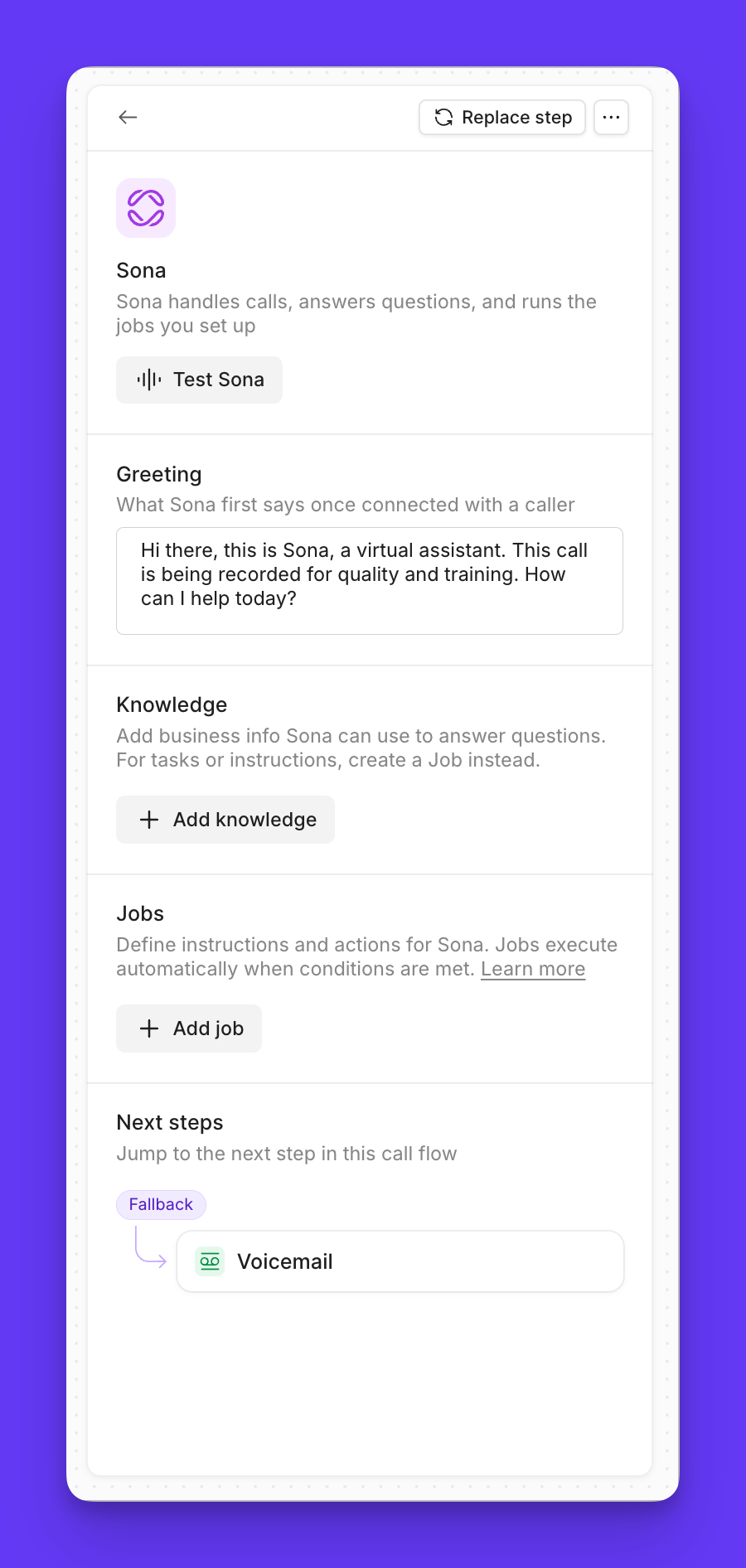
3. **Find Knowledge section** in Sona step settings
4. **Click "Add knowledge"** to create new page
5. **Type or paste content** from your documents
6. **Save knowledge page** for immediate availability
 ### Content import options
**Website ingestion:**
* Provide website URLs for content extraction
* Sona automatically processes web content
* Creates knowledge pages from existing web materials
**Document upload:**
* **Supported formats**: JSON, PDF, CSV, Markdown, plain text
* **File size limit**: 10MB per upload
* **Batch processing**: Upload multiple documents simultaneously
### Content import options
**Website ingestion:**
* Provide website URLs for content extraction
* Sona automatically processes web content
* Creates knowledge pages from existing web materials
**Document upload:**
* **Supported formats**: JSON, PDF, CSV, Markdown, plain text
* **File size limit**: 10MB per upload
* **Batch processing**: Upload multiple documents simultaneously
 #### Vocabulary (custom keywords)
Use **Vocabulary** to help Sona recognize words that are unique to your business so it transcribes them correctly and uses the right Knowledge.
**Where to find it**
* In the Sona step, open **Knowledge** and select **Vocabulary**.
**How it works**
* Type a word and press **Enter** to add it. Use commas to add multiple at once.
* Maximum **25 keywords** per workspace.
* Keywords are **shared across the entire workspace** and applied automatically on all calls.
* To remove a word, click the **x** on its chip.
**What to add**
* Brand and product names, acronyms, industry terms, and names with unusual spelling.
**Notes**
* Sona already uses your workspace company name, member names, and contact names as built-in hints. Vocabulary lets you add more domain terms that matter to your calls.
***
## Using existing knowledge
### Attaching knowledge to Sona steps
**Knowledge selection process:**
1. **Access Sona step settings** in call flow builder
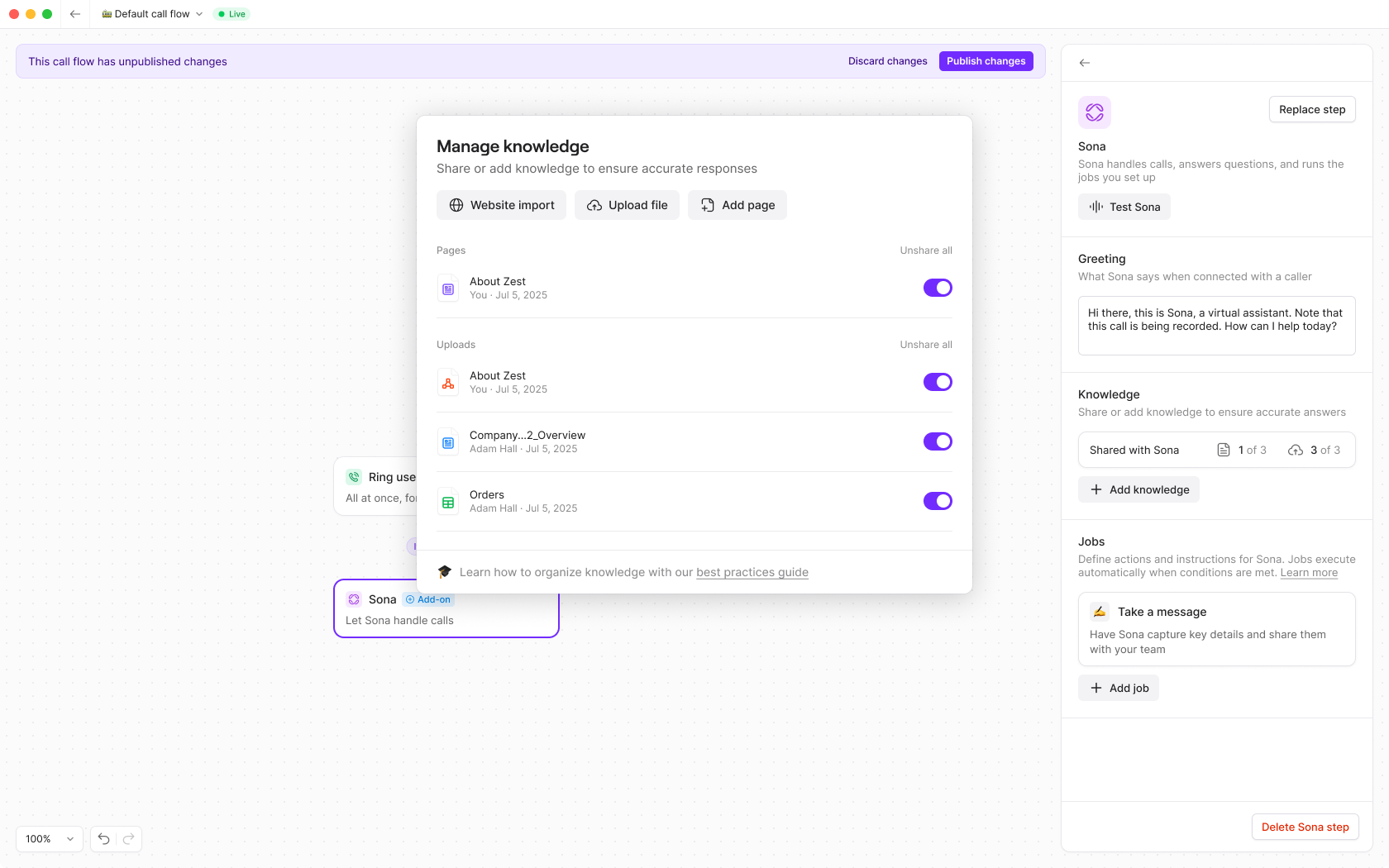
2. **Click "Add knowledge"** in Knowledge section
3. **View all available knowledge pages** in workspace
4. **Toggle on desired pages** for this Sona step
5. **Test configuration** before publishing
**Knowledge management:**
* **Immediate testing**: Test Sona responses with selected knowledge
* **Selective access**: Choose specific knowledge for each Sona step
* **Change tracking**: Modifications require call flow publishing
### Editing existing knowledge
**Knowledge page updates:**
* **Immediate effect**: Changes apply to all Sona steps using the page
* **Global impact**: All phone numbers using the knowledge see updates
* **Version control**: Updated content replaces previous versions
**Best practices for updates:**
* Test changes with mock calls before publishing
* Coordinate knowledge updates with team members
* Monitor call quality after knowledge changes
***
## Knowledge organization best practices
### Page structure strategies
**One topic per page:**
* Keep each knowledge page focused on single topic
* Helps Sona find relevant information quickly
* Avoids confusion from mixed topics
**Group related information:**
* Combine topics customers ask about together (shipping and returns)
* Provide complete context for related questions
* Maintain logical information relationships
**Clear page titles:**
* Use descriptive titles based on content ("Business Hours", "Return Policy")
* Include "How to" for process-oriented pages
* Avoid generic or vague titles
**Avoid content duplication:**
* Maintain single definitive version of information
* Reference rather than repeat content
* Prevents conflicting information issues
### Essential knowledge categories
**Business fundamentals:**
* **Company information**: Business name, description, contact details
* **Team information**: Staff names, roles, responsibilities
* **Business hours**: Operating times, holiday schedules
* **Location details**: Address, directions, parking information
**Products and services:**
* **Service descriptions**: Clear explanations of offerings
* **Pricing information**: Current rates, payment options
* **Product specifications**: Features, benefits, use cases
* **Availability**: Stock status, lead times, restrictions
**Customer policies:**
* **Return policies**: Timeframes, conditions, processes
* **Shipping information**: Methods, costs, timelines
* **Refund procedures**: Eligibility, processing times
* **Terms of service**: Important policies and agreements
**Support and guidance:**
* **How-to guides**: Step-by-step instructions
* **FAQ content**: Common questions and answers
* **Troubleshooting**: Problem resolution steps
* **Contact escalation**: When and how to reach humans
***
## Content formatting best practices
### Effective page structure
**Start with key information:**
* Begin pages with most important details
* Provide quick answers for straightforward questions
* Include summary information at the top
**Use clear headings:**
* Break content into descriptive sections
* Help Sona navigate directly to relevant information
* Create scannable content structure
**Format for AI consumption:**
* **Use bullet points** for facts, features, or lists
* **Use numbered lists** for sequential steps
* **Keep paragraphs short** (2-4 sentences maximum)
* **Structure as FAQ** when appropriate ("Q: How do I...?" "A: ...")
### Writing guidelines
**Clear, simple language:**
* Avoid technical jargon unless necessary
* Use complete, self-contained explanations
* Write at accessible reading level
* Test readability with tools like Hemingway Editor
**Complete information:**
* Include all necessary context in explanations
* Write "Premium Package available in blue and green" not "Available in two colors"
* Provide specific details rather than vague references
**Avoid problematic content:**
* **No URLs or clickable links** - describe locations in plain text
* **No complex conditional logic** - keep instructions simple
* **No action instructions** - Sona cannot transfer calls or send texts
### Example knowledge page structure
**Sample format:**
```
# Business Name - Return Policy
Our return policy ensures customer satisfaction while maintaining fair business practices.
## Return Windows:
- Standard products: 30 days from delivery
- Custom solutions: 14 days from delivery
- Digital products: 7 days if unused
## How to Return Items:
1. Log into your account
2. Navigate to Order History
3. Select the order to return
4. Click Request Return
5. Receive authorization and shipping label
## Refund Information:
- Full refund for items in original condition
- 15% restocking fee for opened software
- Shipping costs non-refundable
- Processing time: 5-7 business days
## Frequently Asked Questions:
Q: Can I exchange instead of returning?
A: Yes, request exchange during return process. Same timeframes apply.
Q: What if item arrived damaged?
A: Contact support within 48 hours with order number and photos.
```
***
## Advanced knowledge strategies
### Iterative improvement
**Using call analytics:**
* **Review call summaries** to identify unanswered questions
* **Monitor call tags** for recurring customer issues
* **Track conversation patterns** for knowledge gaps
* **Update knowledge based** on real customer interactions
**Performance optimization:**
* **Test knowledge effectiveness** with mock calls
* **Refine content based** on Sona response quality
* **Add new knowledge pages** for emerging topics
* **Remove outdated information** regularly
### Message collection enhancement
**Custom information gathering:** Configure Sona to collect specific details in the "Take a message" job:
**Industry examples:**
* **Landscaping**: Property size, service needed, urgency level
* **Bakery**: Party size, dietary restrictions, event details
* **Auto repair**: Vehicle details, symptoms, service history
**Follow-up question logic:** Train Sona to ask relevant follow-ups based on customer inquiries:
> "If caller asks about services, answer and then ask 'What specific services interest you most?'"
Regular knowledge base maintenance and optimization significantly improve Sona's performance and customer satisfaction.
***
## Troubleshooting knowledge issues
Check that knowledge pages are properly attached to your Sona step and that the call flow has been published. Verify content formatting follows best practices.
Ensure content is under 20,000 character limit and doesn't contain problematic formatting. Try saving smaller sections separately if needed.
Review knowledge pages for duplicate or contradictory content. Maintain single authoritative source for each piece of information.
Verify you have proper permissions and that knowledge pages exist in your workspace. Ensure you're editing the correct Sona step in call flow builder.
Knowledge page edits apply immediately, but attachment changes require call flow publishing. Ensure call flow is published after modifying knowledge attachments.
#### Vocabulary (custom keywords)
Use **Vocabulary** to help Sona recognize words that are unique to your business so it transcribes them correctly and uses the right Knowledge.
**Where to find it**
* In the Sona step, open **Knowledge** and select **Vocabulary**.
**How it works**
* Type a word and press **Enter** to add it. Use commas to add multiple at once.
* Maximum **25 keywords** per workspace.
* Keywords are **shared across the entire workspace** and applied automatically on all calls.
* To remove a word, click the **x** on its chip.
**What to add**
* Brand and product names, acronyms, industry terms, and names with unusual spelling.
**Notes**
* Sona already uses your workspace company name, member names, and contact names as built-in hints. Vocabulary lets you add more domain terms that matter to your calls.
***
## Using existing knowledge
### Attaching knowledge to Sona steps
**Knowledge selection process:**
1. **Access Sona step settings** in call flow builder
2. **Click "Add knowledge"** in Knowledge section
3. **View all available knowledge pages** in workspace
4. **Toggle on desired pages** for this Sona step
5. **Test configuration** before publishing
**Knowledge management:**
* **Immediate testing**: Test Sona responses with selected knowledge
* **Selective access**: Choose specific knowledge for each Sona step
* **Change tracking**: Modifications require call flow publishing
### Editing existing knowledge
**Knowledge page updates:**
* **Immediate effect**: Changes apply to all Sona steps using the page
* **Global impact**: All phone numbers using the knowledge see updates
* **Version control**: Updated content replaces previous versions
**Best practices for updates:**
* Test changes with mock calls before publishing
* Coordinate knowledge updates with team members
* Monitor call quality after knowledge changes
***
## Knowledge organization best practices
### Page structure strategies
**One topic per page:**
* Keep each knowledge page focused on single topic
* Helps Sona find relevant information quickly
* Avoids confusion from mixed topics
**Group related information:**
* Combine topics customers ask about together (shipping and returns)
* Provide complete context for related questions
* Maintain logical information relationships
**Clear page titles:**
* Use descriptive titles based on content ("Business Hours", "Return Policy")
* Include "How to" for process-oriented pages
* Avoid generic or vague titles
**Avoid content duplication:**
* Maintain single definitive version of information
* Reference rather than repeat content
* Prevents conflicting information issues
### Essential knowledge categories
**Business fundamentals:**
* **Company information**: Business name, description, contact details
* **Team information**: Staff names, roles, responsibilities
* **Business hours**: Operating times, holiday schedules
* **Location details**: Address, directions, parking information
**Products and services:**
* **Service descriptions**: Clear explanations of offerings
* **Pricing information**: Current rates, payment options
* **Product specifications**: Features, benefits, use cases
* **Availability**: Stock status, lead times, restrictions
**Customer policies:**
* **Return policies**: Timeframes, conditions, processes
* **Shipping information**: Methods, costs, timelines
* **Refund procedures**: Eligibility, processing times
* **Terms of service**: Important policies and agreements
**Support and guidance:**
* **How-to guides**: Step-by-step instructions
* **FAQ content**: Common questions and answers
* **Troubleshooting**: Problem resolution steps
* **Contact escalation**: When and how to reach humans
***
## Content formatting best practices
### Effective page structure
**Start with key information:**
* Begin pages with most important details
* Provide quick answers for straightforward questions
* Include summary information at the top
**Use clear headings:**
* Break content into descriptive sections
* Help Sona navigate directly to relevant information
* Create scannable content structure
**Format for AI consumption:**
* **Use bullet points** for facts, features, or lists
* **Use numbered lists** for sequential steps
* **Keep paragraphs short** (2-4 sentences maximum)
* **Structure as FAQ** when appropriate ("Q: How do I...?" "A: ...")
### Writing guidelines
**Clear, simple language:**
* Avoid technical jargon unless necessary
* Use complete, self-contained explanations
* Write at accessible reading level
* Test readability with tools like Hemingway Editor
**Complete information:**
* Include all necessary context in explanations
* Write "Premium Package available in blue and green" not "Available in two colors"
* Provide specific details rather than vague references
**Avoid problematic content:**
* **No URLs or clickable links** - describe locations in plain text
* **No complex conditional logic** - keep instructions simple
* **No action instructions** - Sona cannot transfer calls or send texts
### Example knowledge page structure
**Sample format:**
```
# Business Name - Return Policy
Our return policy ensures customer satisfaction while maintaining fair business practices.
## Return Windows:
- Standard products: 30 days from delivery
- Custom solutions: 14 days from delivery
- Digital products: 7 days if unused
## How to Return Items:
1. Log into your account
2. Navigate to Order History
3. Select the order to return
4. Click Request Return
5. Receive authorization and shipping label
## Refund Information:
- Full refund for items in original condition
- 15% restocking fee for opened software
- Shipping costs non-refundable
- Processing time: 5-7 business days
## Frequently Asked Questions:
Q: Can I exchange instead of returning?
A: Yes, request exchange during return process. Same timeframes apply.
Q: What if item arrived damaged?
A: Contact support within 48 hours with order number and photos.
```
***
## Advanced knowledge strategies
### Iterative improvement
**Using call analytics:**
* **Review call summaries** to identify unanswered questions
* **Monitor call tags** for recurring customer issues
* **Track conversation patterns** for knowledge gaps
* **Update knowledge based** on real customer interactions
**Performance optimization:**
* **Test knowledge effectiveness** with mock calls
* **Refine content based** on Sona response quality
* **Add new knowledge pages** for emerging topics
* **Remove outdated information** regularly
### Message collection enhancement
**Custom information gathering:** Configure Sona to collect specific details in the "Take a message" job:
**Industry examples:**
* **Landscaping**: Property size, service needed, urgency level
* **Bakery**: Party size, dietary restrictions, event details
* **Auto repair**: Vehicle details, symptoms, service history
**Follow-up question logic:** Train Sona to ask relevant follow-ups based on customer inquiries:
> "If caller asks about services, answer and then ask 'What specific services interest you most?'"
Regular knowledge base maintenance and optimization significantly improve Sona's performance and customer satisfaction.
***
## Troubleshooting knowledge issues
Check that knowledge pages are properly attached to your Sona step and that the call flow has been published. Verify content formatting follows best practices.
Ensure content is under 20,000 character limit and doesn't contain problematic formatting. Try saving smaller sections separately if needed.
Review knowledge pages for duplicate or contradictory content. Maintain single authoritative source for each piece of information.
Verify you have proper permissions and that knowledge pages exist in your workspace. Ensure you're editing the correct Sona step in call flow builder.
Knowledge page edits apply immediately, but attachment changes require call flow publishing. Ensure call flow is published after modifying knowledge attachments.