> ## Documentation Index
> Fetch the complete documentation index at: https://support.quo.com/llms.txt
> Use this file to discover all available pages before exploring further.
# Auto-replies
> Set up automatic text message responses for missed calls and after-hours communication
## Overview
Auto-replies automatically send text messages to keep customers informed when you can't respond immediately. Whether responding to missed calls during business hours or setting expectations for after-hours contact, auto-replies help maintain professional communication and customer satisfaction.
Auto-reply setup is currently available on web and desktop apps only. Mobile app configuration is not yet supported.
## Setting up auto-replies
### Accessing auto-reply settings
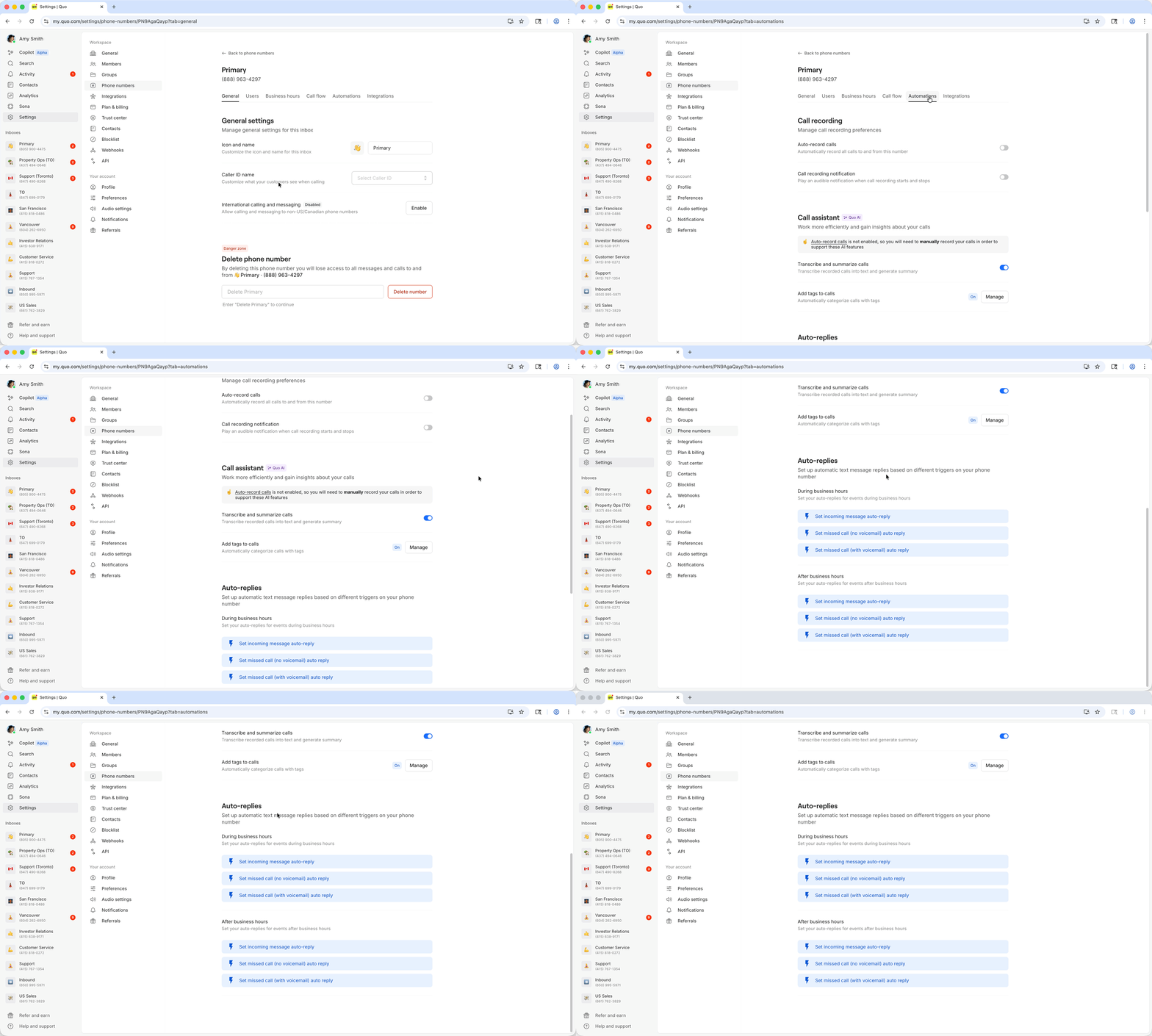
1. Click **Settings** in the left-hand menu
2. Select **Phone Numbers** under Workspace settings
3. **Choose the specific phone number** you want to configure
4. Click the **Automations** tab
5. Scroll to **Auto-Replies**
 ### Configuring auto-reply triggers
**During business hours auto-replies:**
* **Missed calls**: Respond when calls go unanswered
* **New voicemails**: Send messages when voicemail is left
* **Incoming text messages**: Acknowledge receipt of customer messages
**Outside business hours auto-replies:**
* **After-hours missed calls**: Inform callers of business hours
* **After-hours voicemails**: Set expectations for response times
* **After-hours text messages**: Provide alternative contact methods
### Platform availability
**Setup platforms:**
* **Web app**: Full auto-reply configuration and management
* **Desktop app**: Complete setup and editing capabilities
**Limitation:**
* **Mobile apps (iOS/Android)**: Auto-reply settings not available - use web or desktop for configuration
## Managing auto-replies
### Editing active auto-replies
**Modifying messages:**
1. Navigate to **Settings** → **Phone Numbers**
2. **Select the phone number** with active auto-replies
3. **Click the auto-reply** you want to edit
4. **Update the message content** and save changes
**Visual indicators:**
* **Green status**: Indicates active auto-replies
* **Message preview**: Shows current auto-reply content
* **Trigger conditions**: Displays when auto-replies activate
### Disabling auto-replies
1. **Go to Settings** → **Phone Numbers**
2. **Select the number** with auto-replies to disable
3. **Click the active auto-reply** (shown in green)
4. **Click "Delete"** to deactivate immediately
### Configuring auto-reply triggers
**During business hours auto-replies:**
* **Missed calls**: Respond when calls go unanswered
* **New voicemails**: Send messages when voicemail is left
* **Incoming text messages**: Acknowledge receipt of customer messages
**Outside business hours auto-replies:**
* **After-hours missed calls**: Inform callers of business hours
* **After-hours voicemails**: Set expectations for response times
* **After-hours text messages**: Provide alternative contact methods
### Platform availability
**Setup platforms:**
* **Web app**: Full auto-reply configuration and management
* **Desktop app**: Complete setup and editing capabilities
**Limitation:**
* **Mobile apps (iOS/Android)**: Auto-reply settings not available - use web or desktop for configuration
## Managing auto-replies
### Editing active auto-replies
**Modifying messages:**
1. Navigate to **Settings** → **Phone Numbers**
2. **Select the phone number** with active auto-replies
3. **Click the auto-reply** you want to edit
4. **Update the message content** and save changes
**Visual indicators:**
* **Green status**: Indicates active auto-replies
* **Message preview**: Shows current auto-reply content
* **Trigger conditions**: Displays when auto-replies activate
### Disabling auto-replies
1. **Go to Settings** → **Phone Numbers**
2. **Select the number** with auto-replies to disable
3. **Click the active auto-reply** (shown in green)
4. **Click "Delete"** to deactivate immediately
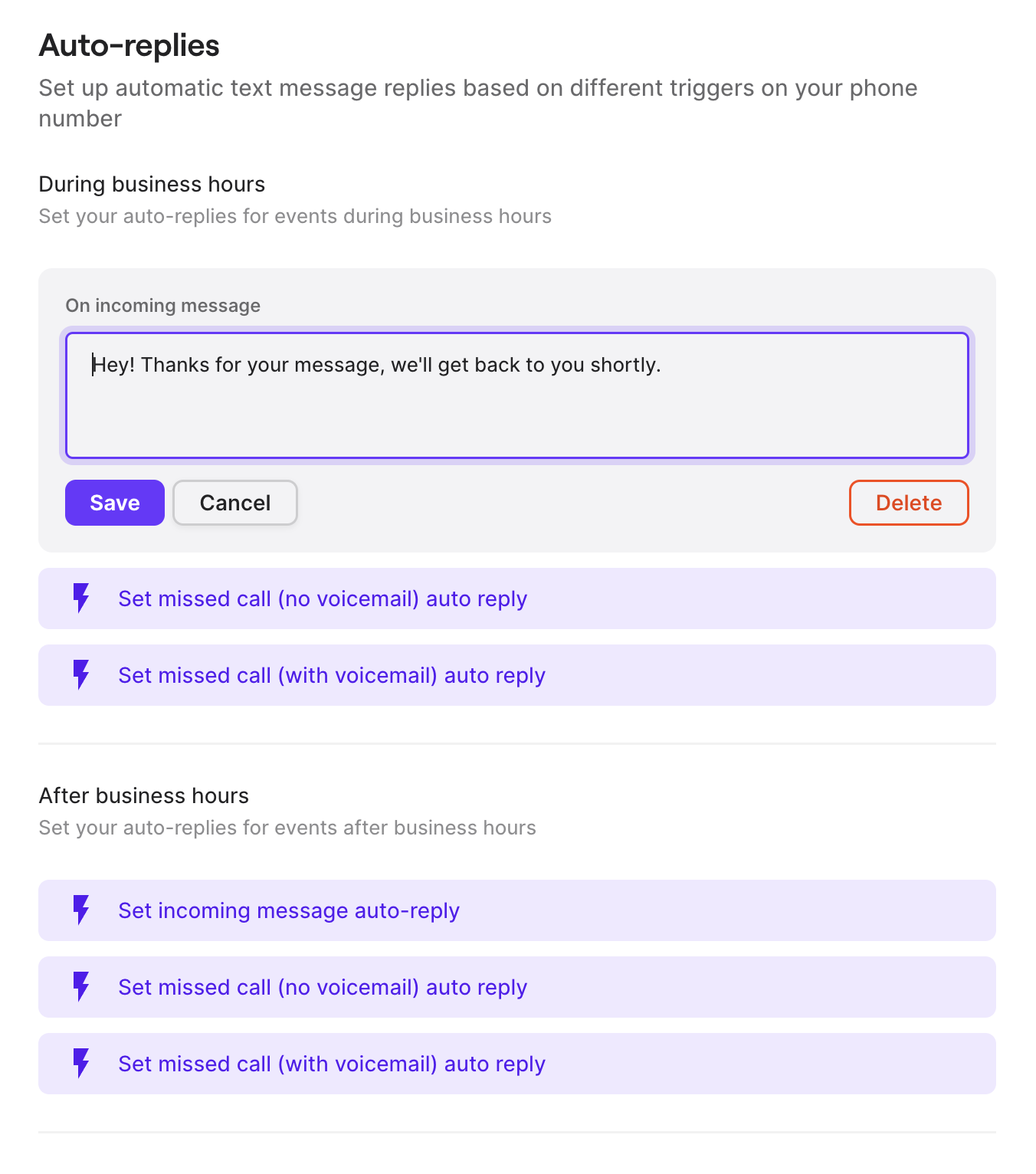 Deleting an auto-reply stops it immediately. You'll need to recreate it if you want to re-enable automatic responses.
## Auto-reply behavior and safeguards
### Smart frequency management
**3-hour cooldown period:**
* Auto-replies are sent only once every 3 hours per contact
* Multiple missed calls within 3 hours trigger only one auto-reply
* Prevents customer annoyance from repeated automated messages
**Conversation context awareness:**
* No auto-reply sent if you recently called or messaged the contact
* Avoids automated responses during active conversations
* Maintains natural communication flow
For inspiration and examples, check out our guide covering 20 auto-reply message examples for different business scenarios.
## FAQs
Verify that auto-replies are enabled for your phone number and that the trigger conditions match the customer's contact method (call, voicemail, or text).
Check that the 3-hour cooldown period is working correctly. If customers receive multiple messages in a short period, contact support for assistance.
Auto-reply configuration is only available on web and desktop applications. Use these platforms to set up and manage your automatic responses.
Keep auto-reply messages concise and focused. Long messages may be truncated or fail to send properly. Aim for clear, essential information only.
Ensure your business hours are correctly configured in your phone number settings. Auto-replies for "after hours" depend on accurate business hour settings.
Deleting an auto-reply stops it immediately. You'll need to recreate it if you want to re-enable automatic responses.
## Auto-reply behavior and safeguards
### Smart frequency management
**3-hour cooldown period:**
* Auto-replies are sent only once every 3 hours per contact
* Multiple missed calls within 3 hours trigger only one auto-reply
* Prevents customer annoyance from repeated automated messages
**Conversation context awareness:**
* No auto-reply sent if you recently called or messaged the contact
* Avoids automated responses during active conversations
* Maintains natural communication flow
For inspiration and examples, check out our guide covering 20 auto-reply message examples for different business scenarios.
## FAQs
Verify that auto-replies are enabled for your phone number and that the trigger conditions match the customer's contact method (call, voicemail, or text).
Check that the 3-hour cooldown period is working correctly. If customers receive multiple messages in a short period, contact support for assistance.
Auto-reply configuration is only available on web and desktop applications. Use these platforms to set up and manage your automatic responses.
Keep auto-reply messages concise and focused. Long messages may be truncated or fail to send properly. Aim for clear, essential information only.
Ensure your business hours are correctly configured in your phone number settings. Auto-replies for "after hours" depend on accurate business hour settings.